
Why Your Laptop Battery Says 100% but Dies Suddenly: Causes, Health Tests, and Fixes
Laptop battery shows 100% but turns off when unplugged? Diagnose battery wear, power issues, Windows battery reports, Mac health checks, and safe fixes.
Contents
- What 100% battery actually means
- Quick symptom-to-cause guide
- Step 1: protect your work and check physical safety
- Step 2: rule out a charger or charging-port problem
- Step 3: generate a Windows battery report
- How to interpret battery capacity numbers
- Step 4: run manufacturer diagnostics
- Step 5: check battery health on a MacBook
- Step 6: distinguish a charge-estimate problem from actual failure
- Step 7: test light-load versus heavy-load behavior
- Step 8: check Windows sleep, updates, and firmware
- Step 9: know when replacement is the sensible fix
- When it might be the motherboard instead
- Common troubleshooting mistakes
- A practical 15-minute diagnostic plan
- How to extend the life of a healthy replacement battery
- Bottom line
- Official sources and further reading
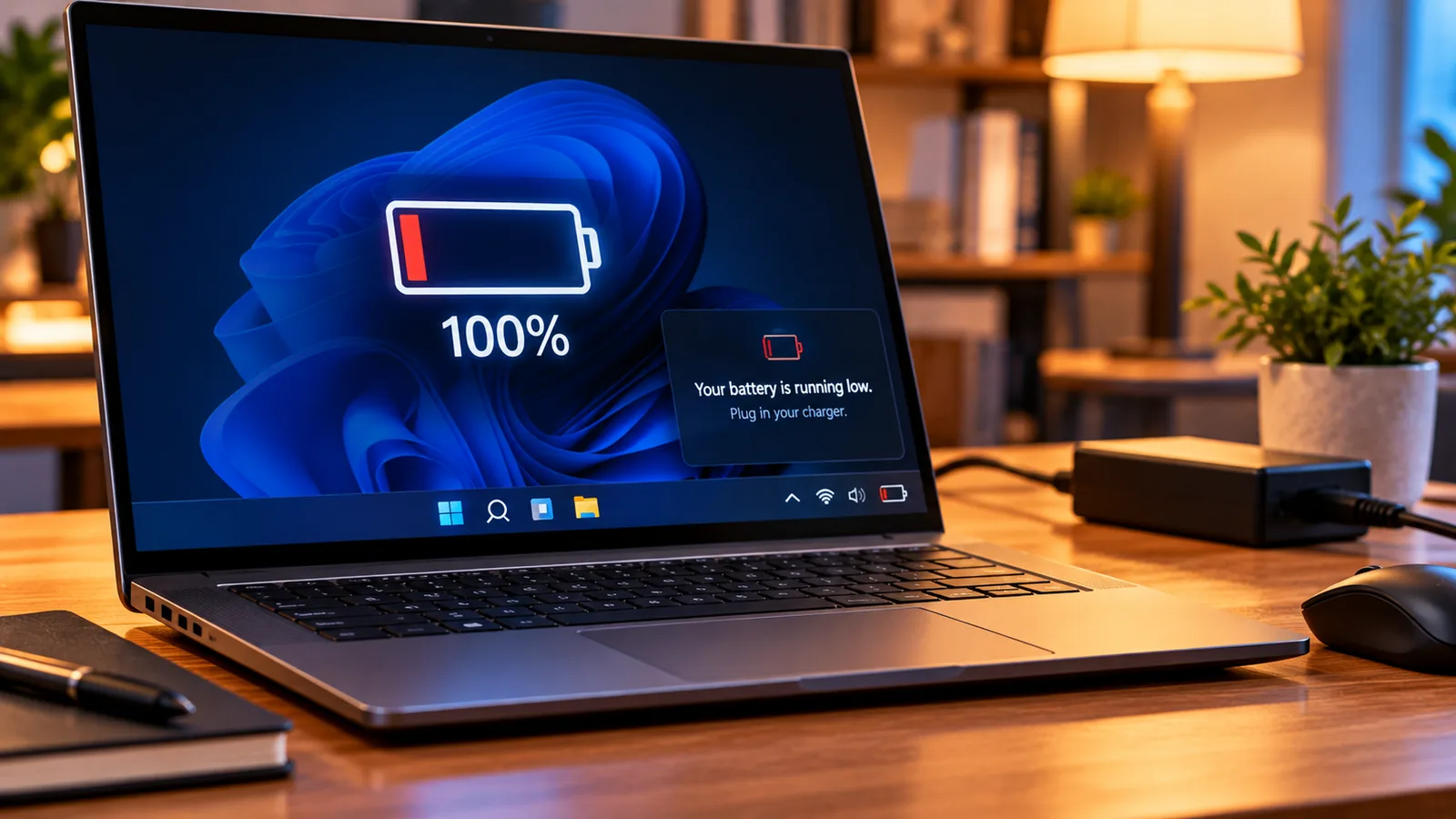
A laptop can report 100% charge and still shut off seconds after the charger is removed. The number on screen is an estimate of charge relative to what the battery-management system believes is available; it does not prove the battery can deliver the power the computer needs. This guide helps you distinguish worn cells, inaccurate charge reporting, power-management problems, overheating, and hardware faults without putting your data or safety at risk.
Start with safety: if the battery is swollen, unusually hot, leaking, hissing, or giving off an odor, stop charging and using the laptop. Do not puncture, compress, or attempt to recalibrate it. Arrange professional service.
What 100% battery actually means
The battery indicator estimates state of charge, not necessarily state of health. A heavily aged pack may be fully charged relative to its diminished capacity yet run for only a few minutes. Under load, weak cells can also experience a voltage drop that triggers the protection circuit, causing an abrupt shutdown while the display still says 100%.
Battery estimates combine information such as voltage, current, temperature, and learned capacity. Their accuracy can drift. Software or firmware may show an outdated percentage after sleep or a recent update. These are plausible explanations, not a diagnosis until you collect evidence.
Quick symptom-to-cause guide
| Symptom | Likely possibilities | First check |
|---|---|---|
| Instant shutdown when unplugged | Failed battery pack, disconnected pack, power-path issue | Battery health report and built-in diagnostics |
| Drops from 100% to 10% quickly | Severely reduced capacity, reporting error | Compare design vs full-charge capacity |
| Shuts down only during games | Voltage sag, heat, high load | Monitor temperature and test at light load |
| Runs normally on AC, battery not detected | Battery connection or electronics fault | OEM battery diagnostics |
| Percentage freezes then suddenly changes | Fuel-gauge estimate or firmware problem | Update OEM firmware and observe trends |
Step 1: protect your work and check physical safety
- Save open documents and back up important files while the laptop is connected to a reliable charger.
- Inspect the keyboard deck, trackpad, bottom case, and seams for bulging or separation; swelling can be subtle.
- Notice whether the chassis or charger becomes abnormally hot or gives off a smell.
- If there is any sign of battery swelling or damage, power off, disconnect from AC when safe, and contact a qualified repair service.
- Do not remove an internal lithium-ion battery yourself unless you are trained and following the exact manufacturer service procedure.
Step 2: rule out a charger or charging-port problem
A failing adapter or loose USB-C connection can prevent the pack from charging properly. Confirm that the charger meets the laptop manufacturer’s power requirements and that its cable and connector are undamaged. On USB-C laptops, not every USB-C power source can provide enough wattage. Avoid unapproved or visibly damaged adapters.
- Check whether the laptop shows “plugged in” or charging, and whether the charging light behaves normally.
- If the manufacturer supports it, try a known-good compatible original-spec charger and another supported charging port.
- Inspect ports visually for debris; do not insert metal objects or liquids.
- If the computer only works while plugged in, do not assume the adapter is the problem: the battery itself or power circuitry may be at fault.
Step 3: generate a Windows battery report
On Windows 10 or Windows 11, Microsoft documents the powercfg /batteryreport command. The report can show design capacity, full charge capacity, recent usage, and capacity history when supported by the device. It is one of the most useful first checks.
- Connect AC power and save your work.
- Open Windows Terminal or Command Prompt.
- Run the following command and note the location of the generated HTML report.
- Open the HTML file in your browser and find “Installed batteries,” “Design Capacity,” and “Full Charge Capacity.”
- Compare the current full-charge capacity with the original design capacity, and look at capacity history for a downward trend.
powercfg /batteryreportFor example, if design capacity is 60,000 mWh and full-charge capacity is 24,000 mWh, the reported capacity ratio is 40%. That means the battery stores substantially less energy than when new; it does not automatically prove the battery caused every shutdown. Some laptops do not expose complete battery telemetry.
How to interpret battery capacity numbers
| Reported capacity ratio | Interpretation | What to do |
|---|---|---|
| Around 80–100% | Capacity loss may be modest, but abrupt failures remain possible | Investigate load, diagnostics, and firmware |
| Around 60–80% | Noticeable wear is plausible | Compare runtime with workload and OEM guidance |
| Below roughly 60% | Substantial loss of usable capacity | Plan replacement evaluation |
| Missing or nonsensical values | Telemetry or hardware reporting may be faulty | Use manufacturer diagnostics |
Step 4: run manufacturer diagnostics
Built-in diagnostics are preferable to guessing from one percentage. Many Dell, HP, Lenovo, ASUS, and other models offer a battery-health page in firmware, a pre-boot diagnostic test, or a manufacturer support utility. Exact menus and key combinations vary by model. Check the support page for your exact laptop serial or model number rather than relying on generic shortcuts.
- Record the model name and BIOS/UEFI version.
- Open the manufacturer’s support or diagnostic application, or follow its official instructions for pre-boot testing.
- Look for results such as battery health, charge capacity, calibration status, and hardware failure codes.
- Save or photograph the diagnostic result for a repair technician.
- If the OEM test reports battery failure, replacement with a compatible genuine or approved battery is generally safer than attempting repeated software resets.
Step 5: check battery health on a MacBook
Apple provides battery health information in macOS. Depending on macOS version, go to System Settings → Battery → Battery Health (or the corresponding Battery settings screen). A “Service Recommended” status indicates the battery may not be performing normally or its capacity has declined. On supported MacBooks, Apple also provides cycle-count information in System Information.
Use Apple Diagnostics when directed by Apple’s support instructions for your specific Mac. A normal diagnostic result does not guarantee that an intermittent battery fault is absent. Do not open the MacBook or attempt battery-cell repair as a home troubleshooting step.
Step 6: distinguish a charge-estimate problem from actual failure
A battery may display a misleading percentage because the fuel-gauge estimate is inaccurate. But calibration cannot restore chemically lost capacity, and repeated deep discharge can add wear. Do not follow internet instructions that tell you to drain the laptop to 0% repeatedly. Modern lithium-ion batteries generally do not need routine full discharge cycles.
If the manufacturer explicitly offers a battery gauge reset or calibration utility for your exact model, follow its documented procedure once under safe conditions. If the machine is unstable, overheats, or has a swollen battery, skip calibration and seek service. If the shutdown persists, treat it as a possible hardware fault.
Step 7: test light-load versus heavy-load behavior
A battery with weak cells may run at idle but collapse when the CPU or GPU demands a burst of power. Test only if the device is physically safe and you have backed up your work. Note whether the laptop shuts down during light web browsing, video calls, gaming, or when waking from sleep. Avoid intentionally stressing an already overheating or unstable system.
- With the battery charged, disconnect AC and observe whether the computer remains on at idle.
- Try a low-intensity task for a few minutes; note any abrupt percentage drop.
- If it is stable at idle but fails under normal heavier use, record the pattern.
- Reconnect AC and check for unusually high temperatures or fan behavior.
- If failures are reproducible, share the results with a repair technician; do not repeatedly force shutdowns.
Step 8: check Windows sleep, updates, and firmware
Not every sudden black screen is a battery failure. A laptop that resumes to a black display or unexpectedly restarts may have a graphics driver, sleep-state, or firmware issue. Look at Windows Update history and Reliability Monitor for the timing of errors. A Windows event indicating an unexpected shutdown describes the symptom but does not by itself identify the battery as the cause.
Install firmware, BIOS/UEFI, chipset, and power-management updates only from the laptop manufacturer, with stable external power and according to the vendor’s instructions. Firmware updates can be risky if power is unstable. If the battery cannot hold the computer on and the manufacturer requires a healthy battery for BIOS updates, postpone the update and seek service.
Step 9: know when replacement is the sensible fix
Replacement is worth considering when the full-charge capacity is far below design capacity, the OEM diagnostic reports failure, the machine instantly powers off on battery despite correct charging, or the battery is old and has severely shortened runtime. A replacement should match the exact model and safety requirements; low-quality or counterfeit packs can pose fire risks.
| Finding | Most sensible next action |
|---|---|
| Swelling, leaking, unusual heat | Stop using; arrange professional service |
| OEM battery diagnostic failed | Request compatible battery replacement |
| Low capacity with very short runtime | Compare replacement cost and device value |
| Healthy capacity but instant shutdown | Inspect battery electronics and motherboard power path |
| Problem started after firmware update | Check official vendor advisories and diagnostics |
When it might be the motherboard instead
If a known-good compatible battery and charger do not resolve the issue, or the computer cannot recognize any battery, the fault may involve a battery connector, charge controller, power-management IC, or motherboard. These problems cannot be reliably diagnosed by the charge percentage alone. Board-level electrical testing belongs with qualified technicians.
Common troubleshooting mistakes
- Trusting 100% as proof of health: charge percentage is not a capacity or power-delivery test.
- Running repeated full discharges: this does not rebuild worn lithium-ion cells.
- Installing random “battery repair” apps: software cannot fix damaged cell chemistry.
- Updating BIOS on unstable power: follow manufacturer prerequisites and safety instructions.
- Using the wrong charger: insufficient power can confuse troubleshooting.
- Ignoring a swollen battery: stop use and arrange service.
A practical 15-minute diagnostic plan
- Back up your files while on AC power and check for swelling or heat.
- Confirm the charger is appropriate and connections are secure.
- On Windows, run
powercfg /batteryreport; on Mac, inspect Battery Health. - Write down design capacity, full-charge capacity, and any health warning.
- Run the manufacturer’s built-in battery diagnostic if available.
- Compare symptoms on AC and battery without deliberately stressing the machine.
- If the laptop shuts down immediately, has a failed battery test, or shows physical damage, arrange professional repair.
How to extend the life of a healthy replacement battery
Avoid sustained extreme heat, keep ventilation clear, use a suitable charger, and enable manufacturer-supported battery charge limits if the laptop spends most of its time plugged in. Apple and several PC makers offer battery-health or optimized-charging features on supported models. Do not store a lithium-ion battery fully depleted for long periods; follow the device maker’s storage guidance.
Bottom line
A laptop that says 100% but dies suddenly is not necessarily fully healthy or even truly fully charged. Start with safety and backups, inspect capacity and OEM diagnostic results, and distinguish battery wear from reporting errors or power-circuit faults. If the pack is damaged, the laptop shuts down immediately, or official diagnostics show failure, professional replacement or repair is more appropriate than repeated recalibration.
Official sources and further reading
- Microsoft: Caring for your battery in Windows
- Microsoft Learn: powercfg command-line options
- Apple: Check the condition of your Mac laptop battery
- Apple: Determine battery cycle count for Mac laptops
- Dell Support: model-specific diagnostics and battery information
- HP Support: battery tests and diagnostics by model
You may also like

Why Does the Moon Look Enormous Near the Horizon? The Science of the Moon Illusion
Why does the rising Moon look huge? Discover the Moon illusion, scientific explanations, easy experiments, and the difference…

How to Remove Personal Data From Data Broker Websites: Free Opt-Outs and California DROP
Learn how to remove personal information from people-search and data broker sites for free, use California DROP, request…

How to Recover Photos From a Corrupted SD Card Without Making Things Worse
Recover photos from a corrupted SD or microSD card safely. Follow practical Windows, Mac, and PhotoRec steps without…