
USB-C Laptop Not Charging? 13 Safe Fixes for Windows and Mac
USB-C laptop plugged in but not charging? Diagnose charger wattage, USB Power Delivery, cables, ports, docks and battery limits with safe step-by-step fixes.
Contents
- Quick diagnosis: start here
- Why a USB-C laptop can refuse to charge
- 1. Confirm the port supports USB-C charging
- 2. Check charger wattage and USB Power Delivery support
- 3. Replace the cable with a known-good, correctly rated cable
- 4. Remove docks, hubs and monitors from the charging path
- 5. Check the wall socket and the charging indicator
- 6. Restart the laptop and perform a safe power reset
- 7. Check Windows battery status and power settings
- 8. Update firmware and manufacturer drivers carefully
- 9. If the battery percentage is stuck or says “plugged in, not charging”
- 10. If the laptop charges only while switched off
- 11. If the connector works only at a particular angle
- 12. MacBook USB-C charging checks
- 13. Understand USB-C charging with monitors and power banks
- Symptom-to-cause troubleshooting table
- When to stop troubleshooting and seek repair
- How to avoid the problem in the future
- Official support and further reading
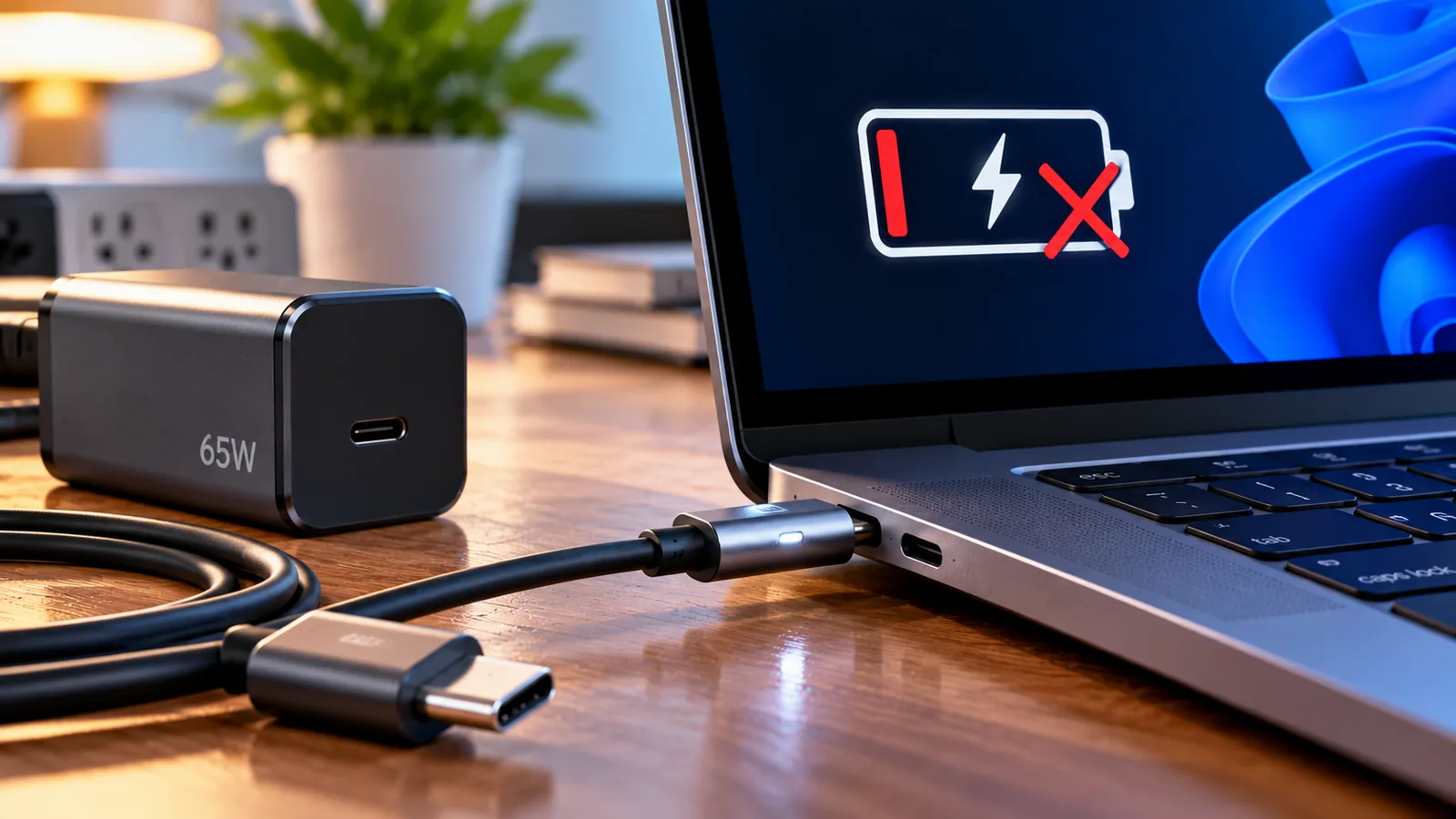
A USB-C plug fitting into a laptop does not guarantee that the port can accept charging power. The problem may be a low-wattage adapter, a charge-only or damaged cable, an unsupported port, a docking station, a battery protection setting, or a hardware fault. This guide helps you identify the cause without risking your laptop or your data.
Quick diagnosis: start here
- Check whether your laptop model supports charging through the exact USB-C port you are using. Look for the manufacturer specifications, not just a lightning-shaped symbol.
- Plug the charger directly into a wall outlet and directly into the laptop, bypassing hubs, docks, monitors and extensions.
- Try the manufacturer-supplied adapter and cable, if available. Confirm that the adapter supports USB Power Delivery (USB PD) and adequate wattage.
- If the laptop has several USB-C ports, test only ports the manufacturer identifies as charging inputs.
- Inspect for heat, damage, liquid exposure or a loose connector. Stop using a damaged or unusually hot adapter.
Why a USB-C laptop can refuse to charge
USB-C describes the connector shape, not a universal promise of power delivery. Some USB-C ports transfer data only, others provide video output, and others accept USB Power Delivery. A laptop might also support charging at one port but not another. USB PD negotiates voltage and current between a compatible charger, cable and device. When the negotiation fails, charging may not start or the laptop may display a slow-charger warning.
1. Confirm the port supports USB-C charging
Find your laptop’s exact model or service tag in Settings > System > About on Windows, or on the manufacturer label. Search the official specifications or user manual for “USB-C charging,” “USB Power Delivery input,” or “power adapter.” A Thunderbolt or USB4 logo alone does not prove that a specific laptop accepts charging through that port. Some gaming and workstation laptops need a dedicated barrel connector or proprietary adapter for full-power operation.
2. Check charger wattage and USB Power Delivery support
Compare the power requirement on your original charger or manufacturer specification with the USB-C charger’s supported output profiles. For example, a laptop designed for a 65 W USB-C adapter may charge very slowly or not at all with a 20 W phone charger. A 100 W-capable charger does not force 100 W into a laptop; compatible devices negotiate an appropriate power level. Do not assume that a charger’s advertised total wattage is available from one port when multiple devices are connected.
Read the charger’s output label. A genuine USB PD adapter may list profiles such as 5 V, 9 V, 15 V and 20 V. Voltage and current requirements vary by device. Use a reputable adapter that meets the manufacturer’s specifications; do not improvise electrical adapters or bypass safety circuitry.
3. Replace the cable with a known-good, correctly rated cable
A cable can transfer data yet fail to deliver the power your laptop needs. Test a USB-C cable rated for the required power, preferably the cable supplied with the laptop or charger. Higher-power USB PD configurations may require a suitably rated, electronically marked cable. Replace cables with fraying, bent connectors, exposed wiring, scorching or intermittent connections. Do not clean the port with metal objects.
4. Remove docks, hubs and monitors from the charging path
Some docks consume part of the incoming power budget or offer lower laptop power output than their own adapter rating. A monitor’s USB-C upstream connection may provide video and data while supplying insufficient charging power. Connect the laptop directly to its charger. If direct charging works, inspect the dock or monitor’s USB PD output rating, cable, firmware and supported laptop models.
5. Check the wall socket and the charging indicator
Test a different wall outlet and confirm the charger is firmly connected at both ends. If your charger has a detachable AC lead, check that it is seated correctly. Note whether the laptop’s charging LED changes, whether the battery icon shows “plugged in,” and whether charging begins when the laptop is powered off. These observations help distinguish a power-source issue from an operating-system reporting issue.
6. Restart the laptop and perform a safe power reset
Save your work, shut down normally, disconnect accessories and the charger, wait about 30 seconds, then reconnect power and start the laptop. Some manufacturers provide model-specific embedded-controller or power-reset procedures. Follow the official manual rather than holding random key combinations or opening a sealed battery compartment. A power reset can clear temporary controller errors but will not repair damaged charging hardware.
7. Check Windows battery status and power settings
On Windows 11, open Settings > System > Power & battery and inspect the battery level and any charging notices. Some laptops deliberately pause charging at 60–80% to preserve battery health. Check manufacturer utilities such as Lenovo Vantage, Dell Power Manager/MyDell, HP battery settings or ASUS MyASUS for charge thresholds; availability and names differ by model. If the battery is at the configured limit, this may be expected behavior rather than a fault.
8. Update firmware and manufacturer drivers carefully
Visit your laptop maker’s support page for the exact model. Review BIOS/UEFI, chipset, USB-C/Thunderbolt and power-management updates where offered. Follow the vendor instructions, keep the laptop connected to a reliable power source, and never attempt a firmware update while power is unstable or the battery is too low. Windows Update may provide compatible drivers, but the manufacturer’s support guidance takes precedence for model-specific charging problems.
9. If the battery percentage is stuck or says “plugged in, not charging”
First check whether a battery-health charging limit is enabled. Next test the original charger, another approved cable, and a supported charging port. A laptop can draw power to run the system while the battery remains unchanged if the adapter cannot provide sufficient power. Heavy workloads can also increase power demand. Shut down the laptop and leave it connected for 20–30 minutes to see whether the percentage increases; do not continue testing if the charger, cable or laptop becomes excessively hot.
10. If the laptop charges only while switched off
This often points toward inadequate available power, an incompatible dock, or high operating power consumption, though firmware or battery faults are also possible. Try a manufacturer-approved higher-capacity USB PD adapter where the laptop supports it. Do not exceed manufacturer electrical requirements with improvised equipment. If the original adapter also fails under normal operation, arrange hardware diagnosis.
11. If the connector works only at a particular angle
Stop wiggling the cable to force a connection. A loose or worn USB-C port, bent contacts, cracked solder joint or damaged plug can cause intermittent power and overheating. Inspect visually with the device off; avoid sharp tools, liquids and compressed-air methods not recommended by the manufacturer. A qualified repair technician should assess a damaged port.
12. MacBook USB-C charging checks
For compatible MacBooks, use an appropriate Apple or USB PD power adapter and a suitable cable. Try another supported port, remove accessories and check the outlet. macOS may display “Not Charging” when power is insufficient or battery health management temporarily limits charging. Review Apple’s charging guidance for your model; do not apply Intel-only SMC reset instructions to Apple silicon Macs.
13. Understand USB-C charging with monitors and power banks
A USB-C monitor or power bank must explicitly support USB PD output at a wattage your laptop can use. A 30 W monitor output may run a lightweight notebook slowly but not sustain a workstation under load. Check the per-port PD output, not merely the product’s overall wattage or battery capacity. Airlines and travel environments may impose separate battery rules for power banks.
Symptom-to-cause troubleshooting table
- No charge icon on any supported port: verify outlet, adapter, cable, port and manufacturer charging support.
- Charging works directly but not through a dock: check dock power passthrough and available USB PD wattage.
- Charging works when shut down but not while working: compare power demand with adapter capacity and check for thermal issues.
- Battery stops at 80%: inspect battery-health charging limits before assuming a defect.
- Charging cuts out when cable moves: stop using the connection and have the cable or port inspected.
- Battery is swelling, there is a burning smell or unusual heat: power off, unplug if safe, and seek professional service.
When to stop troubleshooting and seek repair
If you see sparks, smoke, swelling, liquid damage, a burning odor, visibly melted plastic or repeated overheating, disconnect power if it is safe to do so and do not continue charging. If the laptop fails with a verified compatible charger and cable, its USB-C port, charging controller, internal battery or motherboard may require diagnosis. Back up important files while the computer is still operational, if safe.
How to avoid the problem in the future
Keep a correctly rated USB PD adapter and cable together, avoid strain on the connector, check a dock’s laptop-power output before purchase, and use the laptop manufacturer’s documented charging ports. Never treat every USB-C accessory as interchangeable simply because the connector fits.
Official support and further reading
- Microsoft Support — Windows power and battery troubleshooting
- Apple Support — If your USB-C power adapter is not charging your Mac laptop
- USB Implementers Forum — USB Power Delivery
- Dell Support — model-specific charging guidance
- Lenovo PC Support — power and battery documentation
Editorial note: Menu names and charging capabilities vary by laptop model and software version. Always check your manufacturer’s documentation before changing firmware or replacing power accessories.
You may also like
 Technology & How-To
 Android Auto Keeps Disconnecting? How to Fix USB and Wireless Dropouts
Android Auto keeps disconnecting? Separate USB, wireless and app failures, check Galaxy USB mode, compare connection methods and…
 Technology & How-To
 Netflix Says Your TV Isn’t Part of the Household? How to Fix It
Fix a Netflix household warning by separating home verification, permanent household updates and temporary travel access, with genuine…
 Technology & How-To
 Google Photos Stopped Backing Up from Your PC? What Changed and How to Fix It
Google Photos stopped backing up your computer folders? Understand the Drive for desktop change, configure browser folder backup…