
Google Contacts Disappeared After Changing Accounts? Find Your Numbers Without Losing Them
Contacts vanished after changing Google Accounts? Check account ownership, sync, phone/SIM storage and recover deleted contacts without risky resets.
Contents
- Quick diagnosis: where are the missing contacts now?
- Step 1: check the original and new Google Accounts in a browser
- How to record your findings without exposing private information
- Step 2: make all the right contacts visible on Android
- Step 3: restore Google Contacts synchronization safely
- Why turning sync off may make your list vanish
- Step 4: check whether the old contacts were stored on the phone or SIM
- Step 5: recover contacts genuinely deleted from Google
- Choosing Trash versus Undo changes
- What if Google Contacts Trash is empty?
- Step 6: fix the issue on iPhone and iPad
- Step 7: move contacts to a new Google Account only if you intend to
- A controlled migration checklist
- Step 8: handle Samsung Contacts and work profiles without guessing
- A repeatable five-location test using fictional contacts
- Decision path: match the symptom to the least destructive action
- What not to do when contacts appear missing
- How to stop contacts disappearing when you switch accounts again
- Final checklist before declaring contacts permanently lost
- Official sources and related Horus Valley guides
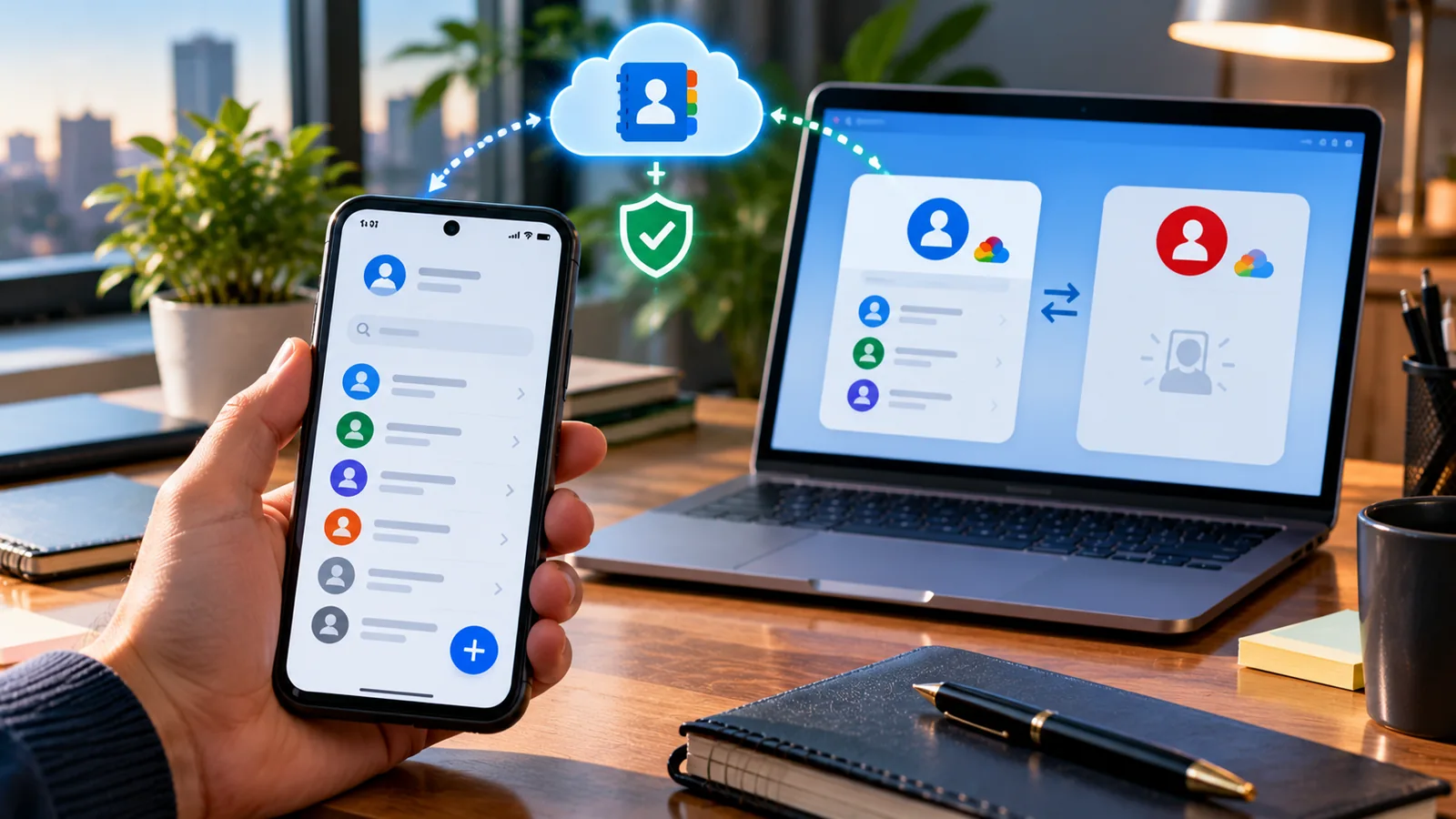
Switching from one Gmail account to another can make an Android phone or iPhone look as though its entire address book has vanished. In many cases, the names are still stored in the original Google Account, but your phone is showing a different account, has stopped syncing, or is filtering what appears. Do not factory-reset your phone, delete your account, or clear Contacts app storage to test this. Start by opening Google Contacts on the web and checking each account separately. That simple step distinguishes a display or sync problem from actual deletion.
This guide follows the current Google and Apple documentation and offers a safer order of operations: identify the account that owns the contacts, check whether they exist online, restore display and sync, look for local/SIM records, and only then consider recovery from Trash or Undo changes. The important question is not just where did the numbers go? but where were they originally saved?
Quick diagnosis: where are the missing contacts now?
| What you observe | Most likely explanation | Safest first check |
|---|---|---|
| Contacts are visible online in your old Google Account, not on the phone | Wrong account selected, filtered list, or disabled sync | Re-select the old account and check Contacts sync |
| Contacts are visible online in the new account only | Contacts may have been imported or saved to the new account | Verify both accounts before moving anything |
| Contacts appear on your old phone but not in either Google Account | Device-only, SIM, or a different provider may own them | Preserve the old phone; export a local VCF copy |
| Contacts are missing from the web account and appear in Trash | Deletion was synced to Google | Recover from Trash while the 30-day window is open |
| Contacts are missing from the web account, with no item in Trash | Wrong account, older deletion, Other contacts, or never synced | Check every account, original device and backups |
| iPhone lists show one account but not another | Contacts account or list is hidden or disabled | Check Contacts accounts and Lists on iPhone |
| Only caller names disappeared while phone numbers still show | The phone or app may not be reading its contacts source | Confirm Contacts app permissions and account visibility |
Important limitation: This table is a diagnosis aid, not a claim that any specific cause has been confirmed. Similar symptoms can have several causes. Google’s sync guidance states that turning sync off removes Google Contacts from the device; turning it back on can make them available again. It does not turn a different account into the owner of those contacts.
Step 1: check the original and new Google Accounts in a browser
- On a computer or trusted mobile browser, go directly to contacts.google.com. Check the account avatar and full email address; do not assume it is the account you previously used.
- Search for two or three missing names or phone numbers you remember. Note whether they appear in Contacts, Other contacts, or neither.
- Switch to the original Gmail address by selecting the Google Account avatar. If it is not available, sign in to it separately; a private browsing window helps avoid confusing simultaneous sessions.
- Repeat the same checks for the new Gmail account and any work or school account that was present on the device.
- Do not move, merge, import or delete records yet. If one account contains the correct contacts, export a backup before making major changes.
For example, imagine the Android handset used personal@example.com for years, then you added new@example.com and changed the Contacts app’s selected account. A blank list under new@example.com does not prove that contacts in personal@example.com have been erased. The account selector affects which records you are viewing; it does not itself transfer ownership.
If you cannot open the old Google Account, that is an account sign-in problem, not automatically a contacts-recovery problem. Follow Horus Valley’s Gmail recovery guide for a lost phone number or Google passkeys troubleshooting and avoid unofficial services that promise to bypass Google’s identity checks.
How to record your findings without exposing private information
Use a small offline checklist: account A has contacts on the web (yes/no), account B has contacts (yes/no), old handset contains device-only records (yes/no), and which apps show them. Do not upload your entire contact list to a diagnostic website or publish screenshots containing names, phone numbers, or Google Account addresses.
Step 2: make all the right contacts visible on Android
When multiple Google Accounts are signed into Android, Google’s supported behavior is to sync Google Contacts from those accounts to the device if synchronization is enabled. Individual Contacts apps may nevertheless display selected accounts, labels or lists rather than everything. This is why changing the visible profile can resemble a deletion.
- Open the Google Contacts app and tap the profile icon. Check the selected account and, where offered, the option to view contacts from all accounts.
- If you use Samsung Contacts or another manufacturer’s Contacts app, inspect its Contacts to display, Customize view or equivalent filter. The exact wording varies by phone and software version.
- Confirm the Google Account containing the contacts is still added in Android Settings. Merely adding a different Google Account does not migrate the old address book.
- If the web version contains the records but the phone does not, proceed to the account-specific sync check below. Reopen the Contacts app after refreshing.
Avoid using a random “display all contacts” menu tutorial without checking which app it describes. Google’s Contacts app, Samsung Contacts and a carrier-branded app may have different menus. Also, a contact listed under a phone number in the dialer may be coming from a cached or locally saved source that is not part of Google Contacts.
Step 3: restore Google Contacts synchronization safely
Google documents several Android menu routes because menus differ between versions and manufacturers. One supported route is Settings → Google → All services → Backup and restore → Google Contacts sync, then selecting the relevant account and checking the sync-to-device status. Other devices show Settings → Passwords & accounts → [Google Account] → Account sync → Contacts. Use whichever route your device provides. Official Android sync instructions.
Before changing sync settings, check the old account in the browser and export a backup if available. Google warns that changes made locally but not yet synced may be lost when sync is turned off. If sync is already enabled, refresh the Contacts app by pulling down the contacts list, or use the manual refresh option in Google Contacts sync settings. Make sure the phone has a working internet connection and the expected account is selected.
If the phone shows a sync error, inspect Settings → Accounts / Passwords & accounts, verify the account sign-in, and check Google Account sync status. A sync timestamp by itself is not enough to prove every record has been transferred; compare two known contacts between the web and device. If a managed work account enforces organizational restrictions, seek help from that account’s administrator rather than disabling device management.
Why turning sync off may make your list vanish
Disabling Google Contacts sync can remove the synchronized Google contact records from a particular Android device. Those contacts remain in the online Google Account if they were successfully saved there. The phone may then show only contacts stored in a SIM, locally, or by another account. Switching sync on for the original account is safer than assuming a deletion occurred and running restoration tools immediately.
Step 4: check whether the old contacts were stored on the phone or SIM
Not all numbers were ever uploaded to Google. A contact saved with an account label such as Phone, Device, Local, or SIM may be tied to the original handset. Another set may belong to Exchange, Outlook, a corporate directory, or a manufacturer’s cloud. Google’s device/SIM contacts documentation specifically distinguishes these sources from contacts already saved in Google.
If the old phone still displays the names, keep it charged and offline from risky cleanup actions. Open its Contacts app, inspect storage or account labels, and export an address-book backup as a VCF/vCard file when the app supports it. Save the file in a secure place you control; treat it as private personal information. On some devices, Google’s automatic device/SIM backup can save these records to one chosen Google Account, not several at once.
| Storage location | Should it appear at contacts.google.com? | What to do before switching phones |
|---|---|---|
| Original Google Account | Yes, if successfully synced | Verify web copy, then export a backup |
| New Google Account | Yes, if saved to that account | Check it separately; do not assume migration |
| Device or local phone storage | Not automatically | Export or enable a supported device-contact backup |
| SIM card | Not necessarily | Import or back up according to phone support |
| iCloud, Outlook, Exchange or work directory | Usually not in Google without import | Check the owning service and its rules |
| Google Other contacts | May appear separately from the normal Contacts list | Check Other contacts; do not mistake it for Trash |
Do not use Google Contacts’ 30-day Trash as the default fix for a contact that was never uploaded. Google cannot recover a phone-only number from its cloud Trash if that number was never saved to a Google Account. And an old phone should not be factory reset before you have confirmed a separate, readable copy of its records.
Step 5: recover contacts genuinely deleted from Google
If the names are missing within the correct Google Account at contacts.google.com, check the account’s Trash (called Bin in some regions). Google’s documented retention window is 30 days, after which items are permanently removed. Select the intended contacts and choose Recover. This operates on the account you are currently signed into, so check the avatar before restoring. Google’s recovery instructions.
Google also offers Settings → Undo changes to revert contact changes made within the previous 30 days. This is broader than recovering selected items from Trash: it rolls the account’s address book back to a chosen point in time. Contacts created or edited after that point may no longer appear in the restored state. Google explicitly recommends exporting current contacts before using this bulk rollback.
Choosing Trash versus Undo changes
| Situation | Better first option | Why |
|---|---|---|
| One or several recently deleted contacts show in Trash | Recover selected Trash entries | Restores only the targeted records |
| A recent bulk edit, accidental merge or many changes affected the account | Review Undo changes carefully | Can roll back a larger set of changes |
| A contact was deleted permanently from Trash | Check another legitimate backup | Google’s Undo and Trash cannot guarantee recovery |
| A contact was stored only on an old SIM or device | Check that original source | Google Trash never held it |
| Contacts are present online but absent on phone | Fix account visibility/sync | They are not deleted in the cloud |
Data-loss warning: Do not select an arbitrary date for Undo changes. First export today’s address book and write down exactly what you want to recover. The rollback can remove newer entries and edits. After restoring, compare a few known phone numbers rather than deciding success solely from the contact count.
What if Google Contacts Trash is empty?
First confirm that you are signed into the correct account. Check Other contacts, which is not the same as the normal Contacts list; Google notes special restoration limits for entries removed from Other contacts. Then inspect local, SIM, iCloud, and other provider accounts. If no independent copy exists and the entry was permanently deleted or never synced, recovery might be impossible. Avoid paid tools that promise to reconstruct a missing cloud address book from nothing.
Step 6: fix the issue on iPhone and iPad
An iPhone can show Google, iCloud, Exchange and other address books together. The problem may start after you remove one Google account, disable its Contacts toggle, select a different list, or save new contacts to a different default account. Apple’s current Contacts-account instructions and iPhone user guide explain that removing an account removes its displayed contacts from the phone, not necessarily from the online service.
- Open Settings → Apps → Contacts → Contacts Accounts, or the equivalent route provided by your installed iOS version.
- Select the original Google Account. If it is missing, add it again using the official account setup. Turn Contacts on for that account.
- Open the iPhone Contacts app and inspect the Lists view. Select the relevant Gmail list or all lists to see whether the numbers reappear.
- Check Settings → Apps → Contacts → Default Account. This affects where new contacts are saved; it does not move existing Google contacts to iCloud or vice versa.
- Verify the same contacts at contacts.google.com. If they exist there but not on the iPhone, focus on account visibility, permissions, sign-in and refresh instead of deleting cloud records.
Be careful with the Delete Account option. It can remove that account’s contacts from the iPhone’s view. Apple’s documentation distinguishes removing the account from deleting the contacts in the online account. If you share a phone, do not add a private Google Account just to show contacts without considering device access and account security.
Step 7: move contacts to a new Google Account only if you intend to
Changing the default Gmail account or selecting another profile is not the same as migrating a contact database. If you want the new Google Account to own a copy of the address book, use an explicit export/import workflow. You can keep the old account signed in until the migration is verified.
On a computer, sign into the old account at Google Contacts, select the required records and choose Export → Google CSV. Save the file securely. Then sign in to the new account, choose Import, select that file and review the result. Google documents this procedure in its export guide and import guide. For large imports, Google advises splitting files with more than 3,000 contacts; it also documents a maximum of 25,000 contacts per account.
Export/import creates a copy; it does not automatically remove the originals from the old account. As a result, you might see duplicates when both accounts sync to the same phone. Verify phone numbers, labels and notes before merging duplicates, and retain the exported backup until you are sure the new account is complete. For shared company or school accounts, exporting contacts may violate organizational policy; get authorization first.
A controlled migration checklist
- Record an approximate contact count for each account on the web and verify ten varied records: personal numbers, international numbers, multiple emails, notes and labels.
- Export from the account that contains the correct data; keep the dated export as a separate backup.
- Import into the intended new account, then spot-check fields; do not use counts alone because duplicates or malformed rows can distort them.
- Confirm the new account on the phone and check that contacts sync reliably.
- Only after independent verification decide whether to stop using the old account; deleting it is not a migration step.
Step 8: handle Samsung Contacts and work profiles without guessing
Samsung’s Contacts app can contain multiple sources simultaneously. If a list suddenly goes blank after changing Google Accounts, check Manage contacts or the available display filter, then confirm the source account using a browser. Samsung Cloud or Smart Switch may also have participated in a prior transfer, but neither should be assumed to hold a usable backup without verifying it through that service.
A work profile is another layer. Contacts inside a managed Android work profile may be separated or restricted by policy. A Google Workspace account is not identical to a personal Gmail account: admins can control synchronization, app access and directory visibility. If the missing entries belong to an employer or school, use authorized organizational support rather than exporting confidential contacts to a personal account.
A repeatable five-location test using fictional contacts
To show the difference between a visibility problem and deletion without risking real contacts, imagine two fake Google Accounts, Account A and Account B, plus a phone-only contact. This is a hypothetical walkthrough, not a claim that Horus Valley accessed users’ accounts or ran a Google service experiment.
| Test location | Sample finding | What the finding actually establishes |
|---|---|---|
| contacts.google.com signed into Account A | ‘Alex Sample’ exists | The record is in A’s cloud account |
| contacts.google.com signed into Account B | No ‘Alex Sample’ | B is not known to hold this record |
| Phone Contacts app filtered to B | ‘Alex Sample’ not displayed | Displaying B does not test A’s data |
| Phone Contacts app showing A with sync on | ‘Alex Sample’ appears | Phone can access synced record from A |
| Old handset local storage | ‘Casey Example’ exists only here | Cloud recovery for Casey requires first locating a separate copy |
The inference is simple: you cannot prove deletion in Account A by looking only at Account B’s phone view. Conversely, seeing one number in call history does not prove it has a backed-up contact record. The web account, original device and backup file must be checked separately.
Decision path: match the symptom to the least destructive action
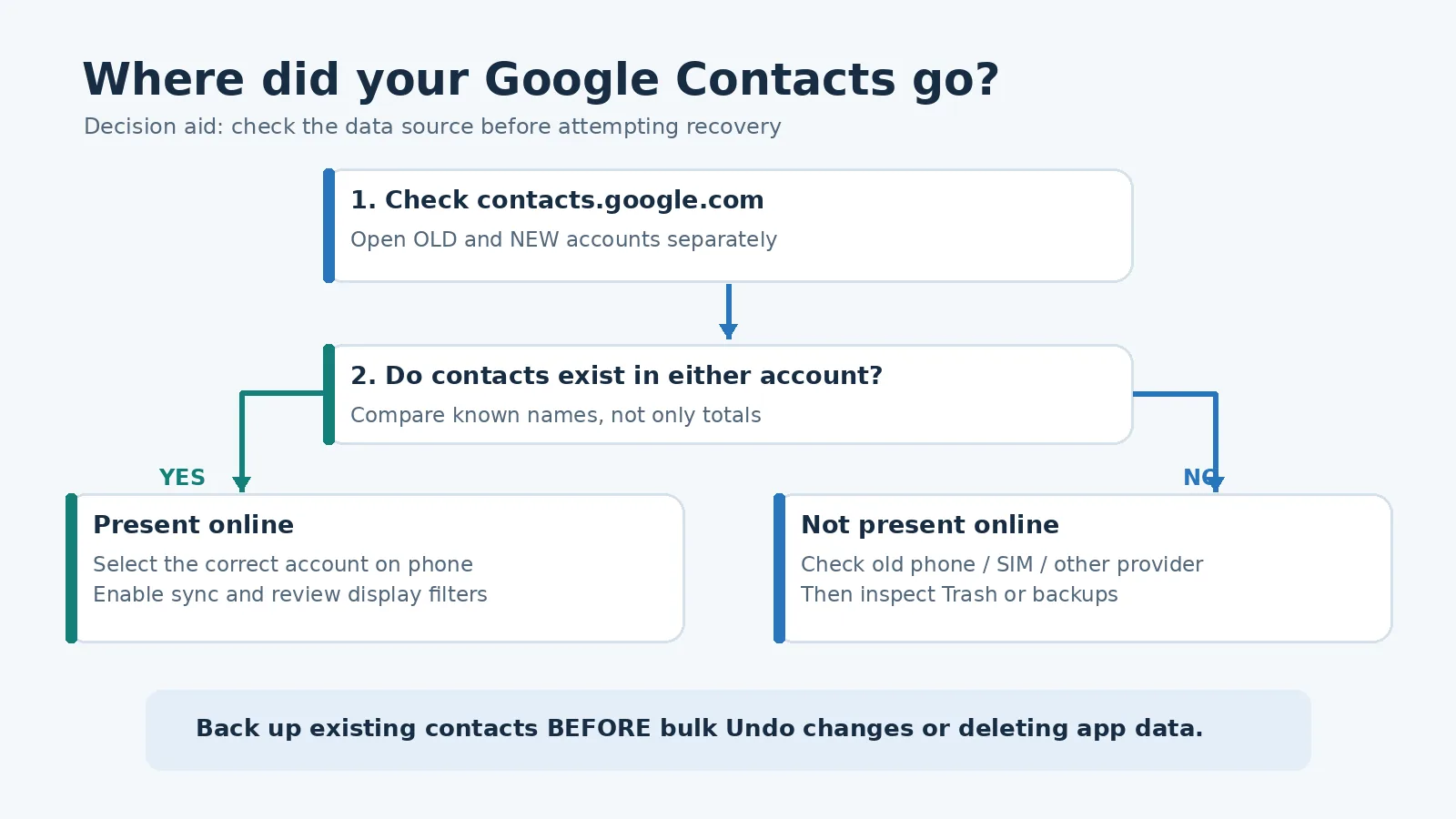
| Diagnostic answer | Next action | Avoid at this stage |
|---|---|---|
| Old account has contacts online | Restore old account selection and sync | Factory reset or bulk Undo changes |
| New account has contacts online | Select it deliberately; export if moving | Assuming the old account is empty |
| Neither account has contacts, old phone does | Export from old phone/local storage | Resetting or selling that phone |
| Right account has contacts in Trash | Recover selected items within 30 days | Permanent deletion |
| Right account suffered a recent mass edit | Back up then evaluate Undo changes | Unreviewed rollback |
| No cloud, device or backup record exists | Assess recovery limitations honestly | ‘Guaranteed recovery’ apps |
This decision table is useful when troubleshooting for family members: ask them to report only yes/no observations and not share their address book or login codes. It also creates a clearer record if they contact official support.
What not to do when contacts appear missing
- Do not clear Contacts app data/storage as a first step. That may erase local records or unsynced changes; clearing a cache is different from deleting storage.
- Do not remove the original Google Account before verifying its online address book and backing up local-only contacts.
- Do not delete a Google Account to fix the address book. Account deletion is vastly more consequential than changing a contact filter.
- Do not run Undo changes without exporting today’s contacts and considering what was created after your chosen rollback time.
- Do not upload contact CSV or VCF files to unknown tools or AI chatbots; these files contain other people’s personal data.
- Do not mistake a missing name in WhatsApp for proof of Google deletion; app permissions and its local contact integration can be separate issues.
- Do not disable enterprise profile management to retrieve work contacts; seek organizational support instead.
Google’s Android sync troubleshooting guidance also recommends exporting contacts before actions involving Contacts app data. Use higher-risk resets only when supported by the applicable manufacturer and after securing a verified backup.
How to stop contacts disappearing when you switch accounts again
Keep one clear primary destination for new personal contacts, and inspect the Save to account whenever you create a new entry. On Android, check whether device/SIM backup saves to the intended Google Account; Google’s documentation says automatic device/SIM saving targets one selected account. On iPhone, verify the Contacts Default Account. Those settings do not move past records automatically.
A monthly export stored securely outside the active phone gives you an independent recovery option. Test the export by opening it in a trusted tool, without distributing private phone numbers. If you use both a work and personal account, separate their records deliberately and observe employer policy. Review sync status after switching devices and before disposing of the old handset.
If you suspect that someone else changed or deleted contacts in your Google Account, review signed-in devices, recent account security activity and third-party access. Horus Valley’s Google Account security checklist covers those related checks. A missing contacts list alone does not prove an account compromise.
Final checklist before declaring contacts permanently lost
Check every account at Google Contacts on the web; verify the correct account in the phone app; re-enable contact synchronization; inspect hidden lists; look for local and SIM entries on the old device; investigate iCloud or Exchange ownership; check Trash and carefully consider Undo changes within Google’s 30-day window; and review any trusted exports or device backups. These checks cover different storage locations, which is why repeatedly refreshing a single app is often not enough.
Most importantly, a switch of Google Account is not itself a deletion command. A verified record in the original account can usually be shown again through the correct account and sync settings. When the record never reached the cloud, the original device or an earlier backup matters far more than the new Google login. Preserve the source, confirm the evidence and make only the smallest change required.
Official sources and related Horus Valley guides
- Google Contacts: sync across devices.
- Google: back up device and SIM contacts.
- Google: recover contacts and undo changes.
- Google: export your contacts and import them into another account.
- Apple: manage Contacts accounts on iPhone.
- Horus Valley: recover Gmail without your old phone number.
- Horus Valley: Google passkeys on a new phone.
You may also like
 Technology & How-To
 Android Auto Keeps Disconnecting? How to Fix USB and Wireless Dropouts
Android Auto keeps disconnecting? Separate USB, wireless and app failures, check Galaxy USB mode, compare connection methods and…
 Technology & How-To
 Netflix Says Your TV Isn’t Part of the Household? How to Fix It
Fix a Netflix household warning by separating home verification, permanent household updates and temporary travel access, with genuine…
 Technology & How-To
 Google Photos Stopped Backing Up from Your PC? What Changed and How to Fix It
Google Photos stopped backing up your computer folders? Understand the Drive for desktop change, configure browser folder backup…