
Windows Secure Boot Certificates Expired in 2026: How to Check and Fix Your PC
Microsoft Secure Boot certificates expired in June and October 2026. Learn how to check 2023 certificate updates, read Windows Security warnings and resolve firmware blockers safely.
Contents
- What expired in 2026, and which dates matter?
- Will an expired Secure Boot certificate stop Windows from booting?
- Step 1: Check the certificate update status in Windows Security
- What each Secure Boot warning really means
- Step 2: Use System Information to separate two different problems
- Step 3: Install normal Windows updates before troubleshooting deeper
- Step 4: Check whether the manufacturer requires a BIOS/UEFI firmware update
- Step 5: Read the event log without changing boot certificates manually
- A practical troubleshooting decision tree for five real-world situations
- Situation A: The PC works and Windows Security confirms fully updated
- Situation B: The PC works, Secure Boot is on, but the app says older trust configuration
- Situation C: The app says the update is paused due to a known issue
- Situation D: The device reports unsupported or outdated firmware
- Situation E: The PC suddenly asks for a BitLocker key or fails to boot
- Why Windows Update, firmware and the 2023 boot manager all matter
- What is not an accurate test of certificate expiry?
- Does this affect gaming, Linux dual boot and TPM 2.0?
- A simple risk-ranked action plan
- Key sources and what each confirms

Updated October 28, 2026. The Windows Secure Boot certificate transition is real, but an expired 2011 Microsoft certificate does not mean your laptop suddenly stops starting. The original trust certificates reached expiration dates in June and October 2026. Microsoft is replacing them with certificates issued in 2023, normally through Windows Update. If your device has not completed the transition, it can still boot and install ordinary Windows updates, but it may miss future security protections for the earliest stage of startup. This guide shows what to check, how to read the warning, and when an OEM firmware update is needed.
Quick answer: Open Windows Security > Device security > Secure Boot. Look for the complete message confirming that all required certificate updates have been applied—not merely a generic green Secure Boot indicator. If the status is older or blocked, install applicable Windows updates, restart, and check the PC manufacturer's official firmware guidance. Never turn Secure Boot off just to hide an expiration warning. Source: Microsoft's consumer status guide.
What expired in 2026, and which dates matter?
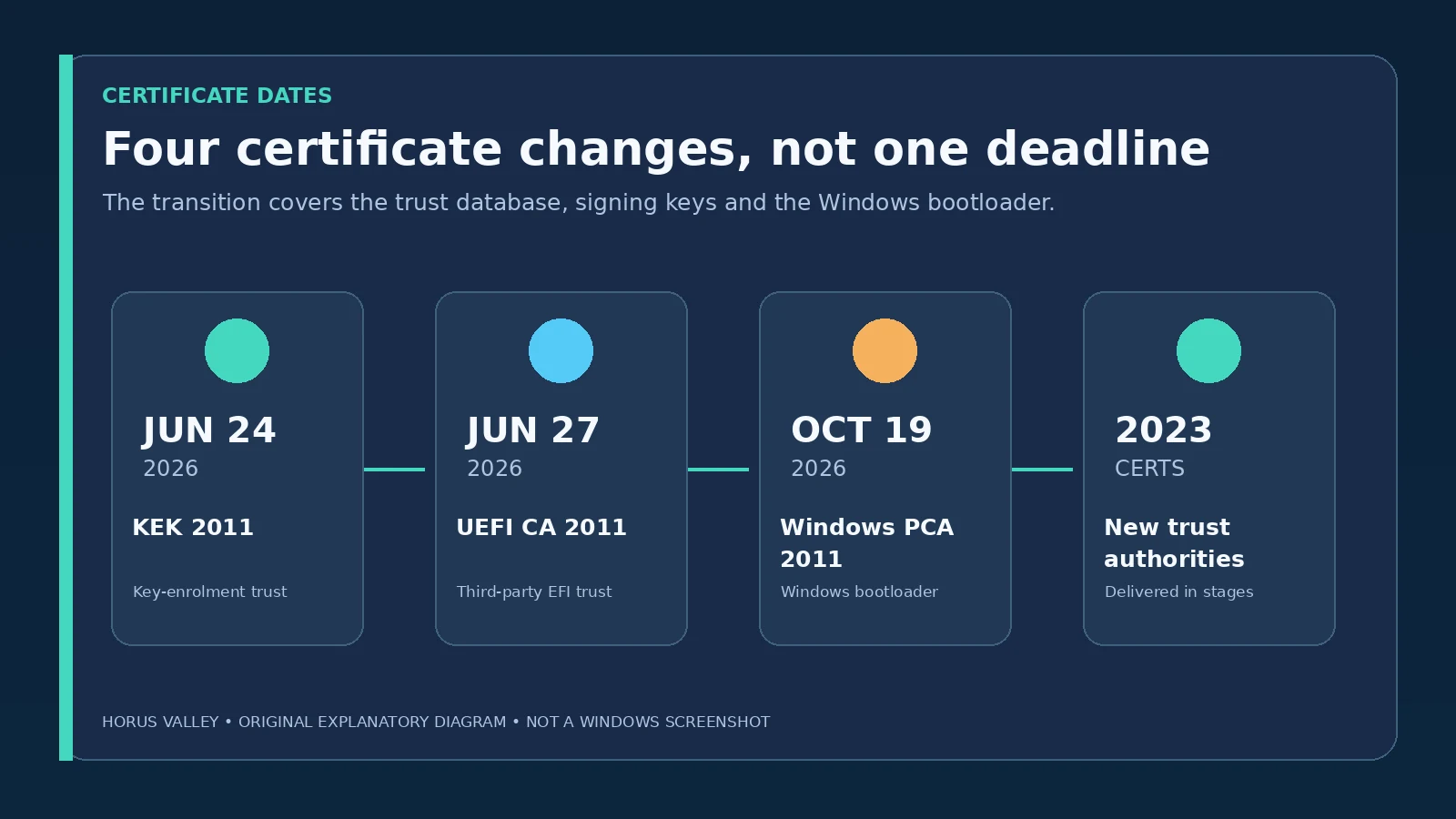
The timeline is often presented as a single deadline, but Microsoft lists several distinct 2011 trust certificates with different jobs. The 2023 replacement year is the certificate generation, not an assurance that every PC was updated back in 2023. The operating system, firmware trust databases and boot manager must move together in a supported sequence.
| Old Microsoft certificate | 2026 expiration | New certificate or trust authority | Role |
|---|---|---|---|
| Microsoft Corporation KEK CA 2011 | June 24 | Microsoft Corporation KEK 2K CA 2023 | Authorises changes to Secure Boot DB/DBX |
| Microsoft UEFI CA 2011 | June 27 | Microsoft UEFI CA 2023 | Third-party EFI boot components |
| Microsoft UEFI CA 2011 (option ROM usage) | June 27 | Microsoft Option ROM UEFI CA 2023 | Relevant third-party firmware components |
| Microsoft Windows Production PCA 2011 | October 19 | Windows UEFI CA 2023 | Windows bootloader signing |
The date table is from Microsoft KB5062710. On October 22, Microsoft further explained that the 2011-signed Windows Boot Manager becomes a frozen code baseline; future bootloader fixes require the newer signing authority. That policy affects updates to startup components, rather than ordinary daily Windows activity. See KB5132953.
Will an expired Secure Boot certificate stop Windows from booting?
Usually, no. Microsoft explicitly says an existing PC without the new certificates keeps starting and receives normal Windows quality and security updates. What can be lost is the ability to accept future security changes to the boot manager, the allowed signature database and revocation list. That creates a growing security gap as new pre-boot threats are discovered—not an automatic shutdown on an expiration date.
This distinction helps avoid two costly reactions: assuming the computer is unusable, and assuming there is no issue because Microsoft Defender still reports no active malware. Secure Boot is a firmware-based trust check that runs before most of Windows security tooling. It is a separate layer from antivirus scans and from Windows Update's general patching status.
There are exceptions: hardware with old or incompatible UEFI firmware can encounter boot problems or BitLocker recovery requests when firmware or boot components are changed incorrectly. Those are reasons to follow Microsoft and the manufacturer, not to use random certificate files or delete Secure Boot keys. Microsoft's blocked-update guidance describes the difference.
Step 1: Check the certificate update status in Windows Security
The easiest consumer check does not require PowerShell, administrator-level registry editing, or a BIOS menu. It uses an updated Windows Security experience that Microsoft began rolling out in April 2026. The exact screen can vary with Windows version, staged feature availability and whether an organization manages the machine.
- Open Start, type Windows Security, and open the app. You can also go through Settings > Privacy & security > Windows Security > Open Windows Security in Windows 11.
- Select Device security in the side navigation.
- Open or inspect the Secure Boot area and read the status sentence, not simply the colored icon.
- If the wording confirms all required certificate updates have been applied, no further certificate action is needed.
- Otherwise note the exact message and use the decision table below. If the dedicated status area is missing, update Windows and return to the page; some managed devices do not display the same consumer notifications.
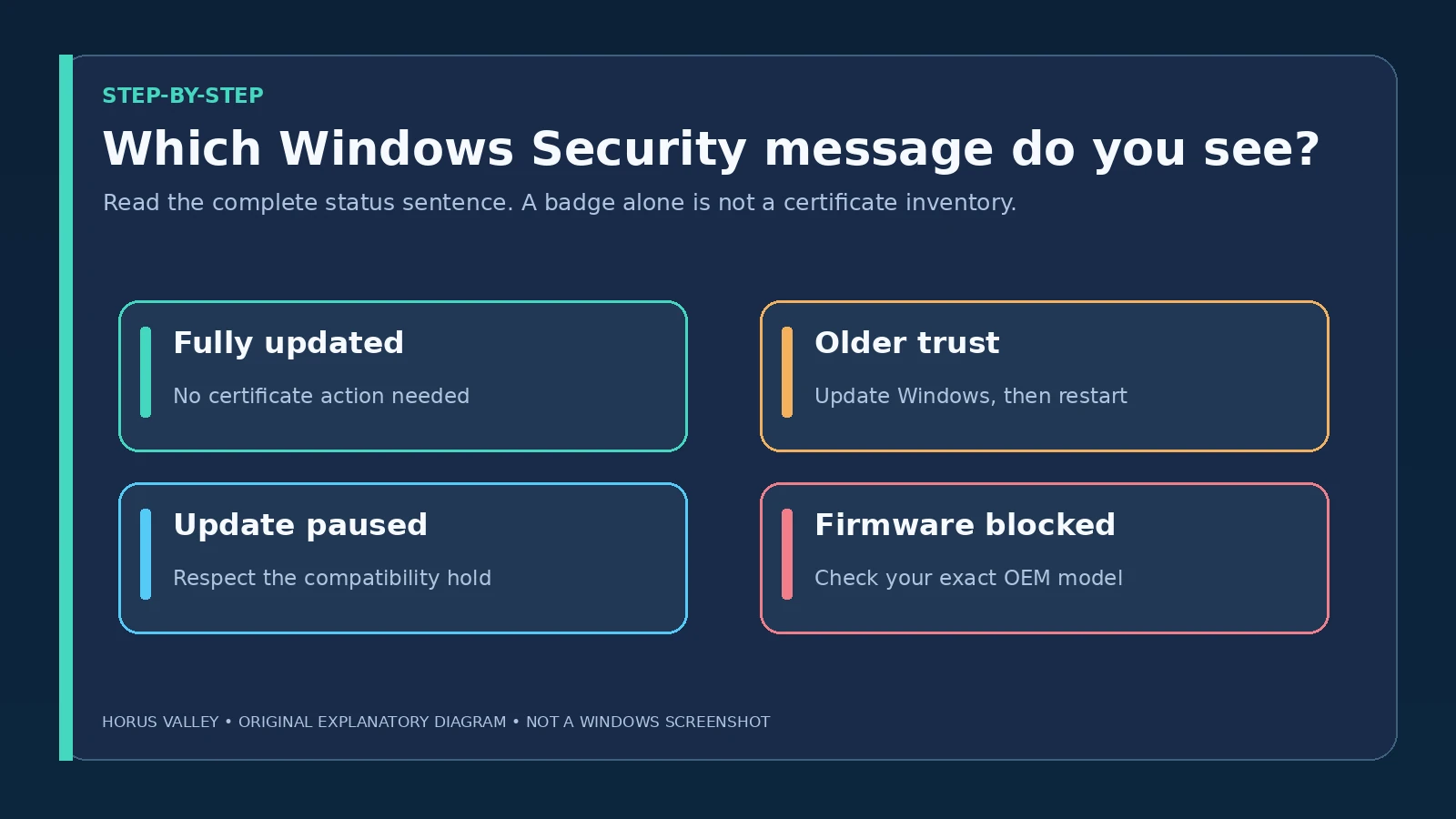
Real screenshot reference: Microsoft's official Secure Boot status article contains actual Windows Security screenshots for fully updated, not yet updated and action-required states. We link to those images instead of reproducing potentially stale or unlicensed UI screenshots. The following image is an original decision chart, not a screenshot of Windows.
What each Secure Boot warning really means
Microsoft uses more than one warning, and two users who both see a yellow badge can need different actions. Matching the underlying sentence is more useful than searching only for the badge color.
| Windows Security condition | What it means | Appropriate next step |
|---|---|---|
| All required certificate updates applied | New boot trust and relevant boot manager are in place | No further certificate changes needed |
| Older boot trust configuration | Automatic transition has not completed | Install Windows updates, restart and recheck |
| Temporarily paused because of a known issue | Microsoft or partner compatibility safeguard | Do not force it; follow Microsoft/OEM status |
| Insufficient information for automatic deployment | Device needs validation before automation | Follow Microsoft’s linked guidance; contact IT/OEM if necessary |
| Automated update unsupported by hardware/firmware | Vendor platform limitation | Look for model-specific OEM firmware update |
| Cannot receive required startup security updates | Old trust state now prevents a required boot protection | Follow official action guidance promptly |
A green badge alone is not proof that the 2023 trust material has been installed. Microsoft explicitly advises looking for the full text confirming all required certificate updates. Similarly, a generic message saying Secure Boot is on means the firmware feature is enabled; it is not a full certificate inventory. If Windows Security says updates are paused for compatibility, repeatedly forcing registry changes is counterproductive. Microsoft KB5087130 explains each message.
Step 2: Use System Information to separate two different problems
Press Win + R, type msinfo32, and press Enter. Under System Summary, read BIOS Mode and Secure Boot State. If Secure Boot State says On, the feature is enabled. If BIOS Mode is Legacy, or the system reports Secure Boot unavailable, you need a different device-specific compatibility assessment before expecting certificate servicing.
This test answers whether Secure Boot is enabled, not whether its certificates are updated. Both questions matter. A PC may have Secure Boot on but the old 2011 certificate state; another PC may have modern firmware but Secure Boot disabled by configuration. The safe order is to establish Windows Security's current message first, then use msinfo32 to clarify basic firmware state. Do not casually change Legacy/UEFI modes: that can prevent a Windows installation from booting unless disk partitioning and boot configuration are handled correctly.
For experienced users, read-only PowerShell command Confirm-SecureBootUEFI can report whether Secure Boot is enabled on compatible UEFI Windows systems. True does not establish that every 2023 certificate has been deployed. On unsupported setups the command may return an error; that is not proof the PC's certificates have expired. Avoid confusing a firmware feature check with a signing-certificate servicing check.
Step 3: Install normal Windows updates before troubleshooting deeper
For most supported consumer PCs, Microsoft-managed updates are the intended delivery path. Go to Settings > Windows Update, install available quality/security updates and any explicitly offered supported firmware/driver updates from a trusted source, then restart. Leave Windows Update enabled and allow normal service cycles to complete. Check the Secure Boot status again later rather than assuming one reboot always completes the multi-stage transition.
It is also essential that the Windows release itself be in support. For example, Windows 11 24H2 Home and Pro reached the end of monthly updates on October 13, 2026. That is a different deadline from the October 19 boot certificate expiry. If your edition is no longer supported, upgrade to a supported version through Microsoft's official path; refreshing Secure Boot alone does not restore general operating system support. For version-by-version upgrade steps, read our Windows 11 24H2 support-end guide. See October 2026 Windows 11 release notes.
Windows 10 users should likewise assess their ESU enrollment or supported servicing channel. Windows 10's mainstream support ended in 2025; not every unsupported configuration receives ongoing Secure Boot servicing. The exact path depends on edition and ESU arrangements. Avoid third-party sites advertising a one-click universal 2023 certificate installer.
Step 4: Check whether the manufacturer requires a BIOS/UEFI firmware update
If Windows Security reports firmware limitations or consistently blocks the automatic transition, identify the exact model and firmware version. In msinfo32, look for System Manufacturer, System Model and BIOS Version/Date. Open the official support page for that specific model—Dell, HP, Lenovo, ASUS, Acer, Microsoft Surface or the actual motherboard maker—and look for a UEFI/BIOS update explicitly relevant to Secure Boot, firmware trust or compatibility.
Before any firmware update, save important files, connect mains power, and store your BitLocker recovery key somewhere separate from the device. If the manufacturer requires suspending BitLocker protection as part of its procedure, follow that documented procedure; don't unilaterally disable drive encryption or Secure Boot. On an employer-managed PC, give the IT department the current status message and model instead of making firmware changes yourself.
A generic download from a different model or a forum attachment may damage the firmware or cause an unbootable state. If the OEM says the system cannot support the update, Microsoft warns that the PC may remain functional but lose access to future early-boot protections. That should inform your security and replacement planning, particularly for devices holding sensitive data; it does not necessarily demand immediate disposal.
Step 5: Read the event log without changing boot certificates manually
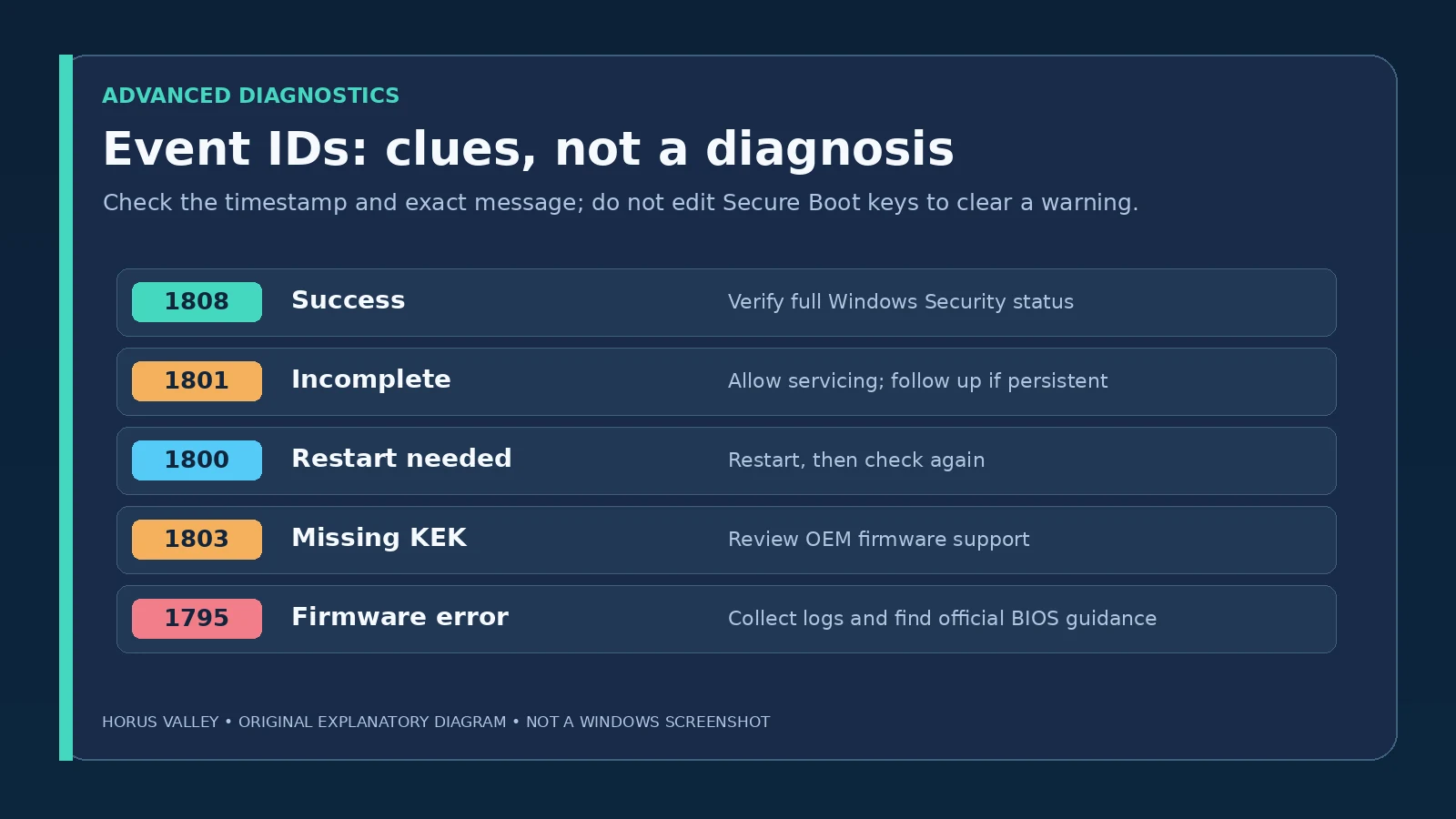
For users comfortable with diagnostics, the System event log may explain why the update is incomplete. Open Event Viewer > Windows Logs > System. Filter or search the recent events for the Secure Boot-related provider and record the event ID, time and exact message. Check Microsoft's detailed Secure Boot troubleshooting guide when interpreting results. A log event from weeks ago is not automatically the device's present status.
| Event ID | Typical interpretation | Safer response |
|---|---|---|
| 1808 | Success recorded | Verify Windows Security’s current status as final check |
| 1801 | Certificate deployment incomplete | Check normal update/restart progression; escalate if persistent |
| 1800 | Restart required | Restart at an appropriate time, then recheck |
| 1803 | Required KEK missing | Review OEM firmware compatibility and support advice |
| 1795 | Firmware error during update | Collect details and check official firmware update availability |
These IDs are indicators, not universal proof of a specific hardware defect. For example, event 1795 on its own does not prove the storage drive is broken. Microsoft also documents registry values such as UEFICA2023Status, UEFICA2023Error and AvailableUpdates; they help support staff diagnose servicing but are not settings to edit by guesswork. Writing arbitrary values can make reporting inaccurate or disrupt the required order. This guide deliberately avoids registry mutation instructions.
A practical troubleshooting decision tree for five real-world situations
Situation A: The PC works and Windows Security confirms fully updated
Stop. You do not have to install a BIOS update solely because an old 2011 certificate appears in a generic inventory. Presence of historical entries alone is not the same as failure to deploy the 2023 trust. Use Windows Security's detailed current outcome and the OEM's model-specific instructions if ambiguity remains.
Situation B: The PC works, Secure Boot is on, but the app says older trust configuration
Confirm Windows release support and that Windows Update is not paused. Install normal updates, restart and check again. Record the exact status text. If the same warning persists after servicing, consult the OEM support page instead of copying an unverified PowerShell script that writes firmware variables.
Situation C: The app says the update is paused due to a known issue
Do not defeat Microsoft's compatibility hold. Check for an OEM announcement and let Windows Update retry when the hold is lifted. An update delay and a critical vulnerability requiring immediate action are not interchangeable diagnoses. You can continue keeping the rest of the system patched.
Situation D: The device reports unsupported or outdated firmware
Look up the correct BIOS/UEFI release by model and serial-compatible product family, verify the official download, and follow the vendor's instructions. If there is no vendor update, document that limitation. For corporate machines, open an IT ticket; managed deployment follows a different workflow and often requires pilot testing.
Situation E: The PC suddenly asks for a BitLocker key or fails to boot
Stop troubleshooting by changing keys. Retrieve the genuine BitLocker recovery key through your configured Microsoft/work/school account or IT administrator and follow official recovery guidance. Avoid clearing the TPM, resetting firmware keys, turning off Secure Boot or switching boot mode as an improvised fix: those changes can complicate recovery and don't address the original cause. If the problem followed a BIOS update, capture the model, update version and error for vendor support. Our BitLocker recovery screen guide explains how to match a genuine recovery key to the device without disclosing it.
Why Windows Update, firmware and the 2023 boot manager all matter
The trust chain has multiple components. A simplified analogy: firmware keeps a list of trusted signers, a key-enrollment mechanism allows authorised changes to that list, and the Windows bootloader must itself be signed by a trusted signer. Updating only one piece without compatible firmware can break the chain. Microsoft therefore rolls the transition out in stages with checks, scheduled servicing and retries.
This is why a one-line internet fix cannot be guaranteed across millions of PCs. A device from 2020 with vendor firmware still maintained, an older unsupported desktop, and an enterprise workstation with custom signing policy may all display different symptoms. In managed estates, deployment tools such as Intune or Group Policy have their own prerequisites and testing needs. This consumer guide does not replace the formal administrator playbook.
The transition also explains why you should keep supported Windows installation media current. Microsoft states that bootloader signing and boot media behavior are changing in stages; corporate image creators and repair teams should evaluate media compatibility separately from whether a currently installed PC boots. On an ordinary personal computer, using Microsoft-supported recovery and installation tools is safer than patching USB boot media with unofficial scripts.
What is not an accurate test of certificate expiry?
- A green shield in the taskbar: This can summarise many Windows Security signals and does not by itself certify the 2023 trust update.
- Secure Boot State: On in
msinfo32: It verifies the feature is enabled, not the certificate set. Confirm-SecureBootUEFIreturns True: This is also an enablement check, not a complete certificate inventory.- The PC still boots: Microsoft says an expired-certificate PC can still run normally, so startup is not proof of remediation.
- A 2011 certificate still appears somewhere: Historic certificate presence alone is not the same as lack of the required new trust.
- Windows Update shows no pending updates: A rollout hold, unsupported Windows release, or OEM firmware requirement can still matter.
The reliable consumer check is the detailed wording under Windows Security > Device security > Secure Boot, assessed together with Windows release support and OEM guidance. For technicians, collect status, event logs and servicing evidence rather than relying on a single registry value.
Does this affect gaming, Linux dual boot and TPM 2.0?
Most everyday games and applications do not stop working because the old Microsoft signing authority reached its expiry date. However, some anti-cheat, disk-encryption, boot software and enterprise enforcement scenarios depend on Secure Boot configuration and may require closer attention when a machine's firmware or bootloader changes. A game demanding Secure Boot enabled is a separate policy from confirming that 2023 certificates were deployed.
Linux dual-boot systems can have additional complexities with signed bootloaders such as shim, different trust stores and revocation lists. Microsoft specifically separates third-party EFI and option ROM certificate responsibilities in the newer trust scheme. Before modifying dual-boot firmware or applying an OEM update, consult the distribution's maintained instructions and ensure recoverable backups. Do not automatically interpret a blocked Linux boot as evidence that the Windows 2011 certificate expiry alone caused it.
TPM 2.0 is also not a substitute for Secure Boot certificates. A TPM protects and reports secrets and platform state, whereas Secure Boot verifies signed software during early startup. A machine can report a healthy TPM but still have Secure Boot disabled or outdated boot trust. The tools answer different security questions.
A simple risk-ranked action plan
| Your situation | Priority | Action |
|---|---|---|
| Fully updated, no warning | Routine | Keep ordinary Windows/firmware maintenance going |
| Older trust configuration, supported consumer PC | Medium | Update Windows, restart, recheck detailed text |
| OEM firmware limitation shown | Elevated | Find exact OEM firmware guidance and back up first |
| Red action-required state | High | Follow Microsoft action guidance and OEM/IT escalation |
| BitLocker recovery loop or unbootable state | Immediate recovery support | Secure the recovery key; avoid ad hoc Secure Boot changes |
| Unsupported OS/firmware with no path forward | Planning required | Evaluate supported upgrade or replacement, especially for sensitive data |
The priority terms are an editorial triage aid, not Microsoft security severity ratings. They indicate what a sensible next step is, rather than promising that a PC is safe or unsafe based on one status indicator.
Key sources and what each confirms
- Microsoft KB5062710: Certificate expirations and replacements — official names, dates and purposes of the 2011 and 2023 authorities.
- Microsoft KB5087130: Windows Security status — actual interface screenshots, messages and next steps for personal PCs.
- Microsoft KB5079373: What expires and what continues working — clear statement that PCs and normal updates do not stop automatically.
- Microsoft KB5132953: October 19 bootloader transition — clarifies changes to future boot manager signing; written primarily for IT professionals.
- Microsoft KB5085046: Secure Boot troubleshooting — detailed servicing, firmware, event log and deployment troubleshooting.
- Microsoft KB5105943: Devices blocked from updates — explains firmware limitations and paused deployment.
Bottom line: If Windows Security confirms all certificate changes have been applied, leave Secure Boot alone. If it reports outdated or blocked trust, use supported Windows updates and the specific OEM's instructions. An October 2026 certificate expiry is a real long-term security issue to address, but it is not a date-triggered Windows shutdown.
You may also like
 Technology & How-To
 USB Works on PC but Not on TV? How to Find the Cause
Diagnose a USB drive that works on a computer but not a TV. Separate detection, missing files and…
 Technology & How-To
 WhatsApp “Waiting for This Message”: Fixes for iPhone, Android and Web
Fix WhatsApp’s waiting-message notice by comparing your phone and linked devices, checking updates and protecting existing chat data.
 Technology & How-To
 WhatsApp iOS 15.5 Requirement: What Changes on November 30, 2026?
WhatsApp raises its iPhone minimum to iOS 15.5 on November 30, 2026. Check your version, older iPhone eligibility…