
Windows 11 24H2 Support Ends October 13 — What Home and Pro Users Need to Do
Windows 11 24H2 Home and Pro reach the end of updates on October 13, 2026. Here’s how to check your version, upgrade to 25H2 and avoid last-minute problems.
Contents
- Who is affected by the October 13 deadline?
- How to check whether you are running Windows 11 24H2
- Method 1: Use winver
- Method 2: Check Settings
- What exactly happens after October 13, 2026?
- Do you need to buy Windows again?
- How to upgrade Windows 11 24H2 to 25H2
- Back up important files before a feature update
- What if Windows 11 25H2 does not appear?
- Should you use the Windows Installation Assistant or ISO instead?
- Will your apps and games still work after upgrading to 25H2?
- How much free storage should you have?
- What if your PC cannot upgrade?
- Is it safe to keep using 24H2 after support ends?
- Does antivirus make staying on 24H2 safe?
- What about Windows 11 24H2 Enterprise and Education?
- A practical checklist before October 13
- How to confirm the upgrade completed
- Frequently asked questions
- When does Windows 11 24H2 support end?
- Will Windows 11 24H2 stop working after October 13?
- What version should Windows 11 24H2 users install?
- Will Microsoft upgrade my PC automatically?
- Do Enterprise and Education users have the same deadline?
- Should I force-install 25H2 if Windows Update does not show it?
- The bottom line
- Sources
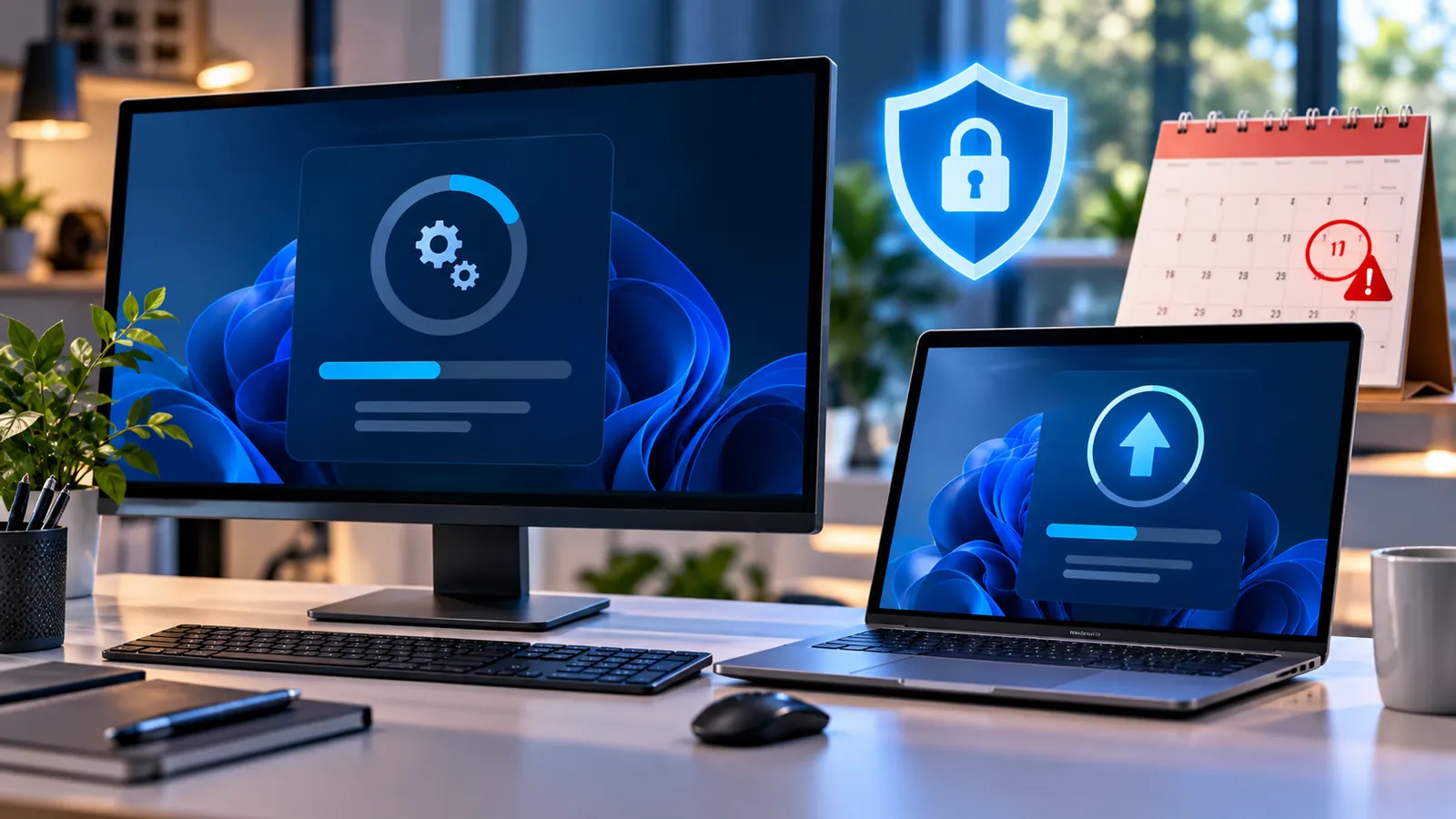
Last reviewed: October 9, 2026. Windows 11 version 24H2 is about to reach the end of updates for Home and Pro users. Microsoft says these editions will stop receiving monthly security and preview updates on October 13, 2026.
If your PC is still on Windows 11 24H2, this does not mean it will suddenly stop working on the deadline. Your files, apps and desktop will still be there. The important change is that Home and Pro devices on 24H2 will no longer receive the normal stream of security fixes, quality fixes, time-zone updates or technical support for that version.
Microsoft recommends moving eligible Home and Pro PCs to Windows 11 version 25H2. On many consumer and other non-IT-managed PCs, Windows Update can offer that upgrade automatically.
Who is affected by the October 13 deadline?
The end-of-updates notice applies specifically to Windows 11 version 24H2 Home and Pro. Microsoft also lists Pro Education, Pro for Workstations and related Home/Pro lifecycle editions under the same modern servicing model, but the current release-health warning is focused on Home and Pro.
The deadline does not mean every edition of Windows 11 24H2 loses support at the same time.
Microsoft says Enterprise and Education editions of Windows 11 24H2 remain supported until October 12, 2027. If your PC is managed by your company, school or another IT department, do not force an upgrade yourself unless your administrator tells you to.
How to check whether you are running Windows 11 24H2
There are two easy ways to check your current Windows version.
Method 1: Use winver
- Press Windows + R.
- Type winver.
- Press Enter.
- Look for the line that says Version. If it says 24H2, this deadline may apply to you.
Method 2: Check Settings
- Open Settings.
- Go to System > About.
- Scroll to Windows specifications.
- Check the Version field.
If you see 25H2 instead of 24H2, you are already on the newer mainstream release Microsoft is recommending for 24H2 Home and Pro users.
What exactly happens after October 13, 2026?
Your PC does not become unusable on October 14. Windows will still boot, your installed programs should remain installed and your personal files will not be deleted.
What changes is the servicing status of the operating system.
According to Microsoft’s release-health notice, Home and Pro PCs that remain on 24H2 after the deadline will no longer receive:
- Monthly security updates containing protections for newly discovered threats.
- Non-security preview updates and normal quality fixes for known Windows issues.
- Time-zone updates for that Windows version.
- Technical support for Windows 11 24H2 Home and Pro.
That makes staying on an unsupported release increasingly risky over time. A PC may appear to work normally while newly discovered vulnerabilities remain unpatched.
Do you need to buy Windows again?
In normal circumstances, no. Moving from a properly activated Windows 11 Home or Pro installation from 24H2 to 25H2 is a version update, not a request to purchase Windows again.
Your existing Windows activation normally remains tied to the same PC and edition after a standard feature update.
If Windows Update asks you to upgrade the version, that is different from upgrading from Home to Pro, which is a separate edition change that can require a license.
How to upgrade Windows 11 24H2 to 25H2
Microsoft’s recommended route is Windows Update.
- Connect the PC to a reliable internet connection and power source.
- Open Settings > Windows Update.
- Select Check for updates.
- If Windows 11 version 25H2 is offered, choose Download and install.
- Allow the update to download and prepare.
- Save your work and restart when prompted.
Microsoft says eligible Home and Pro PCs running 24H2 that are not managed by an IT department can receive the 25H2 update automatically. You can still choose when to restart or postpone the restart for a while.
If you experience a connection problem while checking for updates, our guide Wi-Fi Connected but No Internet? 11 Fixes That Actually Work may help you rule out a local network issue first.
Back up important files before a feature update
Feature updates are designed to preserve your apps and files, but a backup is still a sensible precaution before changing the operating system.
At minimum, make sure irreplaceable files exist in another location such as an external drive or a trusted cloud backup.
If the PC contains important work files, encryption keys, virtual machines or specialist software, make sure you understand how those items are backed up and restored before upgrading.
What if Windows 11 25H2 does not appear?
Do not assume something is wrong immediately. Microsoft can temporarily prevent a feature update from being offered to a PC when it detects a known compatibility issue. These protections are commonly called safeguard holds.
If 25H2 is not offered:
- Install all normal updates currently available for 24H2.
- Restart the PC and check Windows Update again.
- Update important drivers and firmware from the PC manufacturer’s support tools or website.
- Make sure there is adequate free storage space.
- Check Microsoft’s Windows release-health page for known issues affecting your hardware or software.
- If the PC is managed by work or school, contact the IT administrator.
Avoid forcing an upgrade around a compatibility block unless you understand why Microsoft is withholding the update. A safeguard hold may be protecting the PC from a confirmed driver or application problem.
Should you use the Windows Installation Assistant or ISO instead?
Microsoft provides additional installation methods for Windows 11, but Windows Update is usually the least complicated route for an ordinary in-place upgrade.
An installation assistant or ISO can be useful in specific situations, but it should not be treated as the first response when Windows Update deliberately refuses to offer a feature update.
Before using manual installation media, verify that your hardware is supported, your important files are backed up and there is no known compatibility hold that you would be bypassing.
Will your apps and games still work after upgrading to 25H2?
Most ordinary applications are expected to carry across during an in-place Windows feature update, but no operating-system upgrade can guarantee compatibility with every driver, game, anti-cheat system, security package or older program.
If you depend on specialist software for work, check the vendor’s Windows 11 25H2 compatibility guidance before updating.
It is also a good idea to make sure you know your important application sign-ins and license information before a major system update.
How much free storage should you have?
Microsoft does not give one single free-space number that guarantees every feature update will succeed because the amount required varies by device, installed features, update path and temporary files.
If your system drive is nearly full, clear unnecessary temporary files, empty the Recycle Bin, uninstall unused large applications and move personal files that do not need to remain on the system drive.
Do not aggressively delete unknown Windows folders just to create space. Use Settings > System > Storage or Microsoft’s built-in cleanup tools instead.
What if your PC cannot upgrade?
A PC that is already running Windows 11 24H2 normally meets the core Windows 11 platform requirements, but a newer feature update can still be blocked temporarily because of a specific driver, firmware or software conflict.
If Windows Update continues to withhold 25H2 as the deadline approaches, first identify whether the problem is a temporary safeguard hold or a true support issue.
For a personal PC, check the manufacturer’s support page and Microsoft’s release-health dashboard. For a managed business PC, the correct path is to ask the IT department rather than changing update policy yourself.
Is it safe to keep using 24H2 after support ends?
The PC will continue to work, but the security situation becomes less favorable the longer it remains unsupported.
New vulnerabilities are discovered continuously. On a supported release, Microsoft can address Windows vulnerabilities through monthly security updates. On an unsupported Home or Pro release, you should not expect the normal monthly security servicing to continue.
For a PC used for email, banking, shopping, work accounts or storing personal data, moving to a supported Windows release is the safer choice.
Does antivirus make staying on 24H2 safe?
Antivirus is useful, but it is not a substitute for operating-system security updates.
Security software can detect or block many malicious files and behaviors, but it cannot reliably repair every vulnerability inside Windows itself. A supported operating system and current security software work together; they are not interchangeable.
What about Windows 11 24H2 Enterprise and Education?
Microsoft says Enterprise and Education editions of Windows 11 24H2 remain supported until October 12, 2027.
That extra servicing period is one reason business and education environments should follow their own organization’s deployment plan rather than consumer upgrade advice.
If you are unsure which edition you have, open Settings > System > About and check the Edition entry under Windows specifications.
A practical checklist before October 13
- Confirm whether your PC is on Windows 11 24H2.
- Confirm whether the edition is Home, Pro, Enterprise or Education.
- Install pending Windows updates.
- Back up important files.
- Check the PC manufacturer’s driver and firmware updates.
- Open Windows Update and look for Windows 11 25H2.
- Do not bypass a compatibility hold without understanding the reason.
- After upgrading, run Windows Update again until no important updates remain.
- Check that your essential apps, audio, printers, VPN and other peripherals still work.
How to confirm the upgrade completed
After the PC restarts, press Windows + R, type winver and press Enter.
The version should show 25H2 if that is the release you installed.
Then return to Settings > Windows Update and check for updates again. Feature upgrades are sometimes followed by newer cumulative updates, drivers or security components.
Frequently asked questions
When does Windows 11 24H2 support end?
Microsoft’s current release-health and update pages say Windows 11 24H2 Home and Pro editions reach the end of updates on October 13, 2026.
Will Windows 11 24H2 stop working after October 13?
No. The operating system does not switch off. The important change is that Home and Pro devices on 24H2 stop receiving the normal security, quality, time-zone and technical-support servicing for that version.
What version should Windows 11 24H2 users install?
Microsoft’s release-health guidance tells eligible Home and Pro users to move to Windows 11 version 25H2.
Will Microsoft upgrade my PC automatically?
Microsoft says non-IT-managed Home and Pro devices on 24H2 can receive Windows 11 25H2 automatically. You can choose when to restart or postpone the restart.
Do Enterprise and Education users have the same deadline?
No. Microsoft says Windows 11 24H2 Enterprise and Education remain supported until October 12, 2027.
Should I force-install 25H2 if Windows Update does not show it?
Usually not as the first step. Check for pending updates and known compatibility holds. If Microsoft is deliberately withholding the update from your hardware, understand the reason before using manual installation methods.
The bottom line
If your personal PC is running Windows 11 24H2 Home or Pro, the important date is October 13, 2026. The computer will not stop working after that date, but the version will leave normal servicing and will no longer receive the monthly security and quality updates Microsoft provides to supported releases.
Check your version now, back up important files and use Windows Update to move to Windows 11 25H2 when it is offered. If the upgrade is not available, investigate compatibility and safeguard holds rather than blindly forcing the installation.
The closer the deadline gets, the more useful it is to resolve upgrade blockers before the version becomes unsupported.
Sources
Microsoft Learn — Windows 11 version 24H2 known issues and notifications.
Microsoft Learn — Windows message center.
Microsoft Support — September 2026 Windows 11 24H2/25H2 update notice.
You may also like
 Technology & How-To
 Google Find Hub Trackers Get NFC Support — How to Identify Lost Tags and Set Left-Behind Reminders
Google Play services v26.39 adds NFC support for compatible Find Hub tracker tags and a new setup flow…
 Technology & How-To
 Android 17 Advanced Protection Adds 6 Powerful Security Features — Should You Turn It On?
Android 17 expands Advanced Protection with encrypted intrusion logs, USB protection, accessibility restrictions, WebGPU blocking and stronger authentication…
 Technology & How-To
 Google Pixel October 2026 Update Fixes 3 Bugs and Critical Security Flaws — Should You Install It?
Google’s October 2026 Pixel update fixes a missing keyboard, VoIP audio distortion and Pixel 11 photo rotation while…