
Samsung Phone Not Fast Charging Anymore? Fix Galaxy Fast Charging
Samsung Galaxy stopped fast charging? Diagnose Super Fast Charging, USB-C cables, PPS chargers, One UI settings, heat, moisture and charging ports safely.
Contents
- First: identify what has actually changed
- Quick diagnosis: match your symptom to the next test
- Step 1: verify that fast charging is enabled in One UI
- Step 2: confirm the charger supports your Galaxy’s actual charging protocol
- Step 3: isolate the cable before buying a new charger
- Step 4: check the charging port safely
- Step 5: rule out temperature-related charging limits
- Step 6: distinguish Battery protection from a charging fault
- Step 7: check whether a moisture warning is blocking wired charging
- Step 8: run Samsung Members charging diagnostics
- Step 9: check software changes without taking destructive steps
- Why 45 W charging may not look much faster than 25 W
- When wireless charging is slow but wired charging works
- A controlled 20-minute charging test
- What different charging messages can mean
- When the charging problem points to hardware
- Avoid these common mistakes
- How this guide differs from general phone slow-charging advice
- Sources and official troubleshooting references
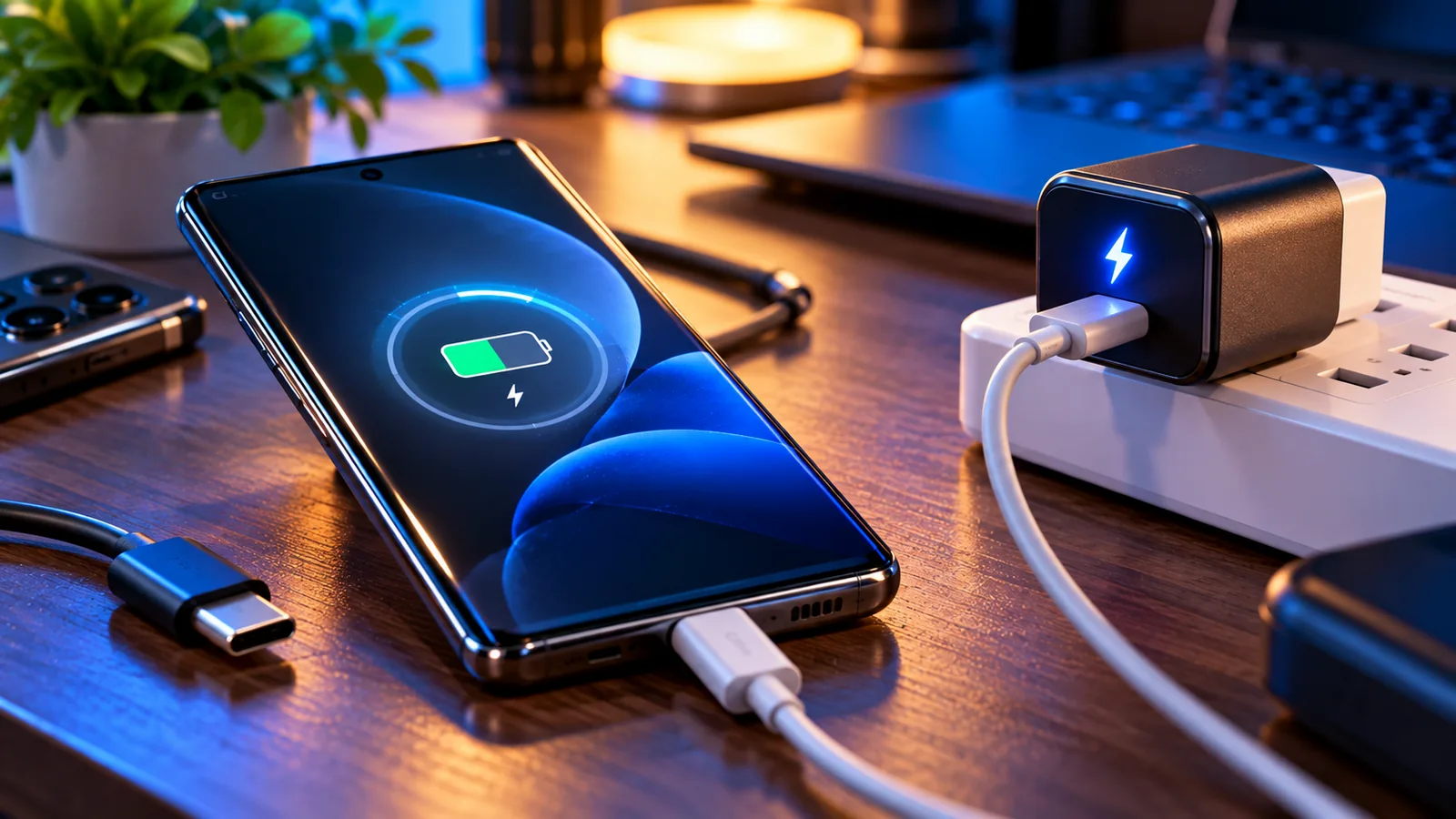
Your Samsung Galaxy used to display Fast charging or Super fast charging, but now it only says Charging—or the battery percentage crawls upward. This does not automatically mean the battery or charging port has failed. The charging speed your phone accepts depends on the exact Galaxy model, the power adapter, the USB-C cable, temperature, battery level, software settings, and the condition of the connector. This guide walks through those variables in a safe order so you can identify the actual cause instead of replacing parts at random.
The procedures below apply broadly to supported Samsung Galaxy S, Z, A and other Galaxy phones, but the menu names, charging modes and maximum supported power differ by model and One UI release. Do not assume every Galaxy supports 25 W or 45 W charging. Check your exact model’s specifications before purchasing accessories.
First: identify what has actually changed
A short charging banner is not a reliable wattmeter. On some One UI versions, the fast-charging label appears briefly after you plug in and later changes to a generic charging message. That alone does not prove the charging rate dropped. Compare the estimated time to full charge under similar conditions, or test whether the battery percentage rises meaningfully during a controlled 15–20 minute interval. Charging naturally tapers as the battery fills, particularly near 80–100%.
- Test when the battery is around 20–50%, not almost full.
- Connect directly to a known-good wall outlet, not a laptop USB port or low-power hub.
- Keep the screen off and stop gaming, navigation, camera recording and hotspot use.
- Let the phone return to normal room temperature before testing.
- Write down the model number, adapter rating, cable type and charging message.
Quick diagnosis: match your symptom to the next test
| Only “Charging,” much slower than before | Compatible wall adapter and cable; charging setting | Fallback to standard charging or an accessory issue |
|---|---|---|
| Fast charging appears briefly, then disappears | Compare actual charge time under controlled conditions | May be normal One UI display behavior |
| Charging stops and restarts when cable moves | Inspect port and try another cable | Loose connector, damaged cable or debris |
| Charging slows during games or in hot weather | Cool the device; stop demanding tasks | Thermal protection |
| Moisture warning or water-drop icon | Unplug and dry the port safely | Moisture protection is active |
| Battery stops at a chosen percentage | Check Battery protection | Intentional charging limit |
| Wireless fast charging only is slow | Check pad, alignment, case and wireless setting | Wireless-specific issue |
Step 1: verify that fast charging is enabled in One UI
On many recent Galaxy phones, open Settings → Battery → Charging settings and enable Fast charging. Some devices also show Fast wireless charging. Older software may place these controls under Settings → Battery and device care → Battery → More battery settings. Samsung notes that the names and locations vary by model and software version.
From the Galaxy S23 generation onward, Samsung combines the previous Fast charging and Super fast charging controls into a single Fast charging switch on supported devices. You therefore may not see a separate Super fast charging toggle even if the handset supports that charging mode. If your model lacks the switch altogether, consult its manual rather than forcing a menu path from another model.
- Open Settings and use its search box for “Fast charging” or “Charging settings.”
- Turn the supported fast-charging option on.
- Disconnect the cable, wait briefly and reconnect with a compatible charger.
- Restart the phone if the setting was already enabled but behavior changed after an update.
- Do not disable Battery protection permanently just to chase a charging icon; first understand whether it is limiting the final charge level.
Step 2: confirm the charger supports your Galaxy’s actual charging protocol
The number printed on a charger is its maximum advertised output, not a promise that your phone will receive that wattage. Samsung Galaxy models that use Super Fast Charging commonly rely on USB Power Delivery with Programmable Power Supply (USB PD PPS). A generic “65 W” charger that does not negotiate the required profile may fall back to a slower mode. The model’s charging limit also matters: a 45 W adapter cannot turn a phone rated for 25 W into a 45 W phone.
Read the adapter’s output specification, not only the front-label wattage. For a Galaxy that supports higher-power Super Fast Charging 2.0, the appropriate PPS adapter and suitably rated USB-C cable are important. Requirements vary by model; some 45 W Samsung charging configurations need a 5 A e-marked USB-C cable. A charger and cable known to fast-charge a compatible Galaxy is the strongest practical comparison.
| Wall adapter | May lack USB PD PPS or a suitable power profile | Try a model-compatible Samsung or reputable PPS adapter |
|---|---|---|
| USB-C cable | Damaged conductors or inadequate current rating can limit charging | Swap only the cable first |
| Power source | Computer USB ports and hubs may deliver less power | Use a direct wall outlet |
| Multiport charger | Power allocation may change when another device is connected | Disconnect other devices and retest |
| USB-C connector | Wear or lint can interrupt negotiation | Check for secure fit without forcing the plug |
Step 3: isolate the cable before buying a new charger
A USB-C cable can still transfer files or charge slowly even when it no longer performs reliably at a higher charging current. Look for bent ends, fraying, discoloration, crushed sections, intermittent connections and a connector that slips out too easily. Do not continue using a cable that gets unusually hot or has exposed conductors.
- Keep the current adapter, change to a known-good compatible USB-C cable, and retest.
- If the result is unchanged, keep the good cable and swap to a verified compatible PPS adapter.
- Test the same charger-and-cable combination with another compatible phone if available.
- Avoid repeatedly plugging and unplugging an unstable connector; that can worsen port wear.
Changing one variable at a time is crucial. If you replace the cable, adapter and outlet simultaneously, you will not know which change fixed the problem.
Step 4: check the charging port safely
Pocket lint can prevent a USB-C plug from seating fully, while moisture or corrosion can trigger protection and intermittent charging. Switch off the phone, disconnect power and inspect the port with a flashlight. If loose debris is clearly visible, follow Samsung’s model-specific cleaning advice. Never insert metal tools, pour cleaning liquid into the port, or scrape the internal connector. If debris is compacted or the pins look damaged, use professional service rather than probing.
A phone that charges only when the cable is held at an angle, or loses contact when the phone moves, needs a cable-and-port inspection. This is different from a software setting that simply reduces charging speed. Do not force a connector to make it fit.
Step 5: rule out temperature-related charging limits
Lithium-ion charging is temperature-sensitive. Samsung explicitly states that high device temperature can slow or temporarily stop charging. A hot phone may protect itself even when the charger and cable are correct. Direct sunlight, thick insulating cases, mobile gaming, video recording, GPS navigation and wireless charging can increase heat.
- Unplug the phone if it is uncomfortably hot.
- Move it away from sunlight and heat sources, and let it cool naturally in a ventilated room.
- Remove a thick case if safe and practical, then retest with the screen off.
- Do not put the phone in a refrigerator, freezer or near ice; condensation can create new damage.
- If overheating repeats during ordinary idle charging, stop testing and seek qualified inspection.
Step 6: distinguish Battery protection from a charging fault
Samsung’s Battery protection features may intentionally limit the charge level or alter charging behavior. Depending on your model and One UI version, options may include modes that stop charging at a specified percentage or adjust charging patterns. This is not the same as the USB connection failing to negotiate a fast-charge mode.
Open Settings → Battery → Battery protection and check the active mode. If the phone repeatedly stops at a particular percentage, that setting may explain it. Consider keeping battery protection enabled if it suits your needs; it is designed to manage battery longevity. A charge-level cap should not be mistaken for a defective charging brick.
Step 7: check whether a moisture warning is blocking wired charging
If you see a water-drop symbol or a “Moisture detected” message, disconnect the charger. Samsung’s protection system may prevent wired charging until the USB port is dry. Gently wipe the exterior with a clean soft cloth and let the phone dry in a well-ventilated location with cool air. Do not use a hair dryer, heater, rice, compressed hot air or objects inserted into the port.
If the warning remains after the phone and connector have had ample time to dry, consult Samsung support. A persistent warning can involve residue, the cable or the port. This is a separate issue from ordinary slow charging; for a deeper walkthrough, see Samsung Moisture Detected Warning Won’t Go Away.
Step 8: run Samsung Members charging diagnostics
Samsung provides device diagnostics through the Samsung Members app on supported Galaxy devices. Open Samsung Members → Support → Phone diagnostics (wording may vary), then choose Cable charging or the relevant charging test. Follow the on-screen instructions with a known-good cable and adapter. This is a useful screening step, but a normal result cannot rule out every intermittent port or cable fault.
- Update Samsung Members from an official app store if the diagnostics section is missing.
- Record the result and any error message.
- Retest with a second cable if the first test fails.
- If the problem persists across known-good accessories, bring the diagnostic result to Samsung support or an authorized service center.
Step 9: check software changes without taking destructive steps
If the slowdown began immediately after a system update, restart the phone and check for follow-up updates under Settings → Software update. Updates can change charging banners, menus and thermal management. Do not assume a software bug without comparing actual charge behavior using the same accessories and temperature conditions.
There is usually no reason to factory-reset a Galaxy merely because it charges slowly. A reset erases personal data and is a poor first-line test for a physical connector, cable or power-delivery issue. Likewise, avoid random “battery calibration” apps, unofficial charging patches and instructions that require opening the phone.
Why 45 W charging may not look much faster than 25 W
Maximum charging wattage is a peak, not a constant value throughout the charge. The phone and charger negotiate power dynamically, and the battery management system reduces current as conditions change. At a high state of charge, a 45 W-capable phone may draw substantially less than 45 W. A simple five-minute test near 90% can therefore be misleading.
Battery temperature, ambient conditions, screen use, background activity and battery aging also affect results. For a meaningful comparison, use the same starting battery percentage, similar room temperature, screen-off conditions and known-good accessories. Do not promise an exact full-charge time based only on a charger label.
When wireless charging is slow but wired charging works
Wireless charging has separate constraints. Ensure the Galaxy model supports wireless charging, use a compatible pad and adapter, center the phone on the coil, and remove metal attachments or a case that interferes with alignment. On supported phones, check the Fast wireless charging setting. Warmth and poor alignment can reduce the charging rate even when the wired USB-C port is healthy.
If wired fast charging is normal but wireless charging is consistently slow, focus on the wireless pad, its own power supply, placement and heat rather than replacing the phone’s USB-C connector.
A controlled 20-minute charging test
- Allow the phone to reach a normal room temperature and note the starting percentage, ideally in the lower-middle range.
- Close demanding apps, switch the screen off and connect directly to a compatible wall charger.
- Record the estimated charging time if available and leave the phone undisturbed for 20 minutes.
- Repeat with only the USB-C cable changed, keeping the adapter, outlet and starting conditions as similar as practical.
- Repeat with a second compatible adapter if the cable swap made no difference.
- If charging remains abnormally slow across multiple known-good combinations, run Samsung Members diagnostics and consider service.
This is a comparative test, not a lab measurement. Battery percentage increments do not translate linearly into charging wattage, and a single trial is not enough to establish a precise performance specification.
What different charging messages can mean
| Charging | May be standard charging or a shortened status label | Check settings and measured behavior |
|---|---|---|
| Fast charging | Phone indicates a supported accelerated mode | Compare charge time if performance still seems poor |
| Super fast charging | Phone indicates a higher supported charging mode | Check compatible PPS charger/cable if missing |
| Charging paused or temperature warning | Thermal protection may be active | Cool phone naturally |
| Moisture detected | Wired charging may be blocked for safety | Unplug and dry; investigate persistent warning |
| Charging stops at a set percentage | Battery protection may be active | Review Battery protection settings |
When the charging problem points to hardware
Seek qualified service if charging repeatedly disconnects when the cable moves, the USB-C socket is visibly damaged, multiple known-good compatible chargers fail, Samsung Members reports a persistent issue, the device becomes unusually hot while idle, or you notice swelling, smoke, a burning smell or a damaged battery. Stop charging immediately if the phone is swollen, smoking or emitting a burning odor; do not continue testing it.
A worn battery may also reduce usable runtime, but fast-charge failure by itself does not prove the battery must be replaced. Ask the technician to check the cable, connector, charging sub-board where applicable and battery health before approving repairs.
Avoid these common mistakes
- Buying the highest-wattage charger without checking USB PD PPS and model support.
- Assuming the charging label must remain visible throughout the entire session.
- Cleaning the USB-C port with needles, pins or liquid.
- Charging through a low-power laptop USB port and comparing it with a wall charger.
- Testing while gaming or when the phone is hot.
- Disabling protective battery settings without understanding their purpose.
- Factory-resetting before checking cable, adapter, temperature and port condition.
How this guide differs from general phone slow-charging advice
The general principles—cable quality, heat, power negotiation and battery tapering—apply to many Android phones. This guide adds Samsung-specific menu paths, the distinction between Fast charging and Super fast charging, One UI label behavior, Samsung Members diagnostics and Battery protection. For broader Android charging concepts, read Why Is My Phone Charging Slowly Even With a Fast Charger?.
Sources and official troubleshooting references
- Samsung Support: Galaxy device is not fast charging — official settings, accessories, moisture and diagnostics.
- Samsung Support: Galaxy charging slowly or not at all — temperature, port and accessory guidance.
- Samsung Support: Why Galaxy devices charge slowly — regional guidance and battery protection.
- Google Android Help: Fix a device that will not charge — basic charger, cable, port and outlet tests.
Bottom line: On a Galaxy that has stopped fast charging, start with the actual charge rate and the correct One UI setting, then isolate the USB-C cable, PPS adapter, port and temperature one by one. If those checks fail and Samsung Members diagnostics confirm a problem, professional inspection is safer than aggressive cleaning or a factory reset.
You may also like
 Technology & How-To
 NHS App Prescription Not Showing? Check GP Approval, Pharmacy Status and Tracking
Find out why a prescription or medicine is missing from the NHS App in England. Separate repeat requests,…
 Technology & How-To
 Google Wallet Not Working After Switching Phones? Fix Card Setup and Tap to Pay
Google Wallet transferred but tap to pay fails? Separate card verification, bank approval, NFC, screen lock and device…
 Technology & How-To
 iCloud Family Sharing Not Working? Why You Still See 5GB and How to Fix It
Still seeing 5GB after joining an iCloud family plan? Check the account, invitation, sharing settings, personal plan and…