
Why Is My Phone Charging Slowly Even With a Fast Charger?
A phone can show a charging icon, claim to support fast charging, and still take hours to fill. The crucial distinction is between the wattage printed on the adapter and the power the handset actually accepts. A 65 W brick cannot force a 25 W phone to charge at 65 W, while a damaged cable, hot battery, unsuitable charging protocol, or power-hungry activity can reduce the delivered energy even further. This guide shows how to diagnose slow charging in a controlled sequence without risky tricks or buying unnecessary accessories.
Contents
- Start here: diagnose the problem in ten minutes
- How fast charging actually works
- The charger: a high wattage label is not enough
- The cable: the most underestimated bottleneck
- Temperature protection: why charging slows when the phone is hot
- Battery percentage and charging curves: why 80–100% takes longer
- Background apps and screen-on charging
- Inspect the port without damaging the phone
- Moisture detection and unusual charging warnings
- Phone-specific checks: Samsung Galaxy
- Phone-specific checks: Google Pixel
- Phone-specific checks: iPhone
- Wireless charging is a separate diagnosis
- A practical decision tree for slow charging
- How to test improvements without being misled
- When a battery or charging-port replacement makes sense
- What not to do
- Bottom line
- Sources and further reading
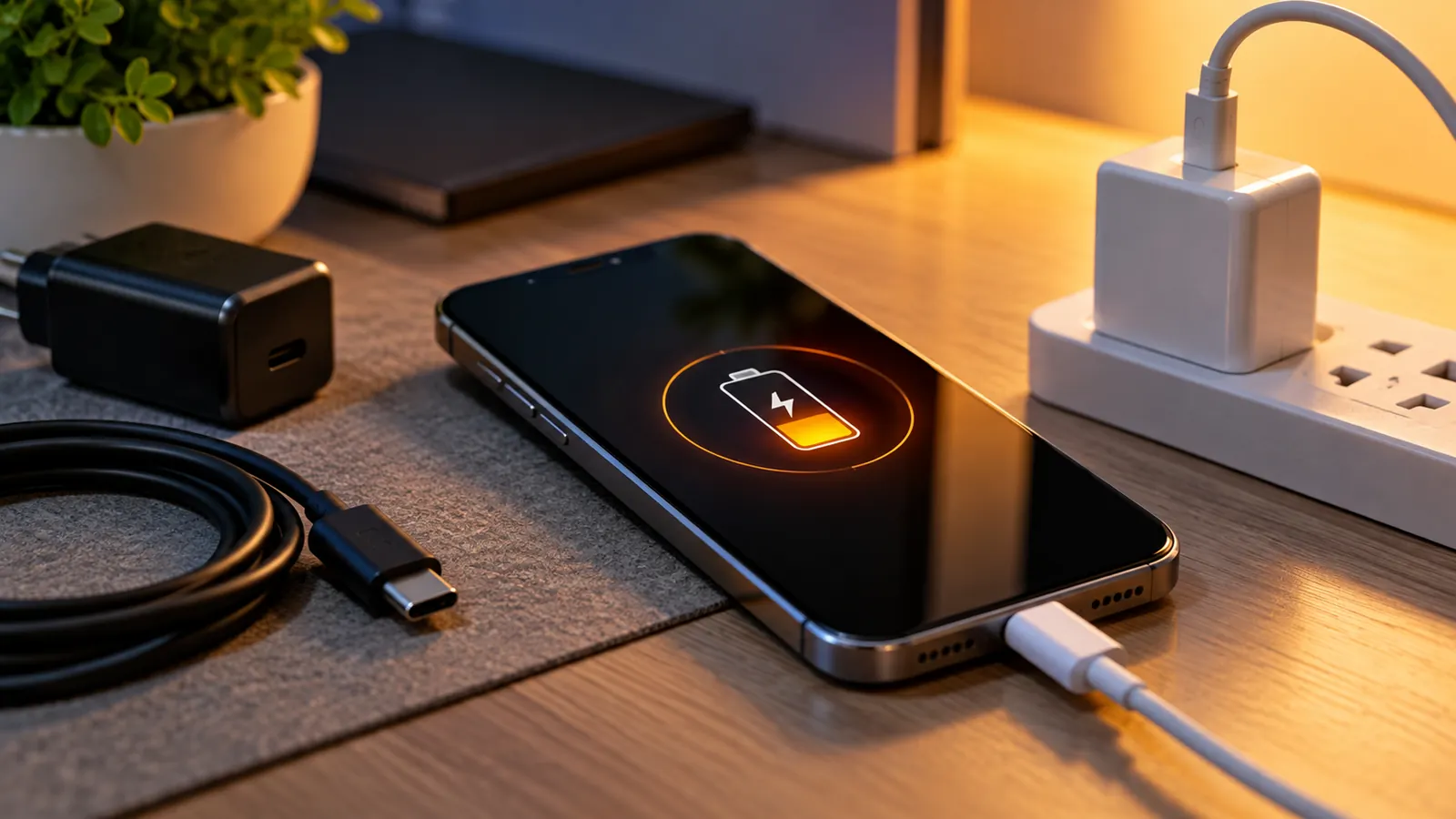
A phone can show a charging icon, claim to support fast charging, and still take hours to fill. The crucial distinction is between the wattage printed on the adapter and the power the handset actually accepts. A 65 W brick cannot force a 25 W phone to charge at 65 W, while a damaged cable, hot battery, unsuitable charging protocol, or power-hungry activity can reduce the delivered energy even further. This guide shows how to diagnose slow charging in a controlled sequence without risky tricks or buying unnecessary accessories.
Start here: diagnose the problem in ten minutes
Before changing advanced settings, record the phone model, battery percentage, room temperature, cable and adapter used, and whether a charging warning appears. Disconnect the phone if the battery is visibly swollen, the connector is charred, liquid is present, or the adapter smells of burning. Those are service issues, not optimization issues.
- Plug a known-good compatible wall charger directly into a working outlet, not a laptop USB port.
- Use a known-good cable intended for the required current, ideally one recommended by the phone maker.
- Remove a thick case if the phone feels unusually warm, move it out of sunlight, and let it cool naturally.
- Switch off the screen, avoid video recording or gaming, and observe the battery percentage for 10–15 minutes.
- Try the same charger with another compatible phone, then try a different charger-and-cable combination with your phone.
- Note whether the speed changes dramatically below 50%, above 80%, or only during heavy use.
Do not judge charging speed from a single one-minute sample. The battery percentage indicator is rounded and recalibrated, so short changes may be misleading. This quick comparison is intended to identify a pattern, not to certify a particular charging wattage.
How fast charging actually works
The charging adapter advertises supported combinations of voltage and current. The phone and power source communicate to choose a permitted mode when using a compatible charging protocol. The cable and connector must be capable of safely carrying the negotiated current. Finally, the phone’s charging controller limits input according to battery condition, cell temperature, charge level and internal protection rules.
A brick labeled 100 W is not necessarily faster than a 30 W brick for every phone. For example, a handset that requests USB Power Delivery with Programmable Power Supply (USB PD PPS) may fast-charge only at its supported profile. A high-output charger that lacks the required protocol can fall back to a slower level. Some manufacturers use proprietary modes requiring specific charger-cable combinations.
A distinction also matters between adapter output, power entering the phone, and energy reaching the battery. Part of the incoming power operates the screen, radios and processor, while some is lost as heat. Even a seemingly correct adapter can therefore produce a small net increase in battery percentage if the phone is busy.
The charger: a high wattage label is not enough
Check the specification of the exact model rather than relying on advertising terms such as Super, Turbo or Ultra. Look for USB PD, PPS, or the manufacturer’s required charging standard. Google explains that Pixel charging speed can vary with the selected adapter and cable, and that USB-A-to-USB-C arrangements may be slower than suitable USB-C-to-USB-C charging. Google Pixel charging guidance.
Use a wall socket known to work. A laptop port, television USB socket, low-current car USB port, or unpowered hub may be limited. Multiport chargers sometimes redistribute available wattage when you plug in a second device. If the adapter overheats or repeatedly disconnects, stop using it.
The cable: the most underestimated bottleneck
A USB-C plug tells you the connector shape, not its electrical capabilities or quality. A cable can become resistive or intermittent after being bent, crushed, or exposed to moisture. Some charging modes also depend on electronically marked high-current cables. Even when a cable transfers files, it may not allow the phone’s highest charge rate.
Check both connector ends for bent metal, a loose fit, frayed insulation or discoloration. Swap one item at a time: first cable with the same charger, then charger with the same cable. If speed recovers only when one cable is replaced, you have a practical answer. Do not buy an extreme-wattage cable merely because the number is bigger; select an appropriate certified cable for your charging standard.
Temperature protection: why charging slows when the phone is hot
Lithium-ion batteries are temperature-sensitive. Fast charging creates heat, so phones commonly reduce the current when a temperature sensor approaches a protective limit. Samsung identifies high temperature among the reasons a Galaxy phone may charge slowly or temporarily stop. Samsung charging troubleshooting.
Common heat sources include playing 3D games, navigation in direct sun, recording high-resolution video, wireless charging inside a thick case and intensive background tasks. Let the device rest on a hard, ventilated surface and turn the display off. Do not put it in a freezer or refrigerator; condensation and rapid temperature changes can damage electronics. A persistently hot phone even when idle needs investigation.
Battery percentage and charging curves: why 80–100% takes longer
Charging is not a fixed-rate process from zero to full. Many phones accept more power at a lower state of charge, then taper as the battery approaches full. Optimized or adaptive charging features may deliberately pause or slow charging late in the cycle to support battery longevity. Google’s battery help explicitly describes temperature and optimization-related charging slowdowns. Google’s battery and charging explanation.
Therefore compare a 20–50% test with another 20–50% test, not a 20–50% result against 85–100%. If the only complaint is slower charging above 80%, check battery-protection settings and the manufacturer’s normal behavior before suspecting a fault. Turning protection off permanently is not a universal recommendation: the user may prefer longevity over the last few minutes of charge time.
Background apps and screen-on charging
A phone plugged into power is still consuming energy. A screen at full brightness, poor cellular reception, gaming, hotspot operation, navigation and large cloud backups can consume substantial power and generate heat. Battery percent may rise slowly even if input charging is normal.
Run a safe control test: let the device cool; restart it; connect it to a compatible wall charger; leave it idle with the screen off. If the percentage rises normally in this state but not while using an app, review battery usage and app updates. You do not need to install battery-booster apps or task killers; many make the experience worse. Temporary airplane mode can reduce radio use during a test, but it also stops calls and connectivity.
Inspect the port without damaging the phone
Pocket lint can accumulate deep inside USB-C and stop the connector from seating properly. Dirt may produce intermittent contact, unexpected fast-charge disconnections, or one-sided charging behavior. First power the phone off and inspect the port under a light without forcing anything inside. Check whether the plug seats flush and securely.
Do not insert metal pins, needles, liquid cleaners or compressed air unless the device manufacturer explicitly allows that procedure for the model. Do not scrape electrical contacts. If debris is tightly packed, moisture alerts persist, or the port feels loose, a qualified repair service is safer than improvisation. Pixel’s official guide advises checking for dust and trying a known-working cable and adapter. Google charging fault guide.
Moisture detection and unusual charging warnings
Many phones disable or limit wired charging when they detect moisture or an abnormal USB connection. Unplug the connector, dry the exterior and follow the model’s published drying instructions. Do not use hairdryers, rice, direct heat or unofficial bypass instructions. Moisture alerts recurring after the device has fully dried may indicate contamination or a connector fault.
A message such as "check charging accessory" points toward the compatibility or integrity of the cable or adapter. A recurrent disconnect every few seconds, with no movement, can point to the cable, socket, charger protection circuit or charging controller. Work through inexpensive substitutions before assuming the mainboard has failed.
Phone-specific checks: Samsung Galaxy
On supported Galaxy models, inspect Settings → Battery and any Charging settings or Battery protection options; labels vary by One UI version. Check whether Fast charging is enabled where the feature is provided. Test with a compatible adapter and cable for your exact model. Samsung warns that charging can slow due to temperature, accessory incompatibility, charging settings and port debris. Samsung’s device guidance.
Some Galaxy phones show different labels for wired fast charging, super-fast charging and wireless charging. The banner is an indicator, not a laboratory measurement. If supported, device diagnostics can help flag charging issues, but a normal diagnostic result does not exclude an intermittent damaged cable.
Phone-specific checks: Google Pixel
Google recommends suitable USB-C charging equipment, including compatible USB PD or PPS adapters, and notes that actual charging speed depends on device model. The battery may slow charging to manage heat and ageing. Look for Adaptive Charging or Charging optimization where available. See official Pixel charging guidance and charging fault diagnostics.
Do not assume that all Pixels use the same maximum wattage. Check the specification sheet of the exact phone, as not every generation shares the same peak rate or wireless-charging behavior.
Phone-specific checks: iPhone
An iPhone also negotiates its wired charging mode with the adapter and cable. Charging may slow as the battery approaches full or if temperature conditions are outside the preferred range. Check battery health information and any Charge Limit or Optimized Battery Charging features provided for your model and iOS version. If the phone repeatedly pauses due to temperature, first correct the environment rather than disabling sensible safeguards.
For iPhone models with USB-C, remember that a USB-C-to-USB-C cable and a USB-C wall adapter are not automatically the same quality or power profile. For Lightning models, use a reliable compatible cable and power source. Avoid treating unsupported voltage claims printed on a cheap charger as evidence of effective iPhone fast charging.
Wireless charging is a separate diagnosis
Wireless charging may be slower than wired charging, particularly when the phone is misaligned or heat builds up between the case and charging surface. Check that the charger supports the phone’s required Qi/Qi2 standard and model-specific magnetic alignment. Remove bulky cases and metal accessories, center the phone and keep both surfaces cool.
Google specifically recommends checking alignment, removing obstructive magnetic items and managing heat for slowly charging Pixel devices. Google wireless-charging troubleshooting. If wired charging is normal but wireless charging is consistently abnormal on a verified compatible pad, investigate the pad, case and wireless receiver rather than the USB-C port.
A practical decision tree for slow charging
- Slow with every charger and cable: inspect phone temperature, software power use, charging settings, port and battery condition; arrange diagnosis if none explains it.
- Slow only with one cable: replace that cable with a compatible, quality-tested alternative.
- Slow only on laptop, vehicle or power bank: compare the port’s specified output and supported charging protocol with a working wall adapter.
- Slow only after 80%: check whether tapering or adaptive charging is operating normally.
- Slow while gaming but normal at rest: the phone is using power and may also be thermally throttling the charge rate.
- Charging connects and disconnects when moved: suspect connector or cable wear; stop bending or pressing the connector into place.
- Battery drains while plugged in: confirm that the source provides enough supported power and investigate excessive power use; seek service if it occurs when idle.
How to test improvements without being misled
Set a repeatable test. Start at roughly 25% battery if convenient, allow the phone to cool, and measure percentage gained over 15 minutes with the screen off. Repeat the same test on a different day, with similar starting level and ambient conditions, changing only the charger or cable. The numbers will not be perfectly identical because the battery-management system is adaptive, but a large consistent improvement is informative.
For advanced users, reputable USB power meters can show approximate USB-side voltage and current. Their readings are not necessarily the battery’s internal charging wattage. Avoid installing apps that claim to measure exact incoming watts from battery percentage alone; they often show estimates, not validated electrical measurements.
When a battery or charging-port replacement makes sense
Consider professional inspection if the phone’s battery is swollen, operating time has degraded severely, it frequently powers off unexpectedly, or it becomes unusually hot at light load. A charging port that only works at a particular angle, shows corrosion or repeatedly disconnects may require service. Ask the technician to test battery health, port contact, charging-board path and known-good approved accessories before authorizing a major board replacement.
Do not replace a battery simply because the 80–100% stage is slow; that is commonly intentional. Conversely, if the phone was dropped, exposed to liquid or subjected to an unsafe charger, do not postpone repair because an app labels the battery healthy.
What not to do
Avoid short-circuiting contacts, forcing incompatible fast-charge protocols, freezing the phone, blasting hot air into the port, installing "super charging" apps, or repeatedly performing unnecessary factory resets. Those techniques do not override battery charging physics and can create additional risks. A factory reset is a last-resort software diagnostic only when justified, with a complete backup and a verified reason.
Bottom line
The fastest reliable solution is diagnosis, not buying the charger with the biggest number. Check protocol compatibility, swap cable and adapter separately, compare idle charging under cool conditions, account for the slowdown near full battery, and treat repeated disconnections or heat warnings as possible hardware problems. For everyday calculations on the site, see Horus Valley’s free browser tools.
Sources and further reading
You may also like
 Technology & How-To
 USB Works on PC but Not on TV? How to Find the Cause
Diagnose a USB drive that works on a computer but not a TV. Separate detection, missing files and…
 Technology & How-To
 WhatsApp “Waiting for This Message”: Fixes for iPhone, Android and Web
Fix WhatsApp’s waiting-message notice by comparing your phone and linked devices, checking updates and protecting existing chat data.
 Technology & How-To
 WhatsApp iOS 15.5 Requirement: What Changes on November 30, 2026?
WhatsApp raises its iPhone minimum to iOS 15.5 on November 30, 2026. Check your version, older iPhone eligibility…