
Samsung Moisture Detected Warning Won’t Go Away? Safe Fixes That Work
Samsung Galaxy moisture detected warning stuck? Learn safe USB-C drying, USB Settings cache fixes, cable tests, wireless charging options, and when to seek repair.
Contents
- Quick diagnosis: what does the warning actually mean?
- Step 1: unplug the cable immediately
- Step 2: dry the USB-C port without damaging it
- What not to do while drying
- Step 3: check the cable and charger separately
- Step 4: restart the Galaxy phone after it is completely dry
- Step 5: clear the USB Settings cache (only when the port is dry)
- Clear cache versus clear data
- Step 6: update One UI and Samsung software safely
- Step 7: use wireless charging only if your Galaxy supports it
- Why the warning appears when the phone was never wet
- Moisture detected after showering, rain, or a humid bathroom
- The water-drop icon stays on after several hours
- The warning appears only when connecting to a PC
- The phone charges for a second, then stops
- Samsung Galaxy S, A, Z Flip, and Z Fold: differences that matter
- When should you stop troubleshooting and request repair?
- A safe decision path you can follow
- Common mistakes that make the problem worse
- How to prevent the warning from returning
- Official Samsung references and further reading
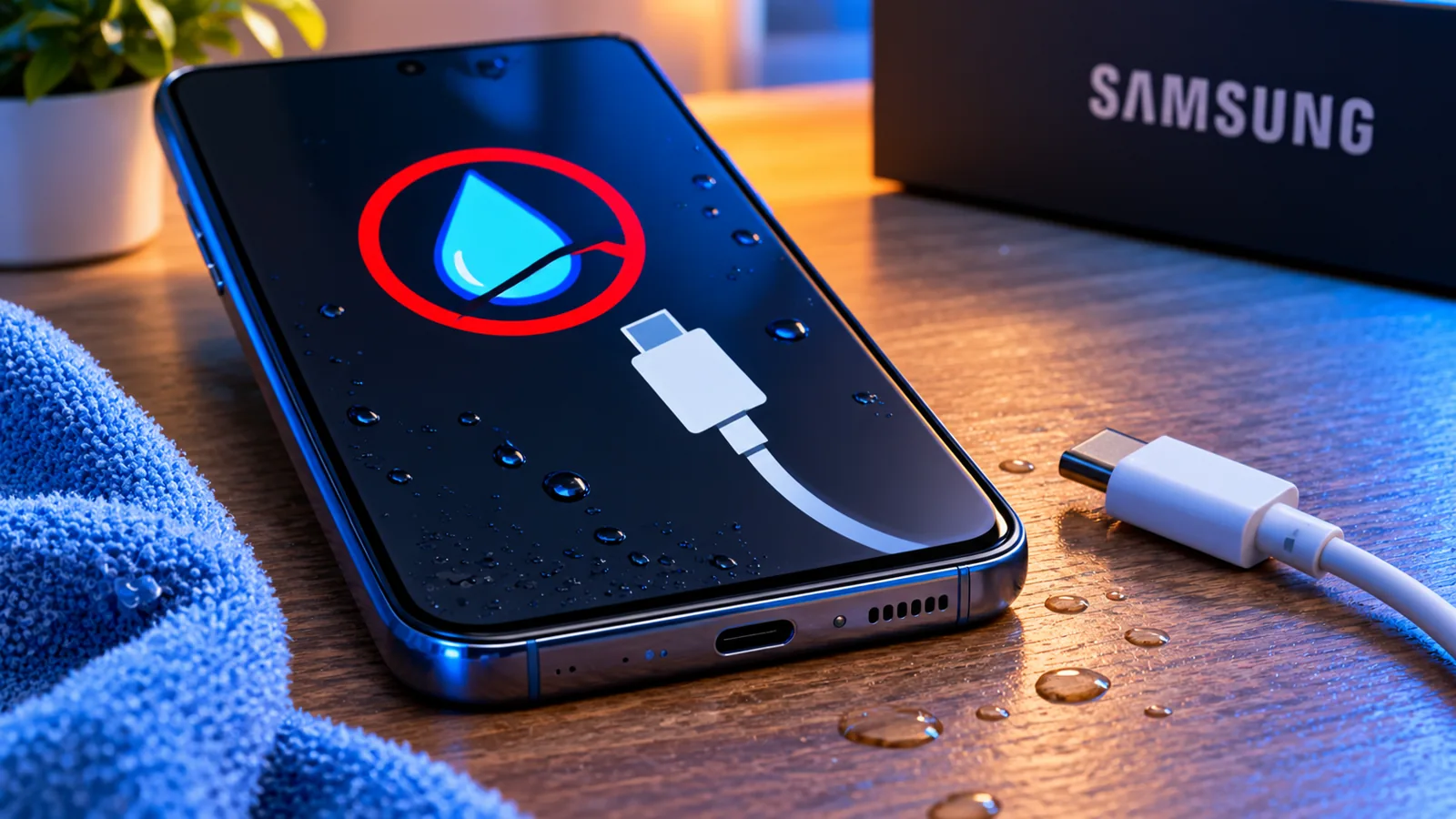
A Samsung Galaxy phone can display a Moisture detected in charging port warning even when it has not been dropped in water. Sometimes the phone stops charging after a humid commute, a shower-room visit, a wet cable connection, or a software restart. Other times, the warning remains for hours after the port seems dry. The correct response is not to force charging: first distinguish genuine moisture from a cable problem, trapped debris, or a persistent USB-service alert.
This guide covers Galaxy S, A, Note, Z Flip, and Z Fold devices, although menus and supported charging features differ by model and One UI version. It starts with low-risk checks and only moves to software troubleshooting after the charging port is completely dry. It also explains which popular internet tricks should be avoided.
Safety first: Samsung disables wired charging when moisture is detected to reduce the risk of corrosion and damage. Do not bypass the warning or insert anything into a wet charging port.
Quick diagnosis: what does the warning actually mean?
The phone monitors conditions at its USB connection. When it detects moisture or an abnormal electrical condition, it can suspend wired charging and display a water-drop icon or an alert. A wet USB-C connector, condensation, humidity, contamination, or damaged accessories can all be relevant. The warning alone does not prove that water entered the phone’s internal electronics.
| What you observe | Likely area to check | Safest next step |
|---|---|---|
| Alert started after rain or a splash | Moisture in port or cable | Unplug, power off, and air-dry |
| Alert appears only with one cable | Cable connector or charger | Stop using that accessory; test another only when dry |
| Alert persists with no cable attached | Residual moisture, debris, or USB software state | Dry fully; restart; consider USB Settings cache |
| Phone is hot, swollen, corroded, or smells unusual | Possible hardware or battery hazard | Stop using and seek authorized service |
| Wireless charging works, wired charging does not | USB port, cable, or wired-charging path | Back up data and diagnose port safely |
Step 1: unplug the cable immediately
Disconnect the USB-C cable from the phone and unplug the charger if its connector is wet. Do not repeatedly reconnect the same cable to see whether the message has disappeared. Moisture on the cable tip can reintroduce liquid to a drying port. Samsung advises disconnecting power and allowing the phone to dry before attempting wired charging again.
If the phone was exposed to saltwater, a sugary drink, or another liquid, residue can remain after the liquid evaporates. Such exposure deserves particular caution because it may leave conductive or corrosive deposits. Follow the specific cleaning guidance for your model or arrange a service inspection rather than improvising with household solvents.
Step 2: dry the USB-C port without damaging it
- Switch off the phone if practical, especially after direct liquid exposure.
- Gently wipe the outside of the phone and cable with a clean, soft, dry cloth.
- Hold the phone with its charging port facing downward and gently shake it a few times to help droplets escape; do not shake forcefully.
- Place the phone on a dry surface in a well-ventilated room, with the port unobstructed. A fan at room temperature can help evaporation.
- Leave the cable disconnected until both the phone connector and the cable plug are dry.
- If moisture is still suspected, wait longer rather than using the charging port.
Samsung says water can evaporate from a port in approximately one to two hours in some circumstances, but this is not a guaranteed deadline. Drying can take longer with high humidity, trapped liquid, cases that restrict airflow, or residue inside the connector. The test is whether the port is fully dry—not whether a timer has elapsed.
What not to do while drying
- Do not use a hair dryer, oven, radiator, or intense heat. Heat can damage adhesives, seals, battery components, and plastics.
- Do not insert cotton swabs, tissue, needles, or metal tools into the USB-C socket. They can leave fibers or bend contacts.
- Do not pour alcohol or cleaning liquid into the port as an improvised fix.
- Do not rely on rice. It does not reliably clean or inspect the port and can introduce particles.
- Do not force charging through a computer, power bank, or different adapter while the warning indicates moisture.
Step 3: check the cable and charger separately
A charging cable can retain moisture or develop contamination at its USB-C tip even when the phone looks dry. Examine the plug under good lighting without touching the electrical contacts. Look for droplets, discoloration, bent metal, or obvious debris. Replace a damaged cable rather than trying to repair its connector.
After the phone and cable are completely dry, try a known-good cable and charger from a reputable manufacturer. If the warning appears only with one cable, that accessory becomes a stronger suspect. If it appears with every cable or with no cable connected, focus on the phone’s port and USB software state.
Step 4: restart the Galaxy phone after it is completely dry
A restart can clear a temporary USB detection state. Make sure the phone is dry first, then restart it normally. On many Galaxy models you can hold the Side key and Volume Down briefly to open the power menu, or use the power icon in Quick Settings; exact controls depend on your configuration. Avoid a forced restart while the device is actively overheating or showing signs of electrical damage.
After restarting, leave the cable disconnected for a moment and see whether the icon remains. If the message disappears, reconnect only a dry, undamaged cable. If it returns immediately, do not keep retrying indefinitely: move to the next checks.
Step 5: clear the USB Settings cache (only when the port is dry)
Samsung specifically recommends clearing the USB Settings system app cache if the water-drop warning persists after the port has dried. This is a software troubleshooting step, not a method for overriding moisture protection. If the phone is still wet, stop here and continue drying instead.
- Open Settings and select Apps.
- Open the filter or sort control beside the app list.
- Enable Show system apps and confirm.
- Find USB Settings or USBSettings (the display name may vary).
- Open Storage, then tap Clear cache.
- Restart the phone and check whether the alert returns after the device is dry.
If you cannot find USB Settings, use the Apps search if available and check whether system apps are visible. Samsung notes that screenshots and menus differ by model and software version. Do not clear data for unrelated system apps or follow instructions that ask you to disable charging safeguards.
Clear cache versus clear data
| Option | What it generally does | Recommendation |
|---|---|---|
| Clear cache for USB Settings | Removes temporary cached files for the USB service | Samsung-documented step after drying |
| Clear data for USB Settings | Resets stored app data or preferences | Not the default first step; follow model-specific support advice |
| Factory reset | Erases phone data and resets the device | Not justified as an early moisture-warning fix |
Step 6: update One UI and Samsung software safely
If the port is dry and the phone has sufficient battery, check Settings → Software update → Download and install. Updates may address software issues, but no update can repair corrosion or a damaged connector. If the battery is low and USB charging is unavailable, do not start an update that risks the device shutting down partway through.
If the warning began immediately after a software update, note the exact model, One UI version, and the time the problem started. This information helps Samsung Support distinguish a software regression from a physical port problem. A temporal connection does not establish that the update caused the warning.
Step 7: use wireless charging only if your Galaxy supports it
Some Galaxy S, Note, and Z models support Qi-compatible wireless charging; many Galaxy A phones do not. Check your model specifications before buying a charging pad. Samsung says wireless charging can be used while waiting for the USB port to dry on supported devices, provided the device itself is dry and safe to handle.
- Dry the phone exterior thoroughly before placing it on the pad.
- Use a compatible charger and position the phone centrally on the charging surface.
- Remove thick or incompatible accessories that prevent proper alignment.
- If the device becomes unusually hot, stop charging and seek support.
- Use the opportunity to back up important photos and files while the phone is working.
Wireless charging is a temporary workaround, not proof that the USB-C port is healthy. If wired charging remains unavailable, the phone may still need an inspection.
Why the warning appears when the phone was never wet
High humidity and condensation can affect a charging port without a direct splash. For example, a phone moved from a cold air-conditioned room to warm, humid air may briefly develop condensation. Moisture can also be carried in by a cable, while dust or residue may alter electrical behavior at the connector. A persistent software notification is another possibility once the hardware is demonstrably dry.
These causes should not be treated as interchangeable. If the warning starts after liquid exposure, assume moisture first. If the device has stayed dry but one cable consistently triggers the alert, investigate that cable. If every cable triggers it after prolonged drying, seek hardware inspection rather than repeatedly clearing software caches.
Moisture detected after showering, rain, or a humid bathroom
Bathrooms, kitchens, outdoor rain, and other humid settings can expose a device to condensation. Water-resistance ratings do not make a phone waterproof under every condition; seals can deteriorate over time, and resistance varies by model. Keep the charging port covered from direct spray and wait for the phone to dry before plugging in. Do not assume a high IP rating makes wet charging safe.
The water-drop icon stays on after several hours
First, make sure the charging cable has remained disconnected and the phone has had time in a genuinely dry, ventilated environment. Check for visible liquid or debris without inserting anything into the socket. If it is fully dry, restart and follow Samsung’s USB Settings cache procedure. If the icon returns repeatedly over a day or more, or if it persists with no cable attached, contact an authorized service center for a physical assessment.
There is no universal safe waiting period that guarantees the port is dry. Visible corrosion, sticky residue, or repeated false detections after multiple dry periods are stronger reasons to stop DIY attempts.
The warning appears only when connecting to a PC
A computer USB port supplies power and establishes a data connection, so a contaminated cable or connector can still trigger the warning. Disconnect it, inspect and dry both ends, and test a different data-capable cable after drying. Do not enable USB debugging or developer options to bypass a moisture alert; those settings do not remove the underlying electrical concern.
The phone charges for a second, then stops
Intermittent charging can occur when a connector is loose, contaminated, damaged, or intermittently detected as wet. Test with a known-good cable only after drying. If the plug feels unusually loose, requires a particular angle, or causes the phone to heat up, stop using that port. Continued mechanical pressure can worsen connector damage.
Samsung Galaxy S, A, Z Flip, and Z Fold: differences that matter
| Galaxy family | Relevant consideration | What to verify |
|---|---|---|
| Galaxy S series | Many models offer wireless charging | Exact model and charger compatibility |
| Galaxy Z Flip / Z Fold | Wireless alignment and folded position can matter | Model instructions and placement |
| Galaxy A series | Wireless charging support varies and is often absent | Official model specifications |
| Older Galaxy or Note devices | Menus and USB Settings label can differ | One UI/Android version and support guide |
The same general safety principles apply across Galaxy models, but Samsung does not guarantee identical charging hardware, water resistance, or software menus on every phone. Use the precise model number from Settings → About phone when looking up service instructions.
When should you stop troubleshooting and request repair?
- The phone was exposed to saltwater, a sweet drink, or another contaminating liquid.
- There is visible green or white residue, bent contacts, or a burnt smell around the USB port.
- The phone becomes unusually hot, the battery appears swollen, or the screen lifts from the frame.
- The warning continues after full drying, restarting, and Samsung’s documented cache step.
- Several known-good dry cables trigger the same error, or charging repeatedly disconnects.
- The phone no longer connects reliably for data transfer as well as charging.
An authorized technician can inspect the port, connector board, and signs of liquid damage. Do not open a sealed phone unless you are qualified to work safely around lithium-ion batteries and water-resistant adhesives. Back up important data before handing the device over, if the phone can be used safely.
A safe decision path you can follow
- Wet or possibly wet? Disconnect power, power off when practical, and dry thoroughly.
- Completely dry but one cable triggers the alert? Retire that cable and test a known-good replacement.
- Completely dry and warning persists without a cable? Restart and clear the USB Settings cache using Samsung’s instructions.
- Still blocked? Check software updates only with adequate power and consider wireless charging on supported models.
- Repeated errors, corrosion, or hardware symptoms? Stop testing and book professional service.
Common mistakes that make the problem worse
The most damaging mistake is treating the warning as an inconvenience to bypass. Plugging in repeatedly while wet can accelerate corrosion. Hot-air drying can damage the device, and metal tools can deform USB-C contacts. Random system-app resets, factory resets, or unofficial charging-bypass utilities may erase settings without addressing the cause. A careful sequence of drying, cable isolation, Samsung’s documented cache fix, and professional inspection is both safer and more informative.
How to prevent the warning from returning
Keep charging cables dry and clean, avoid charging in steamy rooms, and inspect connectors before use after rain or travel. If the phone has been in a pocket during heavy exercise or in a humid bag, allow it to acclimatize in a dry area before connecting power. Replace visibly damaged cables and avoid putting the phone on damp surfaces near the charger.
If warnings recur with no identifiable exposure, document the dates, cables tested, and whether wireless charging works. This troubleshooting history is useful when requesting warranty or out-of-warranty support.
Official Samsung references and further reading
- Samsung UK: My device displays a water drop icon and will not charge — drying, USB Settings cache, cables, and wireless charging.
- Samsung Saudi Arabia: Moisture detected charging-port guidance — step-by-step support instructions.
- Samsung US: Moisture in a water-resistant Samsung phone or tablet charging port — safety warnings and repair advice.
- Samsung UK: What to do if your water-resistant device detects moisture — handling and charging precautions.
Bottom line: A Samsung moisture-detected warning is a protective feature, not an invitation to force charging. Dry the port and cable first, use the official USB Settings cache procedure only after drying, and seek service if the alert continues or the connector shows physical damage. These steps address both genuine moisture and some persistent false alerts without gambling with your phone or data.
You may also like
 Technology & How-To
 USB Works on PC but Not on TV? How to Find the Cause
Diagnose a USB drive that works on a computer but not a TV. Separate detection, missing files and…
 Technology & How-To
 WhatsApp “Waiting for This Message”: Fixes for iPhone, Android and Web
Fix WhatsApp’s waiting-message notice by comparing your phone and linked devices, checking updates and protecting existing chat data.
 Technology & How-To
 WhatsApp iOS 15.5 Requirement: What Changes on November 30, 2026?
WhatsApp raises its iPhone minimum to iOS 15.5 on November 30, 2026. Check your version, older iPhone eligibility…