
One Earbud Not Working? Fix Left or Right Side Safely
One Bluetooth earbud not working? Check charging contacts, left/right balance, pairing, AirPods, Galaxy Buds, Pixel Buds and safe reset steps.
Contents
- Start here: match the symptom to the first useful test
- A 60-second left-versus-right test that does not misdiagnose mono audio
- The safe five-minute fix: do these steps in order
- One side will not charge: test the case before Bluetooth
- A controlled charging-contact check
- Connected but silent: distinguish a phone problem from an earbud problem
- The two-device isolation test
- What each test result actually tells you
- One earbud is quieter or muffled: mesh, fit and audio balance
- Cleaning rules that prevent a simple issue becoming permanent
- Fix left/right audio balance on iPhone and Android
- iPhone or iPad
- Android: Pixel, Samsung and other phones
- Re-pair and reset: the important difference
- Two Bluetooth names or two earbuds that work only separately
- Galaxy Buds replacement or lost pairing: which models can self-couple?
- Important: reset instructions depend on the exact model
- Brand-specific fixes: AirPods, Galaxy Buds, Pixel Buds and others
- Apple AirPods and AirPods Pro
- Samsung Galaxy Buds
- Google Pixel Buds
- Sony, JBL, Soundcore and generic TWS earbuds
- When music plays in both ears but a call uses only one
- If one earbud keeps disconnecting instead of staying silent
- One earbud became quieter after cleaning or after an update
- A practical decision worksheet: stop before replacing anything
- When not to clean or reset again
- When to repair, replace, or stop using the earbuds
- Final checklist before you close the case
- Official sources and manufacturer guidance
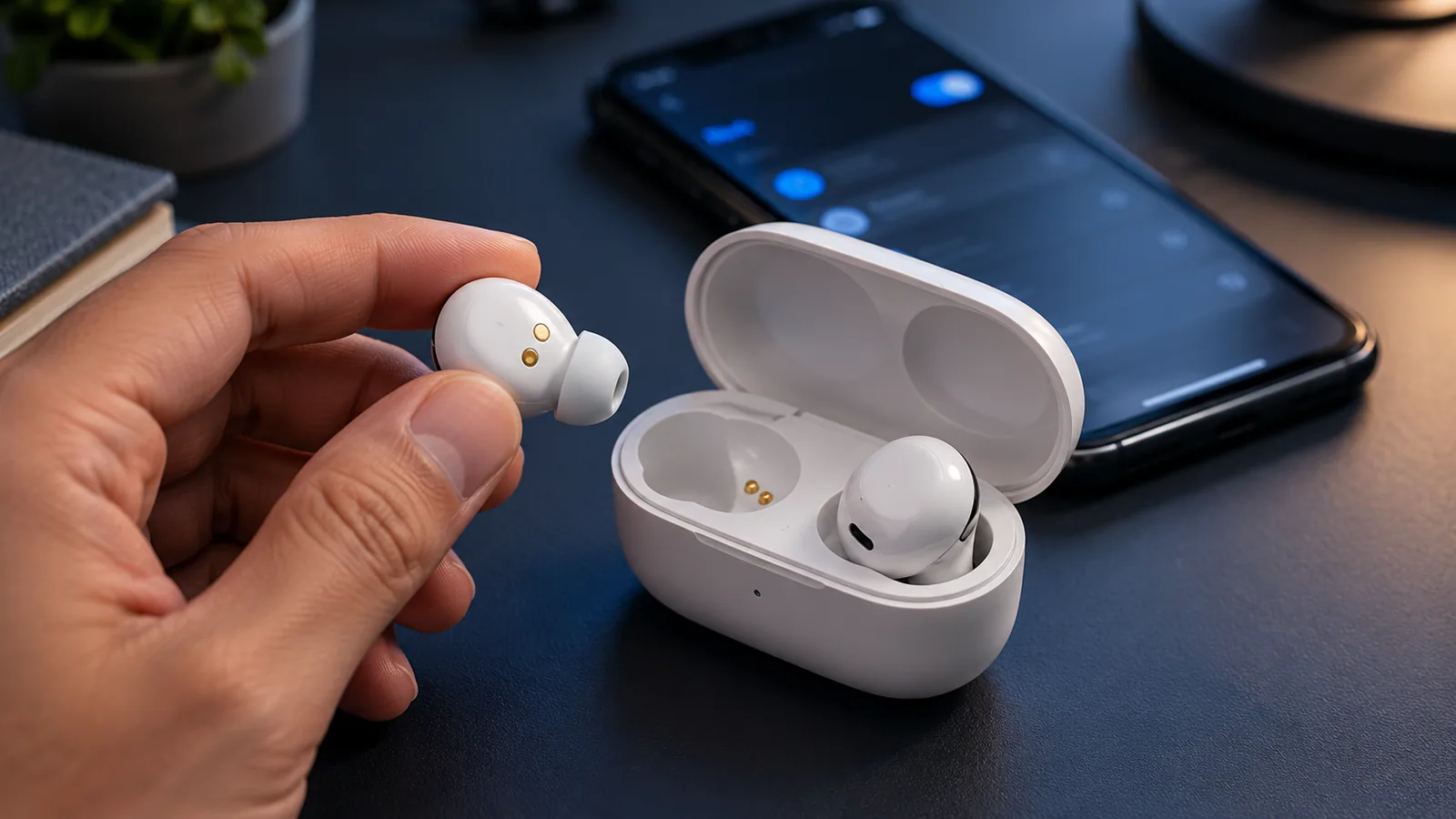
Updated October 24, 2026. If one Bluetooth earbud is not working, first determine whether the silent side is uncharged, muted by the left/right balance, out of sync with the pair, or physically blocked. Put both earbuds in a charged case, confirm each side is actually charging, center the audio balance, and test the set on a second device before resetting it. This order helps separate a case or earbud fault from a phone, app or Bluetooth issue.
This step-by-step guide covers a left or right earbud that is silent, too quiet, missing from Bluetooth, refusing to charge, or working only on its own. It includes AirPods, Galaxy Buds, Pixel Buds, Sony, JBL, Soundcore and generic TWS products. The goal is not to recommend one magic reset but to separate a phone setting, charging fault, blocked acoustic path and lost stereo pairing—with a repeatable test that helps you decide when repair is sensible.
Start here: match the symptom to the first useful test
| What you notice | What to check first | What it may indicate |
|---|---|---|
| Left or right earbud has no sound, but is detected | Battery shown for both; output device; audio balance | Routing, balance, blocked speaker or software issue |
| One bud does not light up or show a battery reading | Seat it in the case; inspect contacts; watch charging status | Charging contact, case or earbud power issue |
| One side is very quiet or muffled | Center balance; compare ear-tip fit; inspect grille | Debris, seal or audio processing |
| Each bud works separately, but not as a pair | Remove duplicate Bluetooth entries; follow model-specific stereo pairing | Left/right synchronization problem |
| Only calls, one app, or one phone are affected | Compare music with calls and test a second device | App or host-device routing issue |
| Same side fails on different phones after safe checks | Record charging and independent playback results | Stronger evidence of earbud hardware fault |
These are diagnostic clues, not a definitive diagnosis. A displayed battery percentage can be stale on some systems, a case LED may describe the case rather than an individual bud, and a product’s companion app may expose more detail than the standard Bluetooth screen. Change one thing at a time so you can identify the improvement.
A 60-second left-versus-right test that does not misdiagnose mono audio
- Use a clearly labeled left/right stereo test recording from a source you trust, at moderate volume. An ordinary podcast may be mixed identically in both channels and cannot confirm correct left/right separation.
- Center the balance control and, for this specific channel test only, check whether Mono Audio is enabled. If mono playback combines channels, a left-only signal may be heard from both sides even when the hardware is fine.
- Play the left-only and right-only passages. Record which ear produces sound, then test a different audio app. If the behavior occurs in one app only, investigate app routing before resetting hardware.
- Swap to a second compatible phone only if needed, without changing several settings at once. If the same physical bud fails on both, focus on the bud/case; if both buds work on another phone, focus on the first source device.
This is a repeatable diagnostic procedure, not a claim that we tested your earbud. Speaker isolation can be inconclusive with spatial-audio effects, some hearing-accessibility modes, and brand-specific stereo behaviors. After diagnosis, restore any accessibility settings you deliberately use for hearing needs.
The safe five-minute fix: do these steps in order
- Reseat and charge: Return both earbuds to their case. Confirm the case itself has power, press each bud gently into its own contacts without forcing it, and allow at least 15–30 minutes if a battery may be empty. A quick 30-second case check is useful for AirPods, but a deeply discharged bud may take longer.
- Confirm the playback destination: Start a familiar podcast or song and choose your earbuds in the phone’s audio output menu rather than assuming “Connected” means the media is playing there.
- Check the balance: Move the left/right audio balance to center. Then test moderate-volume audio with both buds in place.
- Look for a blocked opening: Inspect the quiet side’s ear tip and exposed speaker mesh in good light; use the cleaning method published for your model.
- Refresh the connection: Toggle Bluetooth off and on, restart the phone and reconnect the earbuds. Test a second playback app.
- Re-pair if necessary: Forget the Bluetooth device and pair it again using the official pairing procedure. Try a factory reset only when the non-destructive checks have failed and you know the exact model.
After each step, replay the same 15–20-second recording at a comfortable volume. If both sides recover, stop there: repeated resets, cleaning with liquids, or improvised repairs can introduce new problems. Apple, Google and Samsung recommend overlapping versions of these basic checks for their respective models (Apple, Google, Samsung).
One side will not charge: test the case before Bluetooth
A working charging-case light does not prove both earbuds receive power. One earbud can sit fractionally out of position because a silicone tip catches the edge of the charging well. Dirt, lint or residue on the metallic contacts can prevent the affected side from receiving charge. A charging pin inside the case can also stick; do not pry at it with metal tools.
A controlled charging-contact check
- Charge the case from a known-good cable and power source, following its official charging instructions.
- Take both earbuds out. Inspect their metallic contacts and the matching case contacts under bright light; note any obvious debris, damage or moisture.
- If the manufacturer permits contact cleaning, use its recommended dry or slightly damp method and let everything dry fully before reconnecting power. Do not push cleaning tools into openings.
- Seat the working earbud and observe the charging notification in the phone or manufacturer app. Repeat with the problem earbud. Case indicator behavior varies by model.
- Wait, then compare individual battery readings if available. A persistent 0% reading or an earbud that never registers points you toward charging/service—not phone audio balance.
Do not short charging pins, immerse the case, apply household solvents, use a hairdryer, or charge a visibly swollen, cracked or unusually hot device. Stop using an earbud if its lithium battery appears damaged. A factory reset cannot cure a physically disconnected charging contact.
Connected but silent: distinguish a phone problem from an earbud problem
Bluetooth connection status describes a wireless link, not a guarantee that sound reaches both speakers. The phone may be sending media to a car, television, laptop, or its own speaker; some applications can use a different call audio route from the one used for music. First open the output selector and choose the intended earbuds. Temporarily disconnect competing audio accessories.
The two-device isolation test
- On Phone A, note the exact failure: left silent, right silent, quiet, or intermittently disconnecting. Play a known recording in two different apps.
- Test each earbud alone only if your specific model supports single-earbud use; for AirPods, Apple describes testing the non-working AirPod while the other remains inside the closed case.
- Without changing the earbud hardware, connect the same set to compatible Phone B and repeat the same audio sample at a moderate volume.
- If the fault occurs only on Phone A, inspect that phone’s audio balance, output, paired-device records, app settings and operating system. If the exact same bud fails on both devices, focus on charging, speaker mesh, firmware and service.
- For a quiet side, verify that the perceived difference follows the earbud rather than a single ear. If hearing itself seems affected, stop the electronic troubleshooting and seek appropriate medical advice.
This is a repeatable isolation procedure, not a claim that particular headphones were laboratory-tested. A second-device check is useful evidence, but it does not prove a specific damaged component. A single earbud may not support independent playback, and some headset features depend on a specific operating system or companion app.
What each test result actually tells you
| Observed result | More plausible next area to investigate | Avoid assuming |
|---|---|---|
| The silent side starts working on Phone B | Phone A settings, app or pairing record | The earbud is definitely flawless |
| Both phones show the same bud as 0% | Charging contacts, case fit or battery | A Bluetooth codec caused the battery issue |
| Bud responds to taps but sounds muffled on both phones | Mesh obstruction, fit, or acoustic driver | It needs a factory reset first |
| Both work separately, but the phone sees two names | Stereo-pair relationship, model’s pairing process | One side has a dead speaker |
| Calls fail but music works normally | Call route, microphone configuration or specific app | Both speakers are damaged |
| No power, no charge and no detection after safe checks | Manufacturer service or replacement | An arbitrary button combo will revive it |
One earbud is quieter or muffled: mesh, fit and audio balance
If you can faintly hear sound on one side, do not treat it exactly like a disconnected earbud. Earwax and dust can clog tiny acoustic meshes. A poorly sealed ear tip also changes perceived bass and volume. Google and Sony both describe debris as a potential cause of low audio or loss of sound (Google’s Pixel Buds audio guide; Sony headphone support).
Inspect the detachable silicone tip if your model uses one. Remove it only in the way the maker specifies, check for wax in the opening, and confirm the tip has not twisted or torn. Fit the tip back securely. Try a correctly sized tip rather than immediately pushing the volume higher. With transparency, adaptive sound or noise-control modes, compare at the same settings to avoid confusing processing changes with a physical defect.
Cleaning rules that prevent a simple issue becoming permanent
- Follow the instructions for the exact model and generation. Some manufacturers allow specific cleaning liquids on selected meshes; others specify dry cleaning only.
- Use gentle strokes on exposed surfaces only. Do not insert pins, toothpicks or metal tools into the speaker or microphone openings.
- Keep charging components and batteries away from uncontrolled moisture. Let every cleaned part dry for the time stated by its manufacturer.
- If the sound became worse after cleaning, stop. More pressure or suction can drive contamination deeper or damage the acoustic membrane.
- Re-test at moderate volume; do not compensate for a blocked mesh with maximum output.
A water-resistance rating on the earbuds does not automatically apply to the case, cleaning chemicals, or immersion. For model-specific instructions, start from the maker’s cleaning guide rather than a generic video. Google explicitly cautions against inserting objects into Pixel Buds speaker or microphone openings (official guidance).
Fix left/right audio balance on iPhone and Android
iPhone or iPad
- Open Settings.
- Choose Accessibility, then Audio & Visual.
- Find Balance and move the left/right slider to the center.
- Check the current output from Control Center and replay music. Compare mono and stereo source material only if you understand what each should sound like.
Apple specifically recommends the centered balance setting when one AirPod sounds quieter than the other (Apple one-AirPod instructions). Mono audio does not normally mean one physical earbud should go silent: it generally combines left/right program channels. An extreme balance setting or a left-only audio test track can make the situation appear misleading.
Android: Pixel, Samsung and other phones
Android menus are not identical. Search in Settings → Accessibility for Audio adjustment, Hearing enhancements, Hearing, Left/right sound balance or Mono audio. On many Samsung Galaxy phones, look under Accessibility → Hearing enhancements. Place any sound-balance slider in the middle. Google documents audio adjustment as part of Android’s accessibility tools (Android Accessibility Help).
Some manufacturer apps add independent EQ, adaptive hearing profiles, per-ear controls, or listening-mode features. Temporarily disable optional sound customization as a test—record your original settings first. If the issue only appears in one app, check that app’s call/output selection and try audio stored locally rather than assuming the earbud radio is defective.
Re-pair and reset: the important difference
Reconnecting selects an existing saved relationship. Forgetting and pairing again deletes that relationship from the phone and establishes a new one. Factory resetting changes state inside the earbuds and can erase stored connections, preferences or ownership-related settings. These operations are not interchangeable.
- Turn Bluetooth off on your source device for several seconds, then turn it on again.
- Reconnect the existing entry. If this fails, restart the source device and repeat.
- Use Forget Device or Unpair for the saved headset and temporarily disconnect other devices that may auto-connect.
- Put both charged earbuds in the case and follow the pairing instructions for the exact model.
- Reset the headphones only when official model instructions call for it; confirm that you can pair them again afterward.
Do not use a universal “hold both earbuds for 15 seconds” trick. On some products, touch gestures change volume, trigger an assistant or switch modes; on others, a reset does not restore the left/right pairing by itself. JBL explicitly documents models that require manual left/right pairing after a reset.
Two Bluetooth names or two earbuds that work only separately
Some older or budget TWS designs maintain a separate internal connection between the left and right units. If this relationship breaks, the phone might list two device names or connect to just one at a time. But dual Bluetooth entries are not universal proof of a lost link; some products expose multiple modes legitimately. First confirm your manufacturer and exact model from the product box, case label or companion app.
Unpair the obsolete entries on the phone. Follow your manufacturer’s instructions for joining the left and right earpieces, then pair the combined set to the phone. Only attempt a manufacturer reset if the product’s official instructions require it; a reset can erase the paired state without automatically rebuilding it. This sequence is especially important for certain JBL TWS models, as the company notes in its left/right pairing support article.
Galaxy Buds replacement or lost pairing: which models can self-couple?
Samsung published updated model-specific Galaxy Buds guidance in April 2026. The official page lists supported self-coupling models and different button/touch procedures for Buds4, Buds3 and older Buds families. That means a generic internet instruction to hold both touch surfaces for 15 seconds is not reliable for every Samsung model.
| Galaxy Buds model family | Control described by Samsung | Important limitation |
|---|---|---|
| Buds4 / Buds4 Pro | Case connect button on the back | The indicator sequence and firmware condition matter |
| Buds3 / Buds3 Pro / Buds3 FE | Case connect button on the bottom | Do not substitute older touch-hold instructions |
| Buds, Buds+, Buds Live, Buds Pro, Buds2 / Pro, Buds FE | Both earbud touch surfaces while seated in the case | Match your exact model; not a universal TWS reset |
Samsung further notes that its left/right sound-balance setting does not apply during calls, and some older Galaxy Buds models may not offer that control. If music works in both ears but call audio does not, do not treat a music-balance adjustment as proof that the call path was repaired. For other brands, follow that manufacturer’s matching instructions instead of copying Samsung gestures.
Important: reset instructions depend on the exact model
Do not copy a reset sequence from another earbud model. Apple’s current instructions distinguish older AirPods and AirPods Pro models, which use the setup button on the case, from newer AirPods 4, AirPods 5 and AirPods Pro 3 models, which use a double-tap sequence on the front of the case. Samsung Galaxy Buds, Pixel Buds, Sony, JBL and generic TWS models also use different reset and left/right synchronization steps. Check the manufacturer page for the exact generation before performing a full reset.
Brand-specific fixes: AirPods, Galaxy Buds, Pixel Buds and others
Apple AirPods and AirPods Pro
Apple’s official process begins with a charged case, a 30-second charge check for both AirPods, then checking each AirPod’s individual charging status on an iPhone or iPad. It describes putting the affected AirPod in the appropriate ear while the other remains inside the closed case, then testing audio. If the affected side plays, test the pair together again; if it still fails, proceed to Apple’s model-specific reset guidance (Apple one-AirPod instructions).
Reset gestures differ between older AirPods generations and newer designs. For example, Apple distinguishes case-button procedures for older models from front-of-case tapping on certain newer models. Use Apple’s current reset instructions for your generation, not a single gesture copied from another AirPods model. If one side is merely quieter, start with the mesh and balance settings instead.
Samsung Galaxy Buds
Samsung lists earbud fit, eartip size, debris, sound balance and temporary connection faults as causes worth checking when just one Galaxy Bud plays normally. Seat both earbuds properly, use matching and securely attached eartips where appropriate, inspect the grille, and review left/right balance. Some models expose additional settings in Galaxy Wearable or the device’s built-in earbuds panel.
Confirm that the earbuds’ battery levels are plausible and check whether a supported firmware update is available. App availability and pairing controls vary by generation. If sound remains absent, use Samsung’s model-family support guidance rather than assuming every Galaxy Bud has the same pairing button or touchpad sequence.
Google Pixel Buds
Google recommends cleaning speaker and microphone meshes carefully, checking charge, verifying Bluetooth, toggling the connection, re-pairing if needed, and keeping firmware current. For intermittent playback, test audio stored on the device, stay near the phone and move away from possible 2.4 GHz interference (audio troubleshooting; connection troubleshooting).
Some settings are Pixel Buds model-specific: conversation detection, sound personalization and firmware controls are not available on every generation. Google also notes that resetting Pixel Buds can remove stored preferences and relevant finding settings. Follow model instructions and back up or note custom settings before a reset.
Sony, JBL, Soundcore and generic TWS earbuds
Sony’s headphone support page branches by model and symptom, including low sound, one-sided audio and interruptions. Select your exact WF- or LinkBuds model before following pairing or initialization steps. JBL provides specific left/right synchronization steps for supported TWS models; after some resets, the two earpieces must still be paired to each other. Soundcore and other brands may supply their own companion apps, charging indications, pairing combinations and firmware procedures.
With a generic unbranded set, look for the correct manual or retailer documentation. Avoid internet instructions that give the same touch sequence for every product. If the affected bud never shows any sign of charging or powering on, seek warranty service rather than experimenting with unverified reset combinations.
When music plays in both ears but a call uses only one
The hands-free calling path may differ from the music playback path. A call app can choose the phone speaker, earpiece or a different Bluetooth output; in addition, a microphone issue is not the same as a speaker that produces no sound. If calls fail but music is fine, test an ordinary voice call and a second calling app, and select the correct call output manually.
If other people cannot hear you, investigate the microphone and its opening, permissions and any per-ear microphone setting available for your device. If you cannot hear the caller in one ear, focus on call routing and the application. A reset is rarely the most informative first test when a single app is affected.
If one earbud keeps disconnecting instead of staying silent
Intermittent dropouts are a different category of failure. Charge both units, update supported firmware, keep the phone close, and temporarily disable optional multipoint or device-switching features if available. Compare the same test sound at home and away from crowded wireless equipment. Google cites nearby 2.4 GHz devices, streaming interruptions and Bluetooth reconnection issues among plausible contributors (Google connectivity guidance).
If the dropouts happen only with online music, replay a downloaded local file; a poor internet connection can masquerade as Bluetooth trouble. If the same earbud disconnects even with a nearby phone and a local file, repeated on a second device, record the steps and consider manufacturer support. Do not interpret one successful ten-second test as a conclusive repair.
One earbud became quieter after cleaning or after an update
If cleaning worsened the sound, stop cleaning. You might have pushed dirt farther into the mesh or left moisture inside an opening. Follow the maker’s drying instructions and avoid headphones until fully dry. Continuing to scrub, probe or use suction may permanently damage the acoustic barrier. A technician may need to inspect it.
If the problem began after a firmware or phone update, check the manufacturer’s app for the installed earbud firmware, check its support notices and repeat the phone-versus-second-device test. Firmware updates can change audio behavior, but timing alone does not prove the update caused the fault. Record both software versions and the exact symptoms before asking support to investigate. Google’s firmware documentation is one example of where model-specific update information is maintained.
A practical decision worksheet: stop before replacing anything
Use the checklist below as a small experiment. It makes your support request more useful and helps separate reversible settings from actual hardware evidence. Do not claim a fix succeeded unless playback was retested after the change.
| Check | What to record | What to do next |
|---|---|---|
| Power and charging | Left/right battery status before and after time in case | If absent, focus on charging contact or service |
| Same audio test | Which side is silent or quiet at moderate volume | If uneven, test balance, fit and grille |
| Second app | Works in app A, fails in app B? | Review app-specific routing or processing |
| Second phone | Same side fails on both compatible phones? | If yes, evidence shifts toward earbud fault |
| Single-ear use | Does each bud independently play when supported? | If yes but not together, check pair synchronization |
| Official re-pair/reset | Exact model, step attempted, result | Contact service if identical symptom persists |
A “connected” Bluetooth icon, a glowing case light and a working earbud do not prove the silent earbud has charge or that its speaker is healthy. Confirm the relevant observation directly before buying a replacement.
When not to clean or reset again
Stop home troubleshooting if an earbud or case is swollen, abnormally hot, leaking, or visibly damaged. Power it down and seek authorized service rather than charging it repeatedly. If the same bud is absent on two compatible source devices, does not report charging after safe reseating, and remains unresponsive using its own model’s prescribed steps, save the serial number and warranty proof. Another full reset is unlikely to add useful diagnostic information.
If a replacement earbud has been purchased, confirm that it matches the exact family and generation. Apple and Samsung publish special procedures for replacement units; visual resemblance alone does not guarantee that the two components will synchronize.
When to repair, replace, or stop using the earbuds
A bud that consistently fails to charge, cannot be discovered across compatible devices, never plays independently when the model supports that mode, or remains silent after safe manufacturer-approved checks may have a battery, charging, acoustic or electronic fault. That conclusion becomes stronger when your controlled tests reproduce the same failure on a second device. It still does not identify the damaged component with certainty.
Check warranty eligibility and whether the manufacturer sells a compatible individual replacement. A replacement left or right bud may need pairing or service setup, and parts from different generations are not automatically interchangeable. Keep the model number, serial or purchase information and a brief test log. For swollen batteries, exposed internals, liquid leakage, severe overheating or unusual odors, stop charging and using the set and seek professional service.
There is one important non-electronic check: if different earphones also sound quieter in the same ear, and especially if hearing changes suddenly or is accompanied by pain, dizziness or ringing, do not keep increasing the volume. Seek prompt medical evaluation for sudden hearing loss instead of assuming all of your headphones are defective.
Final checklist before you close the case
- I verified that each earbud charges, not only that the case has power.
- I selected the earbuds as the active audio output and tried more than one app.
- I checked left/right balance and did not confuse a mono recording with a device failure.
- I inspected the affected mesh and case contacts without aggressive cleaning.
- I tried a compatible second phone and noted whether the same earbud failed.
- I re-paired before considering a documented, model-specific factory reset.
- I recorded the symptom and sought service if a battery or physical fault remained.
If the problem is both earbuds connected but no audio, use our focused guide to fix Bluetooth earbuds connected with no sound. On a Windows PC, also see Bluetooth headphones connected but silent in Windows 11. Those problems overlap with one-sided failures but need separate device-output and Windows audio troubleshooting.
Official sources and manufacturer guidance
- Apple Support — If your left or right AirPod isn’t working.
- Apple Support — How to reset your AirPods and AirPods Pro.
- Samsung Support — Sound not heard from one side of Galaxy Buds.
- Google Pixel Buds Help — Fix audio issues.
- Google Pixel Buds Help — Troubleshoot connectivity issues.
- Google Pixel Buds Help — Reset your Pixel Buds.
- Android Accessibility Help — Audio adjustment and mono audio.
- Sony Support — No sound, low sound or one-sided sound.
- JBL Support — TWS left and right not pairing together.
You may also like
 Technology & How-To
 Android Auto Keeps Disconnecting? How to Fix USB and Wireless Dropouts
Android Auto keeps disconnecting? Separate USB, wireless and app failures, check Galaxy USB mode, compare connection methods and…
 Technology & How-To
 Netflix Says Your TV Isn’t Part of the Household? How to Fix It
Fix a Netflix household warning by separating home verification, permanent household updates and temporary travel access, with genuine…
 Technology & How-To
 Google Photos Stopped Backing Up from Your PC? What Changed and How to Fix It
Google Photos stopped backing up your computer folders? Understand the Drive for desktop change, configure browser folder backup…