
Bluetooth Earbuds Connected but No Sound? 15 Fixes for Android, iPhone and Windows
Bluetooth earbuds connected but silent? Diagnose audio output, Android media settings, iPhone routing, Windows 11, calls and pairing.
Contents
- Before You Start: Identify the Symptom
- 1. Select the Earbuds as Your Audio Output
- Android and Samsung Galaxy
- iPhone
- Windows 11
- 2. Enable Media Audio on Android
- Check the Bluetooth device options
- 3. Disconnect Competing Devices and Multipoint Connections
- Test one device at a time
- 4. Check Device, Earbud and App Volume
- Check all three levels
- 5. Restart Bluetooth and Reconnect
- Try a reversible restart
- 6. Test Another App and Offline Audio
- Isolate the failing app
- 7. Check Samsung Galaxy Audio Routing
- Media output and Separate app sound
- Galaxy Wearable
- 8. Fix iPhone Bluetooth Audio Routing
- Check output and balance
- 9. Troubleshoot Windows 11 Bluetooth Sound
- Output and mixer
- Driver and troubleshooter
- Microphone mode
- 10. Fix Calls Working but Music Staying Silent
- Media versus call routing
- 11. Fix Sound in Only One Earbud
- Battery and balance
- Related guide
- 12. Forget the Device and Pair Again
- Android
- iPhone
- Windows 11
- 13. Inspect Charging Contacts and Battery
- Physical checks
- 14. Install Official Firmware and Software Updates
- Update safely
- 15. Factory Reset Only as a Last Resort
- Use model-specific instructions
- Quick Diagnosis by Symptom
- How to Tell if the Earbuds Are Broken
- Prevent the Problem from Returning
- Final Thoughts
- Official Support References
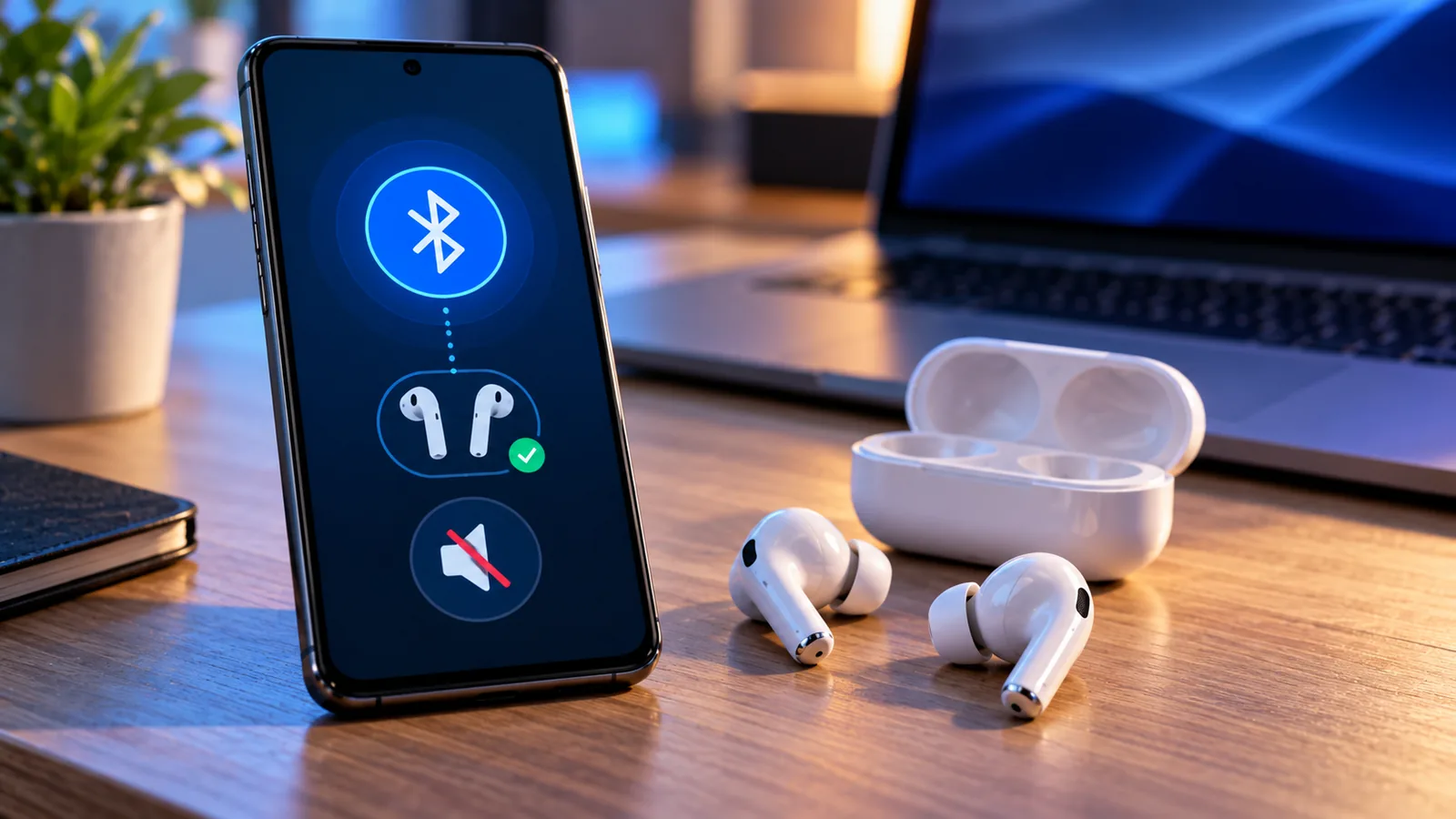
Your Bluetooth earbuds say Connected, but music, videos or calls remain silent. A successful Bluetooth connection does not always mean audio is routed to the earbuds. The cause might be an incorrect output device, disabled media audio, multipoint switching, an app setting or a pairing problem.
This guide offers 15 practical fixes for Android, Samsung Galaxy, iPhone and Windows 11. Work through the steps in order and test playback after each change. Keep volume moderate while troubleshooting because sound may return suddenly.
Before You Start: Identify the Symptom
- Sound plays through the phone or laptop speaker instead of the earbuds.
- Calls work but music does not, or music works but calls do not.
- Only one app is silent, or every app is silent.
- Only one earbud works, or both are silent.
Play a downloaded audio file and then a second app. These quick checks help separate internet buffering and app-specific problems from Bluetooth or hardware issues.
1. Select the Earbuds as Your Audio Output
Android and Samsung Galaxy
Start playback, open the notification shade or Quick Panel, tap Media output (or the audio destination control) and select your earbuds. Menu names vary by device.
iPhone
Open Control Center while audio plays, tap the audio destination/AirPlay control in the playback tile and select the earbuds.
Windows 11
Open Settings → System → Sound → Output and choose the Bluetooth earbuds. Also check the taskbar’s sound output selector.
2. Enable Media Audio on Android
Check the Bluetooth device options
Open Settings → Bluetooth or Connected devices, tap the gear beside the earbuds and enable Media audio if that switch is available. The Phone calls option may be separate. Some Android versions do not expose both toggles.
3. Disconnect Competing Devices and Multipoint Connections
Test one device at a time
Temporarily disable Bluetooth on other paired phones, tablets and computers. Reconnect the earbuds to the device you want to use. If this helps, check multipoint or automatic switching settings in the manufacturer’s companion app.
4. Check Device, Earbud and App Volume
Check all three levels
Confirm that the phone or computer, the app, and any independent earbud volume control are not muted. On Windows, use Settings → System → Sound → Volume mixer to check individual app volume and output assignments.
5. Restart Bluetooth and Reconnect
Try a reversible restart
Pause playback, put both earbuds in their case, wait about 15–30 seconds, toggle Bluetooth off and on, then reconnect. Restart the phone or computer if necessary. Follow the manufacturer’s case and pairing instructions.
6. Test Another App and Offline Audio
Isolate the failing app
Try a downloaded recording, a video, and another music app. If only one app is silent, inspect its volume, output device and updates. If every app is silent, continue with system-level checks.
7. Check Samsung Galaxy Audio Routing
Media output and Separate app sound
Use Media output in Quick Panel. On supported Galaxy models, open Settings → Sounds and vibration → Separate app sound and check whether the affected app is assigned to another device. Temporarily disable the feature as a test.
Galaxy Wearable
For supported Galaxy Buds, inspect battery status and firmware updates in the official Galaxy Wearable app. Available options vary by model.
8. Fix iPhone Bluetooth Audio Routing
Check output and balance
Choose the earbuds from Control Center, then verify the connection in Settings → Bluetooth. Under Settings → Accessibility → Audio & Visual, check that left/right balance is centered. If using AirPods, investigate automatic switching to another Apple device.
9. Troubleshoot Windows 11 Bluetooth Sound
Output and mixer
Confirm the correct output in Settings → System → Sound, then check the Volume mixer for app-specific muting or alternate destinations.
Driver and troubleshooter
Use the Bluetooth troubleshooter in Windows Get Help. Check Windows Update and the computer manufacturer’s support site for a suitable Bluetooth adapter driver. Avoid unofficial driver-updater tools.
Microphone mode
If sound changes when a meeting app opens, check the app’s speaker and microphone choices. Bluetooth headsets may change audio mode when the microphone is active.
10. Fix Calls Working but Music Staying Silent
Media versus call routing
On Android, inspect the Media audio setting. During a call, use the call’s audio selector to route sound to the earbuds. In Zoom, Teams or other calling apps, select the intended speaker and microphone separately.
11. Fix Sound in Only One Earbud
Battery and balance
Check each earbud’s battery level and charging contacts, then inspect the device’s left/right audio balance. A blocked mesh can make one side extremely quiet. Do not insert sharp objects into speaker openings.
Related guide
For a more focused walkthrough, see One Bluetooth Earbud Not Working.
12. Forget the Device and Pair Again
Android
Open the earbuds’ Bluetooth settings and choose Forget or Unpair.
iPhone
Open Settings → Bluetooth, tap the information icon and select Forget This Device.
Windows 11
Open Settings → Bluetooth & devices and remove the earbuds. Then put them in pairing mode following the manufacturer instructions and pair again.
13. Inspect Charging Contacts and Battery
Physical checks
Ensure both earbuds are seated correctly in the case. Look for debris or damaged contacts and clean only as directed by the manufacturer. If a battery appears swollen, unusually hot or damaged, stop using the device and seek professional support.
14. Install Official Firmware and Software Updates
Update safely
Check Android, iOS or Windows updates, the computer maker’s Bluetooth drivers, and firmware through the earbuds’ official companion app. Keep the earbuds charged during firmware updates. Never use unknown firmware downloads.
15. Factory Reset Only as a Last Resort
Use model-specific instructions
A factory reset may remove pairings, touch-control preferences and multipoint configuration. Reset procedures differ between AirPods, Galaxy Buds, Soundcore, Sony, JBL and other models. Use the official instructions for your exact model and generation.
Quick Diagnosis by Symptom
| Symptom | First setting to check |
|---|---|
| Connected, but phone speaker plays | Audio output selection |
| Calls work, music silent | Media audio and app routing |
| Music works, calls silent | Call audio destination |
| Only one app silent | App volume and output |
| Audio switches between devices | Multipoint / auto-switching |
| One earbud silent | Battery, balance and charging |
| Windows connected, no sound | Sound output and Volume mixer |
How to Tell if the Earbuds Are Broken
After checking software and pairing, test the earbuds on a second compatible device. If they work there, the original phone or computer is more likely responsible. If they stay silent across devices after proper charging and model-specific troubleshooting, a hardware fault becomes more likely. Contact the manufacturer or retailer about warranty service rather than opening a sealed lithium-battery device.
Prevent the Problem from Returning
- Keep operating systems, Bluetooth drivers and earbud firmware current.
- Store earbuds correctly and maintain clean charging contacts.
- Review multipoint settings when using multiple devices.
- Avoid unofficial Bluetooth repair apps and firmware files.
- Check the audio destination before repeatedly resetting the earbuds.
Final Thoughts
Most cases of Bluetooth earbuds connected but no sound are worth troubleshooting before replacing the headset. Start with the output selector and media audio settings, then isolate competing devices and apps. Remove the pairing or reset only after simpler checks fail.
Official Support References
Microsoft Windows Support — Bluetooth and audio troubleshooting.
Google Android Help — Bluetooth device settings and troubleshooting.
Apple AirPods Support — connection and model-specific reset instructions.
Samsung Support — Galaxy audio routing and Galaxy Buds guidance.
You may also like
 Technology & How-To
 Android Auto Keeps Disconnecting? How to Fix USB and Wireless Dropouts
Android Auto keeps disconnecting? Separate USB, wireless and app failures, check Galaxy USB mode, compare connection methods and…
 Technology & How-To
 Netflix Says Your TV Isn’t Part of the Household? How to Fix It
Fix a Netflix household warning by separating home verification, permanent household updates and temporary travel access, with genuine…
 Technology & How-To
 Google Photos Stopped Backing Up from Your PC? What Changed and How to Fix It
Google Photos stopped backing up your computer folders? Understand the Drive for desktop change, configure browser folder backup…