
Google Password Manager Passwords Disappeared? How to Find Missing Passwords Safely
Google Password Manager passwords disappeared? Check the web vault, Chrome profiles and autofill settings safely, and find out when recovery is possible.
Contents
- First: do these five checks without changing or deleting data
- Find your exact case: a four-way diagnosis
- Case 1: passwords exist online but disappeared from Chrome on a computer
- 1. Confirm the Chrome profile
- 2. Confirm that Chrome can use the intended account
- 3. Check whether this is an autofill problem instead
- Case 2: saved passwords disappeared from Google Password Manager on Android
- Case 3: passwords seem missing on iPhone or iPad
- Case 4: passwords exist only on your old computer or phone
- Case 5: one saved website password is missing but others remain
- Case 6: passwords disappeared from the web vault and every device
- Is the problem a Google Password Manager PIN or passkey issue?
- Mistakes that can make recovery harder
- A practical verification test: determine what is broken in three minutes
- What if the passwords vanished after a Chrome update or reinstall?
- What to record before contacting official support
- How to tell true loss from a missing autofill suggestion
- After recovering your passwords: prevent a repeat
- Official Google guidance and further reading

If your saved passwords suddenly disappeared from Google Password Manager or Chrome, check passwords.google.com using the exact Google Account first. If the missing entries are there, your online vault still has them, and the problem is more likely a Chrome profile, account selection, autofill-provider or synchronization issue. If the online vault is empty, check the original browser profile and any device that may still hold a copy before resetting or clearing anything.
The distinction matters: Google documents both passwords saved to an account and passwords saved only on the device. An empty password list is not by itself proof of permanent deletion. But there is also no universal “restore deleted passwords” button that can be relied upon. This guide separates safe diagnosis from actual recovery and shows what to do when nothing remains. Source: Google Chrome Help.
First: do these five checks without changing or deleting data
- Open passwords.google.com manually, sign in and verify the full email address shown—not just the profile avatar.
- If you have multiple Google Accounts, check each account you might have used. Work, school and personal accounts are separate vaults.
- In desktop Chrome, open the profile selector and inspect other Chrome profiles. A profile is a browser data container; switching Google Accounts is not necessarily the same thing as switching profiles.
- On an older phone or computer, look for the missing entries without signing out, reinstalling Chrome, resetting sync or deleting browser data.
- Decide whether the passwords are actually absent or simply not being offered in a sign-in field. These require different fixes.
Preservation rule: If an old device might contain your only copy, leave its Chrome profile intact. If you suspect a deletion has already synchronized, consider disconnecting that old device from the internet before opening its password list, to avoid receiving a further deletion. This is a cautious preservation technique, not an officially guaranteed recovery method.
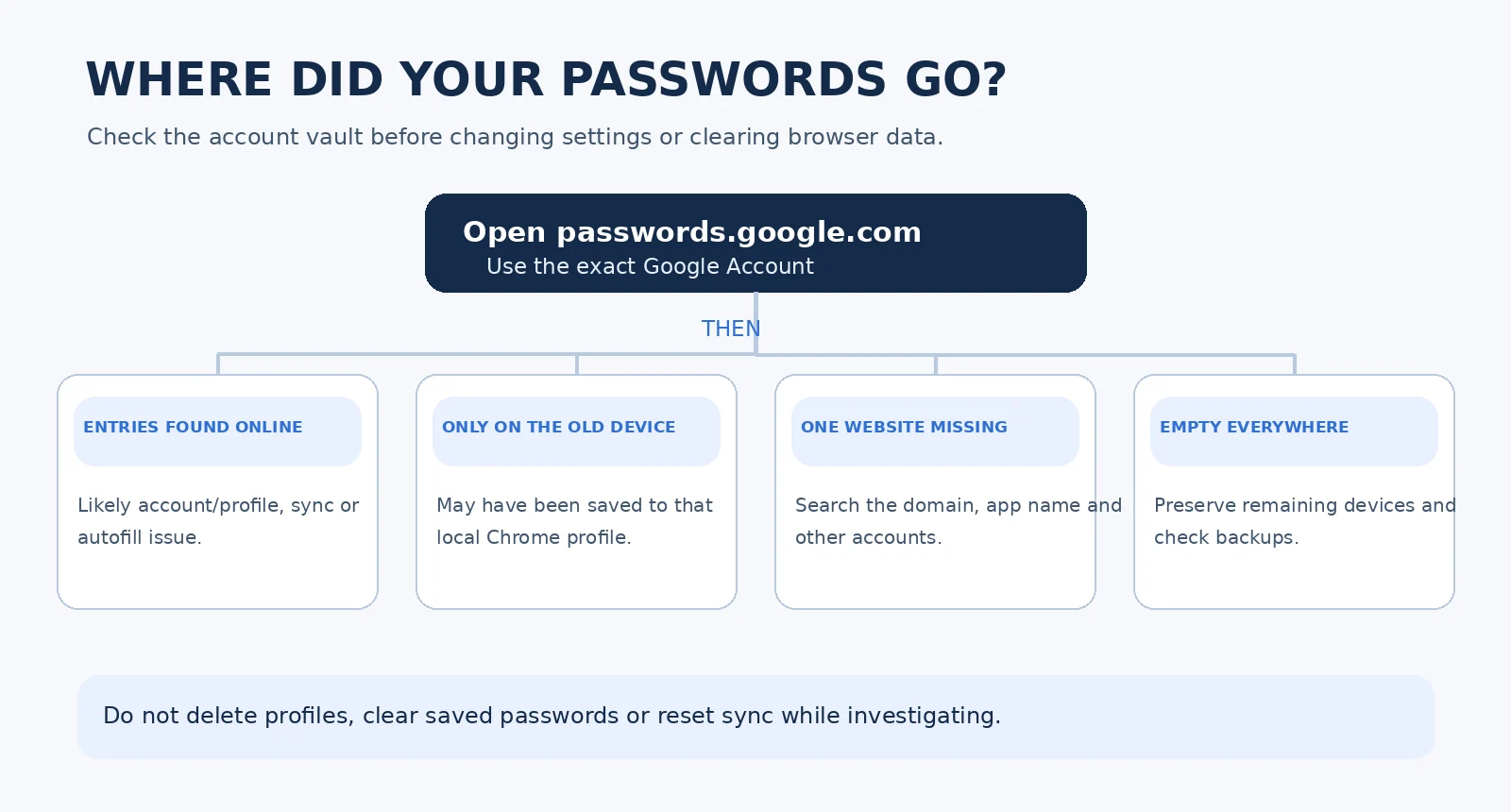
Find your exact case: a four-way diagnosis
| What you observe | Most likely explanation to investigate | Safest next action |
|---|---|---|
| Passwords appear on passwords.google.com, not your device | Account/profile routing, sync availability, or autofill settings | Keep the cloud copy; check device account and provider |
| Passwords appear only in a particular old Chrome profile | They may have been saved locally rather than to the Google Account | Preserve that device; export securely if available |
| Only one app or site is missing | Different domain/app name, import mapping, unsaved entry, or deletion | Search by domain and username; check other accounts |
| No entries in the online vault or any checked profile | Wrong account, lost local profile, deletion, unavailable encrypted vault | Stop destructive fixes; look for backups and surviving devices |
These are diagnostic starting points, not proof of a specific cause. A missing entry can have more than one explanation. If you recently changed phones or operating systems, the old device check becomes especially valuable.
Case 1: passwords exist online but disappeared from Chrome on a computer
1. Confirm the Chrome profile
On Windows, macOS or Linux, open Chrome and click your profile picture in the top right. Inspect the profile name and Google Account. If you previously had separate personal, work or guest profiles, choose the original one. In a browser profile that is not signed into your Google Account, passwords may be stored only locally. Google explicitly distinguishes these two storage locations in Manage passwords in Chrome.
Open the three-dot menu, choose Passwords and autofill → Google Password Manager, and look under Passwords. If it is populated in one profile but empty in another, the original entries have not automatically moved between profiles. Do not delete the profile you believe contains the entries.
2. Confirm that Chrome can use the intended account
Google says signing in to Chrome lets you use account-saved credentials across supported devices. Review the account shown in Chrome and follow Google’s signed-in-device instructions if the browser is not using the account you expect. UI labels can vary by Chrome version and organization policy. Do not repeatedly turn sync off and on or reset encryption merely to make the list refresh.
3. Check whether this is an autofill problem instead
Visit the real sign-in page for a site where you know a saved entry exists. Click the username field and check for a suggestion. If Google Password Manager shows the saved entry but nothing appears in the site form, the credential is present: concentrate on autofill, the site’s form and extensions rather than attempting password recovery. Google notes that some sites do not expose password fields in a way Chrome can recognize. Google’s autofill troubleshooting explains how to check manually.
If this began after installing another password manager or extension, inspect which service is handling the login. Temporarily testing with an ordinary Chrome profile that contains no irreplaceable local credentials can help isolate extensions, but do not disable, remove or recreate the original profile as a first-line fix.
Case 2: saved passwords disappeared from Google Password Manager on Android
On Android, Google Password Manager is available from Chrome and through supported Android settings or the Google Password Manager app. The exact Settings path differs by Android version and manufacturer. Follow the current Google Android instructions rather than a screenshot from an older phone.
- Open Chrome → three dots → Settings → Autofill and passwords → Google Password Manager. In some versions the label may be “Passwords and autofill.”
- Confirm the correct Google Account is selected. If the app shows an account filter, check that it is not filtering to a different account or credential category.
- Open passwords.google.com in a browser and compare the entry list with the on-device list.
- If saved passwords are online but autofill fails, open Chrome → Settings → Autofill and passwords → Autofill settings. Check whether “Autofill with Google” is selected. The alternative setting may hand autofill over to a third-party provider.
- Use the actual website login to test a saved entry. Only change one setting at a time and recheck the same site.
Important: Changing an autofill provider does not prove that the saved passwords have been deleted. Google says choosing another provider sources Chrome autofill from that provider instead of Google Password Manager. Official Google instructions for Android autofill.
If the entire list is absent in both Android and the web vault, stop before clearing Chrome storage or Google Play services data. A factory reset, a “clear storage” operation or deleting the old profile can remove the only local state you still have. Determine whether the older device still shows the passwords.
Case 3: passwords seem missing on iPhone or iPad
On an iPhone, a missing autofill suggestion can mean the wrong password provider is selected, not that the Google vault is empty. First check passwords.google.com while signed into the expected Google Account. If the entry exists there, review the provider setting on the phone.
Google’s current iPhone instructions say to open Settings → Apps → Default Apps → Passwords & Codes and enable Chrome and Google if you want to use Google Password Manager for supported autofill. Depending on iOS version, Apple Passwords or another provider might also be enabled. Keep in mind that credentials stored in Apple Passwords/iCloud Keychain do not automatically become Google Password Manager entries. Source: Google, Set your default password manager.
Return to the legitimate site and test its username field. If one provider offers the login but the other does not, record which manager actually holds it. Do not delete entries from either manager just to simplify the picker.
Case 4: passwords exist only on your old computer or phone
This is the situation where caution pays off most. Google says Chrome can save passwords to a device when the user is not signed in, separate from an account-saved vault. A new phone, a new Chrome profile, or a clean operating-system installation does not automatically import that old local database. Google explains local versus account storage here.
- Keep the old device and its existing user profile intact; do not uninstall Chrome or run a “PC cleanup” first.
- Open Google Password Manager in that exact old Chrome profile and verify the list while it is still accessible.
- If the list is available, use Settings → Export passwords → Download file, and confirm using the device authentication prompt when asked.
- Move the resulting CSV only through a trusted, secure method to the intended destination, avoiding shared folders, chat uploads and unencrypted cloud storage.
- Use the official Chrome import route if needed, verify that a few representative entries are present in the destination, and promptly delete temporary plaintext CSV copies once the transfer is verified.
CSV security warning: A password export is readable text. Anyone who gets the file can see its contents. A CSV backup does not encrypt passwords; handle it like a collection of master keys, and do not upload it to a troubleshooting forum or email it to an unknown “recovery technician.” For the documented import/export steps, see Google’s official import/export guidance.
If the old device is broken, inaccessible or already reset, do not assume a new Google sign-in will recreate locally saved passwords. First check any device backups or previously exported files, then use each affected website’s legitimate account-recovery process if no credential copy is available.
Case 5: one saved website password is missing but others remain
A single missing item is different from an empty vault. Google notes that importing passwords can associate a credential with a different app or site name than expected. Open passwords.google.com and search for the full domain, a shorter recognizable domain fragment and the service name. For example, if you expect a login for a shop, search its real domain and check whether the service uses a different account subdomain. Do not enter passwords into lookalike URLs.
- Check the same site in each Google Account you may have used.
- Check any separate Chrome profiles on the old computer.
- Look for a saved entry under the website’s current or former domain, not just its brand name.
- Check whether the login was actually stored in Apple Passwords, Samsung Pass, Bitwarden, 1Password or another selected manager.
- If no saved entry exists, use the website’s official “Forgot password” flow; after successful recovery, save the replacement only to the intended manager.
Google’s own troubleshooting documentation specifically recommends searching for a renamed imported app or website entry.
Case 6: passwords disappeared from the web vault and every device
This is the hard case. First, carefully verify that you checked the correct Google Account, every relevant Chrome profile, any old device that has not been reset and any password export or secure backup. If the credentials are missing from all of those places, the remaining recovery options depend on whether a surviving local copy or backup exists. There is no documented, universally available Google Password Manager trash folder that guarantees recovery of deleted passwords.
Some community answers recommend resetting sync, deleting Chrome’s Login Data file or clearing application storage. Do not do that while trying to preserve a possible local copy. A suggested recovery action in a support thread is not evidence that Google can restore a server-side vault. If a profile’s local database is damaged, professional recovery may be uncertain, and extracting browser credential databases may require original device credentials and system-specific access. Avoid untrusted recovery software.
If you cannot recover the entry, reset passwords one site at a time through the service’s official recovery page, prioritizing your primary email, financial accounts and recovery accounts. Use unique replacement passwords, enable multi-factor authentication where supported, and save the new passwords in an account and manager you have verified.
Is the problem a Google Password Manager PIN or passkey issue?
A Google Password Manager PIN used for supported passkeys is not the same thing as the ordinary password for a website, a Chrome profile or your Google Account sign-in. Google’s passkey guidance describes PIN and passkey recovery on previously used devices; those steps are not a universal restore mechanism for deleted website passwords.
If a new phone is offering the wrong passkey or asking for a previous device’s unlock method, use our separate guide: Google Passkey Not Working on a New Phone? That is a different troubleshooting path from missing saved passwords.
Mistakes that can make recovery harder
- Deleting Chrome profiles: You might destroy unsynced local entries in the very profile you need.
- Clearing browsing data with passwords selected: This is not a harmless cache refresh.
- Using “Delete all Google Password Manager data”: Google documents this as a destructive control that removes passwords and passkeys; it is not a sync repair tool.
- Resetting a device before checking old vaults: A local-only password may not exist anywhere else.
- Trusting a universal recovery utility: A program promising guaranteed cloud-vault restoration should be treated skeptically.
- Posting screenshots that expose account names or credential text: Redact sensitive details before seeking help.
A practical verification test: determine what is broken in three minutes
Use this repeatable check without exposing or copying your actual passwords. Take note of the result in each location; never publish your credential list.
| Test | Expected observation | Meaning |
|---|---|---|
| Open passwords.google.com in a private browsing window and sign in to the intended account | The list is visible or empty | Identifies what this account currently exposes online |
| Open the old Chrome profile’s Google Password Manager | Entries present or missing | Separates older local data from the new profile |
| Open the intended website login on the current device | Autofill offered or absent | Tests suggestion and provider behaviour |
| Compare another phone or computer using the same Google Account | Same or different result | Narrows the issue to one device versus wider availability |
If the online list is populated but only one device fails to fill fields, focus on that device’s account and autofill settings. If everything is blank but an older profile still has saved entries, preservation and secure export come before any other changes. If all views are empty, look for a previously made backup and follow the website’s account recovery path; do not interpret a blank screen as proof of a universal Google outage.
What if the passwords vanished after a Chrome update or reinstall?
First distinguish an update from a new profile or a complete reinstall. An ordinary browser update does not, by itself, prove that Google erased your passwords. On desktop, look at the Chrome profile menu and whether a new profile was created. A fresh user account in Windows or macOS can also have its own separate browser data. If the original computer still starts under the old operating-system user account, check that account and its own Chrome profile before assuming the vault is empty.
If an older Chrome profile still opens, keep it unchanged. Do not download an arbitrary profile-recovery package, overwrite files from a newer version or copy random browser database files between devices. Password databases may be protected by operating-system credentials or platform encryption, so a raw file copy may be unreadable in a different context even if the file is intact.
For a managed work or school computer, a company policy might control profile sign-in, password saving or sync. Instead of attempting to bypass that policy, ask the authorized administrator whether the account is managed and whether passwords were stored in the managed or personal environment. Explain whether the entries are absent from the online vault, a local profile or only the autofill picker.
What to record before contacting official support
Write down the device type, operating-system version, Chrome version (Chrome → Help → About Google Chrome), Google Account category (personal or managed), the approximate time the entries were last visible, and whether the problem affects one device or all of them. Note whether passwords.google.com shows any entries, whether the original profile remains available, and whether a new password saved as a test appears in the expected account. You do not need to expose the existing passwords to describe the problem.
Do not send support staff a CSV export, unredacted password-manager screenshot, browser profile folder or one-time verification code. If you have evidence of unexpected account access as well as missing passwords, first use our Google Account security checklist on a trusted device and follow Google’s security guidance.
How to tell true loss from a missing autofill suggestion
A password can be stored correctly yet fail to appear on a particular sign-in form. For example, the service may have moved to a different domain, placed its login in a separate embedded page, or switched from password sign-in to a passkey-first flow. In that case, searching for the account in Google Password Manager is more informative than repeatedly refreshing the login page. A working manual copy from the verified vault means recovery of the credential itself is unnecessary; the remaining issue is how the website and browser offer autofill.
By contrast, if the entry is absent from the vault and the original device, the problem is not merely a missing autofill popup. Focus on confirming storage location, alternate managers and backups. When no saved credential can be recovered, use the service’s own recovery route instead of entering guesses into a fake “password restore” website.
After recovering your passwords: prevent a repeat
- Choose one primary password manager for each device, and check the exact Google Account used to save new credentials.
- Confirm a newly saved test entry appears in the account vault on a second trusted device, without transferring actual passwords through chat.
- Secure your Google Account with two-step verification and updated recovery information.
- Keep a secure emergency recovery plan for primary email and financial accounts. An unencrypted CSV sitting in Downloads is not an appropriate long-term backup.
- Before changing or replacing a device, verify cloud-vault availability and any separate local passwords or passkeys.
- Run Google Password Checkup and replace exposed or reused passwords through the real websites. Google explains the password-checkup process.
Official Google guidance and further reading
- Manage passwords in Chrome — account and local storage, editing, export, and destructive delete controls.
- Fix issues with passwords and passkeys — missing autofill, imported-name differences, password access.
- Choose your autofill provider on Android — Google vs other password providers.
- Set the default password manager on iPhone — iOS credential provider settings.
- Import or export passwords — secure transfer and CSV warnings.
- Horus Valley: Check whether someone has access to your Google Account — review suspicious access if your account itself may have been compromised.
Scope and verification: This guide covers Google Password Manager and Chrome password availability; it cannot inspect individual vaults, confirm the cause of a particular incident or guarantee retrieval of credentials that were deleted or never synchronized. Menu names may differ by Chrome, Android and iOS versions. Links were reviewed on October 29, 2026.
You may also like
 Technology & How-To
Is Tesla Discontinuing the Cybertruck? What We Know
Tesla plans a Cybertruck production wind-down in Texas around mid-2027. See what is confirmed, what remains unknown, and…
 Technology & How-To
Are AI Toys Safe for Kids? Privacy Risks and Parent Checks
Are AI toys safe for kids? Explore the evidence, privacy risks, age advice and practical parent checks for…
 Technology & How-To
iPhone Trust This Computer Not Showing? Windows and Mac Fixes
Restore the iPhone computer-trust prompt with checks for unlocking, Apple Devices or Finder, USB data cables and targeted…