
Google Drive Files Missing After Switching From Mirror to Stream? Safe Recovery Steps
Files missing after switching Google Drive from Mirror to Stream? Find the old mirror, check Drive on the web, preserve unsynced changes and inspect Lost & Found safely.
Contents
- Do these five things before troubleshooting anything else
- What actually changes when you switch from Mirror to Stream?
- Step 1 — Find out whether the files exist in the cloud
- Step 2 — Check the former mirrored folder on your computer
- Step 3 — If Drive on the web is complete but File Explorer or Finder looks empty
- Step 4 — Recover unsynced work from Lost & Found
- Step 5 — Check Drive Trash, activity, versions, and shared access
- Check Trash and activity
- If the file is present but its content is older
- Step 6 — What if you already deleted the old mirror folder?
- The old Drive for desktop v84 recovery tool: a narrow exception
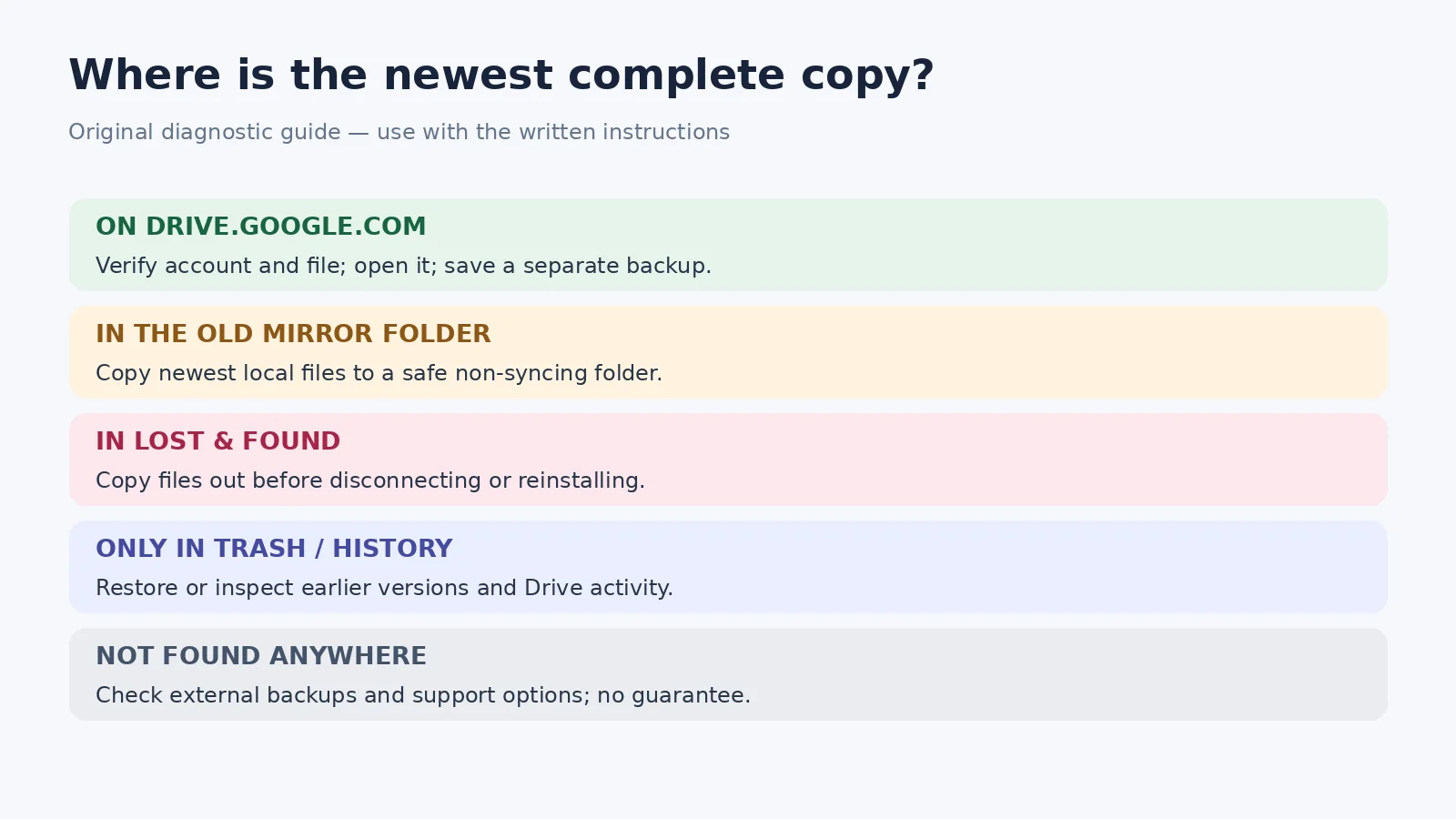
- A fast decision guide: choose the next step from the evidence
- Three realistic scenarios and how to approach them
- Example A: The new G: drive looks empty but files are on the website
- Example B: A designer’s newest project exists only in the old folder
- Example C: A collaborator’s shared folder vanished
- Windows-specific checks without risking your data
- Mac-specific checks without risking your data
- What not to do while an unsynced copy may still exist
- How to switch safely next time
- Prepare a useful support report if recovery is still unresolved
- Bottom line: protect the latest copy, then fix the location
- Sources, screenshot limitations and review date
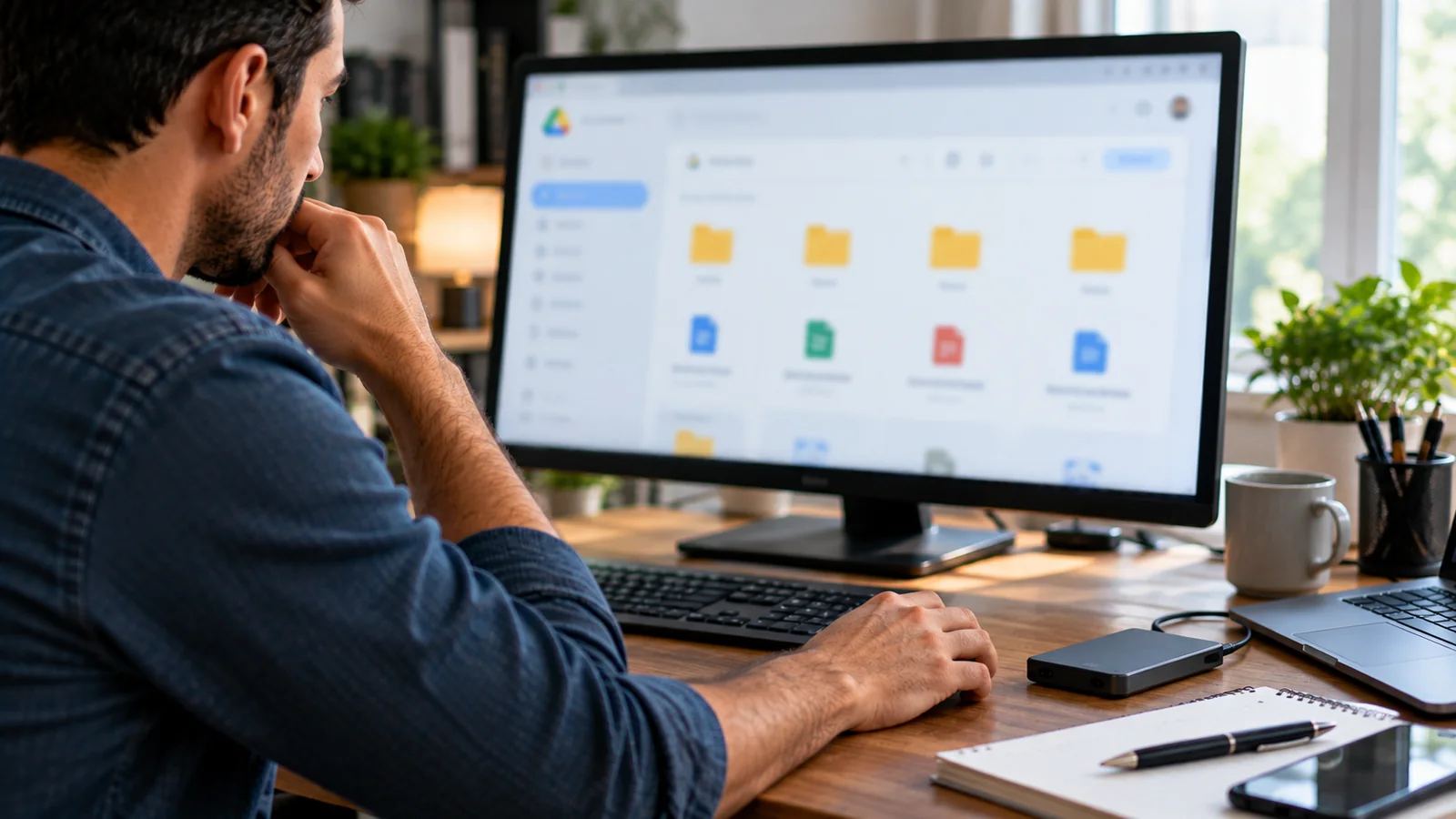
If files seem to have disappeared after changing Google Drive for desktop from Mirror files to Stream files, do not delete your previous mirrored folder. Switching modes changes where My Drive appears on the computer, and the old local folder stops syncing. Your cloud files may be intact in the new virtual Drive while a newer, unsynced copy survives only in the old folder. Start by checking both places, not by reinstalling the app.
Open Google Drive on the web with the correct account, check the old mirror folder in File Explorer or Finder, and preserve any local file that contains work missing from the website. If a file failed to upload, inspect Google Drive’s Lost & Found area before disconnecting your account. These are different recovery cases, and treating them as one sync problem can turn a recoverable mismatch into permanent loss.
This guide addresses a specific post-switch missing-file scenario. For a general upload or download queue that is stuck without a recent mode change, use our separate Google Drive for desktop not syncing guide.
Do these five things before troubleshooting anything else
- Keep the old mirror folder intact. Do not delete, empty, move en masse, or overwrite it while you are comparing versions.
- Do not disconnect, sign out of, or reinstall Drive for desktop yet. Local unsynced files can be at risk, including files in Lost & Found.
- Do not clear the DriveFS cache or use a system-cleaner tool. Google warns that some cached unsynced changes can be lost.
- Identify the Google account. A personal, work, and school account can show different My Drive contents.
- Make an independent copy of important local files. Save it outside the old mirror folder and the active virtual Drive, such as an external drive or a clearly named local recovery folder.
If you suspect a compromised account or malware, preserve available evidence and follow your organization’s security policy. This ordinary missing-file checklist is not a replacement for incident response. Google’s advanced Drive guide specifically warns about the consequences of losing unsynced changes.
What actually changes when you switch from Mirror to Stream?
In Mirror files mode, My Drive has a normal local folder with a full copy of its content. In Stream files mode, My Drive is presented from a virtual Drive location and individual items can be downloaded on demand. When you switch from Mirror to Stream, Google says the original mirrored folder no longer syncs. That is a change of active folder path, not a command to remove your Google account’s files. Google’s stream-and-mirror instructions document this distinction.
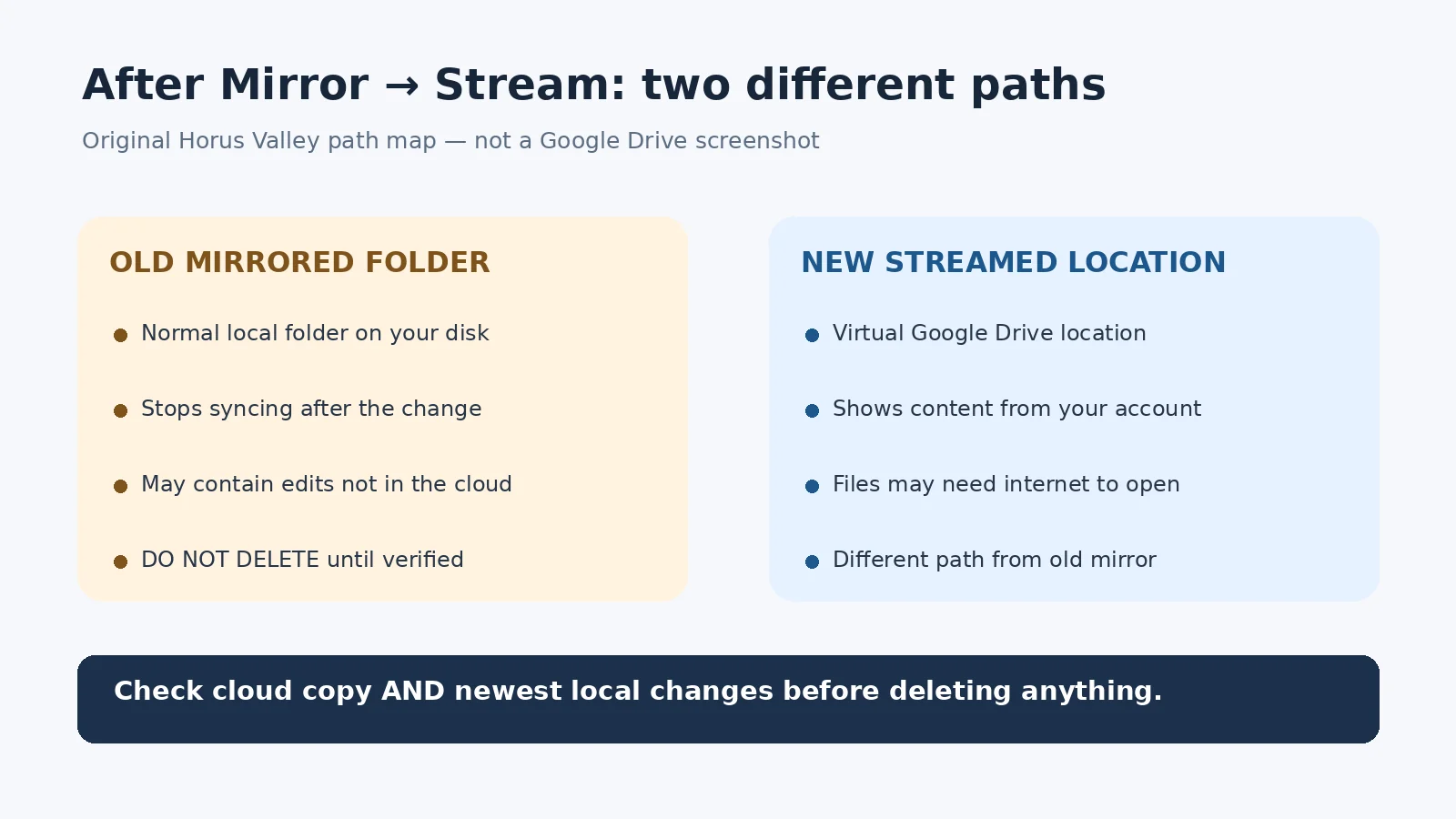
For example, imagine you edited budget-final.xlsx in the old mirrored directory at 4:00 p.m., but the latest cloud copy was uploaded at 3:45 p.m. If you switched modes before the final edit uploaded, a new streamed folder can show the 3:45 p.m. version while the newer 4:00 p.m. file sits in the disconnected old folder. This is a hypothetical diagnostic example, not a claim that the app always behaves this way.
Windows can display the virtual Drive as a drive letter, such as G:, though the chosen letter may differ. On a Mac, you commonly reach it through Finder. Neither a drive letter nor a familiar folder name proves that you are looking at the old source of the latest edits. Open the app’s Preferences to confirm the current sync choice and location.
Step 1 — Find out whether the files exist in the cloud
- Open drive.google.com in a browser; confirm the email address shown in the account menu.
- Open My Drive and search for a distinctive filename rather than relying on an old folder shortcut.
- Search by part of the filename, file type, or dates if you know them. Check folders and shared locations separately.
- Open the file, not just its name, and check whether the latest expected content is actually there.
- For an irreplaceable file that is complete online, download or export a recovery copy before experimenting with desktop settings.
If the document is present and up to date on the website but absent from your computer, the immediate problem is usually desktop access or file location, not missing cloud data. Continue to Step 3. If it is absent from the web or older than your local copy, preserve the local source and follow Step 2. Google’s lost-files guide covers Trash, activity, correct account, lost shared files and unorganized files.
Step 2 — Check the former mirrored folder on your computer
Find the directory that you previously chose for Mirror files. On Windows, search File Explorer for a known file or inspect the original folder path you used before switching. On macOS, inspect the former folder through Finder, including any external drive where you configured the mirror. Do not assume that a similarly named shortcut is the same directory.
- Open the old local file while your editing application is in a safe, read-only or copy-based workflow. Check content and modification time, not the filename alone.
- Compare it with the file on Drive on the web. Note whether the cloud copy is missing, older, equal, or newer.
- If the local copy contains work not present online, use Save As or copy the actual file into a recovery directory outside all synchronized folders. Verify that this independent copy opens.
- Preserve both versions and use distinguishable filenames, such as
budget-local-recovery-2026-10-29.xlsx. Do not overwrite the cloud version yet. - Only after you know which copy is current should you decide whether to upload the local recovery version as a new file.
A .gdoc or .gsheet file is normally a pointer to a cloud document, not a fully independent export of its contents. Download the actual document from Drive on the web in a suitable format when you need an offline backup. Google explains this difference in its desktop troubleshooting documentation.
Step 3 — If Drive on the web is complete but File Explorer or Finder looks empty
This is usually a location or availability check. Open Drive for desktop, confirm it is running, and use the app to open Google Drive. Look for your files in the new virtual Drive, not the old mirrored path. On Windows, the virtual Drive letter may change if your preferred letter is already in use; on macOS, use the Google Drive location provided by Finder and the app.
A streamed item can appear in the file list while its contents are not yet downloaded. If you need it offline, right-click it and choose Offline access → Available offline, then wait for the download to complete. Google states that streamed offline items generally depend on Drive for desktop running and the account being connected. Turning on offline access does not recover an edit that never uploaded. Advanced streaming guidance explains those limits.
If you see an empty desktop location but the website is fine, verify the current account and app status before trying to switch back to Mirror. Switching modes repeatedly is a poor diagnostic test when the location itself has not been identified.
Step 4 — Recover unsynced work from Lost & Found
Google Drive may copy a file it cannot upload into a Lost & Found folder. It might display a notification with a link to open that folder; when available, use the notification first. This is not the same as the Trash in your web account. The directory can contain the only surviving copy of an unsynced file.
Google documents the following default locations. The username and account-token placeholders are variable; the token is not a folder name that every user shares:
- Windows:
C:\Users\<username>\AppData\Local\Google\DriveFS\lost_and_found\<account_token> - macOS:
/Users/<username>/Library/Application Support/Google/DriveFS/lost_and_found/<account_token>
On Windows, a direct route to the parent directory is %LOCALAPPDATA%\Google\DriveFS\lost_and_found, entered into File Explorer’s address bar. On a Mac, the user Library may be hidden; in Finder choose Go → Go to Folder and enter ~/Library/Application Support/Google/DriveFS/lost_and_found. The directory may not exist if Drive never put files there. These are lookup directions, not commands to modify the cache.
- Look through the relevant account-token folder for the specific documents and check their contents.
- Copy any important recovered file to an independent non-synced folder and verify the copy.
- Keep the original recovery directory intact until the copy is safe and the cloud result has been checked.
- After preserving the files, upload the required copies deliberately and verify them online.
Critical warning: Google’s official troubleshooting page says disconnecting the account deletes files stored in its Lost & Found directory. A suggestion to “sign out and back in” is therefore unsuitable until you have checked and saved those files.
Step 5 — Check Drive Trash, activity, versions, and shared access
If the file is missing from the website and you have not found it locally, the next question is whether it was deleted, moved, unshared, or overwritten. These are different possibilities; switching sync mode alone does not establish that deletion occurred.
Check Trash and activity
- On Drive Trash, look for the filename and the relevant deletion time. Right-click an eligible item and choose Restore.
- Google’s help page says ordinary Drive Trash items remain there for 30 days before automatic permanent deletion. Do not empty Trash while investigating.
- In My Drive, use the Info → Activity view to look for moves, changes and deletion history.
- Search
is:unorganizedwhen a file may have lost its parent folder. Check whether the item was shared with you by another account.
Google illustrates the Trash restore action with a real interface screenshot on its official missing-files support page. That original image is linked rather than recreated as a false screenshot here. For supported Drive search operators, consult Google’s search reference.
If the file is present but its content is older
For a non-Google file such as a Word document or PDF stored in Drive, inspect its available file versions on the website before overwriting it. Native Google Docs, Sheets and Slides have their own Version history inside the relevant editor. A previous version may contain the missing edits, but version history is not proof that a local edit uploaded. Preserve any newer local copy separately first.
If the item belonged to a Shared drive or a folder owned by another person, ask the owner or Workspace administrator to check access and activity. Google notes that losing access to the parent folder or a Shared drive can make files disappear from your view without the owner having deleted them.
Step 6 — What if you already deleted the old mirror folder?
Your options depend on whether the data reached the cloud and whether another local copy survives. First search the web account and its Trash. Then check the computer’s Recycle Bin or macOS Trash, previous backups, external drives, File History or Time Machine if you had configured them. Recovered files should be saved to a different healthy location, not into the location from which they were deleted.
If the only newer content was in a local file that was permanently removed, Google Drive cannot create a missing cloud version out of an upload that never completed. Conventional local-disk recovery may sometimes help, but success depends on the storage device, what was overwritten, and available backups. Avoid writing additional data to the affected storage when there is a plausible local recovery need, and consider qualified data-recovery assistance for irreplaceable work.
If the item was deleted from Drive rather than merely from an unsynced local folder, Google offers support and account-specific recovery paths for certain recently deleted items. Eligibility is limited and recovery is not guaranteed. For managed Workspace accounts, contact your administrator; the Workspace admin recovery process is distinct from normal user Trash restoration. Google lost-files guidance and Workspace administrator recovery documentation explain the relevant routes.
The old Drive for desktop v84 recovery tool: a narrow exception
Google documents a special recovery method introduced in Drive for desktop version 85.0.13.0 for unsynced local files affected by a specific problem in version 84.x. Its instructions involve holding Shift while opening the Settings menu and using the recovery command. Results, when recovered, are placed in a Google Drive Recovery folder on the desktop.
Do not mistake this for a universal “recover any missing Drive file” feature. That procedure targets the historic issue Google describes; it does not imply that a 2026 mode switch, a deleted local folder, or a permanently deleted cloud file can always be restored. Check the exact Google documentation and the app/version context before attempting it.
A fast decision guide: choose the next step from the evidence
| What you can verify | Likely category | Safest next action |
|---|---|---|
| Website has latest content; virtual Drive appears empty | Desktop location / account / access | Confirm active Drive location and app account |
| Old local mirror has newer content than website | Unsynced local edit | Copy the newer local file outside sync folders |
| Drive displays Lost & Found notification | Failed upload retained locally | Copy and verify Lost & Found files before disconnecting |
| File is in Google Drive Trash | Cloud deletion | Use Restore while item is still eligible |
| Cloud file is present but content is older | Possible version difference | Inspect versions and compare independent copies |
| No file anywhere; former local copy deleted | Potential local data loss | Review backup and limited recovery options |
This decision table is an editorial synthesis, not an automated diagnosis of a particular account. For example, an item can be both missing locally and inaccessible online because the account changed. Check the actual evidence before deciding which case applies.
Three realistic scenarios and how to approach them
Example A: The new G: drive looks empty but files are on the website
A Windows user switches to Stream and keeps opening the old path pinned in Quick Access. The familiar local directory no longer updates, while a different virtual Google Drive path is active. The user verifies the latest document on the website, opens Drive from the running desktop app, and checks the current virtual path. This is primarily a navigation issue; deleting the old directory is unnecessary and should be deferred until every local change has been checked.
Example B: A designer’s newest project exists only in the old folder
A project was edited immediately before a sync-mode change. The browser has yesterday’s version; the old mirrored folder has the latest render and source files. The user exports and copies those files to an external folder, opens the copies to validate them, then uploads a new clearly named revision into Drive. This preserves both versions and creates a verifiable cloud copy without blindly overwriting the last known good cloud version.
Example C: A collaborator’s shared folder vanished
An employee assumes that switching modes deleted a shared project. In fact the Drive web interface no longer shows the folder because the owner changed parent-folder permissions. The employee checks account and sharing, then asks the owner or Workspace admin to restore access. No cache cleanup, mode reversal or disk-recovery software is required for this access problem.
Windows-specific checks without risking your data
- In File Explorer, compare the original folder path with the virtual Drive path shown by Drive for desktop. Avoid trusting shortcuts alone.
- If the Drive letter is different or missing, check whether the app is running and whether another device uses the intended letter.
- Use
%LOCALAPPDATA%\Google\DriveFS\lost_and_foundonly to inspect and copy relevant recovery files; never delete the parent DriveFS directory as a routine fix. - If files were locally deleted, examine Recycle Bin and existing Windows backup or File History locations before using destructive cleanup tools.
Mac-specific checks without risking your data
- Find the Google Drive location through Finder and the running desktop app; do not assume the old mirrored directory is still active.
- If your original mirror was on an external disk, make sure the disk is connected and inspect the original folder for newer work.
- Use
~/Library/Application Support/Google/DriveFS/lost_and_foundonly for recovery inspection and safe copies. - Check macOS Trash and existing Time Machine or other backups if the former local folder was removed.
What not to do while an unsynced copy may still exist
- Do not delete the former mirror merely because switching to Stream was successful. A visible cloud folder is not proof that every local edit uploaded.
- Do not clear cache files, run generic “clean Drive data” scripts, or remove the account before inspecting Lost & Found.
- Do not move all files back and forth between two active folders without identifying which path syncs.
- Do not reverse the sync mode repeatedly as an experiment; preserve copies first and change one setting at a time.
- Do not assume an old Google Docs pointer file is an actual backup of the document.
- Do not pay a third-party recovery utility on a promise that it can reconstruct cloud-only documents from an empty local cache.
Some general troubleshooting guides recommend disconnecting and reinstalling first. That can be reasonable for ordinary problems after data has been preserved; it is potentially harmful when the unresolved issue is unsynced work. The steps here deliberately prioritize data preservation over a faster-looking reset.
How to switch safely next time
- Before switching modes, open Drive for desktop and confirm that recent file uploads are complete, including any listed error or unsynced items.
- For important local work, save an independent backup outside the mirrored folder and open a few files to confirm the newest edits.
- Check the cloud versions of critical files on drive.google.com. Do not infer upload success from the icon alone.
- Change the setting in Drive for desktop → Settings → Preferences → Folders from Drive (or Google Drive in some versions) → My Drive syncing options → Stream files.
- Confirm that the virtual Drive opens expected cloud files. Keep the disconnected old mirror until you have finished comparing its contents with the cloud.
- Only after verified reconciliation should you follow Google’s operating-system-specific instructions for removing the old local mirror. On Windows, Google says to quit Drive before removing it.
To manage local disk space after the transition, distinguish the old fully mirrored directory from Stream’s on-demand files and cached offline items. Extra Google One storage does not create local disk space, and deleting a cloud document just to free local disk space may create an unnecessary data loss risk. For cloud quota confusion, see our Google storage troubleshooting guide.
Prepare a useful support report if recovery is still unresolved
Record the Google Account type (personal versus Workspace), the installed Drive for desktop version, Windows or macOS version, the time and direction of the mode change, both the old and current paths, the name of one affected file, last known good modification time, whether it exists on the web, any sync notification, and whether you checked Trash, Lost & Found, and backups. Avoid sending private documents or authentication tokens in public forums.
If an error explicitly names a shared drive or permission failure, include that detail without exposing confidential content. If you have a separate verified recovery copy, mention it to support so nobody recommends deleting the only surviving original. For more general symptoms, our full desktop syncing diagnostic explains how to distinguish an upload failure from a download failure with a small test file.
Bottom line: protect the latest copy, then fix the location
A Mirror-to-Stream switch normally changes how and where Google Drive files appear on your computer. It does not mean every missing-looking document has been deleted. The critical question is whether the newest complete file is on the web, in the old mirror, in Lost & Found, or in a backup. Preserve that copy first. Afterward, troubleshoot the active virtual Drive path or arrange a careful re-upload. Recovery is not guaranteed when the only unsynced copy has been deleted.
Sources, screenshot limitations and review date
Reviewed October 29, 2026 against Google’s stream and mirror instructions, Drive for desktop advanced guide, desktop sync error and Lost & Found guide, lost-files recovery instructions and Drive search help. The two graphics are original explanatory diagrams, not recreated Google UI screenshots. The real Trash restoration screenshot is available on Google’s linked official help page. This publication does not claim access to a reader’s Drive, tested recovery of any private account, or guaranteed restoration. Google and Google Drive are trademarks of Google LLC; Horus Valley is not affiliated with Google.
You may also like
 Technology & How-To
Is Tesla Discontinuing the Cybertruck? What We Know
Tesla plans a Cybertruck production wind-down in Texas around mid-2027. See what is confirmed, what remains unknown, and…
 Technology & How-To
Are AI Toys Safe for Kids? Privacy Risks and Parent Checks
Are AI toys safe for kids? Explore the evidence, privacy risks, age advice and practical parent checks for…
 Technology & How-To
iPhone Trust This Computer Not Showing? Windows and Mac Fixes
Restore the iPhone computer-trust prompt with checks for unlocking, Apple Devices or Finder, USB data cables and targeted…