
Face ID Not Working on iPhone? Diagnose and Fix It
Diagnose Face ID problems by separating normal passcode prompts, app permissions, camera visibility, enrollment, security restrictions, and repair issues.
Contents
- Start with the symptom you actually see
- 1. Recognize when the passcode is supposed to replace Face ID
- 2. Establish a clean, repeatable recognition test
- 3. Check the setting for the feature that is failing
- 4. Separate a one-app problem from a system-wide failure
- 5. Test orientation, glasses, and masks separately
- 6. Restart, then check for an available iOS update
- 7. Use alternate appearance or reset enrollment deliberately
- Attention settings have different jobs
- 8. Account for Stolen Device Protection before changing Face ID
- 9. Take TrueDepth alerts and recent repairs seriously
- 10. Use the final comparison to decide what happens next

When Face ID stops working, the most useful clue is what your iPhone does next. A passcode request immediately after a restart can be normal. Successful unlocking followed by a failed app sign-in points toward a different problem from a persistent TrueDepth camera warning.
Start by separating those situations. This guide explains how to check the camera area, settings, orientation, app permissions, enrollment, and repair history, with clear stopping points when professional service is appropriate. It also covers the extra restrictions that Stolen Device Protection can place on changing Face ID.
The instructions apply to supported iPhones. Settings labels and available options vary with the model and iOS version; the reference screenshots below come from Apple's current support documentation.
Start with the symptom you actually see
Enter your own passcode if the iPhone requests it after starting up. Then lock the screen, wake it, and try Face ID once in portrait orientation with your face unobstructed. Notice whether recognition starts, whether the lock opens, and whether a specific error appears.
| What happens | What it suggests checking | Useful next step |
|---|---|---|
| Passcode requested immediately after restart | An expected security requirement | Unlock with the passcode, then retry Face ID |
| Lock Screen works, one app fails | App permission, its login state, or an account issue | Check that app separately |
| Recognition fails mainly with a mask or glasses | Visibility and supported mask settings | Test full-face recognition, then the accessory combination |
| Enrollment repeatedly asks you to reposition | Camera obstruction, capture conditions, or a possible device fault | Make one controlled setup attempt after basic checks |
| A TrueDepth or Face ID issue alert persists | A condition requiring Apple's update/service guidance | Record the alert and follow the service route |
| The problem began immediately after repair | Repair completion, calibration, or component function | Inspect Parts and Service History |
These observations narrow the next step. They do not identify a failed component by themselves. A useful troubleshooting note records the exact message and whether the problem affects unlocking, setup, or only a particular app.
1. Recognize when the passcode is supposed to replace Face ID
Apple requires a passcode under several security conditions, including after restarting the device, after five unsuccessful face matches, and after extended periods without an unlock. Initiating power-off or Emergency SOS can also trigger a passcode requirement. Apple's Platform Security guide documents these conditions.
After entering the correct passcode, test the next ordinary unlock. If Face ID resumes, that first passcode request was not evidence of a damaged sensor. Resetting your face enrollment in response to every normal security prompt adds work without addressing a fault.
Make sure the phone supports Face ID in the first place. Apple's supported-model list is the reliable check. An iPhone SE with Touch ID does not gain Face ID through an iOS setting or an app. Also distinguish the device passcode from an Apple Account password, an app password, or an SMS verification code: they serve different purposes.
If you do not remember your device passcode, stop guessing and use Apple's forgotten-passcode instructions. This guide assumes you can authorize changes on your own iPhone.
2. Establish a clean, repeatable recognition test
Check the entire front sensor area for fingerprints, makeup, a case edge, or a misaligned screen protector. The visible selfie-camera opening is not the only area that matters. Apple's Face ID troubleshooting page specifically identifies obstructions around the TrueDepth system as something to inspect.
For cleaning, disconnect cables and follow Apple's iPhone cleaning instructions. Use a soft lint-free cloth and keep moisture out of openings. Work on the external glass only; pressing into a camera opening or attempting to clean internal components is not part of this check.
Temporarily remove a case or removable protector if it overlaps the sensing area and can be removed safely. Compare recognition with the same viewing position before and after the change. If a damaged protector is bonded to cracked glass, leave removal to a technician.
Hold the phone upright, look toward it, and begin around 10–20 inches (25–50 cm) from your face. Keep your fingers away from the top/front sensor area. For enrollment, choose an evenly lit location and avoid an extreme angle. Change one condition at a time so you can identify what affects the result.
Apple explains in its Face ID technology overview that recognition uses depth information and infrared imaging. A normal selfie therefore does not prove that every part of the Face ID system works. Equally, a poor selfie taken in one app does not establish that Face ID hardware has failed.
3. Check the setting for the feature that is failing
Open Settings > Face ID & Passcode, then enter your device passcode. Check that Face ID is enrolled and that the intended feature is enabled. Unlocking, purchase authorization, and password autofill have separate controls.
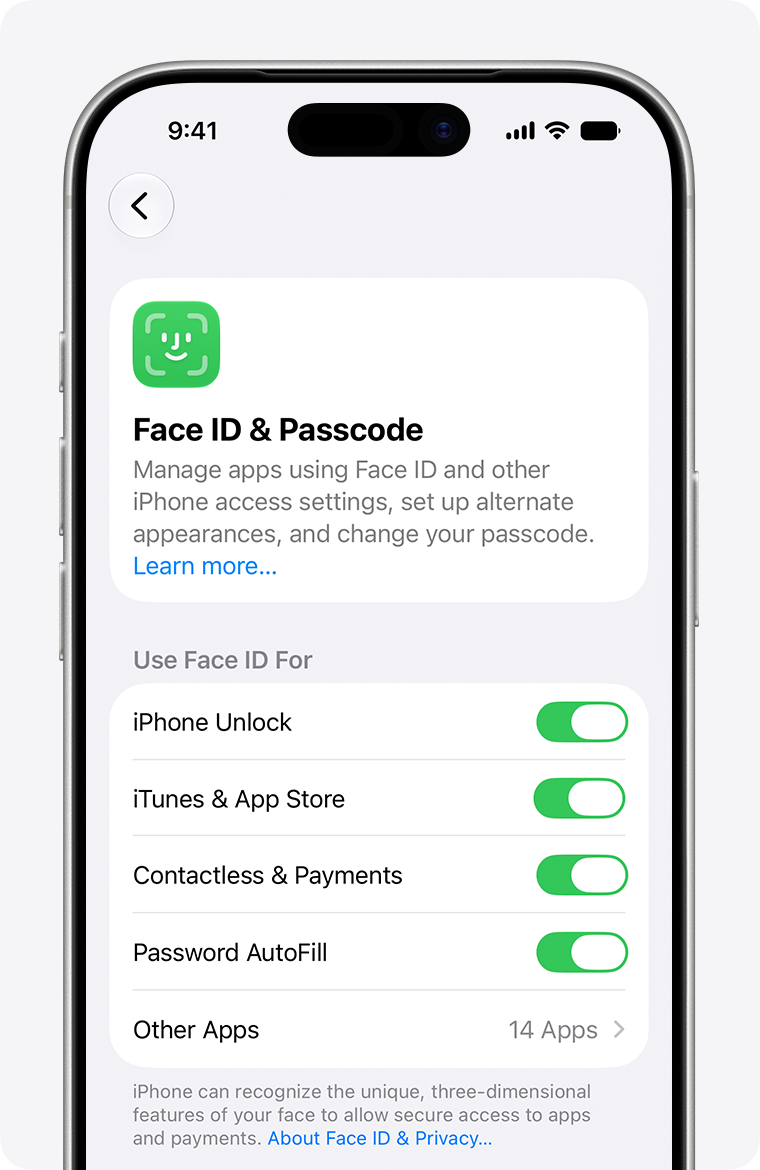
Reference screenshot: Apple Support's Face ID troubleshooting guide. The example uses Apple's published iOS interface; your labels and available switches may differ.
If iPhone Unlock is disabled, an app successfully using Face ID does not mean the Lock Screen setting is also enabled. Conversely, a working Lock Screen says little about whether a banking app has permission to request biometric authentication.
Use Apple's Face ID setup guide to identify the available controls. Review the relevant switch rather than turning every setting off and on together. Keep a note of its starting state, especially on a work-managed phone where some options may be controlled by an administrator.
4. Separate a one-app problem from a system-wide failure
When ordinary unlocking works consistently, open the affected app and use its normal login method. Check its own security settings for biometric login, and review Other Apps in Face ID & Passcode where that option is available. Some apps require a successful conventional sign-in before offering Face ID again.
An app may also reject a login because the account session expired, additional verification is required, or its service cannot be reached. Record whether a Face ID prompt actually appears. An error shown after successful facial authentication deserves different investigation from recognition never starting.
Apple's explanation of biometric authentication in apps says apps receive an authentication result rather than access to your enrolled facial data. That distinction helps localize the problem: the app's account workflow continues after the device's biometric decision.
For a passkey sign-in that fails after the phone has already recognized you, our Google passkey troubleshooting guide covers the credential and account side. Avoid resetting a working Face ID enrollment solely because one website or app rejects a sign-in.
5. Test orientation, glasses, and masks separately
Start with the simplest combination: portrait orientation, your full face visible, and no sunglasses. Once that works, add back the condition associated with the failure. This is a comparison method, not a demand to remove everyday accessories permanently.
| Recognition mode | Compatibility or condition | What to test |
|---|---|---|
| Standard portrait Face ID | A supported iPhone | Face the front sensing area directly |
| Standard landscape Face ID | iPhone 13 models and later with iOS 16 or later | Check the model and keep the camera unobstructed |
| Face ID with a Mask | iPhone 12 models and later with iOS 15.4 or later | Use portrait orientation and leave the eye area visible |
| Mask mode with prescription glasses | Supported mask mode and enrolled glasses | Follow the Add Glasses prompts |
| Mask mode with sunglasses | Not designed for this combination | Compare without sunglasses |
Apple's Face ID usage instructions describe the orientation and distance requirements. Earlier supported iPhones need portrait orientation for Face ID. Mask recognition remains portrait-only on compatible iPhones.
For mask mode, open Settings > Face ID & Passcode and follow Face ID with a Mask. If you wear prescription glasses, follow Add Glasses when available. Apple's mask and glasses guide explains the supported combinations and the need for a clear eye area.
If one pair of glasses causes difficulty, compare the same position with and without that pair. A consistent difference is useful information to keep; it does not establish which internal sensor is responsible. If standard recognition also fails with your face unobstructed, continue with the broader checks.
6. Restart, then check for an available iOS update
A normal restart is a reasonable next step when recognition has become intermittently unresponsive. For a Face ID-equipped iPhone, hold a volume button and the side button until the power-off slider appears, use the slider, and allow the phone to shut down. Turn it on again with the side button. Apple's restart instructions show the model-specific process.
Enter your passcode after startup before judging the Face ID result. Test a normal screen unlock first, followed by the original app or purchase action. A restart that improves one attempt but leaves repeated failures is an observation to record, not a completed repair.
Next, open Settings > General > Software Update. Back up important data and follow Apple's update instructions if an update is offered for your model. An available update can address software issues, but a Face ID problem appearing after an update does not by itself prove that the update caused it.
If storage prevents the update, our guide to iPhone storage remaining full after deleting photos explains the storage issue separately. Do not confuse clearing storage with repairing Face ID. After the update, repeat the same short recognition test so you can compare results meaningfully.
7. Use alternate appearance or reset enrollment deliberately
Face ID can adapt to changes in appearance. A substantial, recurring difference may justify Set Up an Alternate Appearance, using your own appearance and following the onscreen prompts. Apple's facial matching security explanation describes how recognition data can be refined during normal use.
If basic checks fail and you can authorize the change, use Settings > Face ID & Passcode > Reset Face ID, then choose Set Up Face ID. This removes the existing facial enrollment; it does not erase your photos or apps. Make sure you know your passcode and read the Stolen Device Protection section below before proceeding.
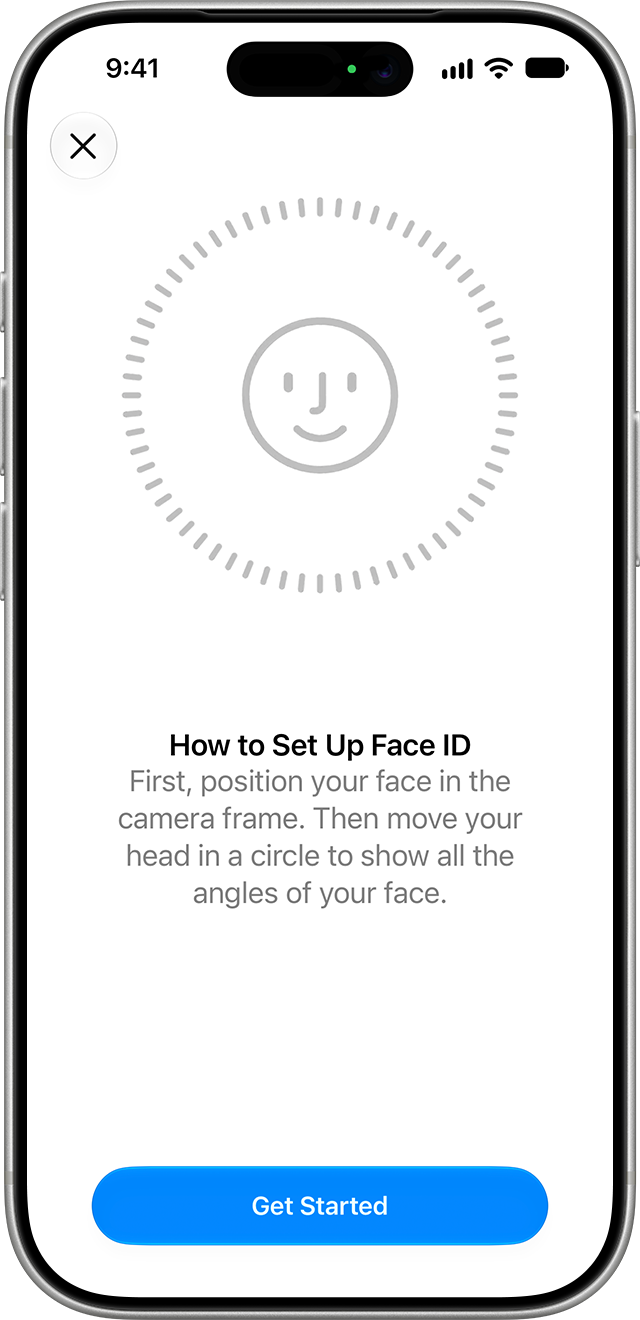
Reference screenshot: Apple Support's Face ID setup instructions. The image illustrates enrollment rather than an error or a diagnostic result.
Position your face in the guide and follow the requested head movements through both scans. If head movement is difficult, choose Accessibility Options during enrollment. The goal is to complete the supported capture process, not to force your head into an uncomfortable position.
If setup completes, test unlocking before reopening other apps. If the progress never advances, note the exact instruction displayed, check positioning once more, and follow Apple's service guidance if enrollment still cannot finish. Repeatedly deleting and recreating enrollment gives less useful information than recording a reproducible failure.
Attention settings have different jobs
Require Attention for Face ID affects the recognition security requirement. Attention Aware Features controls behaviors such as screen dimming and alert volume. Apple's Attention Aware guide explains the latter behavior. A change in notification volume is not, by itself, evidence that face authentication is failing.
Use attention-related accessibility options for your actual accessibility needs. Disabling a recognition safeguard solely to make an intermittent test pass changes the conditions of authentication and can hide the original problem. Keep those choices separate from the basic troubleshooting comparison.
8. Account for Stolen Device Protection before changing Face ID
Stolen Device Protection can impose additional biometric authentication and a security delay for sensitive changes, including adding or removing Face ID. The requirements depend on the protection settings and whether the iPhone recognizes a familiar location. Some protected actions have no passcode fallback.
Read Apple's Stolen Device Protection explanation if a Face ID change is blocked or a delay appears. Waiting out a displayed delay does not necessarily eliminate the requirement for successful biometric authentication afterward.
If Face ID is unusable and you cannot authorize a protected change, contact Apple Support with the exact message. Explain that the device unlocks with your passcode but the protected action cannot complete. This is a different support problem from a forgotten device passcode.
Avoid treating account sign-out, erasing the device, or disabling security features as routine shortcuts around the restriction. Those actions can introduce further authorization requirements or remove data without establishing why Face ID failed.
9. Take TrueDepth alerts and recent repairs seriously
An explicit Face ID issue or TrueDepth camera alert deserves a separate route from an occasional unsuccessful match. Apple's guidance for a Face ID issue alert recommends updating the device and obtaining service if you still cannot enroll or unlock afterward. The system can disable relevant components when a fault is detected.
Write down the exact alert and when it started. If it followed a drop, liquid exposure, or repair, include that history. The timing is useful evidence for a technician, but it does not identify the damaged component or prove that a particular repair caused the fault.
On supported models, open Settings > General > About and inspect Parts and Service History. Look for a front-camera-related entry or a repair-completion message. Apple's front-camera information explains that function and Face ID availability can depend on the component and completion of the repair process.
A working selfie camera is therefore an incomplete test. It confirms that a particular camera function produced an image; it does not certify the whole depth-sensing, enrollment, and authentication path. Likewise, the presence of an unfamiliar parts message needs interpretation rather than an automatic assumption that every replacement is counterfeit.
If you see Finish Repair, use the repair provider and Apple's Repair Assistant instructions to establish what remains incomplete. Eligibility depends on the model and part. Repair Assistant handles calibration for supported repairs; it is not a general reset tool that repairs damaged hardware. Record the displayed status before approving further replacement work.
10. Use the final comparison to decide what happens next
Repeat the original task after a change. A phone that unlocks once in a different position has demonstrated something useful, but you still need to test the condition that originally failed. Keep the comparison small: ordinary unlock, the relevant app, and the accessory combination you normally use.
| Result after the checks | Useful interpretation | Next action |
|---|---|---|
| Face ID resumes after the first passcode unlock | A normal security condition may explain the initial prompt | Continue normal use and note any different failure |
| Ordinary unlock works; one app still fails | System recognition succeeds in that test | Review app authentication and contact its provider |
| Full-face recognition works; one accessory combination fails | The failure is conditional | Review visibility and supported mask/glasses settings |
| Fresh enrollment completes and unlock works | Recognition succeeds with the new enrollment | Verify the original feature again |
| Enrollment cannot complete or an issue alert persists | Basic user checks have not resolved the condition | Arrange Apple or qualified repair assessment |
Before service, follow Apple's appointment preparation instructions, including a backup and any device-specific preparations the provider requests. If you use iCloud Photos, verify its synchronization separately; our iPhone and Windows photo-sync guide can help check that particular workflow. Photo synchronization and a complete device backup serve different purposes.
Bring the model, iOS version, exact error, repair history, and results of the unlocking/enrollment/app comparison. Keep control of your account credentials; Apple says not to disclose your Apple Account password or device passcode to another person. If a software check requires you to enter a credential yourself, remain present.
A concise record of those observations helps the technician choose the next test and lets you verify the original problem when the phone is returned. Ask for an explanation of the diagnosed fault and proposed work before approving a repair; troubleshooting alone cannot establish a universal repair price or component replacement.
You may also like
 Technology & How-To
 Android Auto Keeps Disconnecting? How to Fix USB and Wireless Dropouts
Android Auto keeps disconnecting? Separate USB, wireless and app failures, check Galaxy USB mode, compare connection methods and…
 Technology & How-To
 Netflix Says Your TV Isn’t Part of the Household? How to Fix It
Fix a Netflix household warning by separating home verification, permanent household updates and temporary travel access, with genuine…
 Technology & How-To
 Google Photos Stopped Backing Up from Your PC? What Changed and How to Fix It
Google Photos stopped backing up your computer folders? Understand the Drive for desktop change, configure browser folder backup…