
AirDrop Stuck on Waiting? Fix iPhone, iPad and Mac Transfers
AirDrop stuck on Waiting? Diagnose discovery, Contacts Only settings, AirDrop codes, Mac receiving and missing files with safe fixes backed by Apple Support.
Contents
- First, identify exactly where AirDrop gets stuck
- The 60-second AirDrop fix: do these checks in order
- Fix 1: Change receiving permissions on iPhone or iPad
- Fix 2: Confirm that Contacts Only recognizes the sender
- Fix 3: Check the receiving prompt or AirDrop code
- Fix 4: If the other device never appears, isolate discovery first
- Fix 5: Mac-to-iPhone or iPhone-to-Mac AirDrop stuck on Waiting
- Fix 6: Temporarily test without a restrictive VPN
- Fix 7: When a file starts transferring and then stalls
- Fix 8: AirDrop completed, but where did the photo or PDF go?
- Troubleshooting: a test that narrows the fault in three transfers
- When to update, restart, or reset—and what to avoid
- AirDrop privacy: switch back after the diagnostic test
- The bottom line
- Sources and genuine screenshot references

If AirDrop is stuck on Waiting, first put both devices close together, switch on Wi-Fi and Bluetooth on both, disconnect Personal Hotspot, and allow the recipient to receive AirDrop items. On an iPhone or iPad, temporarily choose Everyone for 10 Minutes; on a Mac, set AirDrop to Everyone. Look for an acceptance request or AirDrop code on the receiving device before trying a restart. These are the least disruptive checks supported by Apple’s iPhone and iPad guidance and Mac User Guide.
Do not begin by signing out of your Apple Account, wiping network settings, or disabling your Mac’s security features. The correct fix depends on whether the recipient is invisible, appears but never accepts, or completes the transfer while the file seems to be missing. This guide separates those cases and includes the exact Apple screenshot references for each relevant step.
First, identify exactly where AirDrop gets stuck
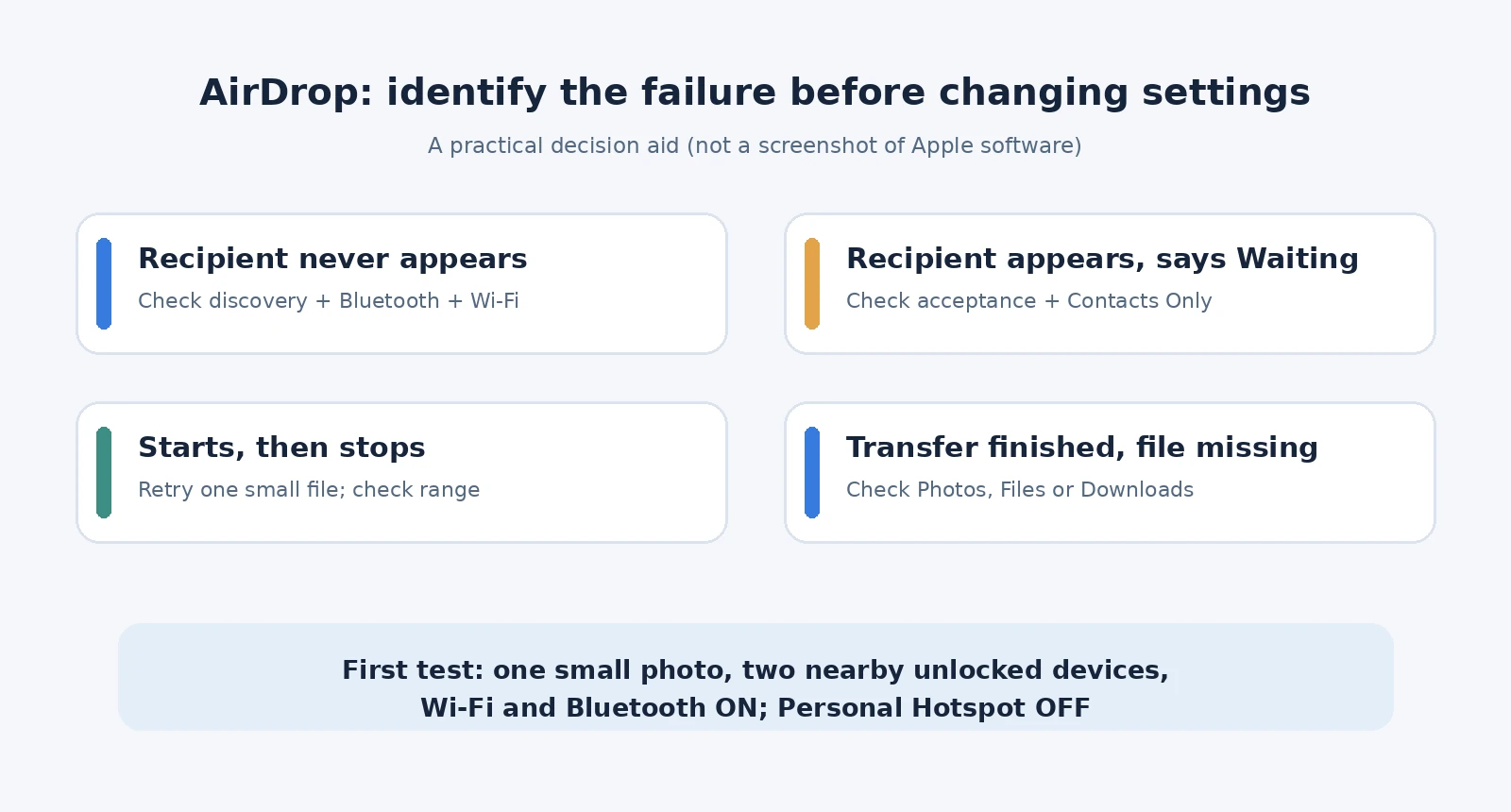
AirDrop does not use one universal error state. If the other device never appears, focus on discovery and availability. If it appears with Waiting, investigate recipient approval and contact restrictions. If progress starts and stops, test a smaller transfer. A completed transfer with no visible file is a destination problem, not necessarily a failed connection.
| What you see | Best first test | What that test tells you |
|---|---|---|
| Recipient is missing | Enable receiving on the target and move closer | Separates discoverability from transfer failure |
| Recipient visible but Waiting | Unlock target and try Everyone for 10 Minutes | Tests approval and Contacts Only limitations |
| Transfer begins but fails | Send one small photo while devices remain close | Separates large-batch problems from general failure |
| Transfer completed but file is missing | Open Photos, Files or the Mac Downloads folder | Checks whether the item went to another app |
The 60-second AirDrop fix: do these checks in order
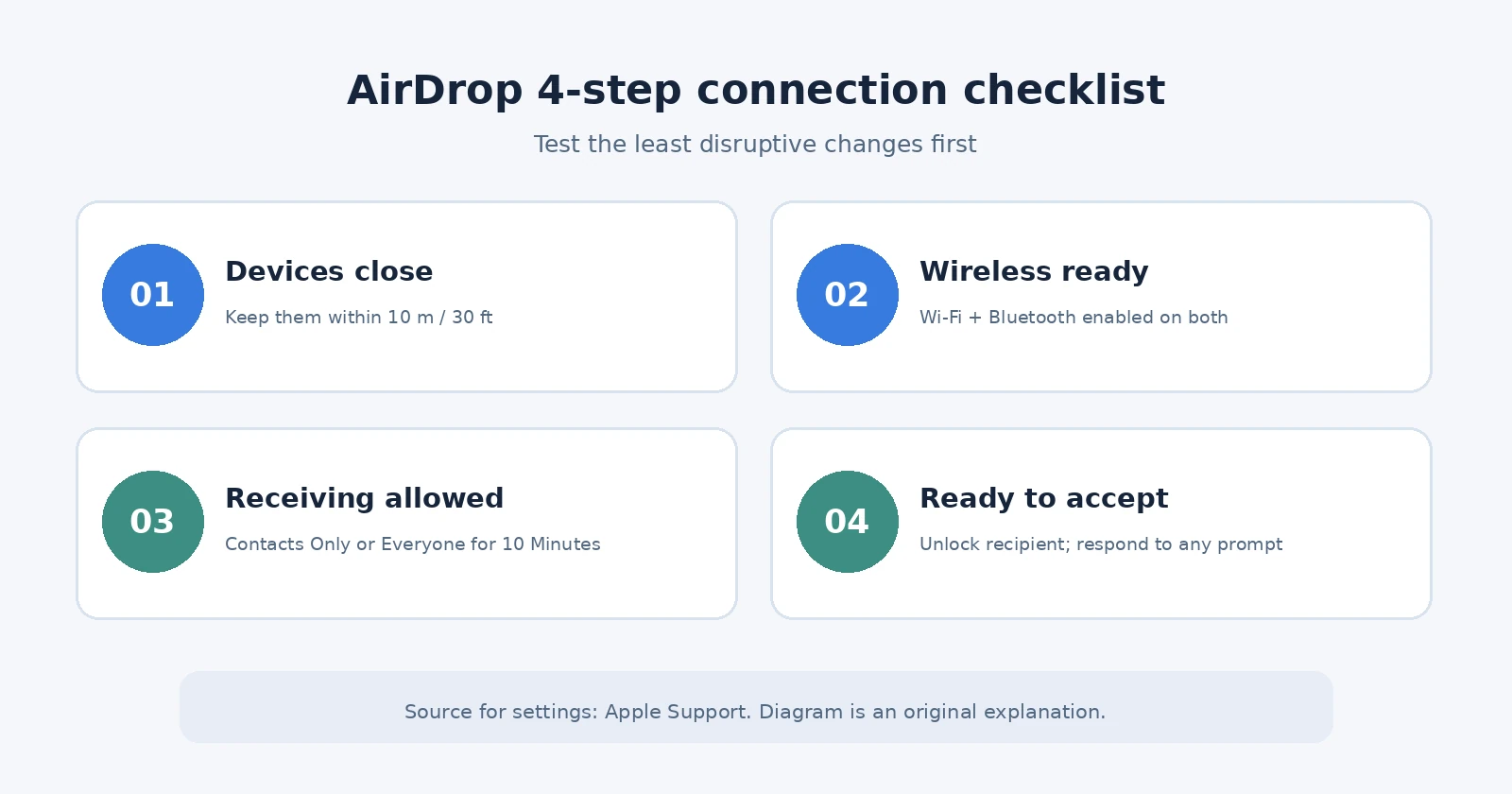
- Put the iPhone, iPad or Mac within 10 metres (30 feet) of the other device. For testing, place them side by side.
- Turn Wi-Fi and Bluetooth on in both devices’ settings or Control Center. An active internet subscription is not a prerequisite for nearby discovery.
- On an iPhone with Personal Hotspot enabled, disconnect it while testing. Apple explicitly calls out this condition for iPhone and iPad.
- On the receiving iPhone or iPad, select Everyone for 10 Minutes; on the receiving Mac, choose Everyone temporarily.
- Wake and unlock the receiving device, watch for Accept or an AirDrop code, then try sharing one ordinary photo.
- If it still fails, restart both devices and repeat the same small test.
The Apple setting called Everyone for 10 Minutes is deliberately temporary: on supported systems it automatically reverts after ten minutes. You can switch back to Contacts Only sooner. A recipient using Contacts Only must have the sender saved with the Apple Account-linked email address or phone number, not merely a display name. See Apple’s official setup explanation.
Fix 1: Change receiving permissions on iPhone or iPad
If AirDrop can see someone but will not start, this is the most useful reversible test. On the recipient’s iPhone or iPad, open Control Center, touch and hold the connectivity controls, tap AirDrop, and choose Everyone for 10 Minutes. Then start the transfer again from the sender.
You can also find the receiving options under Settings → General → AirDrop on supported iPhone and iPad versions. Menu appearance can differ by system version. Avoid assuming that a permanent “Everyone” option exists on every iPhone.
Actual Apple screenshot: View the official AirDrop control in Control Center (Apple Support, iOS 26 example). This links directly to Apple’s original image rather than presenting a recreated interface. Full Apple instructions.
If changing Everyone for 10 Minutes fixes the issue, do not infer the radios were faulty. It suggests a contact-recognition or recipient-permission issue. You can return to Contacts Only after correcting contact details.
Fix 2: Confirm that Contacts Only recognizes the sender
Contacts Only is more restrictive than “someone whose first name I know.” According to Apple, when the recipient accepts only from contacts, the sender must be in the recipient’s contacts list and the contact card must include the sender’s relevant Apple Account email address or phone number. A partial, old, or mismatched card can be enough to prevent the expected handoff.
- On the recipient’s device, open the sender’s entry in Contacts.
- Confirm the telephone number or email address actually used for the sender’s Apple Account is present and correct.
- Try a single-photo transfer with Contacts Only enabled. If it fails, temporarily use Everyone for 10 Minutes as a controlled comparison.
- If Everyone works and Contacts Only does not, concentrate on identity and contact matching; avoid resetting Wi-Fi first.
This comparison helps identify a common “one-way” case: AirDrop may succeed from iPhone to Mac but remain at Waiting from Mac to iPhone. Test each direction independently because sender and receiver permissions are not necessarily identical. A matching display name alone is not proof that Contacts Only will accept the transfer.
Fix 3: Check the receiving prompt or AirDrop code
On supported newer Apple software, an AirDrop transfer to a person who is not already recognized as a contact may require a six-digit AirDrop code. Apple documents the code flow for iOS 26.2, iPadOS 26.2, and macOS 26.2 or later. The receiving person obtains the code and shares it with the sender. Follow the actual prompt on the recipient; do not confuse the AirDrop code with a device unlock passcode.
Actual Apple screenshot: View the official AirDrop code prompt (Apple Support example). The number visible in that example is illustrative and cannot be used as a real code. Read Apple’s AirDrop code instructions.
When exchanging files between your own devices signed in to the same Apple Account, Apple says items can be accepted automatically. If there is no Accept prompt in that situation, check the account identity and whether the transfer was sent to the expected device before treating the missing prompt as the failure.
Fix 4: If the other device never appears, isolate discovery first
Discovery problems happen earlier than a Waiting or transfer-progress failure. Begin by looking at the receiver, not the sender. Confirm that AirDrop receiving is enabled, Wi-Fi and Bluetooth are both on, and the devices are within range. Open the sharing panel again after changing settings.
Actual Apple screenshot: View Apple’s AirDrop People selection screen. If you cannot see the target in this list, fixing acceptance prompts will not help until the recipient becomes discoverable.
Try the same test from a different sending Apple device if one is available. If both senders fail to detect the same recipient, prioritize the recipient settings. If only one sender cannot find it, investigate that sender’s wireless settings and software. This two-device comparison is more informative than repeating the same failed tap ten times.
Fix 5: Mac-to-iPhone or iPhone-to-Mac AirDrop stuck on Waiting
Macs can receive AirDrop files from Finder or the share menu. On the Mac, open Control Center → AirDrop and enable it; choose Everyone temporarily when testing with someone who is not a recognized contact. You may also open Finder → AirDrop and keep that window visible while troubleshooting. Apple notes that a receive/decline prompt may appear inside Finder when the AirDrop view is open.
- Check the Mac’s Wi-Fi and Bluetooth state, not just its internet status.
- Make sure the Mac is awake and logged in so the user can act on an incoming prompt.
- Test with a plain text file or a small photo before trying hundreds of files.
- Use Finder → AirDrop for a second sending route if Share → AirDrop in a particular app is unresponsive.
- If sending between your own devices, confirm both are using the same Apple Account and are ready to receive.
Apple’s Mac User Guide documents enabling AirDrop, using Finder, acceptance prompts, and where received files are stored. Do not assume a Finder screen shown in a different macOS version will match every menu pixel-for-pixel.
Fix 6: Temporarily test without a restrictive VPN
Apple warns that a VPN configuration which interferes with local networking may affect Continuity features. If a VPN, company security filter, or device-management profile is involved, test on a personal device/network where you are permitted to change the setting. For a work or school Mac, ask the administrator rather than bypassing policy.
Disconnect the VPN briefly, repeat the identical one-photo test, and reconnect it afterward. If AirDrop starts working only without the VPN, investigate the product’s local-network permissions or VPN configuration. Do not uninstall VPN software as a routine AirDrop fix. Similarly, do not turn off the macOS firewall or “Block all incoming connections” without understanding the security implications; ordinary Apple troubleshooting does not require blanket disabling of protections.
Fix 7: When a file starts transferring and then stalls
A progress bar that starts and then stops is different from Waiting before the transfer begins. Send a single small photo to establish whether nearby transfer works at all. If the small item succeeds repeatedly, retry the original set in smaller batches. Apple says AirDrop is best for a small selection of items and suggests other approaches for large collections.
On newer supported systems, Apple documents that an already-started AirDrop transfer can continue over the internet if the devices leave nearby Wi-Fi/Bluetooth range. Cellular-data charges can apply. This does not eliminate the need for Wi-Fi and Bluetooth during initial nearby discovery. Where available, Settings → General → AirDrop → Use Cellular Data controls this option; its label and availability may vary by version. Do not turn it on while roaming merely to troubleshoot a local connection.
If sending one file still fails on multiple nearby devices, record whether the recipient was detected, whether a prompt appeared, and whether progress ever started. That evidence is useful when contacting Apple Support and prevents confusing a transient connection problem with an issue in a specific photo or app.
Fix 8: AirDrop completed, but where did the photo or PDF go?
A transfer can finish successfully even though the item does not appear in the place you expected. Apple says items often open or save in the app associated with the material: shared photos commonly appear in Photos; other documents may be saved in Files; on Mac, files are often placed in Downloads or opened in a relevant app.
- iPhone or iPad: check Photos for a picture or video, and Files for a document. Use Files → Browse or search if needed.
- Mac: check Finder → Downloads; if sending a photo, also check whether it was opened in Photos or another chosen destination.
- Look at the recipient’s AirDrop status before resending a private file; repeated sends can create duplicates.
- Do not delete the original until you confirm the received copy opens correctly.
Troubleshooting: a test that narrows the fault in three transfers
For a stubborn issue, use a reproducible test instead of toggling random settings: (A) send one photo from Device 1 to Device 2; (B) send the same photo in the opposite direction; (C) try sending that photo to a third compatible Apple device if one is available. Keep distance, hotspot, and AirDrop visibility the same across tests.
| Test result | What it suggests | Next action |
|---|---|---|
| Only one transfer direction fails | Receiver’s visibility or contact matching may differ | Check Contacts Only and acceptance on that receiver |
| One sender fails with multiple recipients | Sender-side discovery or software problem is more plausible | Review its Wi-Fi, Bluetooth, VPN, and OS |
| One recipient fails with multiple senders | Receiving settings or device state more likely | Check recipient AirDrop preferences and restart |
| Small file succeeds; large batch stalls | Batch size, selected app or transfer environment may matter | Divide batches and confirm destination |
| Every direction/device combination fails | Shared environmental issue is possible | Check managed policy, VPN, or network interference |
These are diagnostic indications, not guaranteed causes. The point is to change one variable at a time so the result means something. If using organization-managed devices, the permitted network/profile configuration may override ordinary personal settings.
When to update, restart, or reset—and what to avoid
Restarting is a low-impact step Apple recommends when AirDrop does not work. Install a stable operating-system update when relevant and suitable for your device, particularly if the issue started after a software change. However, avoid turning this single problem into unnecessary account sign-outs, full-device restores, or network resets.
- Do not sign out of your Apple Account merely because one AirDrop transfer is waiting. It may affect iCloud sync and other services.
- Do not reset network settings unless you have a separate reason and know what network preferences will be lost.
- Do not disable the Mac firewall globally based on an unverified claim about AirDrop.
- Do not make Everyone discoverability permanent when the temporary setting is only needed for one file.
- Do not post screenshots displaying your Apple Account, contacts, or a current AirDrop code when asking for help.
AirDrop privacy: switch back after the diagnostic test
AirDrop is designed for proximity-based sharing, and Apple describes transfers as encrypted. Receiving from Everyone can increase the number of nearby people who may try to send you something, which is why a temporary setting is preferable for a one-off test. Return to Contacts Only when possible, and accept files only from people you recognize. Never enter a device passcode into a website claiming it is needed to fix AirDrop.
If you are moving important files, keep the originals until receipt is verified. For a large archive or long-term migration, consider a supported wired transfer, cloud syncing, or Mac sync workflow instead of relying on repeated AirDrop attempts.
The bottom line
For most AirDrop Waiting problems, the most useful first change is on the receiving device: enable receiving, check the appropriate contact permission, and respond to any request. Then confirm Wi-Fi, Bluetooth, close distance, and Personal Hotspot off. If one small transfer still fails, restart both devices and isolate the direction of failure. More invasive fixes should be a last resort, not the starting point.
For related device guidance on Horus Valley, see iCloud Backup Stuck, CarPlay Not Working After an iOS Update, and Bluetooth Connected but No Sound. These cover different problems and do not replace the AirDrop checks above.
Sources and genuine screenshot references
- Apple Support — How to use AirDrop on iPhone and iPad (official setup, receiving options, non-contact codes, official image examples).
- Apple iPhone User Guide — Use AirDrop (recipient matching, cellular continuation, VPN warning, where files go).
- Apple Mac User Guide — Use AirDrop with nearby devices (Finder and Mac-specific receiving).
- Apple — Guidelines for using its trademarks and copyrighted content (image reuse and permissions).
You may also like
 How To
UK 72-Hour Emergency Kit: The Official Be Ready Checklist and a Practical Household Plan
A practical UK 72-hour emergency kit guide with water calculations, food, power-cut preparation, and family checklists.
 How To
UK 72-Hour Emergency Kit: Be Ready Checklist, Water Calculator and Family Plan
UK Be Ready 72-hour emergency kit explained: official checklist, water quantities by household size, power-cut plan and affordable…
 How To
iCloud Backup Stuck or Taking Too Long? Diagnose Slow Uploads Without Losing Data
iCloud backup stuck for hours? Estimate upload time, check Next Backup Size, fix failed backups, and protect photos…