
Apple CarPlay Not Working After an iOS Update? Wired and Wireless Fixes
Fix CarPlay after an iOS update with a wired-versus-wireless diagnosis, USB cable and port tests, Siri and Screen Time checks, safe re-pairing, audio troubleshooting and a two-phone test.
Contents
- First, diagnose the symptom instead of resetting everything
- A five-minute baseline check before you change settings
- Fix wired CarPlay: work down the cable and USB path
- Confirm the port is meant for CarPlay
- Use one known-good direct cable before adding adapters
- What if CarPlay fails only when the iPhone is locked?
- Fix wireless CarPlay: test radio settings and the saved pairing
- Check Siri, Screen Time and CarPlay permission
- Siri and car-screen availability
- Screen Time restrictions can block CarPlay
- Rebuild the pairing on both sides—only after basic checks
- Use a two-phone, two-car test to isolate the failing component
- Connected but no audio? Test sound separately from connection
- CarPlay opens but Maps, Messages or an app changed after the update
- An app may simply be on another page or hidden
- Driving Focus can silence messages without disconnecting CarPlay
- New layouts and widgets may look unfamiliar
- Update software—but distinguish a documented fix from a theory
- What resets actually change—and why to leave them until last
- Three repeatable examples to apply the diagnosis
- Example 1: USB-C iPhone charges but no CarPlay display
- Example 2: factory wireless CarPlay disappears, wired mode remains reliable
- Example 3: dashboard works but incoming message alerts vanish
- When to contact Apple, the car maker or the adapter supplier
- A compact verification checklist before you drive again
- Sources and editorial verification
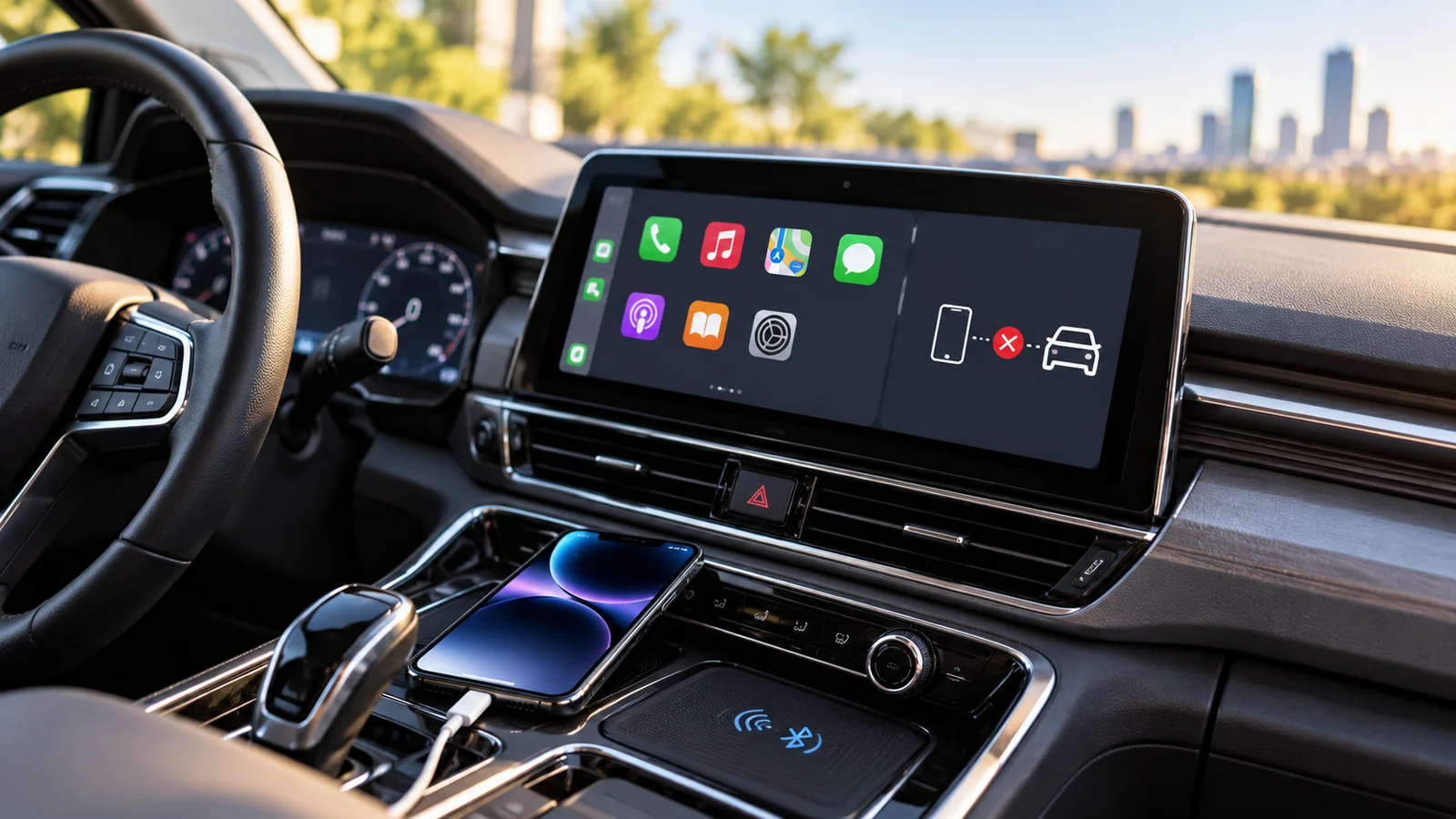
Apple CarPlay not working after an iOS update? You do not need to wipe your iPhone or reset the entire vehicle to start troubleshooting. The quickest reliable route is to identify what stopped working: a wired USB connection, a wireless pairing, CarPlay launching on the dashboard, audio after connection, or a single app. These failures can share a timeline without sharing a cause. Begin with a reversible test, check CarPlay again, and escalate only when the results point to a particular component.
Start here while parked: On wired CarPlay, try the correct data-capable USB port and a different cable. On wireless CarPlay, verify both Wi-Fi and Bluetooth are on and the CarPlay network has Auto-Join enabled. For either mode, restart the iPhone and infotainment system, confirm Siri is enabled, check Screen Time restrictions, and only then rebuild the saved vehicle connection. These steps are grounded in Apple’s CarPlay troubleshooting guidance; they are not a claim that one specific iOS update broke every supported vehicle.
First, diagnose the symptom instead of resetting everything
| What you notice | What it suggests—not proof | First useful check | Avoid doing first |
|---|---|---|---|
| Phone charges, but CarPlay never appears | USB port or lead may supply power without the needed data path | Try the designated data/CarPlay port and a direct data-capable cable | Factory-resetting infotainment |
| Wireless CarPlay is missing; wired works | Phone and display can exchange CarPlay data by USB; wireless pairing needs attention | Check Bluetooth, Wi-Fi, CarPlay network Auto-Join, car wireless mode | Replacing the car stereo |
| Neither wired nor wireless detects this iPhone | Phone permission, vehicle profile or model compatibility needs checking | Check Siri, Screen Time and the vehicle’s CarPlay enable setting | Erasing iPhone content |
| A second iPhone works in the same car | The failure may be specific to one iPhone, cable or its saved profile | Match the connection method and test with the same cable | Assuming the car firmware is bad |
| CarPlay launches, but has no sound | Output routing, source selection, volume or one app may be at issue | Test navigation prompt, music and a call separately | Deleting the entire pairing record |
| CarPlay disconnects on bumps or movement | Loose, damaged or poorly seated USB path is a possibility | Gently test a known-good direct cable while stationary | Cleaning a powered port with metal tools |
| One app disappeared or looks different | The app may be hidden, unsupported, updated or on another CarPlay page | Check CarPlay app customization and app updates | Resetting network settings |
| Only notifications stopped appearing | Driving Focus or notification settings might suppress alerts | Check Driving Focus and the specific app’s settings | Re-pairing Bluetooth repeatedly |
A diagnosis table is most helpful if you record the same outcome before and after one change. “Still broken” is vague; “wired CarPlay displayed the Home screen for three minutes, then disconnected when the cable moved” tells you something testable. A parked test also avoids distracted driving and lets you compare screens safely.
A five-minute baseline check before you change settings
- Confirm CarPlay support. Check the specific vehicle trim, model year and entertainment unit. A car with Bluetooth audio does not necessarily have CarPlay; a USB socket that charges a phone does not necessarily transfer CarPlay data.
- Note your iPhone and software version. Open Settings > General > About. Write down the model and iOS version before modifying anything. This information is essential when the problem started immediately after an update.
- Identify the exact connection. Is it Apple’s wired USB CarPlay, factory wireless CarPlay, or a third-party wireless adapter connected to a wired-only port? Those are three different troubleshooting branches.
- Park and start the vehicle normally. Confirm the infotainment display is fully booted and the correct phone projection mode is enabled on the vehicle. Some cars require selecting a smartphone or CarPlay icon manually.
- Remove unnecessary variables. Disconnect other phones from the car and remove temporary USB hubs or splitters for a controlled test. Keep the original pairing intact at this stage.
- Try one simple action and retest. Restart the phone, then restart the head unit or vehicle using the owner manual’s normal procedure. Do not use an undocumented button combination or disconnect the car battery.
Why this matters: One car can remember multiple phones and choose the wrong one when connecting. A recent iPhone update may coincide with a vehicle firmware change, an accessory change or a new phone taking priority. Timing is a clue, not definitive proof of an iOS defect.
Fix wired CarPlay: work down the cable and USB path
Confirm the port is meant for CarPlay
Apple instructs users to connect to the vehicle’s appropriate USB port, which may carry a smartphone or CarPlay mark. Some vehicles have several ports but permit data or phone projection on only one. Consult the owner’s manual or the manufacturer’s support page for your trim. If the phone charges and the car stays on its own interface, first move the cable to the correct data-capable port; charging alone does not establish that the CarPlay data connection works. Apple’s car-connection instructions also recommend checking the phone’s port for damage or debris.
Use one known-good direct cable before adding adapters
Try a short, reliable, data-capable cable with the correct connectors for both ends. An iPhone with USB-C does not use the same physical lead as an older Lightning iPhone. Eliminate loose hubs, magnetic adapters, multifunction splitters and decorative extension leads temporarily. Apple notes that some USB-C-to-Lightning adapter and cable combinations can disrupt wired CarPlay; a direct USB cable is the preferred diagnostic test, not proof that every adapter is faulty. Apple documents this compatibility caveat.
- If another verified data-capable cable works, save that result and replace the original cable. Do not immediately reset Wi-Fi or erase saved cars.
- If one USB port works and another does not, use the documented CarPlay port; the other socket may be charging-only or damaged.
- If CarPlay fails when the connector is lightly disturbed while stationary, stop forcing the plug. Inspect for visible wear and seek qualified help for a loose port.
- If the USB port is dirty, follow the phone and car manufacturers’ safe-cleaning guidance. Do not insert metal tools, liquids or compressed air into unknown vehicle electronics.
- If a third-party wireless dongle is in the USB socket, unplug it and test native wired CarPlay before changing the adapter’s firmware.
What if CarPlay fails only when the iPhone is locked?
Unlock the iPhone and test a new connection while the vehicle is parked. If that works, check the car’s CarPlay settings on the phone and any connection/accessory prompt presented by iOS. The labels and available options vary by phone version and vehicle; do not assume there is a universal switch that bypasses every security restriction. A managed work phone may have security policies that require an administrator. Record whether unlocking actually changes the result before touching those policies.
Fix wireless CarPlay: test radio settings and the saved pairing
Wireless CarPlay requires a compatible vehicle and the necessary wireless services. Apple explicitly says Bluetooth and Wi-Fi must both be on and directs users to the CarPlay network’s Auto-Join setting. Bluetooth pairing on its own does not prove a full CarPlay session is established, and ordinary Bluetooth music playback does not prove the vehicle has wireless CarPlay. Apple’s pairing guide describes a vehicle voice-command-button method for supported cars.
- Park, activate the infotainment system’s documented wireless CarPlay or phone-pairing mode, and make sure another paired phone is not taking priority.
- On iPhone, open Settings > Bluetooth and verify Bluetooth is enabled. Check the list of paired devices; do not erase entries yet.
- Open Settings > Wi-Fi and ensure Wi-Fi is enabled. If the vehicle’s CarPlay network is present, open its details and check Auto-Join.
- Open Settings > General > CarPlay and choose the vehicle. If it is absent, follow the manufacturer’s initial pairing instructions.
- Test CarPlay with the phone near the dashboard, then in the usual storage position. Changing only phone location can help isolate an interference or placement-related problem, but is not a definitive RF measurement.
- If the vehicle supports both modes, compare a direct USB CarPlay session with wireless CarPlay under the same conditions. If the cable works and wireless fails, prioritize pairing and wireless checks.
A third-party wireless CarPlay dongle adds its own firmware, power draw and pairing logic. For a vehicle that natively supports only USB CarPlay, a dongle can fail even when the iPhone and built-in wired interface both work. Test the car without the adapter if possible; then follow the adapter manufacturer’s recovery instructions. Avoid downloading unofficial head-unit firmware or changing hidden engineering menus based on a generic internet guide.
Check Siri, Screen Time and CarPlay permission
Siri and car-screen availability
Apple’s official help includes checking that Siri is turned on. Use the iPhone Settings app to confirm Siri is enabled for your device and region, and test a harmless voice request before trying CarPlay again. CarPlay does not require every third-party app to have permission to use Siri; the relevant first check is whether the main phone assistant and car integration are available. If CarPlay does not appear automatically, look for and select the CarPlay icon in the car’s native interface.
Screen Time restrictions can block CarPlay
Open Settings > Screen Time > Content & Privacy Restrictions. If restrictions are enabled, review Allowed Apps and make sure CarPlay is permitted. Apple documents this specifically when the car cannot detect the iPhone. On family-managed or organization-managed devices, the owner may not be able to change that restriction without the appropriate authorization. Do not advise children or employees to bypass restrictions set by a parent or workplace.
Rebuild the pairing on both sides—only after basic checks
A stale connection profile can remain after changes to software or device settings. Apple’s suggested next step is Settings > General > CarPlay > [vehicle] > Forget This Car, followed by setting it up again. Because vehicles also store their own phone list, deleting the device from the car’s infotainment settings may be necessary. Follow the car manual to avoid deleting another driver’s phone or erasing radio presets. You can document the existing pairing first by noting which phone belongs to which driver.
- Confirm the iPhone connects to ordinary cellular and Wi-Fi networks, so you can distinguish an overall device failure from an isolated car connection issue.
- Write down or photograph the non-sensitive name of the saved vehicle and any manufacturer-specified pairing steps. Do not photograph passwords or private data.
- On iPhone, select Settings > General > CarPlay > your car > Forget This Car, if that entry exists.
- On the vehicle, remove only the affected phone from the saved-device/phone-projection list, if required by the manufacturer.
- Restart the iPhone and the car’s infotainment system using ordinary documented controls.
- For wired vehicles, plug the iPhone into the designated CarPlay USB port with the proven cable. For wireless vehicles, activate the correct pairing mode and follow the prompts on both screens.
- Open the CarPlay Home screen, launch one first-party app, and test a short parked session. Only after it works should you reconnect additional phones or adapters.
Recovery rule: If the car never appears in Settings > General > CarPlay, do not keep tapping “Forget This Car.” Return to compatibility, Siri, restrictions and initial vehicle pairing. A missing profile and a broken saved profile are different problems.
Use a two-phone, two-car test to isolate the failing component
This comparison adds more diagnostic value than repeatedly toggling settings. If available, borrow a second compatible iPhone and use a second known-working CarPlay vehicle or head unit. Do not use another person’s private phone without consent, and do not assume the second car supports the same wired or wireless mode. Keep the cable, pairing mode and test procedure consistent. This is a repeatable troubleshooting method, not a claim that our editorial team tested any vehicle.
| Test result | Reasonable interpretation | Next targeted action |
|---|---|---|
| iPhone A fails in Car 1; iPhone B succeeds there | Car 1 can run CarPlay with at least one phone; A or its profile needs closer inspection | Compare A’s restrictions, connection type and iOS version; test A in Car 2 |
| Both phones fail in Car 1; both work in Car 2 | Car 1’s head unit, settings or connection hardware becomes more suspect | Verify Car 1’s official firmware and its specified USB port or wireless mode |
| iPhone A fails in both cars; B works in both | An A-specific setting, software version, connector or security policy becomes more suspect | Document A’s exact behavior and contact Apple Support |
| Wired works in Car 1 but wireless fails there | USB path is functional; wireless pairing or adapter is implicated | Rebuild wireless profile and remove third-party adapters from the test |
| All combinations fail, including a second compatible iPhone | Insufficient control; shared test setup or multiple faults possible | Verify compatibility, cables, wireless mode and whether the baseline really worked previously |
Limit of the inference: A car that works with iPhone B is not automatically compatible with every later phone or iOS version; likewise, two cars may use similar firmware and both have a model-specific issue. Treat the matrix as a way to narrow the next support request, not as laboratory proof of the root cause. Record iPhone models, software versions and car infotainment versions for a stronger comparison.
Connected but no audio? Test sound separately from connection
A visible CarPlay Home screen means the display session has started. Silence can be an audio routing, volume, app or vehicle source issue rather than total CarPlay failure. While parked, play music in a built-in or supported app, ask Maps for a short preview instruction, then test a call using lawful hands-free operation. Check both the vehicle’s media volume and its separate navigation/voice/call levels where the car provides them. Switch between sources only using the vehicle’s normal controls.
- Music silent, navigation voice audible: start with the media source, playback app and music volume, not wireless pairing.
- Navigation voice silent, music audible: review navigation guidance volume and muting in the navigation app or car; keep route guidance disabled while troubleshooting until safe.
- Call audio absent or routed to handset: verify the audio route in the call interface and the vehicle’s calling-profile settings.
- Only one third-party app fails: update the app, check provider support and try an Apple first-party app as a control.
- Only Bluetooth audio works: do not confuse ordinary Bluetooth speaker playback with the richer CarPlay interface.
For a general explanation of audio routing failures, Horus Valley’s Bluetooth connected but no sound troubleshooting guide outlines why an established link does not necessarily select the expected audio output. Some of those concepts are analogous, but the in-car controls and CarPlay connection are different.
CarPlay opens but Maps, Messages or an app changed after the update
An app may simply be on another page or hidden
Apple says CarPlay apps can be rearranged from Settings > General > CarPlay > [vehicle] > Customize. Apps supported by CarPlay, rather than every iPhone app, appear in the vehicle display; some can be removed from view and added back. Before reinstalling anything, swipe through the full CarPlay app pages and check the More Apps list in Customize. Apple documents the icon controls.
Driving Focus can silence messages without disconnecting CarPlay
If navigation and music work but message banners or alerts disappear, check Driving Focus before assuming CarPlay cannot connect. Apple describes how Driving Focus can suppress or limit notifications while CarPlay remains active; settings can be adjusted from the vehicle’s CarPlay Settings or the iPhone Focus options. Restoring all alerts while actively driving is not always the safest outcome. Apple’s CarPlay settings guide covers this distinction.
New layouts and widgets may look unfamiliar
A visually different dashboard after a major iOS version change is not necessarily a broken connection. Modern CarPlay versions support dashboard customization and widgets in compatible configurations. Apple’s CarPlay widgets instructions explain that widget availability and the number of stacks depend on the vehicle display. Before searching for a missing panel, switch between CarPlay Home and Dashboard using the car’s native Home/Dashboard control.
Update software—but distinguish a documented fix from a theory
Apple recommends the latest compatible iOS release and the vehicle manufacturer’s current infotainment firmware. However, saying “the update caused this” requires more evidence than noticing the issue after installing it. For instance, Apple’s iOS 26.0.1 release notes documented an occasional Wi-Fi and Bluetooth disconnection fix for certain iPhone 17 and iPhone Air models. That is relevant to connection troubleshooting, but it does not establish that the release repaired every CarPlay model or all wired USB failures. Check Apple’s iOS 26 release notes for the exact device and version you use.
- On iPhone, check Settings > General > Software Update for an available stable update. Back up important data and follow the device’s normal update precautions.
- Look up your exact vehicle model, model year, and head-unit software version in the manufacturer’s owner portal or dealer guidance.
- Read the manufacturer’s published release notes or service bulletins. Prefer a targeted CarPlay or smartphone-integration update over a guessed general firmware patch.
- If firmware requires a dealer or specialized USB update, follow only the manufacturer’s verified procedure; never interrupt flashing or use third-party packages because a forum suggests they worked on another trim.
- After updating, document whether the original symptom changed. A silent navigation app becoming normal is a narrower conclusion than “all CarPlay problems are fixed.”
CarPlay Ultra is a distinct capability from conventional CarPlay and not available in every compatible CarPlay car. Do not assume a vehicle becomes CarPlay Ultra-capable just because the iPhone gained new software features. Some Ultra setup paths also require an additional network connection, which Apple covers in its vehicle-connection guidance.
What resets actually change—and why to leave them until last
| Action | What it targets | What you risk losing or changing | When justified |
|---|---|---|---|
| Restart iPhone and head unit | Temporary hung software state | Usually no stored data; some sessions pause | Early, after documenting symptom |
| Change cable / select CarPlay USB socket | Wired physical connection | No stored pairing data | Early for wired failures |
| Forget and re-pair this vehicle | Stale saved CarPlay pairing | Saved vehicle connection; must re-pair | After reversible tests fail |
| Vehicle infotainment firmware update | Known manufacturer software defect | Model-specific update risk; may need dealer | Only through verified manufacturer process |
| Reset iPhone network settings | Broad Wi-Fi, cellular and some network configurations | Saved network settings and connections may need reconfiguration | Only if multiple network symptoms support doing it |
| Factory-reset vehicle infotainment | Wide vehicle entertainment setup | Saved phones, presets, preferences and profiles may be erased | Only with manufacturer guidance or technician |
| Erase all iPhone content | Whole-device software and data state | Potential loss of unrecovered data | Not an initial CarPlay troubleshooting step |
A widely shared “Reset Network Settings fixes CarPlay” instruction may sometimes help network problems, but it is a broad reset and comes with a real reconfiguration cost. The available evidence does not justify it ahead of a cable test, proper wireless setup, a normal restart and targeted re-pairing. Avoid “Reset All Settings” or an iPhone erase merely to see whether the car reconnects. If the vehicle has a safety-critical warning, use the manufacturer’s service route rather than treating it as an entertainment-system troubleshooting task.
Three repeatable examples to apply the diagnosis
Example 1: USB-C iPhone charges but no CarPlay display
Suppose a recently updated USB-C iPhone powers up from a center-console port, but the vehicle only shows its own home screen. The user checks the owner’s manual and discovers that only one marked socket supports smartphone data. Moving a known-good, direct USB data cable to that socket tests the most basic failure point without modifying any iOS settings. Interpretation: if CarPlay starts, the evidence supports a port or connection-path explanation—not an iOS rollback. If it still fails, the user checks Siri, restrictions and a second cable before considering re-pairing.
Example 2: factory wireless CarPlay disappears, wired mode remains reliable
A vehicle supports both methods. Wired CarPlay works consistently, but wireless mode is never offered after the update. The owner checks Bluetooth and Wi-Fi, ensures the correct saved CarPlay network has Auto-Join enabled, disables automatic connection to the household’s other parked phone for the test, and selects the car’s documented wireless pairing mode. After those checks, the owner deletes only the affected saved CarPlay link and pairs again. Interpretation: this sequence targets wireless settings and stale profiles while preserving unrelated iPhone networks and vehicle presets.
Example 3: dashboard works but incoming message alerts vanish
Maps displays normally, music plays, and the phone stays connected during a parked session. Only messages no longer appear as expected. The owner checks Driving Focus and message-specific notification settings, then uses the CarPlay Home control to verify Messages is on an available app page. Interpretation: a missing alert does not establish that the CarPlay connection itself failed. Changes to notification delivery should prioritize driving safety rather than making every alert visible.
When to contact Apple, the car maker or the adapter supplier
| Evidence after safe tests | Best first contact | Useful details to provide |
|---|---|---|
| One iPhone fails in two confirmed-compatible vehicles; another works | Apple Support | iPhone model, iOS version, Siri/restriction checks, dates and repeatable outcome |
| Two compatible phones fail in one vehicle, work elsewhere | Vehicle manufacturer or dealer | VIN or trim, head-unit version, affected USB socket/wireless mode |
| Native wired CarPlay works; wireless conversion dongle fails | Adapter manufacturer | Dongle model, its firmware, car type, direct-wired control result |
| CarPlay works but one app crashes or produces no audio | App developer first; Apple/car maker if the issue spans apps | App version, failure screen, safe reproducible steps |
| Vehicle display resets, produces warnings or affects driver controls | Qualified vehicle service | Warning messages and circumstances; avoid DIY firmware experimentation |
Create a short issue log before you contact support: date and time of the iOS update; phone model; iOS version; vehicle model/year/trim; head-unit software version; USB or wireless mode; cable/adapter model; exact symptom; and results of one or two controlled tests. Support teams can act on “iPhone A works by USB for 10 minutes but drops wireless in 30 seconds while iPhone B remains stable” much more effectively than a screenshot of a generic failure message. No need to publish your VIN, license plate, personal account identifiers or device serial publicly.
A compact verification checklist before you drive again
- CarPlay is supported by this vehicle and region, and you tested the correct factory-supported connection type.
- The CarPlay Home or Dashboard appears on the vehicle display after a normal reconnect.
- A wired test uses the appropriate USB data port and known-good direct cable; wireless pairing has both required radios on.
- Siri and Screen Time restrictions were checked without bypassing any parental or work policy.
- Navigation guidance and audio routing were tested separately while parked.
- If a pairing record was deleted, the phone and vehicle were re-paired and other drivers’ saved profiles were preserved.
- The underlying symptom was tested after each change; no broad erase was used as the starting point.
- If it still fails, model and version details are ready for the responsible support provider.
Sources and editorial verification
- Apple Support — If you need help with CarPlay: official wired/wireless checks, Siri, restrictions, re-pairing and vehicle firmware.
- Apple iPhone User Guide — Connect iPhone to CarPlay: cable, wireless pairing and Auto-Join.
- Apple Support — Connect an iPhone or other device to your car: car interfaces, ports, compatible connection methods and Ultra considerations.
- Apple Support — About iOS 26 updates: what Apple explicitly lists as fixed in particular releases.
- Apple iPhone User Guide — Rearrange CarPlay icons: missing apps and customization.
- Apple iPhone User Guide — Change CarPlay settings: Driving Focus and display settings.
- Apple iPhone User Guide — Customize CarPlay widgets: display-specific widget availability.
Editorial note — checked October 20, 2026: This guide describes official procedures and transparent diagnostic reasoning. The comparison examples are illustrative workflows, not laboratory tests performed by Horus Valley, and no universal iOS bug is claimed. The exact menu labels, supported features, recovery steps and vehicle updates vary by iOS release, car model, and manufacturer. Always carry out setup and troubleshooting while safely parked.
You may also like
 Technology & How-To
 Android Auto Keeps Disconnecting? How to Fix USB and Wireless Dropouts
Android Auto keeps disconnecting? Separate USB, wireless and app failures, check Galaxy USB mode, compare connection methods and…
 Technology & How-To
 Netflix Says Your TV Isn’t Part of the Household? How to Fix It
Fix a Netflix household warning by separating home verification, permanent household updates and temporary travel access, with genuine…
 Technology & How-To
 Google Photos Stopped Backing Up from Your PC? What Changed and How to Fix It
Google Photos stopped backing up your computer folders? Understand the Drive for desktop change, configure browser folder backup…