
Windows Hello PIN Not Available? Fix Windows 11 Sign-In Without Losing Access
Windows Hello PIN unavailable? Recover Windows 11 access safely using the right sign-in option, official PIN reset, account-type diagnosis and BitLocker precautions.
Contents
- Choose the right fix before changing any Windows security setting
- Step 1: Identify what kind of account actually signs in to this PC
- Step 2: Recover access from the Windows 11 sign-in screen
- Try Sign-in options and the account password
- Use “I forgot my PIN” when Windows offers it
- If you forgot both the PIN and the password
- Step 3: Repair PIN settings after you successfully sign in
- Step 4: Check device security without clearing it
- Read TPM status; do not press Clear TPM
- Secure the BitLocker recovery key before high-risk troubleshooting
- Step 5: Separate home-PC troubleshooting from Windows Hello for Business
- Step 6: Safely investigate repeated Windows setup failures
- Repair Windows system files only when broader symptoms support it
- Do not change registry policy or ownership based on an unrelated tutorial
- Three illustrative diagnostic cases
- Case A: personal laptop after a normal Windows update
- Case B: school laptop with greyed-out PIN setting
- Case C: a replaced motherboard and a BitLocker prompt
- A risk-ranked troubleshooting ladder for readers
- What to record before contacting support
- Confirm the repair worked—and prevent the next lockout
- Related troubleshooting on Horus Valley
- Official references and scope of this guide
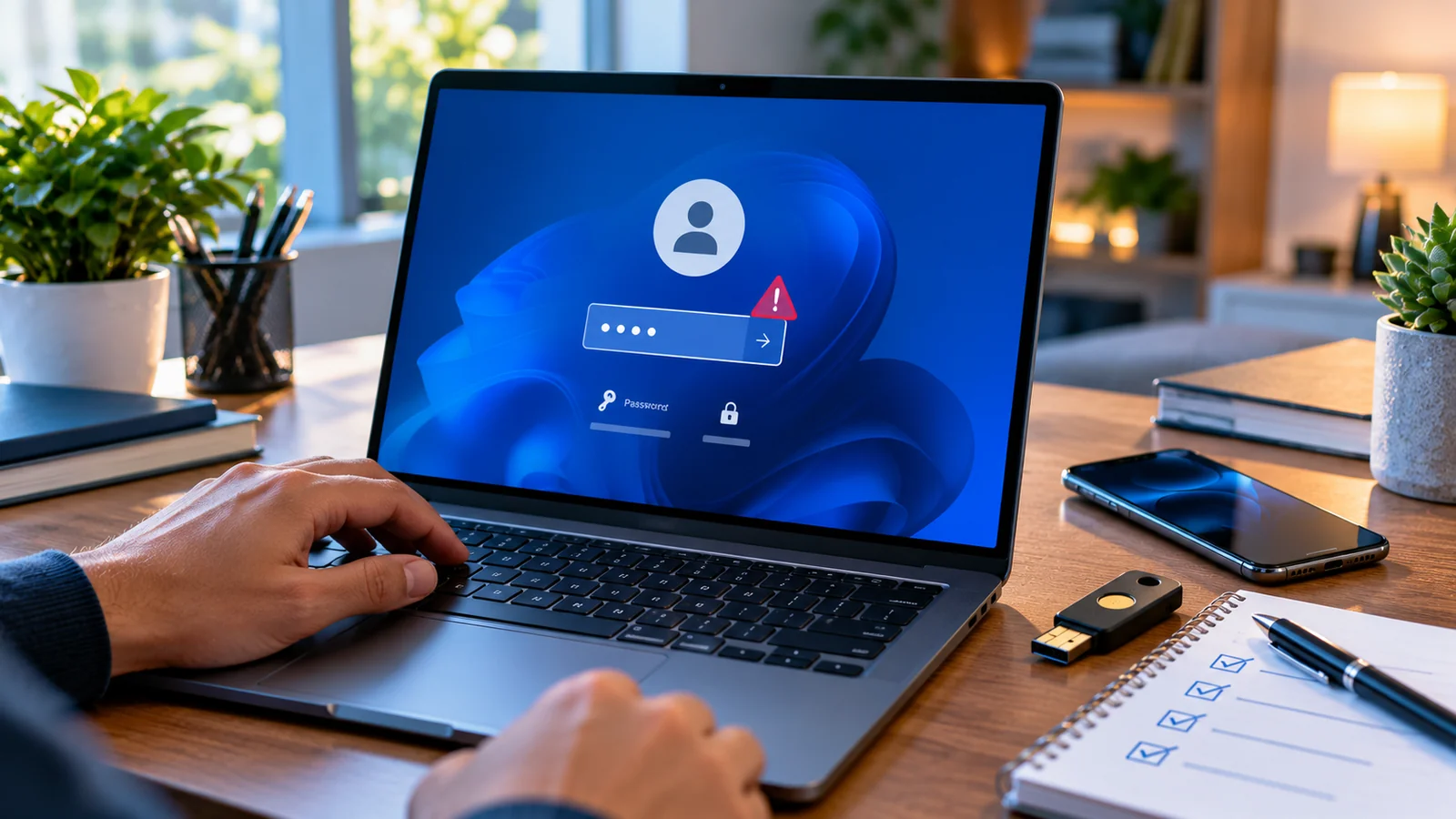
Windows Hello PIN not available on Windows 11? If the sign-in screen says “Something happened and your PIN isn’t available,” or Settings shows “This option is currently unavailable,” do not erase the PIN folder, clear the TPM or reset the PC as your first step. First recover a supported alternative sign-in method, identify whether the device uses a personal Microsoft account, a local account, or an organization-managed identity, and then reset the PIN through Windows. A broken sign-in method does not automatically mean your documents are gone.
Quick fix: At the lock screen, select Sign-in options and try the password icon. If I forgot my PIN appears, follow Microsoft’s verified recovery flow instead. Once signed in, use Settings > Accounts > Sign-in options > PIN (Windows Hello), select I forgot my PIN where offered, and finish account verification. For local accounts, Microsoft says the lock-screen “I forgot my PIN” path is not available; sign in with the local account password and change the PIN inside Settings. See Microsoft’s official reset instructions.
Choose the right fix before changing any Windows security setting
| What you see | What to check first | Next safe action | Do not do first |
|---|---|---|---|
| PIN unavailable at lock screen; password icon visible | Know the password for the same Windows account? | Sign in with password; re-create PIN in Settings | Delete the Ngc folder |
| “I forgot my PIN” under the PIN field | Personal Microsoft account with verification access? | Follow the on-screen authenticated PIN reset | Disable TPM in firmware |
| PIN tile greyed out after you are signed in | Whether a restart or account verification clears it | Restart, check account type and Sign-in options | Reset Windows |
| Password option missing | Hello-only sign-in may be enabled; account type matters | If already signed in, inspect the Hello-only toggle; otherwise use supported recovery | Assume the Microsoft password is wrong |
| Work/school laptop shows managed-by-organization message | Device joined to Entra ID or company domain? | Contact IT; preserve enrollment and policy | Disconnect the organization |
| BitLocker recovery screen appears | Recovery key ID and matching 48-digit key | Retrieve key from correct account or IT | Clear TPM or format drive |
| PIN fails after motherboard, BIOS or security change | TPM state and encryption prerequisites | Verify recovery key, then seek vendor or IT advice | Flash firmware or clear security chip |
| PIN reset opens then fails repeatedly | Internet, verification methods and service/device health | Verify account, test restart and official tools | Use random registry “fixes” |
This table is a diagnostic model, not a promise that a given error has only one cause. A failed PIN prompt can result from a stale credential, a security setting, disrupted identity verification, an organizational policy or a Windows component problem. The distinction determines whether a reset should be performed by the user or by an administrator.
Step 1: Identify what kind of account actually signs in to this PC
| Account type | Usual sign-in credentials | PIN recovery considerations | Who controls changes |
|---|---|---|---|
| Personal Microsoft account | Email address and Microsoft account password; Hello on the device | “I forgot my PIN” may be available on sign-in screen; account verification is required | You, subject to account security settings |
| Local Windows account | Local username and local account password | Reset from Settings after password sign-in; local account does not get the Microsoft lock-screen PIN reset link | Local PC administrator / account owner |
| Work/school Microsoft Entra account | Organization-managed password, MFA and Windows Hello for Business | Recovery is affected by Intune/GPO and the organization’s configured destructive or non-destructive PIN reset | Your IT administrator and established policies |
| On-premises / hybrid domain account | Domain credential, often with VPN or corporate network requirements | Some PIN reset flows require access to corporate identity services or configured recovery | Your employer/school IT |
On a device that already opens the desktop, go to Settings > Accounts > Your info and Accounts > Access work or school. A personal email appearing in a web browser does not prove Windows itself uses that same Microsoft account. Likewise, a work email used in Office does not always mean the entire laptop is organization-joined. If it is managed, do not remove corporate enrollment just to regain a PIN: this may disrupt access to files, apps, certificates or security policies.
What your PIN is not: A Windows Hello PIN is a device-bound sign-in gesture. It is not a universal replacement for your Microsoft account password, an email verification code or the 48-digit BitLocker recovery key. Changing your Microsoft password does not automatically re-create a broken device PIN. Microsoft distinguishes these credentials explicitly in its PIN guidance.
Step 2: Recover access from the Windows 11 sign-in screen
Try Sign-in options and the account password
- At the Windows lock screen, make sure the correct user is selected if multiple people use the laptop.
- Choose Sign-in options. Look for the password or key-shaped option instead of the PIN keypad; available icons depend on configuration.
- If the password option appears, enter the password associated with that Windows account. A Microsoft-account password may differ from an old local password.
- If successful, remain signed in. Check your backup and recovery key before performing any security-related reset.
- Go to Settings > Accounts > Sign-in options to repair or re-register PIN (Windows Hello).
- Lock the computer once and test that the newly configured PIN works; do not remove your verified fallback immediately.
Windows may not show a password tile when its “For improved security, only allow Windows Hello sign-in for Microsoft accounts on this device” preference is active. Microsoft says this Hello-only option removes password sign-in on supported personal Microsoft accounts. If you are already signed in, the toggle can be inspected under Sign-in options > Additional settings. It may not appear on a local or managed device, and enabling or disabling it is not a universal remedy. Microsoft explains the feature.
Use “I forgot my PIN” when Windows offers it
- Select I forgot my PIN below the sign-in field if that action is shown for the selected account.
- Complete the legitimate Microsoft account or organization verification prompt. You may need network access and an MFA method.
- Create a new PIN when Windows offers a successful setup screen.
- Sign in and verify it works again after one normal restart.
- If verification fails, troubleshoot your account access using official Microsoft sign-in recovery rather than trying unverified recovery utilities.
The absence of “I forgot my PIN” is not proof of malware or irreversible failure. Microsoft’s consumer instructions explicitly limit that lock-screen link to Microsoft accounts, not local accounts. Business devices can present different recovery experiences depending on policy. Do not follow a guide that promises the same screen on every device.
If you forgot both the PIN and the password
For a personal Microsoft account, start with the official Microsoft password recovery page from a trusted device, or select supported “I forgot my password”/web sign-in options where Windows displays them. Once identity verification is complete, return to the PC and use an authorized Windows sign-in method. For a local account, use the Windows password-reset security questions or a password-reset disk only if you previously configured them; otherwise seek legitimate administrator or Windows recovery support. A personal account recovery process will not reset an unrelated local account automatically.
Step 3: Repair PIN settings after you successfully sign in
- Open Settings > Accounts > Sign-in options and expand PIN (Windows Hello).
- Use I forgot my PIN when you no longer trust the old PIN or cannot enter it. Complete the verification prompts.
- If the PIN still works and you simply want a different one, use Change PIN, which normally requests the current PIN.
- If the UI shows Remove and your device permits it, you can follow the on-screen account-verification flow and set up a new PIN. Do not remove your only working sign-in factor before confirming an alternative.
- Restart Windows normally once. Try the new PIN at the lock screen, then verify the password or other allowed fallback remains usable.
- If an error returns, capture the exact wording and any code. Note whether it happens before or after identity verification.
If the PIN section is greyed out, sign out and back in, restart, and check for available supported Windows updates. Microsoft’s Windows Hello troubleshooting page recommends re-creating the PIN after certain security changes and retrying sign-in before more invasive methods. Installing an update is reasonable when the system is otherwise stable and the release is suitable for your device; it is not evidence that every “PIN unavailable” error came from a bad update.
Step 4: Check device security without clearing it
Read TPM status; do not press Clear TPM
A Trusted Platform Module helps protect certain Windows authentication keys and other security material. While signed in, press Win + R, enter tpm.msc and read the management console’s status. Another route is Windows Security > Device security > Security processor details. A missing, unhealthy or firmware-related warning warrants manufacturer or IT guidance, not an automatic wipe. The Windows Security device-security guide cautions users to back up data before clearing a TPM.
Why the difference matters: clearing the TPM can invalidate protected keys and disrupt BitLocker/device encryption, Windows Hello and other protected credentials. It is not equivalent to changing a PIN. On a company-owned device it can also undermine security enrollment. Do not attempt it because a forum post describes it as a “one-click fix,” and do not switch TPM settings in BIOS or perform firmware updates without a verified recovery plan.
Secure the BitLocker recovery key before high-risk troubleshooting
BitLocker recovery is a separate drive-unlock process. Microsoft says its recovery key is a 48-digit number, often saved to a Microsoft account, an organization’s identity system or a printed/USB copy. If you see a recovery-key screen, note the key ID and look up the matching recovery key through your Microsoft account or the organization’s work/school recovery portal. If you cannot find the key, contact IT or the original device administrator. Microsoft warns it cannot reconstruct a lost recovery key.
A successful PIN reset does not guarantee that a later firmware change will leave disk encryption untouched. Keep copies of vital files backed up, check key ownership, and delay high-risk operations until the recovery path is known. This protects the reader’s files more effectively than jumping straight to a registry command or a security-chip reset.
Step 5: Separate home-PC troubleshooting from Windows Hello for Business
Windows Hello for Business uses organization identity and device trust. Microsoft documents two PIN-reset models: destructive reset replaces the old Hello credentials and keys, whereas non-destructive reset preserves the existing Hello container when the organization has deployed its PIN recovery service. These words describe credentials, not a promise that a destructive reset automatically erases documents. The correct method depends on tenant settings, domain connectivity and the client configuration. Microsoft Learn details both models.
| Business scenario | What could block a reset | What the owner should do |
|---|---|---|
| Company device with “managed by organization” | PIN complexity, enrollment policy, mandatory multifactor authentication | Ask IT for approved PIN recovery procedure and backup credentials |
| Microsoft Entra joined, cloud-managed | Tenant policy and supported identity challenge | Use organization-provided PIN reset; report the displayed prompt |
| Hybrid joined with key-trust deployment | Certain lock-screen destructive resets may not be supported; network dependency | Connect to approved corporate resources or use configured non-destructive reset via IT |
| Remote worker after password change | On-premises domain or federation might not be reachable | Follow company VPN/sign-in playbook; do not unjoin the device |
| Device has certificate-backed apps or security keys | Credential store changes may require reprovisioning | Preserve keys and ask administrators before any Hello-container reset |
An administrator may diagnose join and PIN-recovery state with dsregcmd /status, whose AzureAdJoined, DomainJoined, NgcSet and CanReset fields carry specific meanings. Microsoft says CanReset: DestructiveOnly differs from DestructiveAndNonDestructive. These diagnostics are read-only observation, not a reason for end users to disconnect their work account or alter a domain policy. Company identifiers and user tokens in diagnostic output should not be posted publicly. See Microsoft’s dsregcmd guidance.
Step 6: Safely investigate repeated Windows setup failures
Repair Windows system files only when broader symptoms support it
If the Windows Hello settings pane crashes, several system features fail together, or the PIN wizard repeatedly fails despite successful authentication, the operating-system component health may be worth checking. For an administrator who can already sign in and back up important data, Microsoft’s supported sequence is to run DISM before System File Checker. These utilities scan/repair Windows components; they do not reset your Microsoft account password or replace the business identity policy.
DISM.exe /Online /Cleanup-Image /RestoreHealth sfc /scannowOpen Command Prompt or Windows Terminal as administrator, run the first command, let it finish, then run the second. Reboot if requested and recheck the original symptom. Microsoft documents the order and messages in its DISM/SFC repair guidance. Do not type these commands from a Windows recovery shell expecting the /Online parameters to work in every recovery context; this workflow is for a running Windows installation.
Do not change registry policy or ownership based on an unrelated tutorial
Several community fixes recommend taking ownership of C:\Windows\ServiceProfiles\LocalService\AppData\Local\Microsoft\Ngc and deleting its contents. That location is involved in Windows Hello credential storage, but manually removing it can break existing sign-in keys, require re-enrollment or conflict with business policy. A forced delete is not Microsoft’s standard first-line consumer reset method. This guide intentionally does not publish a copy-and-paste deletion command: if supported resets fail, obtain a backup and appropriate support before any Hello-container manipulation.
The same principle applies to instructions that tell users to disable Windows services, modify Group Policy, enable hidden accounts, bypass sign-in checks or “fix” a security error by clearing TPM from UEFI. Such steps can create a new problem without identifying the original one. The safer sequence is authentication, documented PIN recovery, supported system checks, and escalation based on device ownership.
Three illustrative diagnostic cases
Case A: personal laptop after a normal Windows update
A Windows 11 Home laptop displays “Your PIN is no longer available” after a restart. The user has a personal Microsoft account, can connect to Wi-Fi at the lock screen and still has access to the account’s recovery email. They select I forgot my PIN, verify the Microsoft account and create a new PIN. A reboot verifies the fix. What the evidence shows: authenticated PIN recovery worked; it does not prove the update corrupted the TPM. No TPM clear, Ngc deletion or PC reset was needed. This is a constructed walk-through, not a claimed user test.
Case B: school laptop with greyed-out PIN setting
A school-issued Windows 11 Pro machine permits password sign-in, but the Windows Hello PIN button says “This option is currently unavailable” and policy messages are visible. It is Microsoft Entra joined. The student screenshots only the generic error, notes the Windows build, and asks IT whether PIN recovery is configured. The administrator checks policy and CanReset and provides the approved path. What the evidence shows: the device is managed; deleting its join or TPM data without authorization would introduce unnecessary risk. This scenario is explanatory, not a report of a completed field test.
Case C: a replaced motherboard and a BitLocker prompt
A laptop previously used Windows Hello, then received a motherboard replacement. On startup it requests a 48-digit BitLocker key. The owner first checks the matching recovery key ID in the Microsoft account, obtains the key and unlocks the drive. Only after successful file access do they ask the device vendor about supported TPM/firmware and PIN enrollment steps. What the evidence shows: disk-encryption recovery took priority over a PIN reset; it would be unsafe to treat the PIN prompt as the whole problem.
A risk-ranked troubleshooting ladder for readers
| Action | Impact on stored files/settings | Prerequisite | When reasonable |
|---|---|---|---|
| Restart, check internet and selected account | Generally reversible; no files removed | Know current sign-in context | At the beginning |
| Choose supported password sign-in | No system-file deletion | Know correct account credentials | When password option exists |
| Use official I forgot my PIN | Re-enrolls PIN; may affect Hello credential configuration | Complete account/organization verification | Recommended first reset |
| Review Hello-only account option | Changes sign-in method availability if the switch exists | Already signed in; personal account | If password tile missing |
| DISM then SFC from administrator session | Repairs Windows components; restart may be needed | Authenticated admin access and backup | Broader system-component symptoms |
| Delete Ngc manually | Can invalidate PIN/Hello material, permissions and organization keys | Expert/IT approval and recovery safeguards | Not routine; beyond this guide’s self-service steps |
| Clear TPM or change firmware security | Risk of credential loss and encryption recovery prompts | Verified backup, BitLocker key and vendor/IT instructions | Only for diagnosed security-processor issue |
| Reset this PC: Keep my files | Documents retained by design, but apps and settings removed; still carries failure risk | Full backup and BitLocker key | Last resort after targeted fixes |
| Reset this PC: Remove everything | Removes personal files, apps and settings | Explicit informed decision and full backups | Not an ordinary PIN repair |
The phrase “Keep my files” does not mean “everything stays unchanged.” Microsoft says Reset this PC with that option reinstalls Windows but removes apps and settings. If the PC is encrypted, recovery keys are needed before proceeding. This guide treats a full Windows reset as a last-resort repair, not an easy shortcut; review the official Reset your PC documentation before considering it.
What to record before contacting support
- Exact error text and any displayed code; whether it appears at lock screen, inside Settings, or during identity verification.
- Whether password sign-in works, whether “I forgot my PIN” is present, and which account is selected.
- Windows edition and build (Settings > System > About), plus when the issue began.
- Personal, local, or work/school ownership; never share business tenant details publicly.
- Any recent changes to motherboard, UEFI, TPM, security settings, system update or organizational enrollment.
- Whether the device is encrypted, and whether the matching BitLocker recovery key is safely accessible (do not paste it into support forums).
- Results after restart, PIN recovery attempt, organization support advice, and any supported repair tool.
- Whether sensitive data and app settings have been backed up before performing a higher-risk step.
For personal devices, start with Microsoft’s sign-in troubleshooter and legitimate account recovery. For organization-managed hardware, contact the company or school help desk and provide the observations above. If hardware or firmware changed, involve the computer manufacturer too. Avoid posting account passwords, recovery codes, BitLocker keys, serial numbers or device-join diagnostic dumps on public pages.
Confirm the repair worked—and prevent the next lockout
- Sign in using the newly configured PIN after locking the machine, not merely immediately after the wizard closes.
- Restart once and test PIN sign-in again so you know it persists across a normal reboot.
- Verify an approved fallback is available: personal account recovery method, local password recovery plan or organization-issued backup authentication.
- Check the correct BitLocker recovery key is stored safely, especially before planned hardware or firmware work.
- Maintain device backups and an updated recovery email or authenticator method without disabling account security.
- On a managed device, follow IT enrollment policy; do not weaken PIN complexity or remove organizational sign-in methods for convenience.
A note for Windows 10 users: many sign-in concepts still apply, but standard Windows 10 support ended on October 14, 2025. Microsoft advises moving to supported Windows 11 or checking Extended Security Updates eligibility where applicable. Continuing to use Windows 10 changes the security context of troubleshooting; it does not justify bypassing supported recovery measures. See Microsoft’s Windows 10 support notice.
Related troubleshooting on Horus Valley
If PIN failure is accompanied by a drive-encryption recovery screen, treat BitLocker recovery as a separate priority and start with Microsoft’s official recovery-key procedure above. If the desktop signs in but only a particular connected account or app fails, verify that app’s authentication rather than resetting the whole Windows user profile. Horus Valley’s Google passkeys troubleshooting guide covers a related but distinct issue: a cross-device credential or authentication prompt can fail even when Windows itself is accessible. Do not confuse passkey recovery with re-creating a Windows Hello PIN.
Official references and scope of this guide
- Microsoft Support — Change or reset your PIN in Windows: differences between lock-screen and Settings recovery, local vs Microsoft accounts.
- Microsoft Support — Windows Hello common issues: safe resets, repeated setup prompts and sign-in checks.
- Microsoft Support — Go passwordless in Windows: what the Hello-only sign-in setting changes.
- Microsoft Support — Find your BitLocker recovery key: the 48-digit key, account portals and ownership.
- Microsoft Support — Windows Security device-security checks: TPM diagnostic messages and warnings.
- Microsoft Learn — Windows Hello for Business PIN reset: destructive and non-destructive recovery prerequisites.
- Microsoft Learn — Troubleshoot dsregcmd: device and PIN recovery state for administrators.
- Microsoft Support — Repair Windows system files with DISM and SFC: supported order and limits.
- Microsoft Support — Reset your PC: what Keep my files does and does not preserve.
Editorial verification: October 20, 2026. This guide combines official Microsoft documentation with an explicitly reasoned diagnostic workflow; no hardware test, enterprise-tenant experiment, or recovery success rate has been fabricated. The three case studies are illustrative and can be repeated only on devices the reader is authorized to administer. Menu labels and available recovery methods vary with the Windows build, device enrollment, identity type and security policy. If you cannot verify access to encrypted data or backup keys, stop before changing the TPM, Windows Hello credentials or Windows installation.
You may also like
 Technology & How-To
 Android Auto Keeps Disconnecting? How to Fix USB and Wireless Dropouts
Android Auto keeps disconnecting? Separate USB, wireless and app failures, check Galaxy USB mode, compare connection methods and…
 Technology & How-To
 Netflix Says Your TV Isn’t Part of the Household? How to Fix It
Fix a Netflix household warning by separating home verification, permanent household updates and temporary travel access, with genuine…
 Technology & How-To
 Google Photos Stopped Backing Up from Your PC? What Changed and How to Fix It
Google Photos stopped backing up your computer folders? Understand the Drive for desktop change, configure browser folder backup…