
Windows 11 Mobile Hotspot Connected but No Internet? Fix It
Phone connects to your Windows 11 hotspot but has no internet? Check the shared source, compare devices, and test VPN or DNS before resetting the network.
Contents
- A two-minute test: find which part is failing
- 1. Confirm the connection Windows is sharing
- 2. If the PC is offline, fix that before the hotspot
- 3. Reconnect the client and compare another device
- 4. Check VPN, proxy and DNS behavior on the affected side
- Optional: inspect IP and DNS from a Windows client
- 5. If browsing works, investigate the warning separately
- 6. Restart, diagnose and update before a full reset
- 7. Use Network reset only after the earlier checks
- How to confirm the hotspot is fixed
- Official sources and image credits

If a phone connects to your Windows 11 mobile hotspot but has no internet, first check that the PC itself can browse, then select that working connection under “Share my internet connection from.” Restart the hotspot and reconnect the phone. If that fails, compare a second connected device before resetting Windows.
This guide covers a Windows PC sharing its internet with a phone or another laptop. If your phone is supplying the hotspot and Windows is the device joining it, use our Windows connected but no internet guide instead. The two situations need different checks.
A two-minute test: find which part is failing
- On the Windows PC, open two unrelated websites and refresh them. Do not rely on a cached page or a Wi-Fi icon.
- On the connected phone, temporarily turn off mobile data so it cannot hide a broken hotspot connection. Keep Wi-Fi on and open those same websites. Turn mobile data back on after testing.
- If possible, join the Windows hotspot from a second phone or laptop and repeat. Record which devices actually browse.
| What happens | Where to focus |
|---|---|
| The Windows PC cannot browse either | Repair its original Wi-Fi, Ethernet or cellular connection first. |
| The PC browses; every hotspot client fails | Check the selected source, hotspot sharing and VPN-related behavior. |
| One hotspot client works; another fails | Check the failing client’s saved network, proxy, DNS or VPN settings. |
| Websites open but a “No Internet” label remains | Investigate connectivity detection or the affected app before doing a full reset. |
| Devices cannot find or join the hotspot at all | Check hotspot availability, password and band compatibility; this is a different failure. |
These results narrow the investigation; they do not identify a defective component by themselves. Keep the same source connection during each comparison so you know what changed.
1. Confirm the connection Windows is sharing
- Open Settings > Network & internet > Mobile hotspot.
- Under Share my internet connection from, choose the working source: for example, Ethernet if the PC is online through a cable.
- Under Share over, select Wi-Fi for a phone joining the wireless hotspot. This is the outgoing connection, not the source.
- Turn Mobile hotspot off and back on. Join the displayed network from the phone and test again.
For example, a PC can be online through Ethernet while a different adapter is selected for sharing. Selecting Wi-Fi under Share over does not correct a wrong source selection. Microsoft’s hotspot setup guide documents both controls.
| Setting | Question it answers |
|---|---|
| Share my internet connection from | Which connection supplies internet to the PC? |
| Share over | How will the PC pass the connection to another device? |
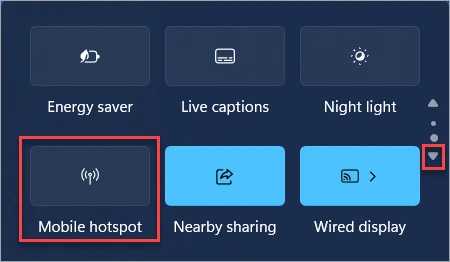
Quick Settings can toggle the hotspot, but open the full settings page to inspect the source. A connected-device count confirms that a device joined; it does not prove internet access.
2. If the PC is offline, fix that before the hotspot
A hotspot cannot supply an internet connection the PC does not have. Connect the PC to its normal network and complete any legitimate hotel or public-Wi-Fi sign-in page. Test browsing again before turning sharing back on. Never enter sensitive details into an unexpected login page.
For Wi-Fi source failures, follow our Windows Wi-Fi no-internet troubleshooting. If the source repeatedly drops, use the Windows Wi-Fi disconnection guide. This keeps the hotspot checks focused on sharing rather than repeating every router repair.
3. Reconnect the client and compare another device
- Check the hotspot name and password on the PC. On the failing client, forget that specific network and join it again.
- Use automatic IP assignment unless the network was deliberately configured otherwise. Remove an old manual proxy only if you know it is unnecessary; record the original value first.
- Test two websites again with the phone’s mobile data temporarily off.
- Compare a second client. If it works, avoid resetting the host PC just to repair the first client.
If the phone cannot see or join the network, try a compatible network band in the hotspot Properties > Edit controls, where offered. A 2.4 GHz option can help older clients. Band changes are more relevant to discovery, joining and radio stability than to a repeatable failure where every connected client lacks internet.
4. Check VPN, proxy and DNS behavior on the affected side
A VPN on the Windows PC and a VPN on the phone are separate variables. Write down where each one runs. On a trusted connection, if your policy permits it, disconnect one VPN for a brief comparison, restart the hotspot and retest. Restore it afterward. Do not assume that sharing the PC’s internet also shares its VPN tunnel.
If browsing works only in the comparison without the VPN, consult that VPN provider’s Windows connection-sharing and local-network settings. A kill switch may intentionally block traffic. Do not disable the firewall or permanently remove security controls to force a connection.
For an Android client using a custom Private DNS provider, record its hostname and temporarily select Automatic in the phone’s Private DNS settings. Retest and restore your preference afterward. Google’s advanced network settings guide explains these options; device menus vary. Changing DNS is a targeted comparison, not a cure for a PC that is offline.
On a work or school PC, settings can be managed centrally. Ask IT to check permitted internet sharing and filtering rather than changing policies, service startup types or registry entries.
Optional: inspect IP and DNS from a Windows client
Use these checks on a second Windows laptop connected to the hotspot. Running them only on the host PC tests a different part of the connection.
- Open Command Prompt and run
ipconfig /all. Find the Wi-Fi adapter joined to the hotspot and note its address, default gateway and DNS servers. Ignore unrelated virtual adapters. - Run
nslookup example.com. A returned address shows that this lookup completed; a failure points toward DNS or reachability for further investigation. - Compare the result with a fresh browser request. Successful DNS resolution does not establish that HTTPS traffic or every application is working.
Microsoft documents ipconfig and nslookup. Use the actual gateway shown by the client; do not assign an internet tutorial’s fixed address to every hotspot. A successful lookup on the host does not prove that hotspot clients can resolve names.
5. If browsing works, investigate the warning separately
A connection-status message is one signal. Windows uses the Network Connectivity Status Indicator (NCSI), including network probes, to judge connectivity. Filtering or proxy behavior can disrupt those checks. If your Windows client browses normally, test the actual app that matters before treating the connection as completely offline.
Microsoft’s NCSI documentation describes these checks and warns against disabling active probing as a fix. Android and iPhone clients use their own detection systems; a Windows NCSI explanation should not be applied to every phone warning.
6. Restart, diagnose and update before a full reset
Save your work and restart the Windows host. Re-establish its internet connection, enable the hotspot and reconnect one client. If sharing still fails, run the Network and Internet troubleshooter in Get Help. Check Windows Update and the PC or Wi-Fi adapter manufacturer for applicable drivers.
If failure follows sleep, compare a test while the PC stays awake with one after sleep and wake. Note whether the source internet disappears or only hotspot clients fail. For adapter-specific power options, follow manufacturer guidance; available controls differ between devices.
Keep one short log: source connection, host browsing result, first client result, second client result, VPN state and whether the failure follows sleep. For example, “Ethernet works on PC; both phones fail only while PC VPN is active” gives support a much narrower problem than “Wi-Fi is broken.” This is an illustrative log, not a measured result.
7. Use Network reset only after the earlier checks
If the host’s networking remains faulty, Windows offers Settings > Network & internet > Advanced network settings > Network reset. Read the confirmation before choosing Reset now. Microsoft treats this as a last step: adapters and their settings are reset, and VPN software or virtual switches may need setup again. See its official Windows network troubleshooting guide.
Have your normal Wi-Fi credentials and any required VPN setup information ready. If only one phone fails while another works through the same hotspot, reset-related work should focus on the affected client’s documented troubleshooting first. A full Windows reset would be a broad change for that result.
How to confirm the hotspot is fixed
- Verify the Windows PC still browses through the intended source.
- On the client, turn mobile data off briefly and load two new pages over the hotspot.
- Test the app that originally failed, then restore mobile data and any VPN or DNS settings used during diagnosis.
- If sleep triggered the fault, repeat the sleep/wake scenario and test again.
Stop once the original task works reliably. Do not run extra adapter or TCP/IP resets just because they appear in another checklist. If all clients still fail while the host stays online, send the comparison log to the PC manufacturer or IT support for a targeted sharing and driver check.
Official sources and image credits
- Microsoft — Use your Windows device as a mobile hotspot
- Microsoft — Fix Wi-Fi connection issues
- Microsoft Learn — NCSI overview
- Microsoft Learn — ipconfig
- Microsoft Learn — nslookup
- Google — Android advanced network settings
Reviewed against documentation on 3 November 2026. The Quick Settings image is published by Microsoft and illustrates where the hotspot toggle appears; it is not a capture from a tested user PC. Menus vary by Windows build and device. Cover photo: Andrew Neel / Unsplash; a general laptop-and-phone workspace photograph. The diagnostic comparisons are instructions for readers, not claims of hands-on hardware measurements.
You may also like
 Technology & How-To
Is Tesla Discontinuing the Cybertruck? What We Know
Tesla plans a Cybertruck production wind-down in Texas around mid-2027. See what is confirmed, what remains unknown, and…
 Technology & How-To
Are AI Toys Safe for Kids? Privacy Risks and Parent Checks
Are AI toys safe for kids? Explore the evidence, privacy risks, age advice and practical parent checks for…
 Technology & How-To
iPhone Trust This Computer Not Showing? Windows and Mac Fixes
Restore the iPhone computer-trust prompt with checks for unlocking, Apple Devices or Finder, USB data cables and targeted…