
Windows 11 Wi-Fi Keeps Disconnecting: A Complete Troubleshooting Guide
Fix Windows 11 Wi-Fi that keeps disconnecting with a step-by-step guide to drivers, power settings, router bands, network diagnostics and safe resets.
Contents
- Quick diagnosis: what exactly disconnects?
- Step 1: confirm whether the problem is Windows, the router or the internet connection
- Step 2: use Windows 11 built-in network diagnostics
- Step 3: restart the right devices, in the right order
- Step 4: forget and reconnect to the problem Wi-Fi network
- Step 5: fix Wi-Fi power-saving disconnections
- Step 6: update the Wi-Fi driver from the correct source
- Step 7: check router distance, Wi-Fi bands and interference
- Step 8: check security and router compatibility
- Step 9: identify DHCP, DNS and gateway problems
- Step 10: reset network components only when the evidence points there
- Step 11: generate a wireless network report to catch intermittent drops
- Step 12: reinstall the adapter driver only after saving a replacement
- Step 13: use Network reset as a last resort
- When Wi-Fi disconnects after sleep or after a Windows update
- When Wi-Fi drops only during gaming or video calls
- A simple 20-minute troubleshooting plan
- When to seek repair or ISP support
- Official Microsoft references
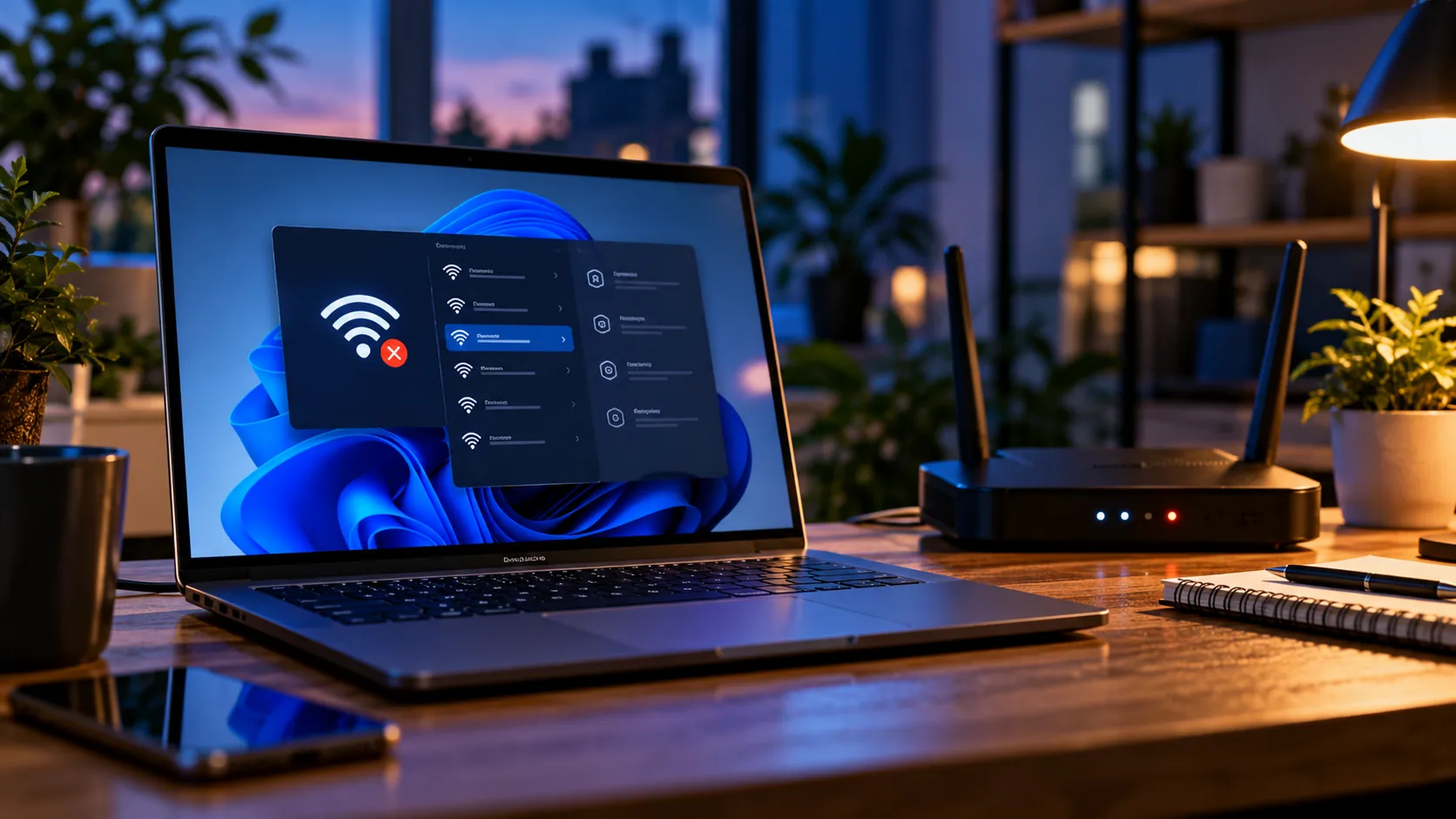
Windows 11 Wi-Fi that disconnects every few minutes can ruin video calls, online games and remote work. The right fix depends on whether the wireless link itself is dropping, the router is losing internet access, or Windows stays connected but reports “No internet.” This guide starts with reversible checks, then shows how to investigate drivers, power management, router bands and Windows diagnostic reports without blindly resetting everything.
Before changing anything: save open work, note your Wi-Fi password and, on a work or school PC, ask IT before changing managed network settings. A network reset can remove VPN and virtual adapter configuration. Menu wording can vary by Windows build and hardware.
Quick diagnosis: what exactly disconnects?
| Symptom | Likely area | First useful test |
|---|---|---|
| Wi-Fi icon disappears or Wi-Fi toggle is missing | Wireless adapter, driver or hardware | Check Device Manager and physical wireless switch |
| Wi-Fi disconnects but phone stays online | Laptop driver, power settings, roaming or signal | Try same laptop near router |
| All devices lose internet together | Router, modem or ISP | Check router status and service outage |
| Connected to Wi-Fi, but “No internet” | ISP, DNS, DHCP or gateway | Ping router gateway and test another device |
| Only after sleep or lid close | Power management or resume driver | Update driver and check power settings |
| Only on one network | Router compatibility, channel, security settings | Test phone hotspot or another trusted network |
Step 1: confirm whether the problem is Windows, the router or the internet connection
- When the laptop disconnects, immediately check a phone on the same Wi-Fi network with mobile data switched off.
- Move the laptop close to the router for ten minutes. A stable connection nearby points toward signal, interference or roaming.
- Connect the laptop to a trusted phone hotspot briefly. If that works reliably, investigate the original router or its settings.
- If possible, try Ethernet. Stable wired internet with unstable Wi-Fi narrows the issue to the wireless side.
If all devices lose internet at the same time, start with the modem/router and ISP instead of uninstalling Windows drivers. If the Wi-Fi network itself vanishes only on one laptop, focus on the adapter, its driver and its power settings.
Step 2: use Windows 11 built-in network diagnostics
Open Start → Settings → System → Troubleshoot → Other troubleshooters if that route is present, or search for Get Help and run the Network and Internet troubleshooter. Microsoft directs Windows 11 users to its automated network troubleshooting tools. Follow the prompts, record any detected error and retest before continuing.
Check Settings → Network & internet → Wi-Fi to ensure Wi-Fi is enabled, and confirm Airplane mode is off. Some laptops also have a physical wireless switch or function-key combination.
Step 3: restart the right devices, in the right order
- Restart Windows using Start → Power → Restart, not merely closing and reopening the lid.
- If other devices are also affected, unplug the modem and router from power; wait about 30 seconds.
- Power the modem back on first, allow it to reconnect, then power the router on if separate.
- Wait until the connection stabilizes and test again. Warn other household members first: restarting the router disconnects everyone.
If the modem and router are combined in one device, restart that one device. Avoid using the recessed factory reset button: it may erase ISP and Wi-Fi settings.
Step 4: forget and reconnect to the problem Wi-Fi network
Go to Settings → Network & internet → Wi-Fi → Manage known networks. Select the affected network and choose Forget, then reconnect using its password. This recreates the saved profile and can resolve corrupted or outdated authentication settings. It will not repair a failing adapter or ISP outage.
If this is a company network using certificates, enterprise sign-in or a captive portal, contact the network administrator before removing its saved profile.
Step 5: fix Wi-Fi power-saving disconnections
Open Device Manager → Network adapters, right-click the wireless adapter and choose Properties. If a Power Management tab appears, clear Allow the computer to turn off this device to save power. Not every Windows 11 driver exposes this tab; its absence does not mean something is broken.
Next, inspect Control Panel → Hardware and Sound → Power Options → Change plan settings → Change advanced power settings. If Wireless Adapter Settings exists, test a less aggressive power-saving setting while plugged in. Some modern-standby laptops omit this option. Compare behaviour on battery versus AC power; a difference is a useful clue.
Step 6: update the Wi-Fi driver from the correct source
- Open Device Manager, expand Network adapters and write down the exact Wi-Fi adapter model.
- Open the laptop maker’s official support page for your exact model; check its Windows 11 Wi-Fi driver and BIOS notes.
- Install the supported driver using the manufacturer’s instructions. If the problem began immediately after an update, check Properties → Driver → Roll Back Driver, if available.
- Restart and test. Keep a copy of the working driver installer before attempting a more disruptive change.
A Windows Update driver may work, but a laptop vendor may provide a version tailored to its antenna, firmware and power-management design. Avoid random “driver updater” websites. If the adapter shows a warning icon or error code in Device Manager, record that code for the vendor.
Step 7: check router distance, Wi-Fi bands and interference
The 2.4 GHz band usually travels farther and through walls more effectively, but it is more crowded. The 5 GHz band often offers higher speeds nearby but may weaken across rooms. The 6 GHz band requires compatible Wi-Fi 6E/7 hardware and router settings. If your router exposes separate network names, compare connection stability on 2.4 GHz and 5 GHz.
| Network choice | Potential advantage | Possible drawback |
|---|---|---|
| 2.4 GHz | Longer reach; useful through walls | Crowding from neighbouring networks and devices |
| 5 GHz | Often faster and less crowded nearby | Weaker reach through some walls |
| 6 GHz | Additional spectrum on compatible devices | Shorter effective reach and hardware requirements |
| Ethernet | Stable baseline for diagnosis | Requires a cable and adapter/port |
Place the router in an open, elevated position away from thick walls, metal cabinets and large appliances. For mesh systems, repeated disconnects while walking between rooms may involve roaming or node placement. Test while stationary near one access point before changing advanced roaming settings.
Step 8: check security and router compatibility
Update router firmware through the manufacturer’s official app or administration page. Check whether the laptop supports the network’s security mode; some older adapters or drivers have difficulty with particular WPA3 transition configurations. Do not disable encryption or switch to WEP to make the connection work. If compatibility is suspected, use a vendor-supported secure configuration and keep WPA2-AES or WPA3 protections in place.
On a managed network, enterprise access point, or hotel Wi-Fi, do not change router settings yourself. Capture the time of failure and ask the administrator to inspect association, authentication and roaming logs.
Step 9: identify DHCP, DNS and gateway problems
Open Command Prompt and run the following read-only commands. They do not modify the network configuration:
ipconfig /all ping 192.168.1.1 ping 1.1.1.1 nslookup example.comReplace 192.168.1.1 with the Default Gateway shown for your Wi-Fi adapter in ipconfig /all. A gateway ping failure may indicate a local Wi-Fi/router problem, but some routers intentionally ignore ping. If the gateway responds and a public IP responds but domain names fail, investigate DNS. A 169.254.x.x IPv4 address can indicate the PC did not obtain an address from DHCP.
| Observation | What it suggests | Next check |
|---|---|---|
| Valid local IP, gateway reachable | Local connection probably works | Check public IP and DNS |
| 169.254.x.x address | DHCP lease problem is possible | Router DHCP and adapter reconnect |
| Public IP reachable, websites fail by name | DNS resolution may be failing | Check DNS settings and VPN |
| Gateway ping times out | Local link or ICMP blocking | Test router webpage and another device |
Step 10: reset network components only when the evidence points there
If ordinary checks fail, Microsoft documents a sequence of commands for TCP/IP and DNS issues. These commands can interrupt your connection and reset network state. Save work and use an elevated Command Prompt. They are more appropriate for IP/DNS problems than for a Wi-Fi radio that repeatedly disappears.
netsh winsock reset netsh int ip reset ipconfig /release ipconfig /renew ipconfig /flushdnsRun each command separately, note errors and restart when prompted. ipconfig /release deliberately drops the current DHCP address; /renew requests a new one. On systems with static IP configurations or managed VPNs, ask IT before using these commands.
Step 11: generate a wireless network report to catch intermittent drops
Windows can generate a detailed HTML report of Wi-Fi connection sessions and events over the previous three days. Open Command Prompt as administrator and run:
netsh wlan show wlanreportThe command prints the saved HTML report path, commonly under C:\ProgramData\Microsoft\Windows\WlanReport\. Open the file in a browser and look for the timestamp when the laptop disconnected. Review the disconnect reason, adapter information and driver version. Compare the event with sleep/wake times or moving between access points.
The report is especially useful when the connection fails only once or twice a day. It can show whether Windows disconnected from Wi-Fi, but it does not necessarily prove the underlying cause. Share the report with support carefully: it may contain device and network identifiers.
Step 12: reinstall the adapter driver only after saving a replacement
Download the correct Wi-Fi driver first, ideally to a local folder or USB drive. In Device Manager → Network adapters, right-click the adapter and select Uninstall device, then restart. Windows may reinstall the driver automatically. Avoid selecting the option to remove the driver package unless you have a verified replacement and understand the recovery path.
If the Wi-Fi adapter remains absent after restart, inspect BIOS/UEFI wireless settings only using the manufacturer’s documentation. A device that intermittently vanishes from Device Manager may need hardware diagnosis.
Step 13: use Network reset as a last resort
Go to Settings → Network & internet → Advanced network settings → Network reset. Microsoft explicitly recommends this as a last step. It removes and reinstalls network adapters and resets their settings. You may need to set up VPN software, Hyper-V virtual switches, static IP details or trusted network profiles again. Document those settings first and do not perform a reset on a managed computer without approval.
When Wi-Fi disconnects after sleep or after a Windows update
Compare a normal restart with sleep/wake behaviour. If the issue began after a particular driver or Windows update, check Windows Update history and the laptop vendor’s support notices. Use a supported driver rollback if available. Avoid uninstalling security updates as a routine Wi-Fi fix. On a company laptop, capture the exact update date and hand it to IT.
When Wi-Fi drops only during gaming or video calls
A connection may appear stable while browsing but fail during sustained traffic. Check whether other devices suffer at the same moment, whether the laptop is overheating, and whether a Bluetooth device or crowded 2.4 GHz channel is interfering. Run a continuous ping to your gateway for a short supervised test and note packet loss or latency spikes. Compare with Ethernet to distinguish wireless instability from ISP congestion.
ping -t 192.168.1.1Replace the address with your actual gateway and press Ctrl+C to stop the test. Continuous ping is diagnostic only; occasional timeouts may reflect a router that deprioritises ICMP rather than a real internet outage.
A simple 20-minute troubleshooting plan
| Time | Action | What you learn |
|---|---|---|
| 0–3 minutes | Compare phone, laptop and hotspot | Device-specific or network-wide? |
| 3–6 minutes | Restart Windows; check Wi-Fi and airplane mode | Temporary software state? |
| 6–10 minutes | Move near router; test 2.4/5 GHz | Coverage or band issue? |
| 10–15 minutes | Forget/reconnect; inspect adapter and power settings | Profile or sleep issue? |
| 15–20 minutes | Check vendor driver and generate WLAN report | Evidence for next diagnosis |
When to seek repair or ISP support
- Wi-Fi hardware disappears repeatedly from Device Manager, even after supported driver installation.
- The laptop disconnects across several unrelated networks and hotspots.
- All household devices lose connectivity together and router/modem restarts do not help.
- The adapter or laptop becomes unusually hot, or there are signs of physical damage.
- A corporate or school network requires certificate, proxy, VPN or managed security changes.
Best practice: change one variable at a time and retest. A short log of the time, location, Wi-Fi band, driver version and error message is usually more useful than applying ten “fixes” simultaneously.
Official Microsoft references
Fix Wi-Fi connection issues in Windows — Microsoft Support.
Analyze the wireless network report — Microsoft Support.
Connect to a Wi-Fi network in Windows — Microsoft Support.
Bottom line: Frequent Windows 11 Wi-Fi disconnects usually become easier to solve once you separate wireless signal failures from router outages and DNS/IP issues. Start with comparison tests, then driver and power checks, and save disruptive resets for last.
You may also like
 Technology & How-To
 NHS App Prescription Not Showing? Check GP Approval, Pharmacy Status and Tracking
Find out why a prescription or medicine is missing from the NHS App in England. Separate repeat requests,…
 Technology & How-To
 Google Wallet Not Working After Switching Phones? Fix Card Setup and Tap to Pay
Google Wallet transferred but tap to pay fails? Separate card verification, bank approval, NFC, screen lock and device…
 Technology & How-To
 iCloud Family Sharing Not Working? Why You Still See 5GB and How to Fix It
Still seeing 5GB after joining an iCloud family plan? Check the account, invitation, sharing settings, personal plan and…