
Windows 11 Clock Wrong by One Hour? Fix Time Zone and Daylight Saving Settings
Fix a Windows 11 clock that is one hour ahead or behind. Check time zones, daylight saving, synchronisation and settings that change after restarting.
Contents
- First, identify what is actually wrong
- Understand the three settings before changing them
- Fix the time zone and daylight-saving configuration
- If automatic time-zone selection is unavailable
- Check whether time synchronisation succeeds
- If the time becomes wrong again after a restart
- If Windows is correct but Outlook or another app is wrong
- Install supported Windows updates before advanced repairs
- Two working configurations: choose one deliberately
- What to do when the daylight-saving switch is missing
- A repeatable check: change one thing and record the outcome
- Mistakes that make the next diagnosis harder
- When to stop and seek device-specific help
- Verify the result
- Sources and scope

If your Windows 11 clock is exactly one hour ahead or behind, check the time zone and daylight-saving setting before changing the clock by hand. A one-hour difference is a useful clue, not a diagnosis: first confirm whether the taskbar itself is wrong or only a calendar, website or app. This guide helps you separate those situations without registry edits.
Reviewed November 1, 2026. Menu wording can vary by Windows version and device management. The examples below are diagnostic examples, not results from a hands-on test of your computer.
First, identify what is actually wrong
| What you notice | Check first |
|---|---|
| Taskbar is exactly one hour wrong | Time zone and daylight-saving adjustment |
| Taskbar is several hours wrong | Selected region and time zone |
| Taskbar is right but an appointment is wrong | The calendar or account time zone |
| Time changes back after restarting | Automatic settings, management and other operating systems |
| Date or year also resets after shutdown | Manufacturer hardware-clock diagnostics |
Compare the PC with a reliable local reference and record the difference. Check the reference is showing your present location, especially when travelling. Take a screenshot of the original settings so you can explain what changed if you need support. Hide account names and device identifiers before sharing it.
Understand the three settings before changing them
The clock value, the selected time zone and seasonal daylight-saving rules are related but different. A correct underlying time can still display the wrong local hour when the wrong zone is selected. Changing the displayed hour manually can hide that mismatch until the next automatic correction.
A useful example: imagine two places showing the same hour today but following different seasonal rules. Selecting either place may seem to work now, yet produce a different result after a clock change. Choose the zone for your actual location rather than a city whose current clock happens to match.
Fix the time zone and daylight-saving configuration
- Open Start > Settings > Time & language > Date & time.
- Check the selected time zone against your actual location.
- Use Set time automatically for the clock value.
- For automatic zone detection, enable Set time zone automatically. If it consistently chooses the wrong zone, turn that option off and select the correct zone manually.
- With a manually selected zone, enable Adjust for daylight saving time automatically where applicable. Do not add another hour manually to compensate for the same seasonal change.
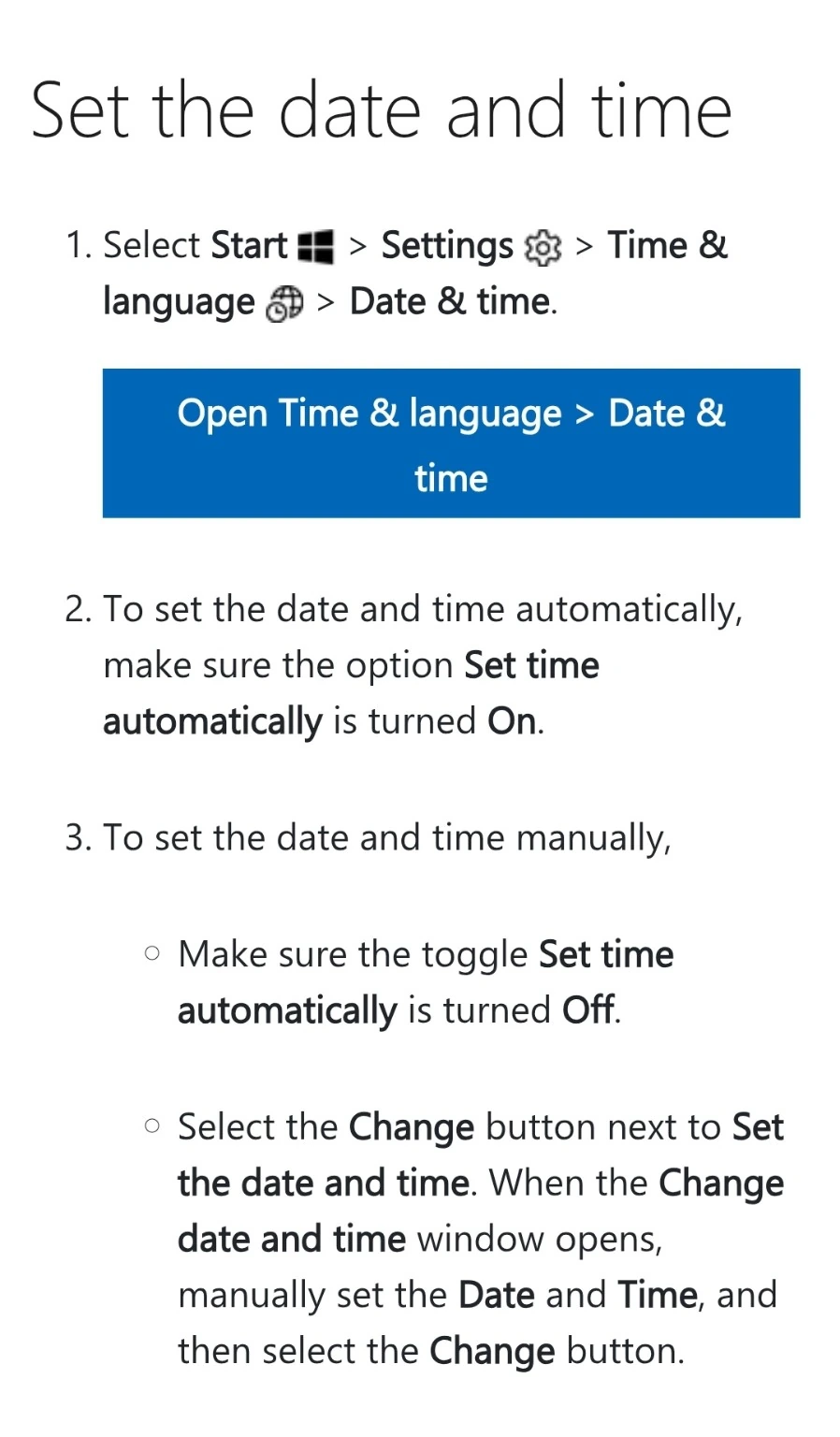
Microsoft Support source. This documentation excerpt illustrates the relevant controls; use the current labels on your own PC.
Microsoft documents these as separate controls in its date, time and time-zone instructions. Automatic time-zone selection also handles daylight-saving adjustment. A manually selected zone can still use automatic clock time; you do not need to disable both settings together.
If automatic time-zone selection is unavailable
An unavailable control is not proof that Windows is damaged. Check whether this is a managed work or school computer and whether you have permission to change system-wide settings. Microsoft’s administrator article explicitly describes Windows 10; do not apply its registry instructions to Windows 11 as though they were a verified consumer fix.
On a personal PC, review Settings > Privacy & security > Location if you want location-based detection. If you prefer not to use it, selecting the correct zone manually is an alternative. On managed hardware, ask IT rather than changing registry permissions or removing organisational policies.
Check whether time synchronisation succeeds
Once the zone is correct, check the synchronisation controls on the Date & time page. If a Sync now button is present, try it while connected to the internet and record any failure message. Repeatedly clicking the button will not fix an incorrect zone selection.
Keep the observations separate: a successful synchronisation followed by the same one-hour difference points you back toward the local display configuration. A failed synchronisation gives you a different problem to investigate. Neither observation alone identifies a specific broken service.
If the time becomes wrong again after a restart
- Note whether the zone changed, the clock value changed, or both.
- Repeat the comparison after restarting normally.
- If you use another operating system on the same PC, record whether the change follows switching systems.
- If the date or year also resets after the computer is shut down, consult the manufacturer’s hardware-clock guidance.
- For a work PC, send IT the observed difference, selected zone and any synchronisation error.
Avoid replacing a battery just because the clock is one hour out. HP’s clock troubleshooting guide distinguishes configuration and hardware-related checks. Hardware and firmware procedures are model-specific; use the instructions for your exact device.
If Windows is correct but Outlook or another app is wrong
Stop changing Windows once the taskbar agrees with your local reference. Check whether the application, website or account has its own time-zone setting. For a meeting, also inspect the event’s zone and compare the same event on another signed-in device.
For example, if the taskbar is correct but one invitation appears an hour early, changing the whole computer clock may create new problems while leaving the event’s original zone unchanged. Record the event details and check the application’s documentation before editing recurring appointments.
Install supported Windows updates before advanced repairs
Time-zone rules can change. Microsoft describes how it handles those changes in its daylight-saving and time-zone update policy. Keep your Windows version supported and review offered updates rather than installing an old third-party time-zone patch.
If you are still on Windows 11 24H2 Home or Pro, see our 24H2 support and upgrade guide. Version servicing and local clock configuration are separate checks: upgrading is not a guaranteed fix for every clock problem.
Two working configurations: choose one deliberately
For a personal laptop that travels, automatic zone selection is convenient when it identifies the location correctly. For a desktop that stays in one place, selecting the correct local zone manually can be easier to verify. Both approaches can keep automatic clock time enabled. The important part is understanding which setting you chose, rather than turning every automatic option off together.
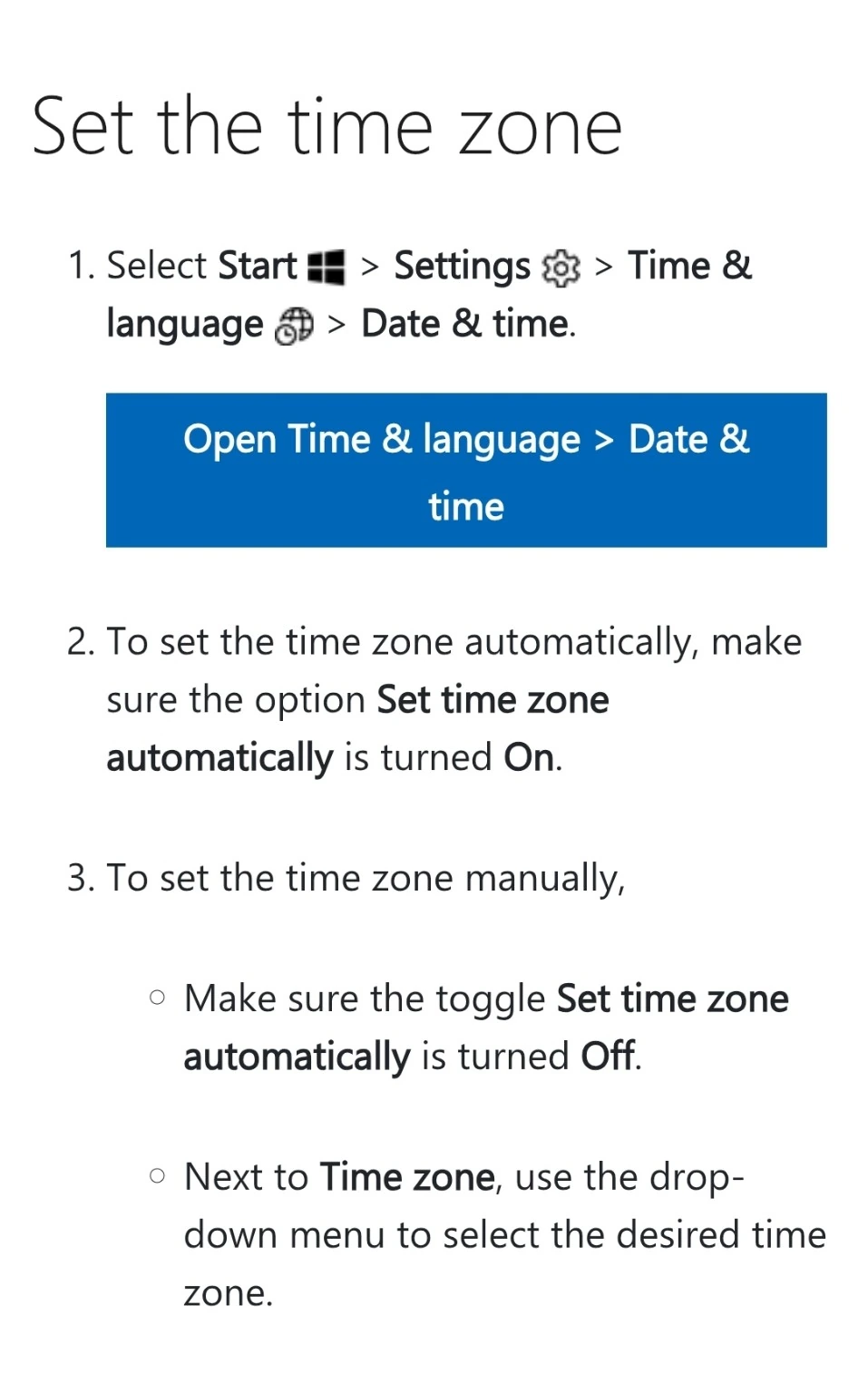
Microsoft Support source. This documentation excerpt illustrates the relevant controls; use the current labels on your own PC.
Do not confuse selecting a zone manually with setting the clock manually. The first chooses local display rules; the second changes the clock value. If automatic location repeatedly selects the wrong place, changing the zone is a more targeted check than compensating by adding or subtracting an hour.
What to do when the daylight-saving switch is missing
A missing seasonal switch is not a reason to choose an unrelated country. First check whether automatic zone selection is enabled and whether your actual location observes seasonal clock changes. Some locations do not. Microsoft’s setting instructions distinguish automatic zone handling from the daylight-saving control used with manual zone selection.
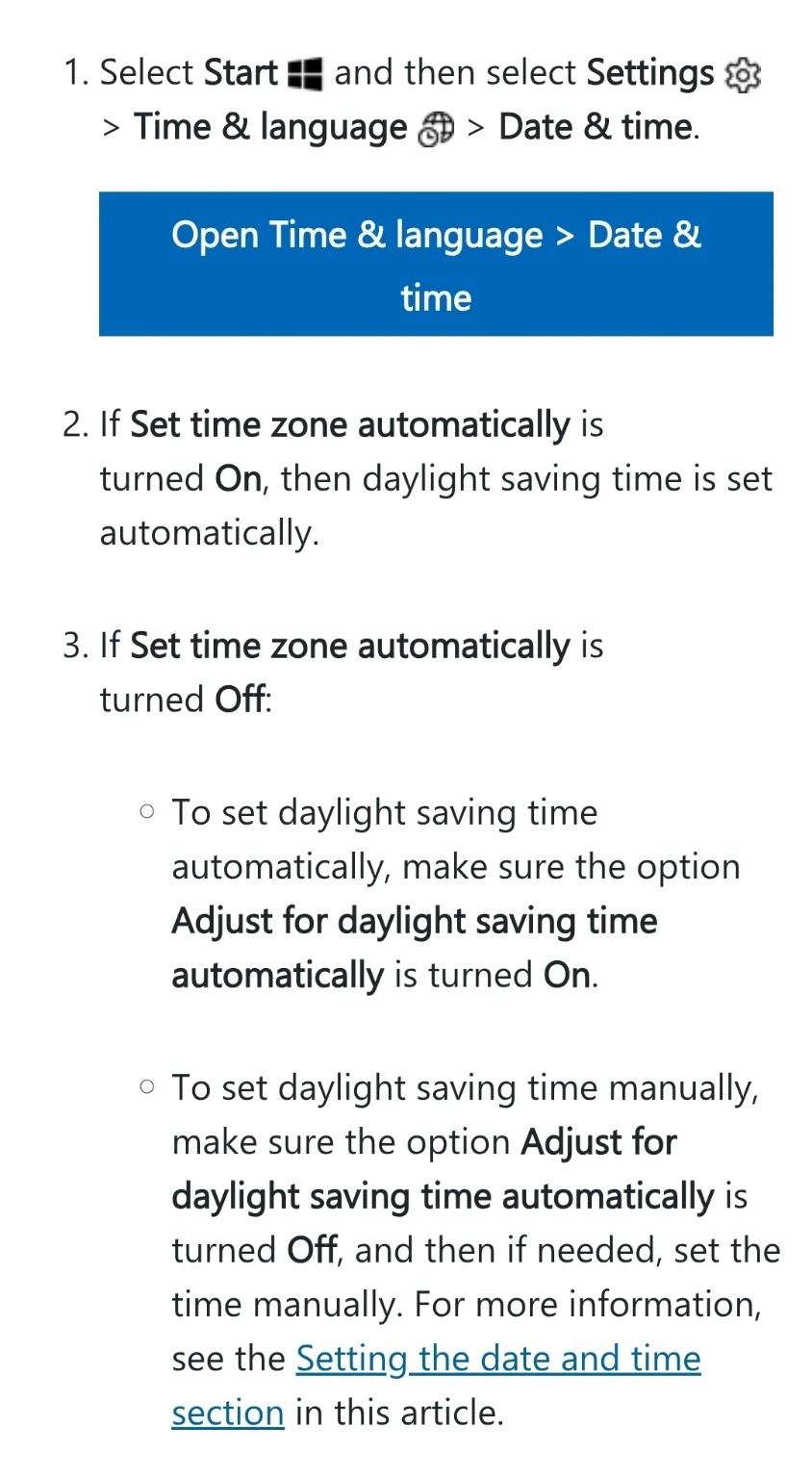
Microsoft Support source. This documentation excerpt illustrates the relevant controls; use the current labels on your own PC.
If the setting still looks different, record the Windows version and exact zone name before following a screenshot from another computer. An older screenshot may show a different layout. Use the current text labels on your device; do not copy a sample city or UTC offset simply because it appears in a tutorial.
A repeatable check: change one thing and record the outcome
Use this observation sequence to make troubleshooting useful. It is a suggested procedure you can run, not a test result reported by Horus Valley. Save time-sensitive work before altering system time, and do not change a managed device without approval.
- Before changing settings, note the date, local reference time, PC time and selected zone.
- Change only the zone configuration if it is wrong. Compare again without manually altering minutes.
- If the zone is right but the clock is still inaccurate, attempt the available synchronisation action once.
- Record whether it succeeded and whether the displayed difference changed.
- Restart normally, then compare once more using the same reference.
| Check | Record this | What the comparison helps separate |
|---|---|---|
| Before adjustment | Zone name, PC time, reference time | The original symptom |
| After correcting zone | Remaining hour and minute difference | Display rules versus clock accuracy |
| After synchronisation | Success or exact error; remaining difference | Sync outcome versus zone selection |
| After restart | Whether the time or zone reverted | Persistent configuration versus a temporary correction |
Imagine a hypothetical PC that starts an hour late, then becomes correct immediately after the zone is corrected. That supports investigating the display configuration first; it does not prove that every one-hour error has the same cause. If a different PC has the right zone but an incorrect date, the same workflow directs attention elsewhere.
Mistakes that make the next diagnosis harder
Avoid changing the zone, setting a manual hour, switching time servers and editing the registry in one session. If the clock then looks right, you will not know which action mattered. Likewise, repeatedly reinstalling an application is a poor starting point when the Windows taskbar itself is incorrect.
Do not disable certificate checks or turn off security tools because a badly wrong clock prevents a connection. Correct the date and time configuration first. For persistent failures, give support the actual message and the observation log. A correct web connection alone does not establish that every time-synchronisation service is reachable.
If you dual-boot another operating system, note whether the problem appears only after switching systems. That pattern is useful evidence for a technician. It is not a reason to copy an unfamiliar hardware-clock registry tweak before confirming how the two installations are configured.
When to stop and seek device-specific help
Stop repeating the same settings changes if the date resets, a firmware warning appears, or the computer loses substantial time while powered off. Record the exact model and ask its manufacturer which diagnostics apply. A laptop, desktop and virtual machine can have different underlying time sources, so a universal battery-replacement instruction would be misleading.
For an organisation-managed PC, provide the administrator with the selected zone, Windows version, sync result and when the error reappears. Ask whether the device follows a central time configuration. Do not replace that configuration with a public server merely because an internet tutorial recommends one.
Verify the result
- Compare the taskbar against the same local reference.
- Confirm the selected time zone still matches your location.
- Restart and repeat the comparison.
- Open a calendar or another app you rely on and check a known event.
- If it fails again, record the pattern instead of stacking additional manual changes.
If the taskbar clock is hidden, the Date & time page also contains the control to show it. Where available, showing seconds can make your comparison easier, but it does not correct time-zone rules or synchronise the clock. Microsoft notes that showing seconds uses more power.
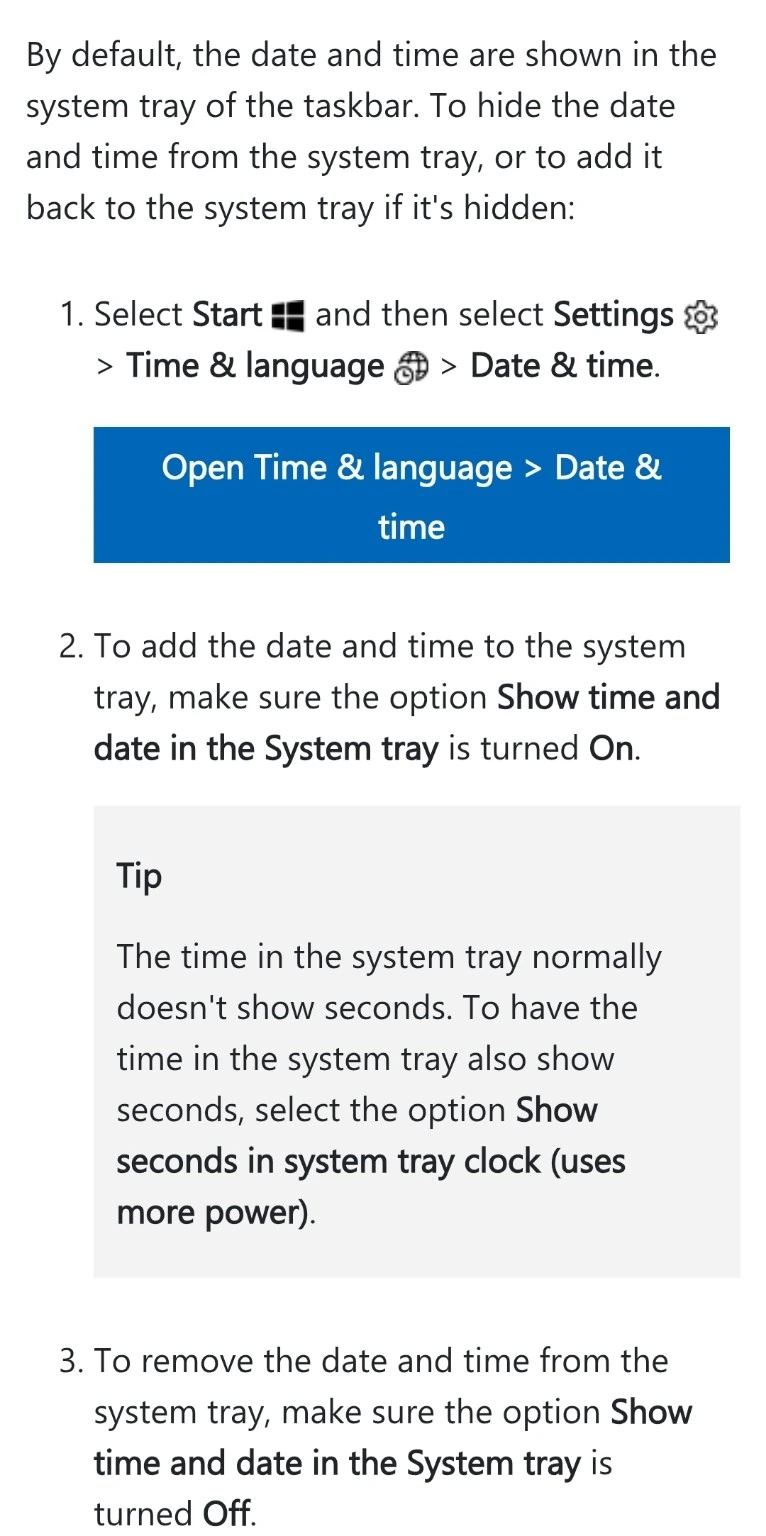
Microsoft Support source. This documentation excerpt illustrates the relevant controls; use the current labels on your own PC.
The goal is a correct clock that stays correct. Keep a note of the setting that resolved the mismatch. If you need more help, provide the Windows version, device model, selected zone, exact offset and when the problem returns. Never share passwords or security codes to obtain clock support.
Sources and scope
Primary references: Microsoft’s date-and-time settings instructions, daylight-saving update policy and the scoped administrator guidance, plus HP’s device-specific clock guide, linked above. Official settings were checked on November 1, 2026. Decision tables and hypothetical examples are editorial guidance; no successful repair or hands-on Windows test is claimed.
You may also like
 Technology & How-To
Is Tesla Discontinuing the Cybertruck? What We Know
Tesla plans a Cybertruck production wind-down in Texas around mid-2027. See what is confirmed, what remains unknown, and…
 Technology & How-To
Are AI Toys Safe for Kids? Privacy Risks and Parent Checks
Are AI toys safe for kids? Explore the evidence, privacy risks, age advice and practical parent checks for…
 Technology & How-To
iPhone Trust This Computer Not Showing? Windows and Mac Fixes
Restore the iPhone computer-trust prompt with checks for unlocking, Apple Devices or Finder, USB data cables and targeted…