
Windows 11 24H2 Support Has Ended: What Home and Pro Users Should Do Now
Windows 11 24H2 Home and Pro support has ended. Check your edition, choose a supported 26H2 or 25H2 upgrade, and handle compatibility holds safely.
Contents
- Who needs to act after Windows 11 24H 2 support ended?
- Check your version and edition before downloading anything
- Use winver for a quick version check
- Use Settings to confirm the edition and PC model
- What actually changed when support ended?
- Should you choose 26H 2 or 25H 2?
- Before upgrading: protect the files you cannot replace
- Locate your BitLocker recovery key if encryption is enabled
- Upgrade through Windows Update
- What if 26H 2 or 25H 2 does not appear?
- Check straightforward blockers first
- Respect compatibility safeguard holds
- Should you use an Installation Assistant or ISO?
- How to confirm that you are now on a supported version
- Enterprise and Education: follow the right support timeline
- Your next step
- Sources and image credits

Reviewed November 1, 2026. Windows 11 24H 2 Home and Pro have reached the end of updates. If you still use either edition, check your version and use Windows Update to move to a supported release offered to your PC. The deadline was October 13, 2026; your computer does not switch off, but staying on that release leaves it outside normal monthly security servicing. Microsoft’s current 24H 2 notice.
The useful question now is which supported version your device can install. Microsoft recommends 26H 2 or 25H 2 for affected devices. Its October 28 status update says 26H 2 is available to all eligible devices. An offer on your own Windows Update screen still matters: broad availability is not permission to bypass a compatibility block. Check the current 26H 2 status.
Who needs to act after Windows 11 24H 2 support ended?
Start with two separate details: version and edition. “Windows 11” alone is not enough. A Home PC and an Enterprise PC can both display 24H 2 while having different servicing deadlines.
| What your PC shows | What it means | Your next step |
|---|---|---|
| 24H 2 Home or Pro | Normal monthly updates ended October 13, 2026. | Prepare a backup and check for a supported version upgrade. |
| 24H 2 Enterprise or Education | Monthly security updates continue until October 12, 2027. | Follow your organisation’s deployment policy. |
| 25H 2 Home or Pro | A supported release, with updates scheduled through October 12, 2027. | Keep it updated; you do not have the same immediate 24H 2 deadline. |
| 26H 2 Home or Pro | A supported release, with updates scheduled through October 10, 2028. | Check for current cumulative updates and confirm essential apps work. |
These are General Availability Channel dates. LTSC products have separate lifecycles. Use Microsoft’s release information table when checking an edition that is not listed here.
Check your version and edition before downloading anything
Use winver for a quick version check
- Press Windows + R.
- Type
winverand press Enter. - Record the version displayed, such as 24H 2, 25H 2 or 26H 2.
- Close the dialog after checking; you do not need to change anything in it.
You can also search Start for winver. Microsoft’s Update Assistant guidance documents this version check. Do not treat a newer-looking desktop or a recently installed app as proof that Windows itself has been upgraded.
Use Settings to confirm the edition and PC model
- Open Settings > System > About.
- Find Windows specifications and read both Edition and Version.
- Note the device manufacturer and exact model if you need to check drivers or ask for help.
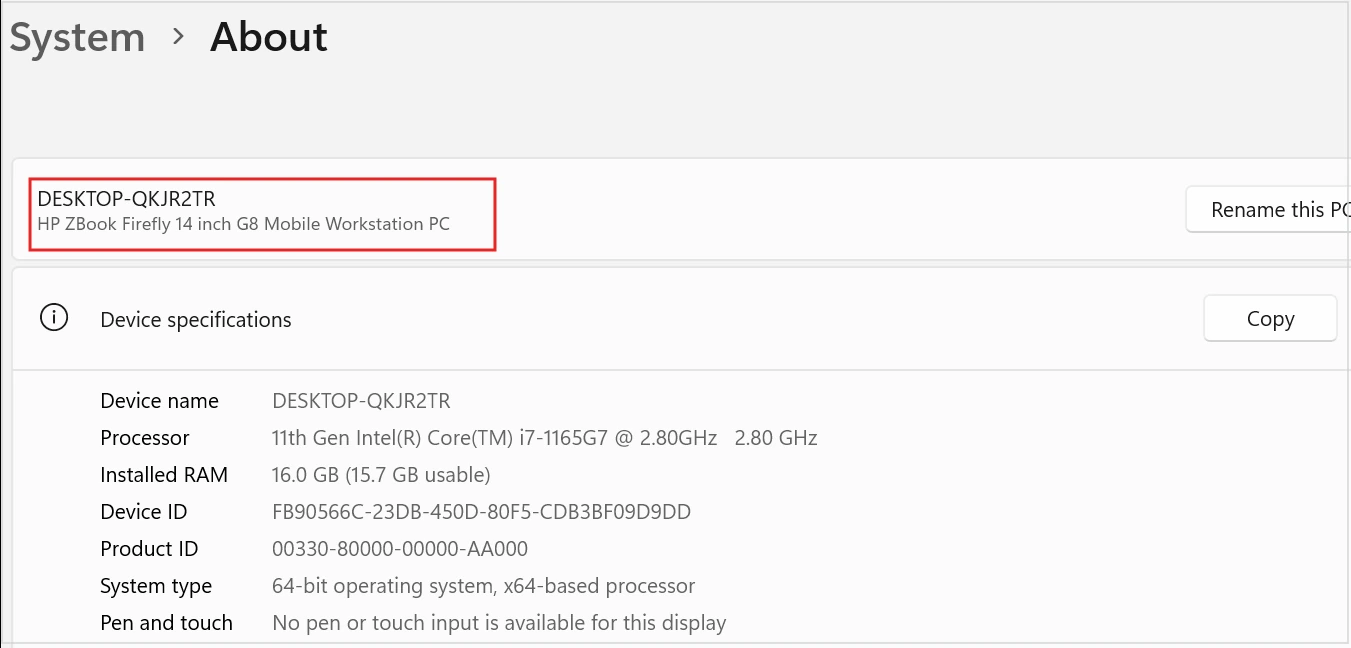
The Microsoft example above shows the top of the About page and its device-model area. It does not show the Windows specifications section lower on the page or demonstrate a 26H 2 installation. Use it to recognise the page, then scroll to your own Edition and Version entries. Source and full instructions.
What actually changed when support ended?
For affected Home and Pro installations, Microsoft’s notice says monthly security and non-security preview updates have ended. This is a servicing change, not a remote wipe: it does not itself delete your documents or cancel the Windows licence.
Treat “the computer still works” and “the operating system is receiving security servicing” as different checks. An antivirus scan, a browser update or a new Store app is not evidence that 24H 2 Home or Pro has returned to supported status.
A build number or a downloadable 24H 2 package also cannot, by itself, tell you an edition’s lifecycle. Check the edition-specific support table rather than assuming that any patch mentioning 24H 2 extends Home and Pro support.
Should you choose 26H 2 or 25H 2?
For an eligible personal PC offered 26H 2 through Windows Update, that is the current upgrade to consider after reviewing the known issues relevant to your hardware and software. If the supported upgrade offered is 25H 2, it also moves an affected 24H 2 Home or Pro device onto a supported release. You do not need to install a particular version from an unofficial website to follow this advice.
| What Windows Update shows | Practical response |
|---|---|
| 26H 2 ready to download | Check your backup and essential-app compatibility, then follow the offered installation prompts. |
| 25H 2 offered, without 26H 2 | Use the supported offer if suitable for your device; investigate 26H 2 availability separately. |
| A compatibility warning or safeguard message | Read the associated issue and manufacturer guidance before proceeding. |
| Updates are managed by your organisation | Ask IT which supported release is approved. |
| No version upgrade and no clear explanation | Record the exact message; check pending restarts, storage, policies and documented known issues. |
Do not substitute 26H 1 just because the number looks newer than 25H 2. Microsoft identifies 26H 1 as a release for new devices, not an in-place feature update offered to existing 24H 2 or 25H 2 installations. Official version and servicing notes.
Before upgrading: protect the files you cannot replace
Use this short preparation check rather than starting an upgrade while you are rushing to finish work:
- Save open work and close applications you no longer need.
- Copy irreplaceable files to a separate location and open a few copied files to check them.
- Keep a laptop connected to power and choose a time when a restart will not interrupt something important.
- Check the support information for specialist software, VPN clients and hardware you depend on.
- Know which account and recovery information you would use if Windows asks for it.
A restore point is not a second copy of your documents. For a work machine, follow the organisation’s backup and deployment procedure rather than assuming a personal cloud folder includes every necessary file. Microsoft’s recovery guidance also stresses preparing backups and recovery information before recovery operations.
Locate your BitLocker recovery key if encryption is enabled
If your system uses BitLocker or device encryption, make sure you know where its recovery key is stored before major troubleshooting or firmware changes. Depending on how encryption was set up, this may involve a Microsoft account, a work or school account, a printout or a saved file. Do not publish the key or paste it into an untrusted support chat.
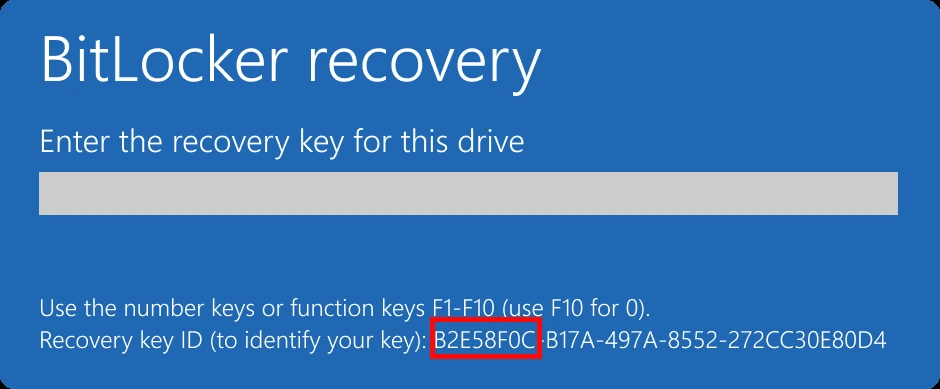
Microsoft’s reference image highlights a recovery key ID. That ID helps identify the matching key; it is not the 48-digit recovery key that unlocks the drive. The image is a support example, not a report that upgrading to 26H 2 always triggers recovery. Follow Microsoft’s recovery-key instructions if you need to locate your own key.
Upgrade through Windows Update
- Open Start > Settings > Windows Update.
- Select Check for updates.
- Read the version name of any feature upgrade that is offered.
- When ready, select its download-and-install action and follow the on-screen prompts.
- Save your work and restart when Windows requests it.
- After signing in, verify the installed version instead of relying only on a success notification.
If an ordinary update or a pending restart must finish first, complete it and check again. A cumulative update that keeps the version at 24H 2 is not the same operation as moving to 25H 2 or 26H 2. Microsoft’s Windows Update FAQ explains how to check updates and review update history.
This section is the route out of an unsupported version. For detailed 26H 2 installation errors and recovery options, continue with our Windows 11 26H 2 installation and troubleshooting guide. Check Microsoft’s live status page for current rollout and issue information, because older guides may describe an earlier stage of availability.
What if 26H 2 or 25H 2 does not appear?
Start by identifying which situation you actually have. “No update offered”, “download failed” and “installation rolled back” are different problems. Record the version you are on, the exact wording on Windows Update, and any error code before trying fixes.
Check straightforward blockers first
- Restart if Windows says a restart is pending.
- Check whether updates are paused and resume them when appropriate.
- Review available storage in Settings > System > Storage.
- Check the manufacturer’s support page for your exact model, especially when Windows identifies a driver issue.
- If the screen mentions management by an organisation, ask the administrator before changing policies.
A device that currently runs Windows 11 is not automatically proof that every future upgrade path is supported. This is particularly important if the machine was originally installed using hardware-requirement bypasses. Check the actual eligibility and warning rather than assuming that a download tool can fix a support limitation.
Respect compatibility safeguard holds
Microsoft can withhold a feature update from devices affected by a known compatibility problem. Its safeguard documentation recommends not manually updating until the issue is resolved and the hold is released. Check the 26H 2 known-issues page and the hardware maker’s guidance when the warning relates to your configuration.
Full availability does not identify the reason for a missing offer on a particular computer. A safeguard, device eligibility or an administrative policy may still matter. Conversely, a missing offer alone does not prove that a safeguard exists. Read how Microsoft safeguard holds work.
Should you use an Installation Assistant or ISO?
Microsoft offers manual installation tools, but the absence of an offer is a reason to investigate before choosing one. An Assistant or ISO does not remove the underlying risk of a documented incompatibility. Use official download channels and verify the tool’s device requirements; Microsoft notes that its Update Assistant is not for ARM-based PCs. Official Assistant guidance.
Avoid downloading modified images or running a registry “unlocker” merely to make a version number appear. When asking for help, share the error message and device model, not account passwords, recovery keys or screenshots containing personal identifiers.
How to confirm that you are now on a supported version
A practical completion check has three parts: the version changed, update servicing is working, and the things you need still operate. Our suggested check is:
- Run
winveragain and compare the result with the version you intended to install. - Return to Settings > Windows Update and check for further offered updates.
- Review Update history if you need to confirm which installation completed.
- Open an important document and test your normal network, audio and printing setup.
- Test essential work software or VPN before you depend on it for a deadline.
For example, a PC that still reports 24H 2 after a restart has not completed a move to 25H 2 or 26H 2, even if another update installed successfully. That observation tells you to inspect the upgrade status; it does not, by itself, identify the cause of a failed upgrade.
Enterprise and Education: follow the right support timeline
Microsoft says 24H 2 Enterprise and Education continue receiving monthly security updates until October 12, 2027. Its current notice separately identifies September 22, 2026 as their final non-security preview release. Continuing security servicing should not be confused with continuing preview releases.
A company orschool PC may follow a tested deployment plan and use different approval settings from a personal laptop. If you are unsure, provide IT with your edition, version and the Windows Update message. Do not remove management settings simply to follow consumer upgrade instructions.
Your next step
If you have 24H 2 Home or Pro, confirm your edition, prepare your backup and check the supported upgrade offered to your PC. If a known issue prevents it, identify that issue and follow the official resolution instead of treating every missing offer as a reason to force installation.
For the feature-news context, see our October 2026 Windows 11 update overview. For your next action, use the current version, edition and message on your own machine.
Sources and image credits
- Microsoft: 24H 2 status and end-of-updates notice
- Microsoft: 26H 2 availability and known issues
- Microsoft: Windows 11 release information and edition-specific dates
- Microsoft Support: find device information — About-page reference screenshot
- Microsoft Support: find your BitLocker recovery key — key-ID reference screenshot
- Microsoft Learn: safeguard holds
- Microsoft Support: Windows Update FAQ
- Microsoft Support: Windows Update Assistant
- Microsoft Support: recovery options
Official information and linked pages were reviewed on November 1, 2026. The preparation checklist and decision tables are editorial guidance, not measured upgrade results. The two inline screenshots are Microsoft support examples; they do not document a hands-on 26H 2 test by Horus Valley.
You may also like
 Technology & How-To
How to Turn Lecture Recordings Into Study Notes With NotebookLM
Turn lecture audio into study notes with free Gemini Notebook (NotebookLM). Follow the upload steps, check transcript citations,…
 Technology & How-To
How to Use Google Lens to Find Products and Compare Prices
Find an item from a photo with Google Lens, check exact product matches and compare real checkout costs…
 Technology & How-To
Podcast Microphone Guide: USB vs XLR and Setup Tips
Choose a podcast microphone by room noise, connection type and recording style. Compare USB and XLR, see verified…