
How to Turn Lecture Recordings Into Study Notes With NotebookLM
Turn lecture audio into study notes with free Gemini Notebook (NotebookLM). Follow the upload steps, check transcript citations, and build a practice quiz.
Contents
- 1. Add your lecture recording as a source
- 2. Ask for study notes you can check
- 3. Open a citation and verify the original passage
- 4. Turn the notes into a practice quiz
- What to do if the recording won’t upload or the notes are incomplete
- Frequently asked questions
- Is it free to turn a lecture recording into study notes?
- Can I use a lecture video instead of an audio file?
- Does NotebookLM give the exact timestamp for every point?
- What’s the difference between uploading a lecture and making an Audio Overview?
A 50-minute lecture recording is easy to save and hard to revise from. To turn it into study notes for free, open Gemini Notebook, add the lecture as an MP3 or WAV file, and ask for a one-page summary with source citations. Open a citation to check the transcript, then replay any part of the recording where a number, technical term, or example matters.
Google renamed NotebookLM to Gemini Notebook. The steps below use the standalone web app on a computer. For the worked example, we used a short sample lecture about spaced practice and added its transcript with Copied text. Use that route if your course provides a transcript or the recording fails to upload.
1. Add your lecture recording as a source
Open Gemini Notebook and choose New notebook. Give the notebook a name you’ll recognize later, such as “Psychology 101: Study Strategies.” Choose Add sources → Upload files, then select your MP3 or WAV file. Wait until the recording appears under Sources and is ready to select.
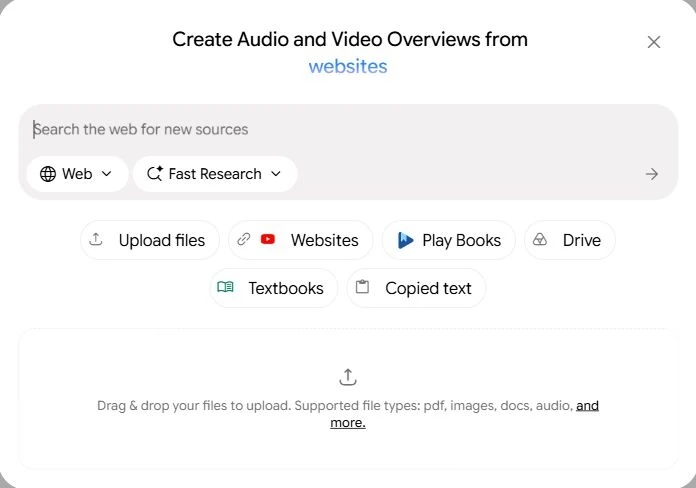
Choose Upload files for a recording or Copied text for a transcript. Source: Google.
Google’s source guide lists supported audio formats and explains that uploaded audio is transcribed. Use a recording you’re allowed to upload, and check your college or university’s rules before uploading a recording that contains classmates’ contributions or restricted course material.
If your course platform gives you a transcript, use Add sources → Copied text or upload the transcript as a supported text file. Include PDF slides when a diagram, equation, or slide title matters. Start with the recording selected on its own so you can see what came from the lecture.
2. Ask for study notes you can check
In Sources, leave the lecture selected. Open the Chat panel and paste the prompt below. For a long class, replace “five main ideas” with one topic or section at a time. You can ask the same question again with the lecture slides selected if the recording refers to something that was never explained aloud.
Turn the selected lecture into one page of study notes. Give me up to five main ideas, define the key terms in plain English, and include one example actually used in class. Cite the transcript next to each main idea. Keep dates, names and numbers as stated. End with up to three points I should check in the recording if the transcript is unclear.
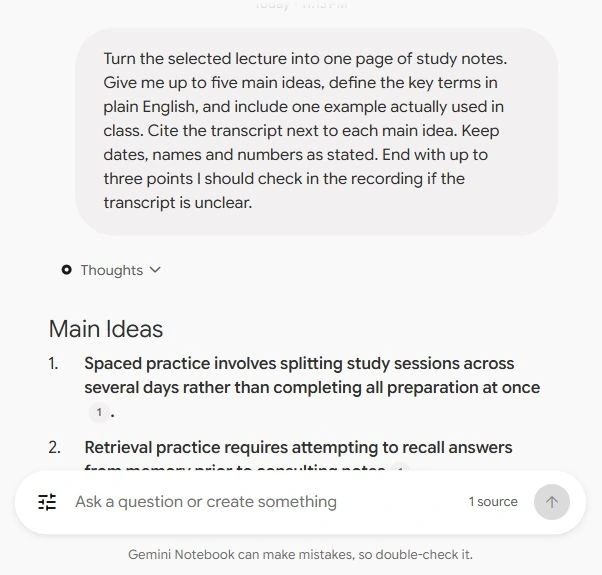
Study notes generated from the sample lecture transcript. Source: Google.
The difference between a useful summary and a generic one is often a concrete example. In the sample lecture on spaced practice, the three days matter: Monday is for studying, Wednesday is for answering without notes, and Saturday is for revisiting mistakes. Those details turn the definition into something you can explain back in your own words.
3. Open a citation and verify the original passage
Click the numbered citation next to a detail that would matter on an exam. In Gemini Notebook Chat, citations can open the relevant passage in the source. With audio, you’ll be checking the imported transcript. If the exact wording matters, also listen to the original audio.
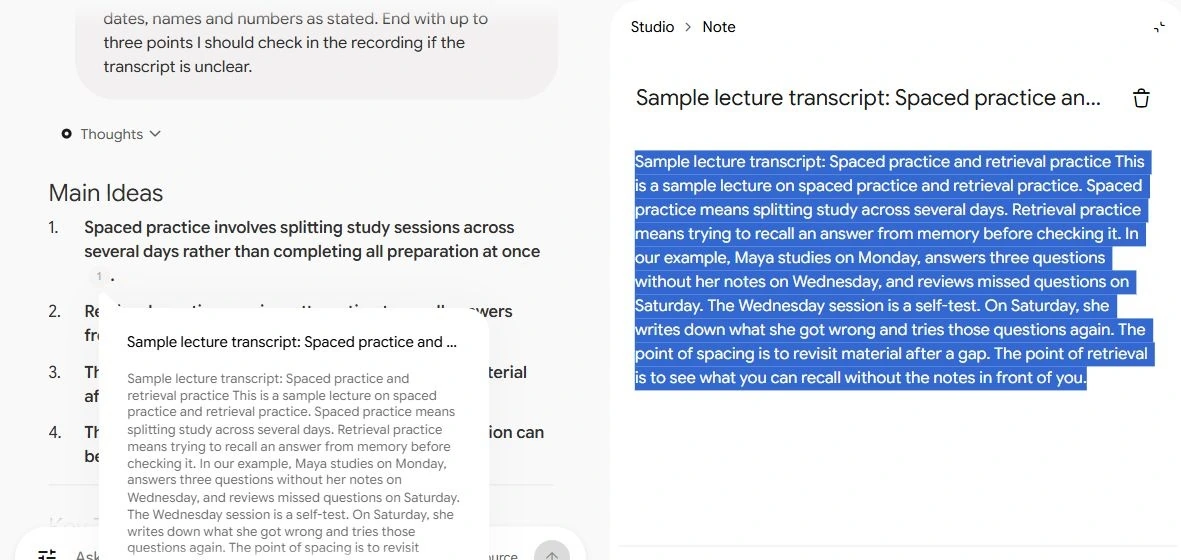
Open a source citation to check the original wording. Source: Google.
For example, check that the Wednesday session in the sample involved answering questions from memory. If a summary says Wednesday was a rereading session, correct the note. In a real lecture, apply the same check to formulas, unfamiliar names, dates and anything introduced with “except” or “only when.” If you need timestamps, use timestamps already in your course transcript or note them while listening.
4. Turn the notes into a practice quiz
Keep the lecture selected, then choose Quiz in Studio. The Quiz controls let you choose the difficulty and add instructions. Select Generate now, then open the quiz from Studio when it’s ready. You can also use Flashcards for terms and definitions.
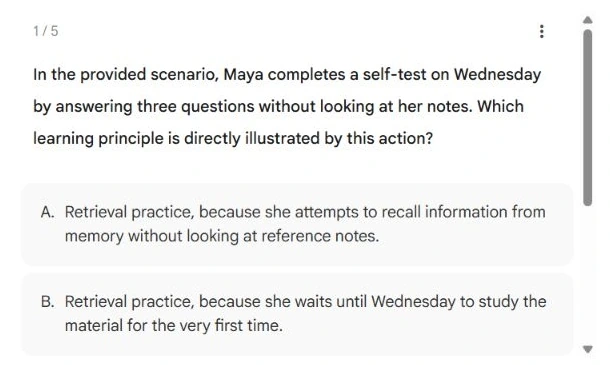
Use a practice quiz to check what you remember from the lecture. Source: Google.
For a short set you can copy into your notes, use this prompt in Chat:
Using only the selected lecture, write three recall questions and two questions that ask me to apply an idea to a new situation. Show the questions first. Put the answers, a short explanation and a source citation in a separate answer key. If the lecture is too short for five useful questions, give me fewer.
Try a recall question from the sample: “What does Maya do on Wednesday?” Then try an application question: “You reread a chapter on three separate days but never try recalling its ideas without notes. Which technique are you using, and what would you add?” Check your answers after you’ve attempted both. On Wednesday, Maya answers three questions without her notes. Rereading on different days uses spaced practice. Add a short self-test to practice retrieving the ideas from memory.
What to do if the recording won’t upload or the notes are incomplete
| What you see | What to try |
|---|---|
| The recording isn’t accepted | Confirm that you have an actual audio file. Export a copy as MP3 or WAV if needed, or add the course transcript as a source. |
| The recording is too large | Split it at topic breaks. Keep the parts in order with names such as “Week 4 – Part 1.” Google lists a 200 MB limit for uploaded source files. |
| Important concepts are missing | Select only the relevant lecture or part and name the missing topic in your request. If the lecturer used a diagram or equation, add the slides and check them directly. |
| A technical term is garbled | Replay the original audio, check the slides for the correct spelling, and give NotebookLM a corrected excerpt to work from. |
Frequently asked questions
Is it free to turn a lecture recording into study notes?
Yes. Google’s standard plan allows up to 50 sources per notebook, excluding notes from that source count. Usage limits apply, and Google can change them.
Can I use a lecture video instead of an audio file?
For a public YouTube lecture with captions, you can add its link as a source. Google uses the captions for that import. For a restricted course video, use an instructor-provided transcript or an audio export you’re allowed to use.
Does NotebookLM give the exact timestamp for every point?
A citation helps you find the passage in the imported source. For precise timestamps, use a time-coded transcript or find the passage in the original player and record the time yourself.
What’s the difference between uploading a lecture and making an Audio Overview?
Uploading a lecture gives Gemini Notebook a source it can transcribe and cite. Audio Overview creates a new spoken review from selected sources. For written study notes, ask for them in Chat.
Start with one lecture. Verify two citations, answer five questions with your notes closed, and revisit the source for anything you missed.
You may also like
 Technology & How-To
How to Use Google Lens to Find Products and Compare Prices
Find an item from a photo with Google Lens, check exact product matches and compare real checkout costs…
 Technology & How-To
Podcast Microphone Guide: USB vs XLR and Setup Tips
Choose a podcast microphone by room noise, connection type and recording style. Compare USB and XLR, see verified…
 Technology & How-To
Amazon Price Dropped After You Bought It? Here’s What to Do
Bought an item on Amazon before its price dropped? Check whether you can cancel, exchange, or return it,…