
How to Use Google Lens to Find Products and Compare Prices
Find an item from a photo with Google Lens, check exact product matches and compare real checkout costs on Android, iPhone or a computer.
Contents
- What Google Lens can—and cannot—tell you
- How to use Google Lens for shopping on Android
- How to find a product with Google Lens on iPhone
- How to use Google Lens on a computer
- How to compare prices without choosing the wrong item
- A simple final-price comparison example
- How to use Google Shopping Price Insights and price history
- Can you set a price-drop alert in the US or UK?
- How to get more accurate Google Lens shopping results
- Privacy: choose images carefully
- A quick checklist before you buy
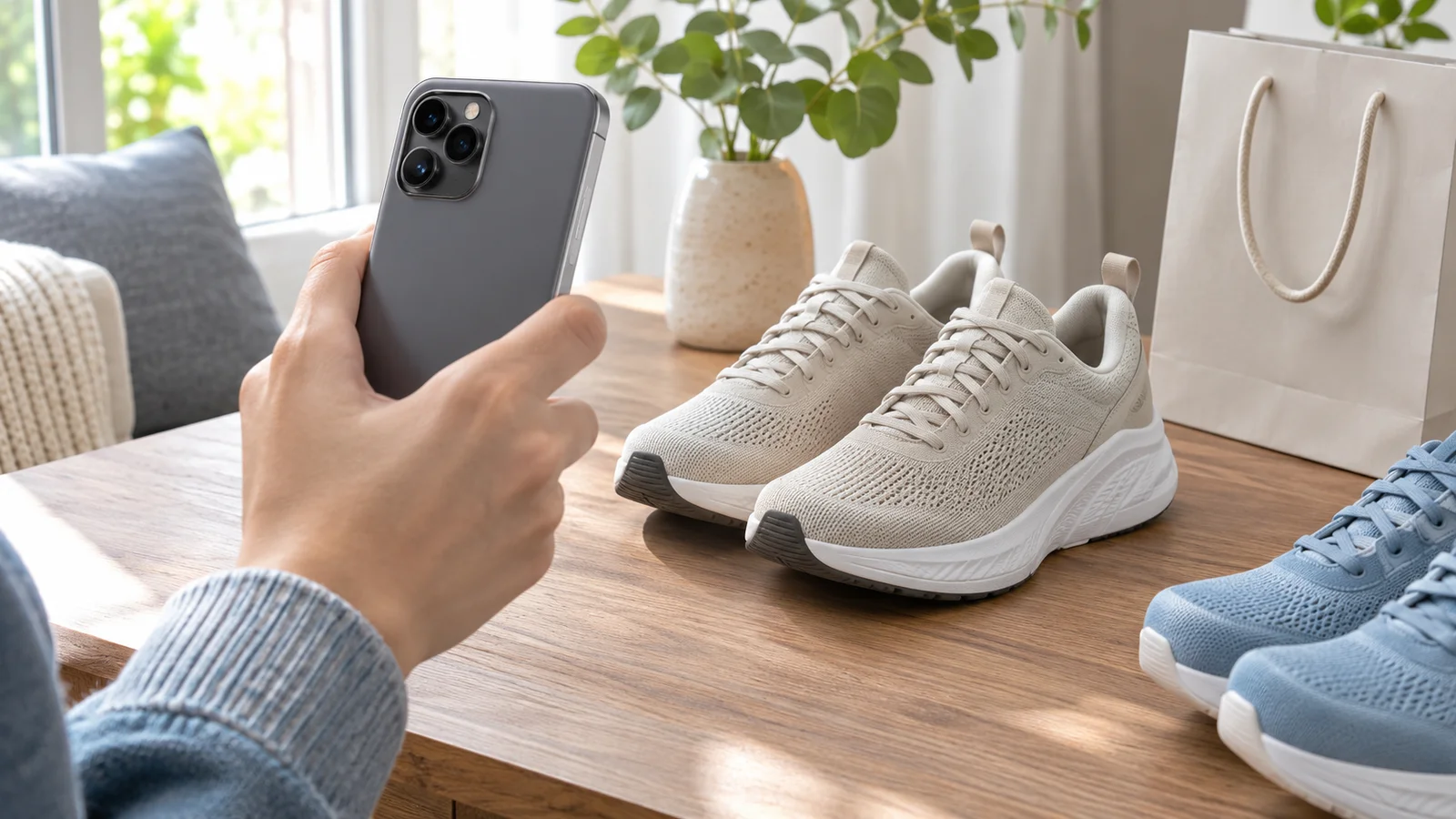
To find a product with Google Lens, open the Google app, tap the camera-shaped Lens icon, take a photo or select one you already have, and crop the selection around the item. Open the shopping matches, identify the exact model and variant, and compare the offers on retailers’ own websites before paying. Lens can help you discover products from a picture and surface prices across stores, but the cheapest-looking result is not necessarily the lowest checkout total.
This works especially well for a product you saw in a shop, an outfit in a picture, a piece of furniture in a social post or an item whose name you do not know. Google describes the feature on its official Lens page and explains that results can include prices, reviews and places to buy. Here is how to use it on Android, iPhone and a computer—and how to spot a wrong product match before it costs you money.
What Google Lens can—and cannot—tell you
| What you want to know | What Lens may show | What still needs checking |
|---|---|---|
| What is this item? | Visually similar products, titles and brand clues | Brand, exact model number, size, color or capacity |
| Where can I buy it? | Retailer links and availability information | Seller identity, stock and delivery to your address |
| Which shop is cheaper? | Price cards or several merchant offers | Shipping, tax, discounts, condition and final total |
| Is this a real bargain? | Price Insights or history where offered | Whether the trend matches the exact model and seller |
| Is this the same product? | Image matches and related styles | Product code, generation, bundle and regional version |
A visual match is not an identity guarantee. Two running shoes can have almost the same shape but different cushioning, widths or model years. Phones with identical-looking cameras can have different storage capacities. The safest rule is to match the model first, then compare the price.
How to use Google Lens for shopping on Android
- Open the Google app or a supported Chrome entry point. Update the app if you cannot find Lens.
- Tap the Google Lens camera icon in the search bar.
- Point your camera at the item and tap the search/shutter control, or pick a saved photo or screenshot from your device.
- If several objects appear, tap the wanted product and drag the corners of the selection box so it contains only that item.
- Scroll through the results. Look for an identifiable product page or shopping matches showing model details and merchant prices.
- Open at least two retailer listings, then check the exact variant, condition, shipping and checkout total before choosing.
Google’s Android image-search instructions also explain how to search a picture already displayed on a webpage: touch and hold the image and choose Search image with Google Lens. This is useful when the item appeared on a website rather than in front of your camera.
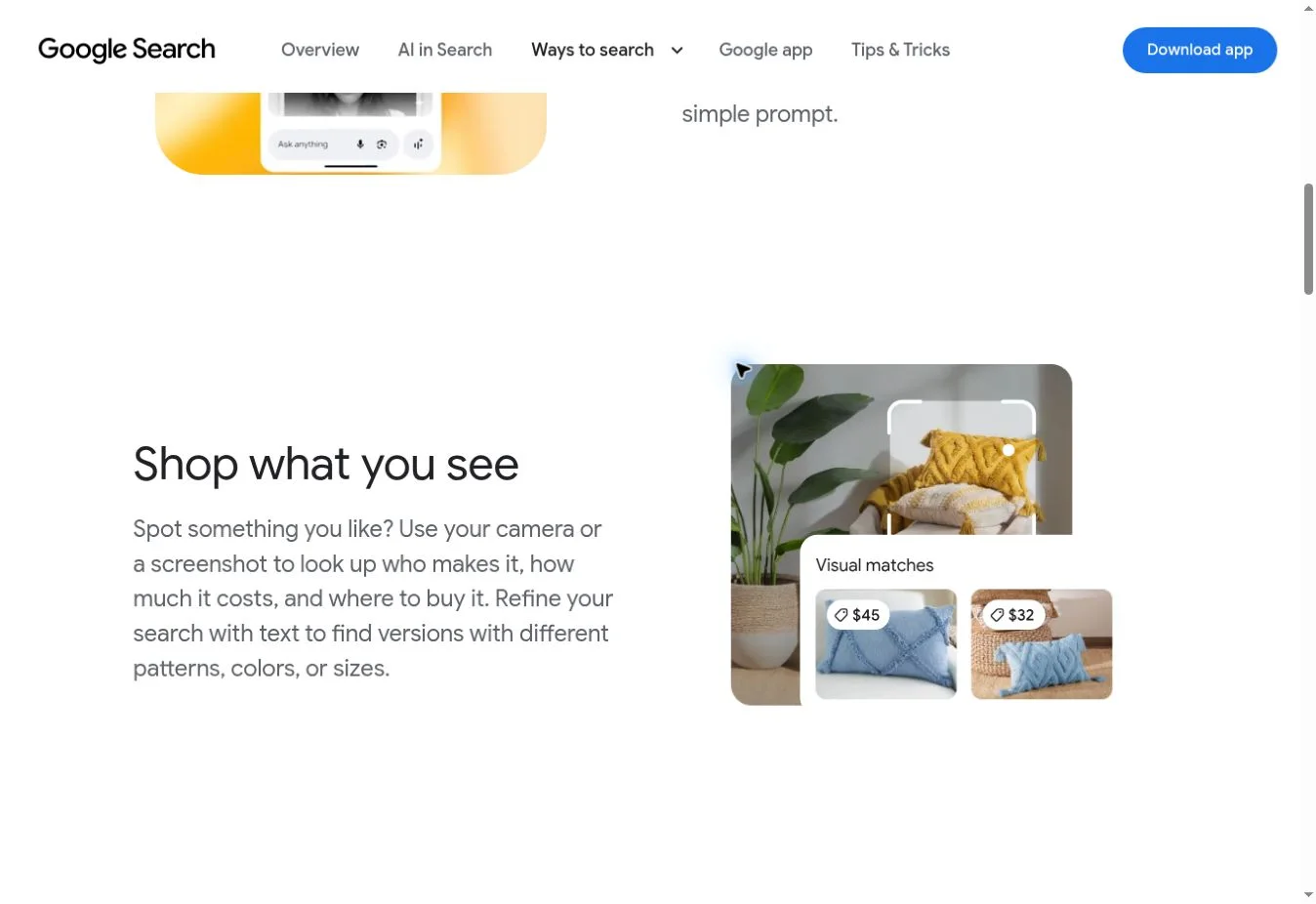
Google’s Shop what you see section illustrates how one photo can lead to several visual product matches. The cards help you discover alternatives, but do not assume they represent identical products. Check the listing’s model and dimensions.
How to find a product with Google Lens on iPhone
- Open the Google app on your iPhone or iPad. You can also access supported Lens searches through Chrome.
- Tap the Lens icon beside the Google search field, then take a new photo or choose one from your photo library.
- Move the selection box around the product you care about. Crop away the surrounding room, people or other items if they distract the search.
- Review the visual and shopping matches. In the Google app, use Add to your search where available to specify a color, material, brand or model.
- Open individual stores to check variant and delivery costs; do not base a purchase on the first displayed price alone.
You can also search an existing webpage image. Google’s iPhone and iPad instructions describe touching and holding the picture in Google or Chrome and selecting the Lens image-search action. That avoids saving the photo first. Menu wording can differ between the Google app and Chrome.
How to use Google Lens on a computer
On a laptop or desktop, you can search a saved picture, a product photograph on another website or an image URL. Google’s desktop Search help supports all three approaches.
- Go to Google Search and click Search by image, the camera-shaped icon in the search field.
- In the Lens dialog, click Upload a file, drag a picture into the box, or paste an image link. Choose only an image you have permission to use for your search.
- After the visual results load, focus the selection on the relevant object and refine the query if the option appears.
- If a product image is already open in Chrome, right-click it and choose Search with Google Lens to see matching results without first downloading it.
- Find the exact product page, then compare offers across merchants using the checkout-cost checks below.
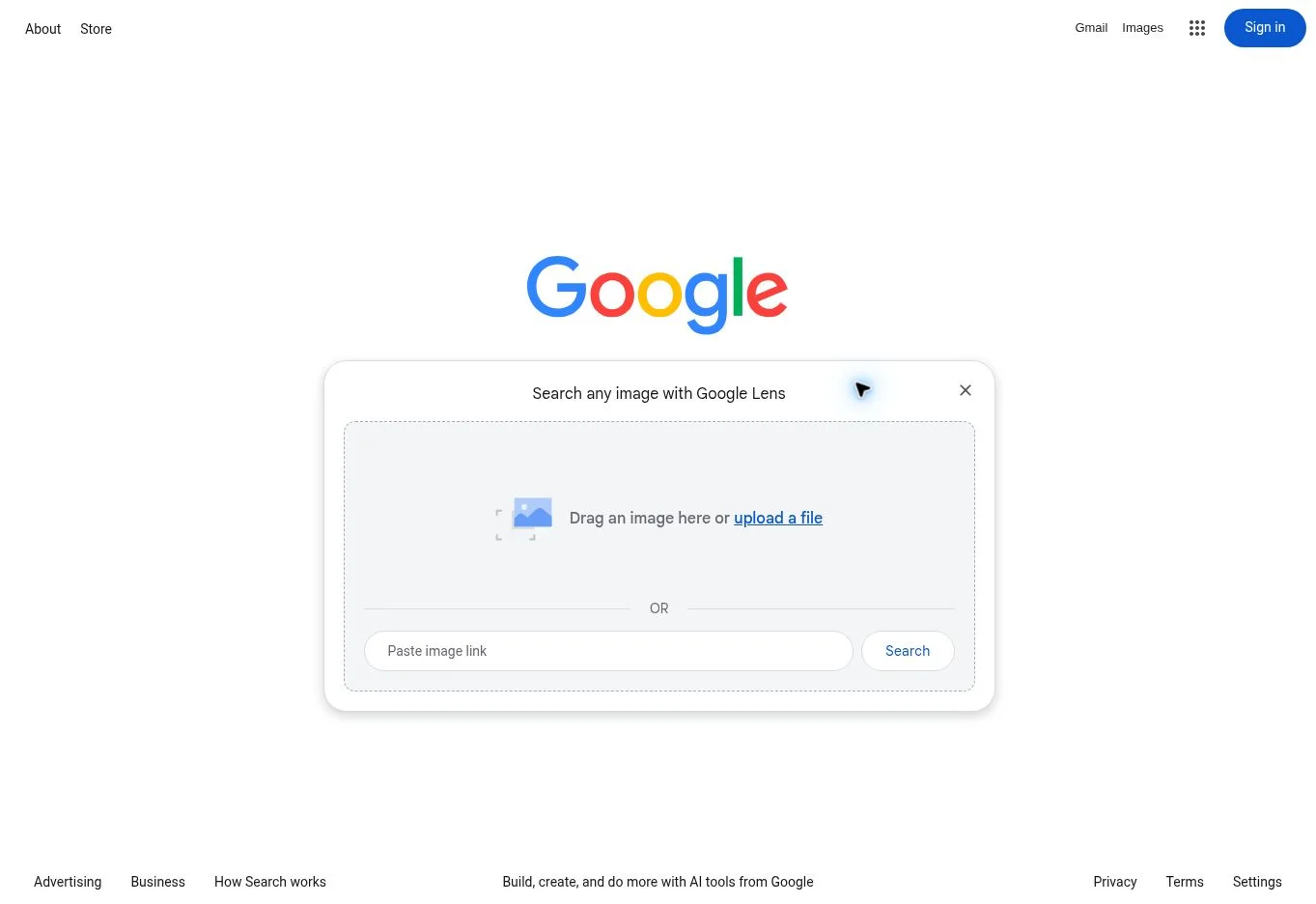
This is the live Google Search by image dialog on desktop. It offers three public ways to begin: upload a file, drag and drop a picture, or paste its link. You do not need to enter a product name first.
How to compare prices without choosing the wrong item
Once Lens finds likely matches, take two minutes to verify these details:
- Exact identity: Match the manufacturer’s model code, generation and product name, not just the photograph.
- Same variant: Confirm color, size, storage, bundle contents and regional model. A smaller capacity or refurbished item is not the same deal.
- Same condition: Compare new with new, or refurbished with refurbished; check warranty and return terms.
- Same delivery basis: Include shipping charges, applicable tax or VAT, import fees and any eligible coupon that is actually accepted at checkout.
- Same currency and market: A US dollar price and a UK pound price are not directly comparable without delivery location and currency conversion costs.
- Seller reliability: Check that the merchant is genuine, has clear contact and return information, and can fulfill the advertised order.
A simple final-price comparison example
Suppose Lens finds the same new pair of shoes, in the same size and color, at two US retailers. The advertised prices differ, but the shipping costs reverse which offer is cheaper. These are illustrative figures, not live store quotations.
| Example offer | Listed item price | Delivery | Total before sales tax |
|---|---|---|---|
| Store A | $78 | $9 | $87 |
| Store B | $82 | Free | $82 |
In this example, picking the lowest sticker price costs $5 more. US sales tax may appear at checkout depending on location and seller. For UK shoppers, check the displayed VAT-inclusive price, delivery charge and any import fees before making the same comparison. The checkout screen is more reliable than an out-of-date search snippet.
How to use Google Shopping Price Insights and price history
When a Lens result leads to a Google Shopping product listing, open the item and look for price comparison, Price Insights or price history if your market and product support them. Google’s shopping guidance explains that eligible product pages can compare merchant prices and indicate whether a current price looks low, typical or high relative to history. This helps you judge an offer, but it is not proof of the item’s condition or of stock at checkout.
If the item is sold on Amazon, you may also check a longer trend for that exact marketplace and variant. Horus Valley’s Amazon price-history walkthrough explains how to interpret shorter and longer price windows before deciding whether to wait.
Can you set a price-drop alert in the US or UK?
Google’s Track price help says eligible signed-in users can follow a product and receive notifications when the price drops. As of November 19, 2026, that help page lists the United States, Canada, Australia, Japan and India for this particular feature; it does not list the United Kingdom. Shopping matches themselves are available in both the US and UK according to Google’s Lens availability list. Do not assume that every price-history or alert button is available simply because Lens shopping results appear.
Where you see Track price, select the correct variant and follow Google’s account and notification prompts. If you do not see it, continue comparing retailer offers manually or use a region-appropriate price tracker; there is no need to invent a hidden setting.
How to get more accurate Google Lens shopping results
| Problem | Likely reason | What to try |
|---|---|---|
| Lens returns a similar style, not the exact item | The shape is common or the photo hides distinguishing marks | Crop closer; include the label or model number; add brand or color keywords |
| Results show the wrong size, storage or color | Visual matching cannot confirm every variant | Open specifications and select the matching product option on the merchant page |
| No shopping prices appear | Availability varies by country, product and merchant data | Search the model number as text and check the retailer directly |
| The image contains several objects | Lens may focus on the wrong subject | Move the selection box around one product |
| The Lens icon is missing | App version, browser or search-engine settings may differ | Update Google or Chrome and use the documented image-search route for your device |
| A very cheap store looks unfamiliar | Search results may include unverified or sponsored merchants | Check seller identity, returns and checkout costs before sharing payment details |
Privacy: choose images carefully
Avoid using Lens with private photographs containing identity documents, account numbers, addresses, children’s information or confidential work material. Google’s Visual Search History guidance explains that, when the setting is enabled, eligible Lens searches can save images to your Web & App Activity. You can review this setting in your Google Account. If you search part of a webpage in Chrome, Google’s Chrome help also describes how webpage content is sent to process a Lens query.
A quick checklist before you buy
- Use Lens to identify the item from your photo or screenshot, then narrow the selection to the product itself.
- Confirm the exact model, size, color, capacity and condition on the retailer’s page.
- Compare at least two legitimate sellers, calculating delivery, tax/VAT, discounts and return costs where relevant.
- Check price history or a price alert if the feature is available for your product and country.
- Make the final decision from the retailer’s verified checkout information—not from a visual-match card alone.
The practical takeaway: Google Lens is strongest at turning an unknown object into a shortlist of possible products. The real savings come from your next step: verifying the exact item and comparing the delivered price from trustworthy stores. Two careful checks can matter more than dozens of visual matches.
You may also like
 Technology & How-To
How to Turn Lecture Recordings Into Study Notes With NotebookLM
Turn lecture audio into study notes with free Gemini Notebook (NotebookLM). Follow the upload steps, check transcript citations,…
 Technology & How-To
Podcast Microphone Guide: USB vs XLR and Setup Tips
Choose a podcast microphone by room noise, connection type and recording style. Compare USB and XLR, see verified…
 Technology & How-To
Amazon Price Dropped After You Bought It? Here’s What to Do
Bought an item on Amazon before its price dropped? Check whether you can cancel, exchange, or return it,…