
Why Images Look Blurry After Resizing and How to Fix Them
Learn why photos turn blurry after resizing, then fix upscaling, downsampling, JPEG compression and blurry website images. Includes an original visual test and step-by-step workflows.
Contents
- Diagnose the problem first: a 60-second symptom guide
- Why does resizing make an image blurry?
- Pixels are samples, not unlimited detail
- Resizing, resampling and compression are three different operations
- An original visual experiment: four files, one source image
- How the demonstration was prepared
- A measurable file-size check: dimensions are not quality
- How to resize an image smaller without making it look soft
- Step 1: start with the best available original
- Step 2: decide the final dimensions before exporting
- Step 3: use a suitable downsampling filter
- Step 4: check sharpness at 100% and at normal viewing size
- Step 5: apply restrained output sharpening, only if needed
- Step 6: export once with sensible compression
- How to enlarge a small image without excessive blur
- Option A: use a bigger original, not a bigger output number
- Option B: select an enlargement-oriented interpolation method
- Option C: consider AI upscaling—but verify invented detail
- Option D: use vector assets for logos and illustrations
- Which resampling algorithm should you choose?
- Why your photo looks worse after converting to JPG, PNG or WebP
- JPEG: useful compression, but text and hard boundaries can suffer
- PNG: lossless does not mean more source detail
- WebP: check whether you used lossy or lossless settings
- A practical export test for one representative image
- A photograph looks sharp locally but blurry on your website: what to check
- The browser may be stretching an undersized file
- Check what the browser downloaded, not what you uploaded
- WordPress-specific checks before you re-upload everything
- Blurry resized text, screenshots, diagrams and logos: special rules
- Screenshots often need a different format or workflow from photos
- For text embedded in an image, redesign instead of “enhancing”
- Keep line art and logos out of photographic sharpening presets
- How to fix resizing issues in common tools
- Photoshop on Windows or macOS
- GIMP: a free desktop option
- Browser-based tools: quick changes with privacy considerations
- Phone photos on iPhone and Android
- Calculate the minimum resolution for web and print
- Web example: CSS width and device-pixel ratio
- Print example: inches, pixels and PPI
- The less-obvious causes: distortion, moiré, halos and display zoom
- Distortion is geometry, not ordinary blur
- Moiré comes from repeating patterns
- Halos are an output-sharpening warning
- The editor zoom percentage may not match the output
- A safe troubleshooting workflow that prevents repeat mistakes
- Editorial checklist for website owners and content creators
- Sources and methodology
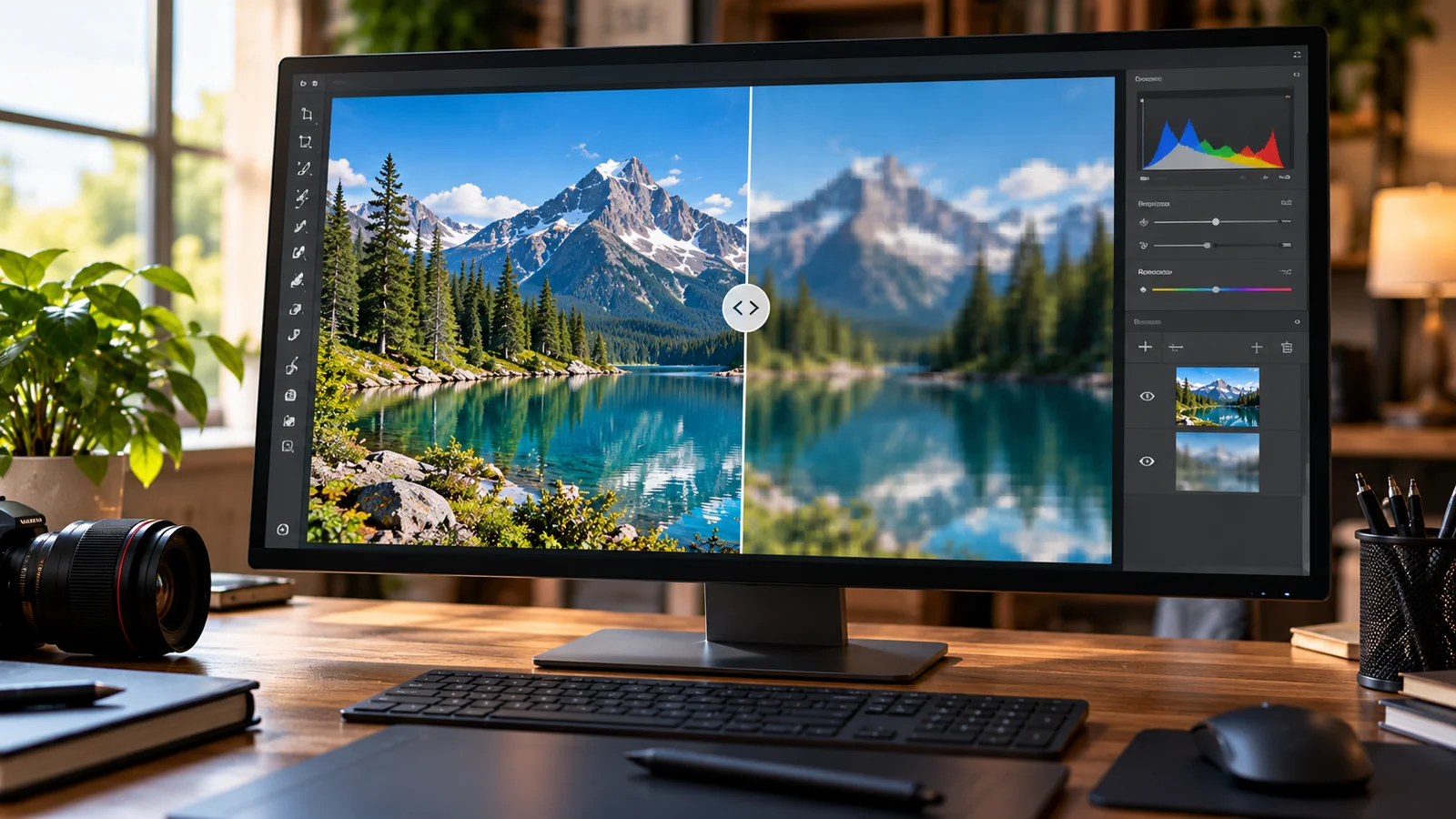
A photo looks sharp in your camera roll, but its resized copy looks fuzzy. A logo develops jagged edges after you enlarge it. Or a picture looks fine in an editor yet appears soft once it is published on a website. These symptoms are often called “blurry images,” but they have different causes—and different fixes.
This guide separates lost image detail, resampling softness, JPEG/WebP compression damage, and browser display scaling. You will find reproducible before-and-after examples, platform-specific steps, exact pixel-size calculations, and a troubleshooting workflow to avoid making a good image worse.
Fast answer: If you made an image larger than its original pixel dimensions, go back to a higher-resolution original. If you made it smaller, use a suitable resampling method and judge mild sharpening at the final output size. If it is only blurry on a website, verify which source file the browser loads and how large it displays it before re-editing the photo.
Diagnose the problem first: a 60-second symptom guide
| What you see | Likely cause | First action |
|---|---|---|
| Image becomes soft only after enlarging | Not enough source pixels; interpolation | Find the original file or reduce target dimensions |
| Small resized photo loses hair, leaves or text detail | Downsampling; possible oversmoothing | Export again from the original with a quality downsampling filter |
| Square blocks or speckles around edges | Aggressive lossy compression | Export from the source with less compression |
| Faces become stretched or circles become oval | Aspect ratio changed | Lock proportions; crop to the target ratio instead |
| Image is sharp in Photos but fuzzy on a website | Undersized responsive source, CSS enlargement or thumbnail selection | Check displayed size, natural size and actual downloaded file |
| Fine repeating lines become wavy or patterned | Aliasing or moiré during reduction | Try a different downsampling filter and examine at target size |
| Crisp pixel-art edges turn fuzzy | Smoothing interpolation used for pixel art | Use nearest-neighbor for intentional pixel art only |
These are starting hypotheses, not automatic diagnoses. Several problems can occur together: resizing a small screenshot, then exporting it as a highly compressed JPEG, can produce both blurred lettering and compression halos.
Why does resizing make an image blurry?
Pixels are samples, not unlimited detail
A raster image is a rectangular grid of picture elements. A 400 × 300 photo contains 120,000 pixels. Enlarging it to 1,200 × 900 creates a file with 1,080,000 pixels—nine times the pixel count—but the source did not record nine times as much scene information. Traditional enlargement estimates the extra color samples; it cannot recover the camera detail that was never captured.
Shrinking does the opposite: a 4,000 × 3,000 image reduced to 1,000 × 750 has one-sixteenth as many pixels. A useful resampling filter combines information before discarding pixels, but extremely fine textures and tiny letters may not survive. That is expected, not necessarily a broken resizing tool.
Resizing, resampling and compression are three different operations
Resizing changes the pixel dimensions or displayed dimensions. Resampling recalculates pixels when the pixel grid changes. Compression controls how pixel data is stored and how much information can be discarded. You can resize with minimal compression, or heavily compress an image without changing its dimensions. Knowing which operation introduced the defect determines what to change next.
A fourth distinction matters: setting an image’s print-resolution metadata from 72 PPI to 300 PPI without resampling changes its nominal print size, not its underlying pixel detail. “Increase DPI” is not a cure for a small blurry web image.
An original visual experiment: four files, one source image
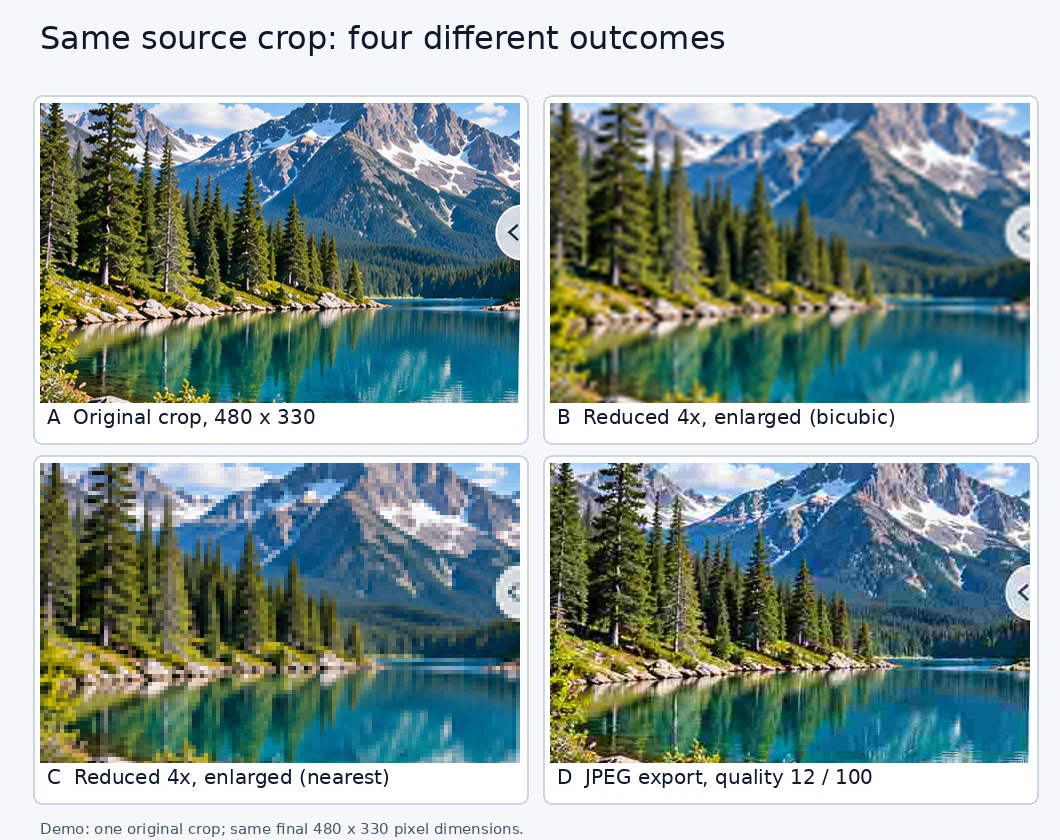
Instead of comparing unrelated stock photographs, we produced the following four panels from the same 480 × 330-pixel crop. The base is a region of this article’s illustrative cover artwork. All four displayed results have the same final pixel dimensions, so any visible differences come from the processing steps—not different display sizes.
How the demonstration was prepared
- Panel A: Untouched RGB crop, 480 × 330 pixels; serves as the visual reference.
- Panel B: Reduced to 120 × 83 pixels using Lanczos, then enlarged to 480 × 330 using bicubic interpolation. Fine information that was discarded cannot be fully restored.
- Panel C: Same reduction, but enlarged with nearest-neighbor. Hard blocks are more visible; it is not a realistic photo-repair method.
- Panel D: Original crop exported as JPEG with quality parameter 12 using Pillow, with chroma subsampling. Its dimensions stay unchanged, but compression artifacts become visible.
Reproducibility note: This is an editorial demonstration generated with Pillow image-processing software from a single crop; it is not a controlled test of Photoshop, GIMP, or the Horus Image Resizer. Different source pictures, encoders, quality-scale definitions, and viewing devices will produce different results. The 120 × 83 intermediate size is a rounded version of one-quarter width and height, not an exact 4:1 reduction along both axes.
A measurable file-size check: dimensions are not quality
We also saved the unchanged 480 × 330 crop at different storage settings. The image dimensions were identical in every row below. The numbers are actual file sizes for this single example, not recommended global target sizes or a promise about other photos.
| Export from same 480 × 330 crop | Actual bytes | Approx. KiB | Interpretation |
|---|---|---|---|
| PNG, lossless | 344,389 | 336.3 | Larger file; avoids JPEG quantization losses |
| JPEG, Pillow quality 85 | 61,190 | 59.8 | Much smaller; usually visually acceptable for many photographs |
| JPEG, Pillow quality 12 | 12,276 | 12.0 | Very small; visible damage around fine edges and textures |
A smaller file can be ideal for web performance, but only when its visual quality is acceptable at the actual display size. File type and compression settings affect the result as much as pixel dimensions. Always compare the processed file against the original rather than trusting an export label like “High.”
How to resize an image smaller without making it look soft
Step 1: start with the best available original
Use the original camera file or the highest-quality source you legally have. Avoid resizing an already downloaded thumbnail, an image forwarded through messaging apps, or a previously overcompressed copy. Each additional destructive resize or lossy export can reduce the remaining detail.
Step 2: decide the final dimensions before exporting
For example, you have a 2,400 × 1,600 photo and need an 1,200-pixel-wide article image. With proportions locked, the correct output is 1,200 × 800. Enter the final dimensions once, rather than repeatedly reducing the file in separate steps.
For an easy browser-based workflow, use the Horus Valley Image Resizer. Choose the original image, set the desired width, keep Lock aspect ratio on, preview, and download the output. The tool processes images in the browser; you do not need to upload photos to Horus Valley servers.
Step 3: use a suitable downsampling filter
For natural photographs, choose a high-quality downsampling option provided by your editor. In Photoshop, Automatic or Bicubic Sharper (reduction) are documented choices; an editor may also offer Lanczos or similar reconstruction filters. These choices make trade-offs between edge clarity, ringing and suppression of aliasing; no filter wins on every image.
Step 4: check sharpness at 100% and at normal viewing size
Inspect fine textures, diagonals, text and contrast edges at both 100% zoom and the real target display size. A tiny 300-pixel thumbnail viewed at 400% will look pixelated even if it is perfectly suitable for a 300-pixel slot. Pixel-level inspection is useful, but the final user-facing size is the deciding test.
Step 5: apply restrained output sharpening, only if needed
A mild unsharp mask after shrinking can make edges appear crisper, but too much creates bright outlines, noisy skin, halos and harsh text. Work on a copy; increase sharpening gradually, then compare with the unsharpened result at the final size. The fact that sharpening adds edge contrast does not mean it reconstructs discarded detail.
Step 6: export once with sensible compression
For a photograph, compare medium-to-high-quality JPEG or WebP results. For screenshots with crisp text, transparent logos, or line graphics, test PNG or lossless WebP. Exporting to a different format does not automatically rescue image information already lost during resizing or an earlier JPEG save.
How to enlarge a small image without excessive blur
Option A: use a bigger original, not a bigger output number
If your image measures 600 × 400 pixels, changing its width field to 2,400 merely asks the software to estimate new samples. The best remedy is a larger original file, a new photograph, or a larger-resolution export of the original design. If none exists, consider displaying the image at a smaller size with a deliberate frame or background.
Option B: select an enlargement-oriented interpolation method
In Photoshop, Preserve Details 2.0 or Bicubic Smoother are designed for enlargements. GIMP offers selectable interpolation methods in its Scale Image dialog. Preserve the original dimensions of the subject, preview at 100%, and look for unnatural textures and halos before accepting the result.
Option C: consider AI upscaling—but verify invented detail
AI-based enlargers can sometimes produce more convincing edges and texture than classic bicubic enlargement. However, the new detail is a model-generated estimate. Do not treat AI-reconstructed license plates, signs, faces, medical images or documentary evidence as a faithful recovery of what the original pixels recorded. For evidentiary work, retain the untouched file and document any transformations.
Option D: use vector assets for logos and illustrations
A logo created in SVG or another vector format is defined primarily by shapes and paths, not a small fixed photo grid. When the original editable design is available, re-export it at the required pixel dimensions instead of repeatedly stretching a low-resolution PNG. Vector is not a magic replacement for photographs: converting a blurry JPG to SVG automatically does not reconstruct missing real-world detail.
Which resampling algorithm should you choose?
| Method | Often useful for | What to watch out for |
|---|---|---|
| Nearest neighbor | Pixel art, intentionally blocky icons, labeled grids | Jagged stairs and square pixels in photographs |
| Bilinear | Fast, simple scaling where softness is acceptable | Soft edges and fine textures |
| Bicubic | General photo enlargement or reduction | May still soften or halo depending on variant |
| Lanczos / sharp reconstruction | Many photographic downscales where fine detail matters | Ringing around high-contrast boundaries; moiré on repeated lines |
| AI-assisted enlargement | Improving perceived appearance when high-res source is unavailable | Fabricated details; results vary with subject |
Adobe documents automatic, bilinear, nearest-neighbor, bicubic and detail-preserving options; the practical recommendation is to choose based on the subject and whether you are increasing or decreasing pixel dimensions. See Adobe’s algorithm reference.
Why your photo looks worse after converting to JPG, PNG or WebP
JPEG: useful compression, but text and hard boundaries can suffer
JPEG is a common choice for photos. At aggressive settings, it can introduce blocks, ringing and color smearing, especially around thin high-contrast lines. A JPEG saved again and again may accumulate damage. Use a suitable quality setting, then inspect the actual output; do not assume a specific number such as 80 or 90 represents the same level across every encoder.
PNG: lossless does not mean more source detail
PNG can preserve hard-edged text, graphics and transparency without JPEG-type lossy compression. But saving an already blurry image as PNG preserves the blur as faithfully as it preserves everything else. PNG may be substantially larger than a well-encoded photograph in JPEG or WebP, so select formats according to content and delivery needs.
WebP: check whether you used lossy or lossless settings
WebP supports both lossy and lossless workflows. A good lossy WebP can offer an efficient photo export, while lossless settings may be better for precise graphics. But a WebP file is not inherently sharper than the same source in another format. Compare visually at the final pixel size and be mindful of transparency requirements.
A practical export test for one representative image
- Create your final pixel-sized version from the original file, with aspect ratio preserved.
- Export a JPEG at a reasonable quality setting, a lossy WebP and—where appropriate—a PNG.
- View them side by side at the same size and zoom, focusing on hair, lettering, gradients and edges.
- Check each file’s measured size. Choose the smallest version that preserves the detail your readers actually need.
- Keep the unmodified master image in case you need a different crop or a new export later.
A photograph looks sharp locally but blurry on your website: what to check
The browser may be stretching an undersized file
A browser can draw a 400-pixel-wide image across 800 CSS pixels. Even if the page layout says “width: 800px,” that does not create native picture detail; it is a display enlargement. On a high-density screen, an image displayed 600 CSS pixels wide may benefit from a file approximately 1,200 physical pixels wide at a device-pixel ratio of 2—although actual browser choices, bandwidth and page layout influence the ideal variant.
For WordPress or another responsive website, the correct fix may be to supply a suitably sized image variant and accurate srcset/sizes hints, rather than exporting a gigantic image for every visitor. Google recommends responsive images with a normal src fallback. Read Google Search Central’s image SEO guidance.
Check what the browser downloaded, not what you uploaded
- Open the published page in a desktop browser and inspect the soft image.
- Find the image’s naturalWidth/naturalHeight (intrinsic dimensions) and its displayed width/height; browser developer tools commonly reveal both.
- Check the actual currentSrc URL and the responsive candidates. A thumbnail may have been selected for a large slot.
- Open the loaded image URL in a separate tab at 100% and see whether that individual file is already soft.
- If it is crisp at native size but fuzzy in the page, investigate CSS scaling, browser zoom, device-pixel ratio and theme layout. If it is fuzzy in a separate tab, fix the selected source file or thumbnail generation.
Browser developer tools may show properties in different places across browser versions. For developers comfortable with JavaScript, this read-only console snippet displays the currently loaded source and basic scaling figures for the first image in a page:
const img = document.querySelector('img'); console.log({ source: img?.currentSrc, intrinsic: img && `${img.naturalWidth} x ${img.naturalHeight}`, displayed: img && `${Math.round(img.getBoundingClientRect().width)} x ${Math.round(img.getBoundingClientRect().height)}`, dpr: window.devicePixelRatio });Interpretation: A 600 CSS-pixel slot with a 600-pixel image can look acceptable on some displays yet soft on a 2× high-density screen. A 1,200-pixel source could improve perceived detail, but the improvement depends on the original content. It is not a requirement that every image always be rendered at exactly twice the CSS size.
WordPress-specific checks before you re-upload everything
- Confirm that the featured image or content image uses the intended media-library item rather than an old 300-pixel thumbnail.
- Check whether your theme or image-optimization plugin serves a different image size on mobile and desktop.
- Refresh image/CDN caches after a deliberate replacement if an old variant still loads.
- Avoid broad compression or bulk regenerations until you identify whether the problem affects a particular page, thumbnail size, theme container or device class.
If you publish through WordPress, this approach is safer than repeatedly uploading larger files without proving which image URL the browser actually requests.
Blurry resized text, screenshots, diagrams and logos: special rules
Screenshots often need a different format or workflow from photos
Tiny UI text and one-pixel lines can become unreadable when a screenshot is shrunk. If possible, capture the screenshot at the presentation size you need, or crop to the relevant interface rather than shrinking the entire application window. PNG or lossless WebP often handles crisp lettering better than strongly compressed JPEG, but the number of actual source pixels still matters.
For text embedded in an image, redesign instead of “enhancing”
If a 1,000-pixel-wide infographic contains 10-pixel text, no magic export setting will make it comfortable to read when displayed at 300 pixels. Use fewer words, larger type, a more focused crop, or rebuild the chart from its editable source. On a website, prefer real HTML text for important explanations whenever practical, so text remains selectable and adaptable.
Keep line art and logos out of photographic sharpening presets
Sharp edges in logos may benefit from vector exports or nearest-neighbor when the source is deliberate pixel art. However, nearest-neighbor usually makes photographic faces and gradients worse. Apply different treatments to photographs and hard-edged interface graphics rather than treating every image with one batch preset.
How to fix resizing issues in common tools
Photoshop on Windows or macOS
- Open a copy of the highest-resolution source and select Image > Image Size.
- Keep width/height linked so you preserve the aspect ratio.
- Enable Resample if you actually need to add or remove pixels; changing Resolution alone does not increase detail.
- Use an enlargement-oriented option for upscale or a reduction-oriented option for downsizing; view the result at 100%.
- Apply any final sharpening carefully, then export a single finished copy and compare compression options.
Adobe’s current resampling documentation describes the intended use of each method; available labels may differ slightly by version.
GIMP: a free desktop option
- Open the original image, then choose Image > Scale Image.
- Set the desired width; ensure the chain icon keeps proportions linked.
- Select a suitable available interpolation option under Quality.
- Scale, review the result at 100%, and apply restrained Unsharp Mask only if needed.
- Export a new file, keeping the source intact.
The GIMP manual explicitly notes that enlargement cannot add genuinely new source detail and that interpolation choice affects the result.
Browser-based tools: quick changes with privacy considerations
For routine edits, start with the Horus Image Resizer. Its visible controls allow exact widths, heights and aspect-ratio locking. If your output is sharp but the file is too large, use the separate Image Compressor to compare quality and size, or the Image Converter when format—not dimensions—is the issue.
These are separate problems. Resizing a photo will not necessarily compress it to the smallest practical file, and converting JPEG to PNG will not undo old JPEG artifacts. The Horus image tools describe local browser processing, which can be useful when you prefer not to send personal pictures to an external upload service.
Phone photos on iPhone and Android
Where an editing app lets you specify output dimensions, enable its aspect-ratio lock and work from the camera original. After exporting, check the picture’s pixel dimensions in its details or info view and open the saved file rather than the preview. If a messaging or social app makes it blurry only after sharing, compare the saved original and the transmitted version; the app may have compressed or resized the upload independently.
For photographs intended for a website, avoid sending them through chat just to move them between devices when you can transfer the original file directly. An emailed or cloud-synced original can preserve more information than a low-quality shared preview, depending on the service and settings.
Calculate the minimum resolution for web and print
Web example: CSS width and device-pixel ratio
Suppose a product photo is displayed at 720 CSS pixels on a high-density display with device-pixel ratio 2. A source near 1,440 pixels wide gives roughly two source pixels per CSS pixel. But that is a planning estimate, not a quality guarantee or a reason to force every thumbnail to 1,440 pixels. Choose responsive variants suited to real device widths and browser behavior.
Print example: inches, pixels and PPI
A 1,200-pixel-wide photograph prints at 4 inches wide at 300 pixels per inch (1,200 ÷ 300). The same 1,200 pixels spread across an 8-inch-wide print provide 150 PPI. Viewing distance, paper, screening and the image itself determine whether that is sufficient. Merely rewriting the metadata from 150 to 300 PPI without resampling does not create 1,200 extra original pixels.
| Target use | Practical dimension check | Quality check |
|---|---|---|
| Article image displayed at 800 CSS px | Export an appropriately large source and responsive sizes | View on ordinary and high-density screens |
| Social card target 1200 × 630 | Use a master at least target dimensions; crop for 1.905:1 | Inspect thin type and faces at actual card size |
| Square thumbnail 300 × 300 | Make a deliberate square crop rather than stretching | Check subject is legible at 300 pixels |
| 4-inch print at 300 PPI | 1,200 source pixels across | Inspect print proof at realistic viewing distance |
| 8-inch print at 300 PPI | 2,400 source pixels across | Do not substitute metadata-only DPI change |
The less-obvious causes: distortion, moiré, halos and display zoom
Distortion is geometry, not ordinary blur
A 1,600 × 900 landscape is 16:9. Setting both dimensions independently to 1,000 × 1,000 converts it into a square by stretching the scene. Faces become wide or thin and circular objects become oval. If a square asset is required, crop part of the image to a square rather than forcing a new aspect ratio.
Moiré comes from repeating patterns
Shingles, tiny window blinds, woven fabrics and grids may develop strange waves when resized down because the original repeating pattern can no longer be sampled faithfully. More aggressive sharpening may amplify the interference. Change the target size slightly or use a downsampling filter that suppresses high-frequency patterns, and inspect the actual result. The Cambridge in Colour tutorial explains the trade-off between aliasing and sharpness.
Halos are an output-sharpening warning
Bright or dark outlines around tree branches, lettering or building edges mean that edge contrast has been pushed too far. Lower the sharpening strength or radius and compare the original. Artificial halos can make a file seem crisp at thumbnail scale while damaging the image when viewed larger.
The editor zoom percentage may not match the output
Judging a 300-pixel-wide exported image at 600% magnification is not a fair assessment of how it looks in a 300-pixel-wide web slot. Conversely, previewing a huge banner zoomed down inside a tiny editor pane may hide defects. Check one-to-one pixels and the intended viewer size, and avoid comparing panels at different zoom levels.
A safe troubleshooting workflow that prevents repeat mistakes
- Preserve: make a duplicate of the highest-quality original, including its native dimensions.
- Measure: check source width and height, target slot size, and whether the target requires enlargement.
- Classify: is the issue softness, visible blocks, stretched proportions, moiré or website-only display blur?
- Isolate: change one factor at a time—resampling, output size, compression or page styling.
- Verify: compare at the same zoom and final dimensions; use a second device when investigating websites.
- Record: keep the chosen export dimensions, format and quality setting so a batch of images remains consistent.
Example decision: You exported a 600 × 400 source as a 2,400 × 1,600 banner and it looks soft. Changing the JPEG quality from 70 to 100 cannot restore the missing photographic detail. Find a high-resolution original or use a smaller banner. If a high-resolution 2,400 × 1,600 original looks good locally but the website serves its 300-pixel thumbnail, the correction belongs in the website’s image selection—not in another Photoshop export.
Editorial checklist for website owners and content creators
| Before publishing | Pass condition |
|---|---|
| Source quality | Original file has enough real pixels for the final use |
| Aspect ratio | No unintentional stretching; crop chosen deliberately |
| Resize method | Suitable resampling used once from original |
| Post-resize sharpening | Checked for halos and overprocessed textures |
| Format and compression | JPEG, WebP or PNG selected to match the image type |
| Actual website source | Downloaded currentSrc has adequate dimensions |
| Final viewing test | Looks acceptable at real target width on desktop and mobile |
| Repeatability | Source and export settings are kept for later updates |
The goal is not the biggest possible image, or the smallest number of kilobytes. It is the right amount of genuine detail delivered at the size the reader actually sees. Start from the original, resize only as necessary, compress deliberately, and test the published result rather than assuming the editor preview tells the whole story.
Sources and methodology
This article combines current software documentation, browser standards and a transparent same-source illustration. The demonstration’s JPEG byte counts are measured outputs from one image using Pillow; they should not be interpreted as independent laboratory measurements of commercial editors. Platform interfaces may change, so menus and quality controls should be verified in your installed version.
- Adobe Photoshop — Resampling options: distinctions between automatic, bicubic, nearest-neighbor and detail-preserving methods.
- GIMP manual — Scale Image: resizing, pixel information, aspect ratio and interpolation.
- MDN — image-rendering: browser scaling algorithms, including pixelated display modes.
- MDN — HTML img element: source selection and responsive image attributes.
- Google Search Central — Image SEO best practices: image quality, performance and responsive images.
- Cambridge in Colour — Resizing for the web: resize-induced softness, aliasing, sharpening and moiré.
- Adobe — JPEG save settings: adjustable quality and file size.
Key takeaway: If an image becomes blurry after resizing, identify whether you lost source detail, chose a soft resampling method, compressed too aggressively, or displayed the wrong file at the wrong size. The best fix follows the cause—not a universal “sharpen” button.
You may also like
 Technology & How-To
 NHS App Prescription Not Showing? Check GP Approval, Pharmacy Status and Tracking
Find out why a prescription or medicine is missing from the NHS App in England. Separate repeat requests,…
 Technology & How-To
 Google Wallet Not Working After Switching Phones? Fix Card Setup and Tap to Pay
Google Wallet transferred but tap to pay fails? Separate card verification, bank approval, NFC, screen lock and device…
 Technology & How-To
 iCloud Family Sharing Not Working? Why You Still See 5GB and How to Fix It
Still seeing 5GB after joining an iCloud family plan? Check the account, invitation, sharing settings, personal plan and…