
Why Does a 1 TB Drive Show 931 GB? Check Whether Space Is Missing
Why does a 1 TB drive show 931 GB? Compare GB and GiB, check expected capacities, and inspect disk size, partitions and free space without formatting.
Contents
- Why does 1 TB equal about 931.32 GiB?
- Expected equivalents from 128 GB to 4 TB
- Whole disk, volume size and free space: what is the difference?
- Check capacity in Windows without changing partitions
- Optional: inspect the byte count with PowerShell
- When does a capacity difference need investigation?
- Do formatting and SSD reserves explain the entire difference?
- Frequently asked questions
- Why does a 512 GB drive show about 476 or 477?
- Will deleting files or formatting turn 931 into 1,000?
- Why can Windows and Apple devices show different figures?
- Related guides
- Sources
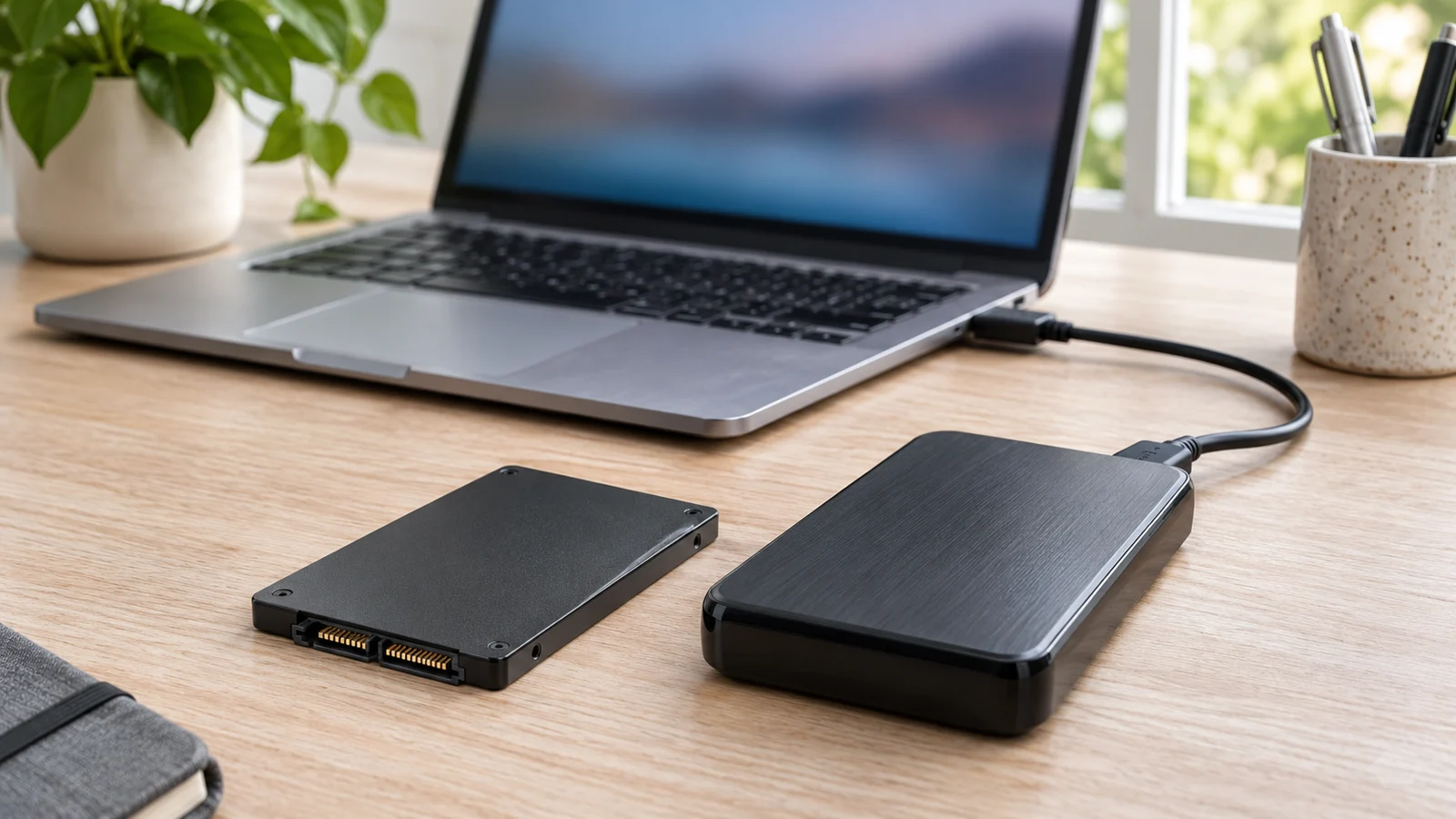
A 1 TB drive appearing as roughly 931 GB in some Windows screens is usually normal: the display uses a binary calculation while the product label uses decimal units. More precisely, 1 TB ≈ 931.32 GiB. That conversion does not remove any bytes, although formatting, partitions and files can reduce the space available afterwards.
To check your own drive, compare the whole-disk size first, the size of the volume you opened second, and its free space third. These are different measurements. A free-space figure alone cannot diagnose a faulty or counterfeit drive.
Why does 1 TB equal about 931.32 GiB?
Under NIST: binary prefixes definitions, a gigabyte (GB) is one billion bytes, while a gibibyte (GiB) is 1,073,741,824 bytes. A terabyte (TB) is one trillion bytes.
1 TB = 1,000,000,000,000 bytes 1 GiB = 1,073,741,824 bytes 1,000,000,000,000 / 1,073,741,824 = 931.3225746... GiBSeagate: why reported capacity differs explains that Windows can display the binary result using the GB label rather than GiB. That labelling creates confusion. It is like expressing a length in metres or feet: the number changes with the unit, not the length of the object.
Do not subtract 931 from 1,000 and describe the difference as space taken by Windows: those figures use different units. Also keep the definitions straight: 1 TB equals 1,000 GB, while 1 TiB equals 1,024 GiB.
Expected equivalents from 128 GB to 4 TB
| Nominal product capacity | Calculated equivalent in GiB | Equivalent in TiB |
|---|---|---|
| 128 GB | 119.21 | 0.116 |
| 256 GB | 238.42 | 0.233 |
| 500 GB | 465.66 | 0.455 |
| 512 GB | 476.84 | 0.466 |
| 1 TB | 931.32 | 0.909 |
| 2 TB | 1,862.65 | 1.819 |
| 4 TB | 3,725.29 | 3.638 |
These are calculations from nominal decimal capacities, not measurements of drives we tested or promises of the final figure on every device. GiB values are rounded to two decimals and TiB values to three; interfaces may round differently. The table does not predict free space after installing an operating system.
Whole disk, volume size and free space: what is the difference?
- Whole disk: the storage device, which can contain multiple partitions.
- Partition or volume: an allocated area on that disk, such as C: or D:.
- Free space: the space left within a volume after the operating system, files and file-system data are accounted for.
For illustration, a nominal 1 TB disk could have only 200 GiB assigned to C:, with the rest in another partition or unallocated. If C: contains 150 GiB of used space, it has approximately 50 GiB free. These hypothetical figures illustrate the different levels; they are not readings from a tested computer.
Check capacity in Windows without changing partitions
- Open This PC, right-click the volume and select Properties. Note capacity, used space, free space and the byte count if shown.
- Right-click Start and select Disk Management, or search for
diskmgmt.msc. - Identify the correct disk by its size and partitions. Read the whole-disk total in the lower pane rather than relying only on C:.
- Look for other volumes, EFI and Recovery partitions, or an area labelled Unallocated. Keep this inspection read-only.
Microsoft: Disk Management overview explains partition roles and recommends leaving system and recovery partitions unchanged. Some can appear empty despite containing important files. Unallocated space lies outside the currently allocated partitions; that does not establish it is safe to overwrite if files have recently disappeared.
Optional: inspect the byte count with PowerShell
Open PowerShell in Windows and run this read-only listing. It shows disk number, name, size and partition style; it does not format a disk or delete files. Your environment may require additional permissions. The list is not a health test or proof of authenticity.
Get-Disk | Select-Object Number,FriendlyName,Size,PartitionStyleMicrosoft: Get-Disk documents listing disks visible to the operating system. Here, Size is in bytes: divide it by 1,073,741,824 for GiB. Match the name and size to your product rather than relying on the disk number alone.
When does a capacity difference need investigation?
| Observation | Interpretation or next check |
|---|---|
| A 1 TB disk totals roughly 931 GiB | Consistent with unit conversion; inspect bytes and layout if uncertain |
| Whole disk is present but C: is much smaller | Review other partitions and unallocated space |
| Total capacity is appropriate but free space is low | Investigate volume usage rather than trying to reclaim a unit conversion |
| A 1 TB device reports a whole-disk total near 32 GB | Not explained by unit conversion; confirm the device, then contact its maker or seller |
| A large drive hits a limit near 2 TiB | Check MBR addressing limits and logical sector size |
| Files disappeared, RAW appears or formatting is requested | Protect the data first; do not format simply to test capacity |
Microsoft: large-disk addressing limits explains that MBR addressing with 512-byte logical sectors reaches a limit near 2 TiB, approximately 2.2 decimal TB. This is a different issue from 1 TB appearing as 931.32 GiB. Back up and check system requirements before attempting conversion or partition changes.
Do formatting and SSD reserves explain the entire difference?
No. Converting one trillion bytes into 931.32 GiB is arithmetic, before subtracting your files. Separately, formatting and product functions can use storage; Kingston: capacity FAQ notes capacity reserved for such purposes. Do not apply one fixed percentage to every SSD or confuse raw flash capacity with capacity exposed to the system.
If inspection reveals unallocated space, whether it can extend an existing volume depends on its position, the file system and other Microsoft: unallocated space and volume extension requirements. Its existence does not guarantee Extend Volume will be available or justify deleting a neighbouring partition.
Frequently asked questions
Why does a 512 GB drive show about 476 or 477?
The calculated equivalent of 512 billion bytes is approximately 476.84 GiB. Interface rounding and product capacity can vary. Check total bytes rather than treating a rounded figure alone as evidence of missing capacity or counterfeiting.
Will deleting files or formatting turn 931 into 1,000?
Deleting files can increase free space but cannot change the number of bytes represented by a unit. Formatting does not fix a unit-conversion difference and can erase data without solving that issue.
Why can Windows and Apple devices show different figures?
Apple: measuring storage capacity explains decimal versus binary measurement and the space used by formatting and the operating system. Compare bytes and total capacity rather than assuming every app or operating-system release presents storage identically.
Related guides
Sources
- NIST: binary prefixes
- Seagate: why reported capacity differs
- Kingston: capacity FAQ
- Apple: measuring storage capacity
- Microsoft: Disk Management overview
- Microsoft: unallocated space and volume extension
- Microsoft: Get-Disk
- Microsoft: large-disk addressing limits
Sources reviewed November 9, 2026. Table values are unit calculations; hypothetical examples are not test results from physical drives.
You may also like
 Technology & How-To
How to Turn Lecture Recordings Into Study Notes With NotebookLM
Turn lecture audio into study notes with free Gemini Notebook (NotebookLM). Follow the upload steps, check transcript citations,…
 Technology & How-To
How to Use Google Lens to Find Products and Compare Prices
Find an item from a photo with Google Lens, check exact product matches and compare real checkout costs…
 Technology & How-To
Podcast Microphone Guide: USB vs XLR and Setup Tips
Choose a podcast microphone by room noise, connection type and recording style. Compare USB and XLR, see verified…