
Why a Transparent PNG Background Turns Black or White After Upload — and How to Fix It
Transparent PNG turns black or white after upload? Find out whether alpha was lost or the background is only a preview, then fix JPG conversion, WordPress thumbnails and CDN delivery.
Contents
- Start here: the two-minute transparency test
- What changed: the pixels, the file, or the viewer?
- A real, reproducible test: one transparent image, three outcomes
- A quick alpha check without specialist software
- Why conversion to JPEG replaces the background
- Why a PNG sometimes looks black even when its alpha is present
- Fixing the problem in WordPress and on a website
- Step 1: Compare original upload with the published rendition
- Step 2: Check optimization and conversion settings
- Step 3: Rule out CSS and stale caches
- Fixes for common design and sharing workflows
- Photoshop, Illustrator, Figma, Canva, and other editors
- Documents, email, messaging, and social publishing
- Store listings and product mockups
- Use Horus Valley's image tools without accidentally flattening the result
- How to verify a website is actually serving transparent pixels
- A decision guide: choose the right repair, not a random converter
- Three miniature scenarios you can use to diagnose your own file
- Preventing the problem on future uploads
- Primary references and further reading
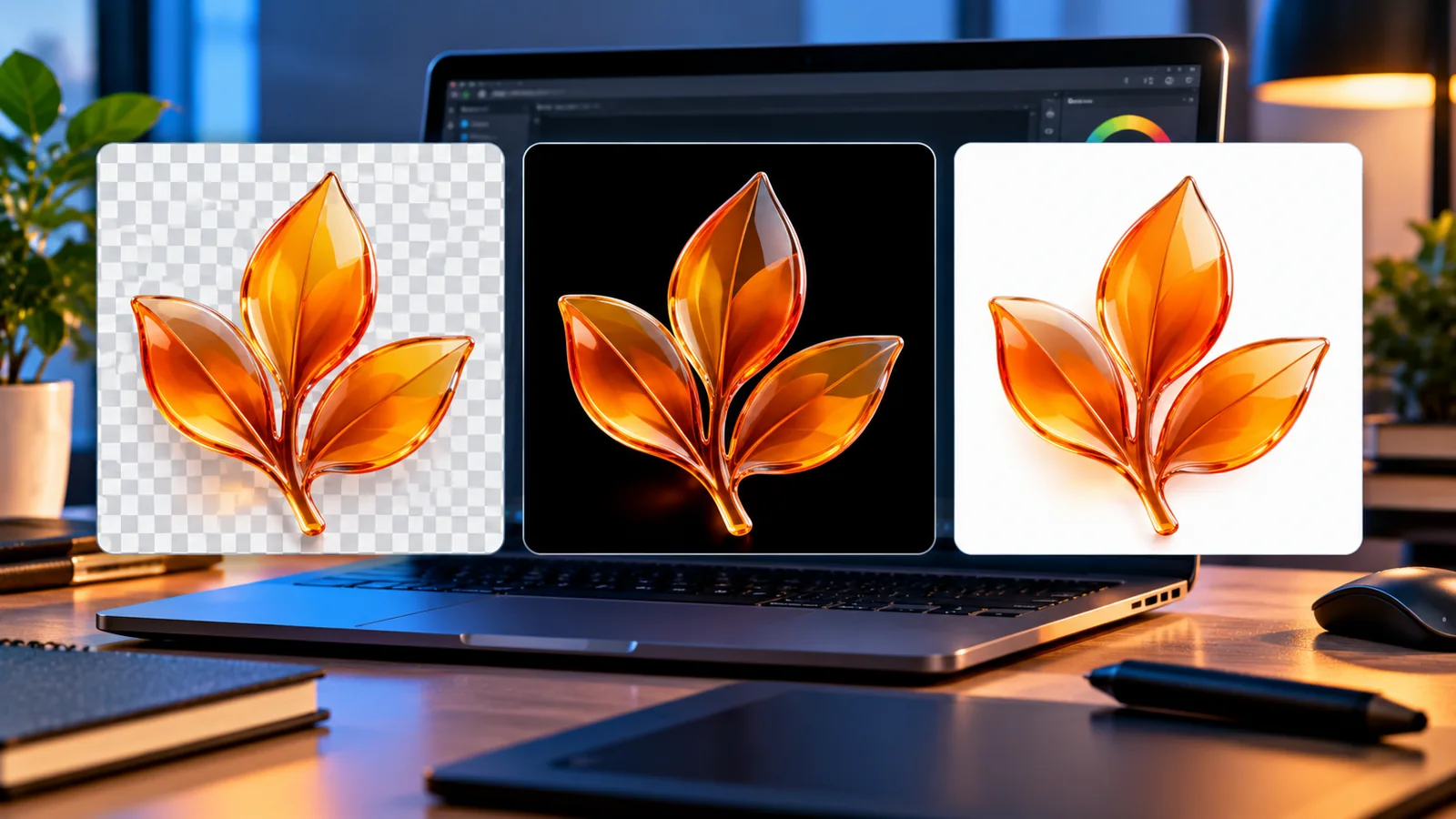
A PNG logo looks perfect over a checkerboard in your editor, but after uploading it to a website, inserting it into a document, or sharing it in an app, the transparent background appears solid black or white. The fastest fix is to find out whether the transparency is actually gone or only looks gone. Put the original image on a bright colored background, download the version being displayed after upload, and compare the two files. If the downloaded version no longer has transparency, inspect export and conversion settings. If it still does, check the image viewer, page styling, and generated thumbnails.
That distinction prevents a frustrating mistake: repeatedly removing the background from a logo that was already transparent. A transparent PNG can appear white against a white page or black against a dark image viewer without losing a single transparent pixel. Conversely, a file that was flattened during conversion to JPEG really has lost its alpha information. The filename alone cannot tell you which happened.
This guide walks through a two-minute diagnosis, a reproducible image test, fixes for WordPress and website image pipelines, guidance for design and messaging apps, and a way to verify that your final download is still transparent. Where Horus Valley tools can help, we link to the relevant tool without promising an unsupported "restore alpha" feature.
Start here: the two-minute transparency test
- Keep your original PNG in a separate folder. Do not overwrite it with the uploaded or downloaded copy.
- Open the original in an editor that can display transparency on a checkerboard, then place a saturated background behind it—bright magenta, green, or blue works well. Check the corners and fine edges, not just the center.
- Open the uploaded image’s actual file URL in a new browser tab and, where permitted, download that delivered file. In WordPress, use the media attachment’s original-file URL and also test the image on the published page; they might be different sizes or formats.
- Put both files over the same two contrasting colors. If both show the background through the transparent regions, the PNG may be fine and the apparent black or white is only a viewing background. If only the original does, something changed the image during exporting, uploading, resizing, conversion, or delivery.
- Check the file type and alpha channel. A
.pngextension does not prove that pixels are transparent; some PNGs are fully opaque. Similarly, modern WebP files can contain transparency, but not every exported WebP actually includes alpha.
Do not use a white checkerboard alone as proof. The familiar grid is only an editor’s visual convention; in a flattened screenshot it can become ordinary colored pixels. The same applies to transparency-preview images downloaded from marketplaces: what resembles a checkerboard may be permanently painted into the image.
What changed: the pixels, the file, or the viewer?
The PNG format can store an alpha channel, which controls each pixel’s opacity. With 8-bit alpha, a value of 0 means fully transparent, 255 means fully opaque, and intermediate numbers allow soft edges. The official PNG specification describes this distinction; MDN’s image format guide confirms that PNG supports alpha transparency while ordinary JPEG does not.
When an image is displayed over a background, the program combines foreground and background colors according to that alpha. This is called compositing. With alpha kept intact, changing the background does not alter the underlying PNG file. With alpha removed by flattening, the chosen background color becomes part of the exported pixels. Both outcomes can look identical on a single white page, which is why diagnosis needs a second contrasting background.
| What you see | A likely explanation | First check | Typical next step |
|---|---|---|---|
| White square only in a white document or tab | Viewer or page is white; transparency may survive | Place image on dark magenta | No repair if underlying pixels remain transparent |
| Solid white region on every colored background | Export flattened image, often JPEG or opaque PNG | Inspect alpha in the delivered file | Re-export from original with alpha enabled |
| Solid black region in a generated thumbnail, original looks fine | Thumbnail pipeline, background handling, or image rendering issue | Compare original URL and thumbnail URL | Regenerate derivatives after fixing processing settings |
| Black background in a dark-mode viewer only | Viewer background may show through transparency | Change viewer background or composite on white | Keep original if alpha is intact |
| Gray/white fringe around hair or logo edges | Edge pixels may have been matted against another color | Zoom into edges on black and magenta | Re-export with correct edge handling or refine mask |
| Uploaded file looks fine, published site looks wrong | Website is delivering another rendition or styling the container | Inspect image currentSrc and response type | Adjust image optimizer/CDN/CSS and clear cache |
| Checkerboard persists even in export | Checkerboard may be embedded as actual pixels | Inspect alpha data, not visual pattern | Remove that background from the actual image |
A real, reproducible test: one transparent image, three outcomes
To show the difference without relying on anecdotes, we created a small synthetic 350 × 220 PNG locally with a colored ring and antialiased edges. We saved the original RGBA file, composited it against dark and white backgrounds, and exported a deliberately flattened JPEG over white. This test used local image processing; it did not test any specific social network, browser upload form, WordPress plugin, or Horus Valley tool.
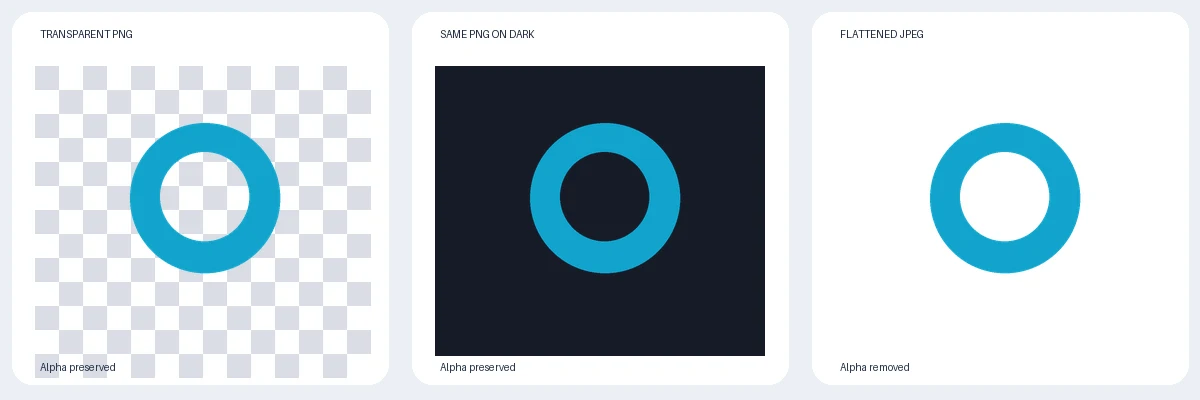
The source test PNG had 64,275 fully transparent pixels, 2,485 partially transparent pixels, and 10,240 fully opaque pixels, measured directly from the alpha channel. Its alpha values ranged from 0 to 255. The deliberately flattened JPEG had no alpha channel after export. The demonstration image above shows those three appearances, but the exact saved-source files and machine-readable test results are also available with the article’s editorial files. These values demonstrate how a file can change; they are not a statistic about how often real websites damage PNGs.
There is another subtle lesson. Fully transparent pixels can still have RGB color values in a PNG. Their visible color only emerges when alpha is discarded or mishandled. A black fill caused by incorrectly treating those hidden RGB values as visible is different from a deliberately composited black background, even if both appear black to the viewer. The PNG alpha specification explains why an alpha-aware decoder needs to combine color and opacity correctly.
A quick alpha check without specialist software
If your editor provides a Layers panel, ensure the image layer does not contain a locked solid background. Place it above two new layers—one black and one bright blue—then toggle them. For graphic designers, exporting to PNG with transparency enabled and reimporting the result is a useful round-trip check. Inspect the reimported output, not merely the editor’s working document.
For developers, an image library can report color channels and count alpha values. For a simple Python/Pillow inspection, the following snippet checks a file you already have; it does not edit it:
from PIL import Image im = Image.open("logo.png") print("Format:", im.format, "Mode:", im.mode) rgba = im.convert("RGBA") alpha = rgba.getchannel("A") print("Alpha range:", alpha.getextrema()) print("Has transparent pixels:", alpha.getextrema()[0] < 255)An RGBA conversion alone does not prove the original file contained alpha; a fully opaque RGB image also converts to RGBA. Read the image’s original mode and inspect the alpha range. PNG transparency may also be represented with indexed palettes and a tRNS value rather than an RGBA mode, so a robust inspection should account for that. For sensitive assets, consider testing a duplicate locally rather than uploading an unpublished logo to an unknown third-party service.
Why conversion to JPEG replaces the background
An ordinary JPEG has no alpha channel. When a conversion process turns a transparent PNG into JPEG, it must produce opaque pixels somehow—typically by compositing the subject over a white, black, or other background. Image optimization services sometimes offer an option that explicitly forces transparent PNGs into JPEG, and this can create a white background even when the original upload was correct. ShortPixel documents this exact behavior.
A JPEG renamed to .png does not become transparent. Nor does changing the quality slider from 70 to 100 restore an alpha channel. Once you only have the flattened file, automatic background removal may be able to create a new mask, but cannot reliably reconstruct every original semitransparent edge. Return to the layered design or an untouched transparent source whenever possible.
If you intentionally want a JPEG—for example, a photograph for a white-background product listing—choose the background color before flattening. If you want the same logo to work on different site themes and cards, keep PNG or a correctly exported alpha-enabled WebP. Never assume that switching from PNG to WebP automatically fixes a transparency problem: the output settings and the delivered file still matter.
Why a PNG sometimes looks black even when its alpha is present
A black area is not conclusive evidence of a corrupt image. Some image viewers use a dark backdrop; transparent pixels reveal that darkness. Small black icons on a dark background can disappear entirely, creating the impression of a solid black rectangle. Other programs may ignore alpha or mishandle the RGB values stored beneath transparent pixels during image processing.
Partial transparency makes this more confusing. Consider a light logo with antialiased edges originally composed for a white background. If those edge colors are saved with a white matte rather than correctly represented as partially transparent colors, they can show a pale halo on black. That fringe is not a missing background covering the entire image; it is an edge-compositing problem. Solve it by re-exporting from the source design with proper transparency and checking the antialiasing, not by cropping away a black rectangle.
A transparent pixel with RGB values of zero is sometimes called "transparent black" in software documentation. It is still invisible if alpha is zero. The term describes numeric channel values, not a visible black fill. This is why a pixel inspection can settle a dispute that a preview cannot.
Fixing the problem in WordPress and on a website
WordPress itself can store transparent PNGs, but the image displayed on a live page is not always the full-size file you uploaded. Themes may select responsive thumbnails, plugins may generate smaller dimensions, an optimization service may convert formats, and a CDN may serve a different representation. Diagnose each stage before disabling all image optimization.
Step 1: Compare original upload with the published rendition
Open the original Media Library file URL. Then open the affected public page and inspect its image. In a desktop browser, use Inspect on the element, look at src and any srcset, and examine the currentSrc property or the Network panel to identify what was actually loaded. The URL ending in .png may not be the only file involved; check the server’s response Content-Type and the downloaded bytes if the results look inconsistent.
If the full-size original stays transparent but a smaller -300x300 variant does not, focus on thumbnail generation, image optimization, and the source used in the theme. If both are opaque, inspect the original export and any upload-time processing. If both are transparent but the page has a white square, verify the CSS background of the image container and neighboring elements.
Step 2: Check optimization and conversion settings
Review options that say "PNG to JPG," "convert all images," "force JPEG," "strip alpha," or "background fill." These labels vary across plugins and CDNs. A correctly generated WebP is not inherently a problem: WebP supports alpha, but some conversion presets may produce opaque output. Adobe’s Dynamic Media transparency guidance offers a concrete example where delivery presets need alpha-aware settings. Those specific fmt= parameters belong to Adobe Dynamic Media, not ordinary WordPress image URLs.
Temporarily test a single image with the conversion option disabled. Keep the original file, note the setting you changed, regenerate a test thumbnail if supported, and compare that derivative with the original on two colored backgrounds. Make a backup before bulk-regenerating thumbnails or changing optimization settings across a production website.
Step 3: Rule out CSS and stale caches
CSS such as background-color: white on a logo’s container may create a white rectangle behind otherwise transparent pixels. That is a design background, not a lost alpha channel. Use the browser inspector to temporarily change the container background and observe whether the image itself remains transparent.
After making an export or optimizer change, purge the relevant page cache, image CDN cache, and browser cache as applicable. Otherwise a previously flattened derivative can persist even after a clean source has replaced it. Compare the downloaded bytes or a versioned URL rather than concluding from one refreshed preview that the fix has or has not worked.
| Where the problem starts | Evidence to collect | Safer remedy |
|---|---|---|
| Image editor export | Reopened output lacks alpha | Export a fresh PNG or alpha-enabled WebP from the layered source |
| Upload optimization | Source PNG alpha survives, optimized image doesn’t | Exclude transparent images from forced JPEG conversion |
| Thumbnail generation | Full-size upload is transparent; derivative isn’t | Change processing settings and regenerate affected derivative |
| CDN delivery | Different format or alpha behavior at delivery URL | Configure alpha-aware output and purge the appropriate CDN rendition |
| Page styling | Served image has alpha, white container visible | Adjust container background/CSS without altering source image |
| Local viewer | Alpha file passes two-background test | Keep file; change viewer background rather than re-export |
Fixes for common design and sharing workflows
Photoshop, Illustrator, Figma, Canva, and other editors
The exact menu name changes with product and version, but the reasoning is consistent: make sure the artwork sits on transparent pixels, export to a transparency-capable file, and check the resulting file after export. In layer-based editing applications, an opaque background layer, a colored artboard exported as pixels, or a flattened document can explain why a PNG contains no transparent pixels. A PNG file is a container format that can hold fully opaque images as well as transparent ones.
Some editors display a checkerboard in the workspace while exporting a solid background because of a setting or artboard export behavior. Others visually simulate transparency with a grid that becomes part of a screenshot. A useful preventive routine is to place the actual exported PNG over black, white, and one saturated color before sending it to someone else.
Documents, email, messaging, and social publishing
A logo may display differently when pasted directly, attached as a file, embedded into an Office document, or uploaded as social-media artwork. Applications can rasterize a pasted object, flatten it against a page, create a thumbnail, or transform the uploaded picture for delivery. Avoid universal claims such as "WhatsApp always removes transparency" or "Instagram always makes transparent images black"; behavior can differ by upload method, file type, app version, and destination.
If transparency is essential, retain a copy of the original, send it as an attachment or file when that workflow is supported, and ask the recipient to open it over a contrasting background. When the destination requires an opaque image, pick the correct intended background yourself before exporting. If it is an icon on a page, consider a vector SVG through a trusted, properly sanitized pipeline where appropriate for that platform.
Store listings and product mockups
For marketplace photos that must have a white background, a white JPEG may be the desired output, not a bug. For a reusable product cutout that needs to float above multiple backgrounds, keep a master PNG with alpha and separately export each marketplace-required version. The mistake is trying to make one opaque marketplace copy serve every use case.
Use Horus Valley’s image tools without accidentally flattening the result
The live Horus Valley tool pages describe browser-based processing and support for PNG, JPG, and WebP. Their documented interfaces are useful in a verification workflow, but the presence of PNG as an input format does not establish that every output option retains transparency. Choose the intended output format and inspect the downloaded result.
- Image Converter — use it to select a suitable PNG or WebP output instead of an incompatible JPEG when transparency is required. Reopen the downloaded result and verify alpha; do not assume a format choice alone preserves all edges.
- Image Compressor — compare the format chosen in its output selector with the original. Test a single transparent sample first before batching logo assets, especially if an optional target file size is enabled.
- Image Resizer — useful when a website accepts only certain dimensions. Resize the source rather than stretching a thumbnail; then check that the resized output still contains transparent pixels.
- WebP Converter — if a transparent WebP must be converted back to PNG, choose PNG output; JPG output cannot retain its alpha. Reopen the converted file and verify the result before uploading it elsewhere.
There is no reason to run your file through all four tools. Use the smallest operation that fixes the diagnosed problem. In particular, an EXIF metadata remover is not a substitute for removing a visible background or restoring lost transparency; metadata and alpha are separate properties of an image.
How to verify a website is actually serving transparent pixels
If the source image looks good, test the live URL in a simple HTML file with two contrasting background colors. This does not need a special plugin. Replace logo.png with your tested same-origin image path or a URL that permits the image to load.
If the image looks transparent in this barebones test but wrong in your website’s theme, inspect the site’s CSS and wrappers. If the page serves an image from a CDN, test that exact delivered URL, not only the local file. For a developer-level check, use a pixel inspection library on both original and downloaded rendition, recording dimensions, file type, and alpha extrema. That distinguishes a delivery failure from a background chosen by the page.
Do not copy a CDN-specific ?fmt=png-alpha suffix onto arbitrary image URLs. The server must implement that parameter. Adobe provides it for particular Dynamic Media configurations; unrelated hosts may ignore it or return an error. The underlying general fix is to request or serve an output that actually preserves transparency.
A decision guide: choose the right repair, not a random converter
| Diagnosis after testing | Best first action | What not to do |
|---|---|---|
| Alpha is present and the viewer is white | Keep the source; test on contrasting background | Repeatedly erase an already transparent background |
| Alpha is present but edge halo shows on black | Improve edge mask or export handling | Convert repeatedly to JPEG |
| Delivered image lost alpha through JPEG | Restore original PNG and disable forced conversion | Rename the JPEG extension to .png |
| Original PNG is fully opaque | Return to layered design or make a genuine mask | Assume PNG automatically implies transparency |
| Original image transparent, thumbnail opaque | Investigate thumbnail or CDN generation | Replace every source file without checking derivatives |
| Only screenshots show checkerboard | Check pixels; reconstruct transparent source if necessary | Treat the visible grid as proof of alpha |
| Destination requires an opaque background | Deliberately composite onto required color | Promise to keep transparency in JPEG |
Three miniature scenarios you can use to diagnose your own file
Scenario A: A logo turns white in a document. It looks like a white square over a cream slide. When you place the same original PNG above a dark shape, the surrounding area turns dark and only the logo stays visible. That indicates real transparency in the file; the document’s background or its handling of the pasted image is the next place to check. If an exported PDF later shows an opaque rectangle, inspect the export or paste workflow separately.
Scenario B: Your WordPress thumbnail turns black. The full-size logo.png is transparent, but the page is using a smaller thumbnail where a black area is now visible against bright green. The unchanged original suggests that upload or derivative generation is the failure point. Check the rendered image URL, optimizer options, and thumbnail generator before editing the original logo.
Scenario C: The designer sends a ‘transparent JPEG’. The file contains an entirely white rectangle around the subject and only a .jpg image is available. Standard JPEG cannot preserve alpha. The dependable remedy is requesting the original layered source or a transparent PNG/WebP export. Automated background removal may help as a fallback but can damage hair, glass, and soft shadows.
These are illustrative diagnostic scenarios, not measurements from production websites. The earlier synthetic local PNG/JPEG experiment is the only executed image-processing test reported in this article.
Preventing the problem on future uploads
Keep a master design with layers, use descriptive file names, and export a transparent PNG master before producing social, document, or marketplace variations. Where practical, include a one-image preflight check in your workflow: verify alpha, preview over light and dark backgrounds, inspect semi-transparent edges at 200% zoom, and compare the actual hosted rendition after upload. For teams operating WordPress sites, document which optimizer or CDN settings preserve alpha and test changes on one sample before applying bulk optimization.
For large transparent image assets, an alpha-enabled WebP may be appropriate for delivery if your target browsers and processing pipeline support it; preserve a source PNG for editing and debugging. Optimize file size without confusing compression with removal of transparency. As MDN explains, format choice depends on the content and requirements: JPEG works for many photographs, while PNG remains well suited to transparency and sharp-edged graphics.
Finally, verify results rather than trusting a preview badge or filename. The definitive difference is whether your output still contains varying alpha values or has become an opaque raster. A color-change check plus a source-versus-delivered file comparison usually tells you which team, tool, or setting should be fixed—and saves time that would otherwise be spent removing a background that was never there.
Primary references and further reading
You may also like
 Technology & How-To
 Android Auto Keeps Disconnecting? How to Fix USB and Wireless Dropouts
Android Auto keeps disconnecting? Separate USB, wireless and app failures, check Galaxy USB mode, compare connection methods and…
 Technology & How-To
 Netflix Says Your TV Isn’t Part of the Household? How to Fix It
Fix a Netflix household warning by separating home verification, permanent household updates and temporary travel access, with genuine…
 Technology & How-To
 Google Photos Stopped Backing Up from Your PC? What Changed and How to Fix It
Google Photos stopped backing up your computer folders? Understand the Drive for desktop change, configure browser folder backup…