
Netflix Works on Laptop but Not External Monitor? Check HDCP, Cables and Docks
Isolate Netflix external-monitor playback failures with a laptop-only test, direct connection, cable checks and documented DisplayLink and HDCP limitations.
Contents
- Identify the symptom before changing settings
- 1. Run the laptop-only baseline
- 2. Connect one external monitor directly
- 3. Check whether the dock uses DisplayLink
- How to describe the connection to support
- 4. Test the cable and monitor input separately
- 5. Establish the display setup before starting Netflix
- 6. Separate a browser issue from a connection limitation
- 7. Distinguish missing video from missing 4K
- Keep a compact test log
- Three examples of different next steps
- The desktop works, but video is black through a USB graphics adapter
- Netflix stops only when another monitor is connected mid-stream
- The laptop itself still fails with every display disconnected
- What to send support
- Sources and limits
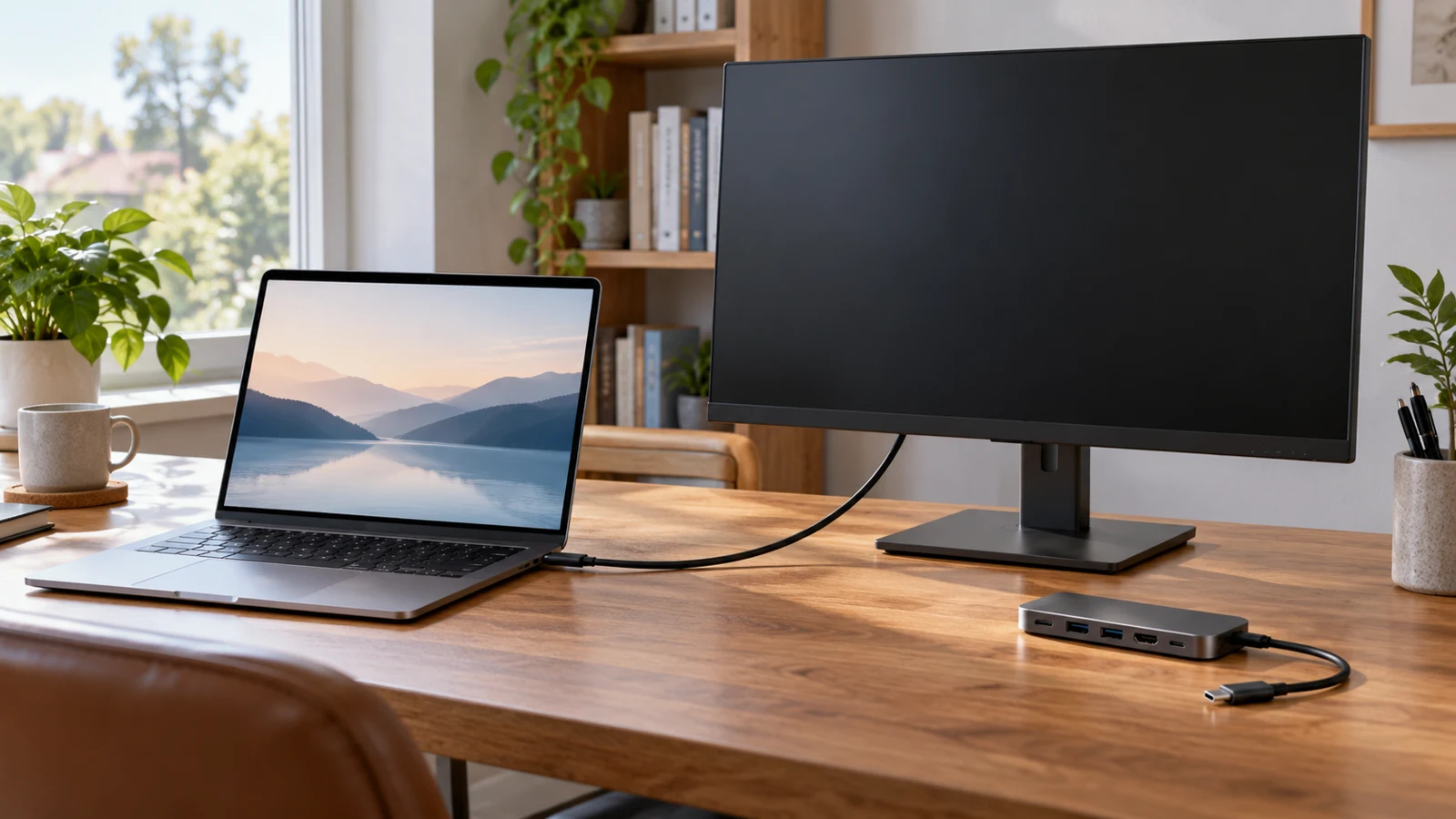
If Netflix works on your laptop but goes black or shows an error on an external monitor, test the laptop alone, then connect one display directly without the dock. That comparison helps separate a protected-video connection problem from a wider Netflix or graphics problem. A desktop that looks normal does not establish that the same connection supports protected playback.
Netflix links error D7361-1254-8004CD22 to the display’s content-protection support. Its first test is to disconnect external screens and retry. But a black picture without that code is not automatically proof that your monitor is defective: the cable, adapter, dock, software and playback route still need to be isolated.
Reviewed October 26, 2026. This guide covers Windows and Mac laptop-to-display troubleshooting. It uses public Netflix and manufacturer documentation, not a claim that we tested every dock or reproduced the fault on a particular reader’s computer.
Identify the symptom before changing settings
| What happens | Start here |
|---|---|
| The entire external display loses its desktop | Check the physical display connection, input and detection |
| The desktop stays visible, but Netflix video is black | Compare protected playback on the laptop and a direct display connection |
| Netflix shows D7361-1254-8004CD22 | Run Netflix’s external-screen isolation test |
| Playback stops when a second screen is attached | Set up the displays before opening playback, then repeat the comparison |
| Netflix fails even with every external display disconnected | Follow the relevant Netflix app, browser or error-code instructions |
Write down the exact message, operating system, browser or app, monitor model and connection route. “Black screen” can mean a black video rectangle, an error page or a monitor that loses signal entirely. Those are different starting points.
1. Run the laptop-only baseline
- Stop playback and save any unrelated work.
- Disconnect external displays and intermediate video equipment.
- Open Netflix on the laptop’s built-in screen.
- Try the same title and note whether the picture appears.
- Try another title if the first one alone fails.
If playback works only in this configuration, you have established that the failure depends on something about the attached display setup. You have not yet identified which component is responsible. Avoid replacing the monitor before testing the rest of the route.
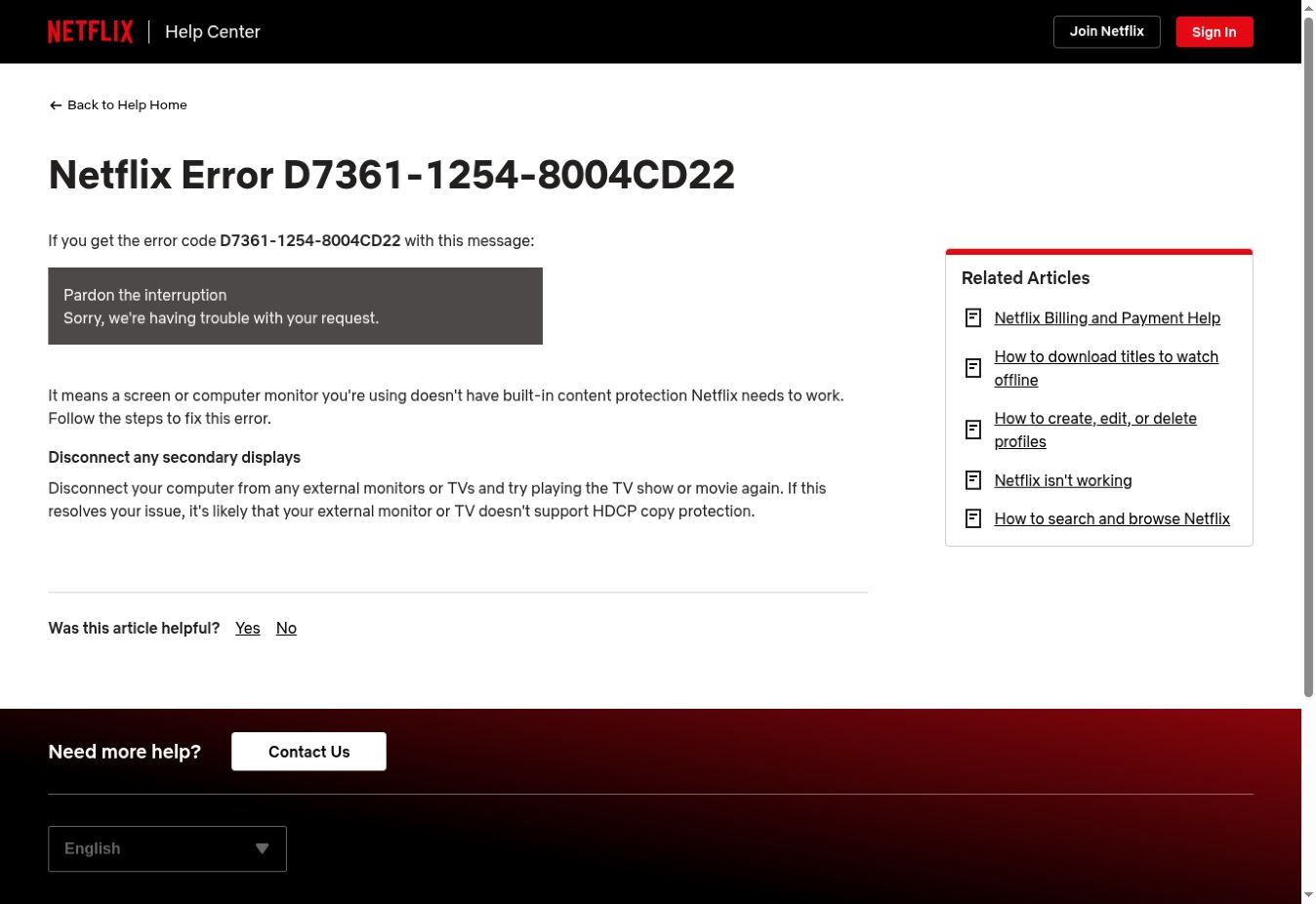
The screenshot is Netflix’s official explanation of D7361-1254-8004CD22. It is a public support page, not a screenshot of a failed stream or a test account. Its advice provides a starting comparison rather than a model-specific diagnosis of your equipment.
2. Connect one external monitor directly
Stop playback before changing the wiring. Use an appropriate native video output from the laptop to one monitor where the hardware supports it. Temporarily remove the dock, switch, splitter, receiver or capture device from the video route. If a dock also connects storage, safely eject that storage before unplugging it.
Check the monitor’s selected input, then open Netflix again after the desktop is stable. Keep the title and playback route the same as the baseline so that the physical connection is the main variable.
- Direct connection works: investigate the removed equipment and its documented protected-playback support.
- Direct connection fails: test another suitable cable or input before blaming the laptop or display.
- No direct video output is available: check the laptop manufacturer’s supported connection options rather than assuming every USB-C port carries video.
For a display that is not detected at all through a dock, use our separate USB-C dock and external-monitor detection guide. This article focuses on Netflix playback when the display route is present or affects playback.
3. Check whether the dock uses DisplayLink
Read the exact dock model’s specification. DisplayLink-based USB graphics and native USB-C or Thunderbolt video are different paths. The connector shape or the presence of working USB ports does not tell you which video technology a particular output uses.
Plugable’s documentation, updated August 31, 2026, says its DisplayLink video adapters and docks do not support HDCP-protected playback through DisplayLink-connected screens. It recommends a native video connection instead. On macOS, its guidance warns that an active DisplayLink-connected display can also affect protected playback on other screens.
For those products, a normal desktop or an ordinary local video is not evidence that Netflix must work through the same output. Check your own manufacturer’s support page before applying a limitation from one product family to every dock sold under a similar name.
How to describe the connection to support
Write it as a short chain, for example: laptop model, dock model, dock output, cable type, monitor input and monitor model. If the dock has several outputs, identify which socket you used. Mixed-technology products can make “connected through USB-C” too vague to investigate.
If bypassing the dock restores playback, retain that result. It is more useful than changing multiple browser settings and losing the clear comparison. Ask the dock vendor whether the specific output and operating-system combination supports the protected content you need.
4. Test the cable and monitor input separately
Netflix’s S7336 guidance lists supported digital connection types, including HDMI, USB-C, Thunderbolt and DisplayPort. It also notes that both sides of an adapter must use supported types. A supported connector type is a requirement, not a guarantee that every adapter or complete chain will work.
- Keep one monitor connected and stop playback.
- Try a known-working, suitable cable without adding another converter.
- Test another supported monitor input if available.
- Restart playback after the connection has stabilized.
- Record whether the failure followed the cable, input or complete display route.
Change one item at a time. If you replace the dock, cable, browser and monitor together and playback starts, you will not know which change mattered. Borrow a compatible cable for a comparison if possible before buying replacements by guesswork.
5. Establish the display setup before starting Netflix
Dell documents a specific interruption on Latitude 7340, 7440 and 7640 laptops when a second external display is connected during Netflix playback. Its workaround is to connect and configure the monitors before opening Netflix. The article was last modified May 17, 2026.
This is evidence for that documented case, not proof that every hot-plug failure has the same cause. It is nevertheless a useful controlled test: stop the stream, complete the intended display arrangement, then reopen playback. If the problem returns only when another screen is added, note that sequence precisely.
6. Separate a browser issue from a connection limitation
If the direct connection is stable but playback still fails in one browser, use Netflix’s instructions for the exact error. Its M7353 guidance includes restarting, clearing Netflix cookies and testing Chrome extensions. Clearing Netflix cookies signs you out, so make sure you can sign back in before doing it.
Keep browser troubleshooting separate from the hardware comparison. Test another currently supported playback route if available, and note the browser version. If only one route fails with the same display chain, that is useful evidence for software support; it does not establish that another route has removed the hardware’s protection requirements.
Do not present a hardware-acceleration toggle as a universal HDCP repair. A setting can change rendering behavior without making an unsupported video output compatible. Likewise, a full operating-system reset is a disproportionate first step for a fault that appears only through one dock.
7. Distinguish missing video from missing 4K
A stream that plays but looks less sharp is a different problem from playback that is blocked. Netflix’s supported quality can depend on the plan, playback software and hardware chain. Do not assume that a “4K” label on a monitor means every source, port and adapter combination will meet Netflix’s requirements.
Start by getting ordinary supported playback working. Then consult Netflix’s current device-specific quality requirements and the monitor or dock specification for the exact input. Avoid buying a premium cable solely because a seller promises it will fix every Netflix black screen.
Keep a compact test log
| Test | Record | Useful interpretation |
|---|---|---|
| Laptop only | Picture, audio and error code | Creates a baseline without the external route |
| One monitor directly connected | Port, cable, input and playback result | Separates the direct route from the dock |
| Same monitor through the dock | Exact dock output and result | Tests the additional video path |
| Different suitable cable | Only the cable changed | Checks whether failure follows that cable |
| Second screen added before playback | Setup order and result | Identifies a multi-display or connection-order pattern |
When a test is not possible, mark it untested. You do not need to invent a result to make a support request complete. A precise partial record is more useful than a confident diagnosis with no comparison behind it.
Three examples of different next steps
The desktop works, but video is black through a USB graphics adapter
Check the adapter’s protected-playback support, then compare a native video connection. If the manufacturer documents a limitation and the direct route works, repeatedly reinstalling Netflix is unlikely to address the stated compatibility limit. This is an illustrative scenario, not our own hardware test.
Netflix stops only when another monitor is connected mid-stream
Arrange the monitors before opening playback and repeat the same title. If that avoids the interruption, document it with the models and software versions. Do not generalize the result to another computer without checking its behavior.
The laptop itself still fails with every display disconnected
Follow Netflix’s own code-specific troubleshooting. External HDCP troubleshooting alone cannot explain a failure that persists after removing the entire external setup. Preserve the error message and contact Netflix if the supported steps do not resolve it.
What to send support
Netflix plays on the built-in display with all external screens disconnected. It fails with ERROR OR SYMPTOM when using LAPTOP MODEL through CONNECTION CHAIN to MONITOR MODEL. The operating system and playback software are VERSIONS. Direct connection produced RESULT, and changing only CABLE OR INPUT produced RESULT. Please confirm whether this exact setup supports protected playback and which component or software update should be checked next.
Adapt the first sentence if the laptop-only baseline also fails. Share the exact models and results through official support; do not send your Netflix password or one-time codes. A public screenshot of the help page is useful for identifying the error instructions, but it is not proof of your equipment’s behavior.
Sources and limits
The main image is an editorial illustration. The inline screenshot was captured from Netflix’s public help page on October 26, 2026, without signing in or playing a title. No protected movie frames, simulated error screens or invented hardware measurements are included.
You may also like
 Technology & How-To
 USB Works on PC but Not on TV? How to Find the Cause
Diagnose a USB drive that works on a computer but not a TV. Separate detection, missing files and…
 Technology & How-To
 WhatsApp “Waiting for This Message”: Fixes for iPhone, Android and Web
Fix WhatsApp’s waiting-message notice by comparing your phone and linked devices, checking updates and protecting existing chat data.
 Technology & How-To
 WhatsApp iOS 15.5 Requirement: What Changes on November 30, 2026?
WhatsApp raises its iPhone minimum to iOS 15.5 on November 30, 2026. Check your version, older iPhone eligibility…