
Microsoft Store Download Stuck on Pending? Fix It on Windows 11
Fix Microsoft Store stuck on Pending in Windows 11 with safe queue, network, wsreset, Repair and Reset steps. Includes current System Components paths and Microsoft guidance.
Contents
- First: identify what “Pending” actually means on your PC
- Step 1: inspect the Microsoft Store download queue
- Step 2: test the connection instead of trusting the Wi-Fi icon
- Step 3: check Windows Update and restart once
- Step 4: check time, time zone, region, and the account
- Step 5: check free storage and try one clean restart
- Step 6: clear the Store cache with wsreset.exe
- Step 7: Repair Microsoft Store; use Reset only if Repair fails
- Step 8: if only one app or game fails, troubleshoot that listing
- Step 9: diagnose work/school devices without weakening security
- Step 10: advanced checks only after ordinary repairs fail
- Check whether Microsoft Store is registered for your Windows user
- For a specific app, consider the supported winget route
- Do not uninstall Microsoft Store using an online PowerShell script
- When downloads are still pending: collect a useful support report
- Common mistakes that waste time or make things worse
- Official sources and related reading
Quick answer: When Microsoft Store is stuck on Pending in Windows 11, open the Store’s Library or Downloads view and check whether another update is in progress. Restart the PC, confirm the connection works, check Windows Update and the clock, then press Windows + R and run wsreset.exe. If downloads still fail, use Repair for the Microsoft Store app before considering Reset. Do not uninstall Microsoft Store using a PowerShell removal command; Microsoft says that is unsupported.
The right fix depends on whether one app, every app, or the Store itself is failing. This Windows 11 guide separates those cases, explains the differences between newer and older settings layouts, and avoids risky blanket “fix scripts.” It is based on Microsoft’s published troubleshooting material and clearly identified editorial diagnostics, not a claim that the steps were tested on your particular computer. Official Microsoft Store troubleshooting.
First: identify what “Pending” actually means on your PC
| Symptom | Check first | Avoid doing this |
|---|---|---|
| Several apps remain Pending | Inspect Library/Downloads queue, restart, then test connection | Resetting all Windows services |
| One particular app remains Pending | App compatibility, Microsoft account, region, listing | Assuming the entire Store is damaged |
| Download starts then stays at 0% | Network, storage, metered limits, Store cache | Changing unrelated registry settings |
| The Store cannot open | wsreset.exe, Repair, then Reset if required | Uninstalling Microsoft Store |
| The Store works at home but not at work | Work proxy, firewall or organization policy | Bypassing managed security settings |
| Xbox/Game Pass installs fail but other apps work | Xbox app, Gaming Services, game drive and account | Treating it as an ordinary Store-wide outage |
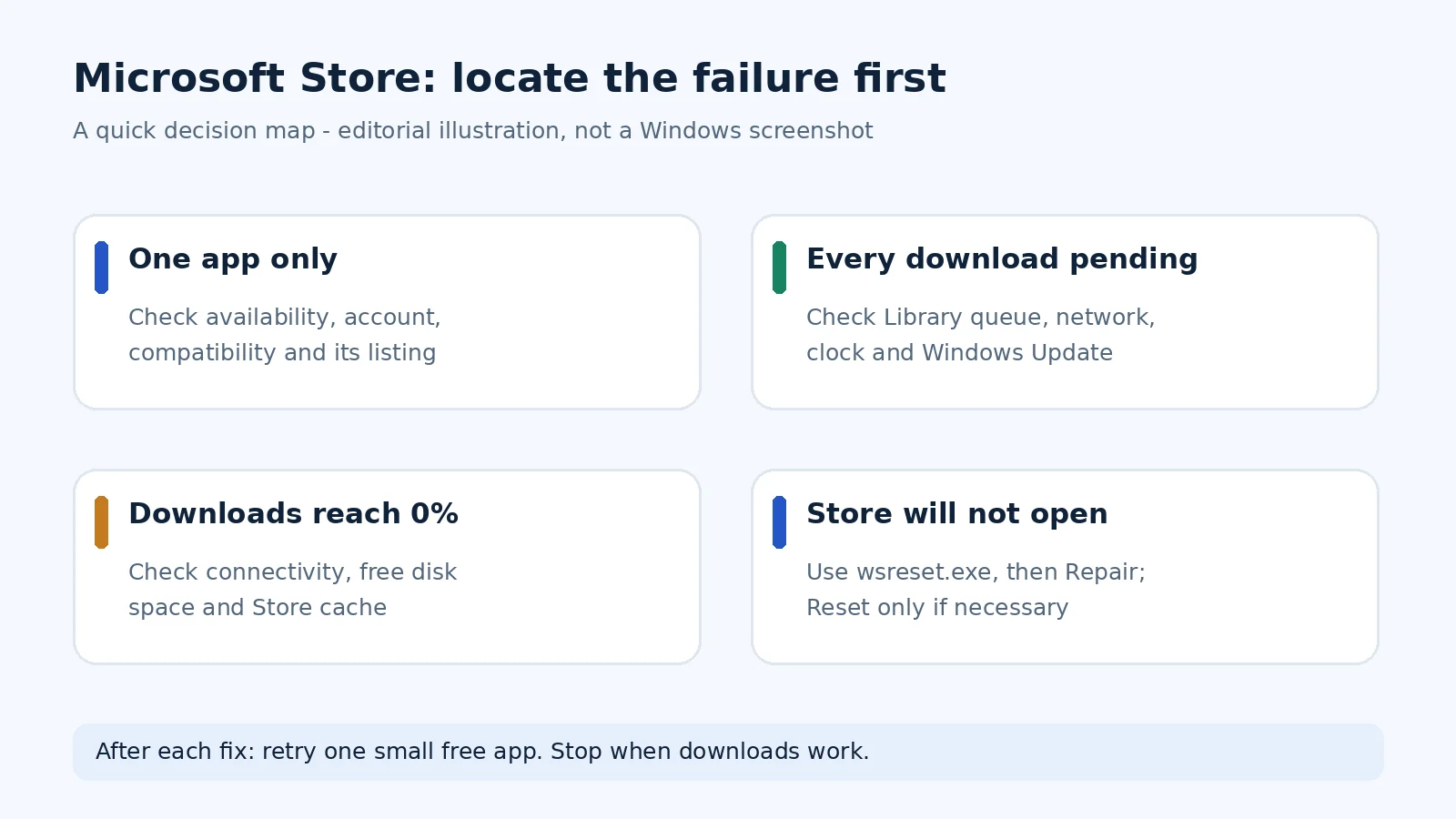
Use this original decision map if you are unsure which troubleshooting route fits. It is a diagram created for this guide, not a screenshot of the Store.
Step 1: inspect the Microsoft Store download queue
Open Microsoft Store from Start and select Library. Depending on the Store version, look for Downloads, Updates & downloads, or Get updates. If one large download is progressing, later installs may simply be waiting their turn. Do not cancel a progressing download repeatedly.
- Identify the first active download. Is its percentage changing or does it display an error?
- If an item has clearly stalled, pause, cancel or retry that item only, if its menu offers the option.
- Try one small, free app or a previously working app update rather than resuming twenty queued downloads at once.
- If the queue immediately stalls again, record the exact error message or code before continuing.
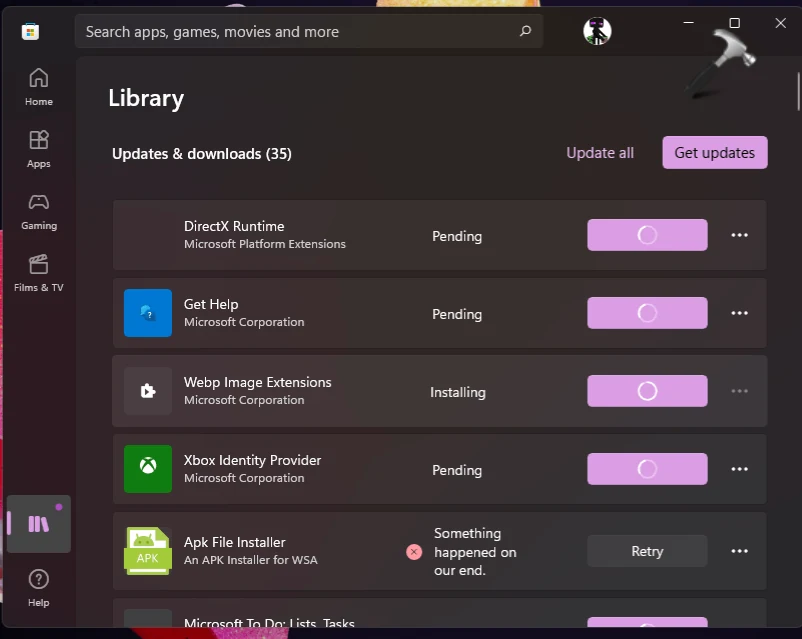
Real-screen example: In the Library shown below, several updates display Pending, another shows Installing, and one failed item offers Retry. Use this to identify whether your own queue is actively moving or blocked; the exact buttons and layout can differ by Store version. This image is from a third-party published tutorial and is not a screenshot of our own Windows test. Image source: KapilArya.
Step 2: test the connection instead of trusting the Wi-Fi icon
Open two unrelated websites and briefly test another online service. If you are on guest Wi-Fi, complete any sign-in page in the browser. If allowed, compare the Store on your usual network with a trusted phone hotspot. A working hotspot but a failing office or hotel connection points toward the original network rather than a broken Store app.
- Temporarily disconnect a personal VPN or custom proxy for a controlled test, and restore it afterwards if it is not the cause.
- If the PC is managed by work or school, do not disable its security controls. Contact IT with the failure time and Store error code.
- Check Settings → Network & internet for metered-connection restrictions if downloads pause specifically on a limited-data connection.
- If the laptop itself says Connected, no internet, use our Windows 11 Wi-Fi troubleshooting guide before resetting the Store.
Microsoft documents that Store app downloads can fail when the required endpoints are blocked by a firewall or proxy. This is especially relevant when downloads fail only on a managed network: Microsoft Learn — Store download failures.
Step 3: check Windows Update and restart once
Go to Settings → Windows Update → Check for updates. Install approved updates, save your work, and restart normally if requested. Then reopen Microsoft Store and retest a single download. A partially completed Windows update can affect Store-related components, but an update is not necessarily the cause of every Pending state.
If Windows Update itself is stuck rather than a Store app, the symptoms are different. See our Windows 11 update stuck at 100% guide.
Step 4: check time, time zone, region, and the account
- Open Settings → Time & language → Date & time. Check the displayed time and the correct time zone. Use automatic time and synchronization if appropriate for your device.
- Open Microsoft Store and inspect the signed-in profile. Confirm you are using the Microsoft account that owns the app or subscription.
- For a personal device, sign out of the Store and back in, then retry the same app. Make sure you know the account password and any required verification method first.
- If an app alone is unavailable, check its Store listing for compatibility, age/family rules, and country/region availability before assuming a download fault.
Changing a Windows region merely to access an unavailable app is not a reliable repair and may create account or purchase complications. Microsoft specifically lists regional availability and family/account restrictions for apps that cannot be found or installed: I can’t find or install an app.
Step 5: check free storage and try one clean restart
Open Settings → System → Storage and check free space on the drive where Windows and the app are installing. Large games and some packages need additional temporary space beyond the listed download size. Remove only files you have confirmed are disposable; verify backups before deleting personal content.
Restart once after closing other installers and launchers. If the queue has resumed, stop here. Avoid using registry cleaners or downloading third-party “Microsoft Store fix” programs that promise one-click repairs.
Step 6: clear the Store cache with wsreset.exe
Windows + R → type wsreset.exe → Enter. A blank console window may appear briefly and then Microsoft Store should reopen. Microsoft documents this as a normal way to reset the Store cache. It does not uninstall the Store or remove already installed applications. Microsoft’s instructions.
- Close Microsoft Store.
- Press Windows + R to open Run.
- Enter
wsreset.exeand select OK. - Allow the command to finish and the Store to reopen; do not assume a momentary blank window is an error.
- Retry one small download and check whether it progresses.
If wsreset does nothing: do not repeat it indefinitely. Check whether the Store can open at all, then proceed to Repair. It is a cache operation, not a universal fix for proxy blocking, licensing restrictions, low storage, or a missing Store package.
Step 7: Repair Microsoft Store; use Reset only if Repair fails
Windows 11 places the Microsoft Store under different Settings sections across releases. On some builds: Settings → System → System components → Microsoft Store → Advanced options. On others: Settings → Apps → Installed apps → Microsoft Store → Advanced options. If you cannot see the Store in Installed apps, check System components rather than concluding that it is missing. The exact labels can change.
- Find Microsoft Store under the available Windows settings location and open Advanced options.
- Select Repair, wait for it to finish, and retry one download. Repair is intended to retain the app’s data.
- Only if Repair fails, consider Reset. This resets Microsoft Store app data/settings and may require signing in again.
- Open Microsoft Store, sign in if necessary, and verify the download queue. Your previously installed Windows applications should not be indiscriminately uninstalled by a Store Reset.
Real-screen example: The screenshot below shows System → System components → Microsoft Store, including the Repair button above Reset. Repair attempts to fix the app without altering its data; Reset can remove the Store app’s data. This is a published third-party example, not a capture from our own Windows 11 computer. Image source: KapilArya. On other Windows 11 builds, look under Apps → Installed apps → Microsoft Store → Advanced options.
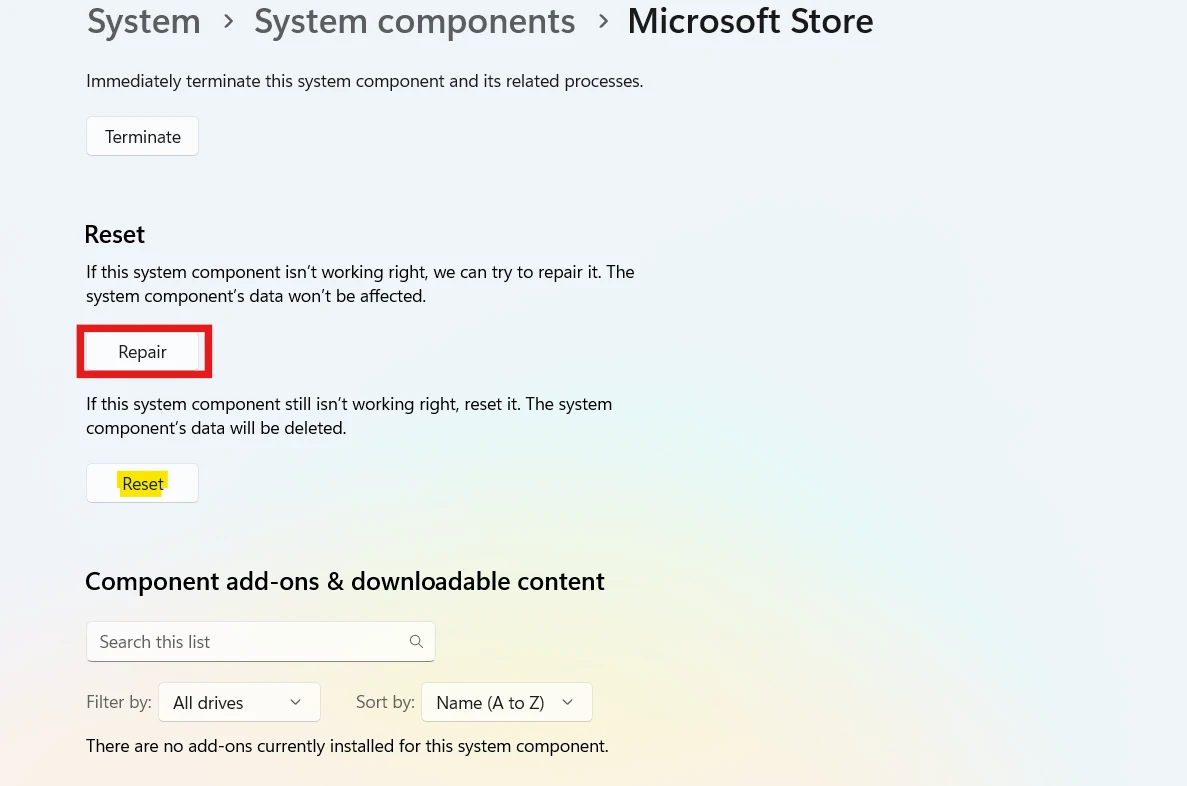
Microsoft recommends Repair before Reset for apps with this option: Repair apps and programs in Windows. On newer systems Microsoft Store may appear as a system component instead of a conventional installed app.
Step 8: if only one app or game fails, troubleshoot that listing
Open the individual app page and identify whether it says Get, Install, Update, Owned, or an error. If multiple other apps install normally, repeating Store-wide resets is unlikely to be the best first response.
- Confirm the app supports your version and architecture of Windows and is offered in your country.
- If it is paid, inspect which Microsoft account purchased or redeemed it. A mismatched account can explain a purchase/ownership problem.
- For a child or family-managed account, check age/content restrictions with the family organizer.
- If it is a game from PC Game Pass, compare the Xbox app queue and Gaming Services status; game installation can have separate dependencies.
- Capture the exact error code and whether the problem happens on the app page or only after the download starts.
Step 9: diagnose work/school devices without weakening security
A company-owned PC may be affected by Microsoft Store policies, firewall rules, a TLS-inspecting proxy, device compliance, or a blocked Microsoft endpoint. The correct fix may be an administrator configuration rather than a consumer cache reset. Do not bypass company controls, remove security software, or change policy registry keys just to install an app.
Give IT the Windows build (winver), exact Store error, app name, timestamps, work-versus-home network behavior, and whether the issue affects every app. Microsoft Learn discusses Store registration, policies and endpoint availability in its download failure checklist.
Step 10: advanced checks only after ordinary repairs fail
Check whether Microsoft Store is registered for your Windows user
Open PowerShell without administrator elevation and run Get-AppxPackage *Microsoft.WindowsStore*. If it returns package details, the Store is registered to that user. If no package is returned, do not immediately remove or reinstall anything: an administrator can investigate the installed package state and supported recovery route. Microsoft’s official registration diagnostic.
For a specific app, consider the supported winget route
Microsoft documents Windows Package Manager (winget) as an alternative way to search for and install supported apps. In Windows Terminal, inspect the exact app name with winget search "App Name", then verify its publisher and source before choosing a matching package. Do not paste an arbitrary package ID from a forum into an elevated console. A winget attempt will not bypass an unavailable app, entitlement rule or company policy. Microsoft Learn: use winget.
Do not uninstall Microsoft Store using an online PowerShell script
Important: some older tutorials recommend Remove-AppxPackage on the Microsoft Store package, followed by a reinstall command. Microsoft explicitly says removing or reinstalling the Microsoft Store app is not supported, and it can cause unintended consequences. If a system has already lost the Store package, use Microsoft-supported Windows recovery or a qualified administrator rather than repeating risky removal steps. Microsoft Learn — removal is unsupported.
When downloads are still pending: collect a useful support report
If none of the low-risk steps helped, write down the Store error, app name, whether every download fails, Windows version from winver, and which network was tested. If the Store is on a managed PC, send this to your administrator; for a personal PC, use Get Help and Microsoft Support. Screenshots should hide email addresses, account names, purchase details and organization data.
| Test | Result to write down | What it suggests |
|---|---|---|
| One app vs several apps | Only App A fails / all fail | Listing-specific vs Store/network/system issue |
| Wi-Fi vs trusted hotspot | Works on hotspot / fails on both | Network-specific vs device-wide issue |
| Store queue after restart | Download progresses / remains Pending | Temporary queue state vs persistent fault |
| wsreset and Repair | Worked / failed / setting absent | Whether app-level repair is useful |
| Store on a managed PC | Policy message / error code | Potential administrator-controlled cause |
Common mistakes that waste time or make things worse
- Following Windows 10-only menus or an old Store layout without checking whether your Windows 11 build uses System components.
- Using
wsreset.exerepeatedly when the failure is actually a licensing, corporate proxy, or region issue. - Resetting the Store before testing the queue and a second network.
- Editing AppXSvc, BITS or Windows Update services and registry settings without a precise diagnosis.
- Disabling antivirus, firewall or company policies to “make downloads work.”
- Uninstalling the Microsoft Store package with unsupported PowerShell commands.
- Confusing a Store app stuck Pending with the separate Windows Update progress screen.
Official sources and related reading
- Microsoft Support: fix problems with apps from Microsoft Store
- Microsoft Support: can’t find or install an app
- Microsoft Support: Microsoft Store doesn’t open / wsreset.exe
- Microsoft Support: Repair and Reset in Windows
- Microsoft Learn: technical Store download failures
- Microsoft Learn: why Store removal is unsupported
- Horus Valley: Wi-Fi connected but no internet
- Horus Valley: Windows Update stuck at 100%
You may also like
 Technology & How-To
Is Tesla Discontinuing the Cybertruck? What We Know
Tesla plans a Cybertruck production wind-down in Texas around mid-2027. See what is confirmed, what remains unknown, and…
 Technology & How-To
Are AI Toys Safe for Kids? Privacy Risks and Parent Checks
Are AI toys safe for kids? Explore the evidence, privacy risks, age advice and practical parent checks for…
 Technology & How-To
iPhone Trust This Computer Not Showing? Windows and Mac Fixes
Restore the iPhone computer-trust prompt with checks for unlocking, Apple Devices or Finder, USB data cables and targeted…