
Windows 11 Update Stuck at 100%? How to Fix It Without Losing Files
Windows 11 update stuck at 100%? Follow safe troubleshooting steps for downloads, installations and restart loops while protecting your files.
Contents
- Quick answer: what to do first
- Why Windows 11 may remain at 100%
- Identify the stage before choosing a fix
- Downloading at 100%
- Installing at 100% while Windows is usable
- Update screen at 100% after reboot
- Restart loop or Windows will not load
- Fix 1: allow Windows time to finish
- Fix 2: restart normally and check Windows Update
- Fix 3: run the Windows Update troubleshooter
- Fix 4: free disk space safely
- Fix 5: repair the component store with DISM
- Fix 6: check protected files with SFC
- Fix 7: disconnect unnecessary accessories
- Fix 8: investigate third-party software conflicts
- Fix 9: use Windows Recovery Environment if Windows cannot start
- How to find the update error code
- Advanced diagnosis: update and setup logs
- What not to do
- Prevent future update failures
- Frequently asked questions
- Is Windows 11 staying at 100% always a problem?
- How long should I wait?
- Will a normal restart delete my files?
- Can I fix the issue without reinstalling Windows?
- Why does it fail after reaching 100%?
- Conclusion
- Official sources and references
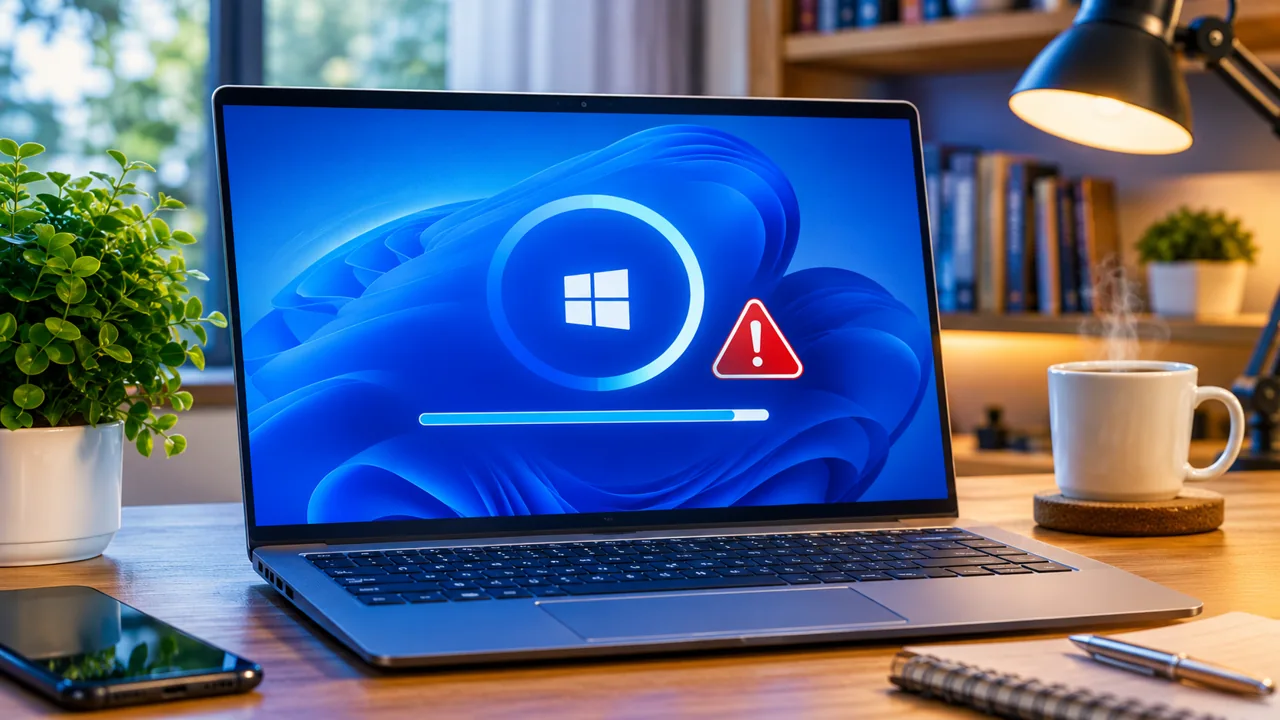
A Windows 11 update stuck at 100% does not always mean it has failed. Windows may still be configuring components after the displayed percentage stops changing. However, damaged files, low storage, software conflicts, or a failed installation can also prevent progress. This guide separates fixes for a working desktop from recovery steps when Windows will not start.
Quick answer: what to do first
- Keep the computer connected to power.
- Check whether the screen or device shows signs of progress.
- Allow extra time for a large update; there is no universal safe waiting period.
- If Windows opens, restart normally, check Update history, and run the troubleshooter.
- If updates repeatedly fail, check storage, then use DISM and SFC.
- If Windows cannot start, use Windows Recovery Environment rather than desktop commands.
Why Windows 11 may remain at 100%
A completed download is not the same as a completed installation. Windows can continue applying packages and configuring drivers after the progress bar reaches 100%. Other causes include limited free disk space, damaged system components, incomplete update data, third-party software conflicts, and incompatible drivers. The location of the freeze matters more than the percentage alone.
Identify the stage before choosing a fix
Downloading at 100%
Windows may still be verifying or preparing files. If the desktop works, check the internet connection and Update history.
Installing at 100% while Windows is usable
Allow processing time, then try a normal restart and the built-in troubleshooter if progress genuinely stops.
Update screen at 100% after reboot
Avoid interrupting configuration prematurely. Keep the computer powered and look for changing messages or activity.
Restart loop or Windows will not load
Skip desktop troubleshooting and go to the Windows Recovery Environment section below.
Fix 1: allow Windows time to finish
Connect the laptop to its charger and avoid unnecessary power interruptions. A stationary percentage alone does not prove a failure. Update size, storage speed, and device configuration affect completion time. There is no Microsoft-guaranteed number of minutes after which a 100% display is definitely frozen. Repeatedly forcing shutdowns can worsen an interrupted installation.
Fix 2: restart normally and check Windows Update
- If the desktop is available, save your documents.
- Choose Start > Power > Restart.
- After restart, open Settings > Windows Update.
- Select Check for updates and follow any prompts.
- Open Update history and record the failed update name, KB number, and error code if one appears.
Do not use a forced shutdown as a substitute for a normal restart while Windows is responding.
Fix 3: run the Windows Update troubleshooter
- Open Start and search for Get Help.
- Search for Windows Update troubleshooting and follow the guided instructions.
- Alternatively, where available, open Settings > System > Troubleshoot > Other troubleshooters > Windows Update > Run.
- Restart if prompted and try the update again.
Official instructions: Windows Update troubleshooter — Microsoft Support.
Fix 4: free disk space safely
- Open File Explorer > This PC and check the free space on drive C:.
- Open Settings > System > Storage > Temporary files.
- Review the selected items carefully before removing them.
- Do not delete Downloads without checking its contents.
- Do not remove previous Windows installation files if you may need to roll back.
The space required varies by update; feature upgrades can need considerably more temporary space than smaller cumulative updates. See Microsoft storage guidance.
Fix 5: repair the component store with DISM
Only do this if Windows opens. Search for Command Prompt, choose Run as administrator, and run:
DISM.exe /Online /Cleanup-Image /RestoreHealth
Wait for the final result. DISM may use Windows Update as a repair source. If the source is unavailable, consult Microsoft guidance rather than downloading unknown repair scripts.
Fix 6: check protected files with SFC
After DISM finishes, run the following in an administrator Command Prompt:
sfc /scannow
Wait for verification. Windows may report no integrity violations, successful repairs, or files it could not repair. If files were repaired, restart and retry Windows Update. SFC is intended to repair protected system files, not erase personal documents; backups are still recommended.
Fix 7: disconnect unnecessary accessories
Before retrying a failed update, disconnect nonessential USB storage, card readers, and docks, but retain anything necessary to boot or operate the PC. If the update then works, obtain current drivers from the device manufacturer or Windows Update.
Fix 8: investigate third-party software conflicts
For repeated failures, a clean boot can help determine whether non-Microsoft background software is interfering. Follow Microsoft’s documented clean-boot procedure and restore normal startup afterward. Do not randomly disable security services or uninstall antivirus software as a first step.
Fix 9: use Windows Recovery Environment if Windows cannot start
If Windows repeatedly restarts or cannot reach the desktop, use Windows Recovery Environment (Windows RE). Depending on the failure, options may include Startup Repair, Uninstall Updates, and System Restore if a restore point exists. A BitLocker-protected device may request its recovery key. Do not select Reset this PC or format the drive without understanding the consequences and backing up important data. Even Keep my files removes applications and settings.
How to find the update error code
- Open Settings > Windows Update > Update history.
- Find the failed update and record its KB number and error code.
- Search Microsoft documentation using that exact code rather than applying random fixes.
Advanced diagnosis: update and setup logs
For advanced troubleshooting, Microsoft documents Windows Update ETW logs, setupact.log, setuperr.log, and the SetupDiag utility for feature upgrade failures. These tools are useful when basic steps do not explain the problem. References: Windows Update log files, Windows upgrade log files, and SetupDiag.
What not to do
- Do not repeatedly force the computer off during active installation.
- Do not delete random Windows system folders.
- Do not run unofficial batch scripts promising instant repair.
- Do not assume 100% means a crash.
- Do not reset or reinstall Windows before protecting important files.
Prevent future update failures
Maintain free storage, keep reliable backups, use trusted drivers, install updates on stable power, and investigate recurring error codes. A backup is especially important before a major feature upgrade.
Frequently asked questions
Is Windows 11 staying at 100% always a problem?
No. Some update operations continue after the progress indicator reaches 100%. Repeated failures or prolonged inactivity may indicate a real issue.
How long should I wait?
There is no fixed waiting period that applies to every device. Consider the update stage, disk speed, activity, and whether Windows eventually advances.
Will a normal restart delete my files?
A normal restart is not designed to delete personal files, but interrupting an active installation can create additional risk.
Can I fix the issue without reinstalling Windows?
Often yes. The troubleshooter, storage checks, DISM, SFC, and driver investigation resolve many problems without reinstalling.
Why does it fail after reaching 100%?
The progress bar may represent only one phase. Errors in configuration, drivers, storage, or system components can still cause the installation to fail.
Conclusion
Start with the least invasive steps: confirm the installation stage, allow processing time, restart normally if the desktop is accessible, run the troubleshooter, and check free space. Use DISM and SFC for persistent system corruption. If Windows will not start, prioritize data safety and use official recovery tools.
Official sources and references
- Microsoft Support: Troubleshoot problems updating Windows
- Microsoft Support: Windows Update troubleshooter
- Microsoft Support: Free up drive space
- Microsoft Learn: Windows Update logs
- Microsoft Learn: Windows upgrade logs
- Microsoft Learn: SetupDiag
Editorial note: This guide describes documented troubleshooting procedures; individual results depend on the hardware, update, and underlying issue. No repair method guarantees data preservation in every failure scenario.
You may also like
 Technology & How-To
Is Tesla Discontinuing the Cybertruck? What We Know
Tesla plans a Cybertruck production wind-down in Texas around mid-2027. See what is confirmed, what remains unknown, and…
 Technology & How-To
Are AI Toys Safe for Kids? Privacy Risks and Parent Checks
Are AI toys safe for kids? Explore the evidence, privacy risks, age advice and practical parent checks for…
 Technology & How-To
iPhone Trust This Computer Not Showing? Windows and Mac Fixes
Restore the iPhone computer-trust prompt with checks for unlocking, Apple Devices or Finder, USB data cables and targeted…