
Microsoft Authenticator Not Working on a New Phone? Restore Accounts and Fix Sign-In
Microsoft Authenticator not working after changing phones? Follow the correct recovery path for Android, iPhone, Microsoft 365, lost devices, missing approvals and passkeys.
Contents
- Quick diagnosis: choose the safest recovery path
- What does Microsoft Authenticator actually restore?
- Before changing phones: a five-minute access inventory
- Path A: restore to a new Android phone when a backup exists
- A backup-policy change announced for January 2027
- Path B: restore to a new iPhone from an iPhone backup
- Path C: re-register Microsoft 365 work or school sign-in
- What if the work account loops back to the lost old phone?
- Path D: old phone lost, stolen, wiped or no backup exists
- Fix an empty backup screen, restore loop or repeated sign-in prompt
- Authenticator codes work, but push notifications or number matching do not
- Passkeys are different: a restored account may still have no passkey
- Three worked troubleshooting scenarios
- Scenario 1: Android to Android, backup restored but Teams still asks for an approval
- Scenario 2: iPhone lost, iCloud signed in, Authenticator shows no account entries
- Scenario 3: Android-to-iPhone switch with a Microsoft 365 passkey
- A safe finishing checklist after you regain access
- Official sources and editorial method
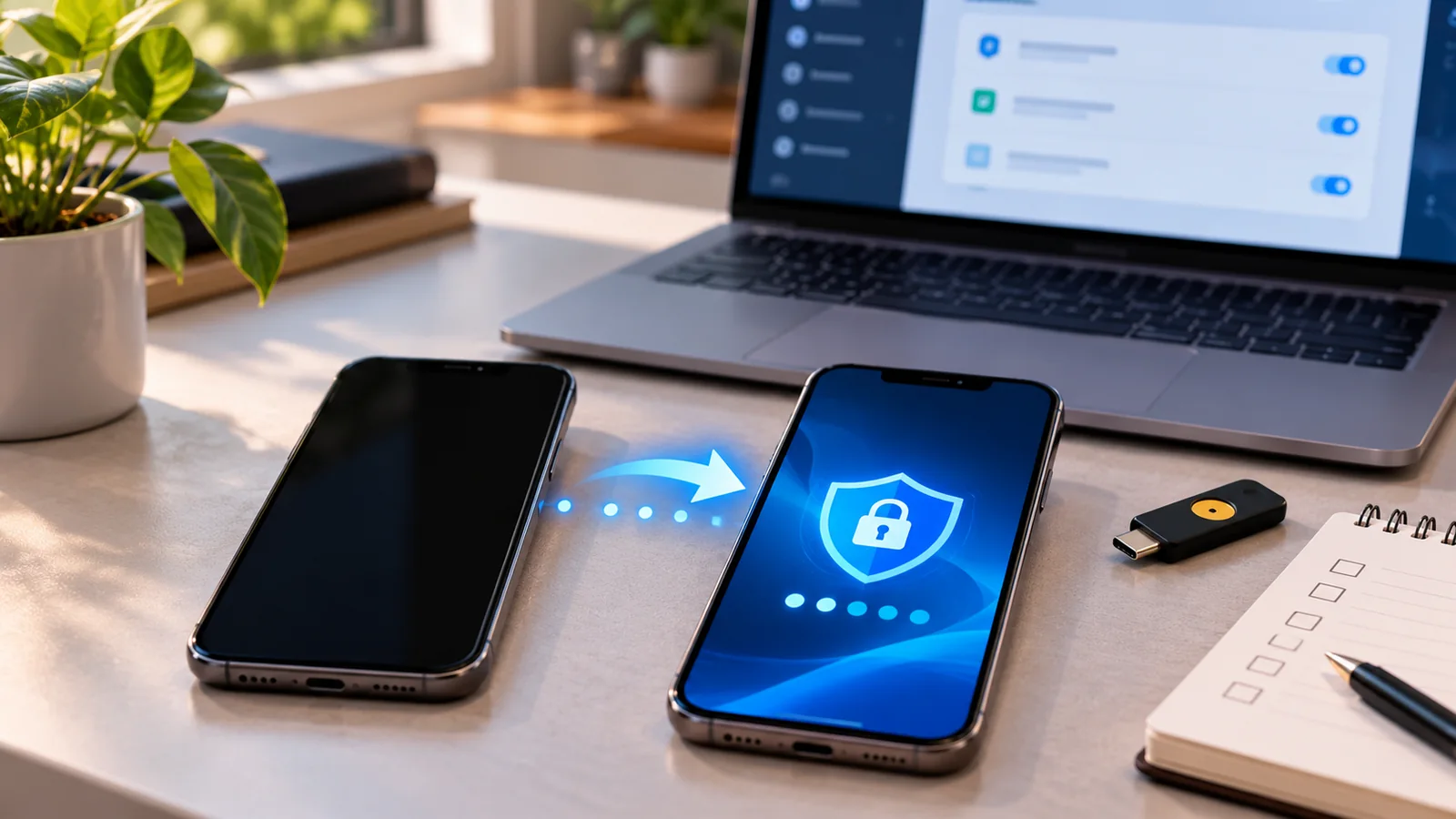
Microsoft Authenticator not working on your new phone? Start by identifying the failure. If the account list is empty, you may need the original backup. If accounts reappear but say Action required or Sign in to add your account, they may need fresh authentication. If approval requests still reach the old phone, add the replacement as a sign-in method before removing the old one. And if the old phone is gone and no other verification method works, the recovery route depends on whether it is a personal Microsoft account, a work or school account, or a separate service such as Amazon.
Critical precaution: Do not reset, trade in, wipe, or uninstall Microsoft Authenticator on the only phone that still has working sign-in methods. Restoring an app backup is not the same as restoring approval registrations or device-bound passkeys. These instructions reflect Microsoft’s new-phone transfer guidance, its restore documentation and the current troubleshooting article, reviewed on October 20, 2026.
Quick diagnosis: choose the safest recovery path
| What you see | Most likely explanation | First safe action |
|---|---|---|
| No accounts on the new phone | Backup was not restored, was never enabled, or belongs to another account | Check backup and the correct recovery account; do not erase old phone |
| Accounts restored, but “Action required” | Some credentials only restore an account label | Open the entry and complete supported sign-in again |
| Work account says “Sign in to add your account” | Employer or school MFA registration was not fully transferred | Use Security info and re-register or ask IT for help |
| Approval only appears on old device | Old device is still registered as the notification target | Sign in through a working factor, add and test the new device |
| Android backup will not restore on iPhone (or reverse) | Cross-platform backup restore is unsupported | Re-enrol each service using valid access or recovery methods |
| App opens but no push arrives | Notification, network, device registration or stale method issue | Test app, connection, notifications and enrolled device |
| Passkey missing though accounts restored | Device-bound passkeys are managed separately | Set up a new passkey after successful account sign-in |
| No phone, no backup and no alternate factor | Authentication account recovery is needed | Use the account owner’s official recovery or IT support path |
This triage avoids a common mistake: reinstalling Authenticator several times before identifying whether the missing item is a code, a push-approval registration or a passkey. Those methods are stored and recovered differently. Some screens use different labels depending on the app version, operating system, and whether an organization manages the account.
What does Microsoft Authenticator actually restore?
| Account or sign-in method | What usually returns from a supported backup | What you may need to do |
|---|---|---|
| Microsoft personal account using 30-second codes only | The one-time code entry | Test a code from the legitimate sign-in page |
| Microsoft personal account using passwordless approval | Account name, not full passwordless registration | Sign in again and complete passwordless setup |
| Microsoft 365 work or school account | Account name, not working MFA approval by itself | Re-register or complete sign-in according to organization rules |
| Other services using standard rotating codes | Supported one-time code entries | Check whether each provider still accepts the code |
| Passkey kept only on old phone | Not automatically migrated as an Authenticator backup item | Create a new passkey or retrieve it from a synced credential manager if eligible |
Microsoft explicitly limits cloud backup restoration to the same platform family: Android to Android or iPhone to iPhone. This is not the same as the phone manufacturer; moving from one Android brand to another can use Android restoration, but switching Android to iPhone cannot use the backed-up account data in that way. A device-to-device migration of photos, apps or phone settings also should not be treated as proof that the authenticator secrets transferred.
A related but different app is Google Authenticator. Its account-sync and export rules are different; Horus Valley has a separate guide to recovering Google Authenticator codes after losing a phone. Do not mix its QR export workflow with Microsoft Authenticator’s cloud restoration instructions.
Before changing phones: a five-minute access inventory
- Identify the critical logins. Include personal Microsoft, Microsoft 365 work, school portals, banks, cloud storage and any website protected with a six-digit Authenticator code.
- Separate methods. Record which accounts use rotating codes, push approvals, number matching or a passkey. Do not record the actual OTP secret or photograph recovery QR codes.
- Confirm a second way in. Look for a previously registered security key, recovery code, alternate phone, passkey or signed-in session that can genuinely verify security changes.
- Review each account’s recovery settings. Security settings for a Microsoft account and a Microsoft 365 organization are different pages and may have different administrator restrictions.
- Keep the old device until tested. Complete at least one real sign-in to each important service from the new phone before retiring the previous device.
If your old phone is broken but still opens Authenticator over Wi-Fi, it may remain useful even without an active SIM. An OTP code generally does not require mobile service to be generated, whereas a push approval needs a suitable network connection and an active enrolled device. Do not assume that transferring the SIM changes the MFA registration.
Path A: restore to a new Android phone when a backup exists
On the old Android phone, open Microsoft Authenticator, open its menu, choose Settings, and verify that Cloud Backup is turned on. Under the currently documented October 2026 workflow, note the personal Microsoft account being used for backup. A corporate Microsoft 365 sign-in is not automatically the personal backup account.
- Connect the old Android phone to a reliable network. Check that the account entries you need appear and that backup is enabled; avoid changing the recovery account while troubleshooting.
- Install the genuine Microsoft Authenticator app on the replacement Android phone, using the official app store. Use the initial Restore from backup or Begin recovery flow before a normal account sign-in.
- Sign in with the same personal Microsoft recovery account selected for the old backup, and allow the supported entries to appear.
- For entries marked Action required or Sign in to add your account, open the account and complete the provider’s required verification. Do not mistake the presence of a label for a usable push approval.
- Open the real sign-in page for a personal Microsoft account and a work/school account if you have both. Verify the new device works before removing any old registrations.
If the recovery option does not appear: Microsoft says to check whether the new installation is already signed into accounts. In some cases the option only becomes available after signing out of, or removing, accounts on the new installation and restarting the recovery process. Do not perform this operation on the only working old phone. See Restore account credentials for the exact current screen instructions.
A backup-policy change announced for January 2027
Microsoft’s current Android backup article notes that starting January 2027, using a personal Microsoft account to enable Authenticator backup will be replaced by a Google One backup-based approach. This is an announced future change as of this article’s October 2026 review—not an instruction to look for a currently unavailable option on every phone. Follow the version-specific Microsoft backup screen rather than a blog post published before or after that transition without a date. See Microsoft’s backup guide.
Path B: restore to a new iPhone from an iPhone backup
The iPhone-to-iPhone process depends on Apple’s iCloud services. Microsoft lists iCloud Drive, iCloud Keychain, iCloud Backup and the Authenticator switch under Saved to iCloud as prerequisites. On the original iPhone, confirm these settings and open Authenticator at least once. Microsoft’s troubleshooting guidance also calls out Authenticator version 6.8.33 or newer in the specific iPhone backup-recovery scenario.
- On the original iPhone, open Apple Account → iCloud. Check iCloud Drive, Keychain, Backup and the Authenticator entry in the Saved to iCloud list as applicable to the current iOS interface.
- Confirm that the replacement iPhone is signed into the appropriate Apple Account and iCloud environment, then install Authenticator from the official App Store.
- Use the restore or recovery entry point in Authenticator and complete the flow. The exact prompts may differ from Android.
- Inspect restored entries and complete further sign-in for work/school and passwordless Microsoft accounts.
- If the expected backup is missing, first recheck those prerequisites. Microsoft’s iPhone troubleshooting procedure may involve reinstalling Authenticator on the new iPhone only after the backup on the old one has been verified.
A new Apple ID, disabled iCloud Keychain, or an Authenticator backup that was never enabled can prevent the expected result. iOS phone restoration itself is not a guarantee that every Microsoft Authenticator method returns fully registered. A missing work MFA approval may still need re-enrollment even when the account name is visible.
Path C: re-register Microsoft 365 work or school sign-in
Work and school accounts are the most frequently misunderstood case. Microsoft’s Entra transfer guidance says restoring a backup normally restores only the work account name, not a ready-to-use approval credential. Your organization may also require number matching, compliant devices or a new passkey. A work email address that appears inside the app is not evidence that registration has finished.
- While you can still verify using the old phone or another method, go to the official Security info page for your organization.
- Select Add sign-in method, choose Microsoft Authenticator if allowed and start the registration flow in your browser.
- On the new phone, open Authenticator → Add account → Work or school account → scan the fresh QR code generated by your organization’s own Security info page.
- Complete the test approval or number-matching challenge and confirm the new Authenticator method appears in Security info.
- Try a separate new browser sign-in or a protected Microsoft 365 service. Only after success should you remove the old phone’s obsolete registered method.
Microsoft also documents account addition in How to add your accounts to Microsoft Authenticator. Depending on policy, a QR code may be unavailable until the administrator enables the method or provides another way to satisfy verification. You should never scan a screenshot or code sent by an unfamiliar person pretending to be IT support.
What if the work account loops back to the lost old phone?
If you cannot pass the verification prompt because it is sent to the discarded phone, look for a valid Sign in another way choice. If none works, contact your organization’s IT help desk and say you need to re-register authentication methods after replacing a device. An authorized administrator may require MFA re-registration or, where permitted, issue a Temporary Access Pass (TAP). The availability of TAP is controlled by the organization; it is not a universal self-service bypass.
An administrator can tell you which account and method can be reset, which identity-verification procedure is required, and whether there are device-compliance restrictions. For a managed work phone, the Microsoft Intune Company Portal, Android work profile, screen lock and device registration may also be required. Do not ask someone to switch off organizational security requirements just to speed up the transfer.
Path D: old phone lost, stolen, wiped or no backup exists
When the original phone is unavailable, begin with what you can still prove—not with reinstalling the app. A fresh installation cannot recreate OTP secrets that existed only on a lost device, nor can it fabricate a security approval enrollment. Account recovery is handled by the account’s own provider, and it may be impossible if every approved recovery factor is gone.
| Account type | First recovery route | Key limitation |
|---|---|---|
| Personal Microsoft account | Use another previously registered method at account.microsoft.com/security or the Microsoft sign-in helper | When two-step verification is enabled and no alternate methods are accessible, Microsoft says support cannot bypass it |
| Work or school Microsoft 365 account | Ask administrator/help desk about verified MFA re-registration or a policy-approved TAP | No universal end-user override of company MFA |
| Third-party service (e.g. Amazon or Facebook) | Use that service’s backup codes, trusted sessions, alternative factor or official recovery | Microsoft cannot reset another provider’s two-factor policy |
| Only a device-bound passkey was available | Look for a synced credential-manager copy or provider-approved fallback, then register a replacement | Cloud Authenticator entry backups do not inherently recreate an old-device passkey |
Important personal-account limitation: Microsoft’s account recovery form guidance explicitly says that if two-step verification is on and you cannot access any alternate verification methods, support agents cannot supply a bypass or manually alter protected account details. Do not claim that simply completing the generic recovery form will unlock every 2FA-protected account. First check valid recovery codes and other already-enrolled factors.
A still-signed-in laptop browser can sometimes be useful, but an existing session does not automatically authorize changes to sensitive security information. Before signing out of that browser, inspect whether the legitimate account security page offers a working method to register the replacement device. If further verification is required and no valid factor exists, follow the official account-specific recovery process instead of attempting to bypass it.
Fix an empty backup screen, restore loop or repeated sign-in prompt
| Symptom | Check first | Avoid |
|---|---|---|
| Only “Cloud Backup” appears on new Android phone | Have you entered ordinary sign-in instead of Begin recovery? Is the recovery account correct? | Deleting an old phone backup before verifying its existence |
| No restore option on new iPhone | iCloud settings, Apple Account and Authenticator saved-to-iCloud switch | Assuming Apple ID sign-in alone restores every code |
| “Action required” next to an account | Whether that method requires fresh sign-in | Treating an account label as a completed registration |
| Sign-in asks you to approve from the old phone | Which device is still enrolled for push approvals | Wiping the old phone before adding a tested method |
| Password accepted, but repeated code prompt | Verify which service/account is requesting MFA and whether another method exists | Entering random codes or accepting unsolicited prompts |
| Different recovery account accidentally selected | Correct personal Microsoft backup account for Android in 2026 | Overwriting the last known good backup |
| No code after switching Android to iPhone | Backup formats are not cross-platform | Looking for an unsupported migration shortcut |
Some Microsoft instructions suggest uninstalling and reinstalling the app on the new phone in specific backup-recovery situations. That is not a blanket fix and can cause loss if the only remaining local entry is on that phone. Always confirm which device contains the last working codes, which backup is known to exist and whether you have another way to get into the affected service.
Authenticator codes work, but push notifications or number matching do not
A six-digit one-time code and a push approval are not interchangeable. The code may display offline because it is generated locally; an approval prompt depends on an enrolled authentication method, a functioning app, connectivity and an authorized push channel. Microsoft lists several official troubleshooting checks for notifications and sign-in failures.
- Confirm you are on the correct app/account. Open Authenticator and locate the exact personal or work account the sign-in request targets.
- Check network and app state. Switch between Wi-Fi and mobile data; ensure Airplane Mode is off and that a restrictive VPN or firewall is not blocking access.
- Enable notifications. Allow alerts in phone settings and the app’s notification settings. Inspect Focus / Do Not Disturb and Android notification channels.
- Check background behavior. Disable restrictive battery optimization for Authenticator where the operating system offers this and local policy permits.
- Fix time and app version. Use automatic date/time, update Authenticator and the OS, then restart the phone. A clock mismatch is especially relevant to rejected rotating codes.
- Check managed dependencies. On Android work devices, inspect Google Play Services and Intune Company Portal if your organization requires them.
- Check the old device. If approvals still arrive there, use that device while accessible to add and test the new phone via the real Security info page. Remove the obsolete enrollment afterward.
- Escalate the correct error. Work-school errors related to device registration, rooted/jailbroken device restrictions, or Conditional Access policies may require an administrator rather than more reinstalls.
Starting February 2026, Microsoft introduced rooted/jailbroken-device detection for some work and school Entra credentials. If a managed account refuses to authenticate on a rooted or modified device, the appropriate response is to use a compliant supported phone and contact the organization if necessary. Do not try to defeat security checks by changing app binaries or hiding device integrity information.
Passkeys are different: a restored account may still have no passkey
A passkey is a cryptographic sign-in credential, not a rotating six-digit code. A passkey created only on the old phone may remain bound to that device. Microsoft says Authenticator’s account backup does not migrate such device-bound passkeys automatically. A passkey stored in a supported synchronized credential manager may be available after signing into that manager, but it needs to be verified rather than assumed.
- Use a functioning existing method to sign in to the Microsoft work or school Security info page, when available.
- If your organization permits it, choose to add a passkey in Microsoft Authenticator or another permitted credential provider and complete the on-device creation flow.
- Check that the phone has a secure screen lock and that any required proximity/Bluetooth connection works when using a cross-device passkey prompt.
- Test the passkey in a new, real sign-in session before removing the obsolete credential. If company policy blocks self-registration, ask the help desk.
Readers dealing with a Google account instead should use the separate Google passkeys not working on a new phone guide. Its settings belong to Google; applying them unchanged to Microsoft Entra would be misleading.
Three worked troubleshooting scenarios
Scenario 1: Android to Android, backup restored but Teams still asks for an approval
A person used a Pixel phone for personal OTP codes and an employer’s Microsoft 365 account. The Android backup restored the third-party codes and displayed the company account name. Outlook or Teams still asks for an approval on the old Pixel. That is not proof of a failed backup: the work MFA registration was not fully restored. The right next step is to use the old Pixel or another approved factor to visit the company Security info page, register the new phone, complete a test prompt and only then remove the old entry.
Scenario 2: iPhone lost, iCloud signed in, Authenticator shows no account entries
A replacement iPhone is using the same Apple Account, but Authenticator is blank. The owner checks whether Authenticator had been included in the original iCloud backup settings, whether an eligible backup was created and whether the app’s restore option is available. If no backup was ever created, a fresh installation cannot recover device-only OTP secrets. They must use each service’s backup codes, trusted sessions or formal identity-recovery route. Reinstalling the new app repeatedly does not change the historical absence of a backup.
Scenario 3: Android-to-iPhone switch with a Microsoft 365 passkey
A user replaces an Android phone with an iPhone. Microsoft Authenticator’s Android backup cannot be restored directly on iPhone. Their work passkey was also saved only to the Android device. The user signs in using a still-working approved method, registers Authenticator or a passkey on iPhone as allowed by IT, and tests access before handing over the Android phone. If the old phone is already gone and no approved method works, the user asks IT about re-registration or a Temporary Access Pass. A personal Google or Apple backup does not override the organization’s identity policy.
A safe finishing checklist after you regain access
- Test at least one personal Microsoft login, one work/school login if relevant, and each third-party service that held an important Authenticator code.
- Check both a code-based login and a push/number-matching login if you use both; one successful method does not prove every method works.
- Verify that you can access the account’s Security info page and that a second independent verification option is available where allowed.
- Remove lost, obsolete or stolen device enrollments from each provider’s real security settings only after a replacement is confirmed; revoke risky sessions as appropriate.
- Store provider-issued backup or recovery codes in a secure password manager or other protected location, not in shared screenshots, public notes or messages.
- Update recovery information promptly, then make a plan for the next phone replacement before trading in or factory-resetting the old device.
Safety note: Nobody can generate a legitimate Microsoft Authenticator secret from an email address alone. Do not share live six-digit codes, passwords, recovery keys, QR enrollment screens or security approval requests with anyone offering an instant migration service. A prompt you did not initiate should be denied. When a phone is stolen, restoring a code on the replacement does not automatically revoke the old device’s enrolled methods.
Official sources and editorial method
- Microsoft Learn — Transfer Authenticator account entries to a new phone: work-account restoration and passkeys.
- Microsoft Support — Back up your accounts: backup requirements and January 2027 Android transition notice.
- Microsoft Support — Restore account credentials: recovery screens and account-type behavior.
- Microsoft Support — Troubleshoot Authenticator: push, code, device and notification checks.
- Microsoft Support — Add accounts to Authenticator: personal and work/school QR setup.
- Microsoft Support — Account recovery limitations: no alternate methods and two-step verification.
- Microsoft Learn — Temporary Access Pass: organization-managed recovery without a working old factor.
Editorial verification, October 20, 2026: These are documented procedures, not the results of a hands-on test on any specific user’s device. Account recovery, menu availability and device compliance depend on the operating system, Microsoft account type, enabled verification methods and organization policy. No guide can guarantee recovery when every authorized verification and recovery method is unavailable.
You may also like
 Technology & How-To
 Android Auto Keeps Disconnecting? How to Fix USB and Wireless Dropouts
Android Auto keeps disconnecting? Separate USB, wireless and app failures, check Galaxy USB mode, compare connection methods and…
 Technology & How-To
 Netflix Says Your TV Isn’t Part of the Household? How to Fix It
Fix a Netflix household warning by separating home verification, permanent household updates and temporary travel access, with genuine…
 Technology & How-To
 Google Photos Stopped Backing Up from Your PC? What Changed and How to Fix It
Google Photos stopped backing up your computer folders? Understand the Drive for desktop change, configure browser folder backup…