
iPhone Storage Full but iCloud Has Space? Here’s What to Do
iPhone full despite free iCloud space? Check photo optimization, app data and local downloads, and avoid deleting photos you wanted to keep.
Contents
- Why a bigger iCloud plan does not make your iPhone bigger
- Check these two storage screens before changing anything
- If Photos is large, check the optimization setting
- Why Optimize iPhone Storage may not free space immediately
- Check the library status instead of repeatedly toggling sync
- If apps are large, separate the app from its data
- For iCloud Drive, Remove Download and Delete are different
- Why “my iPhone is backed up” does not mean you can delete its photos
- Two examples: decide whether more iCloud would help
- Example 1: the cloud has room, but downloads dominate
- Example 2: there is free cloud space, but not enough for the queued library
- A short checklist before buying more storage
- Sources and image credits
If your iPhone storage is full but iCloud has space, the problem is the space inside your phone. Buying a larger iCloud plan does not increase that capacity. Check what is using local storage first. If Photos is the main contributor, iCloud Photos with Optimize iPhone Storage can help; if downloaded videos or app data dominate, those need a different fix.
The aim is to keep the content you need while reducing what must stay on the device. Do not start by deleting photos you expect to remain in iCloud: with iCloud Photos enabled, deletions sync too.
Why a bigger iCloud plan does not make your iPhone bigger
Your iPhone has a fixed amount of built-in storage. iCloud is a separate online allocation associated with your Apple Account. A phone with 128 GB of device capacity still has 128 GB after you subscribe to a larger cloud plan. Apple explains the distinction in its guide to iCloud storage and device storage.
Think of three separate actions: a backup copies eligible data for recovery; syncing keeps selected content consistent between devices; optimization reduces how much of a synced photo library needs to remain locally. Paying for cloud space does not automatically perform all three.
This distinction applies in the US, UK and European markets. Menu wording may use “Optimize” or “Optimise” depending on the device language. This guide does not depend on a particular subscription price or currency.
Check these two storage screens before changing anything
- Open Settings → General → iPhone Storage. Let the breakdown load, then note the used capacity and the largest apps or categories.
- Open Settings → your name → iCloud. Check the cloud allocation separately; open Storage or Manage Storage for the breakdown.
- Write down both readings. Record whether the warning says iPhone storage, iCloud storage, or that a backup cannot complete.
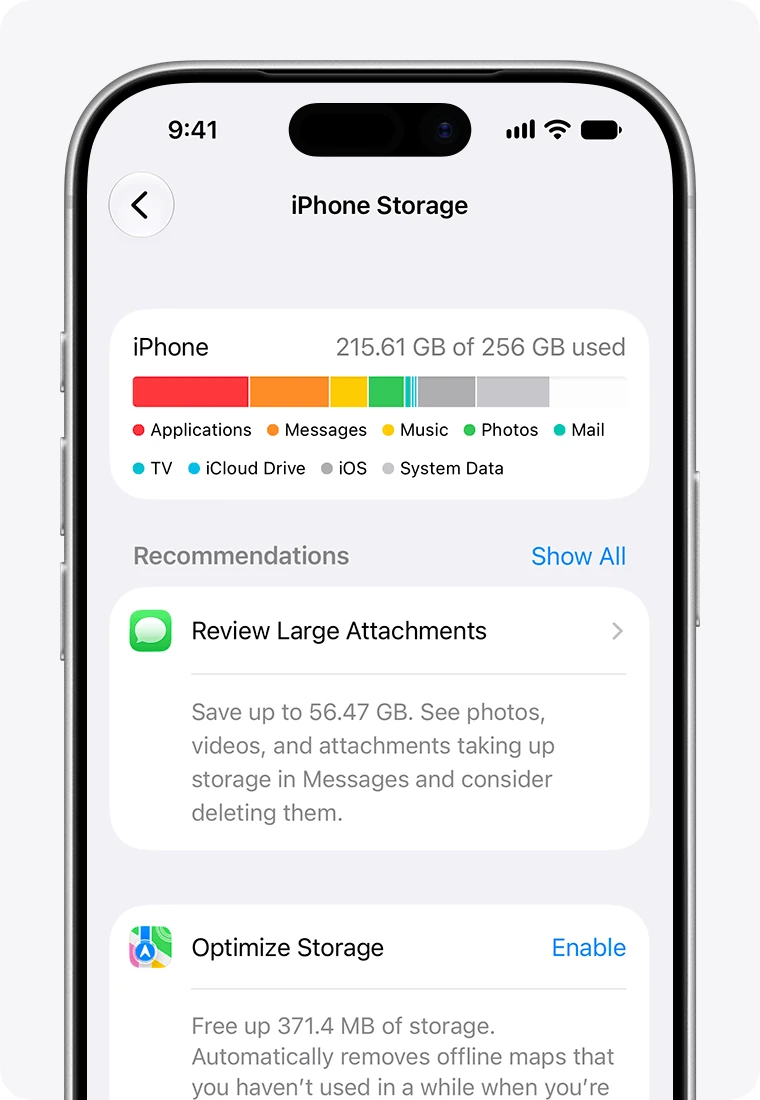
The image above is Apple’s example of local storage, not a reading from your phone. Your largest category determines the next step. Photos optimization will not remove a downloaded TV series from another app.
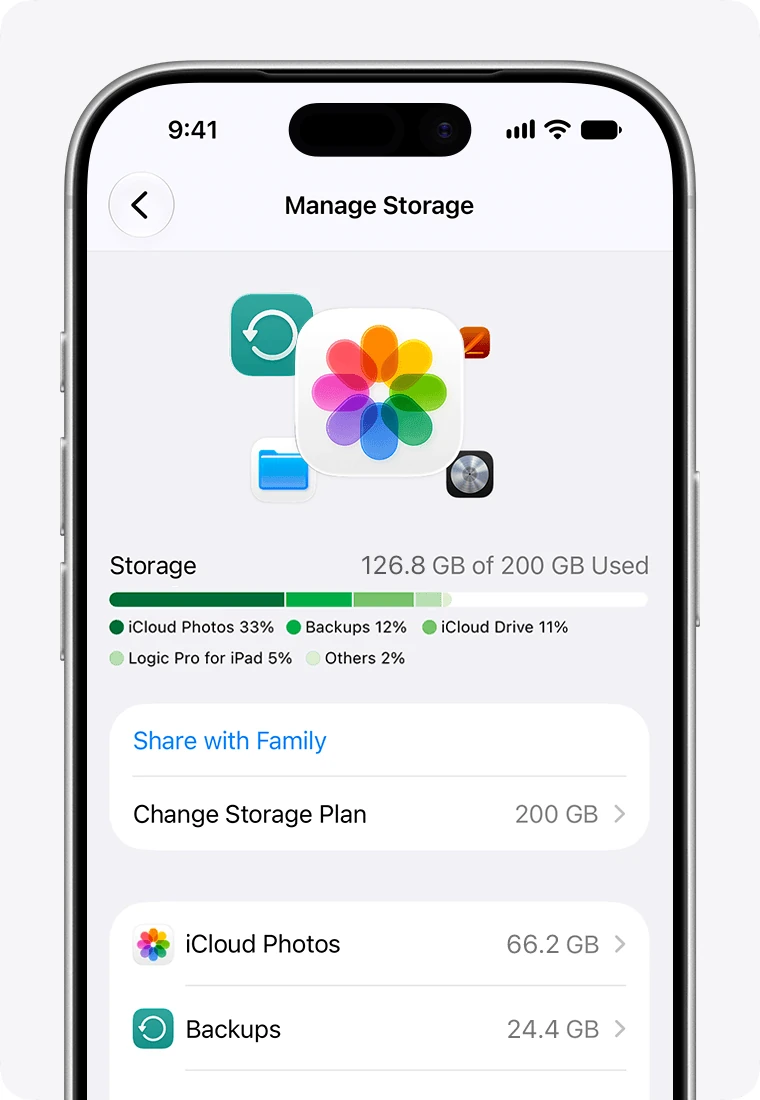
The iCloud screenshot shows a separate meter. Do not subtract its free space from the amount used on your iPhone; the numbers describe different locations.
| What you find | Best next step |
|---|---|
| iPhone nearly full; iCloud has room; Photos is large | Check photo syncing and Optimize iPhone Storage. |
| iPhone nearly full; apps or offline media dominate | Review the largest app and removable downloads first. |
| iPhone has room; iCloud is full | Manage cloud usage or assess a larger cloud plan. |
| Both have room; a backup still fails | Investigate the backup message rather than deleting unrelated content. |
If your starting point was deleting pictures and seeing no improvement, use our separate guide to iPhone storage staying full after deleting photos. That article focuses on deletion, Recently Deleted and storage recalculation; this one focuses on using cloud space effectively.
If Photos is large, check the optimization setting
Apple’s photo and video storage instructions explain how to keep full-resolution originals in iCloud while using smaller versions on the device. This is a way to reduce local photo storage while retaining access to the library, rather than manually removing its contents.
- Go to Settings → your name → iCloud → Photos.
- Check that Sync this iPhone is enabled for the Apple Account that holds your library.
- On iOS 27 or later, tap iPhone Storage within the Photos settings page, then check Optimize iPhone Storage. On earlier versions, the choice may appear directly on the Photos settings page.
- If Download and Keep Originals is selected, understand that this option deliberately keeps full-resolution copies locally. Choose optimization if your priority is reducing device use.
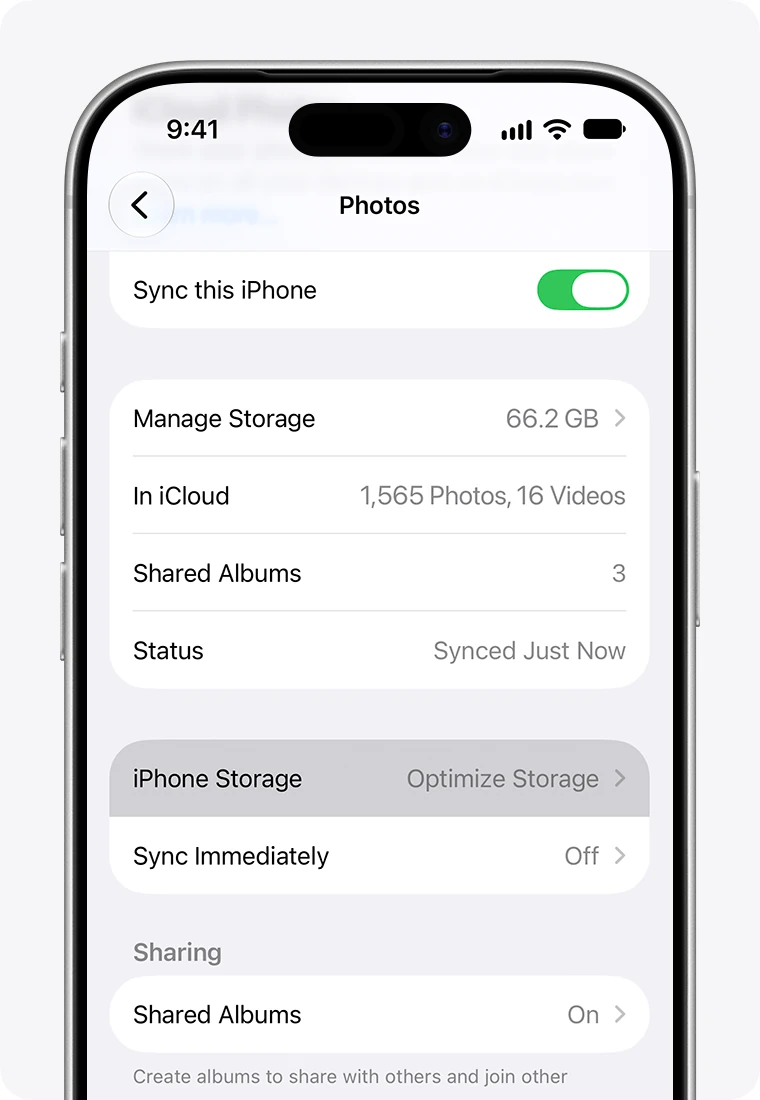
Apple’s current screenshot shows the iPhone Storage row inside the iCloud Photos page. Its position matters: instructions written for an older iOS layout can make it appear that the optimization setting has disappeared.
Optimization still uses some device storage, and originals may need to download when you open or edit an item. Before a trip with limited internet, check that the particular photos or videos you need are available offline. Keeping every original offline and minimizing local storage are competing goals.
Why Optimize iPhone Storage may not free space immediately
Apple describes optimization as responding to the need for space, starting with photos and videos accessed least. It does not promise that the Photos figure will drop to zero or that a particular library will shrink by a fixed percentage. See how iCloud Photos works and manages on-device storage.
A checked setting is therefore only part of the diagnosis. Check that the library is actually syncing, that iCloud has enough room for the content still waiting to upload, and that another app is not consuming the space you expected Photos to release.
Check the library status instead of repeatedly toggling sync
Open Photos and inspect its library status. Apple’s current instructions direct users to Collections and the profile button; older versions may show the status at the bottom of All Photos. Follow the actual status message rather than assuming that every pause has the same cause.
Apple’s paused-sync guidance recommends connecting to power and Wi-Fi and allowing uninterrupted syncing overnight. Large libraries can take longer. The same guidance says not to turn iCloud Photos off just because syncing has paused. Low Power Mode, Low Data Mode and other conditions can explain a pause; act on the message shown.
An overnight sync is a useful checkpoint, not a guaranteed completion time or a guaranteed amount of space recovered. If the status does not progress, record the exact message and seek help for that message. Our iCloud Photos syncing guide for iPhone and Windows covers checking which part of the sync path is failing.
If apps are large, separate the app from its data
In iPhone Storage, open a large app and compare the application size with Documents & Data. According to Apple’s device-storage guide, Offload App removes the app itself while keeping its documents and data; Delete App removes the app and its related data.
That makes offloading useful when the app binary is the large part. It is less useful when the retained documents are the problem. Before deleting an app, establish whether important local projects, messages or downloads can be recovered independently. Reinstallation may require internet access and continued App Store availability.
For offline entertainment, use the app’s own downloads controls and remove items you can obtain again. Review large attachments individually rather than changing a retention setting that could erase conversations you intended to keep. A paid iCloud plan does not convert every third-party app’s offline files into cloud-only files.
If System Data is the main category, do not expect photo optimization to account for all of it. Apple’s storage breakdown includes system resources and caches. Avoid a promised “one-tap” result or a factory reset simply because an online guide names a large number of gigabytes.
For iCloud Drive, Remove Download and Delete are different
Files in iCloud Drive can also have downloaded copies on the phone. Apple documents a specific option to remove the local download while retaining the file in iCloud Drive. See deleting files versus removing downloads in Files.
- Open Files → Browse → iCloud Drive.
- Find a downloaded file you no longer need offline. Confirm that it belongs to iCloud Drive and has finished uploading.
- Touch and hold it, then choose Remove Download when available.
- Use Delete only if you intend to remove the file itself. Deleting from iCloud Drive also affects other devices signed in to that account.
Do not apply this as a blanket instruction to On My iPhone or to a third-party storage provider. The location and the action both matter. Removing a download also means you may need a connection to open the content again later.
Why “my iPhone is backed up” does not mean you can delete its photos
Apple’s explanation of iCloud Backup distinguishes backup data from data already syncing with iCloud. If iCloud Photos is enabled, the synced photo library is not duplicated in the daily device backup. A successful backup is not proof of a separate, permanent archive of every photo you are about to delete.
With iCloud Photos on, deleting a photo on one device removes it across the synced library. Recently Deleted normally provides a limited recovery period; it is not an independent archive. Use optimization when the goal is to keep the library accessible while reducing local use.
If you want a separate archive, Apple’s download instructions explain how to obtain copies of photos and videos. Save originals to a separate location, open representative files to verify the copies, and confirm that important dates and videos are present before making any permanent deletion. Merely seeing thumbnails on another synced device is not that verification.
Two examples: decide whether more iCloud would help
These are illustrative calculations, not measurements from a device test. Their purpose is to show which number should guide the decision. Storage totals and recovery amounts vary by device and use.
Example 1: the cloud has room, but downloads dominate
Suppose a 128 GB phone reports 124 GB used, leaving about 4 GB free, while its 200 GB iCloud allocation uses 90 GB. The cloud has about 110 GB available. The largest app contains 22 GB of downloaded videos; Photos uses 12 GB.
Moving to a larger cloud plan does not target that 22 GB download collection. Reviewing dispensable offline videos is the more direct action. If you remove 8 GB of those files, the simple estimate is 12 GB free, but the observed reading may differ as other activity changes storage use. Recheck the device meter rather than treating the estimate as a guarantee.
Example 2: there is free cloud space, but not enough for the queued library
Suppose iCloud has 15 GB free and the phone has approximately 40 GB of additional photos and videos waiting to upload. “iCloud has space” is true, but the remaining allocation may not accommodate that queued content and other cloud use. Check the actual library status and cloud breakdown before assuming optimization is broken.
A larger cloud allocation could help remove this particular bottleneck. Alternatively, you could deliberately archive content elsewhere and reduce what you keep in iCloud. Neither choice increases the phone’s built-in capacity, and neither makes it safe to delete a synced library without understanding what will be removed.
A short checklist before buying more storage
- Identify whether the warning concerns the phone, iCloud, or a failed backup.
- Check the largest local category before choosing a fix.
- For Photos, confirm sync status and the optimization setting appropriate to your iOS version.
- For apps, compare app size with retained data; for iCloud Drive, distinguish Remove Download from Delete.
- Buy more iCloud only when the cloud allocation is actually limiting the content you want to store there.
- If readings remain inconsistent or syncing repeatedly fails, record the iOS version, both storage readings and the exact status message for Apple Support.
You do not need to erase the phone to establish any of these facts. A useful first result is knowing which storage pool is constrained and which kind of content occupies it; that makes the next action specific and reviewable.
Sources and image credits
Reviewed against Apple Support on 31 October 2026. Instructions may vary with iOS version and device language. The worked examples are editorial calculations; no device performance test or recovery success rate is claimed.
- iCloud storage versus device storage
- Check storage on iPhone and iPad
- Manage photo and video storage
- Set up and use iCloud Photos
- iCloud Photos not syncing or syncing paused
- What iCloud backs up
- Delete files or remove downloaded copies
- Download iCloud photos and videos
Featured photograph: Joel Mott on Unsplash, used under the Unsplash License. Instructional screenshots: Apple Support, reproduced for discussion of the settings shown. These are Apple’s published examples, not screenshots of a Horus Valley test device.
You may also like
 Technology & How-To
Is Tesla Discontinuing the Cybertruck? What We Know
Tesla plans a Cybertruck production wind-down in Texas around mid-2027. See what is confirmed, what remains unknown, and…
 Technology & How-To
Are AI Toys Safe for Kids? Privacy Risks and Parent Checks
Are AI toys safe for kids? Explore the evidence, privacy risks, age advice and practical parent checks for…
 Technology & How-To
iPhone Trust This Computer Not Showing? Windows and Mac Fixes
Restore the iPhone computer-trust prompt with checks for unlocking, Apple Devices or Finder, USB data cables and targeted…