
Why Your iPhone Battery Drains Overnight and How to Fix It
Find out why your iPhone loses battery overnight, check background apps and weak signal, and run a safe two-night standby drain test using Apple settings.
Contents
- Quick answer: the first five checks
- How much battery loss overnight is too much?
- Step 1: inspect the exact overnight hours in Battery settings
- Step 2: check background activity before disabling it
- Step 3: investigate weak mobile signal in the bedroom
- Step 4: understand notifications, lock-screen activity and Always-On display
- Step 5: account for recent iOS updates or phone setup
- Step 6: check Battery Health and charging history
- Step 7: use Low Power Mode as a diagnostic tool
- Step 8: check temperature and charging conditions
- Step 9: test a misbehaving app without deleting your data
- Step 10: run a controlled two-night standby test
- Step 11: isolate the network only when it is safe
- Step 12: know when to ask Apple for help
- Common overnight symptoms and the most useful response
- Official Apple references
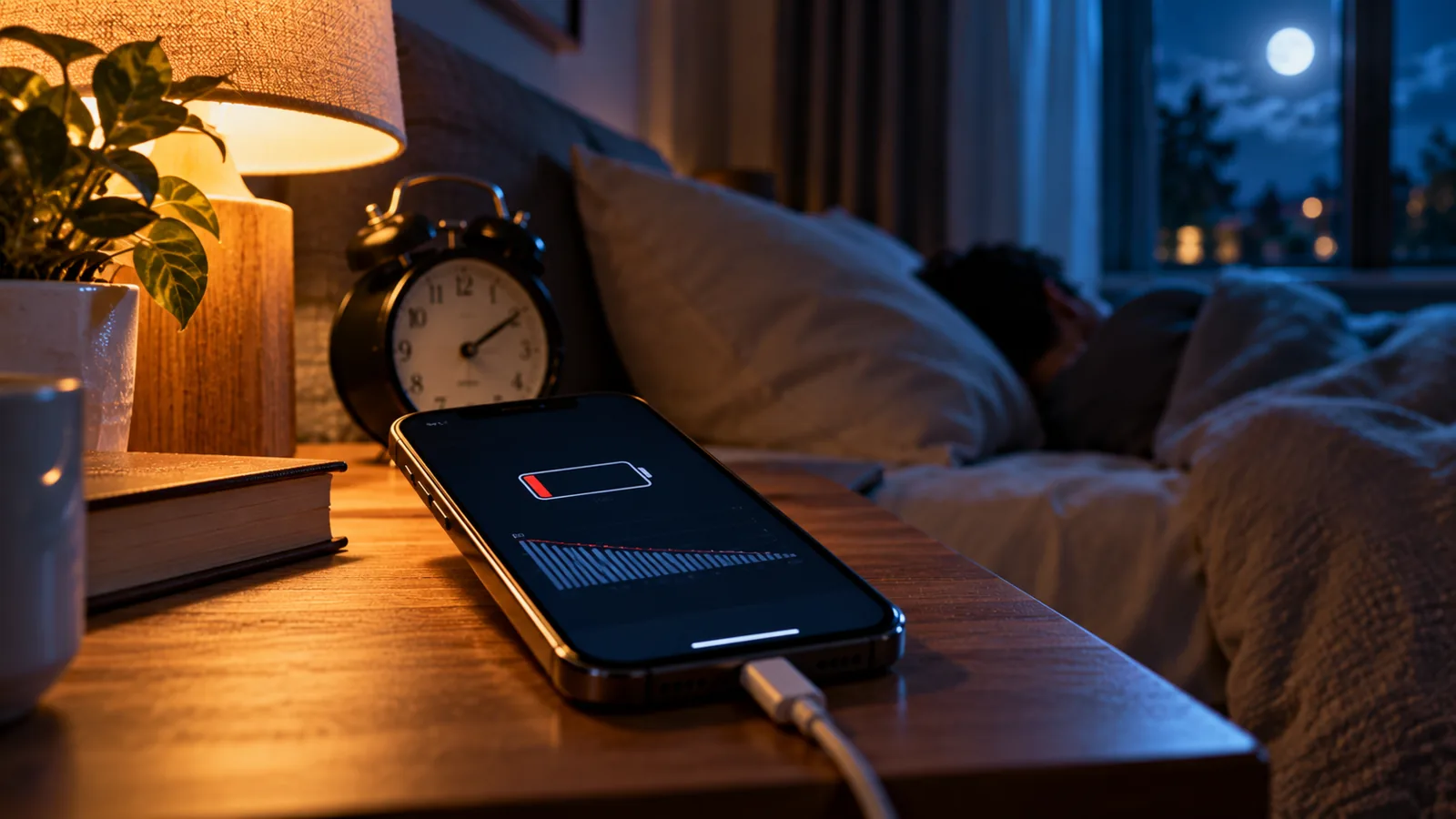
Does your iPhone lose a surprising amount of battery while you sleep, even though you barely touch it? An overnight drop can come from poor mobile reception, photo uploads, app background activity, notifications, a recent software update, or an ageing battery. The best fix is to identify which activity is actually happening instead of disabling every feature on the phone.
This guide focuses on standby battery drain overnight, not general screen-on battery life. It gives you a repeatable two-night test, model-aware Apple settings and clear signs that professional battery service may be appropriate. There is no universal “normal overnight percentage”: signal conditions, software, battery condition and whether the phone is charging all matter.
Quick answer: the first five checks
- Open Settings → Battery and compare the overnight hours with the previous day; inspect apps and system activity.
- Check whether the phone was uploading photos, completing setup or finishing an iOS update.
- Notice whether cellular signal was weak in the bedroom; network searching can consume power.
- Check Battery Health and whether iOS recommends service.
- Run a controlled overnight comparison before resetting settings or replacing the battery.
How much battery loss overnight is too much?
A few percentage points while idle may be unsurprising, but no single cutoff diagnoses a fault. An eight-hour night at 100% charge and a night starting at 25% are not directly comparable, and percentage estimates are not perfectly linear. Repeated double-digit losses with little recorded activity are worth investigating, especially when the phone is warm or the drop is worsening.
| Overnight observation | Possible interpretation | Best next action |
|---|---|---|
| Small, stable drop; no unusual activity | Ordinary standby processes may explain it | Record a baseline; avoid unnecessary changes |
| Large drop after an iOS update | Background setup, indexing or sync may be running | Look for Battery Insights; recheck after a few days |
| Drain with weak cellular signal | Repeated network search or modem activity | Compare a night with stable Wi-Fi |
| One app dominates background activity | Syncing, location, audio or repeated retries | Review that app’s permissions and settings |
| Unexpected shutdown or swelling | Potential battery or hardware problem | Stop DIY troubleshooting and arrange service |
Step 1: inspect the exact overnight hours in Battery settings
On current iOS versions, open Settings → Battery → View All Battery Usage when available, then select the relevant day. Review the graph, the times when battery level declined, and the list of apps or system activities. Apple distinguishes On Screen, Background, Cellular Coverage and Notifications activity. Menu labels can differ by iOS release.
An app showing a high percentage does not necessarily mean it consumed a large share of the entire battery: the figure can represent its share of the battery used during the selected period. Compare the timeline and activity duration rather than judging a single percentage.
Step 2: check background activity before disabling it
Photo syncing, cloud backups, mail fetching, navigation, audio playback and messaging can continue with the display off. A newly restored phone or a large photo library may be especially busy. Inspect the app identified by Battery, then open that app’s own sync and upload settings. If a cloud upload is failing and retrying, fix its Wi-Fi connection or account issue rather than merely force-closing the app.
For an app that does not need to refresh in the background, open Settings → General → Background App Refresh and selectively disable it. Avoid switching off useful medical, accessibility, security or communication features just to save a small amount of power. Force-closing every app is not a reliable battery-saving strategy.
Step 3: investigate weak mobile signal in the bedroom
A phone can use extra power trying to maintain a mobile connection where coverage is poor. In Battery details, look for a cellular coverage or low-signal insight. Compare signal quality in the bedroom with other rooms, and check whether the problem is worse when travelling or staying in a building with thick walls.
If you have reliable home Wi-Fi, connect to it overnight. A one-night Airplane Mode test can help isolate network-related drain, but only if you can safely go without calls, texts, emergency alerts and other connectivity-dependent services. Do not recommend this for anyone who needs to remain reachable overnight. Wi-Fi Calling availability depends on the carrier and configuration.
Step 4: understand notifications, lock-screen activity and Always-On display
Frequent alerts can wake the display or trigger activity. Review Settings → Notifications and use Focus or a scheduled Sleep Focus for nonessential apps. Keep critical alerts enabled. On supported Pro models, the Always-On display may contribute to power use, although it is designed to be efficient. Test the relevant display setting for one night rather than assuming it is the culprit.
If a podcast, music app, navigation app or Bluetooth accessory remains active, it may be using power even when the phone looks idle. Disconnect only accessories you suspect and compare results; Apple notes that ordinary Wi-Fi and Bluetooth operation is designed to be power efficient.
Step 5: account for recent iOS updates or phone setup
After an update or a new-device restore, iOS may perform tasks in the background that temporarily affect battery life and temperature. Apple may show Ongoing iOS Update or Ongoing Device Setup under Battery Insights. Give these processes time to finish while charging normally on a reliable network, then retest after a few days.
If your problem began specifically with iOS 27, read our separate iOS 27 battery-drain troubleshooting guide. That article covers update-specific symptoms; this guide concentrates on overnight standby and evidence-based comparison tests.
Step 6: check Battery Health and charging history
Open Settings → Battery and look for Battery Health or Battery Health & Charging, depending on model and iOS version. Review maximum capacity and any service message. Batteries naturally lose capacity with chemical age, temperature exposure and charge cycles. A lower maximum capacity means less energy is available, but it does not by itself prove an overnight software fault.
If the device shuts down unexpectedly, overheats repeatedly, or displays a battery service recommendation, consult Apple or an authorised service provider. A swollen battery, unusual odour or physical damage requires prompt professional attention; do not charge or open a damaged phone.
Step 7: use Low Power Mode as a diagnostic tool
Low Power Mode reduces certain background processes and power-intensive behaviour. On iPhone 15 and later, Apple lists it under Settings → Battery → Power Mode; on iPhone 14 and earlier, look for Settings → Battery → Low Power Mode. It can pause iCloud Photos and background refresh, so it is not a permanent fix for a broken sync process.
If drain improves markedly with Low Power Mode, background activity may be contributing, but that result alone does not identify which app. Return to Battery activity and test the most likely cause. Supported iPhones also offer Adaptive Power, which adjusts some performance and background behaviour; availability depends on model and iOS version.
Step 8: check temperature and charging conditions
Apple says iPhone batteries perform best in moderate temperatures and warns that ambient temperatures above 35°C (95°F) can permanently reduce battery lifespan. Avoid leaving a phone under a pillow, on a radiator or in direct sunlight while charging. Charging in bed under blankets can trap heat. Cold conditions may temporarily reduce apparent battery performance.
If you normally charge overnight, Optimized Battery Charging and Charge Limit are intended to reduce long-term battery wear, not to fix a sudden overnight discharge. On iPhone 15 and later, charging limits are found under Settings → Battery → Charging; earlier models use Battery Health & Charging. Do not disable battery-protection features based on a myth that they “drain” the battery.
Step 9: test a misbehaving app without deleting your data
- Identify the app that shows unusually long background activity during the relevant night.
- Check for a legitimate reason: photo backup, offline downloads, audio playback, location tracking or a stuck upload.
- Update that app from the App Store and restart the iPhone.
- If needed, temporarily reduce that app’s background refresh or notifications, keeping essential functions intact.
- Compare a similar overnight period; if the issue persists, contact the app developer before deleting data or signing out of accounts.
A restart is a reasonable low-risk step, but repeated factory resets are not a sensible first response. If an app stores data only locally, deleting it can permanently erase information.
Step 10: run a controlled two-night standby test
A useful test controls for the biggest variables. Try to start each night at a similar battery level, use the same location and network, and avoid leaving a video, download or navigation session running. Do not charge during the measurement period if you want to measure discharge. Write down your starting and ending percentage and the top Battery activity entries.
| Record | Night 1: baseline | Night 2: one change |
|---|---|---|
| Start/end time | Same approximate sleep window | Same approximate sleep window |
| Start/end battery % | Write both readings | Write both readings |
| Connection | Normal Wi-Fi and cellular | Change only one safe variable |
| Battery activity | Record top app/system items | Compare same items |
| Temperature/charging | Note unusual heat; unplugged test | Keep conditions similar |
| Interpretation | Identify a repeatable pattern | Improvement suggests a lead, not proof |
Example: if the phone falls from 82% to 69% over eight hours, the measured drop is 13 percentage points. If a comparable second night falls from 81% to 77%, the drop is 4 points. That difference makes the changed condition worth investigating, but a single comparison can still be affected by network traffic, temperature and software activity.
Step 11: isolate the network only when it is safe
If Battery shows poor cellular coverage, try one night with reliable Wi-Fi and the same normal phone connectivity. If you do not need calls or alerts overnight, an optional Airplane Mode experiment can be informative. It disables cellular connectivity and can affect emergency communications; reconnectivity settings may vary, so check the status icons rather than assuming everything is off.
If drain remains high with network activity minimised, focus on the Battery activity report, recent setup and battery condition. If it improves, check carrier coverage, Wi-Fi Calling support, SIM/eSIM configuration and network settings before taking disruptive action.
Step 12: know when to ask Apple for help
- The phone becomes hot while apparently idle, or battery percentage drops sharply on several comparable nights.
- Battery Health recommends service, or the phone shuts down unexpectedly.
- You cannot explain the drain from Battery activity after updates and sync processes have settled.
- The device shows swelling, physical damage or charging abnormalities: stop using it and seek service.
- The problem persists after you have recorded reproducible times, app activity and network conditions.
When contacting support, share your iPhone model, iOS version, Battery Health reading, screenshots of the overnight Battery graph, whether the phone was charging, and the results of your controlled test. These details help separate software, network and hardware causes.
Common overnight symptoms and the most useful response
| Symptom | What to investigate | What not to assume |
|---|---|---|
| Drain only after a major update | Ongoing setup, indexing and sync | That every iPhone has the same update defect |
| Drain only in one bedroom | Low signal, router coverage and notifications | That the battery must be defective |
| Battery percentage falls rapidly at low charge | Battery condition and calibration behaviour | That a single percentage proves capacity |
| Drain improves in Low Power Mode | Background activity and network behaviour | That Low Power Mode repaired the root cause |
| Phone is warm and losing charge while idle | Persistent processes or hardware issue | That heat is harmless |
Practical takeaway: the Battery usage timeline is more informative than a viral list of settings to switch off. Measure one night, change one likely cause, and measure again.
Official Apple references
Understand your iPhone battery usage and health — Apple Support.
If the battery in your iPhone or iPad drains too quickly — Apple Support.
Use Low Power Mode to save battery life — Apple Support.
About Charge Limit and Optimized Battery Charging — Apple Support.
Charge and maintain your iPhone battery — Apple Support.
Bottom line: Most overnight battery-drain investigations should begin with app and system activity, network conditions and recent setup. Use a two-night comparison before making broad settings changes. If the phone is physically damaged, repeatedly overheating or showing a service warning, prioritise professional assessment.
You may also like
 Technology & How-To
 NHS App Prescription Not Showing? Check GP Approval, Pharmacy Status and Tracking
Find out why a prescription or medicine is missing from the NHS App in England. Separate repeat requests,…
 Technology & How-To
 Google Wallet Not Working After Switching Phones? Fix Card Setup and Tap to Pay
Google Wallet transferred but tap to pay fails? Separate card verification, bank approval, NFC, screen lock and device…
 Technology & How-To
 iCloud Family Sharing Not Working? Why You Still See 5GB and How to Fix It
Still seeing 5GB after joining an iCloud family plan? Check the account, invitation, sharing settings, personal plan and…