
iOS 27 Battery Draining Fast? 10 Fixes That Actually Help
iOS 27 battery draining fast? Use Apple’s Battery screen, post-update Insights, app and signal checks, Battery Health, Power Mode and a safe 48-hour test.
Contents
- Start with the symptom, not a long settings checklist
- Is iOS 27 really causing battery drain?
- Step 1: Check whether iOS is still finishing the update
- Step 2: Read the Battery screen correctly
- Step 3: Fix an app that suddenly uses too much power
- Step 4: Test Wi-Fi, cellular coverage and Connectivity Assist
- Step 5: Reduce screen-related drain without making the phone unpleasant to use
- Step 6: Use Low Power Mode and Adaptive Power correctly
- Step 7: Check Battery Health before blaming the update
- Step 8: Look for overheating, charging and accessory problems
- Step 9: Update iOS 27 and restart—without erasing data
- Step 10: A controlled 48-hour battery test
- Day one: Establish a baseline
- Day two: Change one likely cause
- What to do if the battery drains overnight
- Why your iPhone may drain quickly even with the screen off
- Should you disable Apple Intelligence or Siri AI?
- Should you downgrade from iOS 27?
- Build a useful evidence packet before contacting Apple
- When is it time to contact Apple Support?
- Practical fixes ranked by effort and risk
- The bottom line
- Official sources and further reading
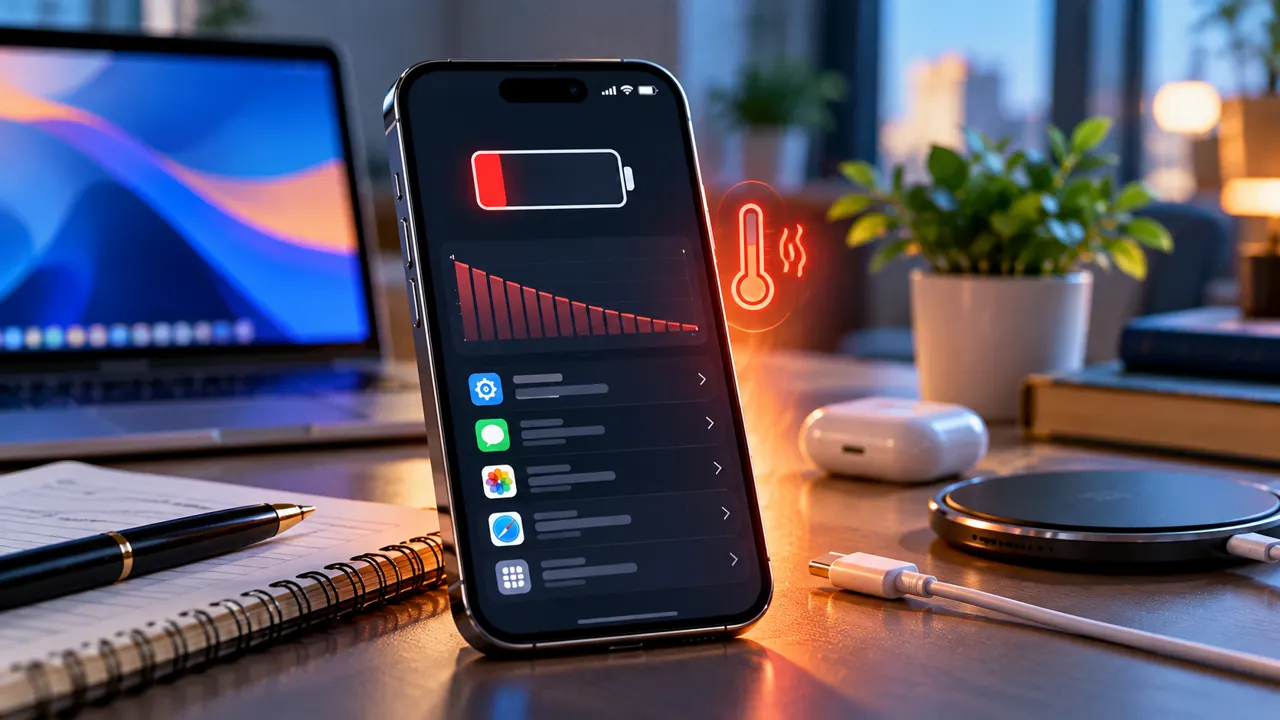
Updated October 24, 2026. If your iPhone battery is draining fast after iOS 27, do not assume the update is a universal battery defect. First check Settings → Battery for an Ongoing iOS Update or Ongoing Device Setup insight, identify whether one app or a weak signal is responsible, and compare screen-on with idle drain. If the phone stays hot during light use, shows a temperature warning, swells, smells unusual or loses charge while powered off, stop treating it as a settings problem and seek qualified service.
Start with the symptom, not a long settings checklist
The same percentage drop can have very different causes. Use the Battery screen to classify the pattern before disabling features. Apple separates update activity, app background use, weak or missing coverage, notifications, display use and battery health; that makes the first useful fix more specific than a generic “turn everything off” list.
| What you notice | Most useful clue | First safe action |
|---|---|---|
| Drain started immediately after installing iOS 27 | Settings → Battery shows Ongoing iOS Update or Ongoing Device Setup | Let the background work finish, then compare the same usage again after a few days |
| One app dominates Background Activity | The app uses power while it is not on screen | Update the app and review its background, location and sync behavior |
| Drain is worse in places with weak reception | Battery details show No Mobile Coverage or Low Signal | Test stable Wi-Fi or 5G Auto before changing unrelated settings |
| The screen is responsible for most of the use | High brightness, long screen-on time or Always-On Display | Use Auto-Brightness and a reasonable Auto-Lock time |
| The phone is hot during light use or loses charge while idle | Persistent thermal or standby behavior is not explained by normal use | Record the pattern and arrange Apple or qualified service if it continues |
Evidence limit: a single hot day, a different workload or one overnight reading cannot prove that iOS 27 caused the drain. Compare similar network, brightness, screen-on and charging conditions before calling a change a fix.
Quick answer: Open Settings → Battery, look for an Ongoing iOS Update insight, compare daily usage, and identify the app or system activity responsible. Apple advises waiting a few days after an update because background tasks may temporarily affect battery life. If the drain continues, work through the targeted checks below instead of changing every setting at once.
Is iOS 27 really causing battery drain?
Apple released iOS 27 on September 14, 2026. A new version can change background processes and the way the phone reports battery usage, but a battery percentage dropping quickly does not establish a universal iOS 27 defect. The key question is whether your phone is using more power for the same tasks and under comparable conditions. Apple explains that setup and update processes can continue after installation, sometimes raising temperatures temporarily. Apple’s iOS 27 release announcement; Apple battery-drain troubleshooting.
A useful comparison keeps the screen-on time, network, brightness, navigation, gaming and video streaming as similar as possible. A day of poor cellular reception or heavy camera use can make an otherwise healthy phone appear worse than it was before the update.
Step 1: Check whether iOS is still finishing the update
- Go to Settings → Battery.
- Read the suggestions and insights above the daily usage chart.
- Look for Ongoing iOS Update or Ongoing Device Setup.
- Keep the phone on a reliable Wi-Fi connection and charge it normally while background work completes.
- Wait a few days, then compare battery use again under similar conditions.
Do not treat “wait a few days” as an excuse for every problem. If the phone is extremely hot, shutting down, swelling, or losing charge even while powered off, stop troubleshooting through software alone and seek qualified service. Apple specifically documents that update-related background work can temporarily affect thermal performance and battery life.
Step 2: Read the Battery screen correctly
Open Settings → Battery → View All Battery Usage and examine the daily chart and app activity. The chart compares today with the previous days, while app details show whether power was used while an app was On Screen or in the Background. A large percentage does not automatically mean an app is defective: if you spent hours in Maps, the app may legitimately top the list.
- Background Activity: Check for uploads, photo syncing, location tracking, music playback or repeated fetches.
- Cellular Coverage: Weak signal can make the modem work harder, especially during travel or in buildings.
- Notifications: Frequent alerts can wake the screen or device repeatedly.
- High display use: Brightness and long screen-on time can dominate consumption.
- System activity: Some usage may be associated with update completion or device setup.
For a reliable test, record the battery level, screen-on time and top three consumers at the same time on two or three consecutive days. Avoid comparing only the number of hours since unplugging: a day with a lot of screen-off idle time is not equivalent to one with navigation or gaming. Apple guide to interpreting battery activity.
Step 3: Fix an app that suddenly uses too much power
If one app has unusually high background activity, open it and check whether it is syncing a large library, downloading offline files or retrying a failed upload. Update the app from the App Store, restart it, and review its background refresh and location permissions. Test for a day before deciding whether the change helped.
- Update the affected app and install any available iOS 27 maintenance release.
- In Settings → General → Background App Refresh, restrict apps that do not need background updates.
- In Settings → Privacy & Security → Location Services, choose an appropriate location permission for the app.
- Pause or finish a large photo, cloud-drive or media sync if it is the obvious cause.
- If one app continues malfunctioning, contact its developer; reinstall only after confirming its data is backed up.
Avoid disabling background refresh globally without a reason. Some apps depend on background activity for timely information, and the battery benefit depends on the specific app and your usage.
Step 4: Test Wi-Fi, cellular coverage and Connectivity Assist
A weak or fluctuating signal can drain an iPhone faster than many users expect. In Settings → Battery, check for cellular coverage activity. If possible, compare a day on stable Wi-Fi with a day in a low-signal location. Apple recommends 5G Auto on supported devices so the phone can switch to LTE when faster 5G does not materially improve the experience.
Some iOS 27 coverage has highlighted Connectivity Assist as a possible contributor on certain devices, because it can combine or transition between wireless connections to maintain connectivity. This is a troubleshooting hypothesis, not a confirmed universal bug. If your phone offers a similarly named control under Wi-Fi settings, record its original state, disable it temporarily, and compare battery use over a normal day. Menu names and availability can differ by model, region and iOS build. Do not assume the option exists on every iPhone.
If disabling a connectivity feature improves battery life, consider the trade-off: the phone may maintain a less reliable connection in weak Wi-Fi areas. Restore the setting if the connection problems outweigh the power savings. For users with persistent poor coverage, test Wi-Fi Calling where supported and ask the carrier about local network issues.
Step 5: Reduce screen-related drain without making the phone unpleasant to use
- Enable Auto-Brightness in Settings → Accessibility → Display & Text Size if it is off.
- Use a reasonable screen brightness, particularly outdoors or while watching video.
- Set a shorter Auto-Lock time in Settings → Display & Brightness.
- On supported Pro models, consider whether Always-On Display is necessary for your routine.
- Review live widgets and apps that keep the screen active for long periods.
Apple’s Battery screen can surface suggestions for brightness and Auto-Lock. Start with those recommendations because they are based on your device’s usage rather than a generic checklist. A bright screen for five hours may explain more drain than dozens of small background settings.
Step 6: Use Low Power Mode and Adaptive Power correctly
Low Power Mode reduces or limits selected background functions and visual effects to extend runtime. Open Settings → Battery → Power Mode on supported current versions, or use the Battery settings or Control Center where the option appears. Low Power Mode is useful when you need more time between charges, but it is not proof that iOS 27 has a defect.
Adaptive Power is available on supported iPhone models. Apple says it can make modest performance adjustments, reduce brightness, limit background activity and activate Low Power Mode at 20% when needed. On some models it is enabled by default; on others you may need to switch it on. Its learning period and eligibility vary, so check the control on your own device rather than following screenshots from a different model. Apple: Use Adaptive Power.
If you cannot find Adaptive Power, that does not mean your installation is broken. Check Apple’s supported-device list and your model. Also remember that heavy camera work and gaming may not be governed by the same power-saving behavior.
Step 7: Check Battery Health before blaming the update
Battery capacity declines with age and charging cycles. A major update can make an existing limitation more noticeable, especially when the phone performs intensive tasks. On iPhone 15 and later, go to Settings → Battery → Battery Health. On iPhone 14 and earlier, look for Battery Health & Charging.
Review maximum capacity, any service recommendation, and charging information available on your model. A low capacity or a Service message can indicate that replacing the battery will help more than tweaking settings. Battery-health percentages are estimates, not exact measurements of how many hours your phone should last. Apple battery guidance.
Step 8: Look for overheating, charging and accessory problems
Heat can affect performance, charging and perceived battery life. If the iPhone gets warm immediately after a major update, background work may be involved. However, persistent excessive heat during light use deserves investigation. Remove a thick case temporarily while charging if it traps heat, keep the phone out of direct sunlight, and use reliable chargers and cables.
If the phone shows a temperature warning, follow the on-screen instructions and allow it to cool naturally. Do not place it in a refrigerator or freezer. If there is visible swelling, unusual odor, physical damage or repeated unexpected shutdowns, stop using or charging the device and arrange professional inspection.
Step 9: Update iOS 27 and restart—without erasing data
Open Settings → General → Software Update and install a newer stable maintenance release if one is offered for your device. Updates can contain bug fixes and security improvements, although you should not assume a particular battery fix unless Apple confirms it in release notes. Restart the phone after updating and recheck Battery activity.
A restart is a low-risk diagnostic step. By contrast, a full factory reset is disruptive and rarely the appropriate first response to battery drain. If you eventually need to reset the phone, back it up first and document the original symptoms so you can determine whether the reset made a difference.
Step 10: A controlled 48-hour battery test
Day one: Establish a baseline
- Charge the phone to your usual starting level.
- Note the time, Battery Health and whether an update insight is present.
- Use the phone normally; avoid changing five settings simultaneously.
- At the end of the day, capture screen-on time, daily usage and the largest power consumers.
Day two: Change one likely cause
- If one app dominates background activity, change only that app’s behavior.
- If coverage is poor, compare a day with stable Wi-Fi or use 5G Auto.
- If brightness is high, turn on Auto-Brightness and shorten Auto-Lock.
- Record the same metrics at roughly the same time.
A meaningful improvement should appear under similar workloads. A difference of a few percentage points across completely different days is not strong evidence. If you are trying to diagnose standby drain, compare two overnight periods with the same network, charging state and notification settings.
What to do if the battery drains overnight
Overnight drain is especially frustrating because the phone may be idle. Check Battery for background syncing, weak cellular coverage, notification activity or a recent update insight. Confirm that a backup, photo library or cloud upload is not repeatedly retrying. You can temporarily test Airplane Mode overnight if you do not need to receive calls or emergency notifications; this isolates network activity but should not become an automatic permanent solution.
Do not infer a hardware fault from one night of heavy drain. If it repeats after the update has settled and the Battery screen provides no obvious explanation, record the results and contact Apple Support.
Why your iPhone may drain quickly even with the screen off
Screen-off does not mean the device is doing nothing. Cloud sync, email fetch, audio, location services, cellular network search, Bluetooth accessories, and notifications can all use power. Some of these are expected features. The goal is to identify abnormal activity, not eliminate all background processing. The Battery details distinguish on-screen and background activity so you can decide whether the consumption is justified.
Should you disable Apple Intelligence or Siri AI?
It is tempting to disable newly introduced features whenever a problem begins after an update. However, there is no basis for claiming that Siri AI or Apple Intelligence is responsible for every case of iOS 27 battery drain. First check Battery activity and test a reproducible symptom. If a particular feature correlates with abnormal consumption on your phone, document the behavior and check Apple’s latest guidance. Avoid sacrificing useful accessibility or safety features on the basis of an unverified online tip.
Should you downgrade from iOS 27?
Downgrading is generally not a practical first-line battery fix. Apple controls which software versions can be installed or restored, and older releases may no longer be signed. Restoring a device can erase data and create backup-compatibility problems. Before considering any advanced restore, use Apple’s official support channels and make a current backup. Never download unsigned firmware or profile files from untrusted sites claiming to provide a guaranteed battery fix.
Build a useful evidence packet before contacting Apple
If the drain persists after the update has settled, screenshots and a repeatable comparison are more useful than a general claim that the phone is “bad after iOS 27.” Keep the record short and avoid exposing private notifications, messages or location details.
- Record the iPhone model, iOS build, the date of the update and the Battery Health result.
- Capture Settings → Battery with Daily Usage, App and System Activity Usage, and any Insight visible.
- Note screen-on time, idle or overnight loss, network conditions, charging accessories and whether the case was installed.
- Write down whether the phone was hot during light use, showed a temperature warning, restarted or shut down unexpectedly.
- Repeat the same observation under a similar workload before changing several settings at once.
When is it time to contact Apple Support?
- Battery drain remains severe after several days and targeted troubleshooting.
- Battery Health shows a service recommendation or the phone shuts down unexpectedly.
- The device is persistently hot during light tasks.
- You notice swelling, damage, unusual smells or charging abnormalities.
- The phone loses power rapidly while idle with no identifiable background activity.
Start at Apple iPhone Support. Share the exact iPhone model, iOS 27 build, Battery Health information, when the problem began, and screenshots of Battery activity. Those details are more useful than saying only that the update ruined battery life.
Practical fixes ranked by effort and risk
ActionBest whenTrade-offWait a few daysOngoing iOS Update is shownTemporary delay before judging resultsReview Battery usageUnknown drain sourceTakes a few minutesUpdate a high-use appOne app dominates background useMay change app behaviorUse 5G Auto / stable Wi-FiLow cellular coveragePotential speed or connectivity trade-offAdjust brightness and Auto-LockLong screen-on timeSlight convenience changeEnable Adaptive PowerSupported model, heavy daily useMinor performance adjustmentsBattery serviceService alert or degraded healthCost and appointment
The bottom line
The most effective way to address iOS 27 battery drain is to diagnose the source instead of blindly turning off features. Begin with Apple’s Battery screen and post-update insights, wait for legitimate background processing to finish, identify unusual app or network activity, and then make one targeted change at a time. Use Low Power Mode or Adaptive Power when appropriate, and check Battery Health if the problem persists. There is no single switch that fixes every iPhone, but this process can separate a temporary software effect from an app, connectivity or battery-hardware problem.
Official sources and further reading
You may also like
 Technology & How-To
 NHS App Prescription Not Showing? Check GP Approval, Pharmacy Status and Tracking
Find out why a prescription or medicine is missing from the NHS App in England. Separate repeat requests,…
 Technology & How-To
 Google Wallet Not Working After Switching Phones? Fix Card Setup and Tap to Pay
Google Wallet transferred but tap to pay fails? Separate card verification, bank approval, NFC, screen lock and device…
 Technology & How-To
 iCloud Family Sharing Not Working? Why You Still See 5GB and How to Fix It
Still seeing 5GB after joining an iCloud family plan? Check the account, invitation, sharing settings, personal plan and…