
iPhone 18 Pro Speaker Crackling or Popping? What We Know and What You Can Try
Some iPhone 18 Pro and Pro Max owners report crackling, popping or clicking from the speaker. Here’s what is known, what iOS 27.0.1 fixes, and safe troubleshooting steps to try.
Contents
- What are iPhone 18 Pro owners reporting?
- Did iOS 27.0.1 fix the speaker issue?
- First: update your iPhone
- Remove the case and screen protector for a quick test
- Inspect the earpiece and speaker openings
- Use the Ringtone and Alerts slider as a speaker test
- Test a normal call and Speaker mode
- Test with local audio, not just streaming
- Try different volume levels
- Try Airplane Mode because some users can reproduce the noise there
- Restart the iPhone
- Check Bluetooth and external audio devices
- Does changing screen brightness trigger the sound?
- Could it be haptics instead of the speaker?
- Record the problem with another device
- Should you reset all settings?
- Should you return or replace the iPhone?
- When the problem looks more like hardware
- When the problem looks more like software or system behavior
- What not to do
- A quick troubleshooting order
- What if the problem happens together with no cellular service?
- Frequently asked questions
- Is Apple aware of an iPhone 18 Pro speaker defect?
- Does iOS 27.0.1 fix the crackling speaker?
- Why does my iPhone click when I turn Airplane Mode on or off?
- Can dirt cause crackling from the iPhone speaker?
- Should I replace my iPhone 18 Pro?
- Can poor cellular reception cause crackling during calls?
- Could a case cause the problem?
- The bottom line
- Sources
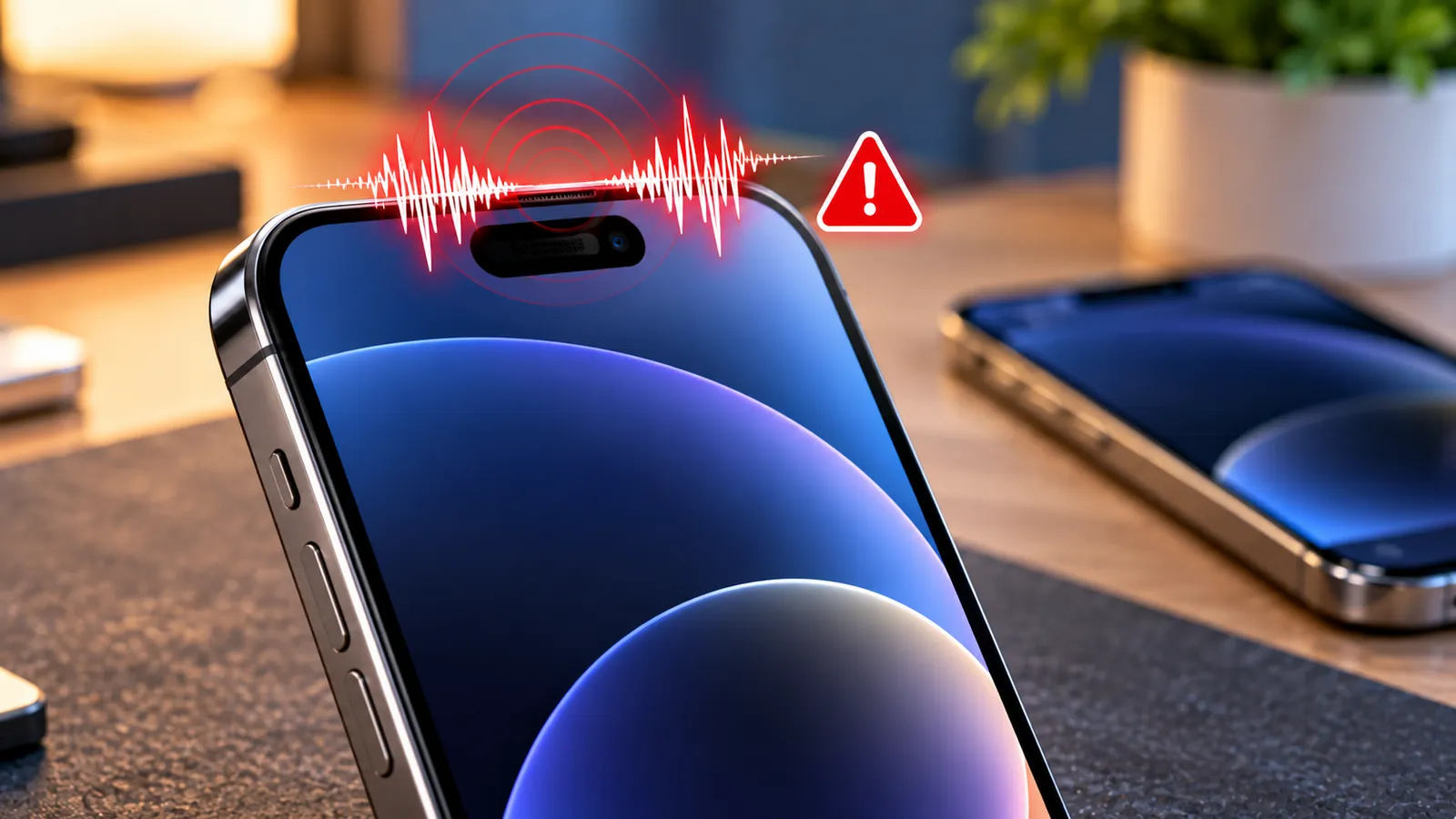
Last reviewed: October 10, 2026. Some iPhone 18 Pro and iPhone 18 Pro Max owners are reporting an odd speaker noise that sounds like crackling, popping, faint clicking or brief static. Reports collected by MacRumors suggest the issue is often noticed around the earpiece speaker, and it can appear during calls, notifications, app use, scrolling or other everyday actions.
The cause is still unclear. Apple has not publicly identified a dedicated iPhone 18 Pro speaker defect or issued a specific repair program for this symptom. Apple’s iOS 27.0.1 release notes also do not list a speaker-crackling fix, so it is too early to say with confidence whether the reports are caused by hardware, software, radio activity or more than one issue.
That uncertainty matters. A faint one-off click is not the same as constant distortion at every volume level, and the correct response depends on when the noise occurs. The steps below help you narrow the problem down without immediately wiping the phone or assuming the speaker is permanently damaged.
What are iPhone 18 Pro owners reporting?
MacRumors reported complaints from both iPhone 18 Pro and iPhone 18 Pro Max users who described the sound as a crackle, tick, pop or random click.
The reports are not identical. Some owners hear it frequently, while others only notice it during certain actions. Reported triggers have included:
- Making or receiving cellular calls.
- Notifications or keyboard activity.
- Scrolling or using apps.
- Opening media or interface elements.
- Toggling Airplane Mode.
- Rapid changes to screen brightness.
Those reports do not prove that every iPhone 18 Pro has the issue, and they do not establish a single root cause. They do, however, give you useful tests to reproduce the sound consistently.
Did iOS 27.0.1 fix the speaker issue?
Apple’s official iOS 27.0.1 notes list fixes for several iPhone 18 Pro and Pro Max problems, including unexpected restarts when Face ID authentication fails, a color artifact in some 2x photos, and a touchscreen issue involving Notification Center and Control Center.
Apple does not list speaker crackling or popping among the iOS 27.0.1 fixes.
MacRumors also reported early feedback from affected users saying iOS 27.0.1 did not eliminate the noise for them.
That does not prove software is ruled out. Apple could still address the issue in a future update if the root cause turns out to be software or firmware related.
First: update your iPhone
Even though iOS 27.0.1 does not specifically mention this speaker issue, running the latest available iOS version is still the first sensible step.
- Open Settings.
- Go to General > Software Update.
- Install any newer iOS update Apple offers.
- Restart the iPhone after the update.
- Try to reproduce the same sound again.
If Apple releases a future audio-related fix, Software Update is where it is most likely to arrive.
If your iPhone is also draining battery unusually fast or running warm after iOS 27, see our separate guide: iOS 27 Battery Draining Fast or iPhone Overheating?
Remove the case and screen protector for a quick test
Apple’s general speaker troubleshooting recommends removing cases, films and screen protectors when diagnosing distorted sound.
That may sound unrelated to crackling, but accessories can partially cover the receiver or create vibration around the top of the phone.
Take the case off, remove anything that overlaps the speaker or receiver area, then replay the same audio or repeat the action that normally triggers the noise.
If the crackling disappears, inspect the accessory for pressure points, trapped debris or a poor fit before putting it back on.
Inspect the earpiece and speaker openings
Dust, lint and fine debris can affect sound quality, especially around the narrow earpiece opening.
Apple recommends checking the speaker and receiver openings for blockage and, if necessary, cleaning them with a small, clean, dry, soft-bristled brush.
Avoid pushing sharp objects into the speaker grille. Do not use liquid cleaner directly in the opening, and do not blast the receiver with compressed air at close range.
After cleaning, test the same audio again at low, medium and higher volume.
Use the Ringtone and Alerts slider as a speaker test
Apple suggests using the built-in sound controls as part of speaker troubleshooting.
- Open Settings > Sounds & Haptics.
- Move the Ringtone and Alerts slider back and forth several times.
- Listen for crackling, missing sound or distortion.
If the problem appears during this simple built-in test, that is a stronger sign that the issue is not limited to one third-party app.
If the speaker button is dimmed or you hear no sound at all, Apple says the speaker may need service.
Test a normal call and Speaker mode
Apple also recommends testing sound quality during a call.
Make a call in an area with good cellular reception and listen first through the normal earpiece. Then turn on Speaker mode.
Pay attention to whether the crackle occurs:
- Only through the earpiece.
- Only on speakerphone.
- Through both.
- Only during cellular calls but not during local audio playback.
If the noise appears only during calls, Apple notes that network or reception can sometimes contribute to static or crackling. Try again in another location before concluding the speaker hardware is defective.
Test with local audio, not just streaming
Play a locally stored sound, video or ringtone as well as streamed media.
This helps separate a speaker problem from a network or streaming issue. If a downloaded audio file crackles in exactly the same way as calls and online video, the problem is more likely to be on the phone itself.
If only one app produces the sound, update that app and test another app before changing system settings.
Try different volume levels
A damaged or obstructed speaker may distort more at certain frequencies or higher volume levels.
Test the same audio at about 25%, 50% and 75% volume. Avoid repeatedly running the speaker at maximum volume just to force the problem.
If the noise is only present at a very narrow volume range, note that detail. It can be useful if you later contact Apple Support.
Try Airplane Mode because some users can reproduce the noise there
Some iPhone 18 Pro owners reported that toggling Airplane Mode could trigger the click or pop.
This does not prove the cellular modem is the cause, but it gives you a repeatable test.
- Make sure no important call or data transfer is active.
- Open Control Center.
- Turn Airplane Mode on.
- Wait a few seconds.
- Turn it off again.
- Listen near the earpiece area.
If the same short click occurs every time, record when it happens and whether it also appears during calls or other tasks. A reproducible pattern is far more useful than a vague report of occasional noise.
Restart the iPhone
A normal restart can clear a temporary audio or system process without erasing anything.
Restart the phone, then test before opening many apps. If the sound returns immediately during built-in tones or a simple call, that is useful diagnostic information.
Do not jump straight to a factory reset. There is no evidence that wiping the phone is a proven fix for the reported iPhone 18 Pro issue.
Check Bluetooth and external audio devices
Disconnect Bluetooth headphones, hearing devices, car audio systems and other accessories while testing.
You want to confirm that the noise is actually coming from the iPhone speaker or receiver rather than an external device.
Open Control Center or Bluetooth settings and temporarily disconnect accessories, then repeat the test using only the phone’s built-in speakers.
Does changing screen brightness trigger the sound?
MacRumors noted reports from users who could reproduce a click when changing brightness rapidly.
If you notice the same behavior, try the following test:
- Put the phone in a quiet room.
- Open Control Center.
- Slowly move the brightness slider up and down.
- Repeat the test once with audio playing and once with no audio playing.
If brightness changes consistently trigger the sound, make a note of it. That pattern may help distinguish a software, power-management or interference-related symptom from ordinary speaker distortion.
Do not treat brightness as the cause based on this test alone; it is only a way to reproduce the reported behavior.
Could it be haptics instead of the speaker?
A short click can sometimes be mistaken for speaker noise when it is actually a vibration or haptic response.
To test that possibility, temporarily reduce or disable system haptics in Settings, then repeat the exact action that normally causes the click.
If the sound remains clearly audible from the earpiece area with haptics disabled, it is less likely to be a simple vibration effect.
Record the problem with another device
Intermittent faults are difficult to demonstrate at a service appointment.
If you can reproduce the click, use another phone or recorder to capture it. Try to include the action that triggers the sound, such as toggling Airplane Mode or playing the same test audio.
A short recording can help support staff understand a problem that might not happen during a quick in-store test.
Should you reset all settings?
Resetting all settings is more disruptive than the basic troubleshooting above and is not a confirmed fix for this specific issue.
If Apple Support recommends it after simpler checks, Reset All Settings can restore system preferences without deleting personal photos and apps, but it can reset Wi-Fi networks, privacy preferences and other configuration.
Do not erase the entire iPhone unless you have a clear reason and a current backup.
Should you return or replace the iPhone?
If the phone is new and the noise is frequent, reproducible and clearly coming from the speaker, contact Apple or the retailer while your return or warranty options are still available.
However, MacRumors reported that some users who replaced their phone said the replacement showed the same symptom. That is one reason not to assume immediately that every affected unit has a unique physical speaker defect.
A replacement may still be appropriate when Apple determines that your individual device has a hardware fault, but the current public reports do not establish that replacement solves the issue in every case.
When the problem looks more like hardware
A hardware issue becomes more plausible when:
- Crackling occurs with every type of audio, including built-in tones.
- Distortion is present across several apps and at multiple volume levels.
- The speaker sounds muffled even after the opening is clean and unobstructed.
- The phone has suffered a drop, liquid exposure or physical damage.
- One speaker is consistently quieter than expected.
- The issue is reproducible after updates and restarts.
If those conditions apply, schedule service rather than repeatedly changing software settings.
When the problem looks more like software or system behavior
A software or system-level cause becomes more plausible when:
- The noise started only after an iOS update.
- The click appears during specific interface actions but not normal music playback.
- The problem comes and goes without a clear relation to volume.
- Airplane Mode, brightness changes or particular apps reproduce the sound.
- A replacement device shows a similar symptom.
These clues are not proof. They simply help explain why waiting for a software update can be reasonable when the speaker otherwise performs normally.
What not to do
- Do not insert pins, metal tools or sharp objects into the speaker grille.
- Do not pour alcohol or cleaning liquid into the receiver opening.
- Do not use high-pressure compressed air directly on the speaker.
- Do not factory-reset the phone before making a backup.
- Do not assume an online workaround is official unless Apple documents it.
- Do not repeatedly stress the speaker at maximum volume just to reproduce the noise.
A quick troubleshooting order
- Install the latest available iOS update.
- Remove the case and anything covering the receiver.
- Inspect and gently clean the speaker opening with a dry soft brush.
- Test Settings > Sounds & Haptics.
- Test a normal call and speakerphone.
- Play local audio in more than one app.
- Disconnect Bluetooth accessories.
- Restart the iPhone.
- Try to reproduce the issue with Airplane Mode or brightness changes.
- Record the symptom if possible.
- Contact Apple Support or arrange service if the noise remains frequent or severe.
What if the problem happens together with no cellular service?
Speaker crackling and cellular connectivity are separate symptoms, but a newly purchased iPhone can sometimes have more than one issue.
If your iPhone 18 Pro Max is also stuck in SOS or losing AT&T service, see our guide iPhone 18 Pro Max Stuck in SOS on AT&T? for the carrier-specific troubleshooting path.
Frequently asked questions
Is Apple aware of an iPhone 18 Pro speaker defect?
There are public user reports of crackling and popping, but Apple has not publicly announced a dedicated iPhone 18 Pro speaker repair program or identified a single confirmed cause for the reported symptom.
Does iOS 27.0.1 fix the crackling speaker?
Apple’s iOS 27.0.1 release notes do not list a speaker-crackling fix. The update addresses other iPhone 18 Pro issues, including unexpected restarts after failed Face ID authentication.
Why does my iPhone click when I turn Airplane Mode on or off?
Some affected iPhone 18 Pro users have reported being able to reproduce the sound when toggling Airplane Mode. The public reports do not yet establish why that happens.
Can dirt cause crackling from the iPhone speaker?
Yes, blockage or debris can affect sound quality. Apple recommends checking and, if necessary, gently cleaning the receiver and speaker openings with a clean, dry, soft-bristled brush.
Should I replace my iPhone 18 Pro?
If the sound is persistent, severe or clearly reproducible, contact Apple or your retailer. Replacement can be appropriate for a confirmed hardware problem, but public reports suggest it has not solved the symptom for every user.
Can poor cellular reception cause crackling during calls?
Yes. Apple says network or reception problems can contribute to static or crackling during calls. Test again from another location if the issue only happens on cellular calls.
Could a case cause the problem?
It can affect or partially obstruct the receiver, so Apple recommends removing cases, films and screen protectors as part of basic sound troubleshooting.
The bottom line
Reports of crackling, popping and clicking on iPhone 18 Pro and iPhone 18 Pro Max are real enough to investigate, but the public evidence still does not establish one universal cause.
Start with low-risk checks: update iOS, remove accessories, inspect the speaker opening, run Apple’s built-in sound test, try a call in good reception and reproduce the problem with more than one app.
If the sound is frequent across all audio sources or the speaker is clearly distorted, arrange service. If the phone otherwise sounds normal and the click appears only during specific system actions, keep the phone updated and watch for a future Apple fix before resorting to a full reset.
Sources
Apple Support — If you hear no sound or distorted sound from your iPhone speaker.
Apple Support — About iOS 27 updates.
MacRumors — iPhone 18 Pro owners report speaker crackling or popping.
You may also like
 Technology & How-To
 Google Find Hub Trackers Get NFC Support — How to Identify Lost Tags and Set Left-Behind Reminders
Google Play services v26.39 adds NFC support for compatible Find Hub tracker tags and a new setup flow…
 Technology & How-To
 Android 17 Advanced Protection Adds 6 Powerful Security Features — Should You Turn It On?
Android 17 expands Advanced Protection with encrypted intrusion logs, USB protection, accessibility restrictions, WebGPU blocking and stronger authentication…
 Technology & How-To
 Google Pixel October 2026 Update Fixes 3 Bugs and Critical Security Flaws — Should You Install It?
Google’s October 2026 Pixel update fixes a missing keyboard, VoIP audio distortion and Pixel 11 photo rotation while…