
iPhone 18 Pro Max Stuck in SOS on AT&T? What to Do Before You Ask for a Replacement
Some AT&T iPhone 18 Pro Max phones are losing cellular service and falling into SOS mode. Here’s how to install the required updates, check AT&T 72.1, back up your phone and know when to contact Apple or AT&T.
Contents
- What is happening to some AT&T iPhone 18 Pro Max phones?
- The two updates you should install now
- 1. Update to iOS 27.0.1 or later
- 2. Check the AT&T carrier settings
- What if your iPhone is already stuck in SOS?
- Should you reset network settings?
- Will Apple or AT&T replace the phone?
- Back up the phone before visiting a store
- Back up with iCloud
- Or back up to a Mac or PC
- Do not erase the phone before support tells you to
- How to tell whether this is probably the known issue
- Can you still call 911 while the phone says SOS?
- What if your phone is working normally right now?
- Quick checklist
- Frequently asked questions
- Is every AT&T iPhone 18 Pro Max affected?
- Does iOS 27.0.1 fix a phone that is already stuck in SOS?
- What carrier version should I look for?
- Is a replacement guaranteed to be free?
- The bottom line
- Sources
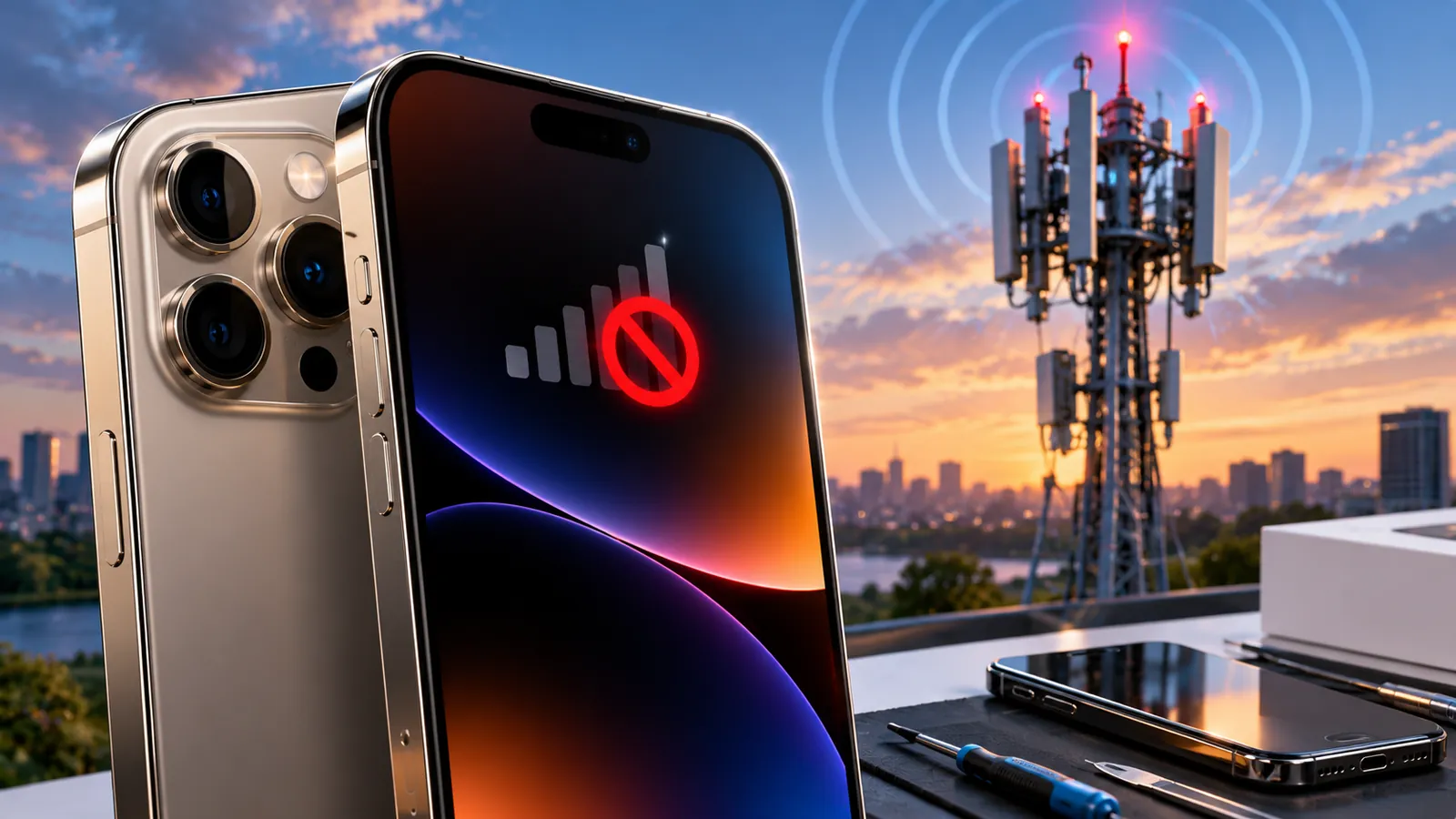
Last reviewed: October 8, 2026. A small number of AT&T iPhone 18 Pro Max owners are reporting a particularly serious cellular problem: the phone drops into SOS mode or loses cellular service entirely, leaving calls, texts and mobile data unavailable even though Wi-Fi may still work.
AT&T has now published specific guidance for the iPhone 18 Pro Max. The carrier says Apple released iOS 27.0.1 to address an issue that may affect phone calls, data, texts and even 911 calls on some devices. Apple also issued a carrier settings update, and AT&T says both updates are intended to help prevent the problem from occurring.
The important detail is that prevention and recovery are not necessarily the same thing. AT&T says that if an iPhone 18 Pro Max is already without service, the owner should contact AT&T or Apple Support, or visit an AT&T or Apple Store. In other words, do not spend hours repeatedly resetting a phone that has already fallen into the affected state.
What is happening to some AT&T iPhone 18 Pro Max phones?
The symptom is straightforward: the cellular connection disappears and the status bar may show SOS. In that state, the phone is not connected to the normal AT&T cellular network. Wi-Fi may continue to work, which can make the problem confusing because internet apps still function while ordinary cellular calls and mobile data do not.
Reports from technology publications say the issue appears to affect a relatively small number of iPhone 18 Pro Max units on AT&T. The regular iPhone 18 Pro has not been highlighted in the same way in AT&T’s current support guidance.
The exact hardware or software mechanism has not been publicly established. Some reporting has pointed to differences in cellular modem hardware, but there is not enough official evidence to treat the modem itself as the confirmed cause.
The two updates you should install now
If your iPhone 18 Pro Max still has normal service, AT&T’s advice is clear: install the latest software and carrier settings as soon as possible.
1. Update to iOS 27.0.1 or later
- Open Settings.
- Tap General.
- Tap Software Update.
- Install iOS 27.0.1 or any newer version Apple offers for your device.
AT&T specifically identifies iOS 27.0.1 as the update released to address the issue. If a newer iOS version is already available when you read this, use the latest compatible version rather than deliberately staying on 27.0.1.
2. Check the AT&T carrier settings
- Open Settings.
- Tap General.
- Tap About.
- Wait on the About screen for several seconds. If a carrier settings update is offered, accept it.
- Scroll to your eSIM, Primary or Secondary section and check the carrier information.
AT&T says the current carrier version associated with this fix should read AT&T 72.1. The carrier update is expected to roll out automatically, but opening the About screen can trigger the update sooner.
What if your iPhone is already stuck in SOS?
This is where the advice changes. AT&T says that if the iPhone 18 Pro Max is already without service, you should contact AT&T or Apple Support, or go to an AT&T or Apple Store.
Before assuming your phone is part of this specific problem, it is reasonable to try a couple of quick checks that Apple recommends for ordinary SOS or no-service situations.
- Turn Airplane Mode on for at least 15 seconds, then turn it off.
- Restart the iPhone.
- Confirm that AT&T service is available in your area and that your account is active.
- Make sure iOS and the carrier settings are fully updated.
If the phone remains in SOS after those basic checks, the current AT&T guidance is to escalate the issue rather than keep experimenting with resets.
Should you reset network settings?
For a routine connectivity problem, resetting network settings is a common troubleshooting step. But with this particular iPhone 18 Pro Max issue, it should not be your first move if the phone has already lost service and matches the reported symptoms.
A network reset removes saved Wi-Fi networks, VPN settings and some cellular preferences. That can create extra work without fixing an affected device. Follow the software and carrier update path first, then contact AT&T or Apple if service is still missing.
Will Apple or AT&T replace the phone?
Technology publications including TechRadar and Tom’s Guide report that affected customers are being directed toward hardware replacement when the phone is already nonfunctional. However, AT&T’s public support page does not promise an automatic replacement for every iPhone 18 Pro Max owner. It tells already-affected users to contact AT&T or Apple Support or visit a store.
That distinction matters. A phone showing SOS for an unrelated reason — an account problem, local outage, damaged hardware or another network issue — is not automatically covered by the same remedy.
If support confirms that your device is part of the known issue, ask the representative to document the diagnosis and explain the replacement process, any eligibility requirements and whether the replacement is handled by AT&T or Apple.
Back up the phone before visiting a store
If there is a chance your device will be exchanged, back it up before you go. A replacement may require you to hand over the affected phone.
Back up with iCloud
- Connect the iPhone to Wi-Fi.
- Open Settings and tap your name.
- Tap iCloud and then iCloud Backup.
- Tap Back Up Now and wait for it to finish.
Or back up to a Mac or PC
You can also create an encrypted local backup using Finder on a Mac or Apple Devices/iTunes on Windows. An encrypted backup is useful because it can preserve additional data such as saved passwords and Health information.
Do not erase the phone before support tells you to
It can be tempting to factory-reset a phone that has no service, but doing that too early may complicate troubleshooting and leave you without an easy way to access verification codes or account information.
Back up first. Then follow the instructions from AT&T or Apple. If they confirm the device needs to be exchanged, they will tell you when to disable Find My and erase the phone.
How to tell whether this is probably the known issue
No single symptom proves it, but the current pattern is most relevant if all of the following are true:
- You have an iPhone 18 Pro Max.
- Your carrier is AT&T in the United States.
- The phone suddenly drops into SOS or loses cellular calls, texts and data.
- Wi-Fi still works.
- Updating iOS and the carrier settings does not restore normal service.
If you have a different iPhone model or a different carrier, standard Apple no-service troubleshooting is more likely to be the right starting point.
Can you still call 911 while the phone says SOS?
The word SOS on an iPhone normally indicates that the device may still be able to place emergency calls through another available network. However, AT&T specifically says the issue it is addressing may affect 911 calls as well as ordinary calls, data and texts.
Because emergency connectivity is safety-critical, anyone whose iPhone 18 Pro Max is already affected should not rely on the phone as their only way to contact emergency services until the issue has been resolved.
What if your phone is working normally right now?
Do not wait for SOS mode to appear. Install the latest iOS update and confirm that the AT&T carrier settings are current. AT&T says the combination of these updates is intended to help prevent the problem from occurring.
This is one of those situations where proactive updating makes more sense than the usual advice to wait a few days before installing a new release.
Quick checklist
- Install iOS 27.0.1 or newer.
- Open Settings > General > About and install any carrier update.
- Confirm the carrier version shows AT&T 72.1 when applicable.
- If service is already gone, try Airplane Mode for 15 seconds and restart once.
- If SOS remains, contact AT&T or Apple Support or visit a store.
- Back up the iPhone before any replacement or repair.
- Do not factory-reset or erase the device until support instructs you to.
Frequently asked questions
Is every AT&T iPhone 18 Pro Max affected?
No. AT&T and technology reports describe the problem as affecting only some devices, not the entire iPhone 18 Pro Max population.
Does iOS 27.0.1 fix a phone that is already stuck in SOS?
AT&T says the software and carrier updates are meant to help prevent the issue. If your phone is already without service, AT&T directs you to support or a store, which suggests the update alone may not recover every affected phone.
What carrier version should I look for?
AT&T’s support page says the carrier field should read AT&T 72.1 for the current update connected with this issue.
Is a replacement guaranteed to be free?
Do not assume that every SOS case automatically qualifies. Reports say confirmed affected devices may require replacement, but AT&T’s public instructions tell customers to contact support so the device and eligibility can be verified.
The bottom line
If you own an AT&T iPhone 18 Pro Max, the best move is to update before anything goes wrong. Install iOS 27.0.1 or newer and make sure the AT&T carrier settings are current.
If the phone is already stuck in SOS and basic reconnection steps do not work, stop treating it like an ordinary weak-signal problem. Back up your data and contact AT&T or Apple. The carrier’s own guidance says already-affected devices need direct support, and current reports indicate that some confirmed cases may require hardware replacement.
Sources
AT&T Support — Troubleshoot wireless call issues and iPhone 18 Pro Max update guidance.
Apple Support — If you see SOS, No Service, or Searching on your iPhone or iPad.
Tom’s Guide — Apple and AT&T confirm iPhone 18 Pro Max connectivity issues.
TechRadar — AT&T iPhone 18 Pro Max SOS issue and replacement guidance.
You may also like
 Science & Curiosities
 Scientists Found an Archaeon With a Record-Tiny Genome — Is This Near the Minimum Needed for Life?
Candidatus Sukunaarchaeum mirabile has just 189 protein-coding genes and the smallest known archaeal genome, offering new clues about…
 Science & Curiosities
 A 2-Million-Year-Old Adult Homo erectus Fossil Is Rewriting an Early Human Timeline
An adult Homo erectus skull fragment from Drimolen, South Africa, strengthens evidence that the species was present there…
 Science & Curiosities
 James Webb Detects Changing Water Clouds Beyond Our Solar System for the First Time
Webb monitored the nearby brown dwarf WISE 0855 for 11 hours and directly detected water clouds changing thickness…