
iOS 27 Battery Draining Fast or iPhone Overheating? What’s Normal After an Update — and What to Fix
Battery draining fast or iPhone overheating after iOS 27? Learn what is normal after an update, how to find the real cause, and when the problem needs support.
Contents
- Is battery drain after an iOS 27 update normal?
- What is normal after updating?
- What is not normal?
- 1. Open Settings > Battery before changing anything
- 2. Look for one app using far more battery than everything else
- 3. Check whether the phone is still finishing the iOS update
- 4. Restart the iPhone
- 5. Update to the latest iOS 27 release
- 6. Try Adaptive Power if your iPhone supports it
- 7. Use 5G Auto instead of forcing 5G On
- 8. Check Location Services and background activity
- 9. Reduce display power before blaming the battery
- 10. Understand why the phone may pause charging
- 11. Let the phone cool naturally
- 12. Check Battery Health
- Should you factory-reset the iPhone?
- When should you contact Apple?
- A simple 48-hour troubleshooting plan
- Day 1
- Day 2
- Frequently asked questions
- How long can battery drain last after installing iOS 27?
- Is overheating after an iOS update always a bug?
- Should I downgrade iOS 27?
- Does Low Power Mode help?
- Why is my iPhone hotter on 5G?
- Can heat permanently damage the battery?
- The bottom line
- Sources
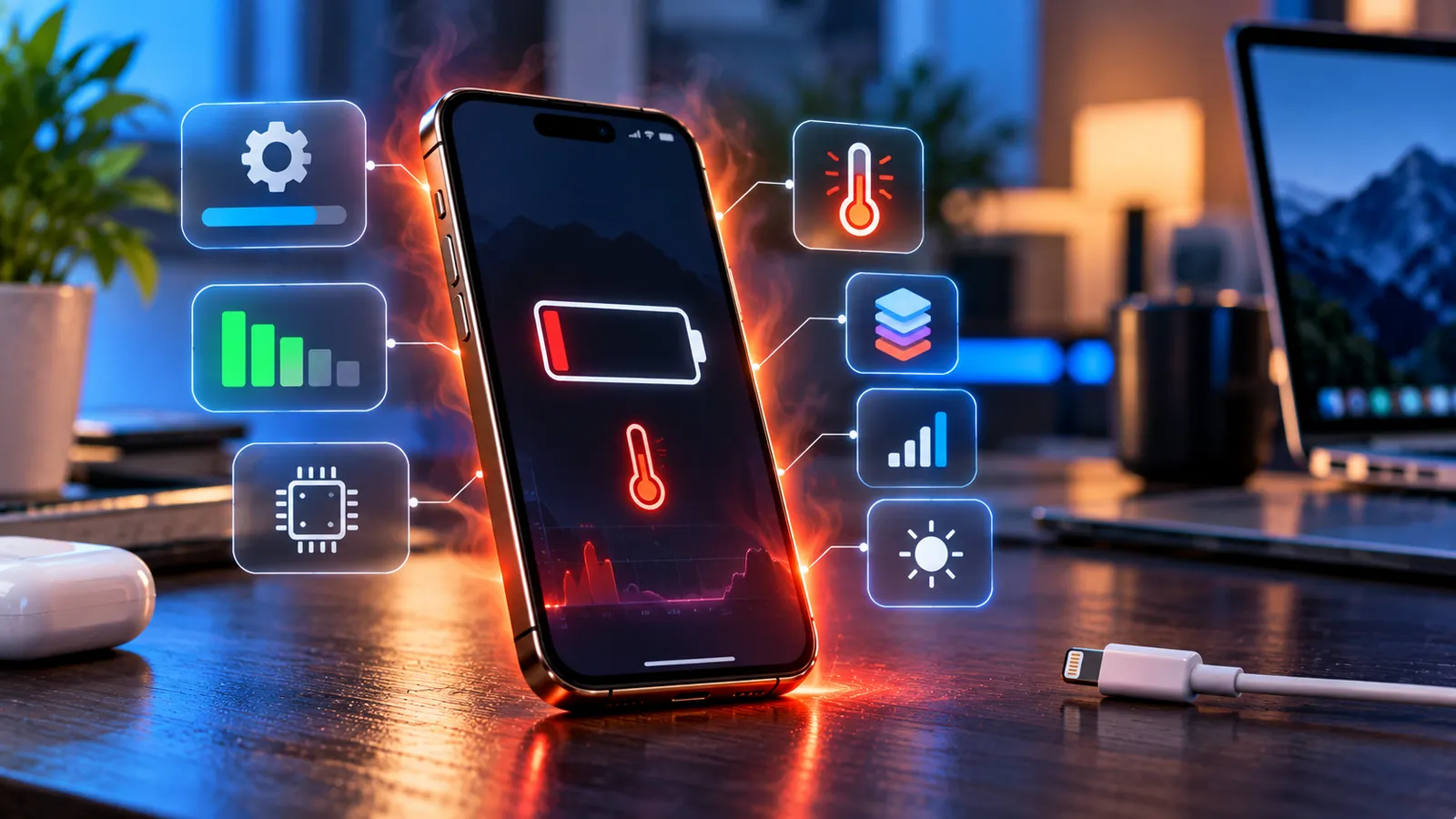
Last reviewed: October 8, 2026. If your iPhone started running hotter or losing battery faster after installing iOS 27, you are not imagining the possibility. Apple itself says major software updates can temporarily affect battery life and thermal performance because background work continues after the installation is finished.
At the same time, some iPhone 18 Pro and other iOS 27 users have reported overheating or unusually fast battery drain. That does not mean iOS 27 is universally broken, and not every warm phone has a software bug. The useful question is whether your iPhone is still doing normal post-update work — or whether something is continuing to drain power after that work should have finished.
This guide shows how to tell the difference and what to check before you reset the phone or replace the battery.
Is battery drain after an iOS 27 update normal?
For a short time, yes. Apple says that after an iOS update, tasks related to the update can continue running in the background. These can affect both battery life and thermal performance even though the phone is already usable.
Apple specifically advises users who notice reduced battery life after an update to wait a few days and check again. In iOS 26 and later, the Battery settings page can even show an Ongoing iOS Update insight while this background work is still happening.
That background work can include indexing, app optimization and other system tasks. The exact duration depends on the device, the size of the update and how much content is stored on the phone.
What is normal after updating?
- The phone feels warm for periods of time after installation.
- Battery life is worse than usual for the first day or two.
- Charging may feel slower while the phone is warm.
- Battery usage shows system activity that settles down over time.
- Performance and temperature improve after background tasks finish.
Apple also lists completing a software update — especially a major release — as one of the situations where an iPhone may normally feel warmer.
What is not normal?
A phone should not remain extremely hot for days during light use, drop battery at an alarming rate while sitting idle, or repeatedly show temperature warnings.
Pay more attention if you see:
- Large battery drops while the phone is barely being used.
- Heat during simple tasks such as reading messages or sitting on the Home Screen.
- Battery drain that remains severe several days after the update.
- Charging repeatedly pauses because the iPhone is too warm.
- A temperature warning appears on screen.
- One app is consuming a very large amount of battery in the background.
- The phone shuts down unexpectedly or performance becomes heavily throttled.
These symptoms do not prove a hardware problem, but they justify deeper troubleshooting.
1. Open Settings > Battery before changing anything
The Battery screen is the most useful place to begin because it shows where power is actually going.
- Open Settings.
- Tap Battery.
- Look at the Daily Usage chart.
- Check the list of apps and system activity below it.
- Tap an app to compare on-screen and background activity.
Apple’s newer Battery page can also show Suggestions and Insights. These may recommend changes such as enabling Auto-Brightness or Auto-Lock, or tell you that the iOS update is still completing in the background.
2. Look for one app using far more battery than everything else
A software update can expose an app problem even when iOS itself is working normally. An older app may get stuck syncing, indexing, uploading photos, refreshing in the background or repeatedly failing to connect to a service.
If one app dominates Battery Usage despite very little actual use, update it from the App Store. If the problem continues, restart the phone and consider reinstalling that app after confirming its data is safely synced.
Do not start by force-closing every app all day. iOS is designed to manage suspended apps, and repeatedly reopening them can sometimes use more power rather than less.
3. Check whether the phone is still finishing the iOS update
In iOS 26 and later, Apple says the Battery screen may show an Ongoing iOS Update insight while post-update tasks are running.
If you see it, the best move is often to leave the iPhone connected to Wi-Fi and power for a while and allow the background work to finish.
Judging battery life while the system is still processing the update can give a misleading picture.
4. Restart the iPhone
A restart can stop a runaway background process and clear temporary problems that survived the update.
Restart normally first. There is no need to erase the phone or reset every setting just because the battery was worse for a day after updating.
5. Update to the latest iOS 27 release
If Apple has released a newer iOS 27 build, install it. Early major releases often receive follow-up patches that address bugs discovered after wider rollout.
Go to Settings > General > Software Update and use the newest stable update available for your device.
For example, AT&T has already directed some iPhone 18 Pro Max customers to iOS 27.0.1 for a separate cellular issue. That does not mean 27.0.1 is a universal battery fix, but it illustrates why staying on the latest maintenance release matters.
6. Try Adaptive Power if your iPhone supports it
Apple’s Adaptive Power feature can make small performance adjustments on days when the phone is using more energy than usual.
Apple says Adaptive Power is available on supported newer iPhones running iOS 26 or later, including the iPhone 18 Pro models, iPhone 17 lineup, iPhone Air, iPhone 16 lineup, and iPhone 15 Pro models.
You can look for it under Settings > Battery > Power Mode on supported devices.
Adaptive Power is not a repair for a broken battery or runaway app, but it can reduce unnecessary power consumption during heavier days.
7. Use 5G Auto instead of forcing 5G On
Cellular radio use can contribute to battery drain, especially in weak-signal areas.
Apple recommends 5G Auto because the iPhone can switch to LTE when 5G does not provide a meaningful advantage, saving power.
- Open Settings.
- Tap Cellular.
- Tap Cellular Data Options.
- Tap Voice & Data.
- Choose 5G Auto.
If battery drain is much worse on cellular than Wi-Fi, signal quality may be part of the problem.
8. Check Location Services and background activity
Apps that continuously request location, sync media, refresh feeds or upload files can keep the phone active long after the update finishes.
Review Settings > Privacy & Security > Location Services and make sure apps do not have broader access than they need.
Also check Settings > General > Background App Refresh. Disabling background activity for apps that do not need it can help, especially if Battery Usage shows them running heavily off-screen.
9. Reduce display power before blaming the battery
A bright display is one of the largest power users on any phone. Apple specifically surfaces Auto-Brightness as a battery suggestion when it is disabled.
Use Auto-Brightness, shorten Auto-Lock if appropriate, and avoid keeping maximum brightness unless you need it.
If the battery is draining mainly while the screen is on, display settings may matter more than the iOS update itself.
10. Understand why the phone may pause charging
If the iPhone becomes too warm, iOS can automatically slow or pause charging to protect the battery.
Apple calls this Thermally Limited Charging. You may see a message such as “Charging On Hold” until the phone returns to a safe temperature.
This can happen with wired, MagSafe and other wireless charging.
Apple recommends charging between 0°C and 35°C (32°F to 95°F), avoiding direct sunlight and removing the case if the phone tends to get hot while charging.
11. Let the phone cool naturally
If the iPhone is hot, stop heavy tasks and move it away from heat or direct sunlight.
Do not put the phone in a refrigerator, freezer or against ice. Rapid temperature changes can create condensation and are not recommended.
Remove the case if it is trapping heat, disconnect the charger if charging is contributing to the temperature, and let the phone cool in a normal indoor environment.
12. Check Battery Health
A software update does not suddenly create chemical battery aging, but an older battery can make power problems more noticeable.
Open Settings > Battery and check the Battery Health information available for your model.
If iOS reports that the battery needs service, or the maximum capacity is significantly degraded and the phone is shutting down or draining abnormally, the battery itself may deserve attention.
Should you factory-reset the iPhone?
Not at first.
A factory reset is disruptive and should come after simpler checks: update completion, Battery Usage, app updates, restart, current iOS build and network or background activity.
If the problem remains severe for several days and you cannot identify an app or setting, back up the iPhone before considering a full restore or contacting Apple Support.
When should you contact Apple?
Contact Apple or an authorized service provider if the phone repeatedly shows temperature warnings, shuts down unexpectedly, remains unusually hot during very light use, or continues severe battery drain several days after updating.
Also seek support if charging constantly pauses from heat in a normal indoor environment or Battery Health reports a service issue.
Do not ignore a swollen battery, damaged enclosure, unusual smell or physical deformation. Stop using the device and get professional service.
A simple 48-hour troubleshooting plan
Day 1
- Install the latest iOS 27 update.
- Restart the iPhone.
- Leave it on Wi-Fi and power for a while so background update work can finish.
- Check Settings > Battery for Ongoing iOS Update and unusual app activity.
Day 2
- Compare battery drain with the previous day.
- Update any app using excessive background power.
- Switch to 5G Auto if you use 5G.
- Review Location Services and Background App Refresh.
- Check whether the phone still heats up during light use.
If the phone is clearly improving, the issue was likely temporary post-update activity. If it remains just as bad after several days, move on to support-level troubleshooting.
Frequently asked questions
How long can battery drain last after installing iOS 27?
Apple does not give one exact number for every device, but it advises users to wait a few days after an update because background tasks can temporarily affect battery life and thermal performance.
Is overheating after an iOS update always a bug?
No. Apple says the phone may feel warmer while completing a software update or other intensive tasks. Persistent or extreme heat is different and should be investigated.
Should I downgrade iOS 27?
Usually not as a first response. First install the latest maintenance update, let post-update tasks finish and check Battery Usage. Downgrading can be complicated and may not be possible once Apple stops signing an older version.
Does Low Power Mode help?
It can reduce background activity and extend battery life temporarily, but it does not identify the root cause of severe battery drain.
Why is my iPhone hotter on 5G?
Cellular radios can use more energy in weak or changing signal conditions. Apple’s 5G Auto mode can switch to LTE when 5G does not provide a meaningful benefit.
Can heat permanently damage the battery?
Apple warns that using an iPhone in very hot conditions can permanently shorten battery life. The device has built-in protections, but avoiding prolonged heat is still important.
The bottom line
Some battery drain and warmth after installing iOS 27 can be normal because the update continues doing background work after the installation screen disappears. Apple explicitly tells users to wait a few days before judging post-update battery life.
What deserves attention is battery drain that stays severe, heat during very light use, repeated charging pauses or temperature warnings after the normal post-update period.
Start with Battery Usage, let the update finish, install the latest iOS release and look for a runaway app before resetting the entire phone.
If your problem is cellular rather than battery-related, see our iPhone 18 Pro Max AT&T SOS troubleshooting guide. For home network problems, see Wi‑Fi Connected but No Internet?
Sources
Apple Support — If the battery in your iPhone or iPad drains too quickly.
Apple Support — If your iPhone or iPad gets too hot or too cold.
Apple Support — Understand Thermally Limited Charging on iPhone.
You may also like
 Technology & How-To
 Google Find Hub Trackers Get NFC Support — How to Identify Lost Tags and Set Left-Behind Reminders
Google Play services v26.39 adds NFC support for compatible Find Hub tracker tags and a new setup flow…
 Technology & How-To
 Android 17 Advanced Protection Adds 6 Powerful Security Features — Should You Turn It On?
Android 17 expands Advanced Protection with encrypted intrusion logs, USB protection, accessibility restrictions, WebGPU blocking and stronger authentication…
 Technology & How-To
 Google Pixel October 2026 Update Fixes 3 Bugs and Critical Security Flaws — Should You Install It?
Google’s October 2026 Pixel update fixes a missing keyboard, VoIP audio distortion and Pixel 11 photo rotation while…