
iOS 27.2 Stuck on Verifying Update? Safe Fixes Without Erasing Your iPhone
Stuck on Verifying Update after iOS 27.2? Follow Apple-based Wi-Fi, storage, re-download and Mac/Windows steps—and learn when Restore erases data.
Contents
- First, identify the exact update stage
- Check these four things before attempting any fix
- Fix 1: Retry verification on a reliable connection
- Fix 2: Restart a responsive phone, or force restart only when frozen
- Fix 3: Free space without deleting your only copy of something
- Fix 4: Delete the downloaded iOS 27.2 package and download it again
- Original lower-risk decision path
- Fix 5: Install the update using Finder on a Mac
- Fix 6: Use Apple Devices on Windows 11 or Windows 10
- When should you use recovery mode?
- What if you see an Apple logo and a progress bar?
- What if Software Update does not offer iOS 27.2?
- Troubleshooting cases: which clue actually matters?
- Three worked examples: pick one fix rather than ten
- Example A: the error appears only at home
- Example B: repeated verification after a failed download
- Example C: the phone is no longer booting
- Mistakes that increase the risk of losing data
- How the problem is usually resolved: a compact checklist
- Official sources, genuine screenshots and scope
If iOS 27.2 is stuck on “Verifying Update,” the safest fix is not to erase your iPhone. Start by checking the exact stage of the update, connecting to a stable Wi-Fi network and power, and trying again. If verification repeatedly fails, Apple recommends testing another network and, if necessary, deleting only the downloaded software-update package before downloading it again. If those steps fail, a Mac or Windows computer can install the update without choosing the destructive Restore option. See Apple’s official update troubleshooting guide.
Apple released iOS 27.2 on October 26, 2026, according to the Apple Developer release listing. The update is available for supported iPhones, including iPhone 11 and later, according to Apple’s security release notes. A user encountering a verification message does not prove Apple has acknowledged a widespread defect specific to iOS 27.2. This guide explains what the different symptoms mean, the lowest-risk remedy for each, and the evidence for the advice. Last reviewed: October 28, 2026.
First, identify the exact update stage
“Preparing Update,” “Verifying Update,” “Unable to Verify Update,” a slow progress bar, and a recovery screen look related but are not interchangeable faults. Treating them as identical is a common reason people follow needless reset instructions. Read the text on your screen before acting. The diagram below is an original decision aid, not a screenshot of Apple’s interface.
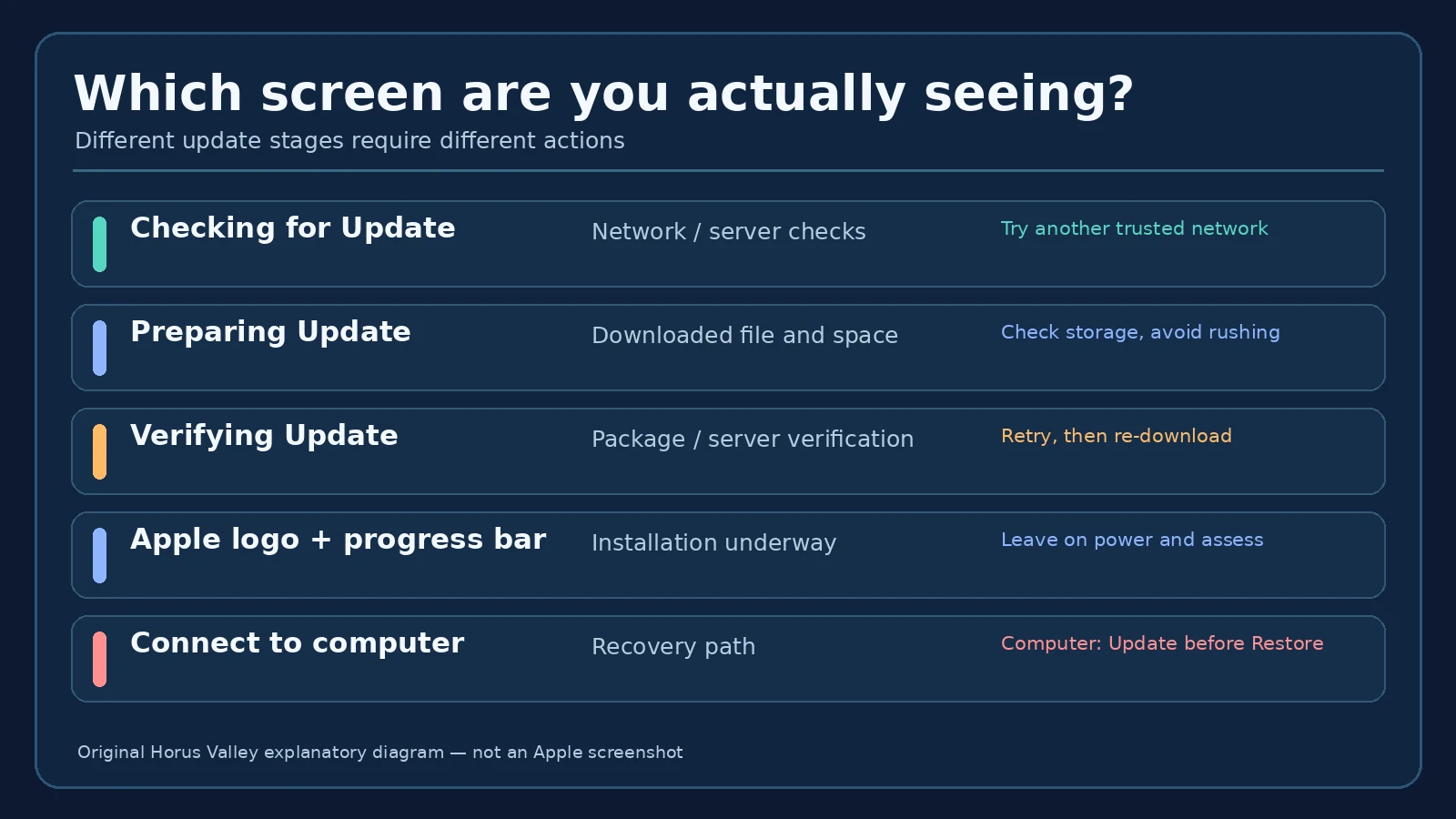
| What you see | Most useful first action | Avoid immediately |
|---|---|---|
| Checking for Update or a connection alert | Retry and test another trusted Wi-Fi network | Erasing or resetting all settings |
| Preparing Update for a long time | Check storage and power; reassess progress | Repeated forced restarts |
| Verifying Update or Unable to Verify Update | Retry network, then remove and redownload package if needed | Factory restore |
| Apple logo with moving progress bar | Keep device connected to power and evaluate whether progress continues | Treating a slow bar as a confirmed freeze |
| Connect to computer / recovery screen | Use Finder or Apple Devices and select Update first | Selecting Restore without understanding erasure |
Check these four things before attempting any fix
- Make a backup if the phone still works. In Settings, open your Apple Account, iCloud, iCloud Backup, and check whether a usable backup has actually completed; alternatively back up with Finder or Apple Devices. A backup that has stalled is not a verified backup. See our iCloud backup troubleshooting guide.
- Connect to power. Keep the phone charged during download, verification, and installation. Do not unplug in the middle of an active operating-system installation.
- Confirm a supported model and available update. Find the current version under Settings > General > About, then see Settings > General > Software Update. An update missing from the list is different from a failed installation.
- Check available device storage. Open Settings > General > iPhone Storage and let the calculation finish. Apple does not publish a universal free-space number that fixes every update; size requirements vary. Use the space warning shown on your device rather than trusting a generic “must have 10 GB” claim.
Fix 1: Retry verification on a reliable connection
If the phone is responsive and specifically reports that it cannot check or verify the update, start with Apple’s recommended connection test. Open a normal webpage to see whether the Wi-Fi network has working internet access. If you are on hotel or public Wi-Fi, ensure you have completed its sign-in page. Then return to Settings > General > Software Update and retry. An internet speed test alone cannot prove the software-update verification service is reachable.
- Try the same trusted Wi-Fi network once more while connected to power. Pause large downloads on your network if practical.
- If the alert returns, switch to a different trusted Wi-Fi network and retry. This helps distinguish one network’s filtering or connection problems from a device-level issue.
- If you use a personal VPN or DNS-filtering app, temporarily disconnect it only if you control it and can restore it afterward. This is a diagnostic option, not a step Apple requires in every case. Do not remove school or employer management profiles without the administrator’s approval.
- If the second network works, investigate the original Wi-Fi, captive portal, DNS restrictions, or VPN configuration. Avoid changing numerous settings at once—you want to know which variable fixed the issue.
Apple’s official advice is to retry the network, use another network or computer, and only then remove the update download if errors persist. The alert by itself cannot establish that Apple’s servers are down. You may consult Apple System Status for reported service issues, but a green dashboard is not a complete network test for your phone.
Fix 2: Restart a responsive phone, or force restart only when frozen
If Settings still responds, perform a normal restart before a more disruptive intervention. On most recent Face ID iPhones, press and hold the side button with either volume button, use the power-off slider, wait about 30 seconds, and power it on again. Apple documents model-specific restart methods at Restart your iPhone.
A force restart is for an unresponsive iPhone, not something to repeat because an update looks slow. For supported models with Face ID, the Apple sequence is press and release Volume Up, press and release Volume Down, then hold the side button until the Apple logo appears. Apple gives other button combinations for older models; follow the model-specific instructions. See Force restart iPhone.
Important distinction: if the screen shows the Apple logo and a progress bar while installing, it may still be working. Keeping power connected and evaluating whether progress changes is safer than interrupting a normal installation. A phone that repeatedly cycles back to the same start screen, or shows a recovery icon, needs a different path described below.
Fix 3: Free space without deleting your only copy of something
Low local storage can prevent an update from downloading or completing. In Settings > General > iPhone Storage, inspect the largest categories first. Apple offers Offload Unused Apps, which removes eligible app binaries while keeping their data; that is different from Delete App, which can remove important local files. Remove offline videos, downloads or recordings you no longer need, but first verify that any photos, messages or projects you care about are preserved.
If you have already deleted photos or videos and storage still appears full, do not assume they were immediately removed from every storage category. Check Recently Deleted and app-specific offline files, and allow storage calculations to refresh. For a more detailed workflow, consult our phone storage guide. Freeing space does not guarantee repair if the root cause is a network verification failure.
Fix 4: Delete the downloaded iOS 27.2 package and download it again
This step is best reserved for repeated failed download or verification attempts after trying a second connection. Apple explicitly documents deleting the downloaded update package; it does not mean deleting your photos, apps, or iPhone backups. If you do not see an update package in Storage, skip this step rather than deleting an unrelated file or app.
- Open Settings > General > iPhone Storage. Wait for the list of apps and system items to populate.
- Locate the iOS update entry. Tap it and choose Delete Update if offered. Confirm that the entry is the downloaded system update and not a personal file.
- Restart if the phone is responsive, reconnect to reliable Wi-Fi and power, then go to Settings > General > Software Update.
- Download the version offered for your compatible device and retry installation. If the same error persists, move to the computer-based option instead of continuously repeating deletion.
This replaces the local software package and can help when a download is incomplete. It does not prove the original package was corrupted, and it will not fix a permanently unsupported device or a policy restriction set by device management. Apple describes these exact menus in If your iPhone or iPad won’t update.
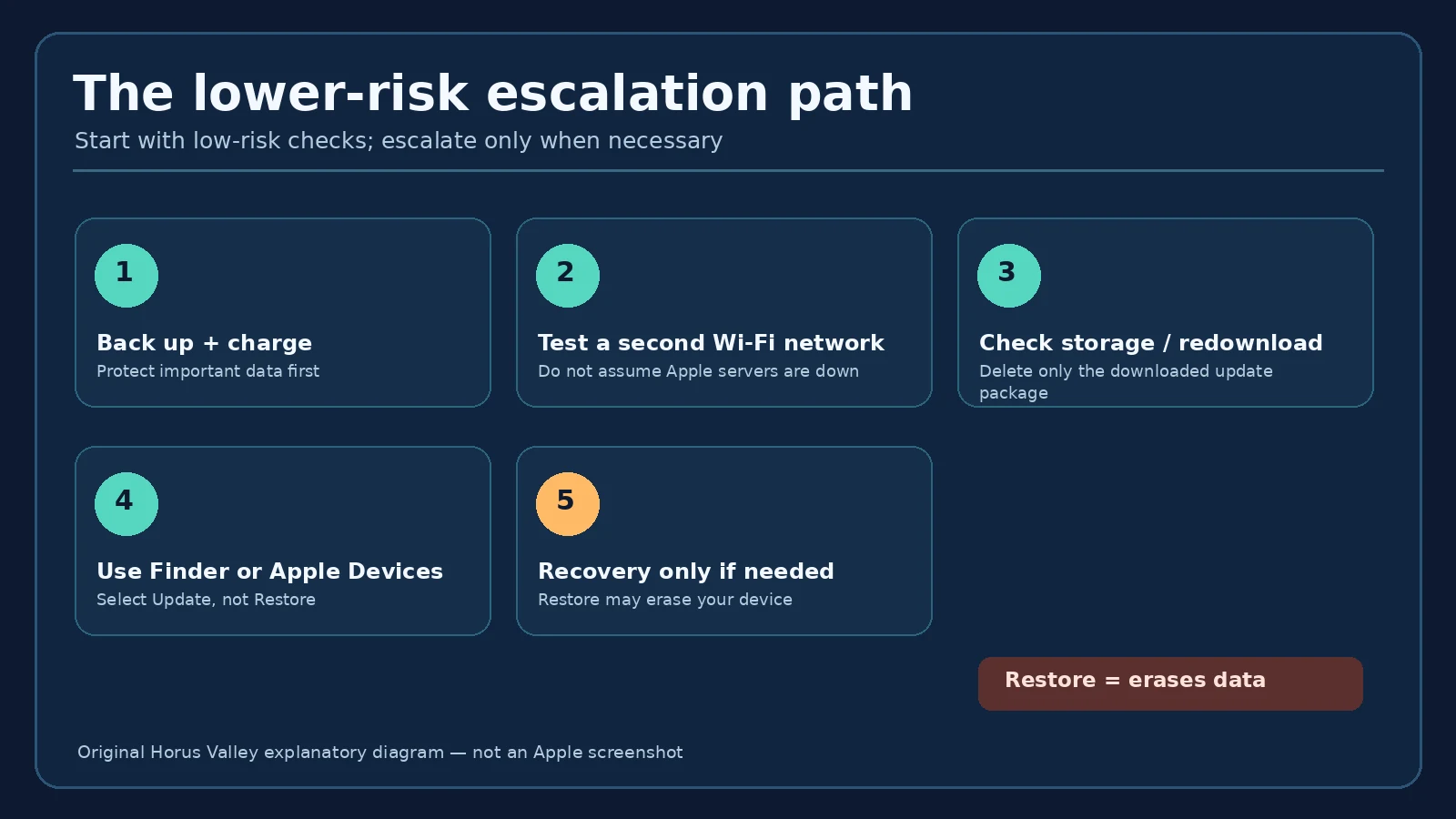
Original lower-risk decision path
Many web guides present a list of “ten fixes” without explaining when to stop. The sequence below instead prioritizes reversible, low-risk actions. The final step is a conditional escalation, not an instruction to erase your phone.
Fix 5: Install the update using Finder on a Mac
If over-the-air updating repeatedly fails, a trusted Mac can download the update via Finder and send it to your iPhone. Back up the device first if it is accessible. Do not use your iPhone’s Personal Hotspot as the computer’s only connection when that is the iPhone being updated; connect the Mac to its own Wi-Fi or Ethernet. Apple provides screenshots of the real interface in Update with the Finder.
- On a Mac running macOS Catalina or later, open Finder. For macOS Mojave or earlier, use iTunes instead.
- Connect the iPhone to the Mac using a suitable, working cable. Follow Trust/Allow prompts if they appear and the phone is responsive.
- Select the iPhone in the Finder sidebar; open General.
- Click Check for Update, then Download and Update when offered. Enter the passcode if requested.
- Keep the cable connected while the installation proceeds. Read any on-screen error code and use Apple’s specific guidance if the operation fails.
Do not confuse Finder’s “Back Up Now” with “Restore Backup,” or “Check for Update” with “Restore iPhone.” They do different jobs. A computer update is a standard Apple-supported escalation and usually avoids the data loss inherent to factory restoration, but preserving an independent backup is still sensible before changing system software.
Fix 6: Use Apple Devices on Windows 11 or Windows 10
On current Windows setups, Apple documents updating through the Apple Devices application. Earlier Windows instructions may describe iTunes; both are Apple software, but their navigation differs. The Apple Devices user guide provides genuine app screenshots. Do not download an “iOS repair utility” just because a blog presents it as the only route.
- Install or open the current Apple Devices app from a trusted Microsoft/Apple source and update Windows as needed.
- Connect the iPhone using a functioning USB or USB-C cable, unlock it if possible, and approve the Trust prompt.
- Choose the device in the left sidebar and open General.
- Select Check for Update if displayed, then Update. Let the app download and install the appropriate software.
- If the phone does not appear, try a direct USB port and another known-good cable before concluding that iOS is damaged.
iTunes may still be needed on certain older computer configurations; follow the current Apple instructions for your installed setup rather than mixing interfaces. Apple’s iTunes update guide is separate from its Apple Devices guide.
When should you use recovery mode?
Recovery mode is for more serious situations, such as the persistent Connect-to-computer screen, an Apple logo without a progress bar for several minutes, or an update that cannot complete with ordinary methods. It is not the routine first fix for a verification pop-up in a fully working iPhone. Apple provides the exact model-specific button combinations and screenshots in If you cannot update or restore your iPhone.
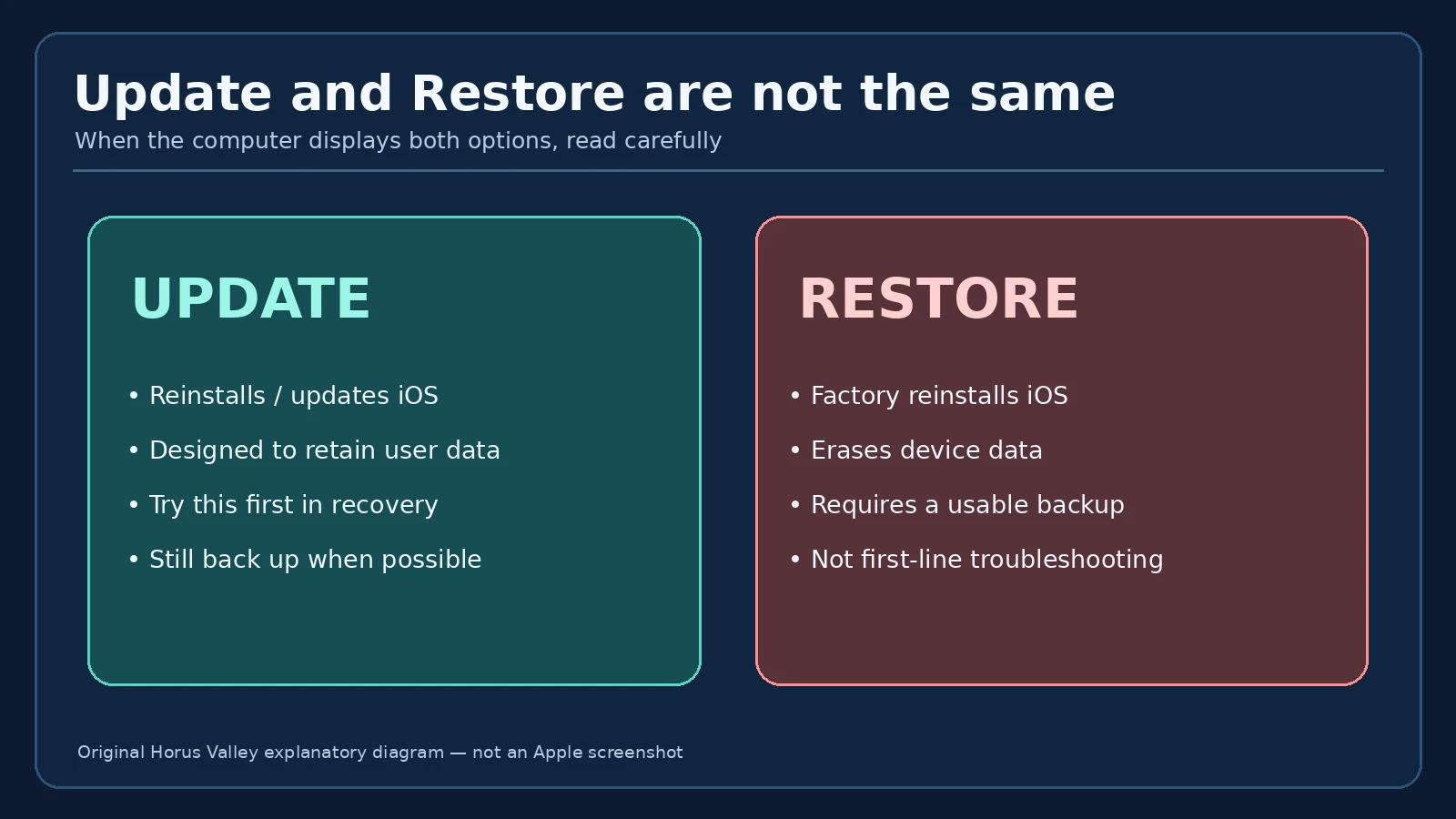
When Finder or Apple Devices offers Update and Restore in recovery mode, try Update first if you have not already done so. Apple states that this reinstalls the software while attempting to retain personal data. Restore reinstalls the operating system and erases the device. If the only copy of important files is on that phone, do not choose Restore casually; consider professional Apple support and recovery options before risking that copy.
| Action | Intended effect | Personal data risk | Use when |
|---|---|---|---|
| Retry update | Try verification / install again | Generally low, but a backup remains wise | Phone still works |
| Delete downloaded update | Remove the update package, not photos | Low if correct update entry selected | Repeated OTA package failures |
| Computer Update | Install/update system software | Designed to retain user data; not a guarantee | Wireless update keeps failing |
| Recovery Update | Reinstall operating system using computer | Attempts to keep personal data | Severe software or boot issue |
| Restore / factory reset | Erase iPhone and reinstall iOS | Erases device data | Last resort with backup and informed consent |
What if you see an Apple logo and a progress bar?
A slow progress bar is not proof of a frozen installation. Apple says completion time depends on update size and the number of files on the device. Keep power connected and assess whether the bar advances over time. Do not invent an exact “safe wait” deadline that applies to every iPhone. If the device repeatedly restarts, the bar never appears, or the computer reports an explicit error, follow Apple’s frozen-device or recovery guidance appropriate to your model.
An Apple logo without a progress bar for several minutes can call for recovery troubleshooting, while a progress bar that moves slowly normally calls for patience. If the phone becomes hot enough to show a temperature warning or there are signs of battery damage, stop and seek qualified service rather than continuing risky troubleshooting.
What if Software Update does not offer iOS 27.2?
The first check is whether your device actually supports that release. Apple’s published security page lists iOS 27.2 for iPhone 11 and later. Confirm the model under Settings > General > About. If you have a supported model but do not see the download, check the internet connection, whether the device is managed by a company or school, and whether a beta channel or another software build is in use. Availability can differ from the release page shown for a different device.
Do not install profiles or unsigned software packages advertised as shortcuts to iOS 27.2. If the phone is under mobile-device management, its administrator may deliberately defer updates. Contact that administrator rather than bypassing the policy. If you have participated in a public or developer beta, verify which update channel you are enrolled in before switching builds; do not assume the newest beta and the general public release share the same version number or build.
Troubleshooting cases: which clue actually matters?
| Clue | More plausible cause | Test that narrows it down | Next step |
|---|---|---|---|
| Error only on home Wi-Fi | Local DNS, firewall, captive portal or network path | Try separate trusted Wi-Fi | Fix home network after confirming alternative works |
| Error across two networks | Update package, device state or broader service issue | Check Apple notices; retry package | Delete update or use computer |
| Not enough storage shown | Space on iPhone | Review iPhone Storage | Offload or delete dispensable offline files |
| Phone frozen, Settings inaccessible | System hang or startup problem | Model-specific restart guidance | Force restart / recovery only if required |
| Windows PC cannot see phone | Cable, port, trust prompt, driver or phone | Direct cable, other port, Apple Devices | Follow device recognition guide |
| Mac sees phone but OTA failed | Wireless update path | Finder General > Check for Update | Install using official software |
| Company iPhone blocks install | Management policy | Check supervision with admin | Do not delete MDM profile |
| Progress bar moves slowly | Active installation or large file operations | Keep power and observe progress | Avoid repeated interruption |
Three worked examples: pick one fix rather than ten
Example A: the error appears only at home
A user can open websites and stream video on home Wi-Fi, yet the software update reports “Unable to Verify Update.” They try a different trusted network and verification succeeds. The useful conclusion is not that the iPhone was broken: the failed path appears to involve the original connection. Instead of restoring the phone, the user can check the router, captive-portal behaviour, DNS filtering or VPN configuration, and document which setting changes the result. This is a diagnostic scenario, not a claim about one particular Apple outage.
Example B: repeated verification after a failed download
A supported iPhone has several GB available and remains fully responsive. The error occurs on two different Wi-Fi networks. The user finds the iOS installer in Settings > General > iPhone Storage, deletes that specific update entry and downloads the release afresh. If it succeeds, the local package was a reasonable suspect; if it fails again, a computer Update is the better next diagnostic step. Do not delete unrelated app data simply because the storage screen is open.
Example C: the phone is no longer booting
After an interrupted installation, the phone shows the computer-and-cable screen. There is no access to Settings, so changing Wi-Fi or deleting the update inside iPhone Storage is no longer an option. On a trusted Mac or Windows PC, the user follows Apple’s recovery directions and chooses Update first. If that fails and Restore is proposed, the crucial decision is whether a usable backup exists and whether the user accepts the loss of local data. This branch has a different risk profile from the first two.
Mistakes that increase the risk of losing data
- Choosing Restore because it is next to Update. A factory restore erases the device. The two buttons are not alternate names for the same operation.
- Repeated force restarts during an active progress bar. A slow install may still be proceeding; Apple distinguishes an installation bar from a genuine frozen device.
- Deleting apps to guess at a storage fix. Offload is not the same as Delete; check app-specific files and backups first.
- Signing out of your Apple Account or disabling security settings without a reason. Network verification errors do not prove an account problem.
- Trusting “one-click, zero-data-loss guaranteed” third-party repair ads. The advertising claim is not equivalent to an Apple-supported recovery guarantee.
- Removing a managed-device profile. That can disrupt access to work/school resources and should be handled by the administrator.
- Confusing Apple security release notes with evidence of a mass update failure. The release is confirmed; the prevalence or cause of any particular error requires separate data.
How the problem is usually resolved: a compact checklist
- Record the exact error text and iPhone model; verify whether iOS 27.2 is available to it.
- Back up important data if the phone is accessible, and connect it to a reliable power source.
- Try the same trusted Wi-Fi network once, then a separate trusted network.
- For a responsive phone, restart normally; check available storage and eliminate unnecessary downloads.
- If repeated verification fails, delete only the downloaded system-update package, when it is listed, and download it again.
- If the update still fails, use Finder on Mac or Apple Devices on Windows; choose Update.
- For a real recovery or boot failure, follow model-specific Apple recovery instructions and prefer Update to Restore.
- Document persistent error codes, and contact Apple Support or a qualified service provider before an irreversible erase.
Official sources, genuine screenshots and scope
- Apple Developer: iOS 27.2, build 24B119, released October 26, 2026 — primary release record.
- Apple: iOS 27.2 and iPadOS 27.2 security content — release date and compatible hardware.
- Apple: If your iPhone or iPad won’t update — network, storage, downloaded update removal, and computer escalation, with authentic interface images.
- Apple: Update your iPhone or iPad — official screenshots of the Settings update path.
- Apple: Update with Finder on Mac — genuine Finder screenshots and computer workflow.
- Apple: Update with Apple Devices on Windows — genuine Windows app screenshots.
- Apple: If you cannot update or restore iPhone — recovery mode and data-erasing Restore warning.
- Apple: When the Restore screen appears — select Update before Restore when possible.
- Apple: Force restart iPhone — model-dependent button guidance.
Editorial disclosure: The featured artwork and three infographics in this article are original illustrations, not authentic Apple screenshots or a diagnostic test performed on a specific iPhone. Genuine interface images are available at the linked Apple Support pages. These steps cover general update failures on compatible devices as of October 28, 2026; the article does not claim Apple has confirmed a widespread iOS 27.2 verification bug, nor does it guarantee that any troubleshooting step prevents all data loss.
You may also like
 Technology & How-To
 USB Works on PC but Not on TV? How to Find the Cause
Diagnose a USB drive that works on a computer but not a TV. Separate detection, missing files and…
 Technology & How-To
 WhatsApp “Waiting for This Message”: Fixes for iPhone, Android and Web
Fix WhatsApp’s waiting-message notice by comparing your phone and linked devices, checking updates and protecting existing chat data.
 Technology & How-To
 WhatsApp iOS 15.5 Requirement: What Changes on November 30, 2026?
WhatsApp raises its iPhone minimum to iOS 15.5 on November 30, 2026. Check your version, older iPhone eligibility…