
How to Screenshot on Windows 11: Capture, Copy, Save, and Troubleshoot
Take a screenshot in Windows 11 with the right keyboard shortcut, find the saved file, and fix Print Screen or Snipping Tool problems.
Contents
- Which screenshot shortcut should you use?
- How to capture part of the screen with Snipping Tool
- Where are screenshots saved in Windows 11?
- Copied to clipboard versus saved as a file
- How to change what Print Screen does
- Fix Print Screen or Windows + Shift + S not working
- Repair Snipping Tool if it will not open
- Frequently asked questions
- Why does Windows + Shift + S work but I cannot find the screenshot?
- How do I screenshot one window without capturing the whole desktop?
- Do I need to install a screenshot application?
- Official sources
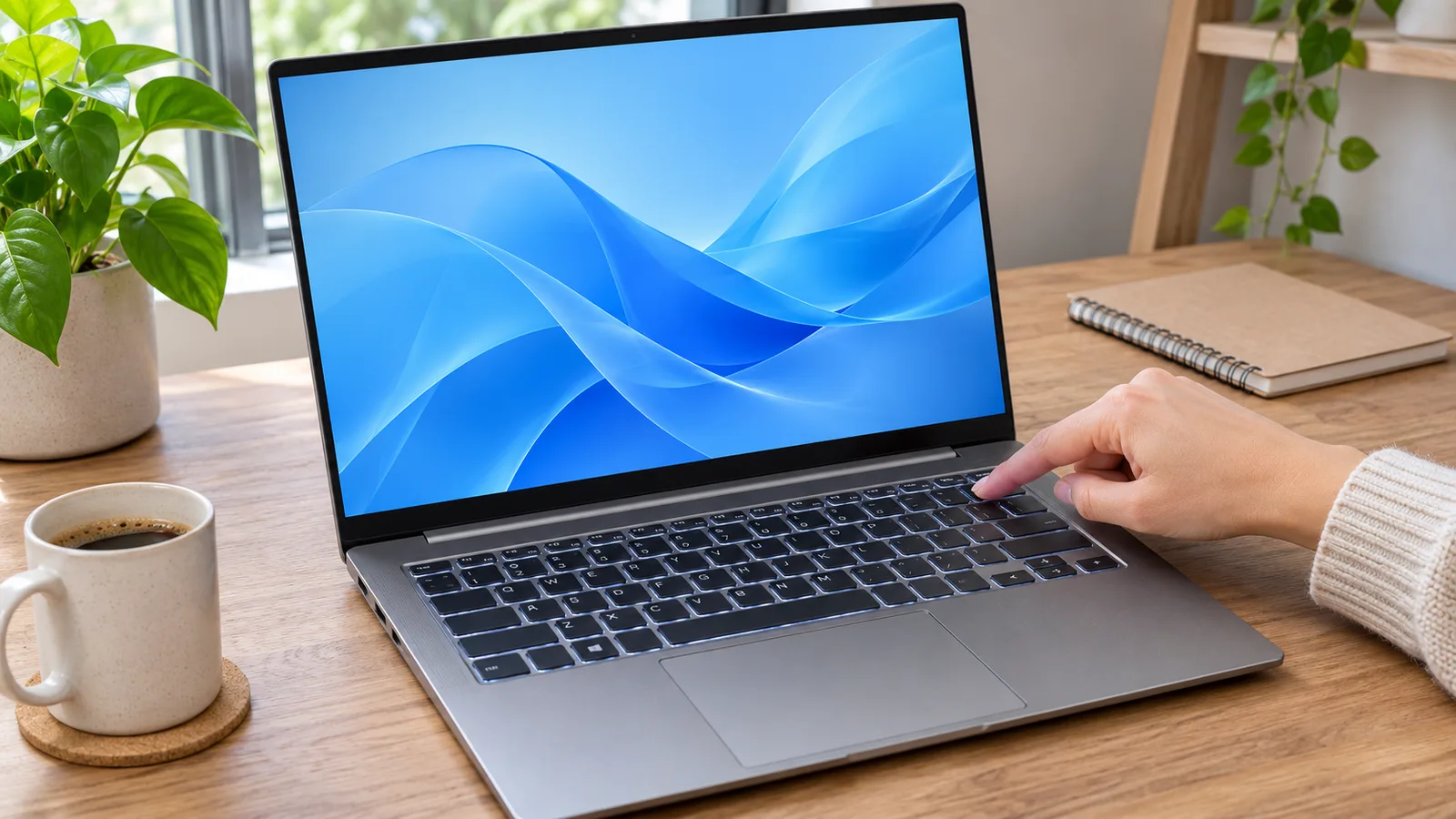
To take a screenshot on Windows 11, press Windows + Shift + S and select the area you want. For an immediate full-screen file, press Windows + PrtScn. To copy only the active window, press Alt + PrtScn, then paste with Ctrl + V.
Which screenshot shortcut should you use?
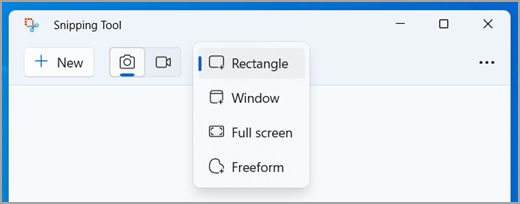
- Part of your screen: Windows + Shift + S. Select a rectangle, window, entire screen, or freeform area.
- Whole screen saved as a file: Windows + PrtScn. Look in Pictures > Screenshots.
- Current window copied: Alt + PrtScn. Paste into Paint, Word, or a message with Ctrl + V.
- Print Screen key: PrtScn may open the Snipping Tool capture overlay or copy the screen, depending on your Windows setting.
- No PrtScn key: Some devices support Fn + Windows + Space instead. Keyboard layouts vary.
How to capture part of the screen with Snipping Tool
- Press Windows + Shift + S, or open Start and search for Snipping Tool.
- Choose Rectangle for a selected area, Window for one app, Full screen, or Freeform.
- Select the area or window. Open the capture notification if you want to annotate or crop it.
- Use Ctrl + C to copy or Ctrl + S / Save as to choose a file location. On recent versions, an original copy may already be saved automatically.
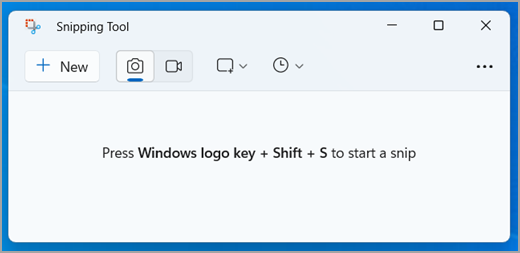
Practical tip: If a menu disappears when you try to capture it, open Snipping Tool and choose a short Delay before selecting New. That gives you time to reopen the menu.
Where are screenshots saved in Windows 11?
- Windows + PrtScn: Open File Explorer, then Pictures > Screenshots. The typical location is
C:\Users\YourName\Pictures\Screenshots. - Snipping Tool: Current versions can automatically save original screenshots in the Screenshots folder. Open Snipping Tool, select the three-dot menu > Settings, and check automatic saving and the folder location.
- Alt + PrtScn or clipboard-only capture: No standalone image file is created by that shortcut. Paste the result into Paint and save it if you need a file.
- Xbox Game Bar: Game captures generally appear under Videos > Captures.
- OneDrive backup: If Pictures is backed up or redirected to OneDrive, look under OneDrive > Pictures > Screenshots instead.
Not finding the file? Open Pictures > Screenshots, sort by Date modified, then inspect Snipping Tool’s save settings. You can also search File Explorer for Screenshot*.png.
Copied to clipboard versus saved as a file
A screenshot on the clipboard is temporarily available to paste with Ctrl + V; it is not necessarily a picture you can find in a folder. A saved screenshot is a PNG or another image file you can attach later. Modern Snipping Tool may both copy and automatically save one capture, so check its settings before assuming nothing was saved.
How to change what Print Screen does
- Open Settings > Accessibility > Keyboard. On some Windows builds, related controls may also be found by searching Settings for Print Screen.
- Find Use the Print screen key to open screen capture (wording may vary).
- Turn it on to open the capture overlay with PrtScn, or turn it off if you prefer the classic full-screen clipboard behavior.
Fix Print Screen or Windows + Shift + S not working
- Check the Fn key: On some laptops the screenshot function shares a key. Test Fn + PrtScn or Fn + Windows + PrtScn.
- Try Snipping Tool directly: Search for Snipping Tool in Start and choose New. If this works, the issue may be the keyboard shortcut or a conflicting utility.
- Check Print Screen settings: Use the Keyboard setting described above, especially if PrtScn opens a tool rather than copying the screen.
- Check your destination: After a snip, paste into Paint with Ctrl + V. If it pastes, the capture succeeded; investigate auto-save settings or the Screenshots folder rather than the screenshot key.
- Update the app: Open Microsoft Store > Library and check for updates to Snipping Tool. Restart Windows if the shortcut remains unresponsive.
Repair Snipping Tool if it will not open
- Go to Settings > Apps > Installed apps and find Snipping Tool.
- Open the three-dot menu > Advanced options, if available.
- Select Repair first. If that fails, Reset may help, but it can remove the app’s settings or data.
- If the app still fails, use Microsoft’s official reinstall instructions.
If a screenshot looks unusually faded rather than failing to capture, the issue may involve HDR color handling. See our separate guide to washed-out HDR in Windows 11. For broader Windows troubleshooting, see Windows 11 Update Stuck at 100%?
Frequently asked questions
Why does Windows + Shift + S work but I cannot find the screenshot?
The image may be in the clipboard, automatically saved to Pictures > Screenshots, or redirected to OneDrive. Try Ctrl + V in Paint, then check Snipping Tool’s automatic-save settings.
How do I screenshot one window without capturing the whole desktop?
Click the window and press Alt + PrtScn, then paste it. Alternatively, press Windows + Shift + S and select Window mode.
Do I need to install a screenshot application?
No. Windows 11 includes the Snipping Tool and keyboard shortcuts for common screenshot tasks. Install a third-party app only if you need additional features.
Official sources
- Microsoft Support: Use Snipping Tool to capture screenshots
- Microsoft Support: Keyboard shortcuts in Windows
- Microsoft Support: Repair apps and programs in Windows
- Microsoft: Screenshot use permissions
Visual note: The Snipping Tool interface screenshots above are genuine images supplied by Microsoft Support, not simulated Windows screens. Used with permission from Microsoft. Menu labels and automatic-saving behavior can vary with app version and device settings.
You may also like
 Technology & How-To
How to Turn Lecture Recordings Into Study Notes With NotebookLM
Turn lecture audio into study notes with free Gemini Notebook (NotebookLM). Follow the upload steps, check transcript citations,…
 Technology & How-To
How to Use Google Lens to Find Products and Compare Prices
Find an item from a photo with Google Lens, check exact product matches and compare real checkout costs…
 Technology & How-To
Podcast Microphone Guide: USB vs XLR and Setup Tips
Choose a podcast microphone by room noise, connection type and recording style. Compare USB and XLR, see verified…