
Why Windows 11 HDR Looks Washed Out — How to Fix Faded Colors
Is your Windows 11 HDR desktop washed out or faded? Use a symptom-first checklist to correct SDR brightness, monitor modes, calibration and gaming HDR without random color tweaks.
Contents
- The five-minute diagnosis: isolate the problem before changing settings
- Why the desktop can look washed out even when HDR works
- SDR and HDR do not use identical brightness behavior
- HDR support does not guarantee impressive HDR performance
- Windows, the application, and the display can each tone-map images
- Fix 1: Set the SDR brightness balance before increasing saturation
- Fix 2: Make sure the TV or monitor is receiving the signal it expects
- Fix 3: Calibrate HDR in Windows 11 — after the basics are correct
- Fix 4: Separate Auto HDR and native HDR in games
- Fix 5: Check color management, Night light and third-party filters
- Fix 6: Handle laptops differently from external monitors
- Fix 7: If the problem is in screenshots or recordings, test the capture path
- What not to change first
- Practical walkthrough: three users, three different diagnoses
- How to decide whether HDR should stay on
- Final troubleshooting checklist
- Sources and further reading
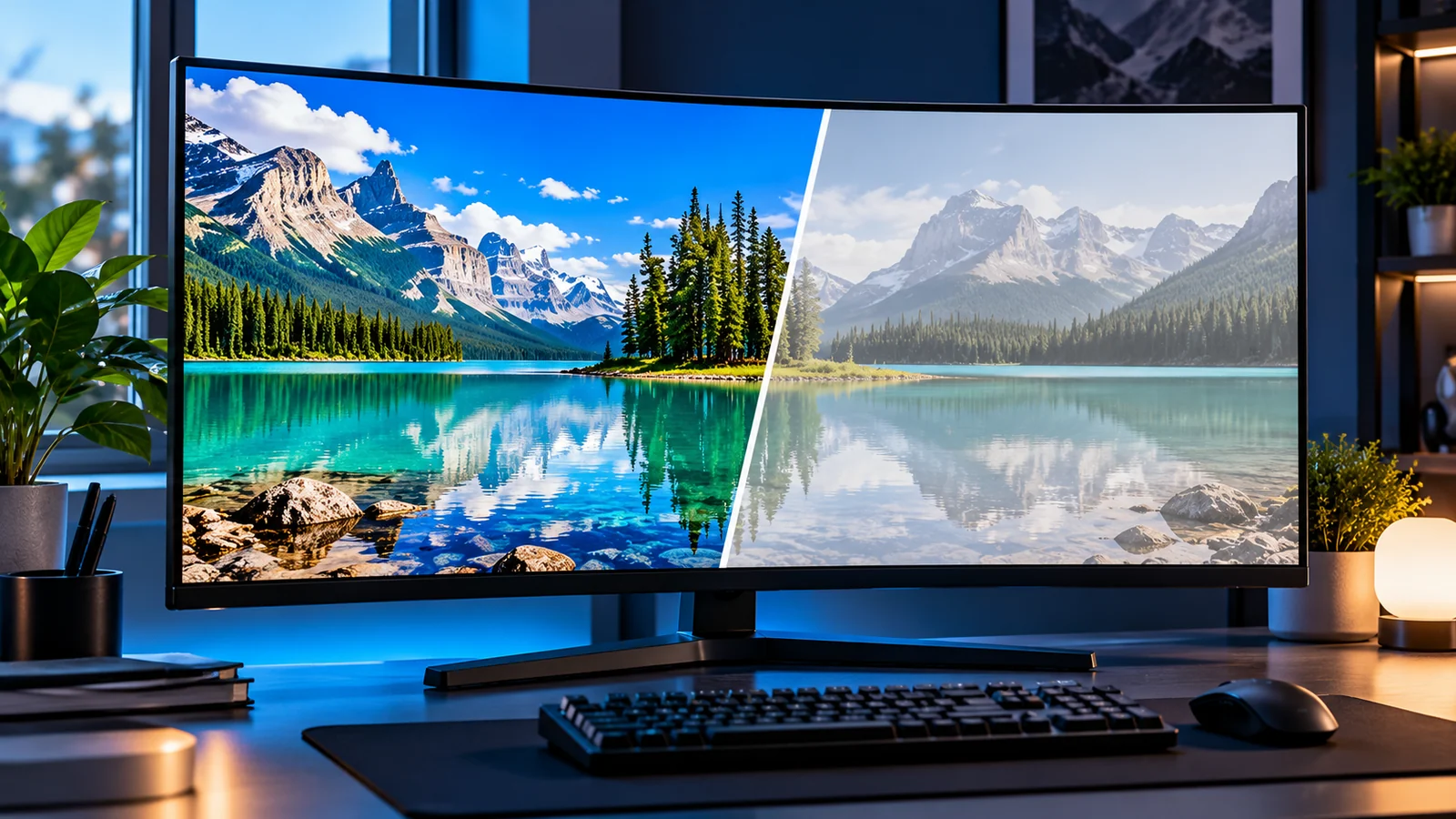
Turning on HDR in Windows 11 should make compatible movies and games show richer highlights and more detail in shadows. Yet a common surprise is that the desktop suddenly looks gray, faded, or less colorful than it did in SDR. Before buying a different cable or pushing every saturation slider to its maximum, it helps to establish what is actually washed out. The Windows desktop, an HDR game, an SDR photograph, a video stream, and an incorrectly configured display can produce similar-looking complaints for very different reasons.
Quick answer: Start by comparing the same desktop content with HDR off and on, then check a known HDR video or game separately. Adjust SDR content brightness for your particular display, verify the monitor or TV’s HDR input mode, and use Microsoft’s Windows HDR Calibration app only after the signal path works. If the HDR movie looks right but ordinary browser pages look muted, the problem is not necessarily defective hardware. Microsoft’s HDR troubleshooting documentation explicitly describes SDR brightness and color differences on HDR displays.
The five-minute diagnosis: isolate the problem before changing settings
Do these tests in order. They require no third-party utilities and, unlike an online screenshot comparison, they preserve the real behavior of your monitor.
- In Settings → System → Display, select the affected monitor if you have more than one. Open HDR and note whether HDR is supported and enabled. Write down your current SDR/HDR content-brightness slider position so you can undo changes.
- View an ordinary desktop window with white space, gray controls, a familiar photograph, and dark text. Note whether whites look excessively bright or dark and whether colors appear dull. Toggle Use HDR off and on, then compare again without touching the monitor’s picture settings.
- Play a known HDR source in a compatible app or game, not merely a video with “HDR” in its title. If HDR media looks good while the desktop looks muted, begin with SDR-to-HDR balance, not a complete driver reinstall.
- If the whole screen looks wrong, including known HDR material, inspect the monitor/TV’s HDR-capable input setting, picture mode, cable or dock, GPU output, and drivers.
- Change only one variable per comparison. Record whether the effect occurs in the desktop, video, one game, screenshots, or all of them.
| What you observe | Most useful first check | What the result suggests |
|---|---|---|
| Desktop looks faded; HDR game looks convincing | SDR content-brightness balance | SDR displayed inside an HDR signal needs adjustment |
| Everything becomes gray as soon as HDR is on | Display HDR mode, input, cable, drivers | Signal or display processing might be wrong |
| Only one game’s colors are incorrect | Game HDR, Auto HDR, in-game sliders | App-specific tone mapping is a better suspect |
| Laptop changes appearance after unplugging | Battery/power and HDR settings | The computer might switch display mode |
| Screenshot looks washed out on another device | HDR capture versus SDR viewing | The captured file may be interpreted differently |
| External display looks strange at high refresh rate | Cable, port and bandwidth combination | A different supported signal mode can be a useful test |
Original diagnostic value: The table deliberately separates an SDR content mismatch from an HDR transport or hardware fault. These conditions can look almost identical in a quick phone photo but demand different fixes. It is a decision aid based on technical guidance, not a claim that we measured your particular screen.
Why the desktop can look washed out even when HDR works
SDR and HDR do not use identical brightness behavior
Most desktop interfaces, browser pages, and everyday photographs are standard dynamic range (SDR). When Windows switches the display into HDR output, it must present this SDR material within a display pipeline that also supports brighter HDR highlights. The perceived balance between desktop whites and the display’s available peak brightness can change. Microsoft’s support guidance states that SDR and HDR signals are interpreted differently and that behavior varies by display model. Microsoft: HDR settings in Windows.
This also explains why a screen can look “less saturated” without objectively losing all its color accuracy. Some manufacturer SDR presets deliberately exaggerate saturation or use a wide gamut for ordinary sRGB apps. Switching to HDR can expose a more restrained rendering. A more colorful screen is not automatically a more accurate screen; compare detail, white level, and natural skin tones rather than judging by saturation alone.
HDR support does not guarantee impressive HDR performance
A monitor advertising HDR may support an HDR input signal while having limited peak brightness, contrast, local dimming or color performance. An inexpensive display may accept HDR10 but show only modest visual benefits. The relevant question is not just whether Windows says HDR is supported: it is whether the panel and its picture modes can reproduce convincing highlights and dark scenes. No Windows software setting can add local-dimming hardware or substantially improve a weak panel’s native contrast.
Windows, the application, and the display can each tone-map images
In a functioning HDR chain, content can pass through application processing, Windows composition, GPU conversion and display processing. If the TV applies extra dynamic contrast or its own incorrect HDR treatment after the PC has already tone-mapped the content, the final picture may be flatter, blown out or unnaturally dark. Microsoft notes that monitor post-processing can interfere with calibration. Windows HDR Calibration instructions.
Fix 1: Set the SDR brightness balance before increasing saturation
Open Settings → System → Display → HDR with the correct screen selected. Look for SDR content brightness or HDR content brightness; the wording and behavior vary between external HDR monitors and built-in laptop screens. Move the available balance slider in small increments while viewing a normal desktop window. Your target is readable text, natural-looking midtones and comfortable white areas, not maximum brightness.
- On an external HDR monitor, the SDR content-brightness control changes the brightness of SDR content relative to HDR content.
- On a built-in HDR laptop display, Microsoft explains that ordinary brightness controls and the HDR content-brightness balance interact differently; do not blindly copy a desktop monitor’s slider setting.
- If one SDR application does not respond, close and reopen it. Microsoft’s troubleshooting notes this can be necessary.
- If the SDR desktop becomes far too bright, reduce the balance rather than pushing HDR peak calibration higher to compensate.
There is no universal percentage that works on every screen. An OLED TV, Mini-LED monitor and HDR laptop can require different settings, and even the same model may respond differently with ambient lighting.
Fix 2: Make sure the TV or monitor is receiving the signal it expects
An external HDR display may have separate input settings for HDMI ports, a dedicated HDR picture preset, a PC/game mode or an expanded-signal option. These names are manufacturer-specific; the monitor manual, rather than a generic blog’s invented menu labels, should guide you.
Use this controlled sequence:
- Select the correct physical input and confirm HDR support appears in Windows for that display.
- Check the monitor’s on-screen display for an HDR mode appropriate to the source. Disable artificial post-processing temporarily if the vendor says it can interfere with calibration.
- Bypass a dock or adapter for one test if practical, connecting the PC directly to the screen.
- Test a certified/known-good cable within your equipment’s supported bandwidth. A cable cannot correct inaccurate SDR tone mapping, but a marginal link can cause negotiation or format restrictions.
- If the screen offers DisplayPort and HDR over that port, try DisplayPort to isolate HDMI-specific behavior. Microsoft lists this as a troubleshooting option for display color problems.
Avoid assuming that changing every monitor to “Full RGB” is safe. Full versus limited range needs to match on both output and display, and the available options depend on whether the signal is PC RGB, YCbCr, a television format or a console-oriented mode. If blacks are crushed or gray and whites are clipped, check for a mismatch using the display’s documented controls.
Fix 3: Calibrate HDR in Windows 11 — after the basics are correct
Microsoft provides the Windows HDR Calibration app through the Microsoft Store. On a supported HDR display, it uses three patterns to assess the darkest visible detail, brightest visible detail, and the maximum display brightness. It also includes a color-saturation adjustment. Official Windows HDR Calibration guide.
- Update Windows and your graphics driver from Windows Update or the device manufacturer’s official site.
- Enable HDR for the correct screen in Settings.
- Install and open Windows HDR Calibration and place it full-screen on the HDR display you intend to calibrate.
- Follow each test pattern’s instructions; Microsoft directs users to move the slider until the shape is no longer visible.
- Use the saturation step conservatively. The point is consistency, not cartoon-bright colors.
- Save the resulting profile and revisit the same HDR and SDR content you used in the diagnosis.
Important: Calibration is not an equipment repair. If HDR is not being negotiated correctly, the screen is processing the signal strangely, or the source is SDR, calibration can fail to fix the underlying issue. Microsoft advises recalibrating when you change display hardware or layout and notes that monitor processing may interfere with the app.
Fix 4: Separate Auto HDR and native HDR in games
Native HDR comes from a game or application designed to produce HDR output. Auto HDR is Windows’ feature that can expand selected SDR games into HDR. They are not interchangeable and should not be used as though both must be enabled to make a native HDR game look right. Microsoft documents Auto HDR as a feature for eligible DirectX games originally designed for SDR. Microsoft: Use Auto HDR.
Try the following controlled comparison when only gaming looks wrong:
- Close the game completely. Note the Windows HDR and Auto HDR states.
- Enable Windows HDR, then open a title with genuine built-in HDR support. Follow that game’s own HDR calibration instructions.
- Compare its native HDR mode with SDR mode, using the same camera viewpoint and lighting. Record whether detail disappears in shadows or highlights.
- For an SDR-only title that supports Auto HDR, test Auto HDR on versus off; restart the game between changes.
- Do not stack unofficial gamma shaders, ICC profiles, HDR overlays and in-game tone-mapping changes all at once. You will lose the ability to identify the cause.
Some games implement HDR poorly. When a game looks consistently worse in HDR despite a verified signal path, using SDR for that game is a valid choice. A universal “HDR on always” rule is not a requirement of image quality.
Fix 5: Check color management, Night light and third-party filters
A monitor may already use an ICC color profile supplied by its manufacturer, or a calibration instrument. Windows HDR Calibration can create a profile for your HDR setup. Additional software such as GPU color enhancements, screen filters and vendor utilities may compete with that configuration.
Make the test reversible: write down existing settings, temporarily disable one filter or enhancement, compare, and restore if it does not help. Also turn off Night light while diagnosing color casts. Microsoft specifically mentions Night light as a cause of distorted or over-warm colors on some HDR devices. Do not permanently delete a working ICC profile simply because a forum post recommends it; profile changes should be based on your measured or documented display workflow.
If the problem began immediately after an OS or driver update, check Windows Update and the display manufacturer’s support notes before choosing a rollback. A driver update may be appropriate, but blindly downgrading every driver can introduce unrelated problems.
Fix 6: Handle laptops differently from external monitors
Some HDR laptop displays alter HDR behavior when battery power is used. Microsoft documents cases where HDR power settings can lead to under-saturated or over-saturated colors after restart. Test the machine on AC power and on battery without changing anything else. If the appearance changes only with the power source, review Windows’ battery and HDR settings before blaming your screen panel.
Built-in laptop HDR calibration for video may also use a different control from the full Windows HDR Calibration app. Microsoft has a separate guide for adjusting built-in displays’ video balance. Calibrate a built-in display for HDR content.
Fix 7: If the problem is in screenshots or recordings, test the capture path
A screenshot of an HDR desktop viewed later in an SDR application may not reproduce what your eyes saw on the HDR monitor. Capturing HDR content, converting it to SDR, viewing it in a browser and taking a phone photograph are different transformations. Do not use an online side-by-side screenshot as proof of your hardware’s actual peak brightness or correct color.
A useful three-part test is to compare the same scene visually on the HDR monitor, save it with a capture tool that supports your chosen HDR format, then open the result in a compatible viewer. Check whether only the file appears faded on a second SDR screen. If the original looks right but the exported screenshot does not, focus on recording, color profile and tone mapping rather than recalibrating a correctly functioning display.
What not to change first
| Popular advice | Why it can fail | Safer alternative |
|---|---|---|
| Increase saturation to 100% | Can hide a gamma/brightness mismatch and distort skin tones | Set SDR brightness balance and verify HDR first |
| Download random ICC profiles | Profiles are display- and workflow-dependent | Use Microsoft’s calibration app or a measured profile |
| Force RGB Full on every device | TV and GPU might disagree about range | Match documented input/output settings |
| Turn on Auto HDR for every game | It targets eligible SDR titles, not all native HDR content | Test native HDR and Auto HDR separately |
| Buy an expensive cable immediately | Cable replacement will not fix incorrect SDR rendering | Isolate the connection with a known-supported direct link |
| Assume HDR badges prove quality | Signal support and impressive display performance differ | Evaluate actual panel and HDR content |
Practical walkthrough: three users, three different diagnoses
Case A — dull browser, good HDR video: An owner reports that websites and folders look pale after enabling HDR, yet a verified HDR nature documentary still has bright highlights and intact detail. The likely investigation begins at SDR content brightness, not a graphics-card replacement. This is an illustrative decision path, not a laboratory outcome.
Case B — every source wrong through a dock: A second user sees dim highlights in every HDR game and stream when a laptop is connected through a dock. They compare the same content via a direct, supported display connection. If the output changes, the adapter, port capability or mode negotiation moves up the suspect list. The test reveals where to investigate, not an automatic verdict that the dock is broken.
Case C — only one title looks gray: A third user finds Windows and HDR video satisfactory but one game washed out. They compare the game’s native HDR settings with SDR, then check Auto HDR only if relevant. This isolates content-level tone mapping instead of changing system-wide color for all apps.
How to decide whether HDR should stay on
Leave HDR enabled when a reliable HDR pipeline and the content you use justify it. If you work mostly in SDR documents, browse the web, or edit color-sensitive sRGB images, a properly configured SDR desktop may be the more straightforward choice. If you frequently watch HDR films or play well-implemented HDR games, switching to HDR for those sessions can be reasonable. Neither approach is universally correct; screen capabilities and your workflow matter.
The important distinction is accuracy versus drama. HDR is about representing a wider range of brightness and color where the display and media support it. It does not mean every desktop icon should automatically become more saturated.
Final troubleshooting checklist
- Identify whether the faded picture is SDR desktop content, genuine HDR media, one game, or the entire signal.
- Select the correct HDR display in Windows and verify HDR support.
- Adjust the Windows SDR/HDR content brightness balance first; record the starting value.
- Inspect monitor picture modes and, if external, test a direct supported connection.
- Calibrate using Microsoft’s Windows HDR Calibration app, only after the signal is behaving normally.
- Test Auto HDR separately from native HDR; disable unwanted overlays or filters one at a time.
- Check Night light, power-dependent laptop behavior, display profiles, drivers and screenshot workflows.
- If a particular game or weak HDR panel still looks better in SDR, using SDR is a sensible outcome rather than a failure.
Sources and further reading
- Microsoft Support — HDR settings in Windows — Windows settings, SDR brightness differences, color issues, connectivity and battery behavior.
- Microsoft Support — Windows HDR Calibration app — calibration steps, requirements and known limitations.
- Microsoft Support — Use Auto HDR for better gaming — distinction between legacy SDR games and HDR-capable gaming.
- Microsoft Support — Calibrate your built-in display for HDR content — video-specific laptop calibration.
Editorial note: The troubleshooting examples above are illustrative, not claims of hands-on testing of particular monitors. Settings names and availability may change with Windows version, drivers and screen model; consult your display’s own manual where needed.
You may also like
 Technology & How-To
 NHS App Prescription Not Showing? Check GP Approval, Pharmacy Status and Tracking
Find out why a prescription or medicine is missing from the NHS App in England. Separate repeat requests,…
 Technology & How-To
 Google Wallet Not Working After Switching Phones? Fix Card Setup and Tap to Pay
Google Wallet transferred but tap to pay fails? Separate card verification, bank approval, NFC, screen lock and device…
 Technology & How-To
 iCloud Family Sharing Not Working? Why You Still See 5GB and How to Fix It
Still seeing 5GB after joining an iCloud family plan? Check the account, invitation, sharing settings, personal plan and…