
This Phone Number Cannot Be Used for Verification: Google Account Fixes
Google rejects your phone number at signup? Learn the official fix, distinguish limits from missing SMS codes, and recover existing accounts safely.
Contents
- Quick diagnosis: match your error before trying a fix
- Why does Google reject a perfectly working phone number?
- Safe steps when creating a new Google or Gmail account
- Step 1: confirm you are on the real Google sign-up page
- Step 2: check the selected country and number once
- Step 3: choose a different eligible number
- Step 4: if no alternative number is available, know the limit
- If the phone number is accepted but the SMS code does not arrive
- If you are locked out of an existing Google account, do not create a replacement as your first step
- What if Google requires two-step verification rather than signup verification?
- Can you create a Google Account without a phone number?
- Does removing a number from older accounts free up another verification slot?
- Will incognito mode, a VPN, Wi-Fi switching or waiting 24 hours fix it?
- How the same problem looks on Android, iPhone and a desktop browser
- Android phone
- iPhone or iPad
- Windows, Mac or Chromebook
- Four practical examples: choose the correct path
- Example 1: a new Gmail address and an instant rejection
- Example 2: the message says used too many times
- Example 3: Google accepts the number, but no code arrives
- Example 4: you need access to a long-standing Gmail inbox
- How to secure the account after you finish verification
- Avoid these risky “fixes” and verification scams
- Where to see a real example of the verification error
- Official sources and scope of this guide

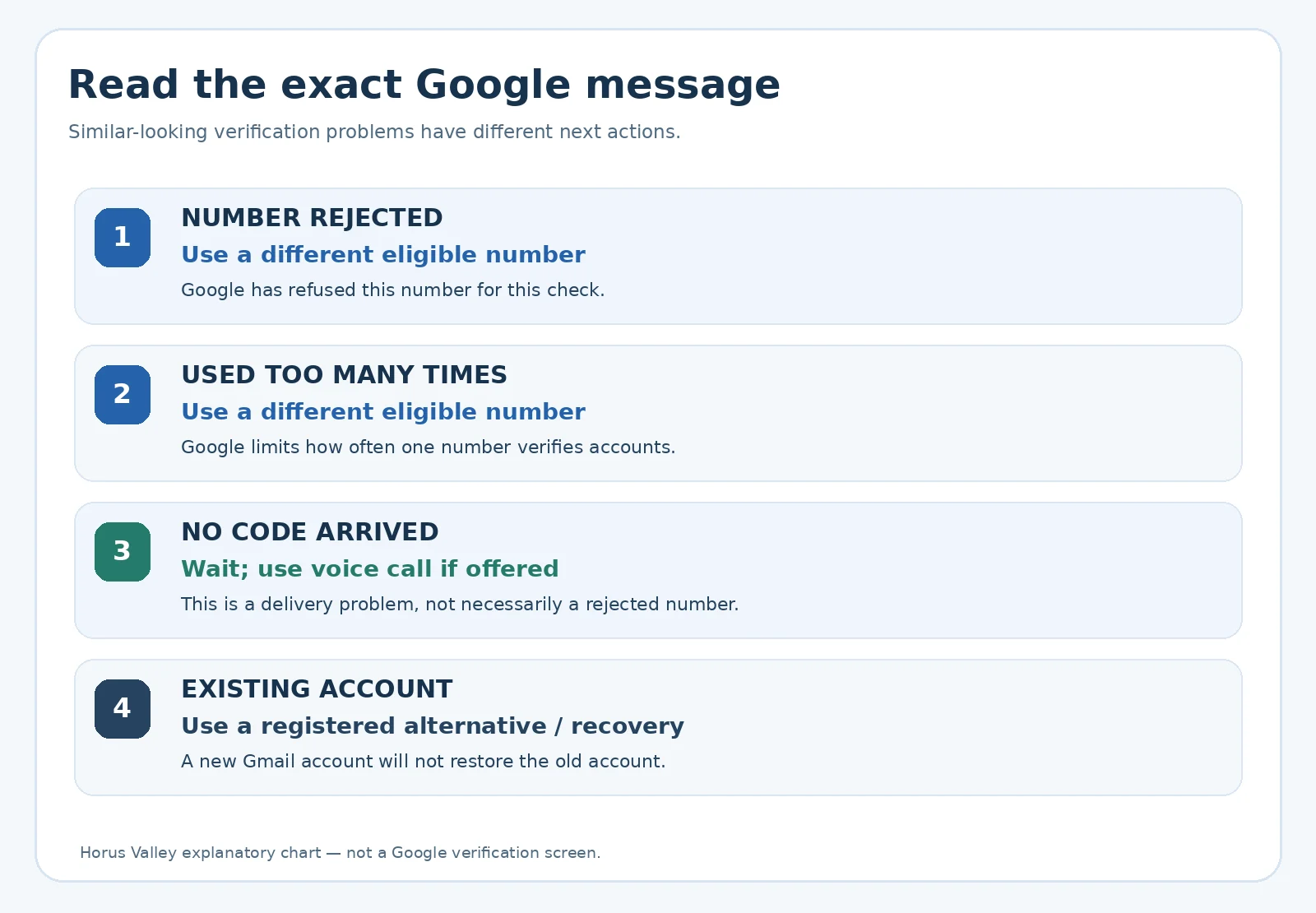
If Google says “This phone number cannot be used for verification,” the official next step is to try a different number. Google limits how many accounts one number can help create, and there is no documented switch that forces the rejected number to work. A number belonging to a trusted friend or family member may be used with their permission, or you can try a number from a different mobile carrier. If Google accepted the number but no text arrived, that is a different problem: wait briefly and choose a voice call if Google offers one. Google’s account verification instructions make these distinctions explicit.
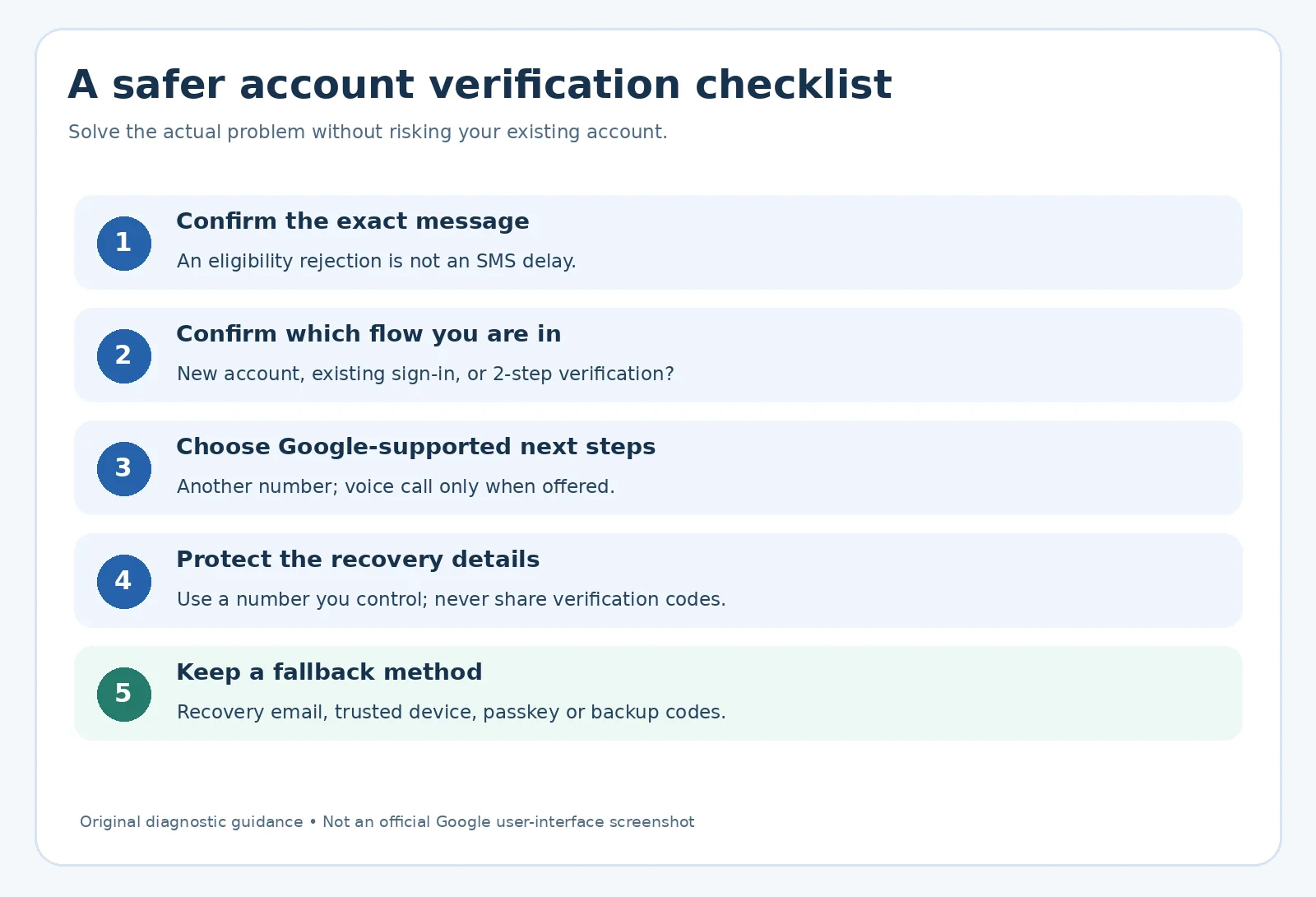
Before trying anything, note which screen you are on. Creating a new Gmail address, proving you own an existing Google Account, and completing two-step verification are three separate workflows. This guide gives a decision path for each, explains what the online “fixes” cannot establish, and links to genuine Google instructions. It does not offer tricks to defeat anti-abuse checks, disposable verification numbers, or guarantees that an account will be approved.
Quick diagnosis: match your error before trying a fix
| What Google shows | What it usually means in this context | Google-supported next action |
|---|---|---|
| This phone number cannot be used for verification | The number is not accepted for this account check | Use a different number |
| This phone number has been used too many times for verification | Number-based verification limit reached | Use a different number |
| Code not received / text did not arrive | The number may be accepted, but SMS delivery is delayed | Wait a few minutes; request a call if offered |
| Can’t sign in / lost access to old number | Existing-account recovery, not new-account registration | Try an offered sign-in alternative or official account recovery |
Treat this as a routing guide, not a claim that Google exposes every internal reason for rejecting numbers. Google documents a limit and its recommended next action, but it does not publish a universal numerical cap, a dependable cooldown, or a method to clear a number’s history. It may also change screens by device, region and account type. See the primary help page.
Why does Google reject a perfectly working phone number?
The frustrating part is that the phone may receive ordinary calls and texts normally. Its ability to receive SMS does not necessarily make it eligible for a particular Google verification request. Google says it limits the number of accounts each phone number can create and the number of times a number can be used for verification, as an anti-abuse measure. This is the confirmed explanation for its two named rejection messages. Google does not publicly reveal the threshold for either message.
People sometimes suggest that a rejected number is flagged because it is VoIP, recycled, connected to multiple accounts, or associated with unusual signup activity. Some of those explanations are plausible in individual cases, but they are not a definitive diagnosis of your own number from the text of this error. A recently purchased SIM does not prove the number has no previous history, and a rejected number does not prove that you violated a rule. Do not present speculative risk signals as facts that Google has disclosed.
The message does not, by itself, establish that your Google Account is suspended, that your carrier has blocked all texts, or that your phone is defective. If you are signing in to an existing account, examine the surrounding security prompt before assuming the same signup-limit explanation applies. An error in a managed Google Workspace environment may involve a distinct administrator-managed process.
Safe steps when creating a new Google or Gmail account
Step 1: confirm you are on the real Google sign-up page
Open accounts.google.com/signup yourself rather than using a sign-up link from an unsolicited message. Read the entire URL and browser address bar. Do not provide an SMS code or account password to a phone-number seller, social-media contact or “instant verification” service. Google’s account-help pages explain when phone verification may be requested and which failures it recognizes.
Note whether the screen is asking you to add an optional recovery phone or requiring verification to continue. Google’s general Create a Google Account guide calls phone addition optional in its ordinary setup sequence, but Google may still require a verification challenge before an account is created or accessed. If the actual screen requires verification, following a guide that says “phone number is optional” will not make the challenge disappear.
Step 2: check the selected country and number once
- Read the selected country or region on the verification form, particularly if the country prefix was chosen automatically.
- Check that you entered the digits of the phone number you control and did not accidentally duplicate an international country code. Use the format requested by the form rather than guessing.
- Ensure the line is active and could receive an ordinary call or SMS. If the phone receives texts normally but Google immediately rejects the number, go to the next step instead of repeatedly requesting codes.
- If you do not recognize the requested number or are on the wrong Google Account, stop and restart from Google’s legitimate account page.
These checks catch simple entry mistakes, but correcting the format cannot override Google’s account-verification limit. Do not keep submitting the identical rejected number through different websites hoping to “unlock” it.
Step 3: choose a different eligible number
Google’s published instruction for both “cannot be used” and “used too many times” is to use another phone number. If you have a different personally controlled number, try it. Google also mentions a number on another carrier or, with permission, a relative’s or friend’s number. You are not guaranteed acceptance simply because the second number is new to you.
- Select a different number that can legitimately receive the required text or call.
- If it belongs to somebody else, ask for explicit permission and explain what verification you are completing. Do not hide the purpose or send the code to a third-party service.
- Enter the number only on Google’s real account page. Ask its owner to relay the specific code they knowingly agreed to receive; never ask them to hand over unrelated account sign-in codes.
- Once setup is complete, review your account’s recovery phone and email settings. Prefer recovery options under your continuing control, and remember that phone verification and recovery-phone configuration are not always the same setting.
Borrowing a number is a Google-documented option, not a guarantee that it remains private or has no downstream consequences. The owner should be comfortable receiving the verification message. Google may use phone numbers for several account-related purposes, and changes to the account phone section do not necessarily propagate to every other Google service. Google’s phone-number settings guide explains those distinctions.
Step 4: if no alternative number is available, know the limit
There is no Google-published override that you can reliably activate by changing a Chrome setting, clearing cookies, changing your IP address, or installing a new app. If Google requires a phone number on that specific attempt and you cannot provide an accepted one, you may not be able to complete that attempt now. It is better to stop than to risk a scam or lose access to an existing account while chasing an unverified bypass.
If you only need access to Google Drive, YouTube or other Google services—and not a new Gmail address—you may be able to create a Google Account using an existing non-Gmail email address. That is a legitimate account option, not a promised route around phone verification: Google may still request a verification check based on the actual setup flow.
If the phone number is accepted but the SMS code does not arrive
This is an important fork. Google distinguishes a delayed text from an ineligible number. If a code has been requested and no text arrives, wait a few minutes; in dense areas or when carriers are having problems, delivery can be delayed. If the screen offers verification by voice call, use that alternative. Calling is not guaranteed to be offered for every challenge, country or account. Standard carrier charges may apply.
- Verify that the correct phone and SIM are active, with usable network service, and that incoming texts or calls are not blocked.
- Wait for the delayed message rather than repeatedly making new requests. Check whether Google has offered an automated phone call.
- If several codes were requested, enter only the newest valid code; Google says older codes may stop working.
- If you have a sign-in prompt on an already trusted device, Google may offer a prompt or a different registered verification method instead of SMS. Use only what appears on the genuine Google page.
- If a message or phone call asks you to share the code with “support,” do not comply. Google warns against sharing verification codes.
Read Google: Fix common 2-Step Verification issues for code delivery, Google prompts and backup methods. Checking your phone’s signal helps only a delivery issue; it does not change a server-side “number cannot be used” message.
If you are locked out of an existing Google account, do not create a replacement as your first step
If the rejected-number prompt appears when you try to sign in to an account you already own, preserving that account matters more than opening another. Use the Try another way option if Google actually provides it. The available alternatives depend on what you set up earlier; you cannot force the menu to show options that were never enrolled.
- Check whether a signed-in phone or trusted device can approve a Google prompt.
- If enrolled, try a passkey or a hardware security key through the legitimate Google sign-in flow.
- If you saved two-step verification backup codes, use an unused one on Google’s site and keep remaining codes private.
- If a recovery email or another registered second-step number is offered, use the option you can access.
- If no registered method works, start Google Account Recovery and follow the questions.
For recovery, Google recommends a familiar device, browser and location. It also warns that recovery-information changes can take time to become effective. This is not the same as “waiting for a rejected signup number to reset.” See Tips to complete account recovery steps and How to recover your Google Account.
For the fuller existing-account workflow, see our separate Horus Valley guide, Recover Gmail Without Your Old Phone Number. This article focuses on number rejection; the linked guide handles forgotten passwords, lost devices and recovery questions in depth.
What if Google requires two-step verification rather than signup verification?
Two-step verification protects an existing account after the password step. Google may choose a passkey, a Google prompt, a security key or a code according to the methods already registered and the risk of the sign-in. A new account-signup number is not interchangeable with a backup code or a passkey. Follow the options on the screen and the specific account’s enrollment.
If you are signed in elsewhere, review Google Account → Security & sign-in and your available two-step methods. Do not remove the only working sign-in method while troubleshooting. If your account belongs to an employer, school or organization, consult its administrator, who may control the sign-in settings. Google documents fallback methods in its 2-Step Verification troubleshooting article.
Can you create a Google Account without a phone number?
Sometimes, yes: Google’s standard creation help describes adding and verifying a phone number as optional in its listed sequence. But Google also states that before some new accounts are created, verification is required to confirm you are a real person. Those are not contradictions: the specific flow may require an additional security step. There is no promise that every user, country, browser or account type will be offered a Skip option.
If you see an optional Skip or Not now control, you can follow the real interface. If the prompt is mandatory, do not look for unofficial modified apps, automated account creators, disposable SMS sites or scripts that claim to bypass Google’s checks. An account made with a one-time number you cannot access later may be difficult to recover, even if it appears to work temporarily.
Does removing a number from older accounts free up another verification slot?
Google explains that it limits verification frequency and account creation per phone number, but it does not publish a user-accessible counter or documented reset method. Consequently, deleting old Google Accounts, removing your phone number, or changing recovery settings should not be presented as a reliable way to release a slot. Those actions can also remove important ways to recover an account you still need.
Volunteers in Google’s public help community sometimes say that old uses keep counting indefinitely. Such replies can be helpful experience reports, but they are not an official published policy guaranteeing that all numbers never reset. The defensible recommendation is the one in Google’s own instructions: use another number if the present one is rejected.
Will incognito mode, a VPN, Wi-Fi switching or waiting 24 hours fix it?
None of these actions is listed by Google as a dependable fix for its explicit “cannot be used” or “used too many times” messages. An incognito window may help you avoid mixing up signed-in accounts when reading the correct page, but it does not change the number itself. Changing VPN location cannot force Google to accept a number and can create extra sign-in uncertainty. There is no Google-promised 24-hour, 48-hour or seven-day reset timer for the signup-number limit.
A separate seven-day delay sometimes mentioned in Google documentation concerns recently changed recovery or sensitive-account verification information. That is not proof that the account-creation number cap resets after seven days. Similarly, “wait a few minutes” is Google’s advice for delayed SMS delivery, not an override for a number-rejection message.
How the same problem looks on Android, iPhone and a desktop browser
Android phone
On Android, you might encounter verification during account setup, adding a Google Account in Settings or creating Gmail. The essential question is still which Google flow is running and the exact error. If the screen permits a different number, use the Google-supported option. If you are already signed in on the phone, preserve that session while checking the existing-account recovery choices. Reinstalling Gmail or resetting Android will not establish that a refused number becomes eligible.
iPhone or iPad
On an iPhone, the same message can appear in a browser or during Google app sign-in. Verify you are on the correct account and Google domain. Make sure the phone line is active if the problem is non-delivery, but distinguish that from an immediate rejection. A fresh app install or clearing Safari website data is not an official number-limit fix and can remove useful signed-in context.
Windows, Mac or Chromebook
On desktop, inspect the browser address bar and the country selector in the Google verification form. If you are creating an account, start at accounts.google.com. If a text never arrives, check the destination phone and voice-call option if offered. If this is an account you already use, consider signing in from a device and location Google recognizes and follow the normal recovery process. Do not assume a desktop-to-mobile browser switch bypasses verification rules.
Four practical examples: choose the correct path
Example 1: a new Gmail address and an instant rejection
You enter your personal number, press Next, and immediately see that it cannot be used. That points to the rejected-number path; waiting for a text will not help because no successful code request has occurred. Check the country and digits once. Then use a different number, as Google recommends. Record no private codes in public screenshots.
Example 2: the message says used too many times
You have helped relatives set up Google Accounts using your number. Google now reports too many uses. The documented next action is another number, not deleting your existing accounts. There is no publicly disclosed number of permitted account creations that can be guaranteed for every person or region.
Example 3: Google accepts the number, but no code arrives
The verification form accepts your number and says it has sent a text. That follows the delivery branch: allow time, check phone service and use an offered call method. If multiple codes arrive later, use the newest. Do not switch to a paid virtual-number provider simply because an SMS is delayed.
Example 4: you need access to a long-standing Gmail inbox
You are trying to sign back into an existing Gmail account on a new laptop, and Google asks to verify you. You may have a passkey, prompt on your old phone, security key, backup codes or recovery email. Use one of the available registered methods, or the official recovery page. A brand-new Gmail address does not give you access to the old inbox, photos or Drive files.
How to secure the account after you finish verification
- Open Google Account Security and confirm that your recovery email and phone are genuinely under your control.
- Check Personal info → Phone for the number and its usage. A phone used for initial verification does not mean every recovery or sign-in setting is now correctly configured.
- Set up more than one safe account-recovery or sign-in option where available, such as a passkey, security key or securely stored backup codes.
- Keep backup codes offline and private. Never share them through chat, email or public support posts.
- If you used a trusted person’s number with permission, discuss any future messages they may receive and update your available account settings appropriately.
- Review unfamiliar account sessions or unsolicited Google prompts; deny sign-in requests you did not initiate.
Google notes that a new recovery phone may take about a week before it is trusted for some sensitive actions. Changing the number in your Google Account may affect only certain Google services, so verify your actual recovery configuration rather than assuming everything switched automatically. Phone-number settings reference; 2-Step Verification setup.
Avoid these risky “fixes” and verification scams
- Buying a temporary SMS inbox: you may not control future messages, and a seller cannot guarantee Google will accept the number.
- Sharing any code with “Google support”: never disclose sign-in, recovery or two-step codes to a caller or chat contact.
- Deleting accounts to reset a supposed counter: Google does not document this as a fix, and deletion risks your data.
- Running automated signup scripts: unofficial tools can expose private account details and offer no Google-approved override.
- Factory resetting the phone: a refused number is not proof of a broken handset; a reset risks data loss and existing sign-in methods.
- Following an old screenshot word for word: Google changes labels and security flows. Verify current steps on its live Help Center.
Where to see a real example of the verification error
For a genuine historical screenshot of Google’s phone verification error, inspect this Google Workspace Admin Community discussion. Its user-submitted image shows an older account-verification prompt and the rejected-number warning. This is a reference to an actual published screen, not a screenshot of our own test; your current Google Account interface may differ. We link to the source instead of republishing an image with unverified redistribution permission. The diagrams included here are original educational graphics, not fabricated Google screens.
Official sources and scope of this guide
- Google Account Help: Verify your account — authoritative wording for a rejected number, too many uses and SMS delays.
- Google Account Help: Create a Google Account — normal signup and optional phone addition versus actual verification requirements.
- Google Account Help: Change your phone number — recovery phone and Google service differences.
- Google Account Help: Fix 2-Step Verification issues — registered alternative methods and code delivery.
- Google Account Help: Complete recovery steps — familiar device, browser and location.
- Google Account Help: Recover Gmail — official recovery process and its limitations.
Editorial review: 29 October 2026. This article separates Google-documented rules from possible explanations supplied by third-party sites and community discussions. No new Google Account was created, no verification limit was experimentally tested, and no private device was accessed for this article. Screens may differ across countries, Google services and later updates.
You may also like
 Technology & How-To
Is Tesla Discontinuing the Cybertruck? What We Know
Tesla plans a Cybertruck production wind-down in Texas around mid-2027. See what is confirmed, what remains unknown, and…
 Technology & How-To
Are AI Toys Safe for Kids? Privacy Risks and Parent Checks
Are AI toys safe for kids? Explore the evidence, privacy risks, age advice and practical parent checks for…
 Technology & How-To
iPhone Trust This Computer Not Showing? Windows and Mac Fixes
Restore the iPhone computer-trust prompt with checks for unlocking, Apple Devices or Finder, USB data cables and targeted…