
Google Messages RCS Not Sending Photos or Videos? Safe Fixes
Google Messages RCS photos or videos not sending? Identify whether the problem is media delivery, RCS status, MMS fallback, permissions, file size, or the carrier before resetting anything.
Contents
- First, identify the failing layer
- The three-minute fix order
- 1. Update Google Messages before changing RCS
- 2. Check whether RCS is actually connected
- 3. Prove whether the problem is media-only
- 4. Check the file quality and size
- 5. Test Wi-Fi and mobile data separately
- 6. Check Photos and Videos permissions
- 7. Restart the app, then clear cache only
- 8. Confirm Google Messages is the default SMS app
- 9. Check dual-SIM and eSIM routing
- 10. What if the photo is being sent as MMS?
- 11. Choose the resend fallback carefully
- 12. If photos work with iPhone but not Android
- What not to do
- Final recovery checklist
- Sources and technical references
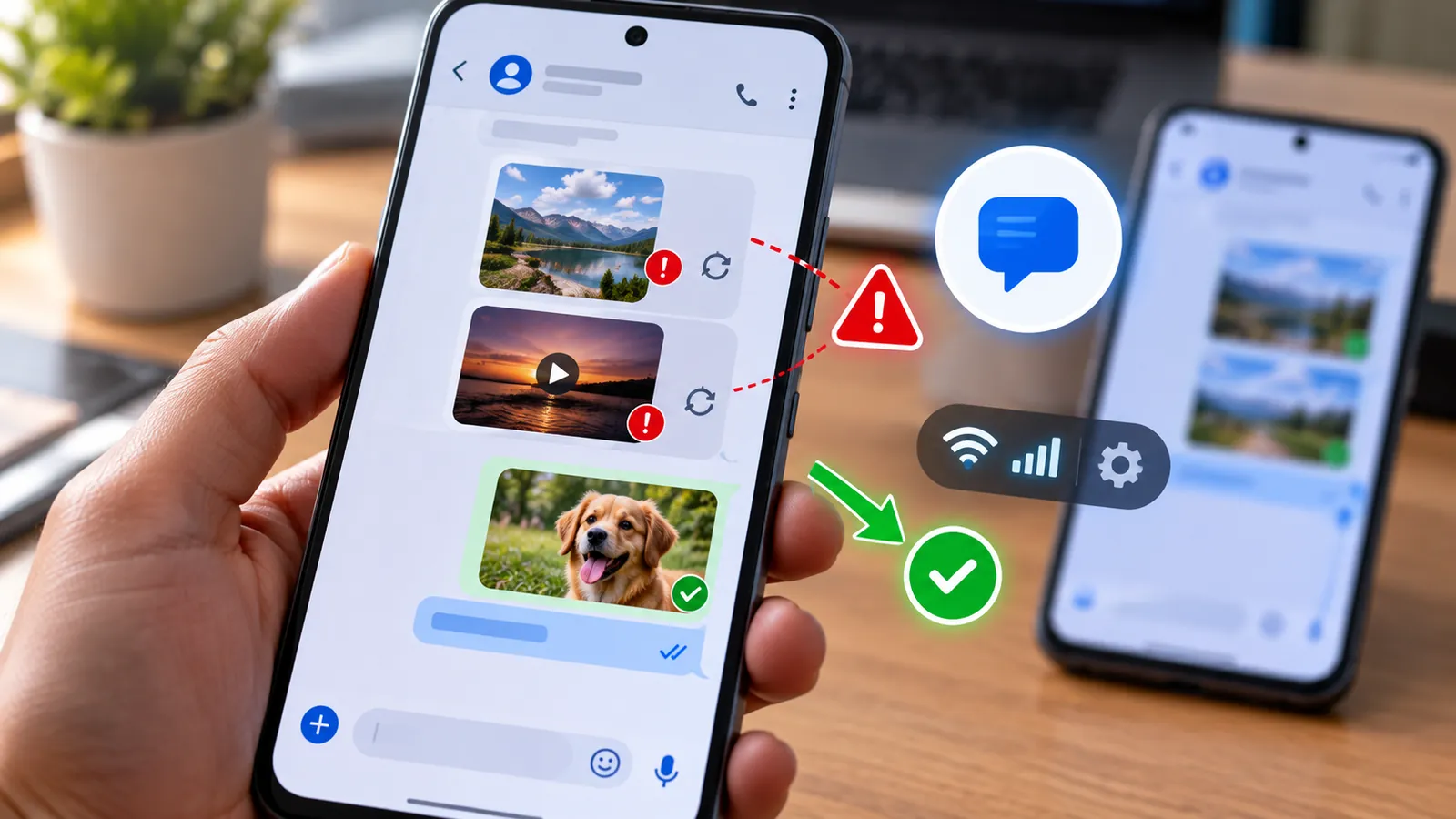
Last reviewed: October 24, 2026. If Google Messages sends ordinary RCS text but a photo, video, GIF, sticker, or Photomoji stays pending, fails, or falls back to MMS, the fastest fix is to identify the delivery path before changing settings. This guide separates a media-only problem from an RCS registration problem, a carrier MMS problem, and a single-contact problem.
First, identify the failing layer
Do not start by turning RCS off and on. Send one short plain-text message in the same conversation, then check the send indicator beside the attachment. The pattern usually points to the right next step.
| What you see | Most likely layer | First safe action |
|---|---|---|
| Text and media both fail with several contacts | RCS status, data connection, or service availability | Check RCS status, update Messages, and test Wi-Fi/mobile data |
| Text works, but photos and videos fail with several Android contacts | Media-delivery path or a current Messages issue | Update Messages, test another contact, and avoid destructive resets |
| Only one conversation fails | Contact, number, thread, or recipient-side state | Start a new thread and verify the recipient’s number and RCS availability |
| The compose bar says SMS or MMS | Fallback delivery, not an RCS upload | Check mobile data, carrier support, and APN only if MMS is failing |
| HD+ fails but HD sends | File size, upload reliability, or connection quality | Retry with HD and compare on a stable network |
| Messages cannot select or attach media | Permission or app access problem | Check Photos and Videos permissions for Google Messages |
Google’s current help pages distinguish messages sent over Wi-Fi/mobile data from SMS and MMS through the send icon. That small label is the most useful diagnostic clue: an MMS failure follows the carrier-data path, while an RCS failure follows the internet/RCS path. See Google’s send-method and RCS-status guidance.
Screenshot note: Google’s official help pages publish the verified menu paths and labels but not one stable screen that matches every Android manufacturer, carrier, and Messages version. The text paths below are therefore more dependable than a device-specific screenshot.
The three-minute fix order
Use this order when the problem started suddenly and you want the least disruptive test first.
- Update Google Messages from the Play Store.
- Open Google Messages → profile picture → Messages settings → RCS chats and confirm the status is Connected.
- Send one short text in the same conversation.
- Try one small photo with a second known RCS contact.
- Switch once between stable Wi-Fi and mobile data.
- Check that Google Messages can access photos and videos.
- Force stop and reopen Messages, then clear cache only if the upload still hangs.
If ordinary text works, several media types fail, and the same pattern appears with more than one Android contact, the problem may be in the media-delivery path rather than your camera, storage, or phone number. A contemporaneous report quoted Google as saying a fix for a subset of RCS media-delivery failures was rolling out; treat that as a reason to update and wait for rollout, not as a reason to wipe the app. Incident reporting and rollout context.
1. Update Google Messages before changing RCS
Open the Google Play Store, search for Google Messages, and install an available update. Reopen the app and send one test photo. If the issue is caused by a staged app or service rollout, repeatedly changing RCS settings will not make the fix arrive sooner.
Google’s troubleshooting guidance also starts with the current Messages app, the correct default SMS app, a working connection, and carrier support. Check those prerequisites before reinstalling or clearing storage. Google’s sending and receiving checklist.
2. Check whether RCS is actually connected
Go to Google Messages → profile picture → Messages settings → RCS chats. Some older versions label this area Chat features.
- Connected: RCS is available on the device, so continue with the media and contact tests below.
- Connecting: the phone number is still being verified; this is not primarily a photo-file problem.
- Trouble connecting. Awaiting retry: resolve the phone-number verification path first.
- Not supported or carrier-disabled: check eligibility and contact the carrier if the message is explicit.
If the status is not Connected, use our separate guide for Google Messages RCS stuck verifying your number. Do not merge the two diagnoses: registration must work before an RCS media upload can be evaluated.
Google says it is not advised to turn RCS chats on and off unnecessarily because doing so can remove you from group chats. Leave RCS enabled while you test a connected media problem. Google’s RCS status and control instructions.
3. Prove whether the problem is media-only
Run two small tests instead of resending the same large video repeatedly.
- Send a short text in the existing conversation.
- Send one small photo to a second contact who is known to use RCS.
Interpret the result like this:
- If text and the small photo both fail, focus on RCS status, connectivity, the default SMS app, and the carrier.
- If text works but photos, videos, GIFs, or stickers fail with several contacts, focus on the media path, app update, permissions, and rollout status.
- If only one contact fails, start a new thread and check the phone number, country code, blocked status, and recipient availability before changing your phone.
- If only one original-quality file fails, test a smaller file or HD quality before blaming RCS.
This symptom split is the main difference between the current article and the site’s RCS verification article: this page is for media delivery after RCS is already usable, not for a phone number stuck in registration.
4. Check the file quality and size
Google Messages offers HD for media optimized for chat and HD+ for original-quality media. A large HD+ upload is a useful diagnostic, but it is not evidence that HD+ caused a broader RCS incident.
- Attach one photo.
- In the preview, tap the HD or HD+ control if it appears.
- Choose HD and send once.
- Compare the result with a smaller photo or a short video.
If HD works while HD+ fails, investigate file size, upload stability, and carrier limits before changing RCS registration. If every media type fails while text works, a smaller file is only a diagnostic—not a complete fix.
Google documents the HD/HD+ behavior and confirms that RCS supports photos, videos, audio files, and GIFs. Google’s media-sending guide.
5. Test Wi-Fi and mobile data separately
RCS uses Wi-Fi or mobile data. A connection can be good enough for a tiny text but unreliable for a larger upload.
- On Wi-Fi, open a normal website, send one small photo, and note the result.
- Turn Wi-Fi off, enable mobile data, and repeat only if your plan allows it.
- If mobile data works but Wi-Fi fails, check the Wi-Fi network, captive portal, VPN, or firewall.
- If Wi-Fi works but mobile data fails, check mobile-data access and the carrier plan.
- Toggle Airplane mode once or restart the phone if the radio connection is clearly stuck.
Do not change APN settings for an RCS-only failure. APN settings matter mainly when a message has fallen back to MMS or mobile data itself is broken.
6. Check Photos and Videos permissions
If Google Messages cannot browse, attach, or send local media, inspect its app permissions.
- Open Android Settings.
- Go to Apps → Messages → Permissions.
- Allow the appropriate Photos and Videos or Files access shown by your Android version.
- Reopen Messages and test one photo.
The exact labels differ between Pixel, Samsung, and other Android interfaces. Google’s official media guide confirms that Messages needs permission to send and receive files. Check Google’s permission requirement.
7. Restart the app, then clear cache only
An upload can remain stuck in a bad app process even after the network recovers.
- Open Settings → Apps → Messages.
- Tap Force stop.
- Open Google Messages again and retry one small file.
- If it still hangs, open Storage & cache and choose Clear cache.
Do not choose Clear storage or Clear data as the first response. Those options reset local app state and can create a new setup problem. Record the current RCS status and confirm that important messages are backed up before considering a more disruptive step.
8. Confirm Google Messages is the default SMS app
If another messaging app recently became the default, RCS and fallback behavior can become confusing.
Open Android Settings → Default apps → SMS app, then select Google Messages if that is the app you intend to use. Return to Messages and check RCS chats again.
Changing the default app should not normally delete standard SMS or MMS messages, but manufacturer-specific features may not transfer. Confirm that your conversations are visible before making a major app switch.
9. Check dual-SIM and eSIM routing
On a dual-SIM phone, the line used for calls, mobile data, and the registered phone number can be different. That mismatch can make an RCS media test look random.
- Open Settings and search for SIM manager, SIMs, or Mobile network.
- Note the default SIM for calls and mobile data.
- Confirm that the RCS-registered line is active and can receive SMS.
- If both SIMs are inserted, compare the call/data setup with your carrier’s recommended configuration.
- Test again with one known RCS contact.
Do not delete an eSIM or remove a working line just to test media. Google’s RCS FAQ specifically calls out the call-SIM/data-SIM relationship for dual-SIM setups. Google’s RCS FAQ.
10. What if the photo is being sent as MMS?
When RCS is unavailable, Google Messages can fall back to SMS or MMS. MMS is a different delivery path and generally needs mobile data, carrier support, and correct APN settings.
If the compose bar says Send by MMS:
- Turn on mobile data, even if Wi-Fi is connected, and test one small image.
- Check that your carrier plan supports MMS and that you have service or credit.
- Reset APN settings to the carrier default only if MMS is the failing path and the carrier recommends it.
- Check whether group messaging or a carrier size limit is involved.
If the compose bar says RCS or Wi-Fi/mobile data and ordinary text works, do not treat the problem as an APN issue. Google’s general troubleshooting page separates MMS checks from RCS checks. Google’s MMS troubleshooting steps.
11. Choose the resend fallback carefully
Google Messages lets you choose how failed RCS messages are resent. The menu is Google Messages → profile picture → Messages settings → RCS chats → Resend messages.
Read the options before enabling automatic fallback. Google warns that choosing SMS with a link can make the media accessible through a public link that Google does not control. For private photos or videos, waiting for RCS or using a trusted alternative may be safer than accepting a link-based fallback.
Use fallback as a deliberate delivery choice, not as proof that RCS has been repaired. The send indicator and the recipient’s delivery method can change after fallback.
12. If photos work with iPhone but not Android
That pattern can be a useful clue when the issue affects Android-to-Android RCS media. Update Messages, confirm RCS is Connected, test a second Android contact, and allow time for a staged service or app fix if the symptoms match a reported incident.
Do not assume that every iPhone/Android conversation has identical RCS behavior. Google says RCS between Android and iPhone can support high-resolution photos and videos, but availability on iPhone depends on the carrier and region. Google’s cross-platform RCS notes.
What not to do
- Do not repeatedly toggle RCS off and on while the status is already Connected.
- Do not factory-reset the phone for a media-only failure.
- Do not clear Messages storage before checking backup, status, permissions, and default-app settings.
- Do not delete an eSIM or remove a SIM to test a photo upload.
- Do not install an unofficial RCS “unlock” app or enter verification codes on a third-party site.
- Do not change APN settings when the send indicator says RCS and mobile data is otherwise working.
Final recovery checklist
- Update Google Messages.
- Confirm RCS chats says Connected.
- Check the send icon: RCS, SMS, or MMS.
- Compare a plain text, a small photo, and a second contact.
- Test Wi-Fi and mobile data separately.
- Try HD instead of HD+ for one large file.
- Check Photos and Videos permissions.
- Force stop Messages and clear cache only.
- Confirm the default SMS app and dual-SIM data line.
- Use Resend messages only after reviewing the privacy trade-off.
- Contact the carrier when SMS/MMS, mobile data, RCS eligibility, or a recently ported number is also affected.
If this checklist shows that the failure is actually number verification, use the site’s RCS verification guide. If it shows that only Wi-Fi fails, continue with the site’s Wi-Fi works on some devices but not others article. That internal routing keeps each page focused on one search intent.
Sources and technical references
- Google Messages Help: Turn on RCS chats — status meanings, send methods, resend settings, and the warning about SMS-with-a-link.
- Google Messages Help: Send photos, videos, or voice messages — media permissions and HD/HD+ behavior.
- Google Messages Help: Fix sending, receiving, or connecting problems — current app, default app, SIM, carrier, data, and MMS checks.
- Google Messages Help: RCS chats FAQ — dual-SIM setup, RCS availability, fallback, and Android–iPhone media support.
- Android Central: reported RCS media-delivery incident — incident context only; the troubleshooting steps above are anchored to Google’s documentation.
You may also like
 Technology & How-To
How to Turn Lecture Recordings Into Study Notes With NotebookLM
Turn lecture audio into study notes with free Gemini Notebook (NotebookLM). Follow the upload steps, check transcript citations,…
 Technology & How-To
How to Use Google Lens to Find Products and Compare Prices
Find an item from a photo with Google Lens, check exact product matches and compare real checkout costs…
 Technology & How-To
Podcast Microphone Guide: USB vs XLR and Setup Tips
Choose a podcast microphone by room noise, connection type and recording style. Compare USB and XLR, see verified…