
Google Maps Offline Maps Not Downloading? Android and iPhone Fixes
Fix missing or stalled Google Maps offline downloads with checks for Incognito mode, connection, storage, regional limits and expired maps.
Contents
- Identify the failure before choosing a fix
- 1. Download one small test area
- 2. If the option is missing, turn off Maps Incognito mode
- 3. If downloading waits or stalls, compare connections
- 4. Check phone storage and the size estimate
- 5. If the app also freezes or crashes, update it first
- Android: clear cache before considering a data reset
- iPhone: do not start by deleting application data
- 6. If one region is unavailable, avoid endless resets
- 7. If the download completed, check coverage and expiry
- Run this quick test before travelling
- Still failing? Send a useful bug report
- Sources and image notes
If Google Maps offline maps will not download, start with a small area on a working internet connection, outside Incognito mode. Then check the download preference and free device storage. If only one destination has no download option, check regional availability before clearing app data.
This guide covers the Google Maps phone app on Android and iPhone, including iPad. It separates a failed download from a completed map that cannot provide the kind of directions you requested.
Identify the failure before choosing a fix
| What you see | Check first | Useful next test |
|---|---|---|
| Offline maps is missing | Incognito mode | Return to normal Maps mode |
| One destination cannot be downloaded | Regional availability | Try a small area elsewhere |
| Download waits or stops | Connection, download preference, storage | Try one small map on another reliable connection |
| The map downloaded but directions fail | Coverage and travel mode | Check a driving route fully inside the area |
| A previously working map has expired | Offline-map status | Update that map while online |
1. Download one small test area
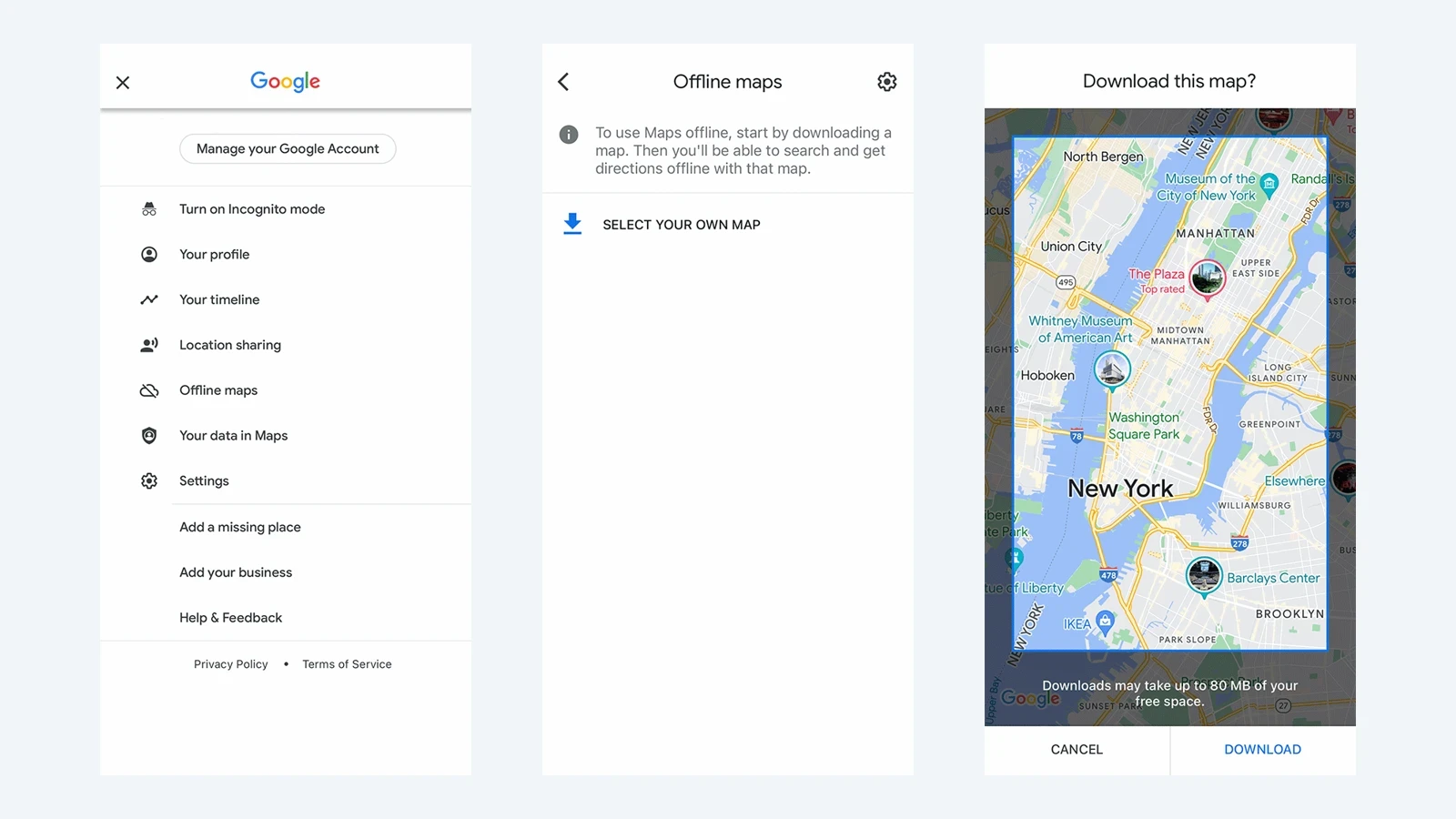
- Open Google Maps and tap your profile picture or initial.
- Select Offline maps → Select your own map.
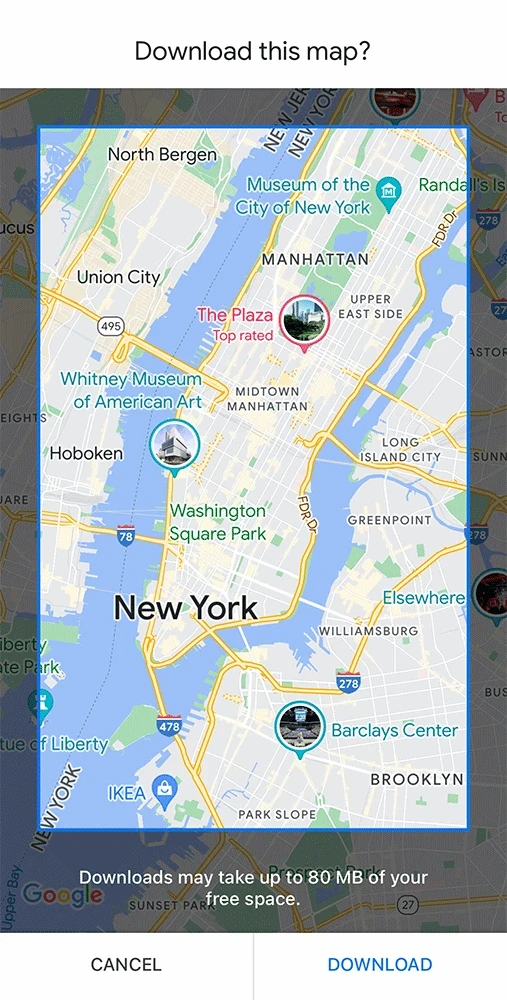
- Adjust the rectangle to a small area you can recognize. Check the displayed download-size estimate.
- Tap Download and wait for completion before disconnecting.
Google documents this custom-area method for both platforms. On Android, its download instructions require signing in; on iPhone, they require leaving Incognito mode. You can also open a place’s information panel and look under More → Download offline map. Menu layout may vary.
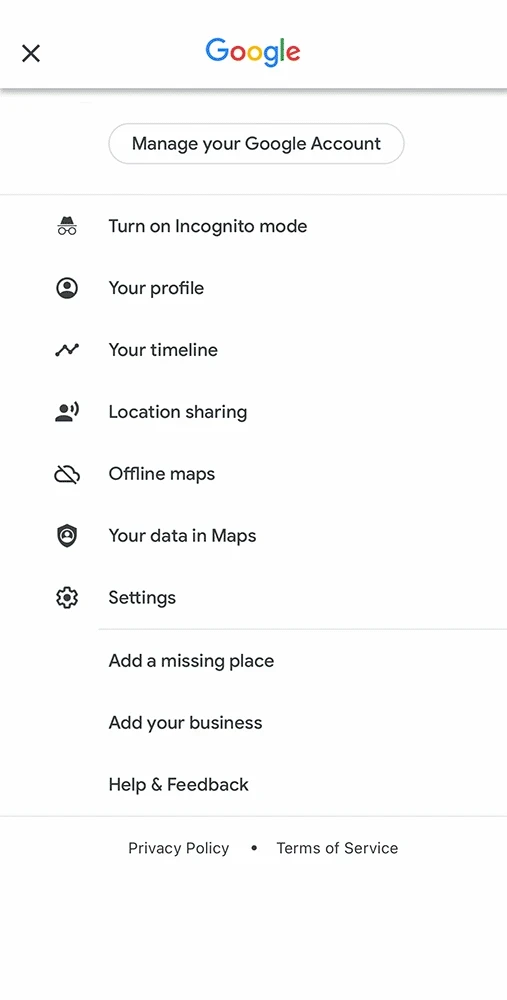

The two images above are frames from Google’s original 2023 product demonstration. They show genuine product screens published by Google, not a fresh test on a current phone. Use the written steps if your layout differs.
2. If the option is missing, turn off Maps Incognito mode
Google lists Offline Maps among the features unavailable in Incognito mode. Open the profile/Incognito control at the top right and select Turn off Incognito mode, then check the menu again. This concerns Incognito inside Google Maps, not a private browser tab. See Google’s Incognito guidance.
If the option appears afterwards, retry the small test area first. Do not sign out, reinstall the app or remove account data just to investigate a hidden menu.
3. If downloading waits or stalls, compare connections
Use this controlled test to narrow the problem. These are troubleshooting checks, not a guaranteed Google fix or proof of an outage:
- On the current connection, load a new webpage. If the network needs a hotel or airport sign-in, complete its normal access page first.
- Open Offline maps settings and inspect the download preference. If it requires Wi-Fi, a mobile-data connection alone will not meet that preference. The Android help page documents this under Download preferences; labels can vary.
- Try the same small area on another reliable connection you are allowed to use. If using mobile data, check your data allowance first.
- Change one condition at a time and record whether the download starts, advances or completes. Avoid repeatedly queuing the same large region.
Interpret the comparison: if the same small download completes on another network, investigate the original connection. If every area fails across both connections, check storage and the app. This comparison narrows the investigation; it does not identify the exact fault by itself.
4. Check phone storage and the size estimate
Use the size shown in Maps rather than a generic claim that every map needs a fixed amount of space. Google explains that choosing a more precise area can reduce the download. Keep enough available storage for the selected area and the phone’s normal operation; no universal spare-space figure is promised here.
- Android: open device Settings → Storage; manufacturer labels vary. Review downloads or apps you no longer need. Google’s storage guide distinguishes clearing temporary cache from deleting an app’s stored data.
- iPhone: open Settings → General → iPhone Storage and inspect available space. Apple explains that offloading keeps an app’s documents and data, while deleting removes the app and related data. See Apple’s storage guidance.
For a broader storage problem, use our Android and iPhone storage troubleshooting guide. Do not erase important photos or a working travel map just to retry a download.
5. If the app also freezes or crashes, update it first
Google recommends updating Maps when it crashes or has other app problems. Check Google Play on Android or the App Store on iPhone for an available update, reopen Maps, then repeat the small-area test. An update is a sensible app check, not a guarantee that a regional limitation disappears.
Android: clear cache before considering a data reset
Open Settings → Apps → Maps → Storage & cache or the equivalent on your phone, then choose Clear cache. Google distinguishes this temporary-data action from Clear storage/Clear data, which deletes app data. Do not confuse the two. See Google’s Maps troubleshooting instructions.
iPhone: do not start by deleting application data
Google documents profile → Settings → About & terms → Clear application data for some Maps problems. It removes locally stored cache and cookies and cannot be undone; it does not delete data stored on Google’s servers. Treat it as a later step and assume you may need to rebuild local offline availability. See Google’s iPhone app-data guidance.
Before any reset or reinstall, note the areas you need and make sure you can download and test them again while online. Do not perform that experiment just before losing connectivity.
6. If one region is unavailable, avoid endless resets
Google says some countries or regions cannot be downloaded because of contractual, language, address-format or other limitations. A failure affecting only one region is a reason to investigate availability, not proof that the phone is broken. Check the official offline-map guidance and the actual selection screen. Do not rely on an undated universal country list.
7. If the download completed, check coverage and expiry
Offline driving guidance requires the whole route to fit inside the downloaded area. Walking, cycling and transit directions are unavailable offline; live traffic and alternate driving routes also require connectivity. A saved destination does not establish that its map area has downloaded.
For an expired or expiring map, open Offline maps, select it and tap Update. Google says automatic updating is attempted on Wi-Fi when expiry is 15 days or less away. That is an update trigger—not a statement that every fresh map lasts exactly 15 days.
Run this quick test before travelling
This is a suggested verification procedure, not a test performed on your phone:
- While online, confirm the map shows a completed download and covers your starting point, destination and connecting roads.
- While stationary, temporarily disable both Wi-Fi and mobile data, then request a short driving route entirely inside that area.
- Check that the needed map and driving route load. Restore connectivity afterwards.
- If the map works but the blue dot is wrong, investigate location accuracy separately using our Google Maps GPS guide.
For example, downloading only a destination city does not establish coverage for a journey from a distant airport. Inspect the road corridor before departure rather than assuming the city’s name covers the entire trip.
Still failing? Send a useful bug report
On Android, Google documents profile → Help & feedback → Send product feedback. Record the phone model, OS and Maps version, selected area, exact message and results of the small-area/network comparison. Check any attached screenshot for private places or account details. Google says feedback is unlikely to receive immediate action; no response deadline is promised. See how to send product feedback.
Sources and image notes
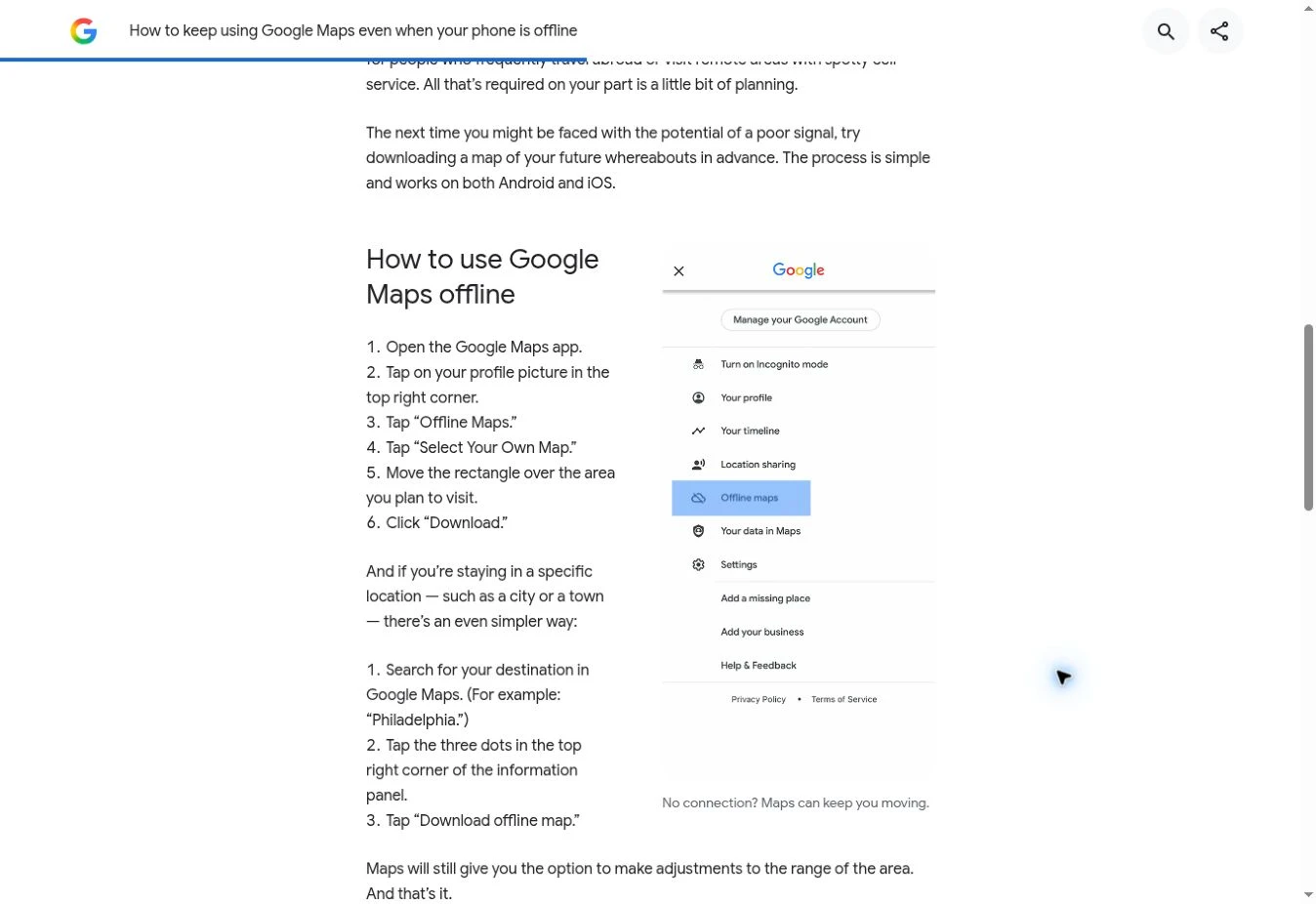
Instructions reviewed November 5, 2026. No Android or iPhone app download was performed for this article. The product screenshots are frames from Google’s March 20, 2023 demonstration; the public-page screenshot below was captured November 5, 2026. Existing Google marks and map attribution are retained. Google Maps imagery and interface: © Google. Horus Valley is independent of Google.
You may also like
 Technology & How-To
Is Tesla Discontinuing the Cybertruck? What We Know
Tesla plans a Cybertruck production wind-down in Texas around mid-2027. See what is confirmed, what remains unknown, and…
 Technology & How-To
Are AI Toys Safe for Kids? Privacy Risks and Parent Checks
Are AI toys safe for kids? Explore the evidence, privacy risks, age advice and practical parent checks for…
 Technology & How-To
iPhone Trust This Computer Not Showing? Windows and Mac Fixes
Restore the iPhone computer-trust prompt with checks for unlocking, Apple Devices or Finder, USB data cables and targeted…