
Why Is Google Maps Showing the Wrong Location? How to Fix GPS Accuracy on Android and iPhone
Google Maps showing the wrong location? Fix inaccurate blue dots, GPS drift, compass direction, Android and iPhone location permissions, and desktop location errors.
Contents
- Start by identifying the exact problem
- A safe five-minute troubleshooting sequence
- Android: turn on Location Accuracy
- Android: allow precise location for Google Maps
- Android: Wi-Fi and Bluetooth scanning
- Calibrate Google Maps when the direction beam is wrong
- iPhone: correct Google Maps location permissions
- What to do if Maps keeps jumping between roads
- Google Maps on a computer shows the wrong city
- When Google Maps shows a wrong home or work address
- Location sharing appears stuck or outdated
- Advanced troubleshooting without risky shortcuts
- Privacy: accuracy versus sharing
- A 10-minute decision checklist
- When to contact support or repair
- Official sources and further reading
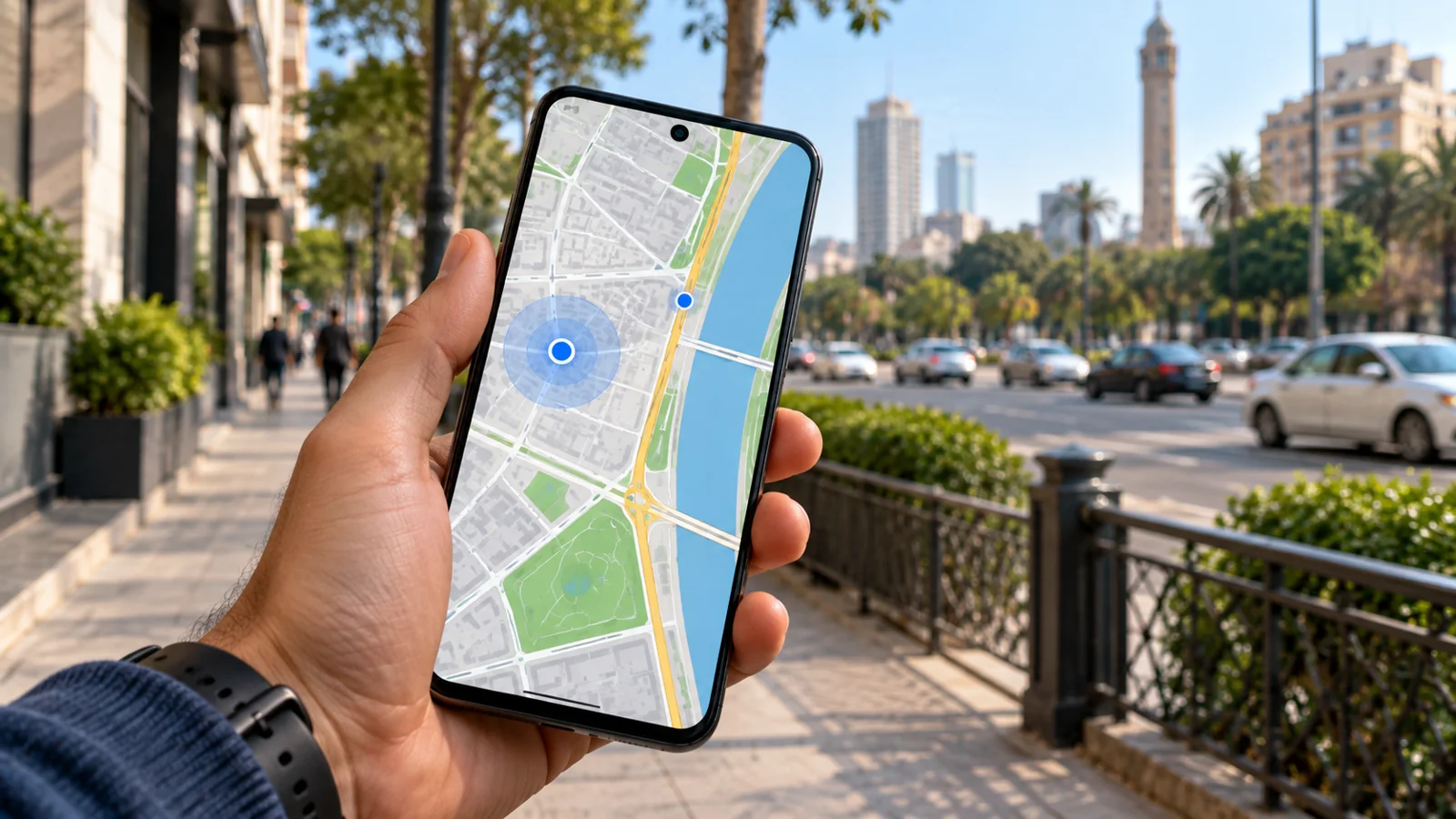
Google Maps showing you on the wrong street, several miles away, or facing the wrong direction can make navigation unreliable. The right fix depends on whether the blue dot is misplaced, its accuracy circle is large, or only the direction arrow is wrong. This guide explains a safe diagnosis for Android, iPhone, and desktop, using Google and Apple documentation rather than unverified GPS booster tricks.
Start by identifying the exact problem
| Blue dot miles away | Location permissions, poor signal or stale fix | Go outdoors and refresh location |
|---|---|---|
| Large pale blue circle | Maps has low confidence in position | Enable accuracy features and check signal |
| Blue dot correct, beam points wrong way | Compass orientation problem | Calibrate compass |
| Only shared location is stale | Sharing refresh, connectivity or permissions | Check sender phone and sharing settings |
| Browser location wrong | Browser permission or network-based estimate | Check browser site permission |
The blue dot is the estimated position; the pale blue circle represents uncertainty, not an exact distance guarantee. A gray or missing dot can mean Maps cannot obtain a current position. An arrow pointing the wrong way is often a compass issue rather than a GPS position issue.
A safe five-minute troubleshooting sequence
- Stop in a safe place. Never troubleshoot while driving; pull over or let a passenger do it.
- Step outside or near a window with a clearer view of the sky; parking garages, tunnels and tall buildings can block satellite signals.
- Turn on device Location Services, then open Google Maps and tap the current-location target icon.
- Confirm Google Maps has location permission, ideally precise location when turn-by-turn navigation is needed.
- Check whether Wi-Fi or mobile data is connected; turn Wi-Fi on when appropriate even if you are not joining a network.
- Restart Maps, then restart the phone if the dot remains wrong.
- Compare with another trusted location app in the same spot to distinguish device-wide GPS issues from Maps-specific problems.
Android: turn on Location Accuracy
On Android 12 and later, open Settings → Location → Location services → Location Accuracy, then enable Improve Location Accuracy if you want the most accurate positioning. On Android 11 and older, the setting may be under Settings → Location → Advanced → Location Accuracy. Menu names can differ across Samsung, Pixel and other manufacturers. Google explains that Location Accuracy combines available GPS, Wi-Fi, cell-tower and sensor information, particularly where satellite visibility is poor.
Android: allow precise location for Google Maps
- Open Settings → Apps → Maps → Permissions → Location, or long-press the Maps icon and open App info.
- Choose Allow only while using the app, or another permission level appropriate for your needs.
- Where the option exists, enable Use precise location; approximate permission may not be sufficient for turn-by-turn directions.
- Return to Maps, tap the current-location icon and wait briefly outdoors for a fresh fix.
Device-wide Location Accuracy and an app’s precise location permission are separate controls. Enabling one does not automatically grant the other. If a managed or work phone restricts permissions, contact its administrator.
Android: Wi-Fi and Bluetooth scanning
On many Android 12+ phones, open Settings → Location → Location services and review Wi-Fi scanning and Bluetooth scanning. These can help positioning in dense urban areas and indoors. Their availability and privacy implications vary by device. You do not need to join an unknown Wi-Fi network to benefit from nearby access-point signals.
Calibrate Google Maps when the direction beam is wrong
If the blue dot is roughly right but the blue beam is wide or points away from the direction you face, move the phone in a figure-eight motion a few times, away from large magnets and metal surfaces. Google Maps may also offer a Calibrate option after tapping the blue dot. Where supported, Lens-based calibration uses visible buildings and landmarks; availability depends on the area and device.
- Open Maps and tap the blue dot or current-location icon.
- Look for Calibrate or an accuracy warning; follow the on-screen prompts.
- If no prompt appears, gently move the phone in a figure eight several times.
- Walk a short distance in a safe, open area and confirm the beam now follows your direction.
Compass calibration changes heading accuracy, not necessarily the underlying GPS coordinates. If Maps places you on the wrong side of town, return to location settings and satellite-signal troubleshooting instead.
iPhone: correct Google Maps location permissions
- Open Settings → Privacy & Security → Location Services and ensure Location Services is enabled.
- Scroll to Google Maps and select While Using the App or another appropriate permission level.
- Enable Precise Location for accurate navigation.
- Check that date and time are set automatically under Settings → General → Date & Time.
- Enable Wi-Fi or cellular connectivity, move outdoors, reopen Maps and tap the current-location icon.
Apple explains that iPhone location services use GPS, Bluetooth, crowd-sourced Wi-Fi hotspots and cell towers when available. iPhone menus and options may differ by iOS version. If Apple Maps and Google Maps are both inaccurate in the same location, suspect a device setting, environment or hardware issue before blaming one app.
What to do if Maps keeps jumping between roads
Urban canyons, reflective glass, underground stations, poor satellite visibility and rapidly changing wireless conditions can make the estimate jump. Wait outdoors for a stable fix, keep the phone unobstructed, and compare the route with visible road signs. A location jumping repeatedly across many apps may indicate a broader device or antenna problem.
Google Maps on a computer shows the wrong city
- Open maps.google.com in your browser and click the current-location button.
- Allow location access for Maps in the browser site permissions; also verify system-level location permission.
- Reload the page and confirm internet connectivity.
- Disable a VPN temporarily only if you trust the network and it is safe to do so; IP-based location can differ from physical position.
- Restart the browser or computer if necessary.
Desktop browsers may rely on browser and network location information; a computer without reliable positioning signals may only offer an approximate city-level estimate. A VPN or corporate network can make IP-based location appear far away, even when phone GPS works normally.
When Google Maps shows a wrong home or work address
A misplaced blue dot and an incorrect saved address are different problems. If Maps consistently routes to an outdated Home or Work label, inspect the saved addresses in your Google account and correct the label. If a business pin or street is mapped incorrectly, use the Maps feedback or Suggest an edit flow rather than resetting your phone. Changes to public map data can require review.
Location sharing appears stuck or outdated
If someone else sees an old position, check the sharing phone, not just the viewer’s device. Confirm that the phone is powered on, connected, has appropriate location permissions and is still sharing with the intended person. Power-saving restrictions, lost connectivity or revoked permissions can interrupt updates. Do not interpret an old timestamp as proof of someone’s current whereabouts.
Advanced troubleshooting without risky shortcuts
- Update Google Maps from the official App Store or Play Store, and install supported OS updates.
- On Android, consider clearing the Maps app cache through Settings → Apps → Maps → Storage & cache; this may remove temporary files but usually preserves account data.
- Do not tap Clear storage/data unless you understand it can reset app preferences or downloaded maps; back up what matters first.
- On iPhone, if ordinary fixes fail, consider reinstalling Maps after confirming your Google account and offline maps can be restored.
- Test GPS in another reputable app outdoors; if multiple apps fail, seek manufacturer diagnostics.
Avoid random “GPS booster” APKs, disabling security features, rooting the phone, changing developer mock-location settings, or performing a factory reset as an early step. None is a necessary first-line fix for ordinary Maps accuracy problems.
Privacy: accuracy versus sharing
Precise Location gives an app a more exact position than approximate permission; Location Accuracy may use additional wireless signals. These settings are distinct from actively sharing your live location with contacts. Review permissions based on your needs and stop sharing when it is no longer required. Location data is sensitive: do not post screenshots containing your home address or real-time position publicly.
A 10-minute decision checklist
| Correct dot, wrong facing direction | Compass calibration |
|---|---|
| Wrong dot in parking garage | Retest outdoors |
| Android precise location disabled | Enable app-level precise location |
| Android accuracy disabled | Review Improve Location Accuracy |
| Only Maps wrong | Update app, clear cache on Android |
| All GPS apps wrong outdoors | Check OS updates and device support |
| Only desktop wrong | Browser location permission and network |
| Home label wrong | Edit saved address |
| Another person’s sharing is stale | Check their device and sharing status |
When to contact support or repair
Seek device support if GPS fails consistently across several apps in open outdoor conditions after permissions, updates and a restart, especially after a drop, water damage or hardware repair. Report a mapping error through Google Maps if the position is accurate but the road layout or address is wrong. For urgent navigation or emergency response, rely on visible signs and official emergency instructions rather than a single uncertain map estimate.
Official sources and further reading
- Google Maps Help: Find and improve your location accuracy on Android
- Android Help: Manage device location settings and Location Accuracy
- Google Maps Help: Location accuracy on computers
- Apple Support: About privacy and Location Services
The most reliable repair is to match the symptom to the cause: a large blue accuracy circle calls for better positioning signals, a misdirected beam calls for compass calibration, and a wrong saved address calls for an edit to the address—not a factory reset.
You may also like
 Technology & How-To
 Can Your Phone Photos Reveal Your Location? How to Check EXIF and Remove GPS Metadata
Phone photos may contain GPS coordinates and EXIF metadata. Learn how to check a real file, remove location…
 Technology & How-To
 External Monitor Not Detected Through USB-C Dock? Diagnose and Fix It on Windows 11
A symptom-first guide to Windows 11 USB-C dock display failures. Isolate cables, DP Alt Mode, Thunderbolt, USB4 and…
 Technology & How-To
 iCloud Photos Not Syncing Between iPhone and Windows PC? Safe Fixes Without Losing Photos
Find exactly where iCloud photo syncing fails between iPhone and Windows, protect originals from accidental deletion, and fix…