
PDF Form Looks Filled but Sends Blank? How to Save It Correctly
PDF form entries disappear after saving or emailing? Check the exact file, save your edits, test another viewer, and learn when flattening is the wrong fix.
Contents
- The first check: which copy are you actually sending?
- Match the symptom to the next check
- Save the completed form in Acrobat Reader
- Chrome can save edits—choose the version with your changes
- On a Mac, distinguish filling a field from adding a text box
- Why a stored answer can still look blank
- Original demonstration: a blank template and a verified saved copy
- Check the attachment, not just the email preview
- If the form prints blank
- When a static PDF copy is appropriate
- If “Please wait…” replaces the entire form
- A reliable final check before sharing

If a PDF looks filled but arrives blank, first save a new copy, close it, and reopen that exact saved file from its folder. Then attach that file rather than the original template or a link to it. If the saved copy contains the entries but the recipient still sees blank fields, download the attachment and test a second compatible viewer. The problem may be how the form is displayed, rather than missing data.
Avoid starting with Print to PDF. It can produce a static reading copy, but it can also remove the interactive fields or other features the receiving organisation needs. Keep your editable original and follow the form issuer’s instructions, particularly for forms with digital signatures, calculations, or a required submission workflow.
The first check: which copy are you actually sending?
A filled form on your screen, a saved file on your drive, and an email attachment are three separate things to verify. A browser tab can show edits that are absent from another copy on disk. An attachment picker can select yesterday’s template. A cloud link can still point to the blank original even after you saved a completed file elsewhere.
Use a distinctive filename such as registration-completed.pdf. Save it into a folder you can identify. Close the document and open it again from that folder. Look for a specific entry—not just the same page layout. A name, reference number, and checkbox state make better checks than a familiar-looking first page.
If a form is still open with unsaved entries, save a copy before closing it. Do not press Reset, clear the form, or repeatedly overwrite the same original while investigating. For a long form, preserve your work before changing applications. A screenshot can help you record what you typed, but it is not a substitute for a valid completed PDF.
Match the symptom to the next check
| What happens | What it may mean | Useful next check |
|---|---|---|
| The local saved file is blank in every viewer tested | Edits were not saved, or the wrong copy was opened | Save a uniquely named copy from the application containing your edits. |
| The local saved file is filled, but the attachment is blank | The attachment or link may refer to a different version | Download the actual attachment and compare it with the verified local copy. |
| The downloaded attachment is filled in one viewer but blank in another | A viewer or form-rendering compatibility problem | Use the issuer’s supported viewer; keep the original form intact. |
| Text appears only while a field is selected | The stored field value and its displayed appearance may disagree | Have the form creator inspect field appearances; avoid assuming the data is gone. |
| The whole document shows a “Please wait…” page | An advanced form may not be supported by that viewer | Download it and open it in the application specified by the issuer. |
| Entries appear on screen but not in print | The print settings or rendering path may omit them | Inspect print preview and the relevant form/markup print options. |
These are diagnostic possibilities, not a way to identify every file’s cause from one symptom. A damaged form, missing font resources, restrictions, or a form action can require help from its creator. Check whether one particular form fails or whether every simple form fails in the same application.
Save the completed form in Acrobat Reader
Adobe’s Reader form instructions distinguish interactive forms from flat pages on which you add text with Fill & Sign. They also document saving a completed form under a new name. You do not need to assume that a paid editor is required for every routine form.
Adobe’s separate saving guide covers saving changes and saving a copy. Use the following sequence to verify the file you will share:
- Open the downloaded form in Acrobat Reader, especially when the issuer requires that application.
- Fill the required fields. Move out of the last field with Tab or by selecting another field so the current entry is accepted.
- Use Save As from the application menu; on macOS, use the corresponding File → Save As command. Choose a new name and a known location.
- Close the saved document and reopen that new copy from its folder. Check every page, including checkboxes and fields with long entries.
- Attach the verified completed file. If an earlier blank attachment was already selected, remove it and attach the completed copy.
Menu placement varies with the release and interface. The important outcome is a saved PDF containing the completed form. A form-data export such as FDF, XFDF, XML, or TXT is not the same as a complete PDF attachment. Adobe’s form-data management guide explains that those files may need the original form to display the responses in context.
If the application explicitly says it cannot save entered data, stop and follow the issuer’s supported workflow. Do not assume closing a tab, saving a webpage, or buying a different subscription will fix that particular file. A form creator may need to supply a compatible version or appropriate saving permissions.
Chrome can save edits—choose the version with your changes
A blanket rule that all browser-filled PDFs save blank is inaccurate. Google’s current Chrome desktop PDF help documents a download choice between With your changes and Without your changes. What matters is the supported form, the option you select, and verification of the downloaded file.
- Finish the entries in the PDF viewer.
- Use the PDF viewer’s Download control and choose With your changes when offered.
- Save the completed file to a known folder with a distinctive name.
- Open that downloaded copy and inspect the entries. Do not rely on the tab you already filled in.
- If the form is unsupported, or its issuer requires a desktop reader, download the original and continue in the specified application.
This is desktop guidance, not a promise that every mobile browser or embedded email viewer exposes the same controls. On a phone or tablet, identify the actual app handling the document. Use its save/export command and reopen the resulting file in another appropriate app before sharing it.
On a Mac, distinguish filling a field from adding a text box
Apple’s Preview guide supports entering text in form fields and adding a text box where direct form entry is unavailable. A text box can make a page readable, but it should not be assumed to populate a structured field required by another system.
Save the edited PDF, then reopen the actual saved copy. If the recipient needs to import form data, or the issuer specifies another application, follow that requirement instead of using text overlays as a substitute. A document that looks correct can still be unsuitable for a workflow expecting interactive fields.
Why a stored answer can still look blank
An ordinary interactive PDF can store a field’s value separately from the instructions used to draw that field. In technical terms, a value such as /V and a widget’s appearance stream are related but distinct. A viewer may redraw the value while another relies on the saved appearance, so a mismatch can become visible when you switch applications.
The pypdf form documentation describes the form-field tree and page-widget annotations. This is why seeing text only when you click into a field deserves a compatibility check. It does not prove that the file is empty, and it does not prove that every missing entry can be recovered.
For a routine document, try saving a new copy in a supported reader and checking it again. If the problem persists, send the form creator a description of which fields disappear and which viewers show them. Ask for a corrected form rather than making repeated conversions that may discard the information the creator needs.
Original demonstration: a blank template and a verified saved copy
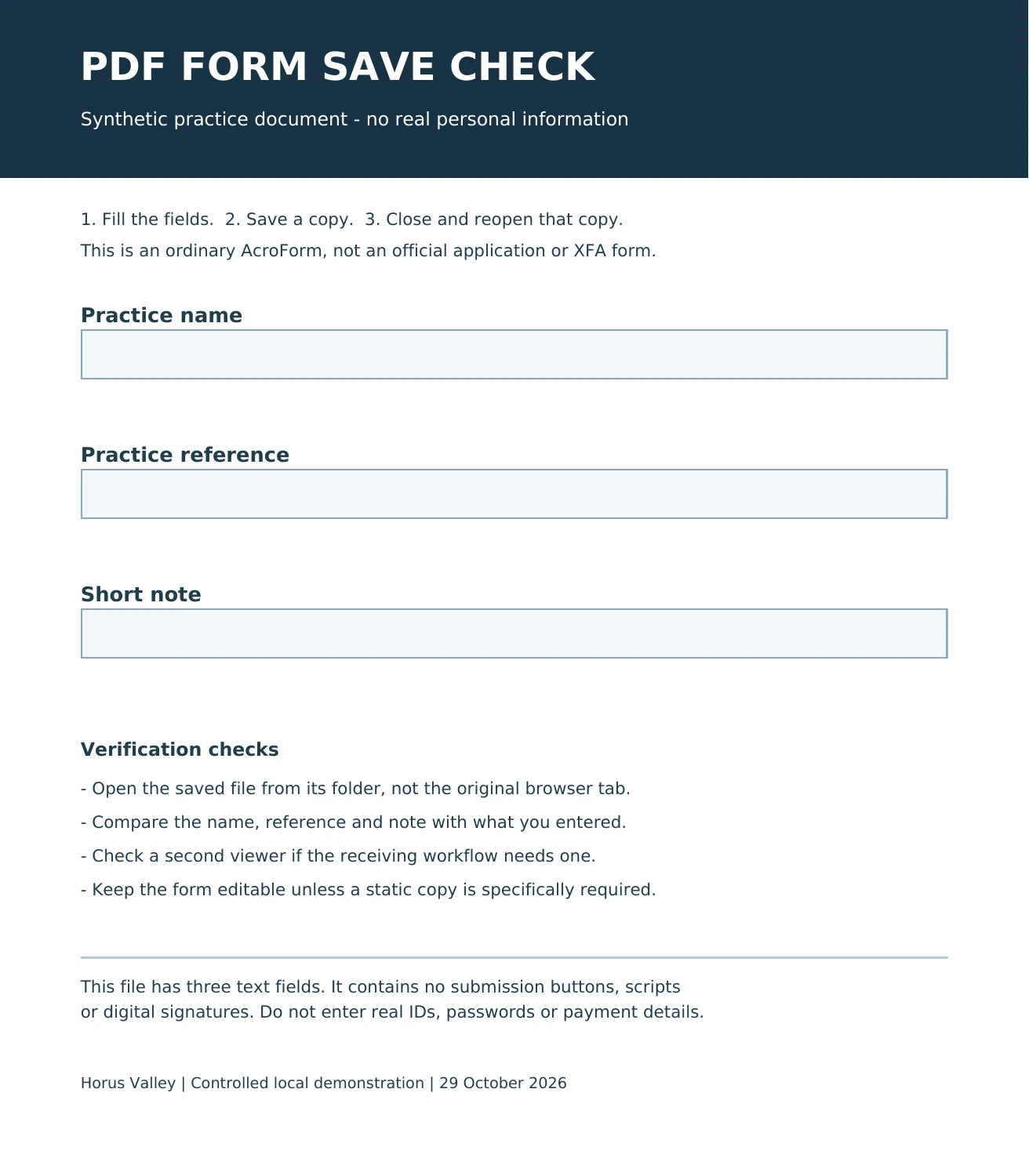
For this article, we created a harmless one-page AcroForm containing three text fields. We kept its blank template, filled a separate saved copy with invented values, reopened both files, and inspected their logical fields, page widgets, and non-empty appearance streams. We also rendered the saved files with Poppler and reviewed the results visually.
The saved filled copy retained Alex Example as the practice name, DEMO-731 as the reference, and Reopened copy checked as the note. After reopening, all three field values agreed with the corresponding widget values and appearance data. The form remained interactive.
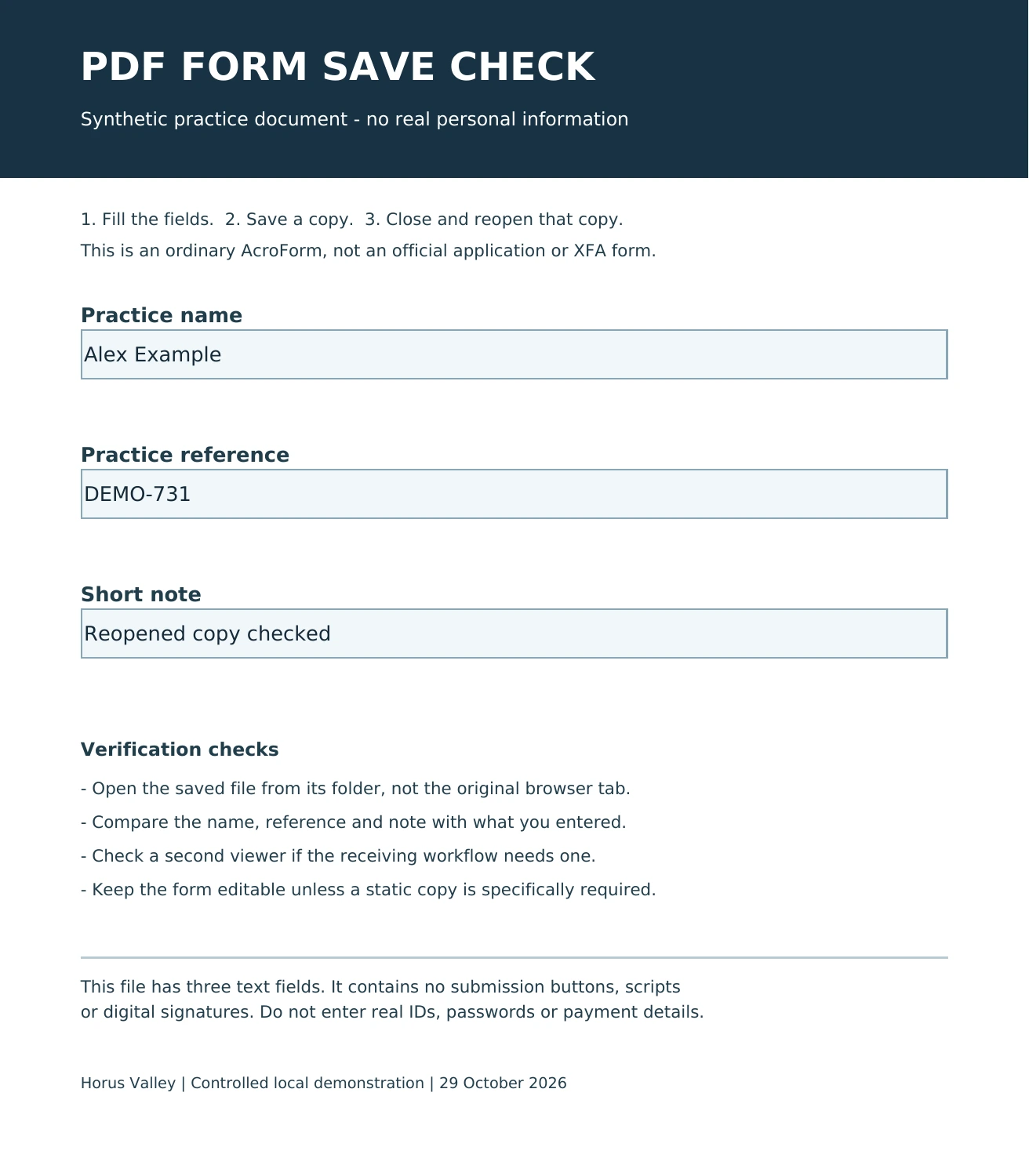
This demonstration establishes a limited result: the particular saved file contains the intended entries and renders them in the tested local rendering path. It does not establish that every viewer will display every PDF correctly. It also does not reproduce a universal “email removes data” defect. The two PDFs and an inspection record are provided as separate editorial companion files, outside the article-import ZIP.
There is a useful practical lesson in the two copies: the blank original is still a perfectly readable PDF with the same layout. Selecting it by mistake would produce a blank attachment without any email software altering the completed document. A filename alone is weak evidence; open and inspect the copy you are about to send.
Check the attachment, not just the email preview
- Confirm the completed file still looks right when opened from its saved folder.
- Attach that specific file using the required sharing route.
- If the service allows it, open or download the attachment you selected and inspect that copy. An inline preview can have its own rendering limitations.
- If a recipient reports blank fields, ask which app they used and whether downloading the attachment and opening it in the recommended reader changes the result.
- Compare the exact downloaded attachment with the saved completed file before trying destructive conversions.
For sensitive forms, use the organisation’s designated submission route. Do not upload a real application with identity or payment information to random repair sites as a test. Reproduce the problem with invented data on a harmless form, or contact the issuer through its normal support channel.
File size can provide a clue, but a completed PDF is not guaranteed to be larger than the blank template. Saving software may reorganise or compress the file. Likewise, searching the page’s extracted text is not a complete form-data check: some stored answers reside in interactive fields rather than ordinary page text.
If the form prints blank
First inspect the print preview. In Acrobat’s print dialog, the Comments and Forms setting affects what is included. Adobe’s Reader instructions distinguish printing the document and typed entries, including markups, and printing form fields only. Select the option appropriate to your content; do not choose a fields-only mode when you need the whole page.
If a text overlay or annotation is visible on screen but missing from the output, check whether it is included by the selected print mode. If preview itself is blank, changing the physical printer will not necessarily fix the PDF’s appearance. Return to a supported reader or ask for a corrected form.
When a static PDF copy is appropriate
A static copy may be useful when the recipient only needs to read a completed document and explicitly accepts that format. It is a separate deliverable from an interactive form. Preserve the editable version first and check whether signatures, submission buttons, calculations, or data extraction must remain available.
In that limited situation, open the verified completed file, inspect print preview, and use the system’s PDF output option if available—for example, Microsoft Print to PDF on Windows or the PDF saving option in a Mac print dialog. Give the output a different filename. Reopen it and check every page, long field, checkbox, and page break. Printing cannot preserve text that was absent from the rendering path to begin with.
Do not treat Print to PDF as a way to preserve a cryptographically verifiable digital signature or repair a formal submission workflow. Adobe’s XFA workaround documentation warns that flattening can remove fields, layers, interactive objects, buttons, and JavaScript. A readable derivative can still be the wrong file for the receiver.
If “Please wait…” replaces the entire form
This is a different symptom from a few missing answers. Some advanced forms use XFA or other features the current viewer cannot handle. The Illinois Department of Revenue’s guidance for its PDF forms recommends downloading those forms and opening them directly in Acrobat Reader instead of relying on the browser display. Apply the instructions of the organisation that issued your own form.
Adobe also lists dynamic XFA forms among the formats its web Fill & Sign workflow does not support. The label “PDF editor” alone does not establish that an application supports every type of PDF form. Moving from one web service to another may leave the same compatibility problem unresolved.
A reliable final check before sharing
Keep the original template and an editable completed copy. Verify the newly saved file from its folder, then verify the actual attachment or uploaded version where the service permits. Check all pages and field states, use the issuer’s supported application, and only create a static derivative when the receiving workflow accepts one.
If your separate problem is that words in the document cannot be selected or copied, see why PDF text will not copy. If the content is correct but you need to review hidden document information before sharing, use the PDF metadata inspection guide. Neither task substitutes for checking whether this form’s saved answers are actually present.
You may also like
 Technology & How-To
Is Tesla Discontinuing the Cybertruck? What We Know
Tesla plans a Cybertruck production wind-down in Texas around mid-2027. See what is confirmed, what remains unknown, and…
 Technology & How-To
Are AI Toys Safe for Kids? Privacy Risks and Parent Checks
Are AI toys safe for kids? Explore the evidence, privacy risks, age advice and practical parent checks for…
 Technology & How-To
iPhone Trust This Computer Not Showing? Windows and Mac Fixes
Restore the iPhone computer-trust prompt with checks for unlocking, Apple Devices or Finder, USB data cables and targeted…