
eSIM Not Receiving Verification SMS After Transfer? Here’s What to Check
Not getting bank codes or verification texts after an eSIM transfer? Diagnose activation, ordinary SMS, short-code delivery and dual-SIM settings with a safe step-by-step guide.
Contents
- Understand the three systems that can fail
- Start with a safe five-minute test
- Step 1: Verify the eSIM line is really active
- Step 2: Distinguish SMS from iMessage, RCS and internet chats
- A controlled comparison worth doing
- Step 3: Check carrier settings and the basic network state
- Step 4: If calls/data work but no SMS arrives, contact the carrier with evidence
- If the old phone still receives messages
- Step 5: If regular SMS works but verification texts do not
- Step 6: Dual-SIM and travel-eSIM pitfalls
- Step 7: An eSIM transfer does not automatically update your bank's registered number
- Step 8: What to do if the OTP is urgent and you cannot receive SMS
- A support request that helps the carrier investigate
- Common fixes that can make the problem worse
- What a successful fix looks like
- Final checklist: identify the failure, then fix the right system
- Official sources and further reading
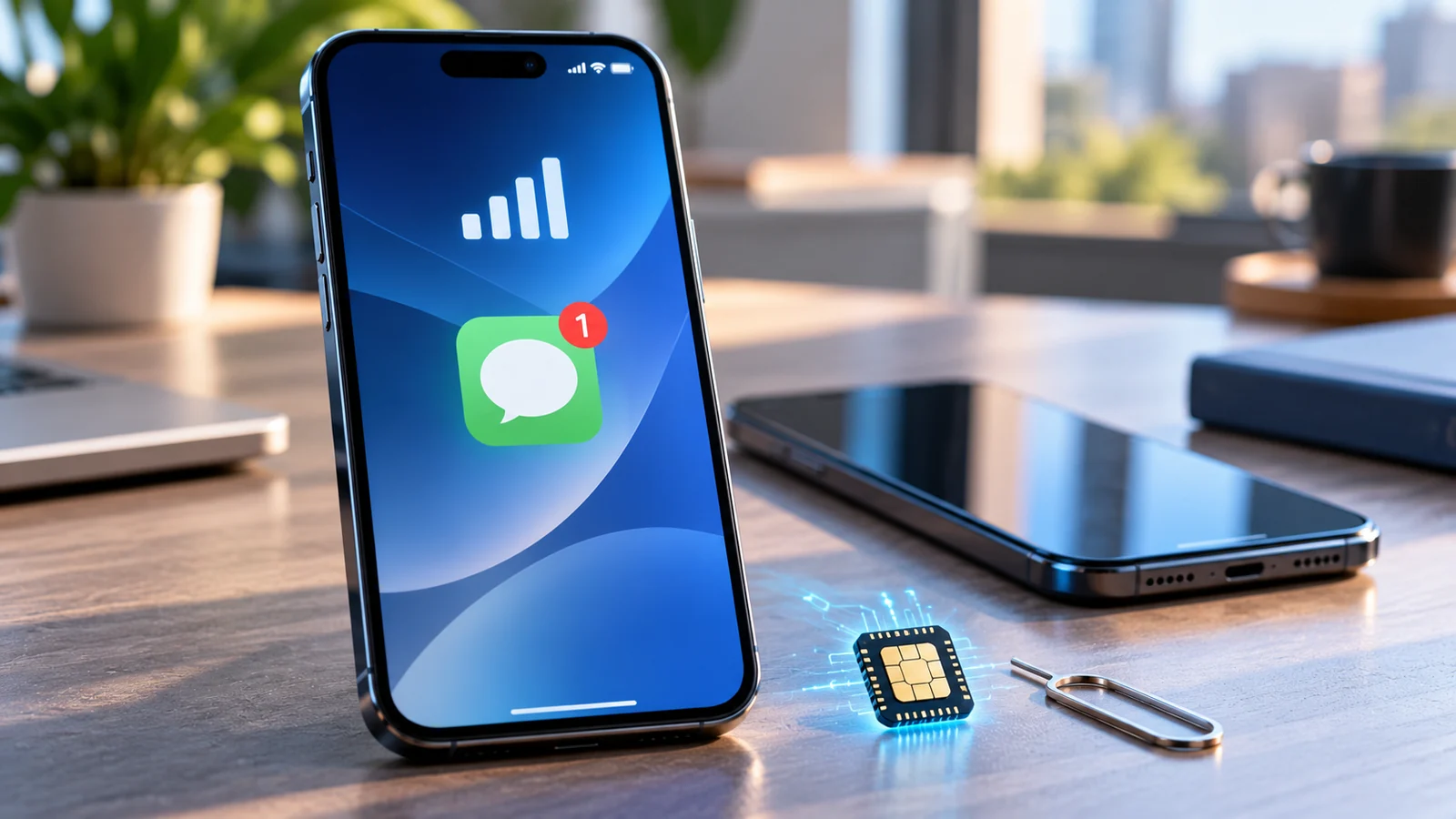
You transfer your mobile number to a new iPhone or Android phone, the eSIM appears to activate, and mobile data may even work. But the verification code from your bank, messaging service or account sign-in never arrives. This is especially stressful if the service is waiting for a one-time password (OTP) before it lets you sign in. The correct response is not to keep requesting codes or erase your eSIM immediately: first find out whether regular SMS works on that number.
Fast answer: Confirm that the transferred number is attached to an active cellular line, test an ordinary person-to-person SMS, and compare the result with messages from a verification sender. If all SMS fail, investigate activation, line settings and the carrier’s SMS service. If normal texts work but bank or app codes fail, ask the carrier and sender about short-code/A2P routing and any post-transfer security restriction rather than assuming a fresh eSIM install will fix it. Apple and Google provide separate official steps for eSIM activation and general message failures. Apple: Messages troubleshooting and Google: Message delivery troubleshooting.
Understand the three systems that can fail
After a transfer, problems may occur in different places:
- Mobile line activation: The carrier associates your number with the eSIM profile and device. If that association is incomplete, calls, SMS or data may not behave correctly.
- SMS delivery: The carrier’s messaging systems must route traditional text messages to your active line. Data working does not, by itself, prove inbound SMS is ready.
- Verification provider delivery: A bank or app may send its OTP via a business messaging service, short code, alphanumeric sender, or automated platform. The provider may also impose its own fraud checks or temporary delivery restrictions after a phone or number change.
Those are separate dependencies. Reinstalling a messaging application cannot repair a carrier-side line activation, and a working web browser does not prove that SMS short-code delivery is functioning.
Start with a safe five-minute test
Run these checks before changing network configuration or logging out of important accounts.
- Open your phone’s cellular/SIM settings. Confirm the intended phone number and carrier are visible and the line is switched on. On a dual-SIM device, distinguish the primary and secondary lines clearly.
- Confirm the phone shows a usable mobile network. Toggle Airplane Mode on, then off. Restart once if needed. Apple lists both steps for eSIM setup problems.
- Ask a trusted person on a different mobile network if possible to send an ordinary SMS (not iMessage, RCS, WhatsApp or Signal). Note the sending time and whether the text arrives.
- Send an ordinary SMS back, if your plan permits. Record whether outbound SMS works even if inbound messages do not.
- Request one verification code from one trusted service and record its sender, local time and any error. Avoid rapid retries; each service can have separate rate limits.
- Check whether one service fails while another succeeds. If possible, compare an ordinary SMS, a shortcode verification SMS and an app-generated code without sharing the codes themselves.
| Result | Likely troubleshooting branch | Next best move |
|---|---|---|
| Calls, data and all SMS fail | Line/eSIM activation or service state | Carrier activation support |
| Calls and data work, no normal SMS arrives | SMS provisioning or device settings | Check line/app settings; then carrier SMS routing |
| Ordinary SMS works, only bank OTP fails | Short-code/A2P or sender restriction | Ask bank and carrier about sender delivery |
| Some apps’ codes arrive, another’s do not | Service-specific rejection or throttling | Use that service’s recovery channel |
| SMS arrives on another line/device | Dual-SIM selection or incomplete transfer | Verify which number owns the active profile |
| Message arrives late after many retries | Delayed delivery or resend overlap | Stop requesting; use only the newest valid code |
This symptom-based matrix is the key added value of this guide. It prevents users from treating every OTP failure as an eSIM hardware defect. These are diagnostic possibilities, not a remote diagnosis of your carrier’s systems.
Step 1: Verify the eSIM line is really active
On iPhone, open Settings → Cellular or Mobile Data (the label varies by region), look for the transferred number, open its line settings and ensure Turn On This Line is enabled. On devices with two lines, make sure you are checking the number that should receive the code, not simply the line selected for mobile internet. Apple’s current guidance specifically advises checking that the intended mobile line is turned on after setting up a new device. Apple: can’t send or receive messages.
On a Pixel or other Android device, open Settings → Network & internet → SIMs or the manufacturer’s equivalent. Check that the intended eSIM is installed, enabled and linked to your carrier. Transfer steps vary with device and carrier. Google’s Pixel support notes that, depending on the provider, an eSIM transfer can occur during setup or later in the SIM settings, and persistent transfer failures require carrier assistance. Google Pixel: Transfer a SIM.
Do not delete the current eSIM as a first troubleshooting step. Removal can leave you without the active number and might require new carrier authorization, a QR code or another activation process. That is particularly risky when banking or identity verification still depends on the number.
Step 2: Distinguish SMS from iMessage, RCS and internet chats
A friend saying “I texted you” is not enough to prove SMS delivery. Messages may have used iMessage between Apple devices, RCS between compatible messaging apps, or an internet app. A normal SMS travels through the mobile carrier’s messaging service. That’s why a chat bubble appearing on Wi-Fi does not demonstrate that a bank’s SMS should arrive.
On iPhone, make sure the ordinary message test is genuinely SMS, not a blue-bubble iMessage. Apple’s guidance explains that iMessage uses Wi-Fi or mobile data, while conventional SMS depends on a text-messaging service, with Wi-Fi Calling offering some carrier-dependent alternatives. Apple: Messaging after setting up a new device.
On Android, Google advises setting Google Messages as the default SMS application, updating it, ensuring network signal, and confirming SMS support with the carrier. Google Messages: Fix sending/receiving. RCS registration problems are a separate branch; do not spend an hour toggling RCS when a basic SMS to your number also fails.
A controlled comparison worth doing
Imagine receiving a WhatsApp message on Wi-Fi, then a blue-bubble iMessage, but not an ordinary text sent by a non-Apple friend. You have learned that internet messaging works; you have not yet verified cellular SMS. Now imagine normal SMS arrives instantly but a bank code never comes: the problem has moved out of general device connectivity toward the sender or specialized SMS routing. These examples are hypothetical decision paths, not claims of hands-on tests on particular networks.
Step 3: Check carrier settings and the basic network state
For iPhone, Apple recommends the following activation checks: toggle Airplane Mode, confirm the line is listed and on, restart the phone, and look for a carrier-settings update under Settings → General → About. If an update is offered, follow the official prompt. Apple also recommends having the phone number, carrier account details, and IMEI/EID ready when contacting the operator. Apple: If you can’t set up an eSIM.
On Android, check for current OS and messaging app updates and your carrier’s documented SIM settings. Some providers support an automated SIM transfer; others require explicit activation or re-provisioning. Google’s guidance warns that device and provider support differ, so it is better to use the operator’s own instructions than to assume every Android handset shares an identical eSIM flow.
Network reset should be a later, deliberate option, not the first. It may remove saved network settings and still cannot repair a carrier database or an institution’s fraud check. Before following a reset recommendation, understand which settings will be erased and confirm you can reconnect afterward.
Step 4: If calls/data work but no SMS arrives, contact the carrier with evidence
A successfully browsing phone can still have SMS provisioning or routing problems. When your ordinary inbound SMS test fails, prepare precise observations instead of saying only “my codes don’t work”:
- Your mobile number, carrier, handset model, operating system, and date of transfer.
- Whether calls and mobile data work on the new device.
- Whether ordinary inbound SMS from another person arrives; whether outgoing SMS sends.
- Whether the old physical SIM/eSIM is still active or displaying service.
- Approximate timestamps and sender numbers for failed test texts, without revealing OTP contents.
- Any activation error, pending number port, account suspension or carrier service notice.
Ask the carrier to confirm that the number is fully activated on the correct current eSIM profile, that inbound and outbound SMS are provisioned, and whether a pending port, temporary block or routing issue is affecting SMS delivery. Avoid demanding a specific engineering fix you cannot verify; frontline agents may need to escalate to their messaging or provisioning team.
If the old phone still receives messages
That clue can mean the transfer has not completed or that messaging identities and cellular services are behaving differently. Do not immediately wipe the old phone. Test an ordinary carrier SMS on both devices, check the active number on each, and report the result to the operator. A number should not be assumed fully moved solely because the new phone shows a signal icon.
Step 5: If regular SMS works but verification texts do not
This is the branch most generic eSIM articles miss. Many banks and authentication services use application-to-person (A2P) SMS or short codes rather than an ordinary person’s mobile number. A delivery problem affecting those messages alone may lie with carrier filters, routing, the service’s sending provider, or the service’s own account security controls.
Try one second legitimate verification sender. If both senders fail while ordinary SMS succeeds, ask your carrier whether its short-code/business SMS delivery is restricted for the line after the transfer. If one service fails, contact that service using its official app or support channel and request delivery investigation. Describe that other SMS functions still work. Do not assume a universal 24-hour or 72-hour delay: any post-swap restriction is carrier- and service-specific, and published policies can vary.
Example: Normal family texts work after an eSIM move; two bank verification codes do not. That result is more consistent with a specialist delivery or security issue than with “Bluetooth is off” or “the Messages app needs reinstalling.” It does not prove which organization blocked delivery. Ask both the operator and affected services to review logged attempts.
Step 6: Dual-SIM and travel-eSIM pitfalls
Many phones can keep a local voice/SMS number alongside a separate travel data eSIM. The eSIM that supplies mobile data is not necessarily the line to which your bank sends texts. If you replaced or disabled the home line while traveling, you might have working internet and no access to the number registered with the bank.
Verify:
- Which SIM is associated with the registered phone number at your bank or service.
- Whether that specific line is enabled and has coverage or supported roaming where you are.
- Which SIM your messaging application uses to send replies. Google provides a guide for switching the sending SIM within Google Messages on supported devices. Google: Use different SIM cards in Messages.
- Whether incoming SMS to the registered number can be received during your travel plan. That is a carrier and roaming question, not a setting you can infer from having data on another eSIM.
Be careful with websites that claim a temporary data-only eSIM automatically gives you a new standard phone number for verification. Many travel products are data-only; check their plan details before relying on them for SMS banking access.
Step 7: An eSIM transfer does not automatically update your bank’s registered number
Transferring the same number to another eSIM generally aims to move that number’s service, but a bank may still ask for a trusted-device verification or apply account safeguards. Changing your number altogether is a different task: the bank or service may continue sending to your old registered number until you update the account through its official process.
Look at the verification screen carefully. Is the masked destination number correct? Is it showing an old number or email? If it is wrong, contact the service to update account recovery using identity-verification procedures it authorizes. Never give your OTP to a caller claiming to “finish eSIM activation,” and never rely on a web search result that asks you to pay to unblock a verification code.
Step 8: What to do if the OTP is urgent and you cannot receive SMS
For financial or identity-sensitive accounts, use only official alternative verification methods that the service already supports: an authenticator app, passkey, in-app approval on an already trusted device, hardware security key, recovery codes, or direct identity verification with the institution. Availability depends on the service; do not assume every bank offers each option.
If you still have a signed-in device, avoid signing out until you’ve confirmed a replacement sign-in path. Protect existing recovery codes and use the institution’s official telephone number or website, not a link from a suspicious text. Consider improving resilience after the issue is resolved by adding an approved non-SMS method where available. For related account-access issues, Horus Valley also has a guide on recovering a Google account without the old phone (Arabic article).
A support request that helps the carrier investigate
I transferred my existing phone number to an eSIM on [date/time]. Calls: [working/not working]. Mobile data: [working/not working]. Ordinary inbound SMS from another mobile: [working/not working]. Outgoing SMS: [working/not working]. Verification SMS from [sender/service]: [not received]. Please confirm the number is fully provisioned to the correct eSIM, check inbound SMS and short-code/A2P delivery, and advise whether any porting or security restriction applies. I can provide failed-message timestamps and my device EID securely through your official support channel.
Do not include your bank password, actual OTP, complete account recovery code, or unmasked identity documents in a public support post. Share identifiers such as EID only with the verified carrier channel that needs them.
Common fixes that can make the problem worse
| Tempting step | Risk or limitation | Better first action |
|---|---|---|
| Delete and reinstall the eSIM | May lose the active profile and require reactivation | Keep it installed; confirm activation with carrier |
| Request a code every few seconds | May trigger rate limits or confusion with old codes | Send one request, note time, follow provider instructions |
| Turn off all security restrictions | Weakens protection without repairing routing | Ask the correct provider to investigate delivery |
| Reset the entire phone | High disruption; does not fix sender-side delivery | Run the ordinary SMS test and carrier checks |
| Assume Wi-Fi messages prove SMS works | iMessage/RCS/internet apps have different paths | Test a genuine carrier SMS |
| Use an unofficial “OTP recovery” website | Credential theft and scam risk | Use official institution recovery channels |
| Move the line again immediately | Could complicate a pending transfer | Confirm port/activation status first |
What a successful fix looks like
Before concluding that the problem is solved, perform a small, repeatable verification sequence: receive one ordinary carrier SMS, send a reply if relevant, receive one code from the original affected service, and sign in only through the legitimate app or site. If a code was delayed, ensure you are using the newest valid code. If only the sender changed its settings, the carrier’s general SMS service may never have been broken in the first place.
Document the final cause if your provider confirms it: incomplete activation, wrong active line, routing, an account-level restriction or service-specific messaging. This makes future phone changes safer and stops you from repeating destructive steps that did not help.
Final checklist: identify the failure, then fix the right system
- The correct number must appear on an enabled eSIM line, not only as a contact label.
- Test a true ordinary SMS independently of iMessage, RCS, WhatsApp and mobile data.
- Check whether all SMS or only business/verification SMS fails.
- Review carrier settings, line activation, and dual-SIM/roaming choices without deleting the profile.
- Ask the carrier to inspect provisioning and SMS routing when ordinary SMS fails.
- Ask the sender and carrier to investigate short-code or A2P delivery when only OTP texts fail.
- Use approved alternative sign-in methods for urgent access; protect your codes and account credentials.
- Verify delivery from the original service after the claimed fix before declaring the problem resolved.
Bottom line: An eSIM is the method of installing your mobile subscription, not a separate kind of SMS. The right diagnosis starts by separating line activation, ordinary text delivery, and a bank or application’s code-sending system. That one distinction can prevent unnecessary resets and help support teams solve the correct problem faster.
Official sources and further reading
- Apple Support — If you can’t send or receive messages on your iPhone: phone-line settings, iMessage versus SMS and carrier escalation.
- Apple Support — If you can’t set up an eSIM: line activation, carrier settings and troubleshooting information.
- Apple Support — Set up eSIM on iPhone: carrier activation and supported transfer methods.
- Google Pixel Help — Transfer a SIM to a new phone: automatic/manual transfer and carrier-dependent limitations.
- Google Messages Help — Fix SMS sending and receiving: default app, signal, carrier and basic SMS checks.
- Google Messages Help — Use different SIM cards in Messages: dual-SIM selection where supported.
Editorial scope: Short-code filtering, porting restrictions and sender fraud controls are possible explanations, not universal rules or proof of what happened to your account. Device menus and service policies may differ by region and update. This guide describes safe investigative steps, not a test performed on your specific carrier.
You may also like
 Technology & How-To
 NHS App Prescription Not Showing? Check GP Approval, Pharmacy Status and Tracking
Find out why a prescription or medicine is missing from the NHS App in England. Separate repeat requests,…
 Technology & How-To
 Google Wallet Not Working After Switching Phones? Fix Card Setup and Tap to Pay
Google Wallet transferred but tap to pay fails? Separate card verification, bank approval, NFC, screen lock and device…
 Technology & How-To
 iCloud Family Sharing Not Working? Why You Still See 5GB and How to Fix It
Still seeing 5GB after joining an iCloud family plan? Check the account, invitation, sharing settings, personal plan and…