
Chrome Can Fill Forms Using Gmail: How to Turn On Gemini Autofill, Fix It, and Protect Your Privacy
Google Chrome can now suggest booking codes, tracking details and order numbers from Gmail. Learn who is eligible, how to enable it on PC, Android or iPhone, how to remove suggestions, and privacy controls.
Contents
- What changed in Chrome's autofill?
- Who is eligible — and why location matters
- How to enable Gmail-connected autofill on a Windows PC, Mac, or other desktop
- How to opt in to Personal Intelligence and connect Gmail
- How to turn it on or off in Chrome for Android
- How to control Gemini autofill on iPhone and iPad
- How to check where a suggestion came from before using it
- Remove the wrong suggestion without deleting your Gmail message
- Privacy: what access are you granting?
- Does Google read all my emails or use them to train Gemini?
- Enhanced autofill is missing: a troubleshooting path that avoids guesswork
- A simple way to diagnose the result: five different symptoms
- Is this the same as Gemini in Chrome, Smart Autofill, or Chrome auto browse?
- What to do if you prefer not to enable it
- What we confirmed, and what remains untested
- Bottom line
- Original sources and useful references

Google Chrome can now suggest information from your Gmail messages while you complete online forms. The new feature uses Gemini with Personal Intelligence to find relevant details such as a flight booking reference, package tracking number, or online order number, and offer the information directly in the form. Google announced the Gmail integration on October 28, 2026, and began a gradual U.S. rollout on Chrome for desktop, Android and iOS. It is not available to every Chrome user simply because they have a Gmail account. Google’s original announcement.
If you are eligible and want to try it, start in Chrome Settings → Autofill and passwords → Enhanced autofill → Find and fill with Gemini. The feature also requires opting in to Gemini Personal Intelligence. If the menu or suggestion is missing, the most likely explanation is rollout or account eligibility—not a defective browser. In this guide, we separate confirmed Google instructions from reasonable troubleshooting ideas and show how to reverse the choice if you would rather keep your inbox out of autofill. Chrome Help.
Availability checked October 30, 2026: Google lists U.S. Gemini in Chrome users age 18 or older who have opted in to Personal Intelligence. Users outside the U.S., users with unsupported account types, and eligible people whose devices have not yet received the rollout should not expect the same controls to appear. The rollout is ongoing, and there is no confirmed global launch date. Chrome Help.
What changed in Chrome’s autofill?
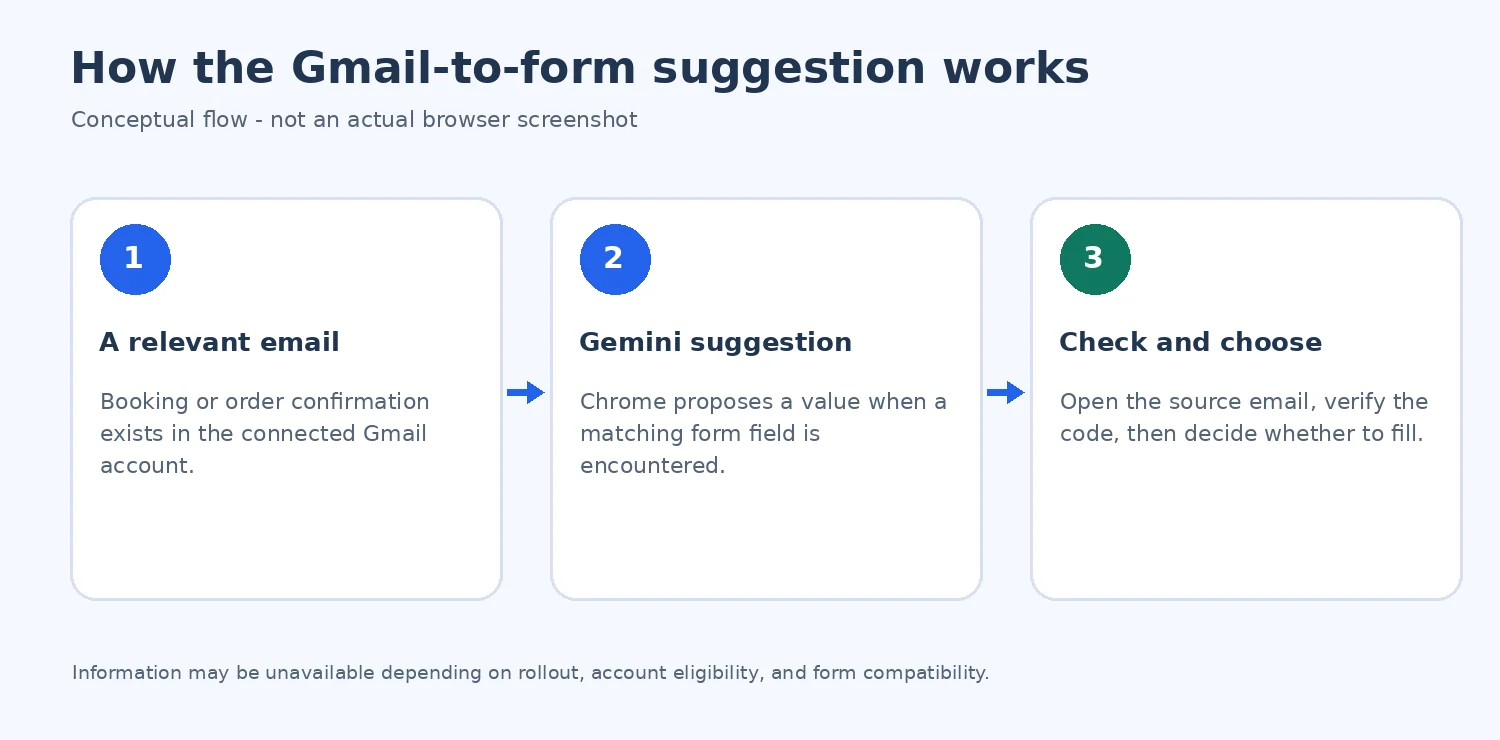
Traditional autofill remembers values you previously saved: names, addresses, payment methods and other information from your Google Account or Wallet. That is useful until a form requests something you rarely type and have never saved, such as the confirmation code for an airline ticket or the order ID from a return receipt. You would ordinarily switch to Gmail, search for the right message, copy the code, then return to the original tab.
The October update adds a Gmail-connected suggestion. In an eligible Chrome session, Gemini can identify relevant data in your connected Gmail account and propose it when a form field calls for it. The suggestion appears with a Gemini spark icon; some coverage shows the label “Suggested by Gemini.” You remain responsible for checking that the proposed code matches the form and choosing whether to use it. Google’s announcement and Chrome’s official instructions.
Google specifically named order numbers, package tracking details, and flight bookings. Chrome Help also refers to vehicles and orders as data categories in the wider Enhanced autofill experience. That does not mean Google has guaranteed recognition of every retailer’s receipts, every airline’s itinerary, or every type of personal document. Nor should you assume that the Gmail integration can read all of your accounts if you use multiple Google profiles. The relevant connected account and settings matter.
Who is eligible — and why location matters
The conditions are narrower than the eye-catching phrase “Chrome can read Gmail” suggests. Google describes this as a rollout in the United States for Gemini in Chrome users with Personal Intelligence enabled. Chrome’s help page adds the 18+ requirement. The broader Personal Intelligence experience requires an eligible personal Google Account and the relevant activity settings; Google states that the beta is not offered for work, school, or supervised accounts in its Gemini documentation. Google Gemini Help.
- U.S. adult with Personal Intelligence enabled: potentially eligible on desktop, Android, or iOS, but gradual rollout means availability is not guaranteed on your device today.
- U.S. user with an ordinary Gmail account but no opt-in: the Gmail-connected suggestions should not be assumed active. Personal Intelligence requires deliberate setup.
- Outside the U.S., including the United Kingdom: the October announcement does not promise this Chrome feature there. Do not confuse broader Gemini availability with the narrower rollout of this feature.
- Work or school Google Account: Google’s Personal Intelligence documentation excludes business, education, and supervised accounts from this beta. Organization-administered autofill may have separate policies and different capabilities.
- Under 18: Google’s Enhanced autofill help lists a minimum age of 18 for this Gmail-linked feature.
Some articles imply that installing the latest Chrome release is sufficient. Updating is sensible, but it cannot replace account eligibility or activate an unfinished server-side rollout. Google’s announcement also does not clearly set out a separate price or subscription requirement for this specific autofill launch; avoid inventing a paid-plan prerequisite. Check your actual account’s opt-in screen rather than paying for a plan based on an unsupported promise.
How to enable Gmail-connected autofill on a Windows PC, Mac, or other desktop
Google documents a specific switch in Chrome settings. Use the following steps only if the feature has reached your account; menu names may evolve as Chrome updates.
- Open Chrome and sign in to the Google Account you intend to use.
- Select the three-dot More menu at the upper right and open Settings.
- Go to Autofill and passwords.
- Under Autofill settings, open Enhanced autofill.
- Turn Find and fill with Gemini on, if the toggle is visible.
- Confirm that you have opted in to Personal Intelligence and connected the relevant Google apps in Gemini. The Gmail content you expect to use needs to be associated with the intended connected account.
- Visit a relevant form, such as a genuine airline check-in or order-support page, and select a field asking for a code that is present in a confirmation email. Inspect the Gemini-labeled suggestion before accepting it.
Google’s exact setting path comes from its Chrome Help page. The Personal Intelligence opt-in is documented separately in Gemini Help. Do not enter invented booking or tracking numbers on a real merchant website merely to test the feature. Use a genuine form for a transaction you already own, or explore the settings without submitting a form.
How to opt in to Personal Intelligence and connect Gmail
Open Gemini while signed into your eligible personal Google Account. Google says eligible users may see a Get started card for Personal Intelligence. Follow the setup prompts and choose individual connected apps, or go to Settings & help → Personal Intelligence → Connected Apps to review the connection. The connection list groups some Google services under Google Workspace, which may include Gmail; the display labels may not be a standalone “Gmail” toggle. Check the description shown for the connection on your account before switching it on. Official setup guide.
If Personal Intelligence is not offered, Google states it is rolling out gradually. You cannot force it on by opening a special Chrome URL, adding an experimental flag copied from a forum, or downloading an unofficial extension. Also remember that connecting Google services to Gemini can affect other Gemini experiences, not just autofill. Review the consent screen before granting access.
How to turn it on or off in Chrome for Android
The Android control is comparable to desktop but lives in Chrome’s mobile settings:
- Open Chrome on your Android phone or tablet.
- Tap More (three dots) → Settings → Autofill and passwords.
- Under Autofill settings, select Enhanced autofill.
- Switch Find and fill with Gemini on or off.
- To inspect a suggestion, tap a suitable form field. On the bar above the keyboard, long-press the chip with the Gemini icon, select View sources, and then open the linked original email in Gmail.
- To reject a particular suggestion, long-press the suggestion chip and choose Remove suggestion.
Those tap and long-press instructions are from Google’s Android-specific Chrome Help. They differ from the desktop hover menu, so do not hunt for a desktop-style settings popup on a phone. A third-party keyboard, site layout, or unavailable rollout may affect what appears above the keyboard.
How to control Gemini autofill on iPhone and iPad
On iOS, the October rollout also targets eligible Chrome users in the U.S. Google documents this route:
- Open the Chrome app on your iPhone or iPad.
- Tap More → Settings.
- Open Autofill and passwords → Autofill settings.
- Select Enhanced autofill.
- Turn Find and fill with Gemini on or off.
- For a suggested value, long-press the Gemini suggestion chip above the keyboard to find View sources or Remove suggestion.
See Google’s iPhone and iPad help. Chrome on iOS is not the same as Safari; choosing Chrome’s autofill option does not automatically change Safari’s separate settings. If your Chrome interface uses an older label, consult the up-to-date Google help page rather than assuming a random tutorial screenshot is current.
How to check where a suggestion came from before using it
This is the most important quality-control step. A booking or order code can look plausible while referring to the wrong purchase, an older trip, or a message from a similar sender. Google gives users a way to follow the suggestion back to its source.
On desktop, select the suggestion dropdown in the form field, then hover over the Gemini suggestion to access its menu and choose the original-source link. The corresponding email opens in Gmail in a new tab. On Android or iPhone, long-press the Gemini suggestion chip above the keyboard, tap View sources, then follow the Gmail link. Desktop instructions; Android instructions.
Before using the value, confirm the sender and booking or order context, not only the characters of the code. Check the travel date, destination, merchant, last digits of an order, or shipping status as appropriate. If you have received several receipts from the same company, compare the correct transaction rather than trusting the newest-looking suggestion. Avoid taking screenshots that expose booking codes and customer information if you plan to share them publicly.
Illustrative check: A return form requests an order number. Gmail contains an order from Retailer A and a more recent purchase from Retailer B. If Chrome suggests a number, use View sources, verify the retailer, amount or product, and purchase date against the return you are actually processing. If the source is wrong, decline it, look up the correct receipt, and type or paste the value manually. This example explains a safe workflow; it is not a claim that we tested a particular retailer with the new release.
Remove the wrong suggestion without deleting your Gmail message
Google’s support page distinguishes these actions carefully. Choosing Remove from Chrome on desktop (or Remove suggestion on mobile) removes the proposed value from Chrome’s suggestions. It does not delete the underlying email. If you delete the original email, Google says the related Gmail-sourced suggestion is removed, too. Google also says Gmail-derived information cannot be edited inside Chrome. Chrome Help.
If an airline reissued a ticket or a seller replaced an order reference, correct the problem at its source or use the new authoritative email; do not assume editing a saved Chrome address or a Wallet pass will rewrite a booking code extracted from Gmail. There is no need to delete a legitimate message just to stop seeing a single irrelevant autofill entry. Use Remove suggestion instead.
Privacy: what access are you granting?
The genuine trade-off is convenience versus allowing an AI-assisted browser feature to use data from an email account. Google says sensitive data is encrypted and users can manage Enhanced autofill in Chrome settings. However, “encrypted” does not mean Chrome never processes your data, nor does it answer every question about retention or use for model improvement. The appropriate privacy controls depend on which Gemini services and Google Account settings you have enabled. Google announcement.
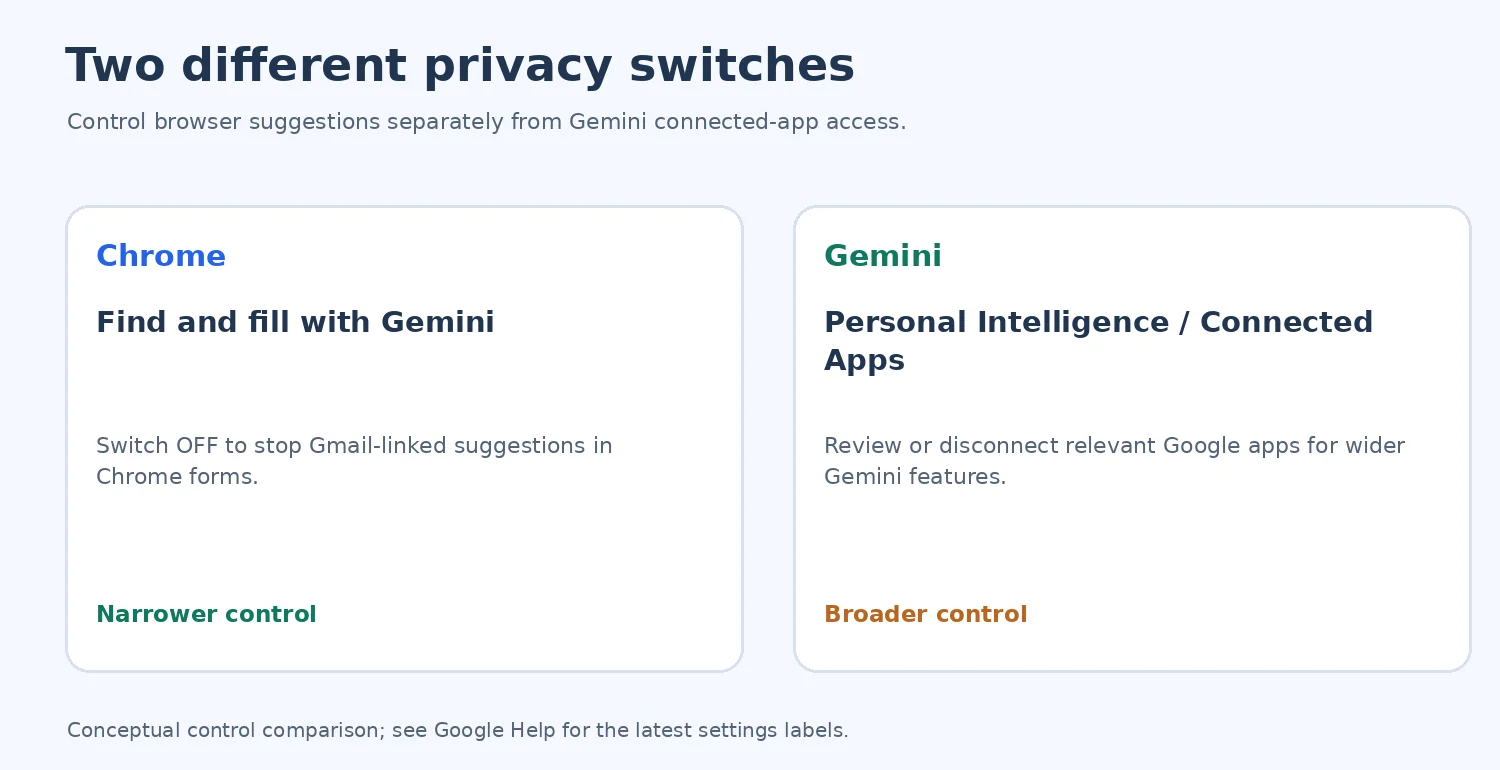
Review two separate controls before opting in: the Chrome toggle that governs Gmail-connected suggestions in web forms, and Gemini’s Connected Apps settings that govern Personal Intelligence access across Gemini experiences. Switching off the Chrome toggle is the direct way to stop this kind of autofill; disconnecting a relevant service in Gemini is a wider choice. Google’s Connected Apps help describes how to review and disconnect apps. Its privacy explanation advises users not to connect apps containing confidential information they would not want used in model training and explains distinctions between connected-app data and Gemini activity data.
Before enabling it, ask: Do I use this Gmail account for sensitive medical, legal, or financial correspondence? Am I using a shared computer? Is my Google account secured with a passkey or two-step verification? Do I frequently fill forms on unfamiliar websites? Do I want Google-connected services to access Gmail for other forms of personalization? None of these necessarily means the feature is unsafe; they determine whether the convenience is worthwhile for you.
For a broader security review, our existing 25-point guide to checking access to your Google Account covers signed-in devices, forwarding rules, app permissions, passkeys, and more. A Chrome autofill setting is not a substitute for account security.
Does Google read all my emails or use them to train Gemini?
The October 28 product announcement names Gmail-derived suggestions but does not establish that every message in your inbox is scanned continuously, or explain a separate retention policy for each suggestion. Do not treat a headline about “reading your inbox” as a technical audit. Google’s broader Gemini data policies describe different handling for connected-app content, user prompts and activity data; those distinctions matter. Read the Gemini Personal Intelligence help and Google’s Connected Apps privacy guide before deciding.
There is also an important distinction between a service accessing data to provide a requested function and that data being used to improve AI models. An encryption claim alone does not answer the second question. We have not independently audited Chrome’s implementation or Google’s back-end processing. Do not assume either that the inbox is automatically used for training or that no related data can ever be reviewed; inspect the controls and policy for your account and product version.
Enhanced autofill is missing: a troubleshooting path that avoids guesswork
If you cannot find Find and fill with Gemini, work through the checks in this order. Several of them establish eligibility; others are ordinary diagnostic ideas, not guaranteed fixes.
- Check your country first. The new Gmail-connected autofill began rolling out in the U.S. on October 28, 2026. If you are outside the announced rollout area, there is no official global activation trick. A VPN is not an official eligibility workaround.
- Check your age and Google Account type. Google lists 18+ and Personal Intelligence opt-in; business, school and supervised accounts are outside the stated Personal Intelligence beta.
- Look for Personal Intelligence inside Gemini. If Gemini does not offer the opt-in, you may not have access to the required feature yet.
- Check the correct Google profile. A different Chrome profile can lead you to the wrong signed-in account or different connected-app permissions.
- Update Chrome through its normal mechanism. On desktop, open Chrome’s About page; on mobile use the official app store. An up-to-date browser improves compatibility but cannot accelerate staged availability.
- Look in the correct settings area. Enhanced autofill is different from Smarter form understanding, from Password Manager, and from ordinary address/payment autofill.
- Try only a relevant, trustworthy form. A suggestion may depend on a recognizable field and an applicable email. Google does not promise support for every website or form layout.
- Review the original Gmail message. Confirm the correct account actually contains a usable booking or order number; a promotional email or unconfirmed order may not provide what the field asks for.
- Check whether a suggestion was manually removed. If you previously rejected a particular suggestion, manually entering the correct value may be the sensible solution.
- Do not install third-party extensions promising to “unlock Gemini autofill.” These can introduce an unnecessary risk to the very accounts and forms you are trying to protect.
If ordinary autofill also fails, Google’s separate guidance suggests checking Save and fill settings, saved information, relevant Google Wallet controls, and website compatibility. On Android, also review whether Chrome is using Google or a third-party autofill provider. Those checks address the basic autofill system and may not resolve a missing Gemini-only option. Chrome desktop help and Chrome Android help.
A simple way to diagnose the result: five different symptoms
| What you see | Likely explanation / safest first check |
|---|---|
| No Enhanced autofill menu | Check the U.S. rollout, age 18+, account type, and Personal Intelligence availability. |
| The toggle exists but there is no Gemini suggestion | Check the connected account, whether the email has the requested code, and whether the site has a suitable form field. |
| An out-of-date or wrong booking number appears | Use View sources, compare with the correct confirmation, and remove the wrong suggestion. |
| Normal address or card autofill fails too | Separately inspect Save and fill settings, saved data, the site, and Android autofill provider. |
| You want suggestions stopped but Gmail preserved | Turn off Find and fill with Gemini or remove the specific suggestion; do not delete a valid email just to hide the suggestion. |
The distinction between “setting does not exist” and “suggestion does not appear” saves time. The first points mostly toward eligibility and rollout. The second may depend on your connected account, the email content, and whether Chrome recognizes the requested form field. A suggestion with the wrong code is a verification problem, not a reason to relax account security or delete receipts.
Is this the same as Gemini in Chrome, Smart Autofill, or Chrome auto browse?
No. They are related Google experiences with different jobs. Gemini in Chrome is the AI experience integrated into the browser. Personal Intelligence is the connection and personalization layer that can use information from eligible Google apps. Enhanced autofill is the specific form-filling function covered in this guide. Smarter form understanding helps Chrome identify ordinary form fields and previously saved values. Auto browse, announced earlier in 2026, is a separate agent-style feature for some multi-step tasks and should not be confused with suggesting an order number. Chrome Help and Google’s earlier Chrome announcement.
This matters when searching for tutorials. A video about the Help me write text box, a Chrome extension that drafts emails, or a Gemini chat answer may look similar but does not demonstrate the October Gmail-to-form feature. An accurate guide should show the Find and fill with Gemini setting or the actual Gemini-marked form suggestion, not an unrelated AI widget.
What to do if you prefer not to enable it
You lose no basic ability to browse or submit a web form by leaving the new Gmail integration turned off. Standard saved information and manually copied confirmation codes remain usable, depending on the other Chrome settings you have enabled. For occasional use, open Gmail directly and search for the genuine receipt or booking confirmation, then copy only the necessary field. You can also bookmark the legitimate carrier or merchant’s order page rather than entering details on a link received from an unsolicited message.
Search examples can help find the correct email: try the merchant or airline name together with booking confirmation, order number, tracking, or your purchase date. If you receive multiple similar orders, use the specific transaction date and sender. Treat quoted codes as sensitive when they can be used to access reservations or orders, and never post them into public forums while asking for help.
What we confirmed, and what remains untested
Confirmed from Google’s original sources: the October 28 launch; a staged U.S. rollout for eligible Gemini in Chrome users with Personal Intelligence; desktop, Android and iOS support; Gmail-derived examples including flights, orders and tracking; the Find and fill with Gemini switch; viewing sources; removing individual suggestions; and the fact that deleting a suggestion does not delete the email. Exact menu labels are provided by Google’s device-specific help and can change in later app versions.
Not independently tested by Horus Valley: whether a particular airline or store produces a correct suggestion; account-specific rollout timing; the success rate of matching confirmation emails; and the full technical treatment of encrypted data. The illustration and diagrams supplied with this article explain the workflow but are not screenshots of an actual personal Gmail inbox or a functioning Chrome session. For Google’s own demonstration and current interface material, start with the original product announcement and Chrome Help.
Bottom line
Chrome’s new Gmail-connected autofill is useful when a form needs a detail buried in your inbox, particularly a booking reference, tracking number, or order ID. The crucial limits are easy to miss: it is opt-in through Personal Intelligence, restricted at launch to eligible U.S. users, and being introduced gradually. The best use is as a suggestion you verify against its source, not as permission to submit whatever number an AI presents.
If convenience outweighs the additional account connection for you, check the settings above and confirm the original email before accepting a suggestion. If privacy matters more, turn off Find and fill with Gemini, review Gemini’s Connected Apps, and keep using standard autofill or manual copy-and-paste. Both choices are reasonable; the important part is understanding what each switch actually controls.
Original sources and useful references
- Google Chrome product announcement, October 28, 2026 — the launch, supported data examples, privacy statement, and announced geography.
- Google Chrome Help: Fill out forms automatically (desktop) — Enhanced autofill, original-source access, individual suggestion removal, and separate basic autofill settings.
- Google Chrome Help: Android — mobile switch and long-press instructions.
- Google Chrome Help: iPhone and iPad — iOS settings and suggestion menu.
- Google Gemini Help: Connect your Google apps to Personal Intelligence — eligible account types, opt-in, connected apps, and controls.
- Google Gemini Help: About personalization with Connected Apps — data and privacy considerations.
Editorial verification date: October 30, 2026. This is an independent how-to article, not Google support, and no Google account or customer booking was accessed for testing.
You may also like
 Technology & How-To
Is Tesla Discontinuing the Cybertruck? What We Know
Tesla plans a Cybertruck production wind-down in Texas around mid-2027. See what is confirmed, what remains unknown, and…
 Technology & How-To
Are AI Toys Safe for Kids? Privacy Risks and Parent Checks
Are AI toys safe for kids? Explore the evidence, privacy risks, age advice and practical parent checks for…
 Technology & How-To
iPhone Trust This Computer Not Showing? Windows and Mac Fixes
Restore the iPhone computer-trust prompt with checks for unlocking, Apple Devices or Finder, USB data cables and targeted…