
What Happens to Your Photos When You Cancel iCloud+?
Canceling iCloud+ changes your storage plan. Learn what happens to photos, how to download originals, and what to verify before the plan ends.
Contents
- Four actions that are easy to confuse
- What happens if the remaining storage is too small?
- The “30 days” rule does not describe every cancellation
- Check where your originals are before you cancel
- Make a storage calculation before starting a large download
- Download photos before changing the plan
- On an iPhone or iPad
- On a Mac
- Using iCloud.com on a Mac or Windows PC
- Verify the copy with more than a thumbnail check
- Do not rely on an iPhone backup as your photo export
- Cancel or downgrade after the copy is verified
- Check Apple One and Family Sharing before canceling a separate plan
- If you have already canceled
- Before the end date, confirm these five things
- Sources and image notes
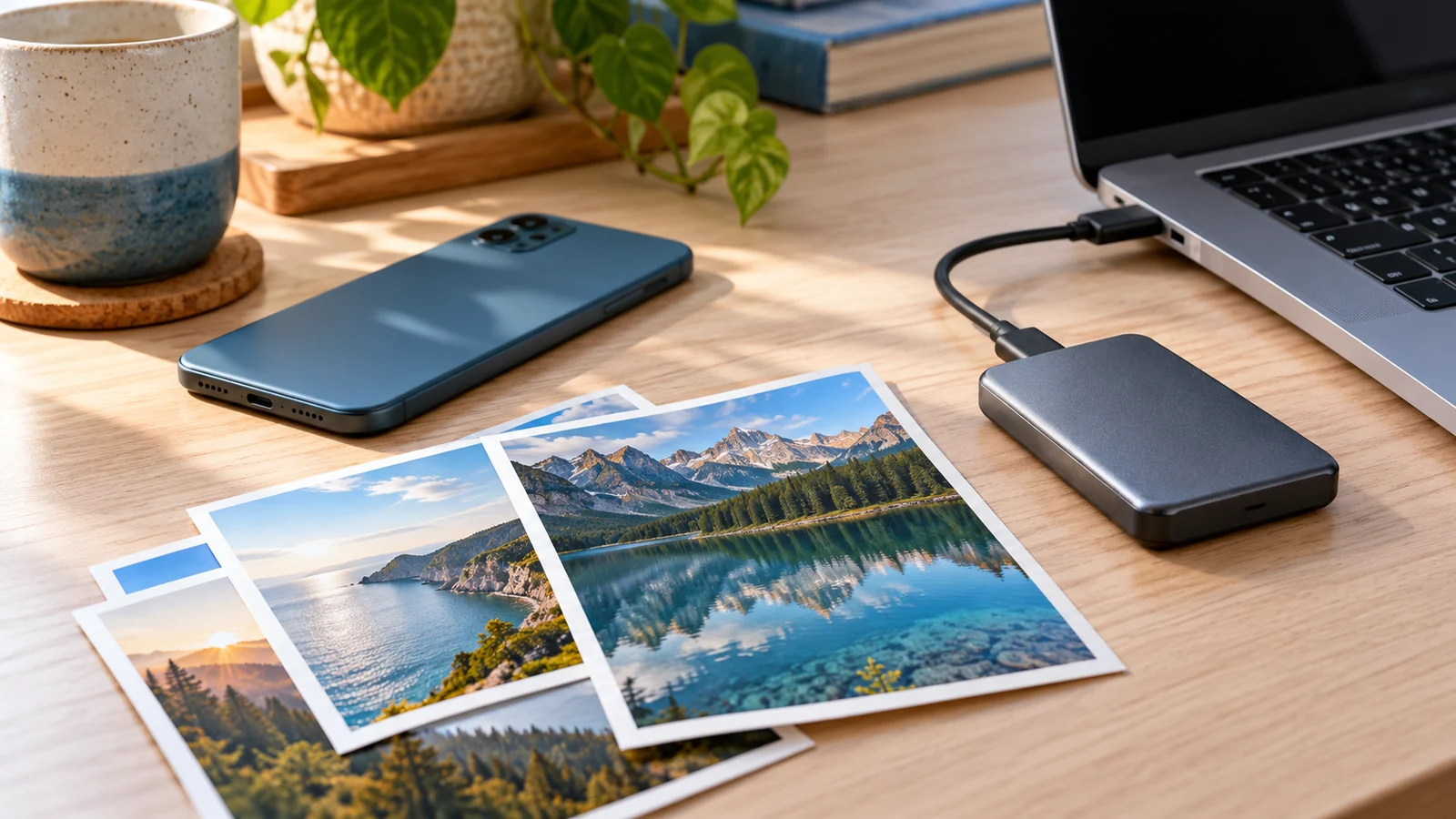
Canceling iCloud+ is a storage-subscription change, not the same action as deleting your iCloud photo library. Apple says the plan change normally takes effect when the current billing period ends. If your account then uses more storage than the remaining allowance, syncing and new iCloud backups can stop. Make and verify independent copies of important photos before the change takes effect.
Do not assume either that every photo disappears the moment you cancel or that an over-limit library is guaranteed to remain available forever. The practical question is where your full-resolution originals are, whether you have another usable copy, and what storage allowance your account will actually have afterward.
Four actions that are easy to confuse
| Action | What to check |
|---|---|
| Cancel or downgrade iCloud+ | The replacement storage allowance and the date the subscription change takes effect |
| Stop syncing Photos on one device | Whether the required originals have been downloaded to that device |
| Turn off and delete iCloud Photos for the account | The separate cloud-library deletion instructions and deadline |
| Delete individual photos while iCloud Photos is enabled | The deletion can propagate to other synced devices |
If your goal is simply to stop paying for a separate plan, you do not need to experiment with every Photos or Apple Account setting. Keep the action narrowly focused on the subscription after you have protected your data. Signing out of the account, deleting the account or erasing the phone introduces other consequences and is not a preparation step for cancellation.
What happens if the remaining storage is too small?
The standard free iCloud allowance is 5 GB, shared by the account’s iCloud data rather than reserved for photos alone. Check the actual allowance that will remain if you have bundled or family storage before using 5 GB in your own calculation.
Apple’s iCloud storage-management guide says that a full account prevents new iCloud backups and new photo and video uploads; Drive and other iCloud apps stop staying up to date. Sending and receiving iCloud email can also be affected. Canceling photo storage is therefore an account-capacity decision, even if photos occupy most of the space.
Existing photos visible on one device do not prove that new ones are being protected. After a plan change, verify the status of the tasks you rely on: an actual new photo upload, an updated file and the date of the latest completed device backup. A familiar library screen can look normal while new content is no longer reaching the cloud.
If you still need regular syncing and backups, leave enough room for them in the replacement plan. A smaller paid plan, storage included with another entitlement, or a different backup arrangement may fit your goal better than reducing the account to an allowance it already exceeds.
The “30 days” rule does not describe every cancellation
Apple documents a thirty-day deletion period for the account-level action that turns off and deletes iCloud Photos. That is a specific deletion workflow in its instructions for turning off iCloud Photos. It should not be presented as a universal countdown that automatically begins whenever someone cancels iCloud+.
Turning off syncing on just one device is another separate choice. The same instructions explain that you can download a copy to that device, provided it has room. Read the actual confirmation screen before proceeding. A button mentioning deletion means something different from a subscription screen displaying an end date.
Device backups also have their own retention rules. Do not apply a backup-retention period to a photo library or treat a Photos deletion deadline as a promise about every kind of iCloud content. If you already chose a deletion command, follow the instructions for that specific action promptly rather than waiting for the subscription end date.
Check where your originals are before you cancel
With Optimize Storage enabled, a phone can show smaller local versions while full-resolution originals are stored in iCloud. Apple describes this in its iCloud Photos setup guide. A thumbnail, an album count or an image opening while the phone is online does not establish that an independent original has been saved elsewhere.
- Cloud copy: find the intended Apple Account and confirm the library you expect in iCloud Photos.
- Device copy: check whether the phone or computer is set to download originals, and whether that download has actually finished.
- Independent copy: identify a specific folder, external drive or other destination that you can open separately from the synced library.
Write down the destination before copying. “On the laptop” is too vague if the folder is inside iCloud Drive. “Photo archive on external drive, checked on the computer” identifies a copy you can actually revisit. Use distinct names for exports so an older partial copy is not mistaken for the new archive.
Make a storage calculation before starting a large download
Consider a fictional account with 70 GB of photos and 8 GB of other iCloud data. Its total use is 78 GB. If the intended replacement allowance is 50 GB, at least 28 GB must be removed from the cloud account for the total to fit, assuming those figures remain unchanged. Downloading a copy alone does not reduce cloud usage.
If the phone has only 12 GB free, it cannot be assumed to hold an additional 70 GB archive. Check the actual destination capacity, available space and current local copies. Export sizes can vary with formats and the version you choose to save, so leave working room rather than sizing a drive exactly to a single displayed cloud number.
A useful note contains five items: current cloud use, expected future allowance, photos to copy, destination free space, and the subscription end date. If any of those is unknown, resolve it before deleting content to force the account under a limit. These are planning checks, not evidence that an export has completed.
Download photos before changing the plan
On an iPhone or iPad
Use Apple’s archive and copy instructions for the current device-specific route. For a local library, select the option to download and keep originals in iCloud Photos settings, and allow the download to finish. On supported current software, the storage choices can sit under iPhone Storage inside the Photos iCloud settings; older versions can show them directly.
For a separate export, select the required items in Photos and use Export Unmodified Originals where offered. Choose the destination carefully. Apple’s photo-download guide notes that the Files picker can open at iCloud Drive by default: select the external drive or other intended location instead of unknowingly writing the archive back into the same cloud storage.
Start with a small representative batch. Verify it on the destination, then continue in manageable batches. A successful export of ten recent photographs does not establish that a decade of older images, videos and special photo formats has been archived.
On a Mac
In Photos, use Photos → Settings → iCloud → Download Originals to this Mac to request the full library locally. Apple documents this route in its download instructions. Confirm enough disk space and let the task complete before relying on it.
You can also export selected photographs from Photos to a separate destination. Decide whether you want unmodified source files, edited versions or both. A folder of originals and a complete Photos library serve different purposes; an export should not be assumed to recreate every album, edit and library relationship automatically. Check the files and organization you actually need.
Using iCloud.com on a Mac or Windows PC
Apple’s download guide allows selecting up to 1,000 items at a time on iCloud.com. Choose the appropriate download option, such as unmodified originals or a more compatible format, and save the result to your planned destination. If a ZIP archive downloads, extract it and check the contents rather than treating the ZIP icon as proof that every file is usable.
For Windows, if the photos you expect are missing from the PC, establish whether they exist in the cloud first. Our iCloud Photos and Windows troubleshooting guide separates a cloud-sync failure from a display or download problem. Resolve that uncertainty before deleting the cloud copy.
Verify the copy with more than a thumbnail check
- Open several old photos and several recent ones directly from the archive destination.
- Play videos, including a longer clip, and check that sound and the full duration are present.
- Check representative filenames, dates and image dimensions. If keeping unmodified originals matters, verify that the export option and resulting formats match that goal.
- Check Live Photos or other special formats separately. Do not assume that one exported image file preserves every component or behaviour.
- Use item counts as a cross-check, not as the only proof. A library item and its exported files may not have a one-to-one count.
- For items already exported and fully downloaded, test opening them without relying on a live cloud connection. Keep the cloud library in place while resolving any failures.
Suppose a recent JPEG opens offline but an older video still requests a download. The archive check has passed for the JPEG and remains unresolved for the video. Do not generalize one success to the entire library. Record the failed batch or date range and repeat the missing export while the source remains accessible.
For irreplaceable content, a second independent copy helps protect against a drive failure or accidental overwrite. Verify the second copy too. Moving a folder between two locations on the same physical drive is not the same protection as keeping another usable copy on a different device or destination.
Do not rely on an iPhone backup as your photo export
Apple distinguishes syncing from device backups. Its explanation of what iCloud backs up says that information already synced to iCloud is not duplicated in the daily iCloud Backup. If you use iCloud Photos, you should not assume that a device-backup entry contains a second independent copy of that library.
A computer backup is also not, by itself, proof that the required photo originals have been exported and verified. Keep the backup task and the photo-copy task on your checklist separately. The question for the photo archive is whether you can locate and open the required image and video files at the chosen destination.
Cancel or downgrade after the copy is verified
Apple’s current cancellation guide separates the menus by software version. On an iPhone with iOS 18.4 or later, the documented route is Settings → your name → Subscriptions → iCloud+. Choose the cancellation control, or view the available plans for a downgrade, and read the confirmation and effective date.
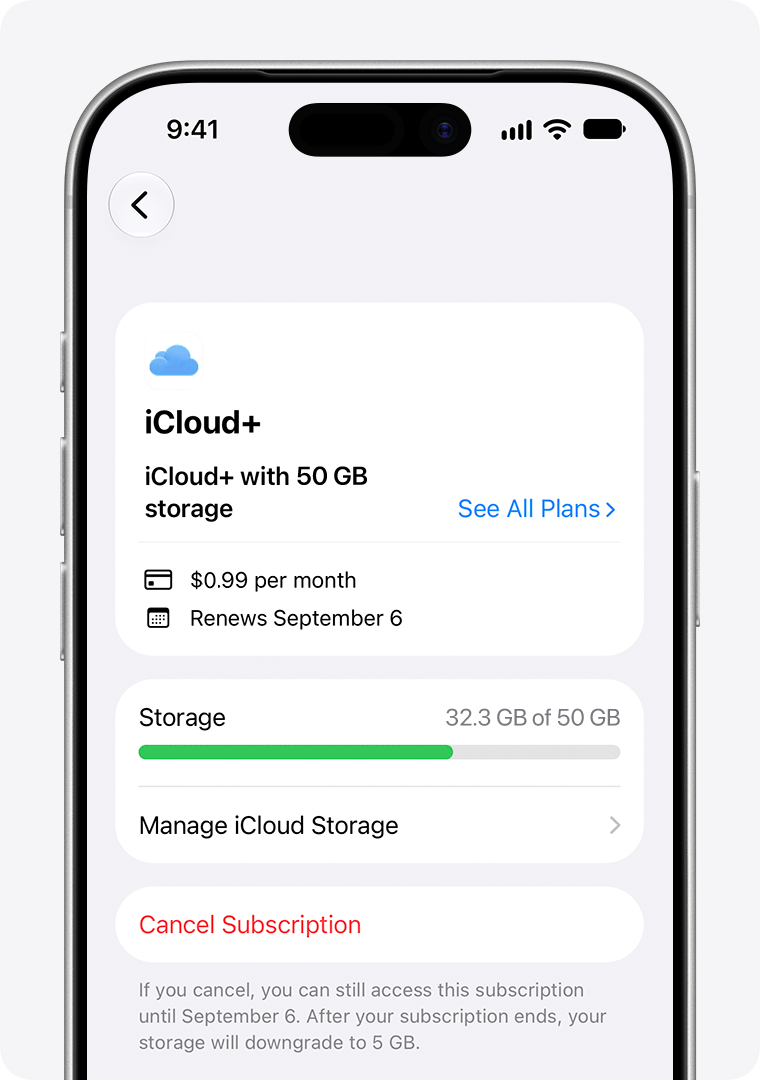
For iOS 18 through 18.3, Apple instead lists the iCloud settings route through Manage Plan and Downgrade Options. Earlier software uses its older storage-management menus. Match the section to the installed version; a missing button can reflect a different route rather than a failed cancellation.
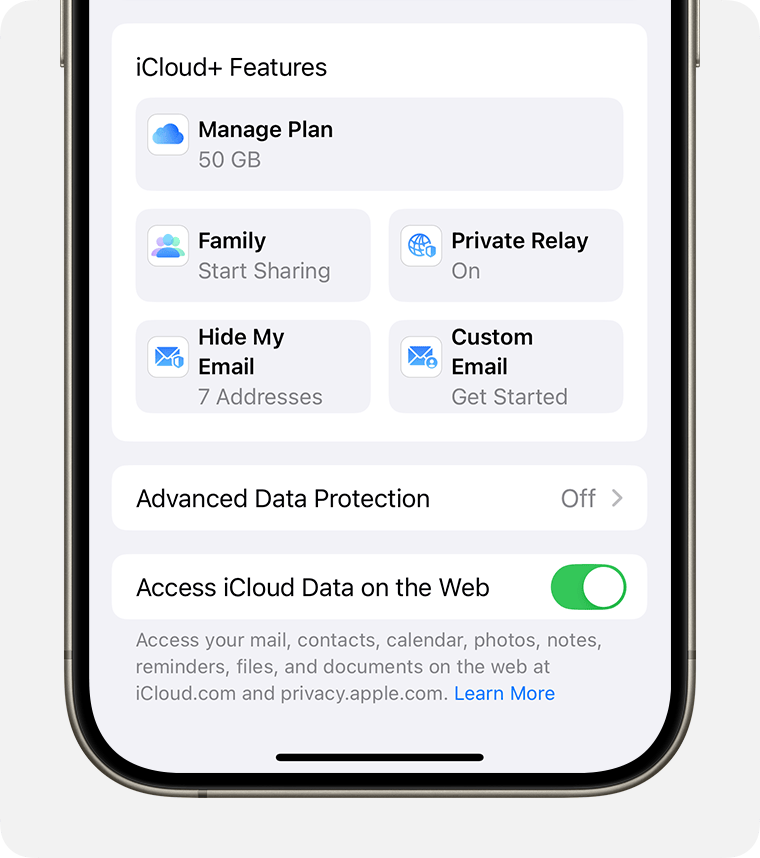
On a Mac or Windows PC, follow the platform section of the same Apple guide. Confirm the requested tier and date on the screen you actually see. Keep a private record of the confirmation so you can distinguish a scheduled change from an action that was never completed. This guide does not cancel any subscription for you.
Check Apple One and Family Sharing before canceling a separate plan
The allowance left after cancellation is not always just the standard free plan. If another entitlement is involved, confirm which Apple Account receives it and whether it covers your current usage. Do not infer storage access from a subscription name on someone else’s phone.
For Family Sharing, Apple describes a specific switch from a personal plan to shared family storage. Use that documented switch where applicable, rather than assuming that an unrelated cancellation automatically moves your files into the shared allowance. Our iCloud Family Sharing guide covers the separate membership and allowance checks.
If you also have Apple One, compare the storage that remains with the combined usage before removing a separate plan. If you provide shared storage for other people, include their reliance on it in the transition plan. Confirm the replacement with the account holders before stopping the service they use.
If you have already canceled
- Check the displayed end date and the plan currently available. A scheduled cancellation and an already effective downgrade are different states.
- While access is available, make the independent copies you still need and verify them.
- If storage is over the allowance, either bring usage within capacity after preserving the content or restore sufficient storage. Apple says syncing and backups can resume once capacity is adequate.
- Check the date of a completed backup and verify a new photo reaches the intended destination. Do not use an old success timestamp to judge current protection.
- If you see a deletion countdown or cannot access expected content, identify the exact action and message, then use Apple Support for that issue.
If a payment failed rather than a subscription being deliberately canceled, do not assume identical treatment. Apple’s iCloud terms describe access restrictions and possible content deletion in payment-failure situations. Keep payment/account problems separate from the ordinary scheduled-downgrade instructions, and use the terms and support options applicable to your region.
Before the end date, confirm these five things
- The full-resolution content you need has a named, independently accessible destination.
- Representative photos and videos open from that copy, including older items and special formats you care about.
- You know the storage allowance that remains, including any shared or bundled entitlement.
- Your planned cloud use fits that allowance, or you have deliberately arranged a different ongoing backup and sync workflow.
- You have checked the confirmation date and kept photo deletion separate from subscription management.
Sources and image notes
Reviewed on 29 October 2026 against Apple’s official instructions below. The two interface images are Apple’s published examples, reproduced to distinguish the software-version routes. We did not sign in to a reader’s account, download a private library or execute a cancellation. Capacity examples and the archive-verification checklist are original editorial guidance, not measurements from a real account.
- Downgrade or cancel your iCloud+ plan; Manage iCloud storage.
- Set up and use iCloud Photos; Turn off iCloud Photos.
- Archive or make copies of iCloud information; Download iCloud photos and videos.
- What iCloud backs up; Share iCloud+ with Family Sharing.
- iCloud terms and conditions, US page — select the applicable region when reviewing account or payment terms.
You may also like
 Technology & How-To
Is Tesla Discontinuing the Cybertruck? What We Know
Tesla plans a Cybertruck production wind-down in Texas around mid-2027. See what is confirmed, what remains unknown, and…
 Technology & How-To
Are AI Toys Safe for Kids? Privacy Risks and Parent Checks
Are AI toys safe for kids? Explore the evidence, privacy risks, age advice and practical parent checks for…
 Technology & How-To
iPhone Trust This Computer Not Showing? Windows and Mac Fixes
Restore the iPhone computer-trust prompt with checks for unlocking, Apple Devices or Finder, USB data cables and targeted…