
Apple Notes Disappeared After iCloud Sign-Out? Find and Recover Missing Notes
Missing Apple Notes after signing out of iCloud? Find notes in iCloud, local or email accounts, check Recently Deleted, restore sync and avoid risky resets.
Contents
- Do these three checks before touching any settings
- Find the right recovery path from what you can actually see
- 1. Check iCloud.com first: is the missing note actually online?
- 2. Sign back into the correct Apple Account and check Notes sync
- 3. Do not confuse iCloud Notes with On My iPhone notes
- 4. Gmail, Outlook or Exchange notes can look as if they vanished
- 5. Recover notes from Recently Deleted, if they were actually deleted
- 6. Search every folder — and understand why search sometimes fails
- 7. What changed when you selected Sign Out But Don’t Erase?
- 8. Is an iCloud Backup the same thing as iCloud Notes? No.
- 9. Special situations: new iPhone, iPad, Mac, locked notes or shared notes
- After setting up a new iPhone
- On a Mac
- When the note is locked
- When someone shared a note with you
- 10. Four mistakes that can make recovery harder
- 11. What to capture before contacting Apple Support
- Prevention: make future note loss less likely
- Quick recovery checklist
- Official sources and original screen references

If Apple Notes disappeared after you signed out of iCloud, do not erase your iPhone or immediately sign out again. First sign in at icloud.com/notes with the Apple Account you used before, then check the Notes app’s full Folders list. Notes that are still in iCloud can reappear once you sign back in and enable Notes sync; local notes and notes stored in Gmail or Exchange need a different check. A missing folder on the phone is not proof that its notes were deleted.
This guide is for iPhone, iPad and Mac owners after an Apple Account sign-out, device switch, interrupted sync, iCloud terms prompt or apparent deletion. It distinguishes what Apple documents from checks that merely help narrow the cause. It also explains when recovery is no longer possible. Do not follow any step that would remove an existing unsynced copy.
Do these three checks before touching any settings
- Open icloud.com/notes in a browser and use the same Apple Account as before. Look in All iCloud, your folders and Recently Deleted.
- In Notes on the iPhone, return to the Folders screen. Look for sections headed iCloud, On My iPhone and any Gmail, Outlook or Exchange accounts.
- If a Mac or iPad still displays the missing notes, preserve that copy. Do not turn off Notes sync, delete the account, uninstall apps or reset either device while investigating.
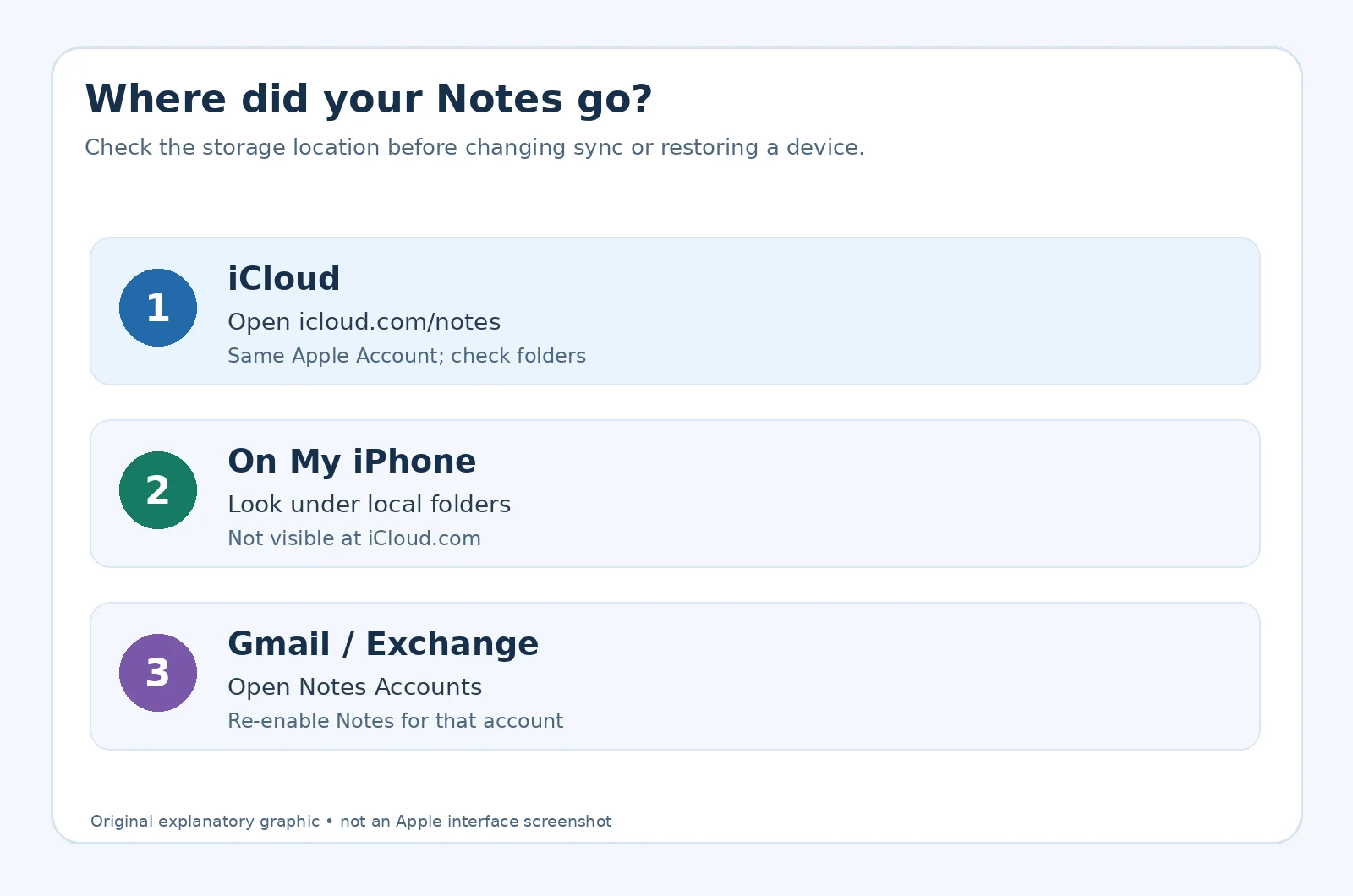
If a note is visible on iCloud.com but not on the phone, the likely next investigation is local sign-in or synchronization—not deleted-note recovery. If it exists only under On My iPhone, it may not have been uploaded to iCloud at all. Apple documents these as distinct Notes storage accounts: Notes accounts on iPhone.
Find the right recovery path from what you can actually see
| Observation | Most useful next step | What it does not prove |
|---|---|---|
| Notes visible on iCloud.com | Verify same Apple Account and enable Notes sync on phone | That every local note is in iCloud |
| Notes visible only on iPhone | Check On My iPhone and make a safe copy | That signing in elsewhere will upload them automatically |
| Notes visible under Gmail or Exchange | Review that email account’s Notes setting and its trash | That they are part of iCloud Notes |
| A missing note is in Recently Deleted | Move/Recover it within Apple’s recovery window | That permanently deleted notes are recoverable |
| Nothing appears anywhere | Check account identity, other devices and known backups | That an app reinstall or reset would help |
1. Check iCloud.com first: is the missing note actually online?
Open iCloud Notes in a private or normal browser window, authenticate with the original Apple Account and open the folders list. This browser view displays notes stored in iCloud, not third-party email notes or notes saved only to the device. If you have more than one Apple Account, checking the wrong account may yield an empty Notes view even though data remains in the correct one.
- Look at the iCloud Notes folder list, not just the first open note.
- Open All iCloud, Notes and any custom folders.
- Search for a distinctive word from a title or body. Open Recently Deleted separately.
- If you find the missing item, confirm that it opens and that its contents are intact before attempting any settings change.
The Apple guide Set up iCloud for Notes confirms that the same Apple Account and enabled Notes syncing are required to see iCloud notes across devices. For a real illustration of the browser Notes experience, see Apple’s own iCloud.com Notes guide; it is linked rather than reproduced because the screenshots are not licensed for redistribution here.
2. Sign back into the correct Apple Account and check Notes sync
If notes appear in iCloud.com but are absent from the iPhone, confirm the Apple Account shown at the top of Settings matches the one on the website. If you deliberately signed out, sign back into that account using Apple’s normal sign-in process. Do not sign into another person’s account to search for notes, and do not repeatedly change accounts on a device holding the only local copies.
- Open Settings → [your name] → iCloud.
- Choose See All (or Show All) under Saved to iCloud, then Notes.
- Turn on Sync this iPhone if it is off. On an iPad the label changes to Sync this iPad.
- Return to Notes, select the iCloud section and give the device time to download. Keep a stable connection.
- If notes still do not appear, restart the device, check the same setting again and return to Notes.
These steps follow Apple’s published missing iCloud Notes troubleshooting. A restart after confirming sync is on is documented; a factory reset is not part of the basic fix. If the toggle already shows on, first confirm iCloud.com still has the content rather than blindly cycling settings on a device that may have unsynced notes.
3. Do not confuse iCloud Notes with On My iPhone notes
The Notes app can store documents in a local On My iPhone account, which only appears on that device. Apple says local notes are included in eligible iPhone backups to iCloud, but they do not simply become accessible at iCloud.com/notes. If you created a note locally and then signed out, looking for it in a different iCloud account cannot prove it is lost.
In Notes, navigate back until Folders appears. Inspect any On My iPhone section and open its Notes and other folders. In Settings → Apps → Notes, Apple documents a switch to enable the On My iPhone account; the absence of that section is a reason to check the setting, not a reason to delete or reinstall Notes. See Apple’s account guide.
If you locate important notes on the device, create a second copy safely before additional troubleshooting. A readable PDF, plain-text copy or appropriately secured document can provide an independent record; attachments, collaboration information and formatting may not be preserved in a simple copy. Avoid sending sensitive notes to an untrusted app or email address.
4. Gmail, Outlook or Exchange notes can look as if they vanished
Apple Notes can display notes from third-party mail accounts. If an account was removed or its Notes switch was disabled, its notes may stop appearing on the iPhone while remaining on the service. This is separate from iCloud Notes. Apple says removing an account hides that account’s notes from the device; it does not necessarily delete them from the online account.
- Open Settings → Apps → Notes → Notes Accounts.
- Select the Gmail, Yahoo, Outlook or Exchange account that previously held the note.
- If the account is present, check that Notes is enabled. If it was removed, use Add Account with the correct owner credentials.
- Return to Notes and check the folders under that account. If the note was deleted, inspect the service’s mail trash using Apple’s guidance.
Some organization-managed email accounts restrict Notes support; contact the administrator rather than changing managed profiles. Apple’s missing Notes checklist specifically notes that deleted Gmail or Yahoo notes may be found in the relevant Mail trash, where their contents can be copied into a new note. Do not assume Gmail labels or retention rules are identical to iCloud.
5. Recover notes from Recently Deleted, if they were actually deleted
If the note is in iCloud’s Recently Deleted, Apple allows recovery for up to 30 days after deletion. On iCloud.com, select Recently Deleted, choose the note and click Recover. On iPhone, open Folders → Recently Deleted and use the Move or Recover control shown by your iOS version. A missing Recently Deleted folder can simply mean there are no recently deleted notes in that account.
Check separate Recently Deleted folders for the account where the note originally lived. Do not confuse this process with recovering notes from an email provider’s trash. Apple explicitly says notes permanently removed from iCloud’s Recently Deleted cannot be recovered through that feature: Delete and recover notes on iCloud.com.
A shared note that another person owns may not move into your Recently Deleted folder when you remove it. If you still have the invitation link and the owner has not disabled sharing, use the original link or ask the owner to re-share it. Do not interpret the empty trash as definitive deletion from the owner’s account. Apple explains this shared-note exception.
6. Search every folder — and understand why search sometimes fails
In Notes, navigate out of a single note or folder and search with All Accounts where offered. Try a unique word, not just the note’s title. Manually inspect folders if no result appears. Search only indexes the title of locked notes in relevant Apple views, so a remembered sentence from the body might not find one. Apple’s missing Notes article recommends checking accounts, search scope and folders in that order.
If you are looking at an incomplete search result, remove filters and tags before assuming content vanished. On a Mac, expand the sidebar using the View menu, check each account, and inspect Shared or Quick Notes if present. On iCloud.com, note that its main search excludes the Recently Deleted folder, so that folder must be checked separately (Apple iCloud search instructions).
7. What changed when you selected Sign Out But Don’t Erase?
This matters particularly on recent Apple software. Apple’s September 2026 guidance describes Sign Out But Don’t Erase as a mode that can retain most information on the device, including Notes and data not yet synced. The alternative Erase this Device removes that device’s information. Neither option is a guarantee that every note has synced to the cloud.
Apple also warns that, if a previous user signs out without erasing and a different account subsequently signs in, retained data can be offered for merging. On shared or secondhand devices, do not merge personal information from another owner. Read What happens after Sign Out But Don’t Erase before making any account switch.
A safe way to interpret the situation: if you can see the note at icloud.com, you have evidence of a cloud copy. If it appears only locally, preserve it on that device. If it is absent everywhere, retrace the exact sign-out and erase choices; those details matter to Apple Support and do not by themselves establish a recoverable backup.
8. Is an iCloud Backup the same thing as iCloud Notes? No.
Apple specifically says that iCloud device backups generally contain information not already synchronized to iCloud. iCloud Notes already synced to iCloud are not duplicated inside the iCloud device backup. Notes stored locally on the iPhone can be included in that backup. Data held by third-party services such as Exchange is not backed up by iCloud in the same way. See Apple’s backup methods and Notes after device restore.
| Where the note was stored | Where to check first | Backup implication |
|---|---|---|
| iCloud Notes | icloud.com/notes and other signed-in devices | Already-synced iCloud Notes are not included again in device backup |
| On My iPhone | The original iPhone and available device backups | Eligible local notes can be included in iCloud device backup |
| Gmail / Exchange notes | That provider’s account and Mail trash | Provider data is not part of an iCloud Notes backup |
| Shared note | Original invite, owner and shared folders | Access depends on ownership and sharing state |
An older iPhone backup is not a universal undo button for deletions. Restoring a device can overwrite current content, and iCloud-synced notes may re-download in their current state rather than appear as historic versions. If you are evaluating a backup for local notes, verify the backup’s date and protect current data first. The separate Horus Valley guide iCloud Backup Stuck or Taking Too Long explains how to verify that a backup actually completed.
9. Special situations: new iPhone, iPad, Mac, locked notes or shared notes
After setting up a new iPhone
Wait until account sign-in and relevant syncing have finished. Compare the original iPhone, the new phone and iCloud.com using the same Apple Account. If the missing notes were local to the old phone, their absence from iCloud.com is expected; do not wipe or trade in the old device until you have verified a safe copy. If they were in an email account, add that account and enable Notes on the new phone.
On a Mac
Open Notes and display the account sidebar. Choose Apple menu → System Settings → [your name] → iCloud → Notes, and ensure Sync this Mac is enabled, following Apple’s Mac setup instructions. Check On My Mac separately from iCloud. For a deleted Mac note, Apple documents the Recently Deleted folder and a limited recovery period (Apple’s Mac deletion guide).
When the note is locked
A locked note might be present but excluded from full-content search. Look through the folder and search by the title; enter the appropriate Notes password or use an available supported unlock method. Do not assume your Apple Account password automatically unlocks every legacy locked note. Never share a Notes password or device passcode with someone offering “recovery.”
When someone shared a note with you
The owner may have revoked access or deleted the note. Check the original collaboration invitation and contact the owner. You cannot restore a note you never owned from your own Recently Deleted folder simply by repeatedly changing iCloud settings.
10. Four mistakes that can make recovery harder
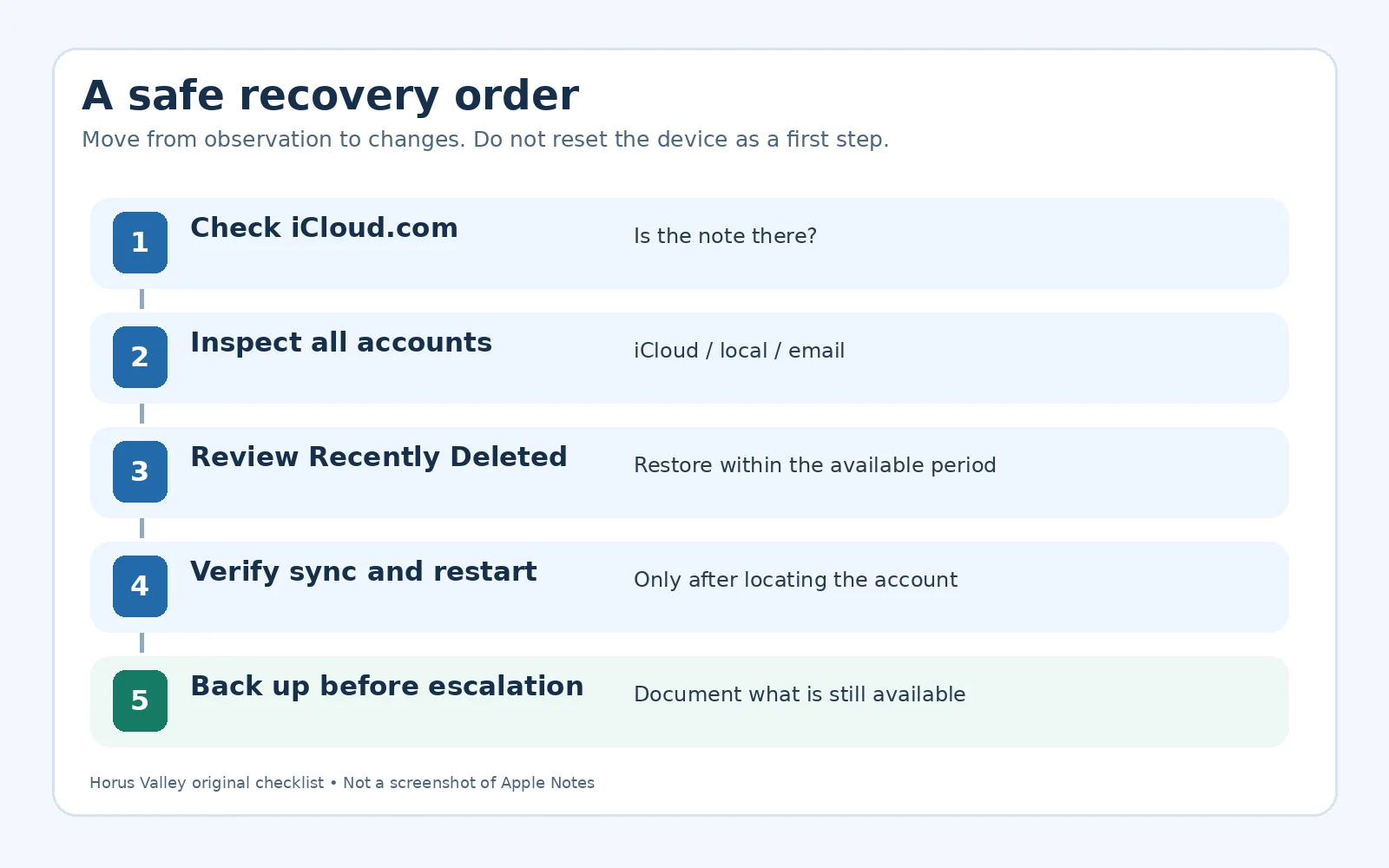
- Factory resetting too soon. A reset can remove the only local or unsynced copy; first verify the note’s actual storage location and backup state.
- Signing out again to “force sync.” Account changes can complicate retention of local data. Apple’s basic advice is to verify the Notes sync toggle, then restart—not erase.
- Assuming Recently Deleted can recover everything. It is limited by account, note type and retention period; permanent removal is not reversed by a toggle.
- Paying an unknown recovery website. Never enter an Apple Account password, 2FA code or device passcode into a third-party form promising a guaranteed restore.
11. What to capture before contacting Apple Support
If your original Apple Account is correct, Notes sync is enabled, and the missing content is neither on iCloud.com nor in the relevant folders, collect a concise case history: device model and iOS/macOS version; approximate disappearance date; exact Apple Account used; whether Sign Out But Don’t Erase or Erase this Device was chosen; whether an older device still contains the note; which account originally held it; and whether the note was shared, locked or deleted.
Screenshots of account settings or an empty folder may help explain a display problem, but avoid exposing note contents, email addresses, device identifiers and verification codes when sharing them. Use Apple Support for assistance; support cannot guarantee restoration of content that was never synced or backed up.
Prevention: make future note loss less likely
Check the account in which a new note is being saved. If you intend to use Notes across devices, keep iCloud Notes enabled, verify important entries on another trusted device or iCloud.com, and maintain an independent backup for critical documents. An iCloud Backup does not replace checking synchronization of Notes themselves.
For particularly important information, export or copy it to a secure location you control and periodically verify it opens. Protect sensitive content with appropriate access controls, and do not email account recovery codes or confidential notes to yourself unencrypted. Before selling or resetting a device, confirm both the local and cloud storage locations have been handled.
Quick recovery checklist
- Find the original Apple Account and check icloud.com/notes.
- Inspect Notes → Folders under every account, especially On My iPhone.
- Check email-provider Notes switches and provider trash.
- Check Recently Deleted in the correct account.
- Only then verify Sync this iPhone and restart if necessary.
- Protect copies before account switches or restore operations.
- If content is truly permanently deleted and no independent copy exists, do not promise recovery.
Official sources and original screen references
- Apple Support: If you’re missing notes — current account and Recently Deleted instructions, with authentic interface screenshots at the official source.
- Apple Support: If iCloud Notes aren’t visible — official sync toggle and restart procedure.
- Apple iPhone User Guide: Notes accounts — separate iCloud, local and email accounts.
- Apple Support: Sign Out But Don’t Erase — September 2026 account-retention choices.
- Apple Support: Backup methods — what iCloud device backups exclude.
- Apple Support: Recover notes on iCloud.com — recovery window and limits.
- Apple Support: Notes on iPhone — real screenshot examples of the Notes interface.
Editorial verification: reviewed against Apple’s public instructions on 29 October 2026. Menu names can differ by OS version, language and region. The two diagrams in this article are original editorial graphics, not captures of an Apple device. Authentic reference screenshots remain available through the linked Apple Support pages. No personal account, iPhone or recovery outcome was tested for this guide.
You may also like
 Technology & How-To
Is Tesla Discontinuing the Cybertruck? What We Know
Tesla plans a Cybertruck production wind-down in Texas around mid-2027. See what is confirmed, what remains unknown, and…
 Technology & How-To
Are AI Toys Safe for Kids? Privacy Risks and Parent Checks
Are AI toys safe for kids? Explore the evidence, privacy risks, age advice and practical parent checks for…
 Technology & How-To
iPhone Trust This Computer Not Showing? Windows and Mac Fixes
Restore the iPhone computer-trust prompt with checks for unlocking, Apple Devices or Finder, USB data cables and targeted…