
App Store Verification Required for Free Apps? Fix the Billing Issue
Find the unpaid order, correct payment details and check family purchase sharing when App Store blocks a free download with Verification Required.
Contents
- Start with the message, not a random list of fixes
- 1. Review the purchase before you retry payment
- 2. Retry the existing method or correct its details
- 3. No card? Check the gift-card option before buying one
- 4. In a family group, check whose payment method applies
- Why removing the card or choosing None may not work
- Verify two results, then escalate the remaining problem
- Sources and image credits
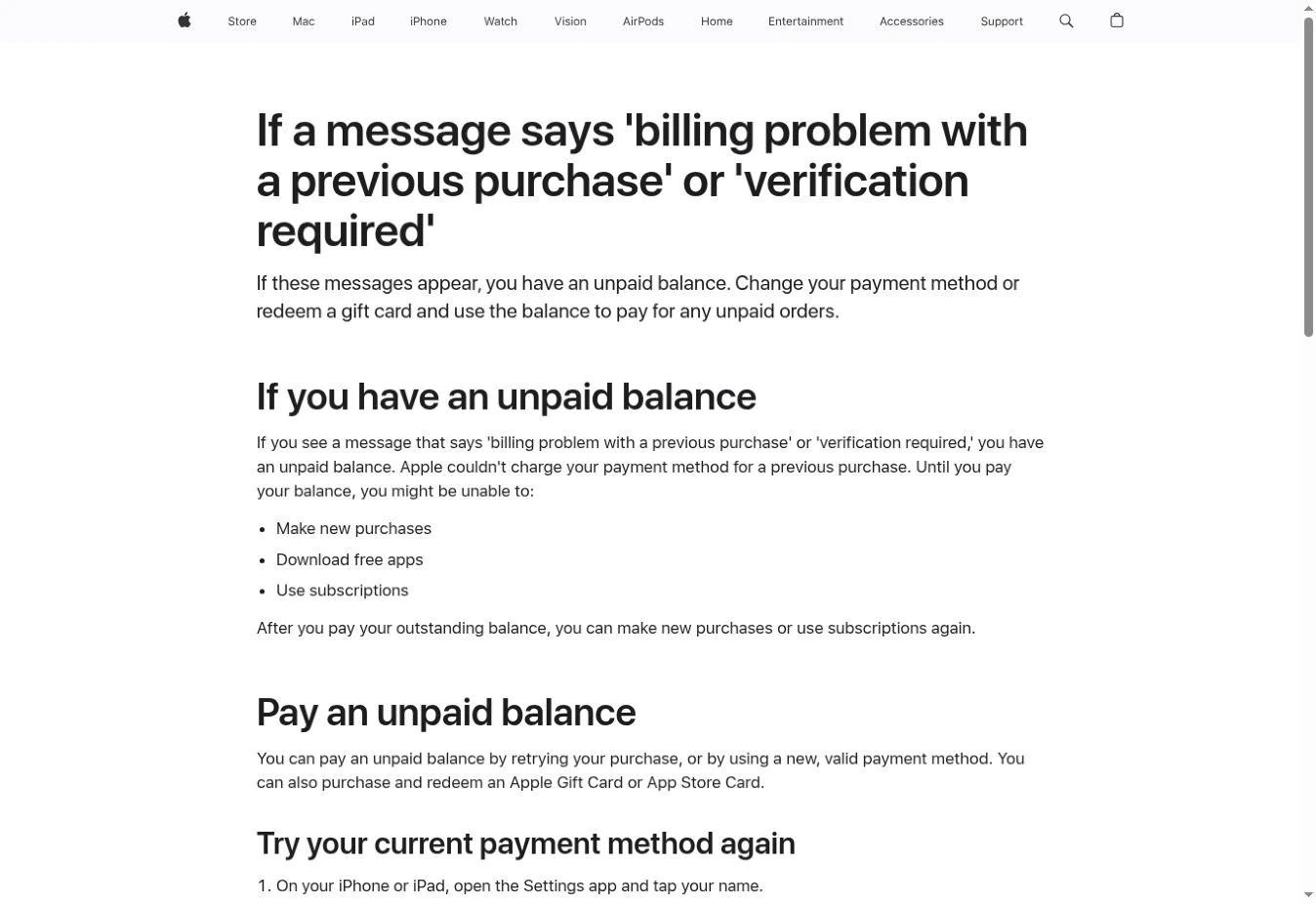
If App Store shows “Verification Required” while you download a free app, check for an unpaid purchase first. Apple says an outstanding balance can block free downloads. Review the order before changing payment details: a replacement payment method can be charged automatically. See Apple’s explanation of this billing message.
The useful question is which account action is being requested. Copy the exact message and note whether it appears before downloading, while updating an existing app, or inside an app. That gives you a starting point you can check again after each change.
Start with the message, not a random list of fixes
| What you see | First useful check |
|---|---|
| A billing warning with Verification Required | Review the previous order and payment information using the steps below. |
| A password or identity request without a billing warning | Read the full request before treating it as a payment problem. |
| A download that stays pending after the billing issue is resolved | Move to download troubleshooting; record whether the message has changed. |
| A child’s request waiting for family approval | Ask the parent or guardian to review the request; see the family section. |
Keep the initial message as your reference. If one warning disappears and a different one appears, you have a new result to investigate. Repeating the same payment change provides little information about a separate download failure.
1. Review the purchase before you retry payment
Apple’s current purchase-history guide gives this iPhone route: open App Store, tap your photo or initials, choose Apps & Purchase History, then Purchase History. Search by amount, or change the Last 90 days filter to look further back.
Write down the item, date and amount privately. If you do not recognise it, investigate the order with Apple Support before authorising another payment attempt. Do not assume the app you are trying to install created that older charge.
For example, imagine that you open a free utility today and find a previous subscription order in the account history. These are two separate events to check. This is an illustrative scenario, not a purchase or repair tested on a live account.
2. Retry the existing method or correct its details
For the retry option, go to Settings → your name → Payment & Shipping → Fix Payment Information → Try Again. Labels may differ with region, language or software version.
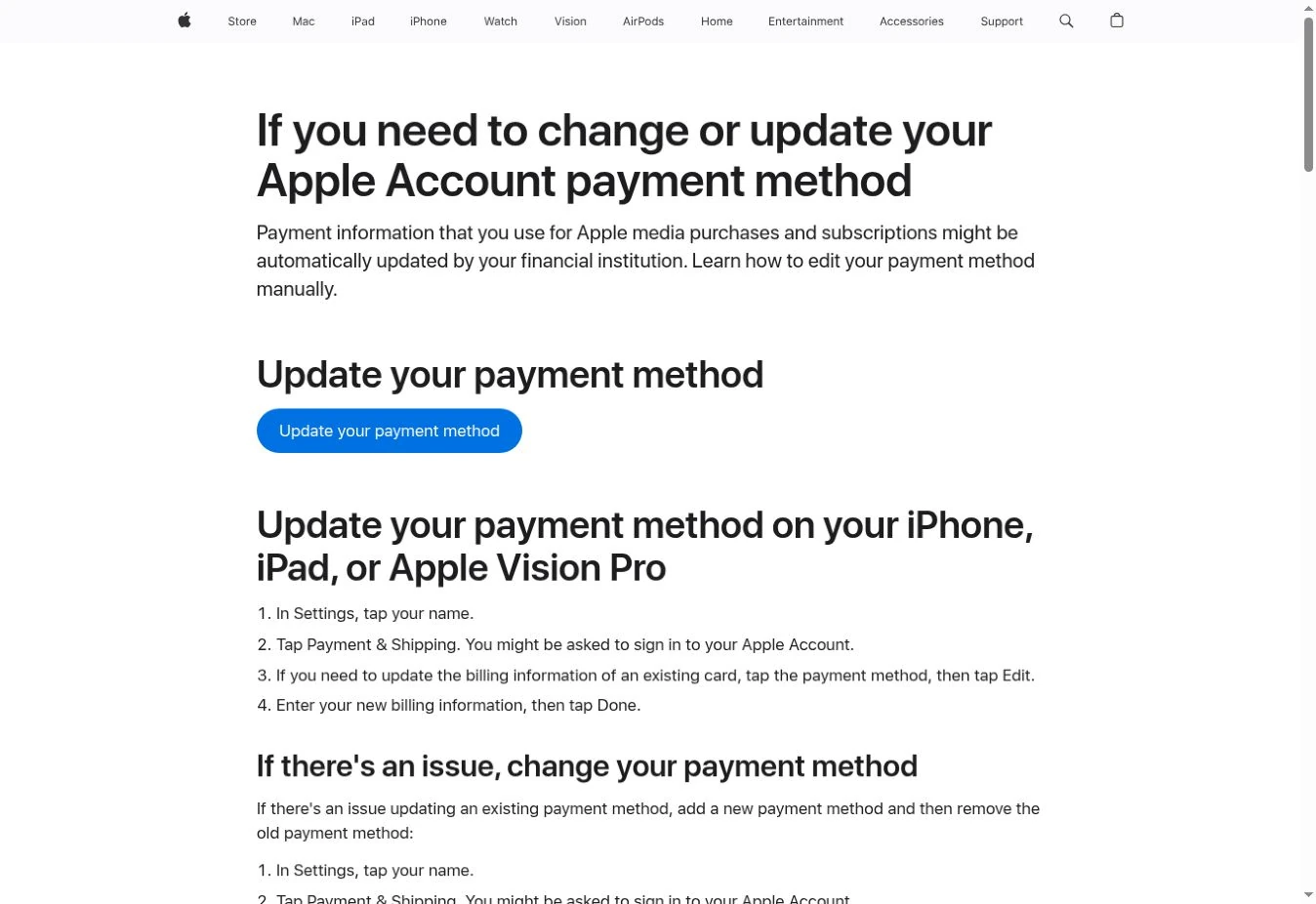
To correct a saved card, Apple’s payment-update instructions say to open Payment & Shipping, select the method, choose Edit, update the billing information and save with Done. If replacing it, use Add Payment Method, save the replacement, then remove the old method through Edit.
Check the details against your bank’s records. Apple’s declined-payment guidance says your financial institution can explain a decline; international-purchase permission may also matter. Ask about the specific declined transaction rather than repeatedly submitting unchanged details.
3. No card? Check the gift-card option before buying one
Gift cards are region dependent. Apple’s redemption troubleshooting guide says a card cannot be redeemed outside its purchase country or region. Check compatibility first; do not buy a foreign card because its price looks convenient.
For an eligible card, Apple’s redemption guide directs iPhone users to App Store → profile → Redeem Code, then the camera or manual-entry option. Read the confirmation and check the resulting account balance.
To apply credit to the debt, use Settings → your name → Media & Purchases → View Account → Purchase History; select the red Amount You Owe order and choose Pay with Apple Account Credit.
Treat adding funds and settling the order as separate checkpoints. Check the order result before returning to the app you originally wanted. If the credit or payment control is unavailable, stop at that result and use Apple’s support route rather than buying another code.
4. In a family group, check whose payment method applies
Apple’s Purchase Sharing guide says the organiser generally pays when purchase sharing is enabled, while adult members can use their own payment methods. Check Settings → Family → Purchase Sharing and review the payment information with the person responsible.
A child’s approval request is another branch: Ask to Buy lets the parent or guardian approve purchases and free downloads. Record whether approval is pending before diagnosing the request as a card failure.
For a separate problem involving a shared storage allowance, see our iCloud Family Sharing troubleshooting guide. Identify the affected service before changing a family arrangement that other people use.
Why removing the card or choosing None may not work
Apple’s payment-removal guide lists unpaid balances, subscriptions and an organiser’s purchase sharing as reasons a payment method may need to remain on file. Removing a method is not a dependable shortcut for resolving this account state.
There is also no universal promise that every free download works without a payment method: Apple’s download troubleshooting guide says a valid method may be required even for a free app. Follow the requirement shown for your account rather than looking for a guaranteed None option.
Verify two results, then escalate the remaining problem
- Check whether the payment or order now shows a successful result. Saving a card is only evidence that you saved its details.
- Return to the original free app and try the download. Note the exact result and any new message.
If the billing issue is resolved but downloading still fails, Apple’s download guide suggests prioritising the download and restarting the device. If the unpaid order remains unresolved, use Apple Support with the order details and the specific step that failed.
Prepare the device model, software version, exact message, approximate time and actions already attempted. Keep passwords, verification codes and full card numbers out of public comments or screenshots.
Sources and image credits
Reviewed 29 October 2026. Links above point to Apple’s official guidance. The two inline images are genuine captures of public support pages, not screenshots from a personal account. No payment, account change or live repair was performed.
Featured photograph: Wikimedia Commons / PxHere, author listed as unknown, CC0. It is an illustrative phone photograph; it does not show the App Store error.
You may also like
 Technology & How-To
Is Tesla Discontinuing the Cybertruck? What We Know
Tesla plans a Cybertruck production wind-down in Texas around mid-2027. See what is confirmed, what remains unknown, and…
 Technology & How-To
Are AI Toys Safe for Kids? Privacy Risks and Parent Checks
Are AI toys safe for kids? Explore the evidence, privacy risks, age advice and practical parent checks for…
 Technology & How-To
iPhone Trust This Computer Not Showing? Windows and Mac Fixes
Restore the iPhone computer-trust prompt with checks for unlocking, Apple Devices or Finder, USB data cables and targeted…