
Windows 11 Always On VPN Stuck Connecting After an Update: The Verified Workaround and Admin Troubleshooting Guide
Microsoft withdrew its October 2026 Always On VPN fix claim. Diagnose KB5124008/KB5124012 failures and test an approved IKEv2-only or SSTP-only workaround.
Contents
- What changed on October 20, 2026—and why older “fixed” headlines are misleading
- Who is affected and what symptoms matter?
- The two-minute decision tree: regression or another VPN problem?
- Step 1: Capture the Windows build, update history and symptom
- Step 2: Inspect the managed VPN tunnel type without changing it
- Step 3: Apply Microsoft’s single-protocol workaround through IT
- Step 4: Capture RasClient events and server-side clues
- Error examples that suggest a different root cause
- Step 5: Validate IP address, route, DNS, and a real corporate service
- Step 6: Test reconnection across the transitions that exposed the bug
- Three worked incident examples (illustrative, not real tests)
- Scenario A: IKEv2 fails, SSTP fallback never starts
- Scenario B: IKEv2-only still fails with Error 809
- Scenario C: VPN connects but internal resources fail
- Should you uninstall KB5124008 or KB5127648?
- A more precise incident-report template for the IT team
- What users should do while their administrator investigates
- What IT should monitor next
- Source record and verification limits

If your organization’s Windows 11 Always On VPN (AOVPN) connection has been stuck on Connecting since the September 2026 security updates, do not assume the October cumulative update fixed it. On October 20, Microsoft amended the KB5127648 release notes to remove the previously listed VPN fix and say that a change is coming in a future release. As of this article’s verification on October 22, 2026, the publicly reported Microsoft service-advisory state is Mitigated, not Resolved. Affected administrators should consider a single approved tunnel protocol—either IKEv2 or SSTP—rather than automatic selection or fallback, then validate routing, DNS, and authentication before broader deployment.
This is an enterprise-VPN guide, not advice to bypass a workplace security policy. End users should collect the relevant error and contact IT rather than editing Intune profiles, deleting certificates, or uninstalling security updates. A normal commercial VPN app that happens to hang after an update is not proof of this particular Windows Always On VPN regression.
What changed on October 20, 2026—and why older “fixed” headlines are misleading
The timeline matters because the status changed twice. Microsoft’s September 8 security update was associated with failure of some Always On VPN profiles whose initial connection attempts failed and relied on automatic protocol selection or fallback. Microsoft’s October 13 notes originally described the issue as fixed. On October 20, Microsoft edited the official notes, explicitly removing that claim. Its administrative advisory was subsequently described as returned to Mitigated, with a permanent fix planned for a later Windows update. See the Microsoft KB5127648 change log and October 21 BleepingComputer follow-up.
| Date | Verified event or reported status | What administrators should conclude |
|---|---|---|
| September 8, 2026 | September Windows 11 security updates include KB5124008 on 24H2/25H2 and KB5124012 on 26H1 | Investigate build and profile behavior; these updates alone do not prove the cause. |
| Late September | Microsoft notifies IT administrators of AOVPN protocol-selection/fallback failures | Record affected profiles and use controlled mitigation. |
| October 13 | October updates initially described as resolving the issue | This statement was later withdrawn; do not rely on the initial announcement. |
| October 20 | Microsoft removes the VPN fix from KB5127648 and KB5127646 release notes | The documented fix is deferred to a future release. |
| October 21–22 | Reporting of the admin advisory says status is Mitigated | Single-protocol configuration is a workaround, not a permanent repair. |
The KB5127646 change log for 26H1 carries the same October 20 removal. Some older Microsoft announcement summaries and cached results still say the October update fixes the problem. Prefer the current change log over an archived headline. Do not confuse a superseded announcement with a release that has demonstrably repaired your VPN.
Who is affected and what symptoms matter?
The reported issue concerns Windows’ built-in enterprise Always On VPN, commonly deployed using Intune or a VPNv2 configuration profile. A common trigger is the client attempting IKEv2 first and falling back to SSTP if the first path fails. The vulnerable behavior is in the transition or reconnection path, not a universal inability to use either protocol.
| Windows 11 version | September originating update reported for the regression | October update initially described as fix | Status to use on October 22 |
|---|---|---|---|
| 24H2 | KB5124008 | KB5127648 | Fix note withdrawn; mitigation remains relevant. |
| 25H2 | KB5124008 | KB5127648 | Fix note withdrawn; mitigation remains relevant. |
| 26H1 | KB5124012 | KB5127646 | Fix note withdrawn; mitigation remains relevant. |
| 26H2 | Listed in Microsoft’s admin alert as affected; September originating KB is not established by the same table | KB5127648 | Assess managed profile behavior; do not infer every 26H2 failure shares the same cause. |
These versions and KB mappings are based on the Windows release information, September Microsoft advisory reported by BleepingComputer, and the current October change logs. The issue does not imply that all Windows 11 installations or all corporate VPNs are broken. The symptoms may include a persistent Connecting state, repeated reconnection, an apparent connection with no working corporate route, or a subsequent “The specified port is already in use” error. A community report described a missing transition from an IKEv2 attempt to SSTP, but that is an observed environment-specific diagnostic, not a universal event sequence. Microsoft Q&A report.
The two-minute decision tree: regression or another VPN problem?
Start with a few facts instead of resetting every network component. These questions separate the September regression from more common causes of VPN failures.
| Observation | More likely direction | Safest next check |
|---|---|---|
| Connecting began after September update; profile uses Automatic tunnel type or configured fallback | Possible Windows protocol-selection regression | Inspect tunnel-type configuration; compare a controlled single-protocol pilot. |
| The VPN connects on IKEv2 consistently but not when SSTP fallback is needed | IKEv2 or fallback path matters | Review RasClient events and approved firewall/network paths. |
| Connection fails with certificate-trust or authentication error even on one forced protocol | Certificate, NPS policy, identity or EAP issue | Check client/server certificates and NPS logs; do not reset the device. |
| VPN says connected but only internal hostnames fail | DNS, route, name-resolution policy or split tunneling | Check assigned routes and corporate DNS on the connected adapter. |
| “Connect automatically” is unchecked and cannot be enabled | Auto-trigger preference or profile-management issue; not necessarily September fallback bug | Review the approved Intune/MDM profile and trigger configuration. |
| Every employee on one site fails, including machines without the update | Gateway, firewall, identity service or network incident | Compare server logs and an unaffected device or alternate network. |
| Only an unrelated third-party VPN app fails | Vendor/client-specific problem | Use the vendor’s release notes and support, not the AOVPN workaround. |
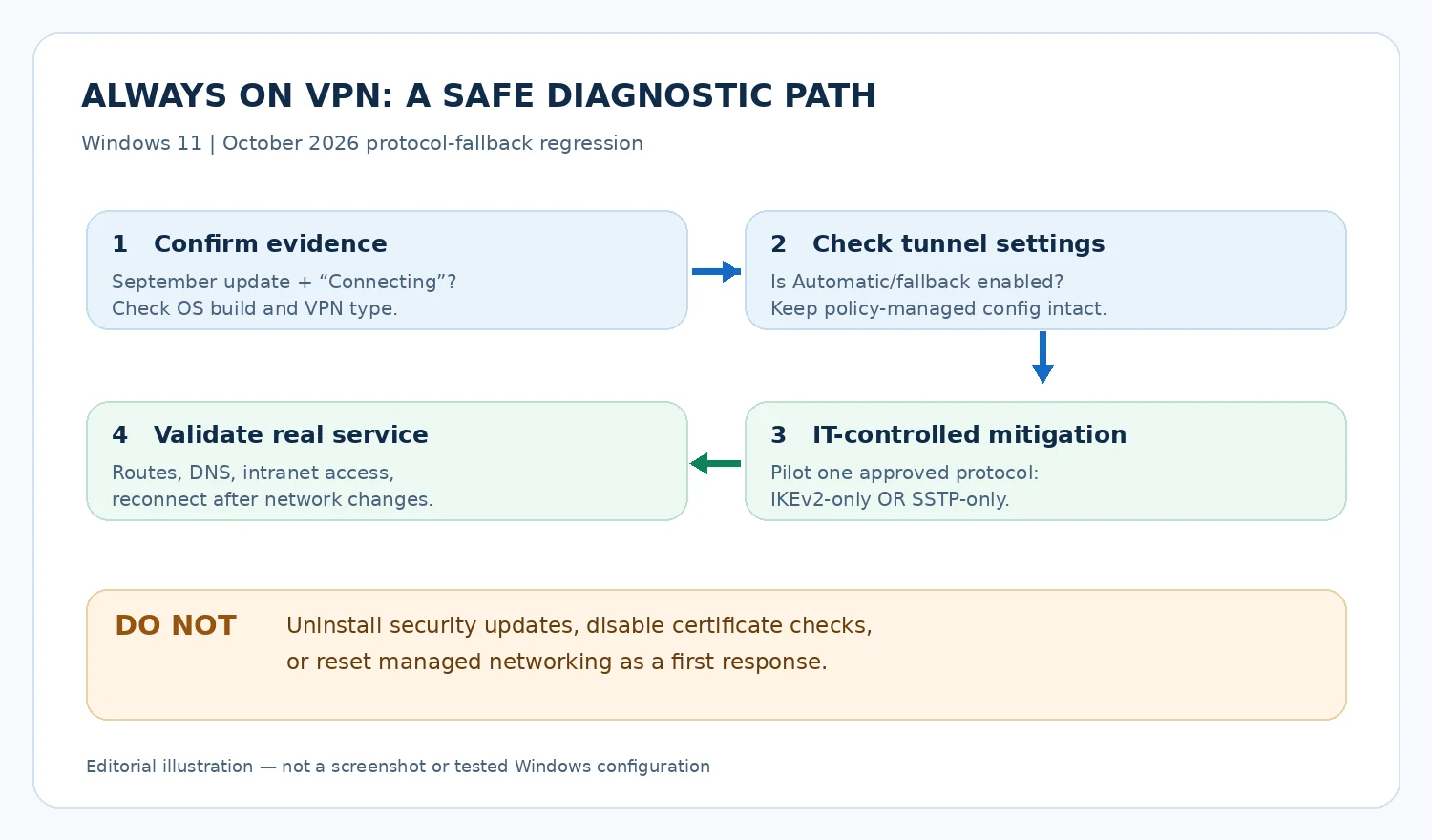
Safety rule: When the VPN is needed for privileged remote management, have a second access method before touching a managed profile. A failed redeployment could cut off the very connection needed to reverse the change.
Step 1: Capture the Windows build, update history and symptom
Have the affected user record the exact wording of the error, when the issue began, whether it is a user tunnel or device tunnel, and whether it happens only after switching networks or resuming from sleep. On the Windows PC, run winver to read the version and OS build. In Settings → Windows Update → Update history, note relevant cumulative-update entries. An installed October cumulative update does not establish that the withdrawn VPN fix is present.
For administrators with approved access to a local PowerShell window, use these read-only checks. They document the machine; they do not edit routing or credentials.
# Identify Windows version and OS build (read-only) Get-ComputerInfo | Select-Object WindowsProductName, WindowsVersion, OsBuildNumber # List recent hotfix records; not every servicing component appears here Get-HotFix | Sort-Object InstalledOn -Descending | Select-Object -First 12 HotFixID, InstalledOnGet-HotFix may not reflect every update component or deployment mechanism. Cross-check the Windows Update history and corporate endpoint-management inventory; do not declare an update absent because one PowerShell command did not list it. Never post a full corporate inventory or hostname list to a public troubleshooting thread.
Step 2: Inspect the managed VPN tunnel type without changing it
In many built-in VPN configurations, administrators can examine the profile using Microsoft’s VpnClient PowerShell module. On a managed machine, MDM may own the profile and redeploy it automatically; local edits can fail or be overwritten. Inspect the relevant user profile or all-user profile, as appropriate, before proposing a change.
# Current user's built-in VPN profiles (read-only) Get-VpnConnection | Select-Object Name, ServerAddress, TunnelType, ConnectionStatus # Global/all-user built-in VPN profiles (read-only) Get-VpnConnection -AllUserConnection | Select-Object Name, ServerAddress, TunnelType, ConnectionStatusA profile’s TunnelType value of Automatic is a clue to investigate, not proof that the Microsoft regression caused a particular failure. Intune VPNv2 XML and some device-tunnel configurations may require inspection through the management console or management-provider diagnostics instead. Also verify that the profile being inspected is the actual active VPN profile; multiple profiles can exist on the same computer. Microsoft documents both Get-VpnConnection and Always On automatic triggers.
Step 3: Apply Microsoft’s single-protocol workaround through IT
Microsoft’s temporary mitigation is for IT administrators to change the affected Always On VPN profile from automatic protocol selection to a single protocol, either IKEv2 or SSTP. Choose which protocol to use based on authentication, firewall path, reliability and organizational policy; do not simply choose whichever bypasses a deliberate security control. For Intune-managed profiles, update the approved configuration source and deploy first to a small test group. Avoid changing individual clients in conflict with the central management policy.
| Criterion | IKEv2-only pilot | SSTP-only pilot |
|---|---|---|
| Typical transport | IPsec with UDP 500/4500 depending on NAT traversal | TLS-based connection over TCP 443 |
| Practical advantage | Often suitable where IKEv2 has already been validated end to end | May work through networks where the authorized SSTP endpoint is reachable |
| What must be verified | Appropriate authentication and certificates, policy, server support, network/firewall path | Approved SSTP endpoint and certificate, policy, proxy/firewall conditions, connection quality |
| Main trade-off | Less resilient where UDP/IPsec is consistently blocked | Can behave differently under packet loss and may not meet every organization’s preferred architecture |
| Deployment rule | Use only if corporate server/profile supports IKEv2 | Use only if corporate server/profile supports SSTP |
Use Microsoft’s Set-VpnConnection reference to understand supported properties, but do not treat a one-line local PowerShell command as a complete fix for an Intune-managed AOVPN estate. The change belongs in the correct policy or profile XML, with authentication and routes preserved. On an unmanaged test machine with an administrator-approved built-in user profile, the cmdlet supports -TunnelType Ikev2 or -TunnelType Sstp; always inspect first and record the prior settings. Its -WhatIf option can preview a supported local change, but may not reflect MDM restrictions or what will happen after profile redeployment.
A successful mitigation is measured by access, not by the disappearance of “Connecting” alone. Test the VPN’s actual assigned IP/route, access to an approved internal resource, DNS resolution using corporate policy, and reconnect behavior after a network transition. Check that split-tunnel versus force-tunnel rules still follow organizational requirements.
Step 4: Capture RasClient events and server-side clues
Use Windows Event Viewer and the organization’s VPN/RRAS/NPS logs to tell a protocol fallback problem apart from a certificate or policy problem. In Event Viewer, look under Windows Logs → Application for source RasClient and note relevant events around a controlled failed attempt. Microsoft’s Always On VPN troubleshooting reference discusses RasClient, NPS and common error codes. A sequence noticed by one Microsoft Q&A contributor is useful as a hypothesis, not a guarantee that every installation logs the same IDs.
# Read a small time window of local RasClient events, if available Get-WinEvent -FilterHashtable @{ LogName = 'Application' ProviderName = 'RasClient' StartTime = (Get-Date).AddHours(-4) } -ErrorAction SilentlyContinue | Select-Object -First 25 TimeCreated, Id, LevelDisplayName, MessageIf there are no matching events, check the VPN-specific operational logs and your organization’s approved client diagnostics. It may mean logging is routed elsewhere, not that the issue did not occur. Record failure times and relevant error codes; redact server names, usernames, certificate identifiers, public IPs, and internal URLs before sharing an excerpt outside the organization. Correlate client logs with RRAS and NPS timestamps rather than interpreting one client event in isolation.
Error examples that suggest a different root cause
| Error or behavior | What it can indicate | Next investigation |
|---|---|---|
| “The specified port is already in use” following fallback failures | Can fit the reported 2026 regression; not exclusive to it | Compare tunnel settings and client logs around the failed fallback. |
| Error 809 | Remote VPN server not responding, firewall/NAT/path problem | Verify server reachability and approved UDP 500/4500 path for IKEv2. |
| Error 812 | Authentication method/policy mismatch with VPN server | Compare client authentication configuration with NPS policy. |
| Certificate trust-chain error | Missing/untrusted root or wrong certificate usage | Review certificate chain, EKU and validity with IT. |
| Connected but no intranet access | DNS, routes, address pool or access policy | Inspect assigned VPN routes and DNS; compare an approved reachable service. |
The Microsoft troubleshooting page documents 809 and 812 as distinct classes of failure. An error alone is evidence to collect, not permission to open firewall ports indiscriminately or disable certificate validation.
Step 5: Validate IP address, route, DNS, and a real corporate service
A Windows connection status can be misleading. Treat this as a sequence of independent checks: was a tunnel negotiated, did it receive the expected configuration, does name resolution work, and is the target service reachable? Ask the help desk for a designated, non-sensitive test destination rather than guessing or exposing intranet names publicly.
# Read-only connectivity inventory ipconfig /all route print # Replace with your IT-approved internal test hostname Resolve-DnsName intranet.example.invalidThe .invalid hostname is a placeholder and will not resolve; replace it only with the hostname provided by your IT team. If the tunnel reports Connected but a corporate hostname does not resolve, that may be a DNS suffix, corporate DNS server, name-resolution policy, route, or split-tunnel issue—not necessarily the September fallback bug. A successful DNS query does not establish that the application accepts your credentials. Microsoft’s VPN routing decisions guide explains how force-tunnel, split-tunnel and route settings change traffic flow.
For an approved SSTP endpoint, a TCP 443 connectivity test can be informative; it does not verify authentication or prove a working SSTP tunnel. For IKEv2, a typical PowerShell TCP connectivity test does not validate UDP 500/4500, so do not cite a green TCP result as proof that the IPsec path is healthy. Use firewall and VPN gateway logging for that determination.
Step 6: Test reconnection across the transitions that exposed the bug
Always On VPN may attempt to reconnect at sign-in, after network changes, and when a screen turns on. Therefore, a single successful click on Connect is insufficient evidence that auto-reconnect has been restored. Microsoft documents these Always On triggers. In a managed pilot, test a sequence that resembles actual staff use without jeopardizing ongoing remote sessions.
| Pilot step | Expected evidence | Failure that should stop a rollout |
|---|---|---|
| Fresh logon on a permitted test device | Intended user or device tunnel starts as designed | Profile missing or authentication endlessly loops. |
| Switch between two approved networks | Client reconnects and retains intended routes | “Connecting” persists or required corporate access disappears. |
| Sleep and resume, where device policy allows | Reconnect occurs without repeated manual repair | Manual reconnect works but Always On trigger fails consistently. |
| Temporarily deny the primary protocol on a lab network only | Single-protocol profile fails predictably without an unapproved fallback | Production network accidentally blocks required traffic or changes break other services. |
| Compare two consecutive connection attempts | No “port already in use” regressions after a failed attempt | Second attempt remains stuck or enters a false-connected state. |
Do not simulate failures on a production gateway without change approval. For a remote-only system, test with an alternate management channel or on-site support. A workplace VPN is part of the security perimeter; changing tunnel policies is a controlled IT change.
Three worked incident examples (illustrative, not real tests)
Scenario A: IKEv2 fails, SSTP fallback never starts
A 25H2 laptop receives KB5124008. The deployed profile uses Automatic and historically connected through SSTP on a hotel network when IKEv2 was unavailable. After the update, the status stays Connecting; the help desk sees failed IKEv2 attempts without a subsequent working SSTP tunnel. This fits the shape of the reported regression. Controlled response: confirm the corporate SSTP endpoint is approved, deploy an SSTP-only profile to the test group, and check authentication and routes. If service returns, document the result as a mitigation observed in this hypothetical example, not as proof that every AOVPN failure has the same cause.
Scenario B: IKEv2-only still fails with Error 809
An organization pilots IKEv2-only, but devices on one guest network still cannot reach the VPN server. Error 809 and gateway/firewall logs suggest a blocked network path. The protocol-selection issue may no longer be the blocker; changing DNS or deleting certificates will not open a blocked UDP path. Controlled response: inspect firewall/NAT conditions, compare a permitted alternate network, and choose an approved endpoint/protocol. Do not broadly disable firewalls for convenience.
Scenario C: VPN connects but internal resources fail
A 24H2 test laptop reports Connected after a profile adjustment. An intranet hostname fails to resolve and there is no route to its approved address range. This is a post-connection configuration symptom. Controlled response: check the Intune profile’s DNS and routing settings against the prior approved version; restore required policy settings, then retest. A “Connected” label alone is not a pass.
Should you uninstall KB5124008 or KB5127648?
Not as the first troubleshooting step. The September and October cumulative updates include security changes unrelated to this VPN issue. Removing one can expose devices to vulnerabilities and change company compliance state; a patch roll-back is a change-management decision for IT security teams. Microsoft’s documented workaround is to change the affected profile to a single supported protocol while a real fix is developed. Some community posts describe success after uninstalling September patches or installing specific out-of-band updates; those are environment reports, not a reliable general recommendation that October’s withdrawn fix exists. See Microsoft Q&A for contrasting deployment experiences.
Do not disable endpoint protection, turn off certificate checks, blindly open firewall ports, download unofficial “VPN repair” executables, remove managed MDM profiles, or run broad network resets from a remotely administered work computer. A Windows Network reset removes networking configurations and may require VPN and virtual-network software to be reconfigured. Microsoft calls it a last resort, not a quick workaround for a known protocol-selection defect.
A more precise incident-report template for the IT team
The highest-value data is often which tunnel failed and under what trigger, not a screenshot of an endless spinner. Capture the following as an internal support ticket, not a public post. Omit passwords, recovery keys and raw VPN configuration files.
| Field | Example entry (fictional) | Why it matters |
|---|---|---|
| Windows version and build | Windows 11 25H2; build verified with winver | Identifies relevant update family. |
| Update history | KB5124008 installed; KB5127648 installed later | Prevents reliance on superseded fix claims. |
| Tunnel type / deployment | Automatic; Intune-managed user tunnel | Tests whether fallback is relevant. |
| First observed failure | After September update, upon office-to-home network change | Connects symptom timing to trigger. |
| Client result | Connecting; later “port already in use” | Distinguishes connection from access failures. |
| Client/server evidence | RasClient timestamp matched with RRAS/NPS | Helps locate negotiation or authentication failure. |
| Pilot mitigation | SSTP-only tested with change approval | Records the controlled intervention. |
| Verification | Connected, approved internal host resolves, route correct, sleep/reconnect passes | Proves usable corporate access rather than a cosmetic status. |
Practical scoring for a pilot: report the number of devices tested, the number completing the full verification sequence and the exact failures—for example, “8 of 10 lab clients reconnected correctly after a network change.” That sentence is an illustration of how to report data, not a result from a test we performed. Using a numerator and denominator avoids vague claims such as “mostly fixed.”
What users should do while their administrator investigates
If this is your employer’s or school’s Always On VPN, confirm that you still have normal internet access, save your work, note when the issue started and whether it occurs on every approved connection, and send the exact error text to IT. If your organization has published an alternate approved connection route, use that route. Do not change device-tunnel profiles yourself, share configuration files in forums, or ask the help desk to switch off security protections just to make the VPN icon green. If the VPN is required for the job, ask which approved offline or web-based work can continue until normal access is restored.
What IT should monitor next
Recheck Microsoft’s Windows release-health information and the KB5127648 and KB5127646 change logs when a new update is published. A later fix should be evaluated on a pilot ring before reverting the single-protocol workaround. Confirm the resolution is included in the specific build being deployed, not merely mentioned in an old update summary. Preserve the original intended protocol-selection policy so it can be restored deliberately if Microsoft’s final fix supports it.
For wider Windows networking problems rather than this enterprise AOVPN regression, see Horus Valley’s separate Windows 11 Wi-Fi connected but no internet troubleshooting guide. For background on Windows troubleshooting, consult Microsoft’s official AOVPN documentation. That distinction helps readers avoid applying an internet-connectivity reset to a corporate VPN protocol bug.
Source record and verification limits
The key official document is Microsoft’s October 20, 2026 change log removing the AOVPN fix from its Windows 11 October releases. Primary technical references include Microsoft’s Always On VPN troubleshooting, Get-VpnConnection, Set-VpnConnection, VPN auto-trigger and VPN routing documentation. The service-alert change back to Mitigated was reported by BleepingComputer on October 21; the tenant-only Microsoft service alert itself was not accessed here. The article’s protocol-choice guidance is a documented workaround, not a tested fix for any particular customer network. No live Windows 11 device, Intune tenant, corporate gateway or production network was used to test these commands.
As of October 22, 2026, the useful outcome is a safer troubleshooting order: validate the update and symptoms, identify an automatic tunnel or fallback configuration, pilot a single organization-approved protocol, verify real corporate access and reconnect behavior, and monitor Microsoft for a properly released permanent fix. Don’t trade patch security, certificate validation or remotely managed access for a cosmetic “Connected” status.
You may also like
 Technology & How-To
 NHS App Prescription Not Showing? Check GP Approval, Pharmacy Status and Tracking
Find out why a prescription or medicine is missing from the NHS App in England. Separate repeat requests,…
 Technology & How-To
 Google Wallet Not Working After Switching Phones? Fix Card Setup and Tap to Pay
Google Wallet transferred but tap to pay fails? Separate card verification, bank approval, NFC, screen lock and device…
 Technology & How-To
 iCloud Family Sharing Not Working? Why You Still See 5GB and How to Fix It
Still seeing 5GB after joining an iCloud family plan? Check the account, invitation, sharing settings, personal plan and…