
Wi‑Fi Connected but No Internet? 11 Fixes That Actually Work on Android, iPhone, Windows and Mac
Wi‑Fi shows connected but nothing loads? Use this step-by-step guide to identify whether the problem is your device, router, DNS, DHCP, VPN or internet provider.
Contents
- What does “Wi-Fi connected but no internet” actually mean?
- First test: does the internet work on another device?
- 1. Turn Wi-Fi off and back on
- 2. Restart the device
- 3. Restart the router and modem correctly
- 4. Check whether your ISP is down
- 5. Public Wi-Fi may be waiting for a sign-in page
- 6. Disable VPN, proxy and security software temporarily
- 7. Forget the Wi-Fi network and reconnect
- On iPhone
- On Android
- On Windows
- 8. Windows: renew the IP address and flush DNS
- 9. Mac: renew the DHCP lease
- 10. Check DNS if websites fail but the network otherwise looks normal
- 11. Reset network settings only as a last device-level step
- iPhone and iPad
- Android
- Windows
- What if only one app has no internet?
- What if one device fails on every Wi-Fi network?
- What if every device fails only on your home Wi-Fi?
- 2.4 GHz vs 5 GHz: can changing bands help?
- A quick diagnostic order that saves time
- Frequently asked questions
- Why does my phone say connected to Wi-Fi but no internet?
- Should I reset my router?
- Can DNS cause Wi-Fi connected with no internet?
- What does a 169.254 address mean on Windows?
- Will resetting network settings delete my photos or apps?
- Why does Wi-Fi work on my phone but not my laptop?
- The bottom line
- Sources
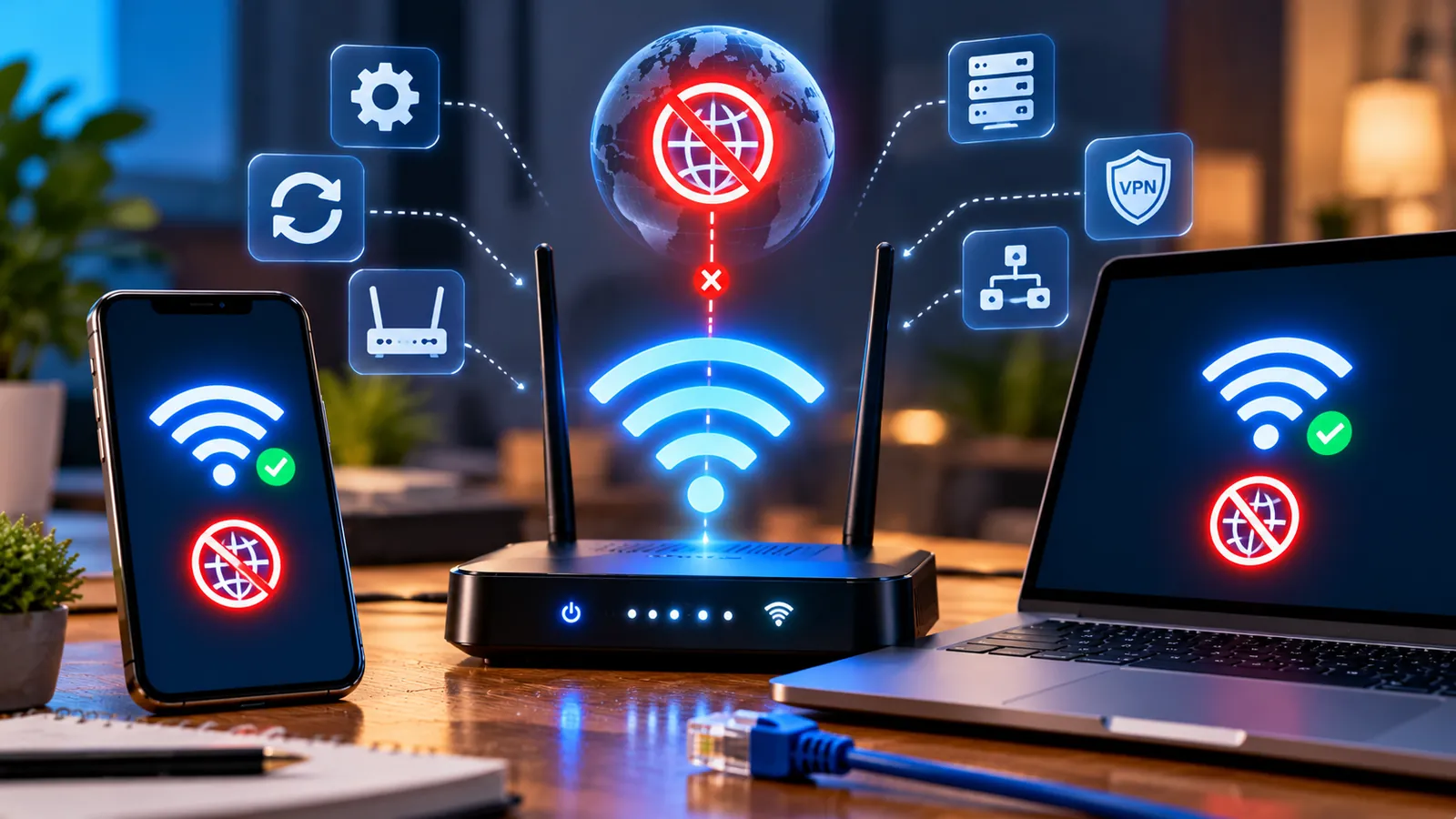
Last reviewed: October 8, 2026. Seeing full Wi-Fi bars while websites refuse to load is one of the most confusing network problems. Your phone or computer is successfully connected to the router, but that does not automatically mean the router itself has a working path to the internet.
The fastest way to fix it is to identify where the connection stops: your device, the Wi-Fi network, the router, or your internet provider. That sounds technical, but you can usually narrow it down in less than five minutes.
This guide covers Android, iPhone, Windows and Mac, starting with the safest fixes before moving to DNS, DHCP and network resets.
What does “Wi-Fi connected but no internet” actually mean?
Wi-Fi and internet access are two different links. Your device first connects to a local wireless network created by the router. The router then connects that local network to your internet service provider.
So the Wi-Fi icon can look completely normal even when the modem has lost service, the router has a DNS problem, your device received a bad IP address, a VPN is blocking traffic, or a public network is waiting for you to sign in.
First test: does the internet work on another device?
Before changing settings, connect another phone, laptop or tablet to the same Wi-Fi network.
- If nothing can get online, the problem is probably the router, modem or ISP.
- If other devices work normally, the problem is probably limited to the original device.
- If only one website or app fails, the Wi-Fi connection itself may be fine.
Google and Apple both recommend this simple comparison because it immediately tells you whether to troubleshoot the device or the network.
1. Turn Wi-Fi off and back on
Start with the simplest reset. Turn Wi-Fi off, wait a few seconds and turn it on again.
On a phone, briefly enabling Airplane Mode and then disabling it can also force the wireless interfaces to reconnect. Google specifically recommends toggling Wi-Fi and Airplane Mode when diagnosing Android connection problems.
If the problem disappears immediately, the device may simply have had a stale connection to the access point.
2. Restart the device
Restart the phone or computer before changing advanced settings. A restart can clear temporary networking problems and force the system to request fresh network information.
On Mac, Apple notes that restarting can automatically renew the internet address assigned when the Mac joined the Wi-Fi network.
3. Restart the router and modem correctly
If several devices are affected, restart the network equipment.
- Unplug the router and modem from power.
- Wait about 15–30 seconds.
- Reconnect the modem first if it is a separate device.
- Wait until its normal internet/service lights return.
- Reconnect the router.
- Give the network a few minutes to come back fully.
Google’s Pixel troubleshooting guidance recommends unplugging router and modem power, then waiting before reconnecting them. Apple also recommends restarting the router for Wi-Fi internet problems.
Do not repeatedly press the factory-reset button. A normal power restart is very different from a factory reset, which can erase your network configuration.
4. Check whether your ISP is down
If every device connects to Wi-Fi but none can reach the internet, the ISP may be having an outage.
Look at the modem’s internet, WAN or service light. A red, amber or permanently blinking status light can indicate loss of service, although the exact meaning depends on the model.
Use mobile data to check your ISP’s status page or contact support. Apple explicitly recommends contacting the ISP when multiple devices on the same Wi-Fi network cannot get online.
5. Public Wi-Fi may be waiting for a sign-in page
Hotels, airports, hospitals and cafés often use a captive portal. Your device joins Wi-Fi successfully, but internet access remains blocked until you accept terms or sign in.
Open a browser and try visiting a normal website. The network may redirect you to its login page.
If the login page does not appear, disconnect and reconnect to the network, temporarily disable a VPN, and try again. Google notes that public Wi-Fi networks often require completion of a webpage before internet access is allowed.
6. Disable VPN, proxy and security software temporarily
VPN software, security filters, ad blockers and manual proxy settings can intercept network traffic. If they malfunction, the device can still show Wi-Fi as connected while nothing reaches the internet.
Apple specifically recommends checking or removing VPN and security software when Wi-Fi is connected but internet access fails. Microsoft also tells Windows users to check manual proxy settings.
Disable the VPN or proxy temporarily and test again. If that fixes the connection, update or reconfigure the software rather than leaving the network protection permanently disabled.
7. Forget the Wi-Fi network and reconnect
If only one device is affected, removing the saved Wi-Fi profile can fix a corrupted password, authentication state or network configuration.
On iPhone
Open Settings > Wi-Fi, tap the information button next to the network, choose Forget This Network, then reconnect and enter the password again.
On Android
Open the Wi-Fi or Internet settings, select the saved network and choose Forget. The exact labels vary by manufacturer.
On Windows
Open Settings > Network & Internet > Wi-Fi > Manage known networks, choose the network and select Forget.
Reconnect only after confirming you know the Wi-Fi password.
8. Windows: renew the IP address and flush DNS
If Windows says the Wi-Fi network is connected but shows no internet, Microsoft recommends renewing the IP configuration and clearing the DNS cache.
Open Command Prompt as Administrator and run these commands one at a time:
ipconfig /releaseipconfig /renewipconfig /flushdns
The first two commands ask the router for a fresh IP configuration. The third clears cached DNS information.
Microsoft also notes that an address beginning with 169.254 can mean Windows failed to receive a valid IP address from the router. That points toward DHCP, router or network configuration problems rather than a web-browser problem.
9. Mac: renew the DHCP lease
A Mac can also be connected to Wi-Fi but have a bad or expired IP assignment.
Apple provides a built-in DHCP renewal option:
- Open Apple menu > System Settings > Network.
- Select Wi-Fi and open Details.
- Choose TCP/IP.
- Click Renew DHCP Lease.
Apple says renewing the DHCP lease can resolve connection problems when an address has expired or is already being used by another device.
10. Check DNS if websites fail but the network otherwise looks normal
DNS converts names such as example.com into the numerical addresses computers use. If DNS is broken, Wi-Fi can appear connected while websites fail to open by name.
Before changing DNS, restart the router and device and test other websites. DNS is only one possible cause.
If your ISP or network administrator provides specific DNS servers, use those. On managed school or work networks, do not replace DNS settings without permission.
On Windows, flushing the DNS cache with ipconfig /flushdns is a safer first step than immediately entering third-party DNS servers.
11. Reset network settings only as a last device-level step
Network reset is useful, but it also removes saved configuration.
iPhone and iPad
Apple recommends network reset only after other fixes fail. Go to Settings > General > Transfer or Reset [device] > Reset > Reset Network Settings.
This removes saved Wi-Fi networks and passwords and also resets cellular, VPN and APN settings.
Android
Android manufacturers use different names, but you may find an option such as Reset Wi-Fi, mobile & Bluetooth or Reset network settings under System or General management.
Windows
Windows includes a network reset option under advanced network settings. Use it after ordinary troubleshooting because network adapters and settings are reinstalled or reset.
Before any network reset, make sure you know the Wi-Fi password and any special VPN or work-network settings you need.
What if only one app has no internet?
If the browser works but one app does not, stop troubleshooting the router. The problem is probably inside that app, its permissions, a firewall, a VPN rule or the service itself.
- Force-close and reopen the app.
- Check whether the service is having an outage.
- Update the app.
- Disable VPN or content-filtering software temporarily.
- Check firewall settings on Windows or Mac.
- Try the same service in a browser.
Microsoft notes that when Windows shows a normal internet connection but problems remain, a specific app, website or firewall may be responsible.
What if one device fails on every Wi-Fi network?
Try the device on a completely different Wi-Fi network, such as a hotspot or another home.
If the device fails everywhere while other devices work, focus on that device: software updates, VPN/security software, network settings, drivers or hardware.
Apple recommends contacting Apple if an iPhone or iPad cannot connect properly on any Wi-Fi network after troubleshooting.
What if every device fails only on your home Wi-Fi?
That strongly suggests the home network or ISP is the problem.
- Restart the modem and router.
- Check cables and modem status lights.
- Check for an ISP outage.
- Update router firmware if you manage the router.
- Make sure WAN/internet settings have not been changed.
- Contact the ISP if the router has Wi-Fi but no internet service.
Do not factory-reset the router unless you have the ISP credentials and configuration needed to set it up again.
2.4 GHz vs 5 GHz: can changing bands help?
Yes, sometimes — but usually for connection quality rather than a total ISP outage.
Apple recommends trying another router frequency when available, such as switching between 2.4 GHz and 5 GHz. A congested or unstable band can cause poor connectivity even while the device remains associated with Wi-Fi.
If every band has no internet on every device, changing frequencies will not fix an ISP outage.
A quick diagnostic order that saves time
- Test another device on the same Wi-Fi.
- Toggle Wi-Fi and restart the affected device.
- Restart router and modem.
- Check for an ISP outage or public Wi-Fi login page.
- Disable VPN/proxy/security software temporarily.
- Forget and rejoin the Wi-Fi network.
- Renew IP/DHCP and clear DNS where appropriate.
- Use network reset only after the safer steps fail.
This order matters because it starts with changes that are easy to reverse and avoids destroying saved network settings unnecessarily.
Frequently asked questions
Why does my phone say connected to Wi-Fi but no internet?
The phone has successfully connected to the router, but the router may not have internet access, or the phone may have an IP, DNS, VPN or captive-portal problem.
Should I reset my router?
Restart it first. A factory reset should be a last resort because it can erase ISP and Wi-Fi settings.
Can DNS cause Wi-Fi connected with no internet?
Yes, DNS problems can prevent websites from resolving even when the underlying network is working. However, DNS is only one possible cause, so test the router and other devices first.
What does a 169.254 address mean on Windows?
Microsoft says an address in the 169.254.x.x range usually means Windows could not obtain a valid IP address from the router, which points toward DHCP or network configuration trouble.
Will resetting network settings delete my photos or apps?
No, but it can remove saved Wi-Fi passwords, VPN settings and other network configuration. The exact items vary by operating system.
Why does Wi-Fi work on my phone but not my laptop?
If another device works on the same network, the router and ISP are probably functioning. Focus on the laptop’s Wi-Fi profile, VPN, proxy, IP assignment, DNS, firewall or network adapter.
The bottom line
A strong Wi-Fi symbol only proves that your device can talk to the router. It does not prove that the router can reach the internet.
Start by testing another device. If everything is offline, look at the router, modem and ISP. If only one device is affected, work through Wi-Fi reconnect, VPN/proxy checks, IP renewal and network settings before using a full reset.
For another common Android problem, see Why Is My Google Storage Suddenly Full? You can also read our WhatsApp deleted-message recovery guide.
Sources
Microsoft Support — Fix Wi-Fi connection issues in Windows.
Google Pixel Help — How to fix Wi-Fi connection problems.
Android Help — Fix internet connection problems on Android devices.
Apple Support — If you can’t connect to Wi-Fi on your iPhone or iPad.
Apple Support — If your Mac isn’t connecting to the internet over Wi-Fi.
Apple Support — Renew your IP address from the DHCP server on Mac.
You may also like
 Technology & How-To
 Google Find Hub Trackers Get NFC Support — How to Identify Lost Tags and Set Left-Behind Reminders
Google Play services v26.39 adds NFC support for compatible Find Hub tracker tags and a new setup flow…
 Technology & How-To
 Android 17 Advanced Protection Adds 6 Powerful Security Features — Should You Turn It On?
Android 17 expands Advanced Protection with encrypted intrusion logs, USB protection, accessibility restrictions, WebGPU blocking and stronger authentication…
 Technology & How-To
 Google Pixel October 2026 Update Fixes 3 Bugs and Critical Security Flaws — Should You Install It?
Google’s October 2026 Pixel update fixes a missing keyboard, VoIP audio distortion and Pixel 11 photo rotation while…